I used to tell people apt and dnf were basically the same tool wearing different hats. Then I spent a weekend migrating a small hosting client from an old CentOS box to Rocky Linux and watched dnf's dependency resolver refuse to touch a broken transaction that apt would have quietly limped through. That is the moment you actually learn the difference between these two, not from a comparison chart.
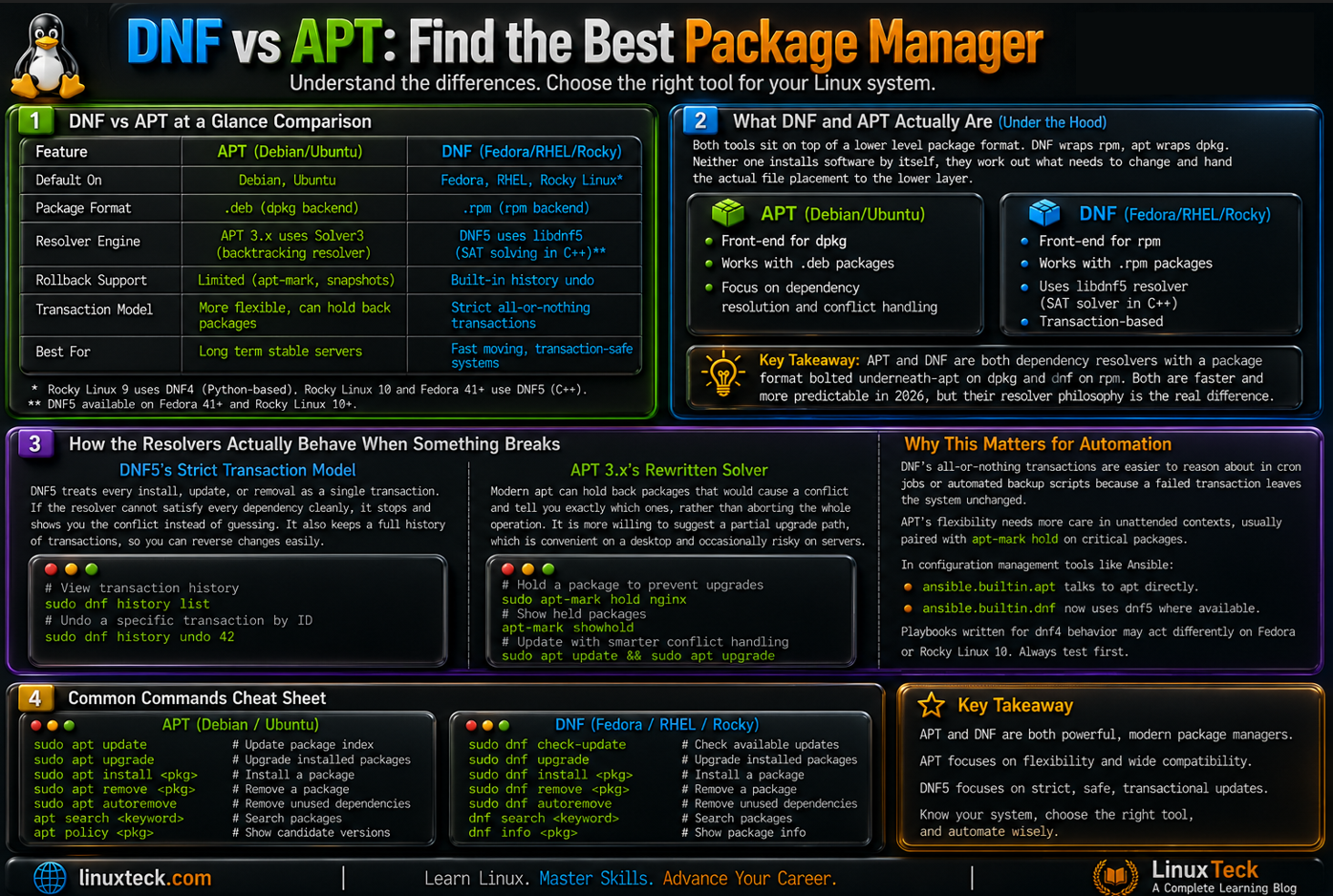
| Default On | APT: Debian, Ubuntu | DNF: Fedora, RHEL, Rocky Linux |
| Resolver Engine | APT 3.x uses Solver3, a backtracking resolver | DNF5 uses a C++ libdnf5 resolver based on SAT solving |
| Rollback Support | APT: limited, relies on apt-mark and snapshots | DNF: built in history undo |
| Best For | APT: long term stable servers | DNF: fast moving, transaction-safe systems |
DNF vs APT: What They Actually Are Under the Hood
Both tools sit on top of a lower level package format. DNF wraps rpm, apt wraps dpkg. Neither one installs software by itself, they just work out what needs to change and hand the actual file placement to the lower layer. That distinction matters more in 2026 than it used to, because both front ends have been rewritten to move dependency solving into a compiled core instead of scripting glue.
On the Ubuntu side, apt has quietly become less of a thin wrapper around apt-get and more of a first class tool with its own solver logic. On the Fedora and RHEL side, dnf5 replaced the old Python based dnf4 entirely, moving the resolver into libdnf5 written in C++. The practical result on both ends is the same direction: fewer stalls on big upgrades, less time spent staring at a spinner.
If you only remember one thing, remember this: a package manager's job is conflict resolution, not just installation. Everything else is convenience on top of that core job.
Key Takeaway:
How the Resolvers Actually Behave When Something Breaks
Most comparisons stop at "apt is for Debian, dnf is for Red Hat" and never explain what happens the moment two packages want conflicting versions of the same library. That is the part that decides whether you trust a package manager on a production box.
DNF5's Strict Transaction Model
DNF5 treats every install, update, or removal as a single transaction. If the resolver cannot satisfy every dependency cleanly, it stops and shows you the conflict instead of guessing. It also keeps a full history of transactions, so dnf history undo <id> can reverse an entire update in one command, not just one package.
APT 3.x's Rewritten Solver
Modern apt no longer just walks a dependency tree top to bottom. The newer solver can hold back packages that would cause a conflict and tell you exactly which ones, rather than aborting the whole operation. It is still more willing than dnf to suggest a partial upgrade path, which is convenient on a desktop and occasionally risky on a server you did not plan to half-upgrade.
Why This Matters for Automation
If you are scripting unattended upgrades, dnf's all-or-nothing transaction behavior is easier to reason about in a cron job or an automated backup script, because a failed transaction leaves the system exactly where it started. Apt's more flexible solver needs a bit more care in unattended contexts, usually paired with apt-mark hold on anything critical.
Configuration management tools follow the same split. Ansible's ansible.builtin.apt module talks to apt directly and behaves the same way it always has, but the ansible.builtin.dnf module now backs onto dnf5 on systems where dnf5 is the default, which means playbooks written against old dnf4 output parsing or module options can silently behave differently on a freshly provisioned Fedora or Rocky 10 host. Test playbooks against a real target before assuming dnf4-era assumptions still hold.
Compatibility Note:
DNF5 changed several flag names from DNF4. Scripts written for older Fedora or RHEL 8 systems using dnf4 syntax like --best combined with certain plugin hooks may need small adjustments before they run cleanly on a fresh Rocky Linux 9 or 10 install.
Real Commands: Updating, Installing, and Verifying on Both
Theory is fine, but this is the section people actually bookmark. Below are the everyday commands on Ubuntu (apt) and Rocky Linux (dnf), kept separate on purpose since mixing distro syntax in one block is how junior admins end up copy-pasting the wrong command into the wrong SSH session at 2am. That is a mistake I made exactly once, on a client's Rocky box while half asleep, running an apt-get command that obviously did not exist there, and it taught me to always check the prompt before pasting anything.
Updating the System on Ubuntu 26.04
Refresh the package index first, then apply upgrades.
LinuxTeck.com
sudo apt update
# Apply all pending upgrades
sudo apt upgrade
# See what would still be upgradable
sudo apt list --upgradable
Updating the System on Rocky Linux 9 (DNF4) and Rocky Linux 10 (DNF5)
Rocky Linux 9 still ships the Python based dnf4 by default. DNF5 is native starting with Rocky Linux 10, matching the shift Fedora made at version 41 and later. Before running anything below, check which one your own box is actually running so you are not guessing.
LinuxTeck.com
dnf --version
# Confirm whether the dnf5 package is actually installed
rpm -q dnf5
Once you know which version you are on, the commands below work the same way on both, since dnf5 kept the basic install and upgrade syntax intact even though the resolver underneath changed.
LinuxTeck.com
sudo dnf check-update
# Apply the upgrade transaction
sudo dnf upgrade
# Review the transaction history
sudo dnf history list
Installing and Rolling Back a Package
This is where dnf's history feature earns its keep. Install something, decide it was a mistake, undo it in one line.
LinuxTeck.com
sudo dnf install nginx
# List recent transactions with IDs
sudo dnf history
# Undo a specific transaction by its ID
sudo dnf history undo 42
On Ubuntu, there is no direct one-line equivalent to dnf history undo. Most admins lean on apt-mark holds and configuration snapshots instead, which is worth knowing before you assume both tools handle rollback the same way.
DNF vs APT: Full Comparison and Verdict
| Category | APT (Ubuntu / Debian) | DNF (Fedora / RHEL / Rocky) | Verdict |
|---|---|---|---|
| Cold cache performance | Fast metadata refresh with parallel downloads | DNF5's C++ core cut resolve times significantly vs DNF4 | Close call |
| Rollback / undo | Manual, snapshot or apt-mark based | Native history undo per transaction | DNF ahead |
| Third-party software | PPAs, wide but variable trust level | COPR and RPM Fusion, uncurated community builds with the same trust caveats as PPAs | Vet either one before use |
| Long-term support cadence | Ubuntu LTS and Debian stable, multi-year support | RHEL and Rocky offer similar LTS windows via major versions | Both solid |
| Flatpak/Snap integration | Snap is native to Ubuntu, sometimes forced | Flatpak is the default on Fedora Workstation | User preference |
| Enterprise support path | Ubuntu Pro adds extended CVE patching | Red Hat subscription or Rocky's community model | Both production ready |
Enterprise Insight:
If your team is choosing between a Debian family stack and an RPM family stack purely for stability, both are enterprise viable now. The deciding factor is usually not the package manager itself, it is which ecosystem your existing configuration management and monitoring tooling already speaks fluently. Compare distro fundamentals in our RHEL vs Ubuntu server breakdown before committing a whole fleet to one side.
Performance Note:
On systems with many enabled repos, dnf5's metadata caching noticeably reduces repeated lookups compared to older dnf4 behavior. If you manage a VPS with several third-party repos, it is worth checking your hosting provider's baseline resources first. A quick look at how providers compare, like this Cloudways vs Vultr comparison, can save you from running package operations on an underpowered instance.
Red Flags: What Actually Breaks and How to Read It
"E: Unable to correct problems, you have held broken packages":
This apt error usually means a manually held package is blocking a dependency chain. Run apt-mark showhold to see what is pinned, then decide if it should stay held. If you are unsure what changed recently, our package management cheat sheet covers the hold and pin workflow in more depth.
"Error: Transaction test error" during dnf upgrade:
DNF stops before touching the filesystem when a transaction test fails, which is safer but confusing the first time you see it. The old --setopt=strict=0 workaround from DNF4 does not carry over, and --skip-broken was dropped from DNF5 entirely rather than renamed. Instead, run sudo dnf upgrade --no-best to let the transaction proceed without forcing the newest version of every package, then check dnf history info for the specific conflict before deciding how to resolve it.
Repo metadata stuck or refusing to refresh:
On both tools this is almost always a stale cache or a clock skew issue. Clear it with sudo apt clean on Ubuntu or sudo dnf clean all on Rocky, then retry. If the server's time is drifting, check it against basic system administration fundamentals before assuming the package manager itself is broken.
APT vs DNF - FAQ
Q1: Can I use dnf commands on Ubuntu or apt commands on Fedora?
No, not directly. Each tool is built around its own package format, dpkg for apt and rpm for dnf, so the binaries and metadata are not compatible between them. If you are migrating between distro families, plan on relearning the command set rather than translating line by line. Our DNF guide for beginners is a good starting point if you are coming from an apt background.
Q2: Why does dnf feel slower on the first run after a fresh install?
The first dnf check-update after installation has to build a full local metadata cache from scratch, which takes longer than subsequent runs. Once that cache exists, dnf5's resolver performs noticeably faster on repeat operations. This is expected behavior, not a misconfiguration.
Q3: Is Ubuntu Pro required to get security patches through apt?
No, standard Ubuntu LTS releases still receive apt-delivered security updates for their normal support window without a subscription. Ubuntu Pro extends that coverage further and adds patching for additional packages outside the main repos, which mainly matters for teams running older LTS versions past their standard end of life.
Q4: Should I trust PPAs the same way I trust COPR repos?
Treat both the same way: as third-party sources outside the distro's own review process. Neither PPAs nor COPR are vetted to the same standard as the base repos, so check maintainer activity and read the package source before adding either with add-apt-repository or dnf copr enable on a production box.
Q5: Does dnf history undo actually restore configuration files too?
It reverses the package transaction itself, meaning installs, removals, and version changes, but it does not automatically restore config files you edited by hand afterward. Keep your own backups of critical configs regardless of which package manager you use, and pair this with a proper server backup strategy.
Final Thoughts: Pick Based on Your Ecosystem, Not Habit
Neither tool is objectively faster or safer across every scenario in 2026. DNF5's transaction model gives you more confidence on servers where an undo command matters, while apt's rewritten solver still edges out on flexibility for desktop and mixed-repo setups.
If you are already running Ubuntu LTS or Debian stable, there is rarely a good reason to switch package managers just for a marginal speed gain. If you are standing up new infrastructure and value transactional safety, Rocky Linux with dnf5 is worth serious consideration, especially paired with the setup steps in our Rocky Linux 9 install guide.
Whichever side you land on, the fundamentals matter more than the tool. Get comfortable with basic package operations first through our basic Linux commands guide, then branch into distro specific workflows once the muscle memory is there.
Further Reading on LinuxTeck:
15 Useful YUM Commands for Beginners - useful if you are working on older RHEL systems that predate dnf.
Debian vs Ubuntu - a closer look at the two most common apt-based distros and how they differ.
Flatpak vs Snap vs AppImage - how universal package formats fit alongside apt and dnf.
Best Linux Distro for Beginners - helpful if the package manager decision is part of a bigger distro choice.
For the official technical reference on DNF5's architecture, the DNF5 documentation covers the resolver internals in more depth than any blog post can.
LinuxTeck - A Complete Linux Infrastructure Blog
LinuxTeck covers everything from beginner Linux commands to advanced Linux system administration and DevOps career guidance, written by practitioners for professionals working on Ubuntu, Rocky Linux, RHEL, and enterprise Linux environments every day.
Support My Work
Thank you for reading and for being part of this journey. If this article saved you time, consider buying me a coffee. Every contribution helps me keep producing in-depth, practical Linux content for readers like you.

Thank you for your endless support