

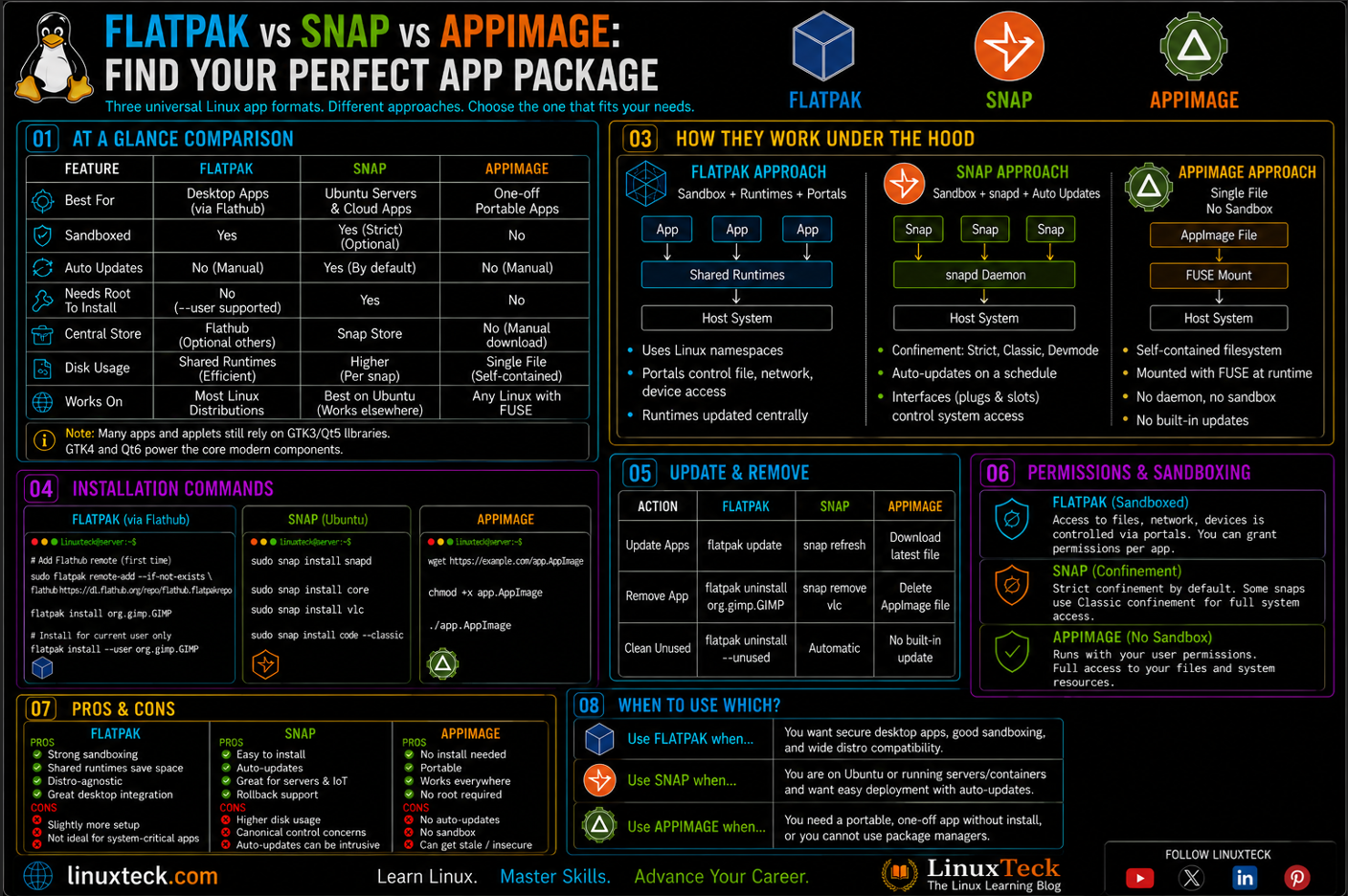
Flatpak, Snap, and AppImage are the three most popular universal package formats in Linux. They all let you install applications across different Linux distributions without worrying about traditional package dependencies, but they work in very different ways.
Choosing the right format affects application security, update behavior, disk usage, portability, and compatibility with your system. In this guide, you'll learn how Flatpak, Snap, and AppImage work, compare their strengths and limitations, and discover which one is the best choice for desktop applications, servers, and portable software.
| Best For Desktop Apps | Flatpak (via Flathub) |
| Best For Ubuntu Servers | Snap |
| Best For One-Off Portable Apps | AppImage |
| Needs Root To Install | Flatpak: No (supports --user mode). Snap: Yes. AppImage: No |
The Short Answer: What These Three Formats Actually Are
All three exist to solve the same annoying problem. A regular distro package like a .deb or an .rpm depends on libraries that are already sitting on your system, and if your distro ships an old version of one of them, the app either refuses to install or breaks in weird ways. Flatpak, Snap, and AppImage all get around this by bundling most or all of an app's dependencies inside the package itself.
Flatpak runs apps inside a sandbox built on Linux namespaces and bundles shared "runtimes" so five GNOME apps do not each carry their own copy of GTK. Snap is Canonical's version of the same idea, distributed through the Snap Store and backed by a daemon called snapd that also handles background updates. AppImage skips the sandbox and the daemon entirely. It is one file, you mark it executable, and it runs, pulling most of its dependencies from inside that single file at launch.
The differences only really start to matter once you get into how they update, how much disk space they eat over time, and whether they touch your system outside the app folder at all.
Key Points:
How It Actually Works Under The Hood
Most comparisons stop at "one is sandboxed and one is not" and leave it there. That is true but it skips the part that actually affects you day to day, which is how each format handles updates and permissions once the app is already installed.
Flatpak's Runtime And Portal System
A Flatpak app declares a runtime dependency, something like the Freedesktop or GNOME runtime, and multiple apps share that same runtime on disk instead of each bundling their own. When a security patch lands in that shared runtime, every app built against it benefits from a single update. Access to files, the network, and devices goes through a portal system, so an app cannot just silently read your Downloads folder unless you or a portal prompt allows it. The official Flatpak documentation covers the full permission and portal model in more depth if you want to go further than what is practical to cover here.
Snap's Confinement Levels
Snap uses something called confinement, and it comes in three flavors: strict, classic, and devmode. Strict confinement is the sandboxed default. Classic confinement removes the sandbox entirely, which some snaps request because they need full system access, and this is where a lot of the "Snap is not really sandboxed" criticism actually comes from. Snapd also handles automatic background updates on a schedule, which is convenient until you are mid-demo and a snap refreshes itself. If you are evaluating Snap for a desktop session specifically, our X11 vs Wayland guide covers how the display session choice interacts with Snap confinement and GPU driver access.
AppImage's Bundle And Launch Process
An AppImage is a compressed filesystem image with an embedded loader. When you run it, it mounts itself using FUSE, exposes its bundled libraries to the app process, and runs. There is no daemon, no repository, and critically, no built-in update mechanism unless the developer bundles a tool like AppImageUpdate. If a project goes quiet, that AppImage and every library inside it stays exactly as vulnerable as it was the day it was built.
Compatibility Note:
Snap's daemon-driven model is built around Ubuntu and works best there. Flatpak was designed to be distro-agnostic from day one, which is why it is the only one of the three with solid first-class support on RHEL-family systems like Rocky Linux. AppImage works anywhere with FUSE installed, but "anywhere" does not mean "identically everywhere."
The Practical Commands: Installing And Managing All Three
Theory is fine, but you came here to actually install something. Here is how each format looks in practice on Ubuntu and on Rocky Linux, since the setup step is where most of the real differences show up.
Setting Up Flatpak On Ubuntu 24.04
Flatpak is not preinstalled on Ubuntu by default anymore, so you need to add it and point it at Flathub.
LinuxTeck.com
sudo apt update
sudo apt install flatpak -y
# Add the Flathub repo, this is where most apps live
sudo flatpak remote-add --if-not-exists flathub https://dl.flathub.org/repo/flathub.flatpakrepo
# Install an app from Flathub
flatpak install flathub org.gimp.GIMP
Setting Up Flatpak On Rocky Linux 9
Rocky Linux ships Flatpak in its default repos, so the setup is shorter, which is part of why Flatpak feels more at home on RHEL-family boxes than Snap does.
LinuxTeck.com
sudo dnf install flatpak -y
# Same Flathub remote works identically here
sudo flatpak remote-add --if-not-exists flathub https://dl.flathub.org/repo/flathub.flatpakrepo
# Install the same app to confirm parity
flatpak install flathub org.gimp.GIMP
Installing Snap On Ubuntu 24.04
Snapd is preinstalled on stock Ubuntu images, so most of the time this step is already done for you.
LinuxTeck.com
sudo apt update
sudo apt install snapd -y
# Install a snap by name, no repo setup needed
sudo snap install vlc
# Confirm the version and confinement level
snap list vlc
Running An AppImage On Either Distro
This is the one place Ubuntu and Rocky are identical, because AppImage does not care which distro it lands on, only whether FUSE is present.
LinuxTeck.com
sudo add-apt-repository universe -y
# Install FUSE 2 runtime if on Ubuntu 24.04 LTS (otherwise launch fails)
sudo apt install libfuse2t64 -y
# Make executable and run
chmod +x MyApp-x86_64.AppImage
./MyApp-x86_64.AppImage
The first time I ran an AppImage on a fresh Rocky Linux minimal install, it just sat there and refused to launch with a cryptic mount error. Turned out FUSE was not installed at all on that image. Installing fuse-libs via dnf fixed it in about ten seconds, but it cost me twenty minutes of googling because the error message gave no hint that FUSE was even the problem.
Verifying What Is Actually Installed
Once you have a mix of formats on one machine, it helps to know how to list them separately, since none of these show up in a plain apt list --installed.
LinuxTeck.com
flatpak list
# List every installed snap and its channel
snap list
# Check how much disk each format is actually using
du -sh /var/lib/snapd /var/lib/flatpak
Full Comparison: Flatpak vs Snap vs AppImage
| Feature | Flatpak | Snap | AppImage | Verdict |
|---|---|---|---|---|
| Sandboxing | Strong, portal based | Strong by default, weaker in classic mode | None (runs with full user permissions) | Flatpak |
| Auto updates | Manual by default | Automatic, background refresh | No built-in auto update | Depends on workflow |
| Server and headless support | Weak, desktop focused | Strong, built for Ubuntu servers and IoT | Limited, requires GUI/FUSE runtime | Snap |
| Disk usage with many apps | Low, shared runtimes | Higher, more bundled libraries per app | Highest per app, no sharing | Flatpak |
| Cross distro support | Excellent, Ubuntu and RHEL family alike | Mostly Ubuntu-centric in practice | Universal, requires FUSE library | Flatpak / AppImage |
| Zero-install portability | No, requires daemon/runtime | No, requires snapd service | Yes, fully standalone executable | AppImage |
Enterprise Insight:
The one case where the "Flatpak wins" verdict above does not apply is a headless production server. Snap's daemon model and Canonical's IoT tooling exist precisely for that scenario, and Flatpak was never really designed to run without a display session. If you manage a fleet, treat Snap as the format for background services and Flatpak as the format for anything a human actually clicks on. For those servers, having a solid backup strategy matters as much as the package format — our Linux server backup solutions guide covers the tools that work well alongside Snap-managed services.
Best Practice:
Before rolling any of these formats out to a team, test the install and update flow on a throwaway VPS rather than your daily driver. If you are comparing hosts for that kind of testing, our breakdowns of Cloudways vs Vultr and DigitalOcean vs Vultr cover exactly this kind of quick, disposable environment.
Red Flags: What Breaks And How To Diagnose It
Each format fails in its own distinct way, and the error messages rarely point you at the actual cause.
"error: Sandbox permission denied" On A Working Flatpak App:
This almost always means the app is trying to reach a file or device outside what its portal permissions allow. Check what it currently has access to with flatpak info --show-permissions org.appname.App and grant only what is actually needed with flatpak override. Our Linux server hardening checklist covers the same least-privilege thinking that applies here.
Snap Refreshes Mid-Task And Interrupts A Running App:
Snapd checks for updates on a schedule and can refresh an app out from under you. Check when the next refresh is due with snap refresh --time and hold updates temporarily with sudo snap refresh --hold=24h vlc if you need a session uninterrupted. This matters more on servers, where our package management cheat sheet is worth keeping nearby.
"dlopen(): error loading libfuse.so.2" or "fuse: failed to exec fusermount":
This occurs when the legacy FUSE 2 runtime is missing, which is common on Ubuntu 24.04 LTS and minimal Enterprise Linux installs. On Ubuntu 24.04 LTS, run sudo apt install libfuse2t64 -y. On Rocky Linux 9 or RHEL 9, run sudo dnf install fuse-libs -y, then confirm with lsmod | grep fuse. If you are still setting up the base system, our Rocky Linux 9 install guide walks through what gets installed by default.
Flatpak vs Snap vs AppImage - FAQ
Q1: Can I have Flatpak, Snap, and AppImage installed on the same machine at once?
Yes, and it is common. They do not conflict with each other or with your regular apt or dnf packages, since each keeps its own files in a separate location such as /var/lib/flatpak or /var/lib/snapd. The only real downside is disk usage adds up if you install the same app in more than one format. Use flatpak list and snap list side by side to see what you actually have.
Q2: Why does my Flatpak app look visually different from the rest of my desktop?
Because Flatpak apps run against a runtime, not your host system's /usr, they cannot directly read your GTK or Qt theme files. You need to install the matching theme as a Flatpak extension, something like flatpak install org.gtk.Gtk3theme.your-theme-name. This is one of Flatpak's genuine rough edges compared to a native package.
Q3: Is Snap actually less secure than Flatpak?
Not inherently, but it depends on confinement level. A strictly confined snap is comparable in sandbox strength to a Flatpak. The trust concerns come from classic confinement snaps, which opt out of sandboxing entirely, and from Canonical's centralized Snap Store having no equivalent to Flathub's more open submission process. Run snap info appname to see the confinement level before you install something security-sensitive.
Q4: Can I uninstall unused Flatpak runtimes to free up space?
Yes, and you probably should occasionally. Old runtimes stick around after you remove the apps that used them. Run flatpak uninstall --unused to clear anything not tied to a currently installed app. It is worth checking your disk usage monitoring setup if this is a recurring issue on a shared machine.
Q5: Does AppImage support any kind of automatic updates at all?
Only if the developer builds it in. Some AppImages embed update information that a separate companion tool can read, using the AppImageUpdate or appimageupdatetool utility, which checks a zsync file hosted alongside the release. Run it against the file with appimageupdatetool ./MyApp.AppImage, since this is a standalone tool rather than a built-in flag on the AppImage itself. If the app was not built with update information embedded, you are responsible for manually downloading new versions, which is exactly why AppImage is a poor fit for anything you cannot babysit.
Final Thoughts: Pick By Job, Not By Loyalty
There is no universal winner here, and anyone telling you to pick one format for everything is oversimplifying. Flatpak is the strongest general pick for desktop apps because of its sandboxing and shared runtimes, Snap earns its place on Ubuntu servers and background services, and AppImage is the right call when you need to run something once without leaving a trace.
None of this takes more than an afternoon to test properly. Install flatpak first since it covers the widest range of desktop software, keep snapd around for anything Ubuntu-specific, and only reach for an AppImage when you genuinely need a zero-install option. If you want a clean throwaway environment to run those tests without risking your daily machine, our guide to the best Linux VPS hosting compares providers that spin up a fresh Ubuntu or Rocky Linux instance in under a minute.
If you are still deciding between Ubuntu and a RHEL-family distro as your daily base before any of this matters, our Debian vs Ubuntu comparison and our guide to picking a beginner-friendly distro are good starting points, and our KDE vs GNOME breakdown is worth reading if theming consistency across these formats is a dealbreaker for you.
Further Reading on LinuxTeck:
Linux Package Management Command Cheat Sheet - a quick reference for apt, dnf, and yum commands alongside the universal formats covered here.
DNF Guide For Beginners - useful if you are setting up Flatpak or troubleshooting dependencies on Rocky Linux or Fedora.
Linux Security Tools For Ethical Hackers - for a deeper look at sandboxing and permission auditing beyond app packaging.
Systemd Targets and Boot Modes Explained - background on the daemon-driven model that Snap's update mechanism is built on.
Kinsta Review 2026 - if you are hosting a desktop environment or dev box remotely to test any of these formats, this covers a managed alternative worth comparing.
If you want a dedicated Linux environment to test Flatpak, Snap, and AppImage packages without touching your main machine, Vultr lets you spin up a fresh Ubuntu or Debian instance in seconds, test every format from scratch, and tear it down when you're done — no leftover runtimes or broken dependencies to clean up.
LinuxTeck - A Complete Linux Infrastructure Blog
LinuxTeck covers everything from beginner Linux commands to advanced Linux system administration and DevOps career guidance, written by practitioners for professionals working on Ubuntu, Rocky Linux, RHEL, and enterprise Linux environments every day.
Thank you for reading and for being part of this journey. If this article saved you time, consider buying me a coffee. Every contribution helps me keep producing in-depth, practical Linux content for readers like you.

Thank you for your endless support



