Systemd targets boot modes Linux explained: Set your server to the wrong boot target and watch services mysteriously fail to start on the next reboot, even though the system boots fine. You reboot, nothing loads, and you're left staring at a login prompt wondering what happened. This is what happens when the concept of systemd targets boot modes and runlevels stays fuzzy. Most Linux admins learn this the hard way in production.
| Default Target | graphical.target or multi-user.target (systemd) |
| Check Current | systemctl get-default |
| Change Target | systemctl set-default multi-user.target |
| Old System Runlevels | Runlevels 0-6 (SysV init, mostly obsolete) |
Systemd Targets Boot Modes: What Linux Boot Targets Actually Do
A boot target is systemd's way of grouping services and defining what runs when your server starts. Think of it as a preset configuration. Want a graphical desktop? Load graphical.target. Running a headless database server? Use multi-user.target. Each target is just a collection of services and settings that systemd knows to activate together.
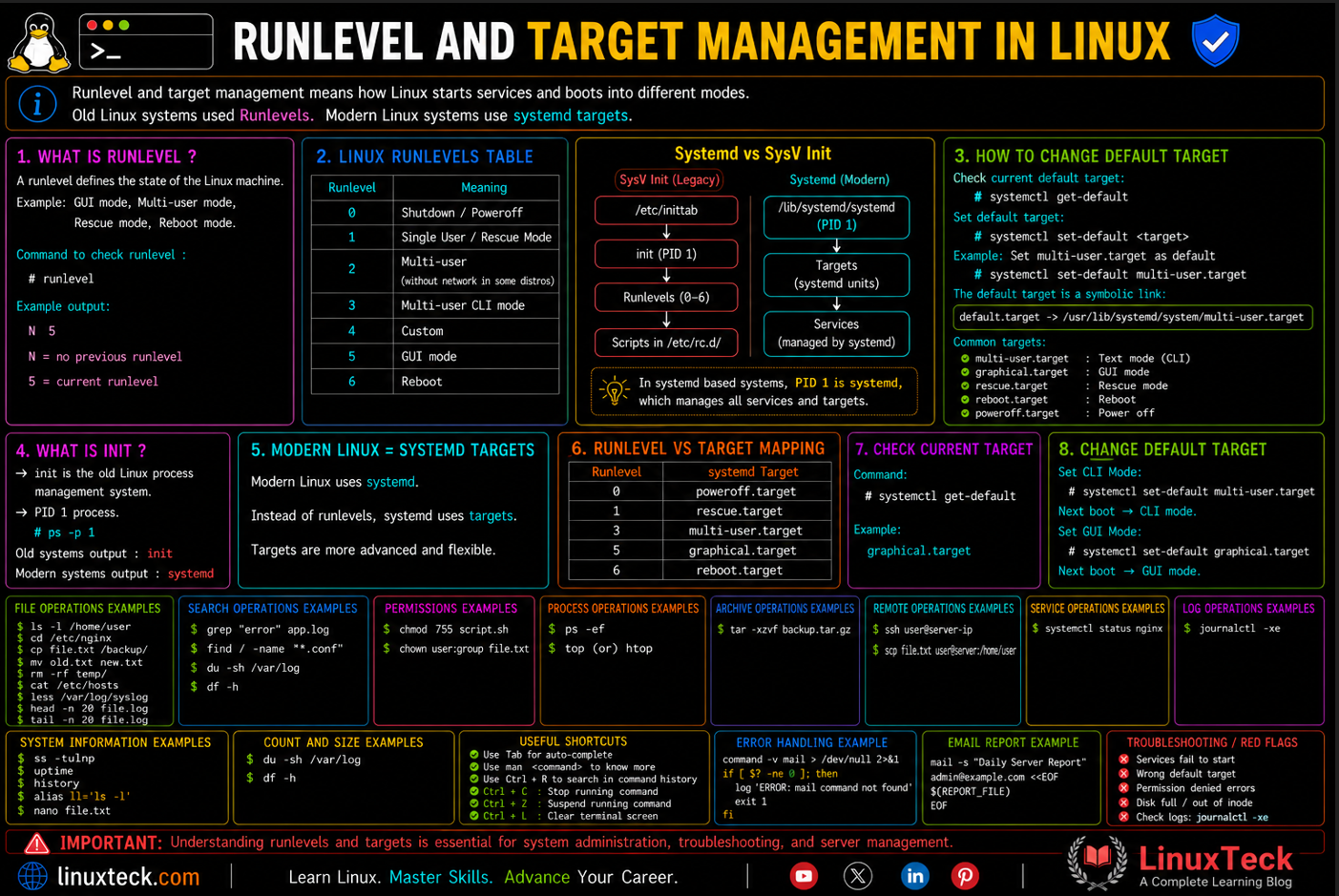
The old system used runlevels, numbered 0 through 6, each with a specific purpose. Runlevel 3 meant multi-user command line, runlevel 5 meant graphical, and so on. Modern Linux systems replaced this with targets because systemd units are more flexible and explicit about what they actually do. Instead of memorizing that runlevel 2 does something different on Debian than Fedora, you just ask: does this target pull in a display manager or not?
Here's what matters for your server: the boot target determines which services auto-start. Set the wrong target and critical services simply do not load. Set it right and everything you need launches automatically. Most server problems boil down to either the wrong target chosen or a service that depends on a target that is not running.
Key Points:
- Boot targets are systemd's way to group services for different boot scenarios.
- graphical.target loads the full desktop and all its dependencies.
- multi-user.target skips the display manager and runs a command-line-only environment.
- Knowing which one you need for your server type prevents boot-time service failures.
How Linux Systemd Targets Boot Modes Work Under the Hood
Most Linux documentation glosses over this, which is exactly why people get confused. Let's break it down properly so you understand what is actually happening when systemd starts.
What the Old Runlevels Did
In the SysV init era, the kernel would tell init to enter a specific runlevel. Init would then scan /etc/rc.d directories, find scripts matching that runlevel, and execute them in order. Runlevel 3 meant no GUI, runlevel 5 meant load X11. But here is the problem: different distros implemented runlevels differently, and the system did not really know dependencies between services. If you wanted networking before starting a database, you had to manually order the startup scripts. It was a mess.
How Systemd Replaced Them
Systemd replaced runlevels with targets. A target is just a special systemd unit file that groups other units (services, sockets, etc.) together. When you boot into graphical.target, systemd reads that target file, sees which services and units it requires, and activates them as a dependency graph. Services can declare "I require networking" or "I want the display manager" and systemd ensures those are available first. This is far more explicit and reliable.
The Target Unit Structure
Every target is stored as a .target file in /usr/lib/systemd/system/ or /etc/systemd/system/. The graphical.target file contains directives like Requires= and Wants= that pull in other services. There is also Conflicts= which says "if this target is running, do not start that service." This prevents you from accidentally running both a display manager and something that should not run in GUI mode at the same time.
Understanding Legacy Runlevels (For Older Systems)
If you ever touch a system still running SysV init instead of systemd, you will encounter runlevels. Runlevels are numbered 0 through 6, each representing a different state of the machine. They are mostly gone now, but you might still see them referenced in startup scripts or documentation. The mapping between old runlevels and modern targets tells you exactly what they meant.
Runlevel 0 meant shut down. Runlevel 1 was rescue mode for maintenance. Runlevel 3 was the standard multi-user command-line environment that servers lived in. Runlevel 5 was graphical mode. Runlevel 6 was reboot. The others (2 and 4) varied by distribution, which was part of the problem with the old system. You could never be sure what runlevel 2 meant on Debian versus Red Hat without checking documentation.
The command to check and change runlevels on old systems was simple: runlevel to check, init 3 to change to runlevel 3. Modern systems still have these commands as compatibility wrappers that call systemd, but they are not the real thing anymore. systemd.target official documentation
How Runlevels Map to Modern Targets
systemd maintains a compatibility layer so old runlevel commands still work. Here is the exact mapping so you understand what you are looking at on any Linux system.
| Legacy Runlevel | Meaning | Modern Systemd Target |
|---|---|---|
| 0 | System halt / poweroff | poweroff.target |
| 1 | Single-user / rescue mode | rescue.target |
| 2 | Multi-user / Varies by legacy distro (Default graphical in Debian/Ubuntu, CLI in RHEL) | multi-user.target |
| 3 | Multi-user with networking, CLI only | multi-user.target |
| 4 | Custom / unused (distribution specific) | multi-user.target |
| 5 | Multi-user with graphical interface | graphical.target |
| 6 | System reboot | reboot.target |
If you run init 3 on a modern system, systemd translates that to systemctl isolate multi-user.target behind the scenes. If you run runlevel, it still returns the old runlevel number, but systemd is simulating it. This backwards compatibility is why you can still use old commands, but they are not actually doing what they used to do.
What Init Really Is
Init is the first process that starts after the kernel boots. It has PID 1. In old systems, init was an actual program called /sbin/init that read configuration files and executed startup scripts. In modern systems, init is a symlink that points to /lib/systemd/systemd. When the kernel boots, it starts systemd as PID 1, and systemd becomes the parent of all other processes. Everything else depends on it. If systemd crashes, the entire system fails catastrophically because nothing else can manage child processes.
You can verify this on any modern Linux system by running ps -p 1 or checking what /sbin/init points to. The output will show systemd is running as PID 1. This is why systemd is so critical and why understanding how it manages boot targets matters so much.
Performance Impact Across Targets:
Systemd Targets Boot Modes: Practical Commands on Ubuntu and Rocky Linux
Now the part you actually use. Every major Linux distro runs systemd now, but the paths and some package names differ slightly between Ubuntu and Rocky Linux. Let's walk through the exact commands for each.
Check Your Current Boot Target on Ubuntu
First thing to verify: what target is your system currently set to load on boot?
LinuxTeck.com
This returns which target will load on the next boot. If you see graphical.target, your Ubuntu machine loads the desktop environment. If you see multi-user.target, it boots to command line only.
Check Your Current Boot Target on Rocky Linux
Rocky Linux uses the exact same command. systemd is systemd regardless of the distro.
LinuxTeck.com
Most Rocky Linux servers default to multi-user.target because they are headless servers in data centers, not workstations.
List All Available Boot Targets on Ubuntu
Want to see what targets are available on your system? This shows all targets, not just the one you are currently using.
LinuxTeck.com
basic.target loaded active active Basic System
cryptsetup.target loaded active active Local Encrypted Volumes
graphical.target loaded active active Graphical Interface
multi-user.target loaded active active Multi-User System
network-online.target loaded active active Network is Online
network.target loaded active active Network
rescue.target loaded inactive dead Rescue Mode
emergency.target loaded inactive dead Emergency Mode Boot
List All Available Boot Targets on Rocky Linux
Same command works on Rocky. The targets available might vary slightly depending on what packages are installed, but the core targets are consistent.
LinuxTeck.com
basic.target loaded active active Basic System
cryptsetup.target loaded active active Local Encrypted Volumes
graphical.target loaded active active Graphical Interface
multi-user.target loaded active active Multi-User System
network.target loaded active active Network
rescue.target loaded inactive dead Rescue Mode
emergency.target loaded inactive dead Emergency Mode Boot
Change Default Boot Target on Ubuntu
Now the important part. You need your Ubuntu server to boot into multi-user mode instead of graphical. This is permanent and takes effect on the next reboot.
LinuxTeck.com
Created symlink /etc/systemd/system/default.target → /usr/lib/systemd/system/multi-user.target.
What just happened: systemd created a symlink from /etc/systemd/system/default.target pointing to multi-user.target. On boot, systemd reads that symlink and knows which target to load. This change persists across reboots.
Change Default Boot Target on Rocky Linux
Same command works, but on Rocky you might not need sudo if you are already root. The symlink gets created in the same location.
LinuxTeck.com
Created symlink /etc/systemd/system/default.target → /usr/lib/systemd/system/multi-user.target.
Check What Init Process Is Running (PID 1) on Ubuntu
Verify that systemd is your init system and see how the old runlevel command still works alongside modern systemctl.
LinuxTeck.com
ls -la /sbin/init
runlevel
1 ? Ss 0:02 /lib/systemd/systemd --system --deserialize 21
lrwxrwxrwx 1 root root 20 Apr 10 12:30 /sbin/init -> /lib/systemd/systemd
N 5
This shows systemd is PID 1 and /sbin/init is a symlink pointing to systemd. The runlevel command returns "N 5", meaning the previous runlevel was N (none, system just started) and the current is 5 (graphical.target translated to old runlevel format).
Check What Init Process Is Running on Rocky Linux
Rocky Linux uses the exact same systemd init system. The commands are identical.
LinuxTeck.com
ls -la /sbin/init
runlevel
1 ? Ss 0:03 /usr/lib/systemd/systemd --system --deserialize 21
lrwxrwxrwx 1 root root 20 Feb 14 08:45 /sbin/init -> /usr/lib/systemd/systemd
N 3
Rocky returns "N 3" because it defaults to multi-user.target, which maps to the old runlevel 3. Everything else is the same.
Use the Old Runlevel Command to Change Targets
For backwards compatibility, you can still use init instead of systemctl isolate. These do the same thing.
LinuxTeck.com
sudo runlevel
sudo systemctl get-default
graphical.target
Running init 3 switches to multi-user.target without rebooting. The runlevel command shows the transition from 5 to 3. But systemctl get-default still shows graphical.target because init does not change the permanent default, only the current running target.
Verify Your Changes Without Rebooting
You do not want to reboot and discover something broke. Verify first by checking the symlink and confirming get-default shows your new target.
LinuxTeck.com
systemctl get-default
multi-user.target
Systemd Targets Boot Modes Comparison: Full Target Breakdown
Here is the complete breakdown of every major boot target and what it loads. This table shows you exactly what services run in each mode and which one you should actually use.
| Target Name | Purpose | Loaded Services | Best For | Verdict |
|---|---|---|---|---|
| emergency.target | Minimal boot, root shell only | Basic kernel, single root session | Rescue when system will not boot | Last Resort |
| rescue.target | Single-user mode with networking | Basic services, network, no multi-user | Maintenance and troubleshooting | Repair Work |
| multi-user.target | Full system, no GUI | All core services, networking, no display manager | Production servers, headless systems | Standard Server |
| graphical.target | Full system with desktop | All core services, display manager, desktop environment | Workstations and desktop machines | Desktop Only |
Edge Case: Services That Depend on Specific Targets:
systemctl status servicename to see if conditions are blocking it. This is particularly common with hardware monitoring daemons that refuse to run in containers.
Hardening Tip: Control Rescue Mode Access:
sulogin to natively force a root password prompt when entering rescue mode, you should verify security policies by checking drop-in configuration overrides under /etc/systemd/system/rescue.service.d/. This prevents unauthorized local root shell access during emergencies. Learn more about systemd security in the Linux Server Hardening Checklist.
Red Flags: What Breaks and How to Fix It
When boot targets go wrong, they fail silently. Services do not start, applications do not load, and you have no idea why until you dig into the logs. Here are the most common failures and how to diagnose them.
Services Fail to Start After Boot:
sudo journalctl -xe --no-pager to see what failed. Often the service depends on a target unit that is not loaded. For example, if a service requires network-online.target but you booted into rescue.target, networking might not be fully initialized. Look for "condition check failed" or "dependency failed" in the output. Also check systemctl status servicename directly to see why it was skipped. The answer is usually right there in the "Condition" field.
GUI Fails to Load or Display Manager Crashes:
systemctl get-default. If it says graphical.target, check if the display manager service actually started: systemctl status gdm (for GNOME) or systemctl status sddm (for KDE). If it failed, check journalctl -u gdm -n 50 to see the actual error. Common causes: GPU drivers missing, X11 configuration broken, or conflicting display server (X11 vs Wayland). This is almost never a problem with the target itself, but with the services the target tries to load.
Boot Hangs or Stalls at Target Loading:
systemctl status to see which service is stuck. Then run systemctl isolate rescue.target to switch targets without rebooting. Once in rescue mode, you can investigate the problematic service or revert the target change. Check the Linux Server Backup Solutions article to ensure you have a recovery strategy before making drastic changes.
Boot Targets - Frequently Asked Questions
Q1: Can I switch boot targets without rebooting?
Yes. Use sudo systemctl isolate graphical.target to switch to graphical mode right now, or sudo systemctl isolate multi-user.target to drop to command line. This changes the current target but does not change what boots next time. To change the permanent default, use systemctl set-default. Many admins use isolate for testing before making the permanent change. See the article on switching to systemd timers for more on temporary systemd changes.
Q2: What happens if I set a target that does not exist?
systemctl will warn you with an error message. It will not create a broken symlink. If you accidentally delete the multi-user.target file itself (which is unlikely), systemd can still boot because the basic.target exists and contains the core functionality. Worst case, you end up in emergency.target. Reinstalling the systemd package restores missing target files. This is why you should always test with isolate before setting a target permanently.
Q3: Why does my Rocky Linux server boot slower than Ubuntu with the same hardware?
Often because of extra services enabled by default. Check which services are enabled: systemctl list-unit-files --state=enabled. Rocky and RHEL often enable SELinux, firewalld, and other security services that add startup time. Ubuntu is leaner by default. You can disable non-essential services with sudo systemctl disable servicename, but be careful not to disable anything you actually need. Check Linux System Administration Guide for more on service management.
Q4: Can I create my own custom boot target?
Yes, you can. Create a file like /etc/systemd/system/mycustom.target and use Requires= or Wants= directives to pull in specific services. But in practice, you rarely need to. The built-in targets cover 99% of use cases. If you find yourself creating custom targets, you are probably overcomplicating things. Use the standard multi-user.target or graphical.target and enable or disable specific services instead. This is cleaner and easier to maintain.
Final Thoughts: Choosing Your Boot Target
The rule is simple: servers use multi-user.target, desktops use graphical.target. Do not overthink it. Most production servers fail because someone either set the wrong target and forgot to change it back, or a service has an undeclared dependency on a feature only available in one target.
After you change the target, verify with get-default and test your critical services. If you are changing production systems, test in rescue mode first with isolate. Keep your SSH running and do not trust that a reboot will work until you have actually rebooted once in a staging environment.
For deeper understanding of how services interact with targets, read about bash scripting and automation and check your system logs regularly with Linux logging best practices. The more you understand your service dependencies, the fewer surprises you will have at boot time.
Further Reading on LinuxTeck:
Linux Commands for Beginners - Start here if you are new to the terminal and need confidence with basic commands.
Bash If Statement Complete Guide - Learn conditional logic for scripting service checks and startup automation.
Install LAMP Stack on Rocky Linux 9 - Practical walkthrough where boot targets matter for web server deployment.
PS Command in Linux with Examples - Monitor running processes and verify your services loaded in the target you chose.
LinuxTeck - A Complete Linux Infrastructure Blog
LinuxTeck covers everything from beginner Linux commands to advanced Linux system administration and DevOps career guidance, written by practitioners for professionals working on Ubuntu, Rocky Linux, RHEL, and enterprise Linux environments every day.