
Many lists of AI tools for Linux focus on browser extensions, desktop applications, or services that simply happen to support Linux. For Linux administrators, developers, and self-hosted environments, the more important questions are whether a tool runs natively on Linux, can be deployed locally, keeps data under your control, and remains useful without depending entirely on an external service.
For this list, we focused on AI tools that can run locally on Linux or in containers and can be used without relying on a web-based interface for every task. This makes them practical for developers, system administrators, and teams that want more control over their data, infrastructure, and AI workloads.
The selection is based on practical Linux usage rather than popularity alone. We considered how each tool is installed, where it runs, how it handles data, and how useful it is for everyday development, administration, documentation, and automation tasks.
This roundup covers 7 AI tools for Linux, including a local model runtime, a web-based chat interface, a document search assistant, a lightweight desktop option, terminal-focused coding and command assistants, and an OpenAI-compatible inference server. Where supported, we have included installation instructions for Docker, Ubuntu/Debian, and RHEL/Rocky Linux.
1. Ollama
Ollama is the piece almost everything else on this list depends on. It is a local runtime that pulls open weight models like Llama 3, Mistral, Qwen, and Gemma, and serves them over a simple REST API on port 11434. No account, no API key, no data leaving the box.
What makes it the default choice is the model management. One command pulls an already quantized model straight from the Ollama model library and loads it, and switching between a 3B model for quick tasks and a 70B model for heavier reasoning is a single flag change.
It runs fine on CPU only, though anything above a 7B model gets noticeably slow without a GPU. On a server with an Nvidia card and the container toolkit installed, Ollama picks up GPU acceleration automatically.
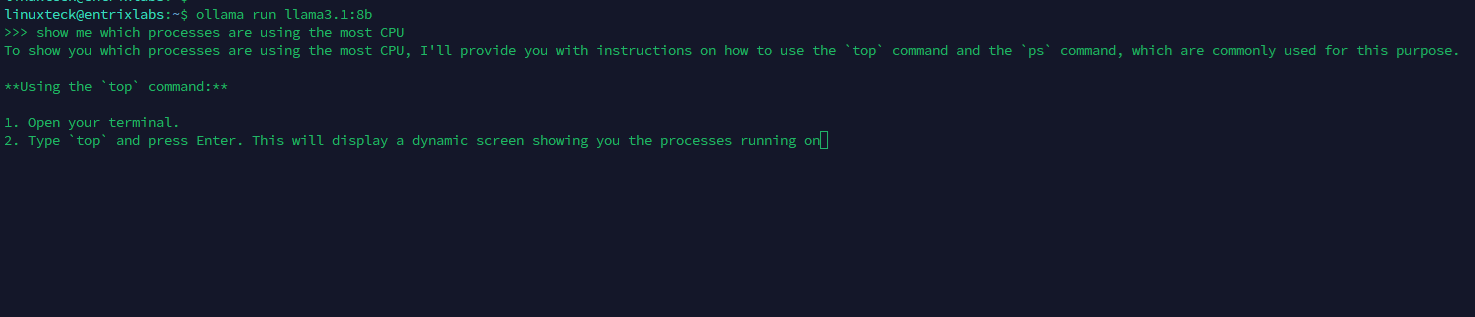
Ollama serving a local model over its REST API on a Linux server
Installing Ollama on Linux
Ollama ships an official install script that works identically across Ubuntu and Rocky Linux, so a Docker option is only worth it if you want isolation from the host.
Using Docker:
LinuxTeck
docker run -d -v ollama:/root/.ollama -p 11434:11434 --name ollama ollama/ollama
docker exec -it ollama ollama pull llama3.1:8b
On Ubuntu:
LinuxTeck
curl -fsSL https://ollama.com/install.sh | sh
ollama pull llama3.1:8b
On RHEL/Rocky Linux:
LinuxTeck
# firewalld blocks 11434 by default on RHEL-based distros
sudo firewall-cmd --add-port=11434/tcp --permanent
sudo firewall-cmd --reload
That firewalld step trips people up more than anything else on Rocky. The service starts fine, curl works locally, and it still looks "broken" from another machine until the port is opened.
Key benefits:
- Runs entirely offline once a model is pulled, no API key or account needed
- Single REST API that most of the other tools on this list build on top of
- Model swapping is one command, useful for comparing outputs across model sizes
- Works on CPU-only servers, GPU acceleration is automatic when hardware is available
Production Tip:
127.0.0.1 instead of 0.0.0.0 if it only needs to talk to other services on the same host, then front it with a reverse proxy if remote access is genuinely needed. Check our server hardening checklist before exposing any inference port to the internet.
2. Open WebUI
Open WebUI is a self-hosted, ChatGPT-style interface that sits in front of Ollama, or any OpenAI-compatible endpoint. It is the piece that turns a raw API on port 11434 into something a whole team can actually use through a browser.
It supports multiple users, per-user chat history, RAG over uploaded documents, and model switching from a dropdown instead of a CLI flag. For a small team sharing one GPU box, this is usually the first thing installed right after Ollama itself.
Everything is stored locally in a SQLite database or Postgres if you point it at one, so there is no external dependency once it is running.
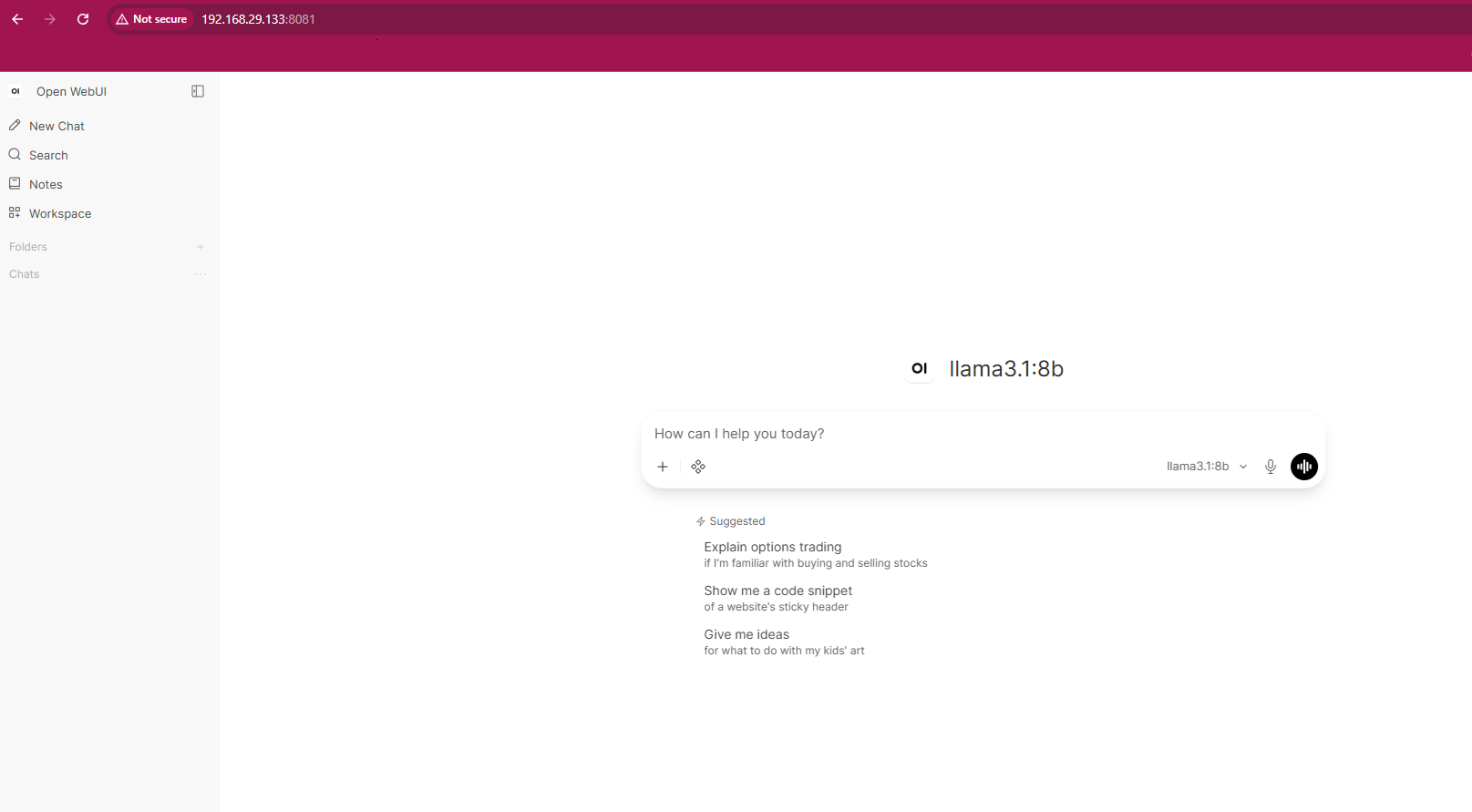
Open WebUI, a browser-based front end for locally hosted models
Installing Open WebUI on Linux
Using Docker (recommended, handles dependencies cleanly):
LinuxTeck
--add-host=host.docker.internal:host-gateway \
-v open-webui:/app/backend/data \
--name open-webui ghcr.io/open-webui/open-webui:main
On Ubuntu/Debian (pip method):
LinuxTeck
python3 -m venv ~/openwebui-env && source ~/openwebui-env/bin/activate
pip install open-webui
open-webui serve
On RHEL/Rocky Linux (pip method):
LinuxTeck
python3 -m venv ~/openwebui-env && source ~/openwebui-env/bin/activate
pip install open-webui
open-webui serve
First login creates the admin account locally, nothing gets sent anywhere. Point it at http://localhost:11434 under Settings to connect to the Ollama instance from step one.
Key benefits:
- Multi-user support with separate chat histories, useful for shared team servers
- Document upload and RAG search built in, no separate vector database setup needed for basic use
- Works with any OpenAI-compatible backend, not locked to Ollama specifically
- Active plugin ecosystem for web search, image generation, and voice input
3. AnythingLLM
AnythingLLM is built specifically around one job: letting you chat with your own documents. Point it at a folder of PDFs, markdown files, or Confluence exports and it builds a local vector store you can query in plain English.
This is the tool worth reaching for when the request is "can the AI answer questions from our internal runbooks" rather than "can the AI write me a poem." It supports Ollama, LocalAI, and cloud providers as the underlying model, so the documents stay local even if the model does not.
Workspaces keep different document sets separate, which matters once more than one team starts using the same instance.
Installing AnythingLLM on Linux
Using Docker:
LinuxTeck
-v anythingllm:/app/server/storage \
--name anythingllm mintplexlabs/anythingllm
On Ubuntu/Debian (AppImage):
LinuxTeck
chmod +x AnythingLLMDesktop.AppImage
./AnythingLLMDesktop.AppImage
On RHEL/Rocky Linux (same AppImage, plus FUSE dependency):
LinuxTeck
sudo dnf install -y fuse fuse-libs
wget https://github.com/Mintplex-Labs/anything-llm/releases/latest/download/AnythingLLMDesktop.AppImage
chmod +x AnythingLLMDesktop.AppImage
./AnythingLLMDesktop.AppImage
Compatibility Note:
Key benefits:
- Purpose-built for document Q&A rather than general chat
- Workspace isolation keeps different teams' documents from mixing
- Works with local models through Ollama or a fully local embedding pipeline
- Supports Slack and Discord bot integration for teams that live in chat
4. GPT4All
GPT4All is the option for a workstation or laptop that does not have a GPU and is not going to become a server. It is a single desktop application, no Docker, no separate backend process to manage, and it runs surprisingly well on CPU only.
It ships its own curated model list rather than pulling from Hugging Face directly, which trades some flexibility for a much simpler "download and go" experience for anyone who is not going to spend time tuning quantization settings.
A local document folder feature (called LocalDocs) gives it basic RAG capability too, though it is less flexible than AnythingLLM for multi-workspace setups.
Installing GPT4All on Linux
On Ubuntu/Debian:
LinuxTeck
chmod +x gpt4all-installer-linux.run
./gpt4all-installer-linux.run
On RHEL/Rocky Linux:
LinuxTeck
sudo dnf install -y mesa-libGL libxkbcommon-x11
wget https://gpt4all.io/installers/gpt4all-installer-linux.run
chmod +x gpt4all-installer-linux.run
./gpt4all-installer-linux.run
Key benefits:
- No separate server process, one app handles everything
- Runs acceptably on CPU-only hardware with 8GB of RAM
- Curated model list removes guesswork for non-technical users
- Built-in LocalDocs feature for basic local document search
5. Aider
Aider is a command-line pair programmer that edits your actual git repository instead of a chat window you copy code out of. You run it inside a project directory, describe a change in plain English, and it writes a diff, applies it, and commits it with a message.
It works with cloud models like Claude and GPT, and with local models through Ollama for teams that cannot send code off-box. Because it operates directly on git, every change is reviewable with a normal git diff before it goes anywhere.
This is the tool that comes up most often in developer-focused discussions as the terminal-native alternative to IDE plugins, mainly because it does not require switching editors.
Installing Aider on Linux
On Ubuntu/Debian:
LinuxTeck
sudo apt install -y pipx git
pipx ensurepath
pipx install aider-install
aider-install
On RHEL/Rocky Linux:
LinuxTeck
pipx ensurepath
pipx install aider-install
aider-install
Set OPENAI_API_KEY or ANTHROPIC_API_KEY for a cloud model, or run aider --model ollama/llama3.1:8b to keep everything on the local Ollama instance from step one.
Key benefits:
- Edits real files inside your actual git repo, not a copy-paste chat window
- Auto-commits changes with generated messages, so every edit is reviewable and revertable
- Works with local models for teams that cannot send proprietary code to a cloud API
- Understands multi-file context across a whole repository, not just one open file
6. Shell-GPT
Shell-GPT is the tool for the "what was that flag again" moments. You describe what you want in English, it generates the actual shell command, and you can pipe it straight into execution instead of digging through man pages.
It works as a general chat assistant too, but the command generation mode is the reason most sysadmins install it. It supports OpenAI models out of the box and can be pointed at a local Ollama endpoint with a config change.
Installing Shell-GPT on Linux
On Ubuntu/Debian:
LinuxTeck
pipx ensurepath
pipx install shell-gpt
sgpt --shell "find files larger than 500MB in current directory"
On RHEL/Rocky Linux:
LinuxTeck
pipx ensurepath
pipx install shell-gpt
sgpt --shell "list all systemd services that failed to start"
First run asks for an API key, or edit ~/.config/shell_gpt/.sgptrc to point DEFAULT_MODEL and OPENAI_BASE_URL at a local Ollama endpoint instead.
Concept:
rm or dd does not get a second chance.
Key benefits:
- Turns plain English into an actual runnable shell command with explanation
- Faster than searching man pages or Stack Overflow for an obscure flag
- Supports chat mode and shell mode from the same binary
- Config file makes it easy to swap between cloud and local models
7. LocalAI
LocalAI is a drop-in, OpenAI-compatible API server that runs entirely on your own hardware. If a tool or script expects to talk to api.openai.com, pointing it at your LocalAI endpoint instead usually works with just a base URL change, no code rewrite.
It supports text generation, image generation, speech-to-text, and embeddings from a single binary or container, which makes it useful as a single backend for multiple internal tools instead of running a separate service for each model type.
If you are running this on a rented server rather than local hardware, sizing the box correctly matters more here than with any other tool on this list since LocalAI handles more than one model type at once. If you are comparing infrastructure for self-hosted AI tools, our Best VPS for AI Tools guide explains the hosting options to consider for these workloads. Our DigitalOcean review is also worth a look if you are shopping for a droplet with enough CPU and RAM headroom.
Installing LocalAI on Linux
Using Docker (CPU image):
LinuxTeck
# confirm the OpenAI-compatible endpoint responds
curl http://localhost:8080/v1/models
On Ubuntu/Debian (binary):
LinuxTeck
# the install script only places the binary, it does not create a systemd unit
local-ai run &
curl http://localhost:8080/v1/models
To keep LocalAI running after you log out, create a systemd unit at /etc/systemd/system/local-ai.service pointing ExecStart at the installed binary, then enable it with systemctl enable --now local-ai.
On RHEL/Rocky Linux (binary):
LinuxTeck
sudo firewall-cmd --add-port=8080/tcp --permanent
sudo firewall-cmd --reload
Key benefits:
- Drop-in replacement for the OpenAI API, minimal code changes for existing integrations
- Single backend for text, image, and speech models instead of running separate servers
- No GPU required for smaller quantized models
- Runs as a systemd service on bare metal, or as a container for isolated deployments
Conclusion
All seven tools here share the same underlying philosophy: keep the model and the data on hardware you control, and use open formats so nothing locks you into one vendor. If you only install one thing from this list of AI tools for Linux, make it Ollama, since the rest either use it directly or benefit from having it around.
Our recommendations:
- Ollama: Install this first, everything else on the list either uses it directly or benefits from having it around.
- Open WebUI: Use this if more than one person on your team needs a shared chat interface.
- AnythingLLM: Use this if the goal is answering questions from internal documents or runbooks.
- GPT4All: Use this if you want a single desktop app with no server to manage.
- Aider: Use this if you want AI edits applied directly to a git repository.
- Shell-GPT: Use this if you keep forgetting command flags and want them generated on the spot.
- LocalAI: Use this if you need one self-hosted backend for text, image, and speech tasks at once.
Rounding out your self-hosted setup with more AI tools for Linux: for automating what happens after the AI generates an answer, our guide on AI agents for DevOps automation is a natural next step, and if you are troubleshooting service failures, AI-assisted root cause analysis on Linux covers a similar self-hosted approach applied to log analysis. Anyone picking hardware for this kind of workload should also check our best Linux distro for AI workloads breakdown before committing to a setup.
Did we miss a tool you rely on? Tell us in the comments below.
If this article helped, share it with someone on your team.
LinuxTeck - A Complete Linux Infrastructure Blog
LinuxTeck covers everything from beginner Linux commands to advanced Linux system administration and DevOps career guidance, written by practitioners for professionals working on Ubuntu, Rocky Linux, RHEL, and enterprise Linux environments every day.
Thank you for reading and for being part of this journey. If this article saved you time, consider buying me a coffee. Every contribution helps me keep producing in-depth, practical Linux content for readers like you.

Thank you for your endless support



