The batch command is a useful Linux utility that lets you schedule a job to run only when the system is not busy. Instead of running a task immediately or at a fixed time, batch waits until the system load drops to a safe level before starting it.
In this guide, you'll learn what the batch command is, how it works, its syntax, common options, practical examples, and when to use it instead of cron, at, or running a command directly in the background.
Examples
Note:
batch is part of the same job family as at and atd. If you have never scheduled a one off job before, it helps to skim through how cron handles recurring jobs first, since batch solves a different problem than cron does.
What Is the batch Command in Linux?
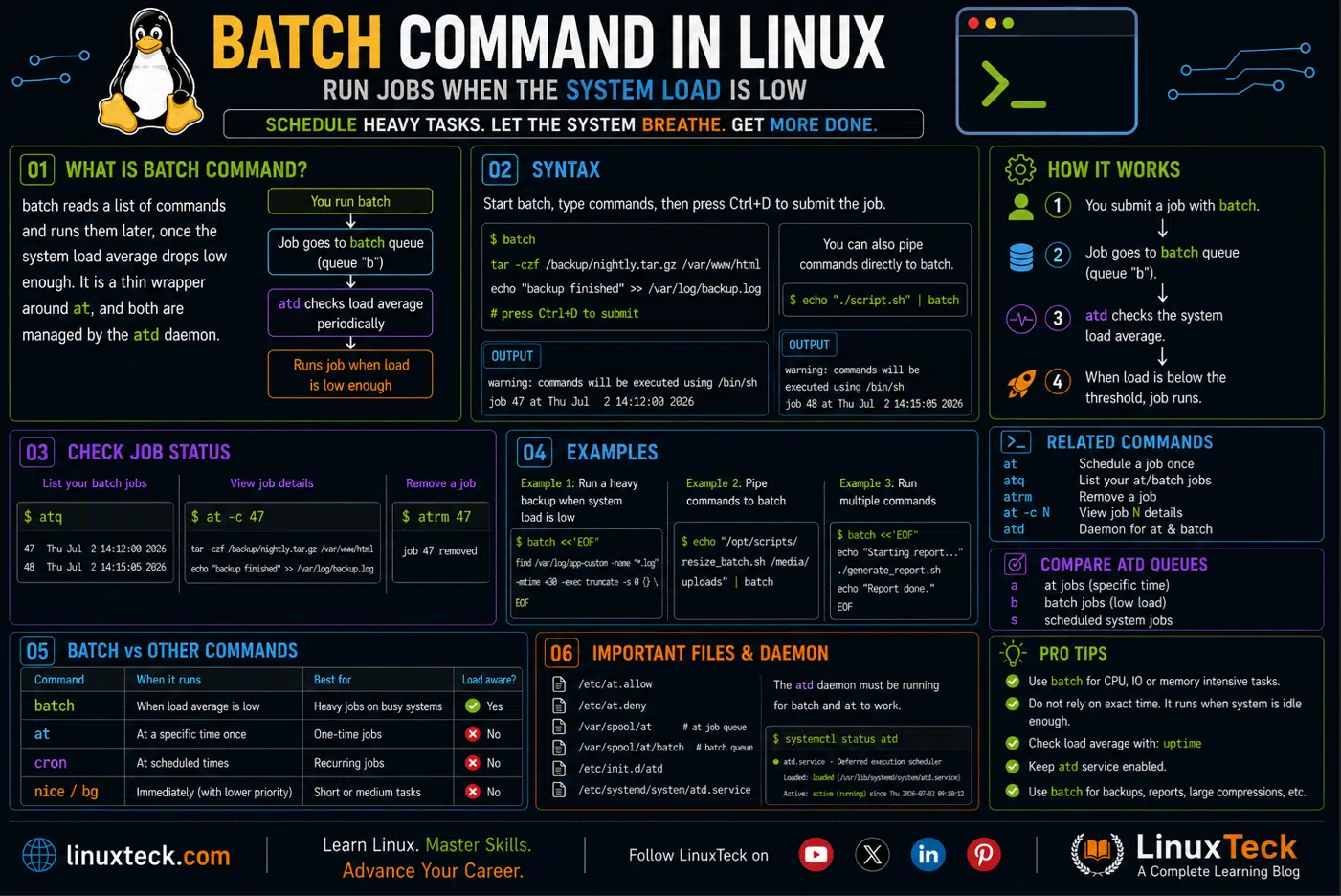
batch reads a list of shell commands and runs them later, once your system's load average drops low enough that running them will not choke everything else. That's it. No cron syntax, no fixed clock time, just "run this when things calm down."
Under the hood, batch is not really its own program. It is a thin wrapper around at, and both are managed by the same background daemon, atd. When you submit a job with batch, it lands in a special queue (queue "b" by convention) and atd checks periodically whether the load average is low enough to let it run. The exact threshold is not something batch decides on its own, it depends on how atd was compiled and configured on your distro, which is why you will see different numbers quoted in different places (0.8 on some systems, 1.5 on others).
If you have ever run a heavy job over SSH and then had someone else on the team ping you asking why their deploy is crawling, that's the exact situation batch was built to prevent.
Syntax and How batch Talks to atd
The command itself takes almost nothing on the command line. You call it, then type or pipe in the commands you want executed:
LinuxTeck.com
batch
tar -czf /backup/nightly.tar.gz /var/www/html
echo "backup finished" >> /var/log/backup.log
# press Ctrl+D here to close the job
job 47 at Thu Jul 2 14:12:00 2026
Notice there is no "at 5pm" or "in 2 hours" anywhere in that syntax. That part is the whole point. You are not telling the system when to run the job, you are telling it to run whenever it is safe to, and atd decides the rest based on load average.
You can also skip the interactive prompt entirely and pipe commands straight in, which is what most people actually use in scripts:
LinuxTeck.com
Note:
batch runs your commands under /bin/sh by default, not bash. If your script leans on bash-only syntax like arrays or [[ ]] tests, either shebang the script itself with #!/bin/bash and call it by path, or you will get confusing "command not found" style errors that have nothing to do with the actual command.
Options That Actually Matter
batch does not have a long flag list the way ls or find do. It borrows most of its behavior from at, and only a handful of flags are worth remembering day to day.
| Flag | What It Does | When to Use It |
|---|---|---|
| -f file | Reads commands from a file instead of stdin | You already have a ready made script and don't want to paste it interactively |
| -m | Sends mail to you even when the job produces no output | You need confirmation a silent job actually ran, not just that it might have |
| -v | Prints the current time before reading your commands | Verifying the exact system time context before submitting a job |
| -q letter | Puts the job in a specific queue letter instead of the default | Keeping batch jobs visually separated from regular at jobs in atq output |
Examples You Will Actually Use
I. Queue a single command interactively
The most basic use, good for testing that batch and atd are even working on your box.
LinuxTeck.com
echo "hello from batch" > /tmp/batch-test.txt
# Ctrl+D to submit
job 48 at Thu Jul 2 14:15:00 2026
II. Queue several commands in one go
You are not limited to one line. Keep typing and each line becomes part of the same job.
LinuxTeck.com
mkdir -p /backup/db && mysqldump appdb > /backup/db/appdb.sql && gzip /backup/db/appdb.sql
# press Ctrl+D here to close the job
job 49 at Thu Jul 2 14:18:12 2026
III. Feed batch a ready made script with -f
Once your batch job gets past two or three lines, stop typing it interactively and keep it in a file.
LinuxTeck.com
IV. Check what is sitting in the queue
batch jobs share the same queue system as at, so you check them the same way.
LinuxTeck.com
50 Thu Jul 2 14:19:40 2026 b root
Tip:
The letter "b" in that output is the queue label. Jobs scheduled with at normally show "a", so at a glance you can tell which jobs are load-gated batch jobs and which are time-gated at jobs.
V. Display the submission time context with -v
When you use the -v flag, the terminal prints the exact submission timestamp the moment you hit Enter, before you even type your commands. It's not a forecast of when the job will run, it's just confirmation of the time atd recorded the submission against.
LinuxTeck.com
find /var/log/app-custom -name "*.log" -mtime +30 -exec truncate -s 0 {} \;
warning: commands will be executed using /bin/sh
job 51 at Thu Jul 2 14:20:00 2026
VI. Redirect output instead of relying on mail
Most servers don't have local mail configured, which means batch's default habit of mailing you the output goes nowhere. Redirect it yourself.
LinuxTeck.com
/opt/scripts/rebuild_index.sh > /var/log/rebuild_index.log 2>&1
job 52 at Thu Jul 2 14:22:05 2026
VII. Cancel a queued job with atrm
Queued something by accident, or the load never actually needed easing? Pull the job number from atq and drop it.
LinuxTeck.com
On a CI server that spikes hard during build windows, you don't want a manual compression job stepping on top of an active build.
LinuxTeck.com
tar -czf /archive/builds-$(date +%F).tar.gz /var/ci/artifacts
find /var/ci/artifacts -mtime +7 -delete
job 53 at Thu Jul 2 14:25:30 2026
A media processing job that eats CPU for twenty minutes should not go anywhere near a system while it's already under load from render jobs.
LinuxTeck.com
X. Real world: exporting a large table without colliding with cron
If your cron jobs already fire on the hour and a manual export needs to slot in around them without fighting for CPU, batch is a cleaner fit than trying to guess a free minute.
LinuxTeck.com
XI. Mistake: trying to pass the command directly on the command line
This is the single most common thing people get wrong the first time they touch batch.
LinuxTeck.com
Warning:
batch does not take a command as an argument the way you'd expect from something like nohup or nice. It only ever reads commands from stdin or from a file with -f. Anything typed after the word batch gets parsed as a time expression, and since "tar" is not a valid time, you get a garbled time error.
The fix is one of the two patterns already used throughout this article, either run batch alone and type the command on the next line, or pipe it in with echo:
LinuxTeck.com
Why batch Actually Matters
Without something like batch, "run this when the server isn't busy" turns into a guessing game. You either babysit top or htop waiting for a quiet window, or you just run the job anyway and hope nobody notices the slowdown. On a box that anyone else depends on, that second option eventually burns you.
What batch unlocks is the ability to hand off that judgment call to the system itself. You stop being the one deciding when load is "low enough" and let atd make that call every few minutes based on actual numbers, not a guess from watching a dashboard for thirty seconds. Once you get comfortable with that, you start reaching for it any time a task is heavy but not urgent, log rotation, report generation, batch encoding, anything that can wait a bit but shouldn't wait forever.
Key Points
- batch never takes your command as an argument, it only reads from stdin or a file passed with -f
- Jobs land in the same queue system as at, so atq and atrm work on batch jobs exactly the way they do on at jobs
- Your commands run under /bin/sh, not bash, so scripts using bash-only syntax should be called by path with their own shebang
- Since local mail is often not configured, redirect output to a log file yourself instead of relying on the default mail behavior
- Use -v to print the current system time window immediately before your interactive batch entry begins
- The load average threshold is not something you set inside batch itself, it comes from how atd was configured on that particular distro
- Reach for batch over cron when the task is a one-off that depends on system load, not a fixed clock time
Frequently Asked Questions
My batch job just sits there and never runs, what's going on?
Nine times out of ten the load average on that box just hasn't dropped below the threshold atd is watching for. Run uptime to see the current load average yourself, and compare it against what your distro's atd is configured to wait for. If the box is genuinely busy all the time, batch will genuinely wait all the time, that's not a bug.
How do I know what load average threshold my system is using?
There's no batch flag that tells you directly. On modern systemd-based systems, run systemctl status atd to check the active process flags. To find the exact threshold, inspect your distribution's configuration file directly using cat /etc/default/atd (Debian/Ubuntu) or cat /etc/sysconfig/atd (RHEL/Fedora).
Can I schedule a batch job to run at a specific time later?
Not with batch itself, that's what at is for. If you need both a delay and a load check, queue the job with at for a rough time window and let normal system behavior handle the rest, or just use batch and trust it to run as soon as it's reasonably safe to.
Where does the output of my batch job actually go?
By default it tries to mail it to you. On most servers there's no local mail setup, so that output effectively disappears. Always redirect stdout and stderr inside the commands you queue, exactly like example VI above.
I typed batch and nothing happened, did I break something?
You didn't break anything, batch is just waiting for you to type commands. It drops you into an interactive prompt with no visible cue beyond a warning line. Type your commands, then press Ctrl+D to close and submit the job.
How is batch different from just running a cron job at 3am?
Cron runs at a fixed clock time regardless of how busy the system is at that moment. batch only cares about load average and ignores the clock entirely. If you know 3am is reliably quiet, cron is simpler. If load is unpredictable, batch adapts to it.
Once batch clicks, it tends to change how you think about scheduling anything heavy. Instead of asking "when should this run," you start asking "does this even need a fixed time, or can I just let the system decide." For deeper background on how atd makes that decision, the official batch man page is worth a read once you've run a few jobs yourself. If you want to compare this against recurring scheduling, our guide on moving from cron jobs to systemd timers covers the other side of that decision, and anacron is worth knowing about too if your systems aren't always powered on.
Before you queue anything heavy, it also helps to actually understand what load average means in the first place, our system monitoring command cheat sheet and the htop command guide both cover how to read those numbers in real time. And since most batch jobs are really just shell scripts wearing a queue ticket, brushing up on exit codes and error handling and logging best practices will save you from the classic "did it even run" problem. If you want the full picture of related commands in one place, the shell scripting command cheat sheet is a solid bookmark, and these beginner shell scripting interview questions often touch on job scheduling if you're prepping for a sysadmin interview.
From your first terminal command to advanced sysadmin skills, every guide here is written in plain English with real examples you can run right now.