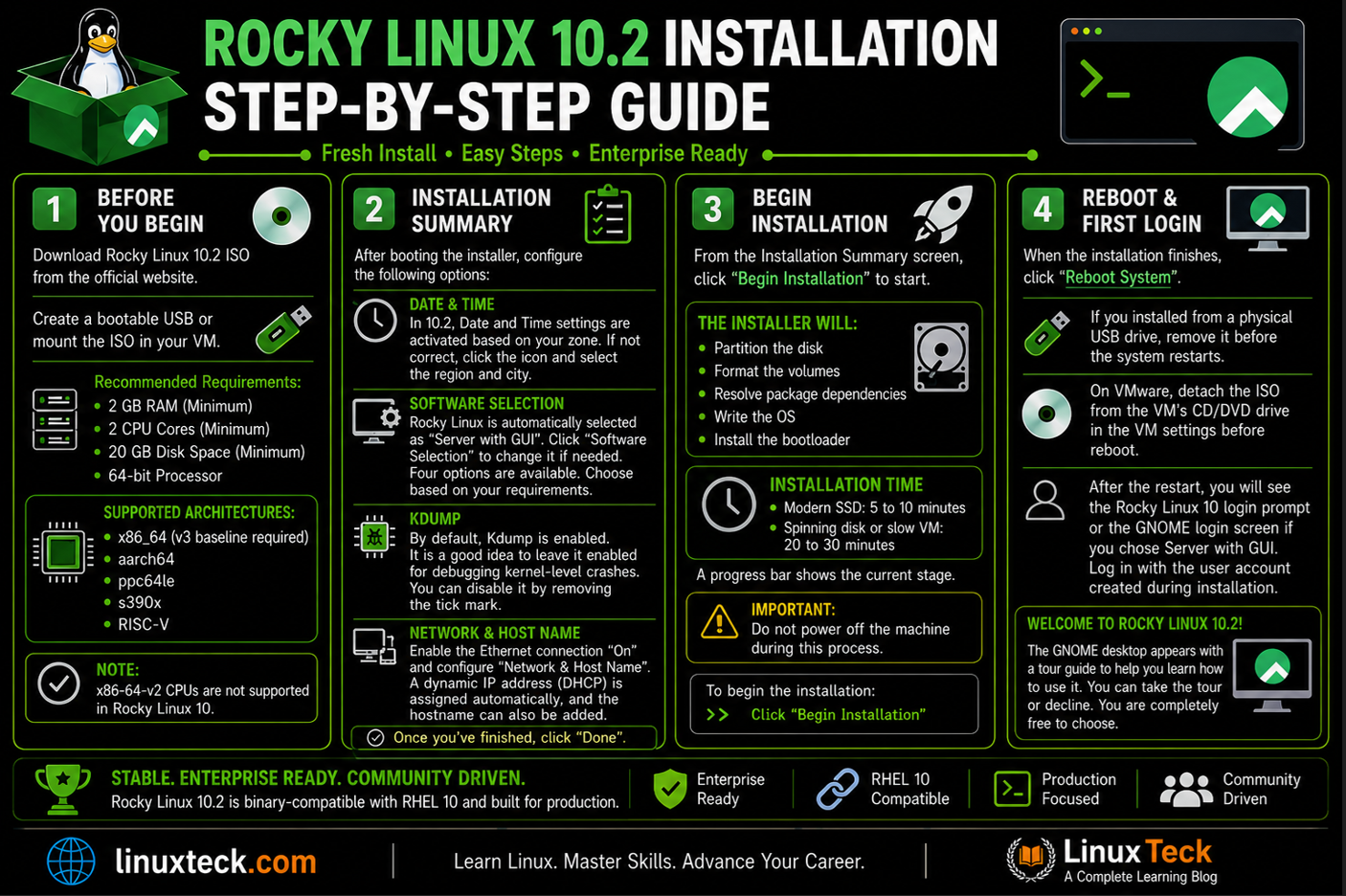
If you are looking for how to install Rocky Linux 10.2, this guide walks you through every step using the Anaconda installer from ISO download to first login. Rocky Linux 10.2 ships with Linux kernel 6.12, post-quantum cryptography support in OpenSSH, and a completely new build pipeline via Koji. Whether you are running production servers, development systems, or lab environments, Rocky Linux 10.2 is the recommended release to deploy today.
The latest version of Rocky Linux, v10.2, was released on May 28, 2026. It comes with a full enterprise support lifecycle through May 2035 and is binary-compatible with Red Hat Enterprise Linux 10. Most importantly, the build system has been transitioned from Peridot to Koji. Using Koji enables IMA signing and allows Rocky Linux releases to be built and delivered more efficiently. Supported architectures include x86_64 (requires a v3 baseline), aarch64, ppc64le, s390x, and RISC-V. Please refer to the official Rocky Linux 10.2 release notes for a complete list of changes introduced in this release.
A major difference from Rocky Linux 9 is that the x86-64-v2 CPU architecture is no longer supported. Therefore, if your hardware is older than an Intel Haswell (2013) or AMD Excavator (2015), it will not be able to run Rocky Linux 10. If you are using hardware in that category, continue using Rocky Linux 9, which remains supported through 2032.
What's New in Rocky Linux 10.2:
- Linux Kernel 6.12 with EEVDF scheduling replacing CFS, improved perf BPF tooling, and extended Intel/AMD hardware counters for better system observability
- Post-quantum cryptography support in OpenSSH (ML-KEM key exchange), libssh, and p11-kit, making Rocky Linux 10.2 one of the first enterprise distros ready for quantum-resistant deployments
- PHP 8.4, GCC Toolset 15.2, LLVM Toolset 21.1.8, Rust Toolset 1.92.0, and Go Toolset 1.26.2 available in the updated software stack
- Legacy ifcfg-rh networking scripts are completely removed. All network configuration now goes through NetworkManager using nmcli, nmtui, or nmstate
- Root account password-based SSH login is locked by default inside the Anaconda installer. The root account itself exists on the system but remote root login via SSH is disabled unless explicitly enabled during setup, steering administrators toward a named sudo user as the primary access method
- Graphical installer has switched from VNC to RDP for remote access, and Xorg has been dropped entirely in favor of Wayland sessions
With this guide, you will be able to complete a full how to install Rocky Linux 10.2 walkthrough in just 7 easy steps. Rocky Linux 9, the previous major version, will continue to be supported until May 2032 with a link to the Rocky Linux 9 installation guide if you still need it for older hardware.
Prerequisites :
HDD minimum : 20 GB
RAM minimum : 1.5 GB (4 GB recommended for Server with GUI)
System Type : x86-64-v3, aarch64, ppc64le, s390x, RISC-V
Installation kit : Bootable DVD/USB/.iso
Note:
A virtual environment (VMware Fusion 13.6.2) was used for this demonstration. We assume you have your own virtual or physical machine ready to start the installation. If you are on an Apple Silicon Mac (M1, M2, M3, or M4), download the ARM (aarch64) version of the Rocky Linux 10.2 ISO from the downloads page, as VMware Fusion on Apple Silicon runs ARM-based virtual machines only. The x86_64 ISO will not boot on that platform.
Step-1: Download Rocky Linux 10.2 ISO
Download Rocky Linux 10.2
Official Rocky Linux downloads page at Rocky Linux Downloads and grab the ISO that fits your use case.
For a server deployment, the Minimal ISO (around 1.7 GB) is the right choice. It includes only what's needed to run the installer and boots entirely from local media, so no internet connection is required during setup.
The Boot ISO pulls packages from the network during install, which means any connectivity hiccup can stall the process halfway through. The DVD ISO (~9 GB) is worth grabbing if you plan to install across multiple machines without external bandwidth.
Note:
After the download finishes, verify the ISO integrity before writing it to USB. A corrupted ISO will fail silently during install, or worse, produce a broken system. Match your downloaded file against the official CHECKSUM file posted on the download page. If the checksum passes, the file is clean and ready to use.
Step-2: Create a Bootable USB or Configure Your VM
Note:
For bare metal installs, write the ISO to a USB drive using Rufus (Windows), Balena Etcher (cross-platform), or the dd command on Linux. If you are installing in a virtual machine on VMware or VirtualBox, simply attach the ISO as a virtual optical drive in the VM settings. No USB creation is needed. Make sure your VM is configured with at least 2 CPU cores, 2 GB RAM, and 20 GB of disk space before proceeding. In case of difficulty, refer to this step-by-step guide on creating a bootable USB.
Step-3: Let's start the Rocky Linux 10.2 Installation
Note:
Once your USB or VM is ready, insert the media (or attach the ISO) and boot from it. Access your system's boot menu using F12, F2, or Del depending on your hardware. On VMware, simply power on the VM with the ISO attached and it will boot directly into the installer.
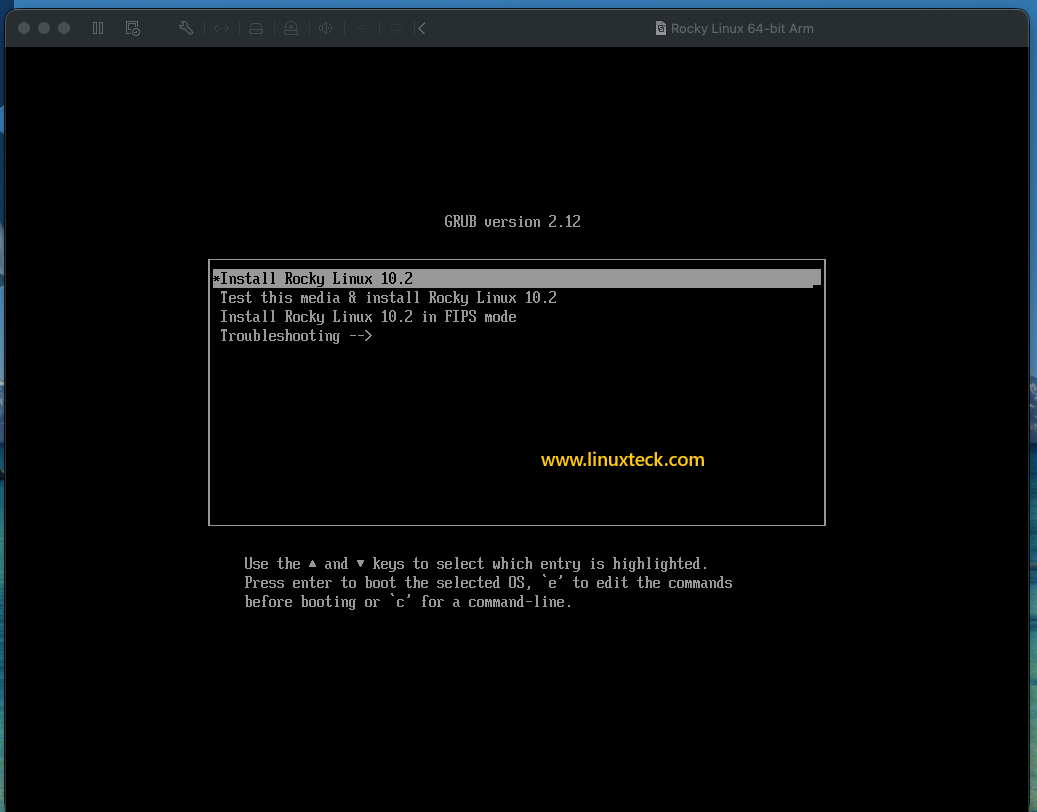
When the Rocky Linux GRUB boot screen appears, select Install Rocky Linux 10.2 and press Enter.
Step-4: Select Language and Start the Anaconda Installer
Note:
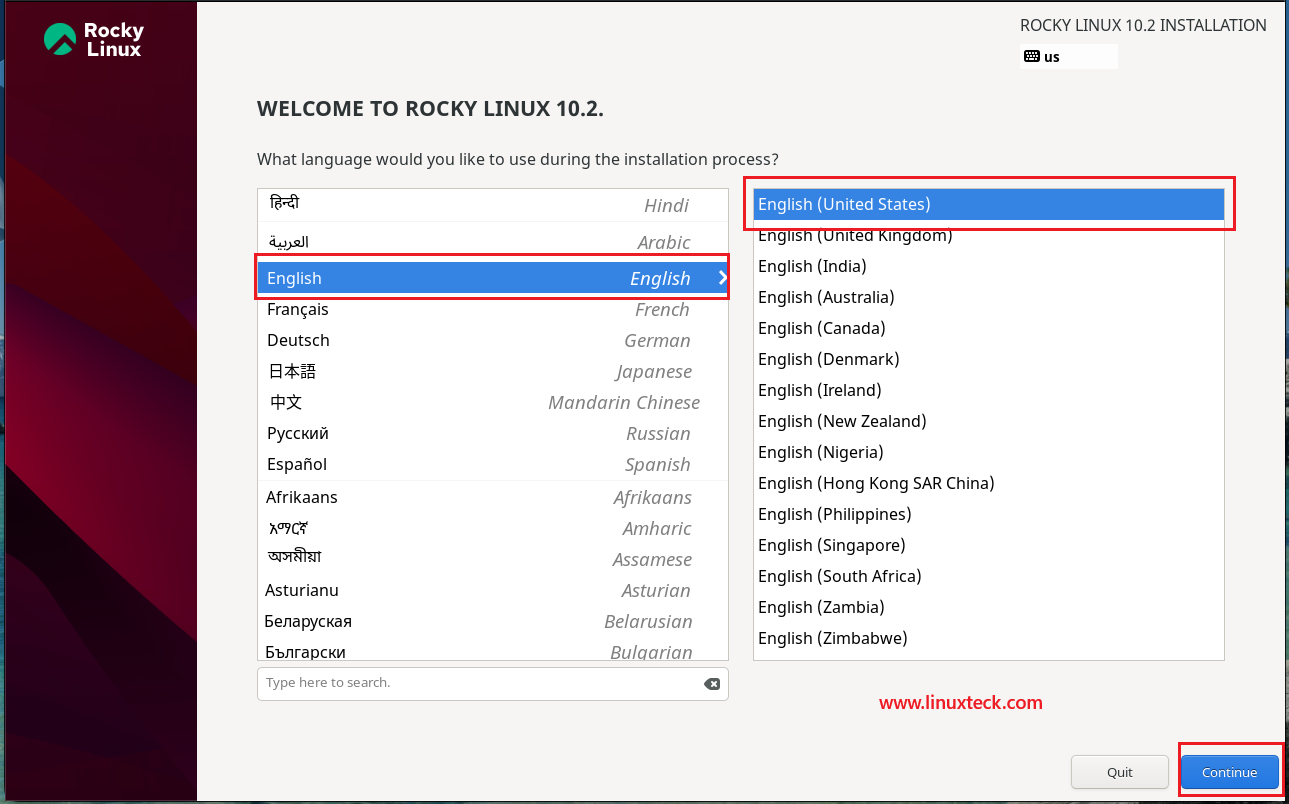
The Anaconda installer loads after the GRUB selection. The first screen asks for the installation language. This controls the installer UI only, not the system locale you can set later.
Select English (United States) or your preferred language and click Continue.
Anaconda is the same installer used by RHEL and Fedora, so the screens here should look familiar if you have installed either of those before.
Step-5: Configure Installation Summary Screen
Note:
After selecting the language, you land on the Installation Summary screen. This is the central hub for all configuration decisions. Nothing gets written to disk until you click Begin Installation at the bottom, so take your time here. Any section marked with an orange warning icon must be completed before the installation can start. Work through the sections in the order described in the steps below. Click Installation Destination.
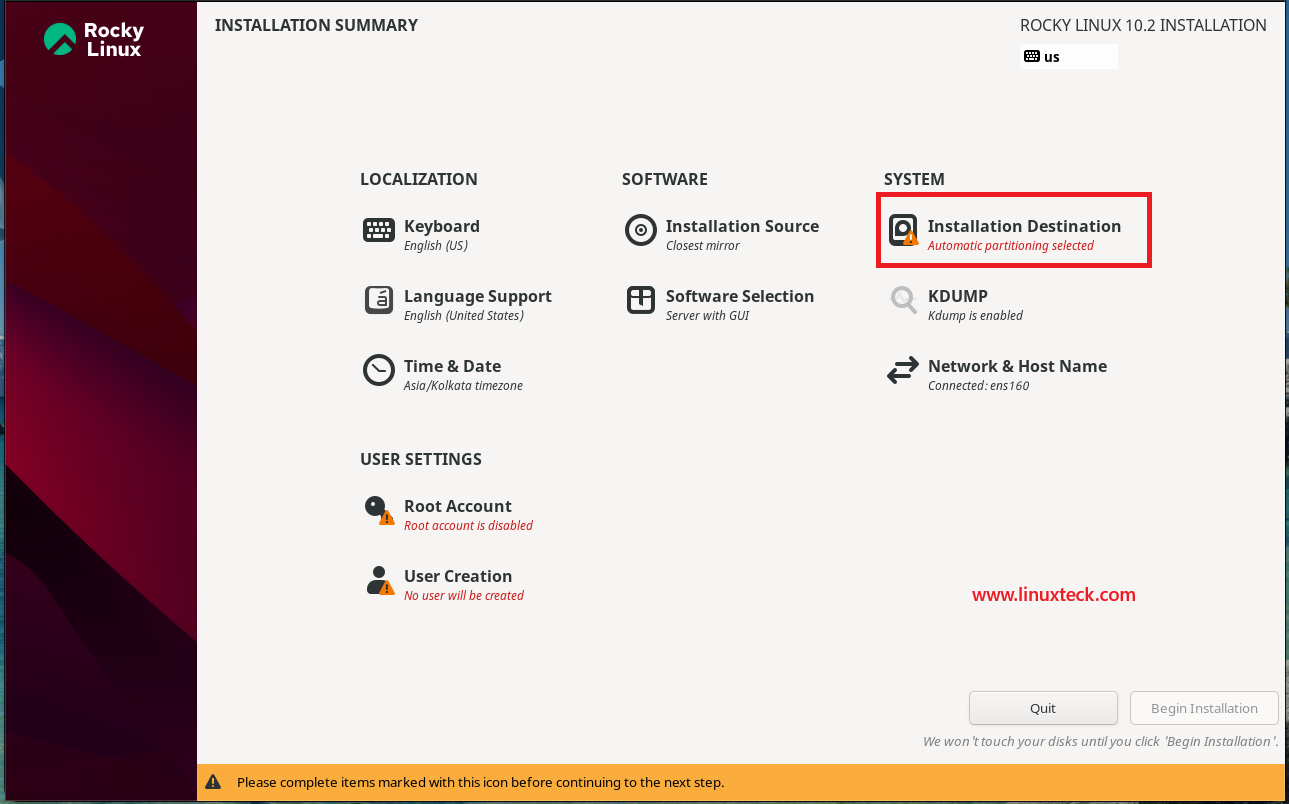
- System (Installation Destination)
- Activate Root Password
- Create a local user
- Date & Time
- Software Selection
- Kdump
- Network & Host Name
Warning:
Disk partitioning is irreversible. Any mistake at this screen will result in data loss on the selected drive. Double-check you have selected the correct disk before proceeding. If this is a bare metal install with existing data on the drive, back up everything before continuing. There is no undo once you click Accept Changes.
Note:
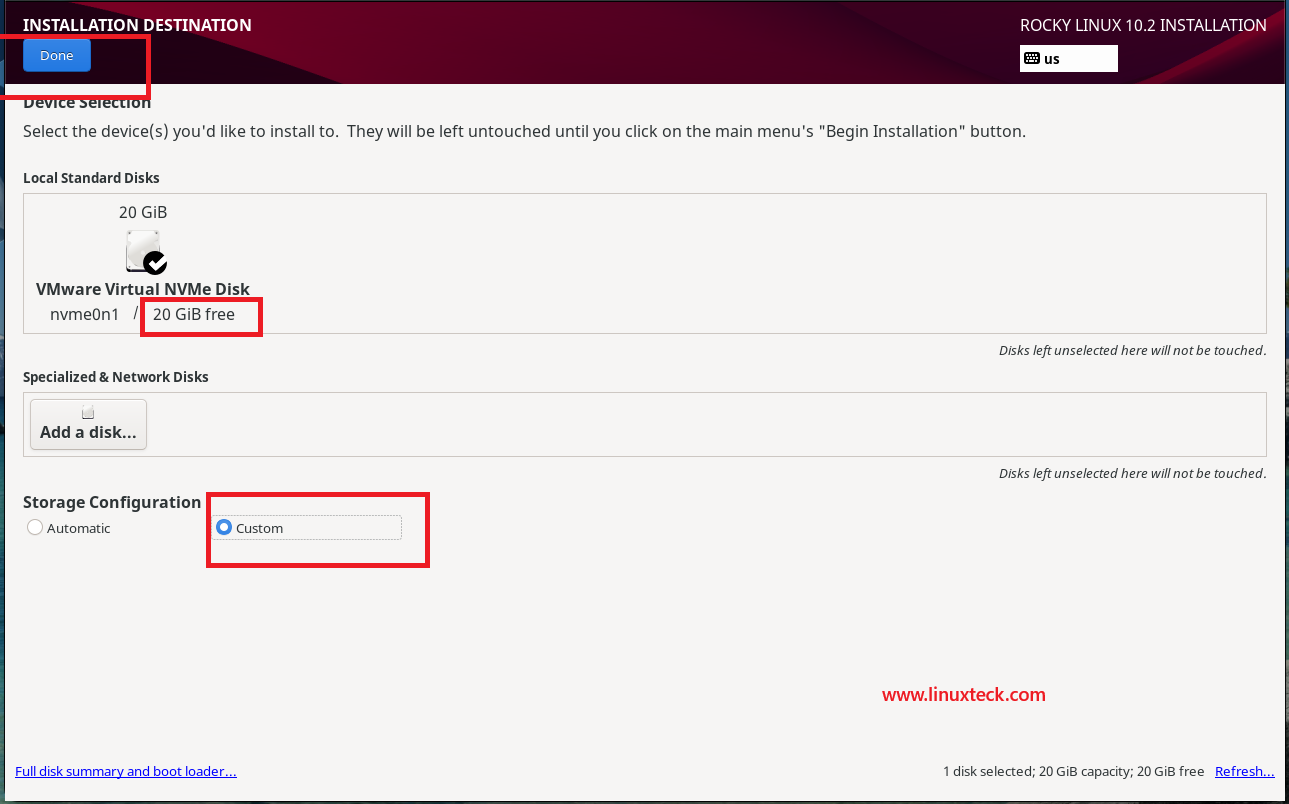
Here, you will see all available disks on the system. Click your target disk to select it. Under Storage Configuration, you have two options:
Automatic or Custom
Automatic works fine for most desktop or single-purpose server setups. It creates a /boot partition outside LVM, and an LVM volume group with root and swap inside it using XFS as the default filesystem.
For production servers where log growth or multi-service isolation matters, choose Custom instead. For this demonstration, I have decided to create a custom partition based on my requirements. Once the partitioning is complete, click "Done" to continue.
Note:
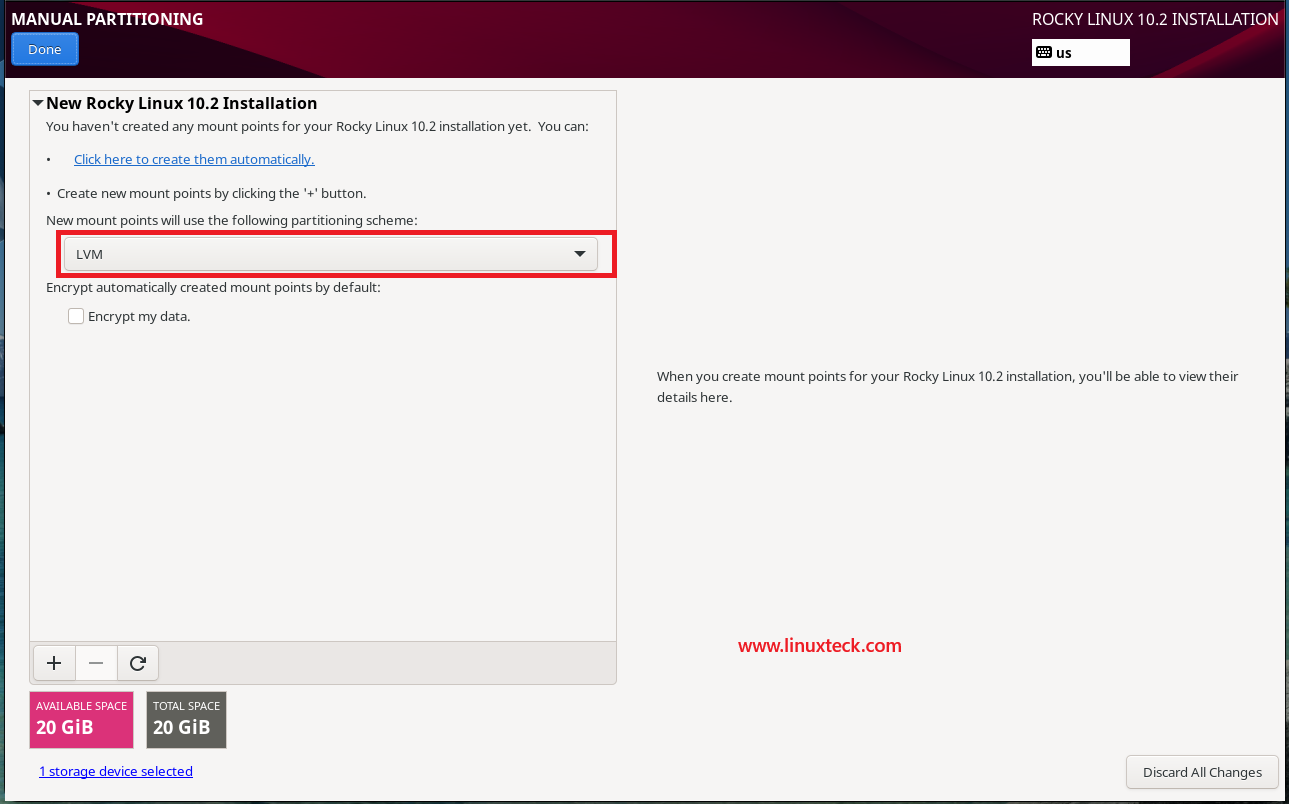
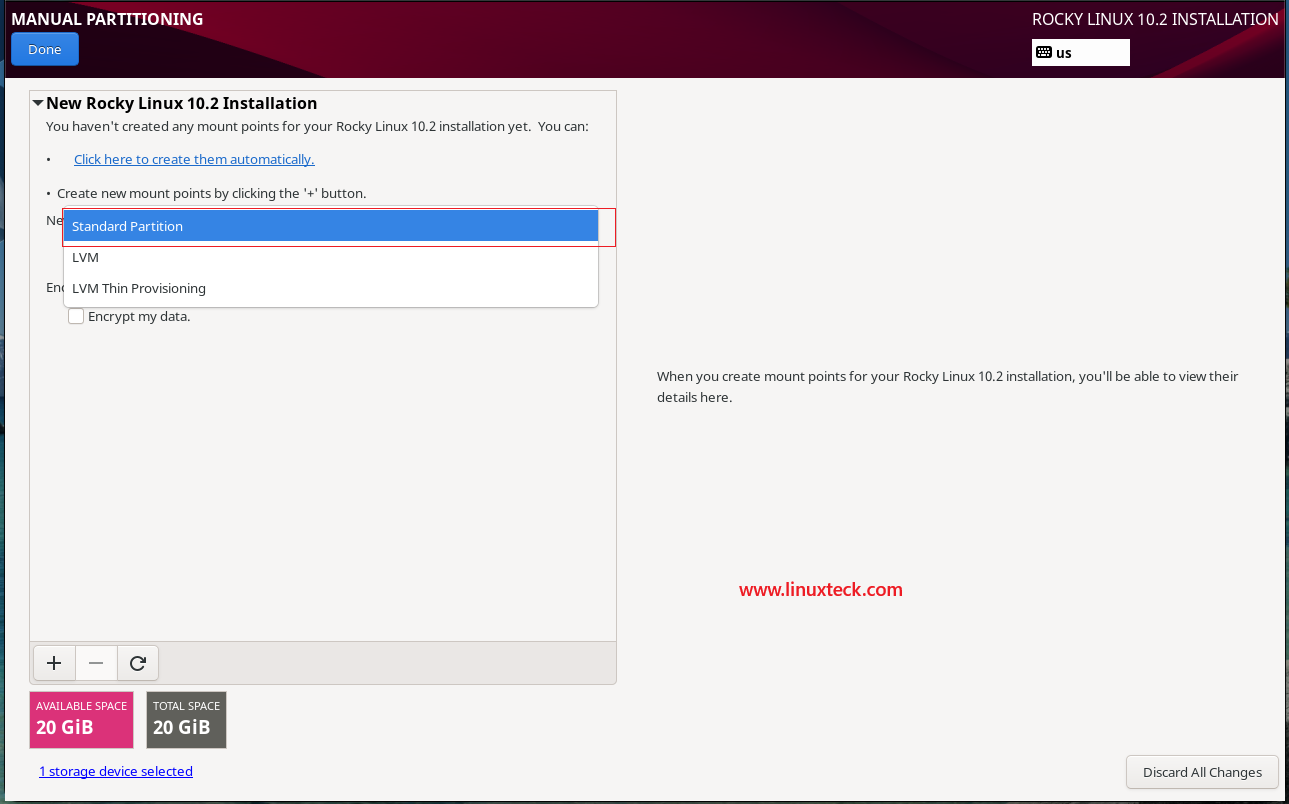
On this screen, LVM is selected by default. To change the partitioning scheme, select an option from the drop-down list. You can choose between Standard Partition, LVM, or LVM Thin Provisioning based on your requirements. For this demo, I will use the Standard Partition scheme.
Note:
It is essential for every Linux administrator to understand disk partitioning and filesystem selection. To learn more about choosing the right filesystem, read ext4 vs XFS vs Btrfs. Proper partitioning plays a critical role in system performance, manageability, and future scalability.
Many beginners and Windows users migrating to Linux often create only /boot, swap, and root (/) partitions. While this layout may be suitable for a desktop or home system, it is generally not recommended for production servers due to performance, maintenance, and storage management considerations.
Instead of using the basic partitioning scheme mentioned above, I recommend using the following partition layout for a production Linux server. The size of each partition should be adjusted according to your storage capacity and application requirements. For this demonstration, I have used the partition sizes shown below.
- /boot – 1 GB with xfs filesystem
- / – 7 GB with xfs filesystem
- /home – 7 GB with xfs filesystem
- /var – 2 GB with xfs filesystem
- Swap – 4 GB with swap filesystem
The /boot/efi partition is required only when the server is configured to boot using UEFI firmware. Most modern servers, cloud instances, and virtual machines use UEFI by default. Legacy BIOS systems do not require a separate /boot/efi partition.
- /boot/efi – 600 MB
When finished, click Done and review the Changes Summary popup. Click Accept Changes to write the partition table.
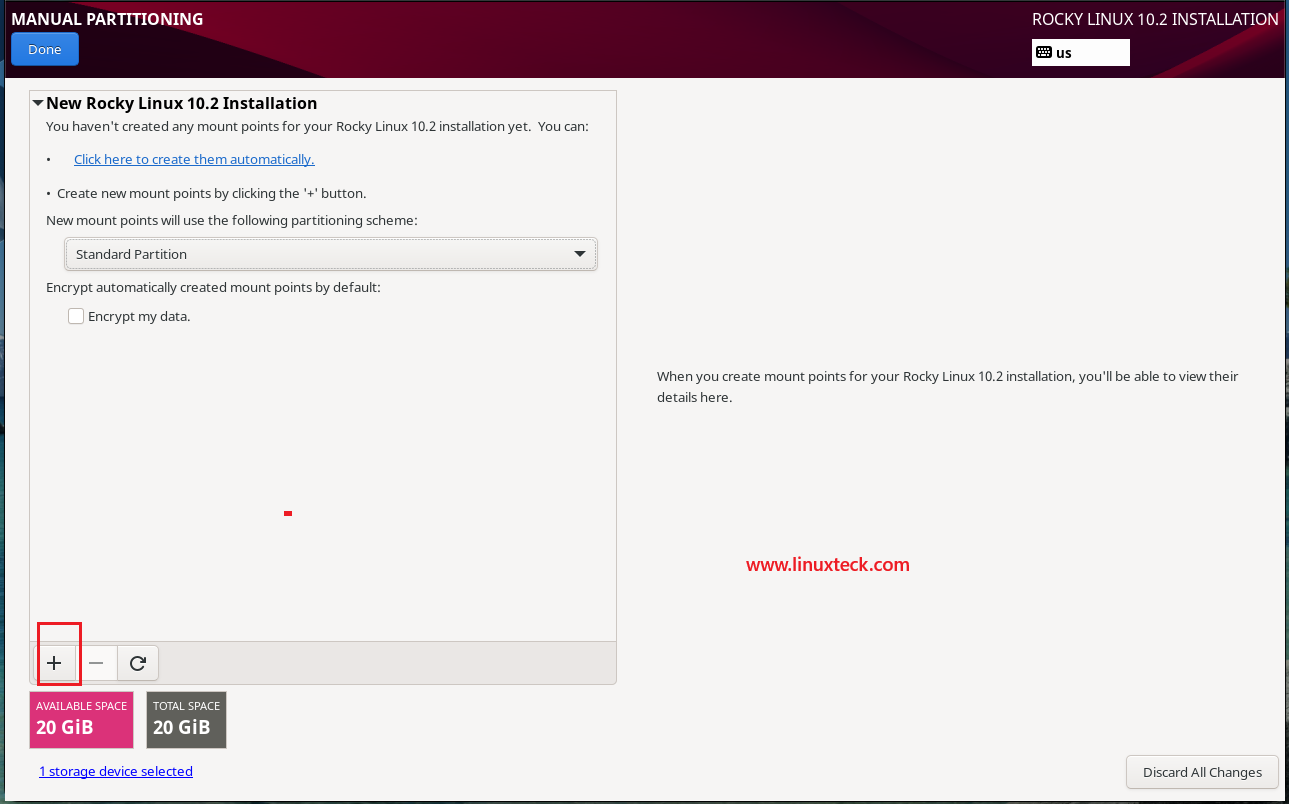
Note:
For the /boot partition, I have assigned 1 GB of disk space. The size can be customized according to your needs, although 1–2 GB is usually enough for most Linux systems. After entering the size, click "Add mount point" to proceed.
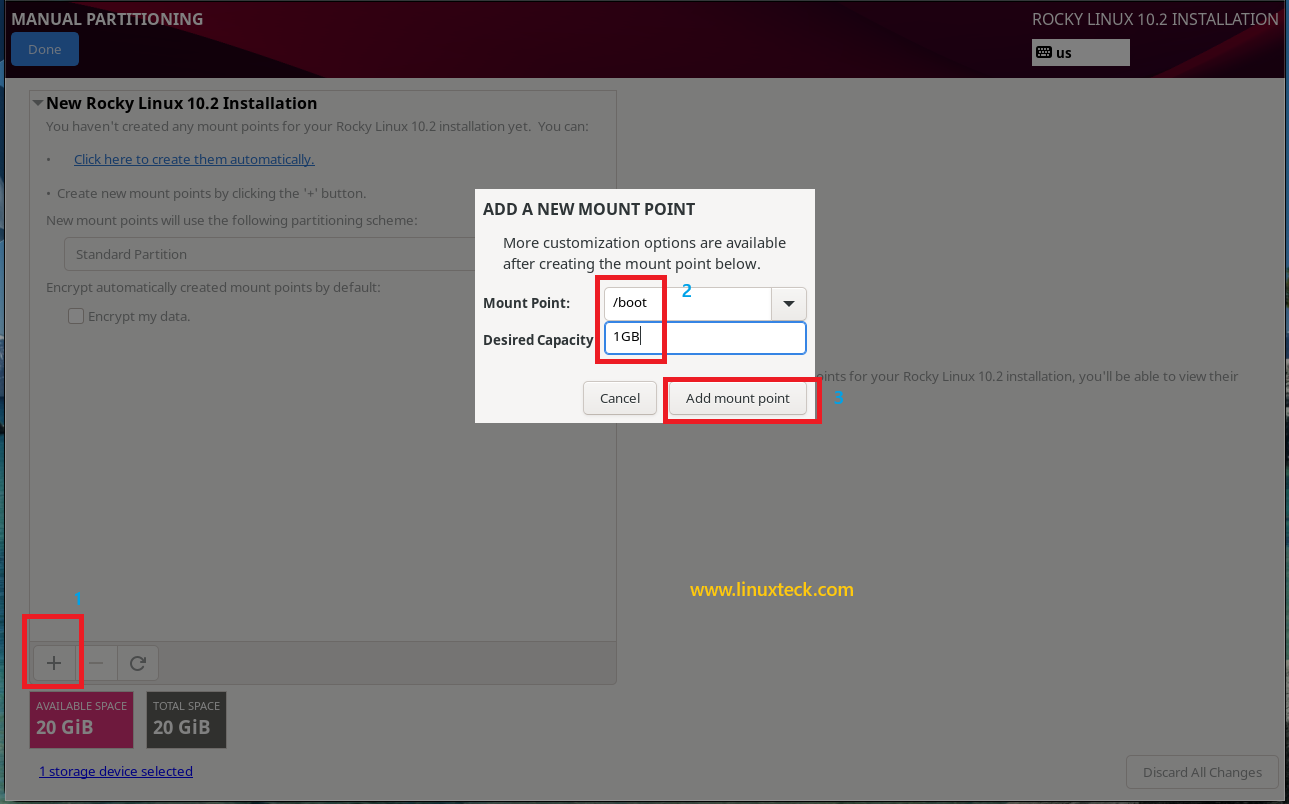
Note:
Next, create the / (root) partition. This is the main partition where the operating system files are stored. For this lab exercise, I will allocate 7 GB of disk space to the root partition. Once you have entered the size, click "Add mount point" to proceed.
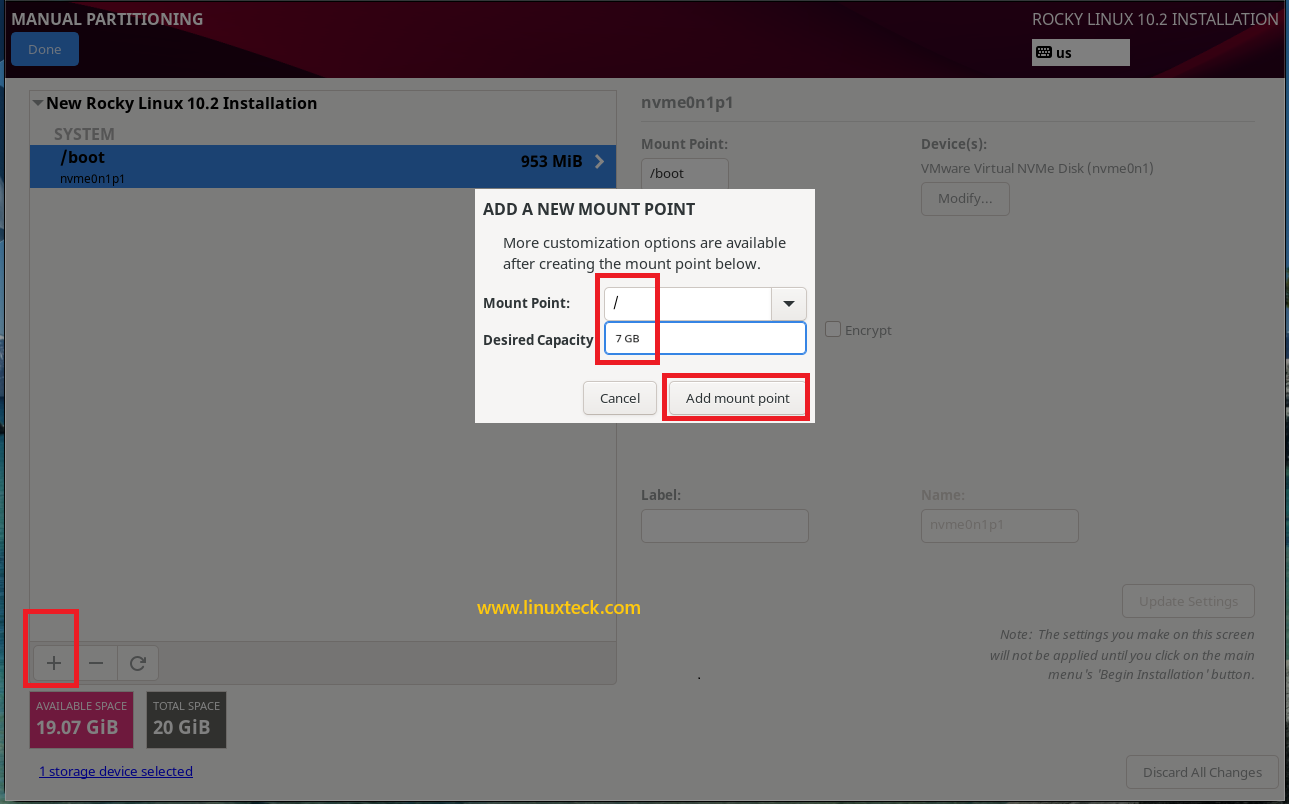
Note:
Repeat the same process to create the remaining partitions, such as /home, /var, and swap.
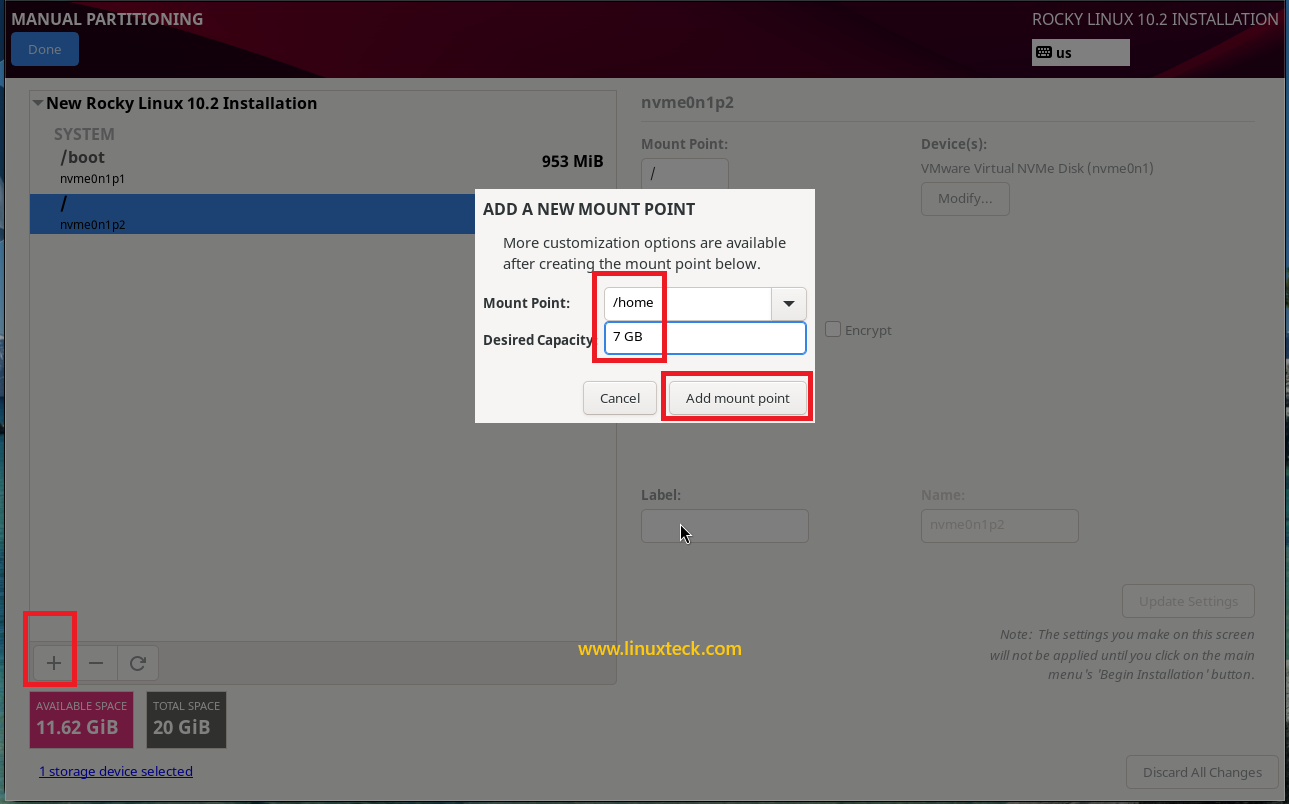
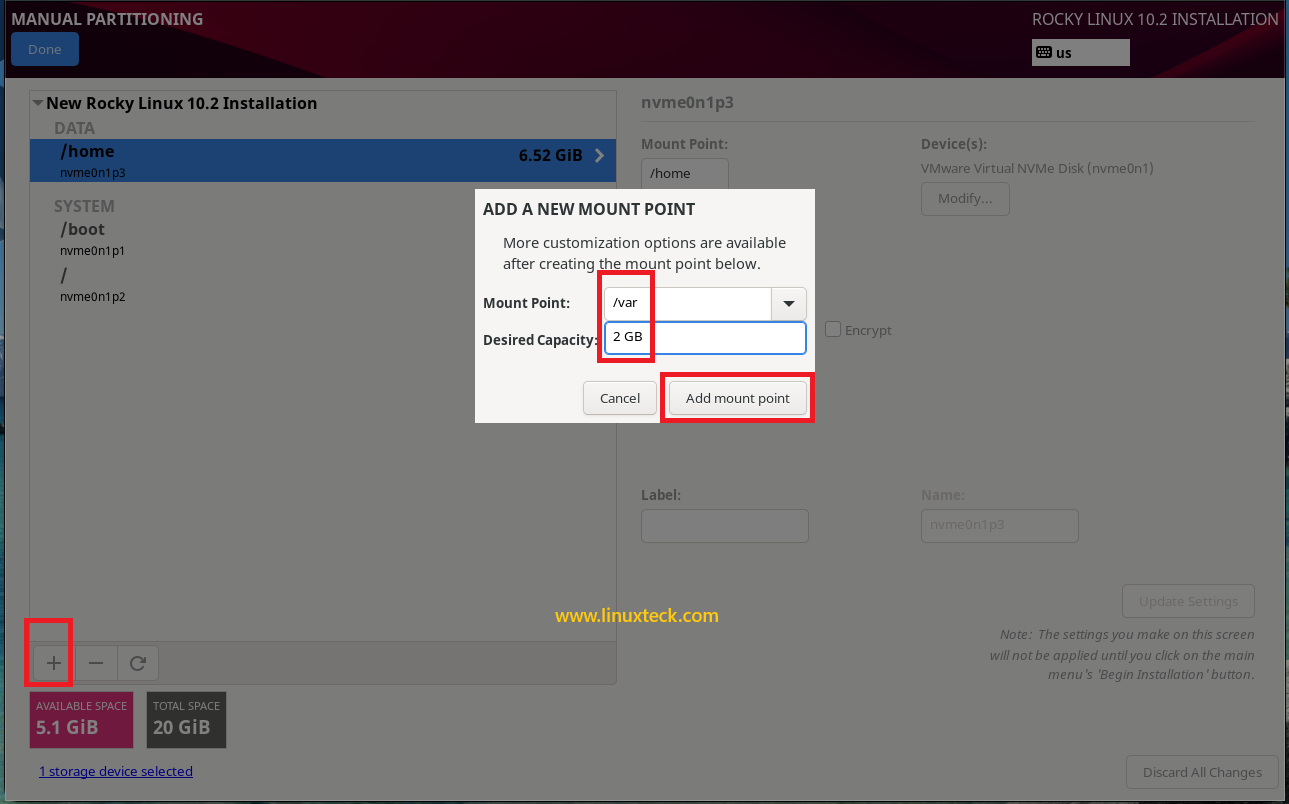
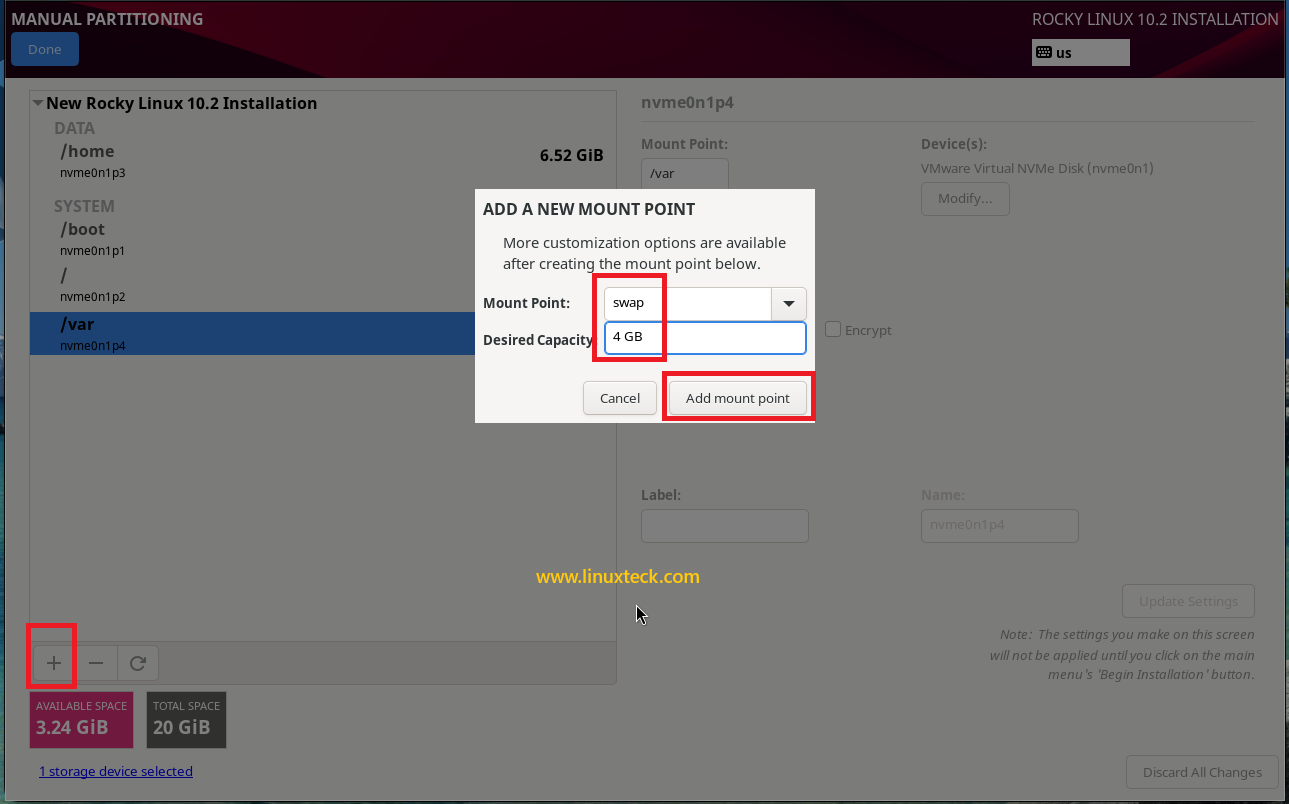
Note:
Since this system is configured to boot in UEFI mode, I will create a separate /boot/efi partition with 600 MB of disk space. Once all partitions have been created, click Done and review the Summary of Changes screen. Finally, click Accept Changes to write the partition table to the disk.
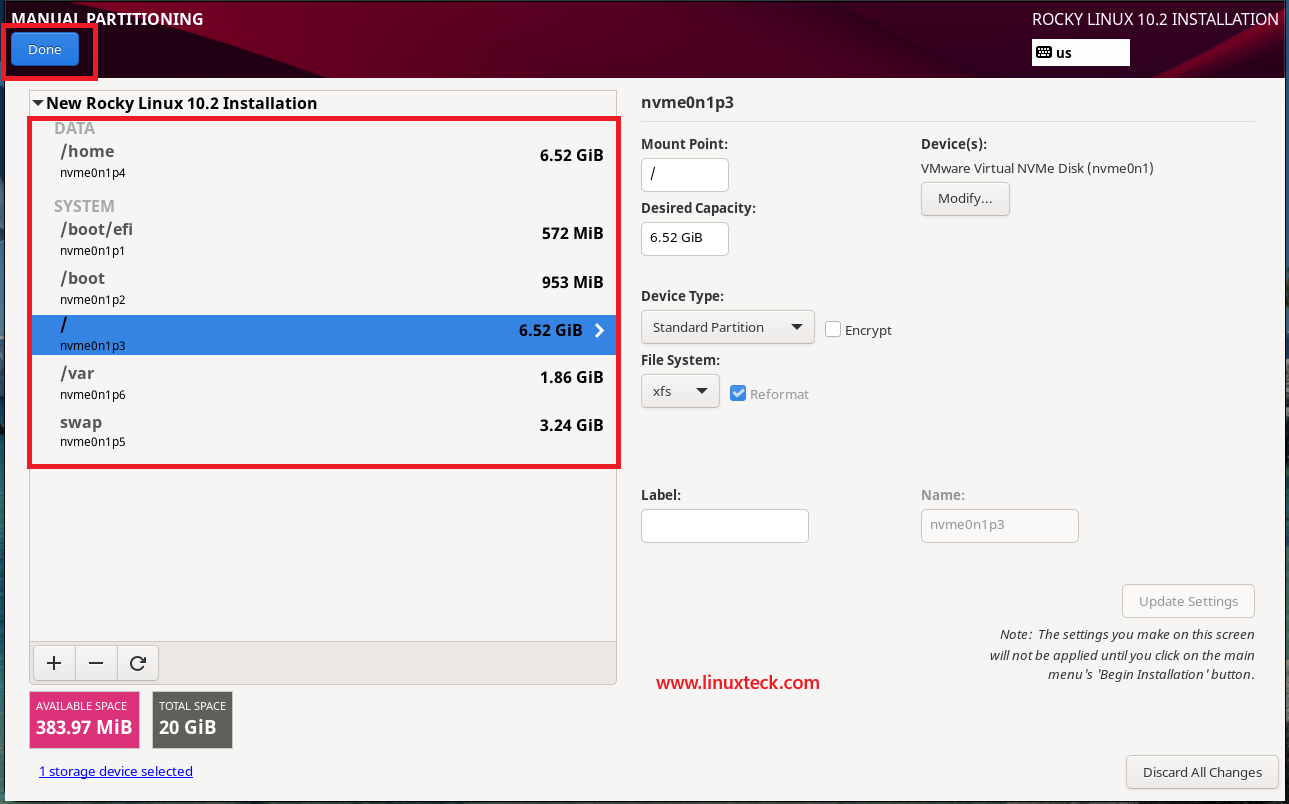
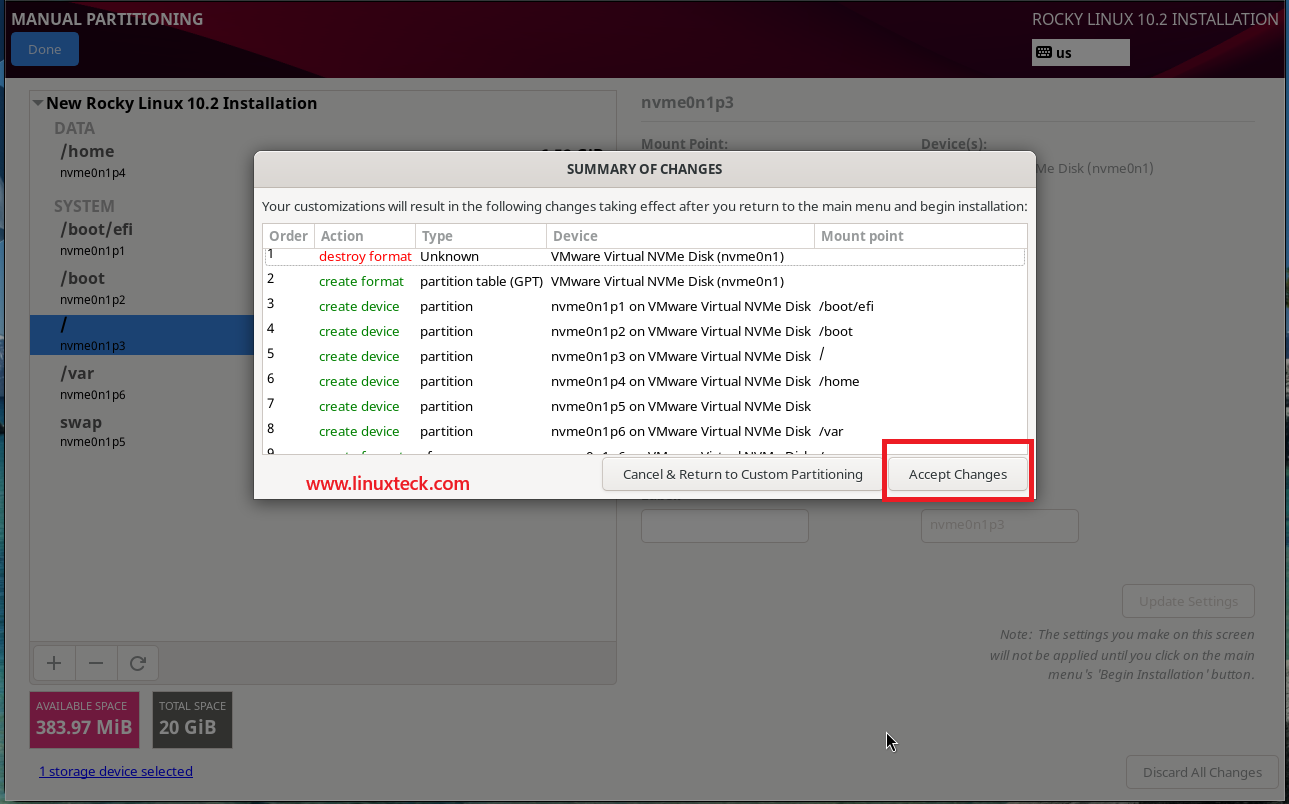
Note:
Next, under User Settings, you need to configure both the root password and a regular user account. By default, the root account is disabled. To activate it, click Root Password, enable the "Enable root account" option, enter a secure password, and then click Done. After that, click User Creation, enter the required user information, select the appropriate options based on your requirements, and click Done to continue.
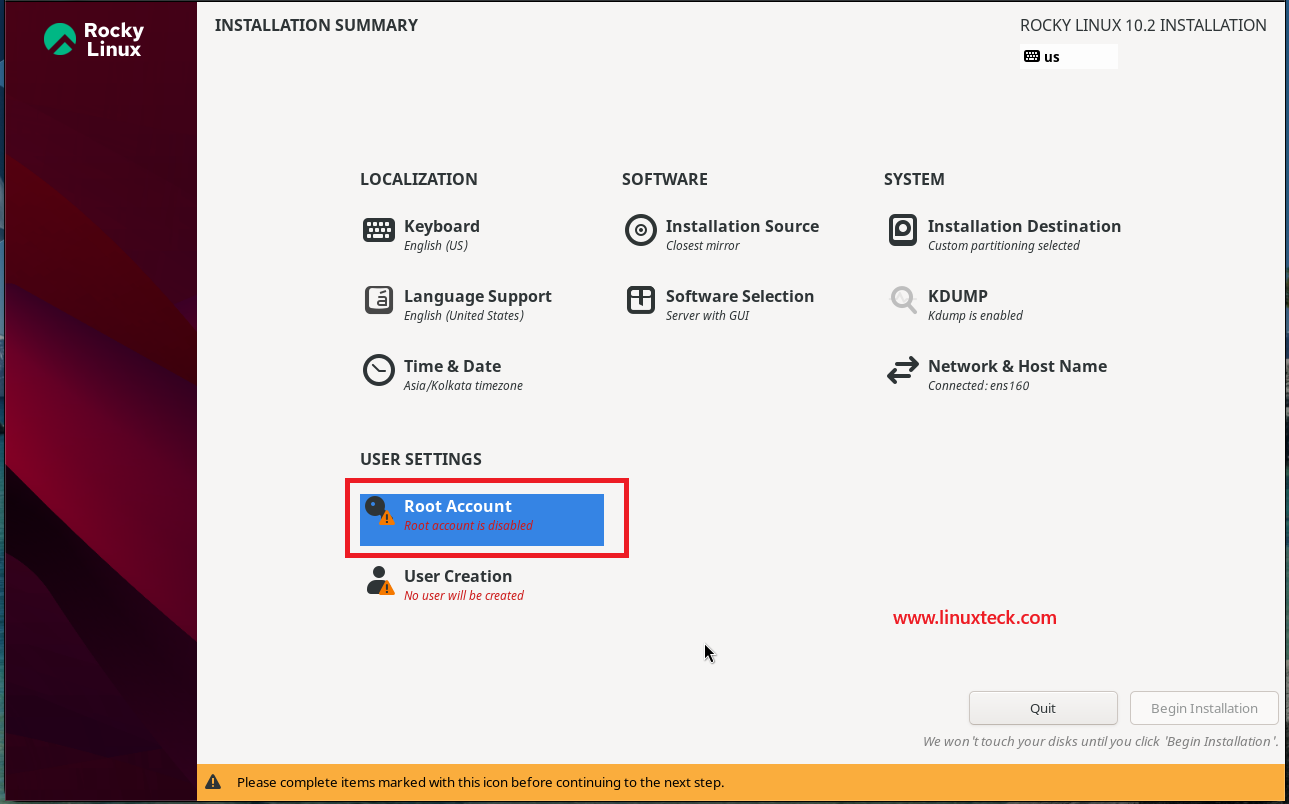
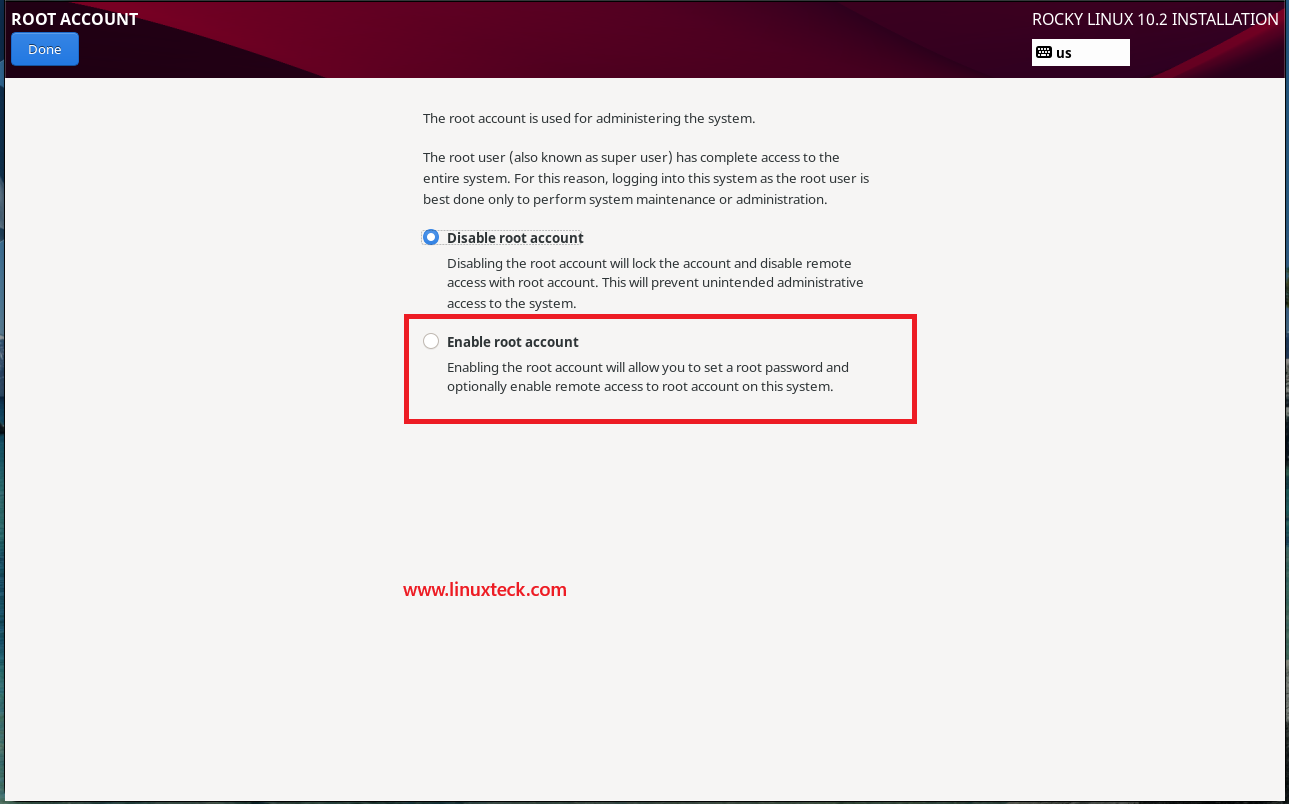
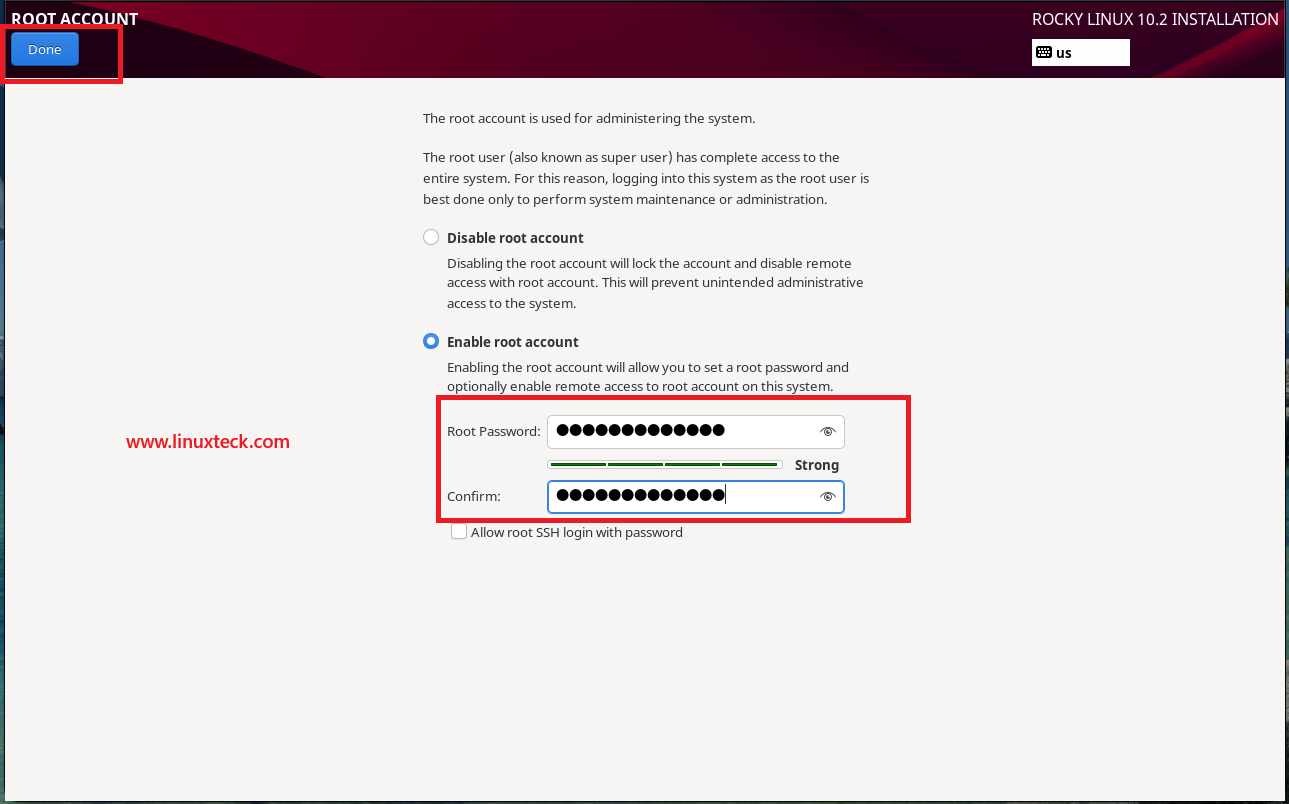
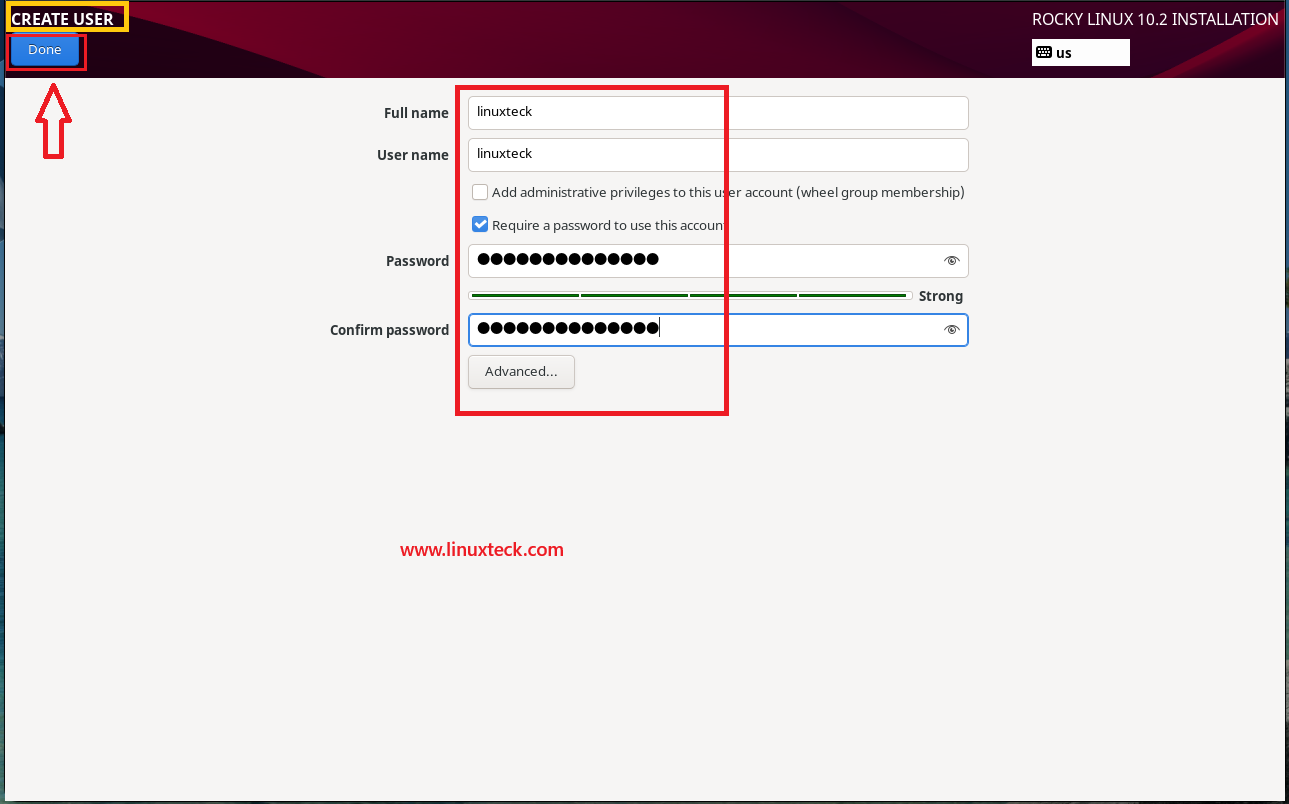
Note:
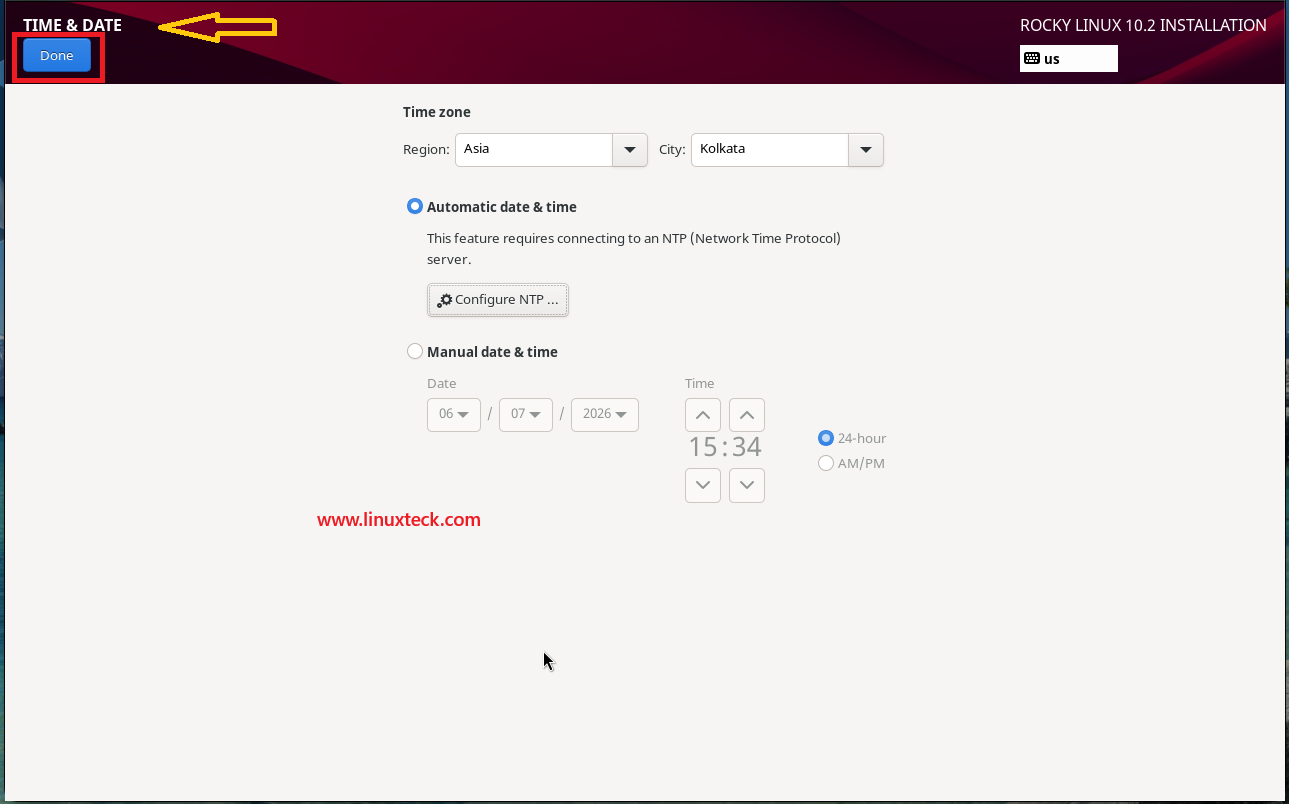
Date & Time: In Rocky Linux 10.2, the Date & Time settings are configured automatically based on your time zone. If the detected settings are incorrect, click the Date & Time option and select the appropriate region and city.
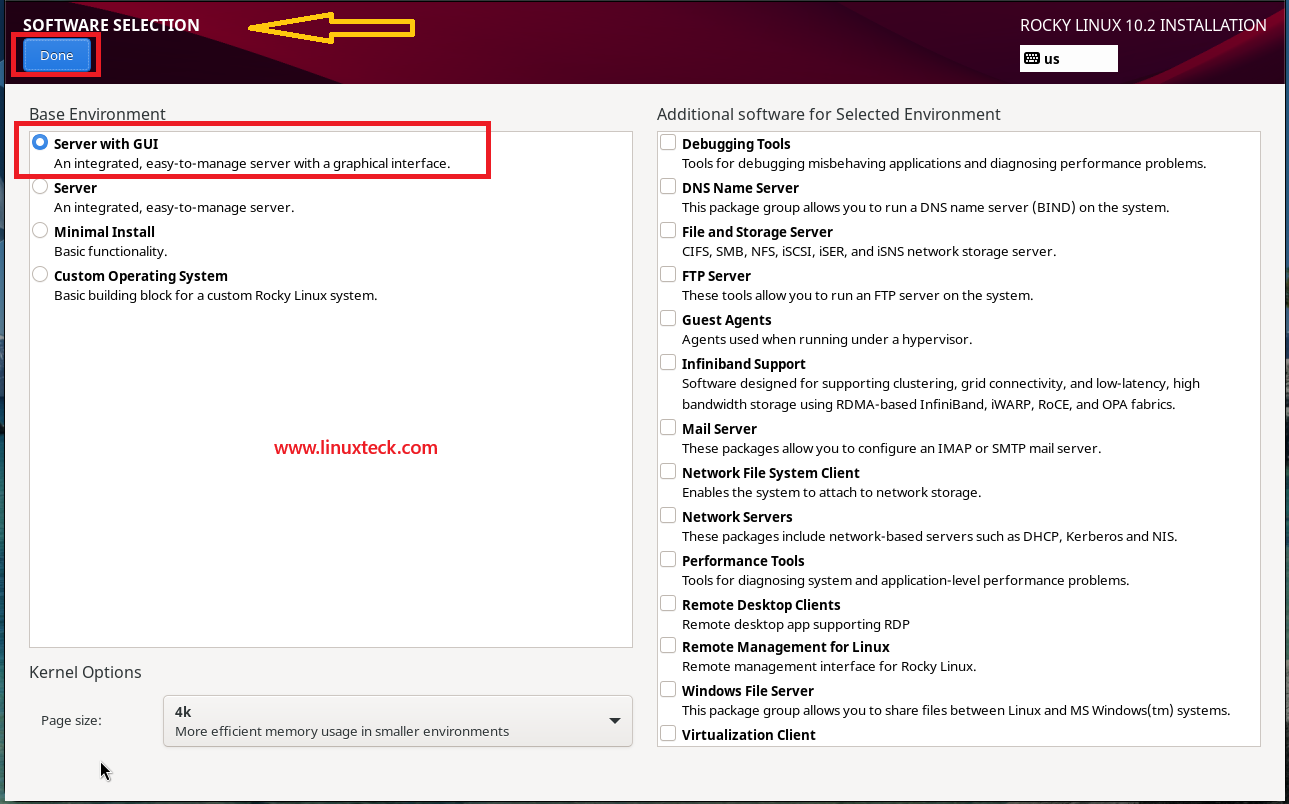
Software Selection: By default, Rocky Linux 10.2 installs the Server with GUI environment. If required, click Software Selection to choose a different installation environment. Several options are available, and you can select the one that best suits your requirements. For this demonstration, I will use the default Server with GUI option.
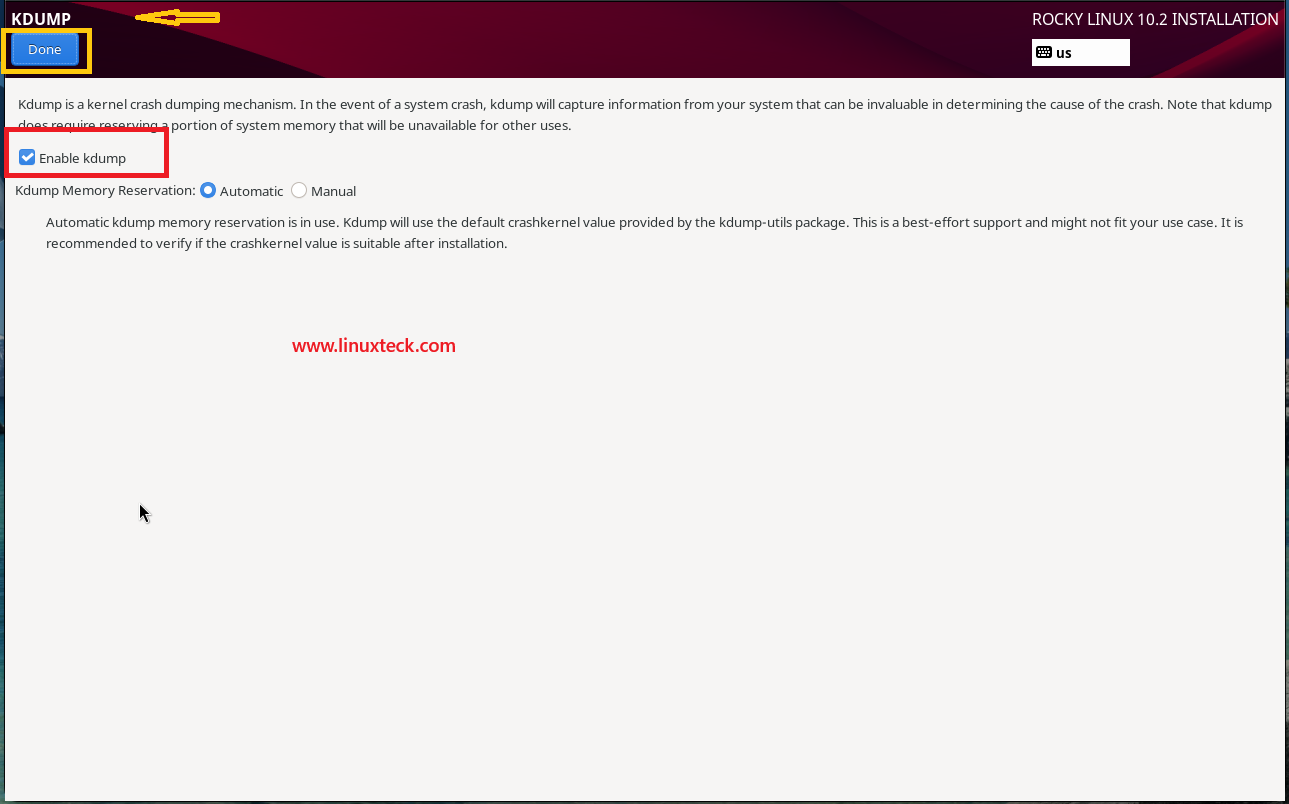
Kdump: Kdump is enabled by default. It is recommended to leave Kdump enabled, as it helps collect diagnostic information when kernel-level crashes occur. If you do not need this feature, click Kdump and clear the checkbox to disable it.
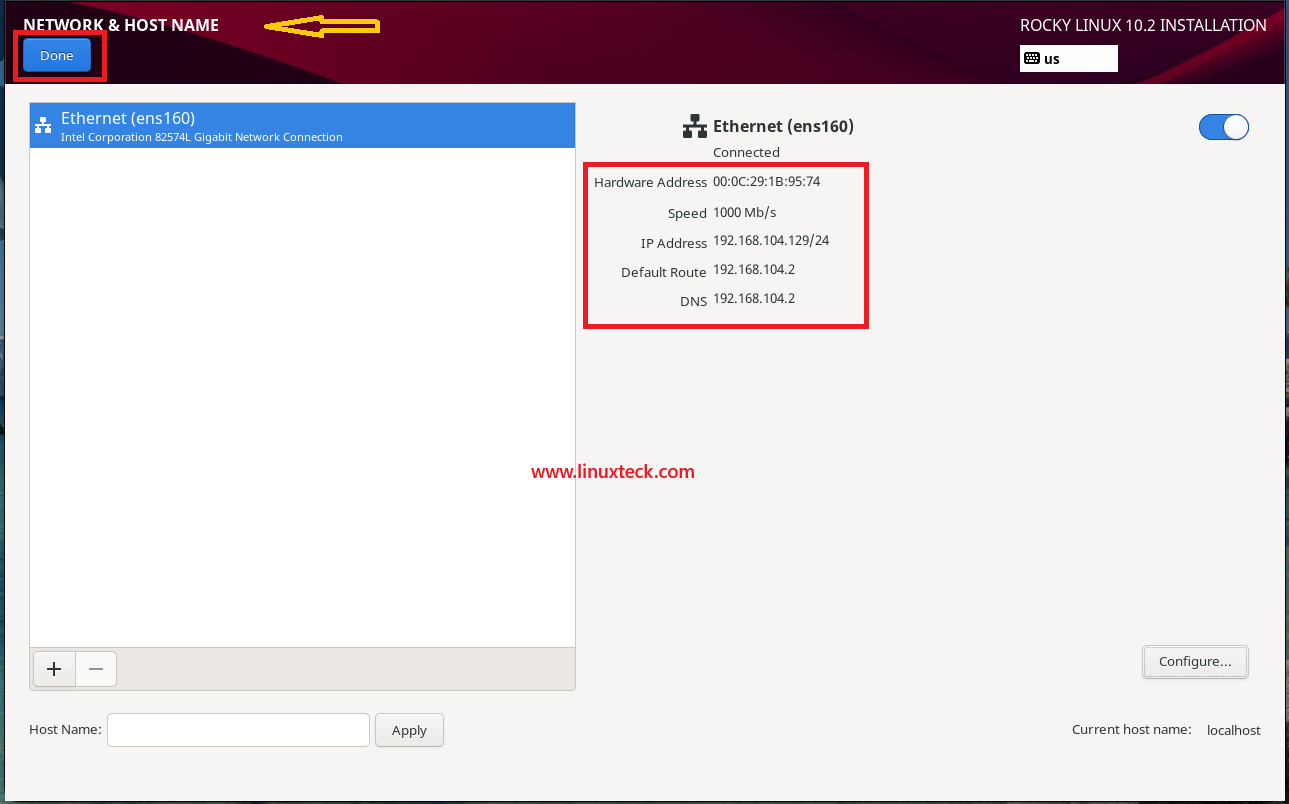
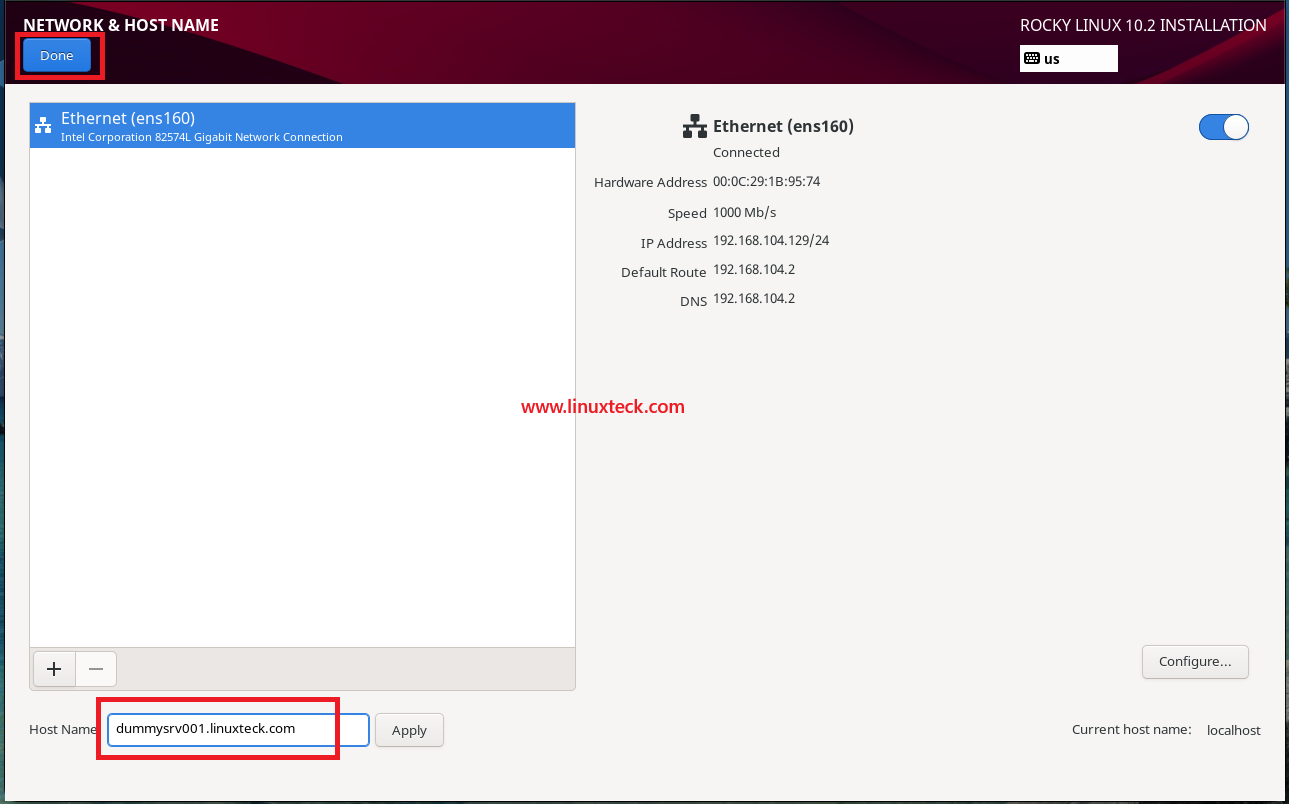
Network & Host Name: During the installation process, you can enable the Ethernet connection and configure the system hostname. In most environments, a dynamic IP address (DHCP) is assigned automatically. If required, you can also configure a static IP address and specify a custom hostname.
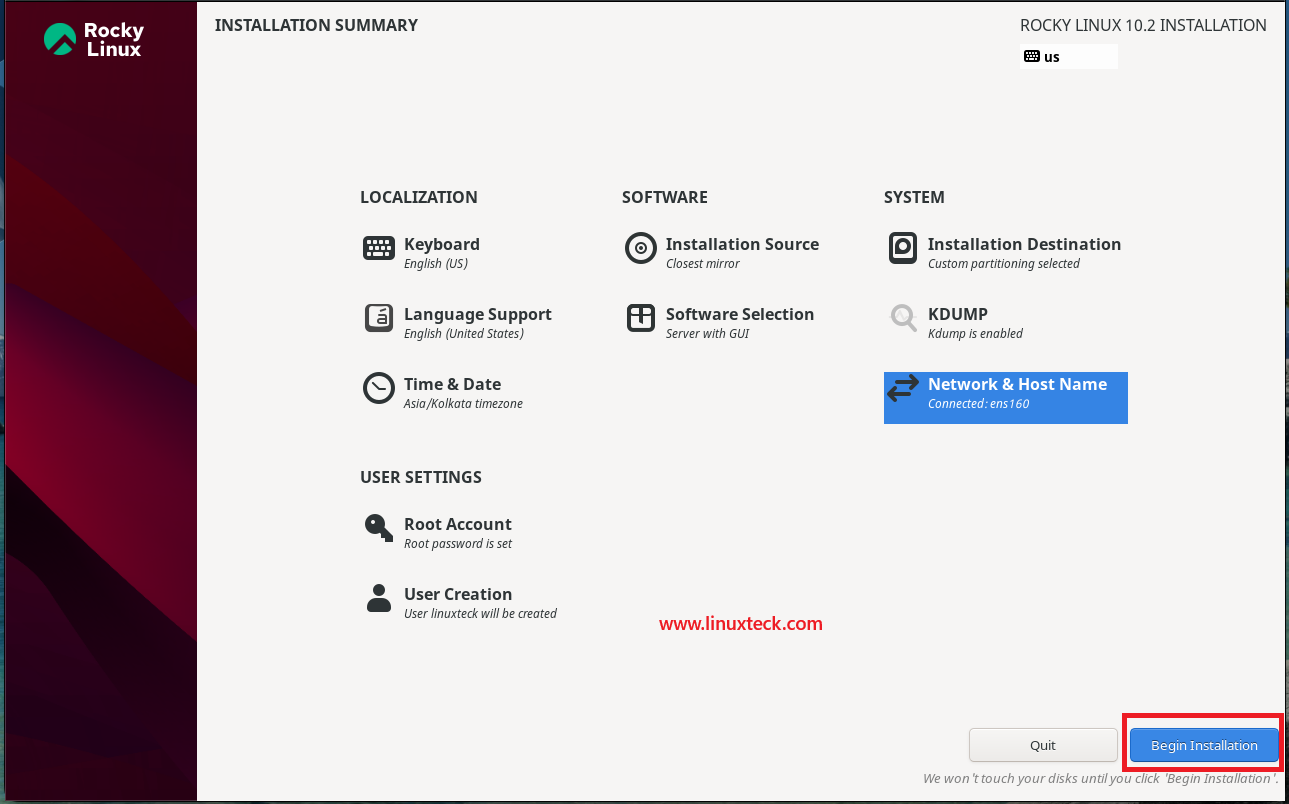
Once you have completed the above settings, click Done. You will be returned to the Installation Summary screen. Finally, click Begin Installation to start the Rocky Linux 10.2 installation process.
Step-6: Begin Installation and First Boot
Note:
Following the customization of all the required settings, click Begin Installation to start the Rocky Linux 10.2 installation process.
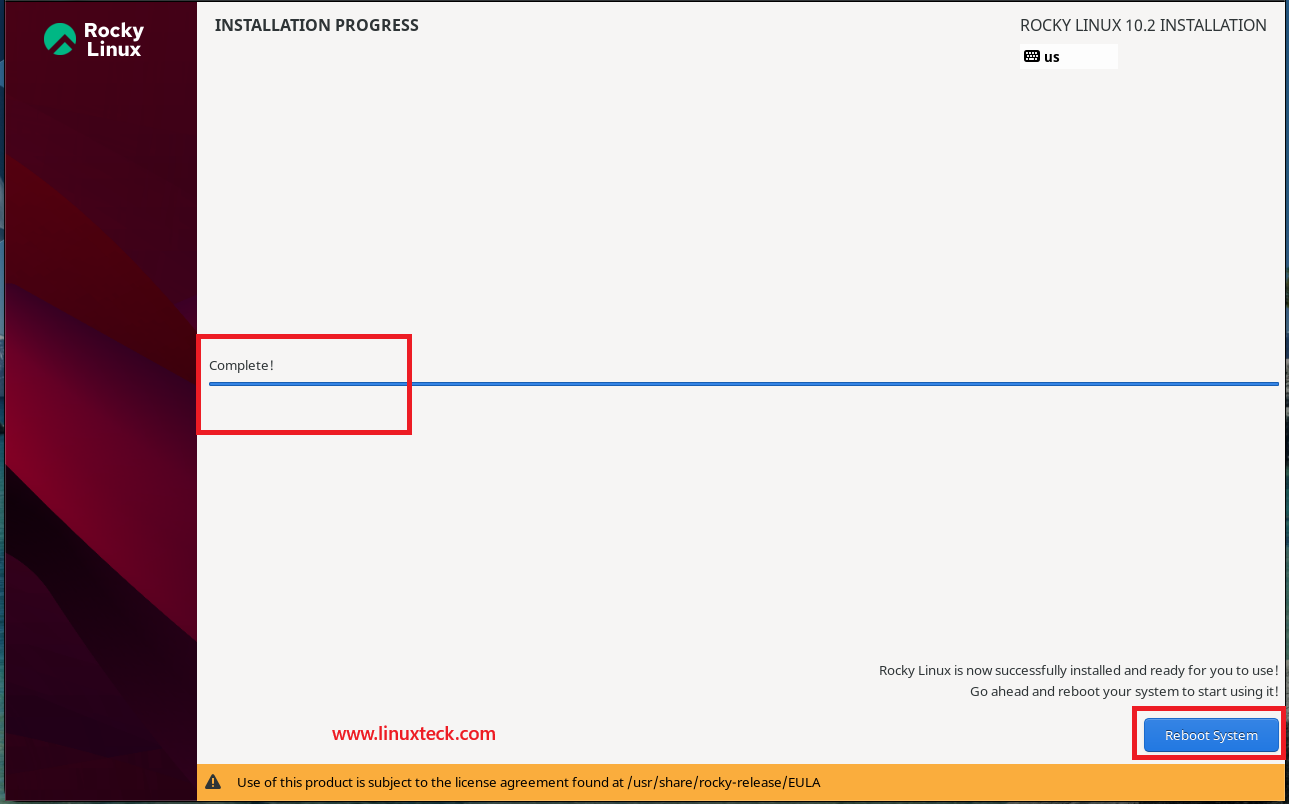
The installer will partition the disk, install the operating system, and configure the bootloader automatically. Depending on your hardware, this process may take several minutes. A progress bar will display the current installation status. Do not power off the system while the installation is in progress.
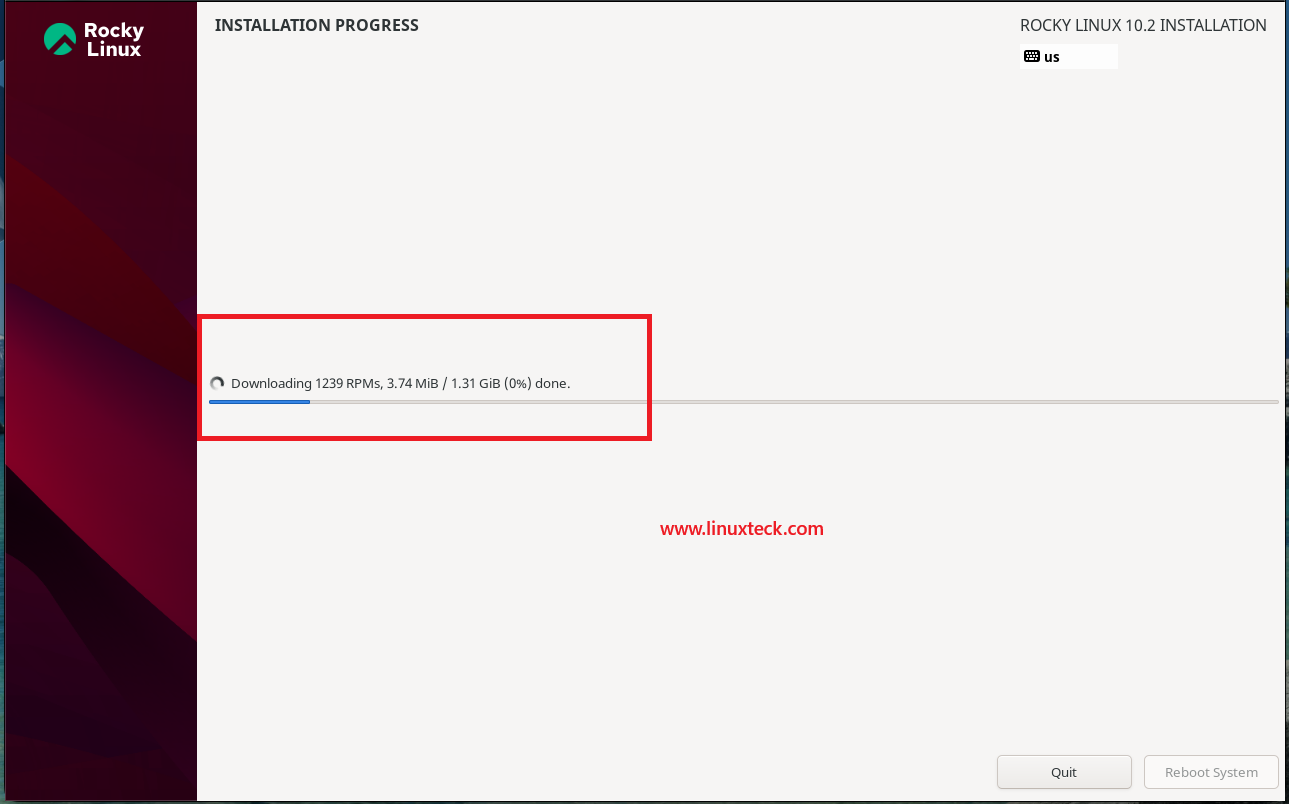
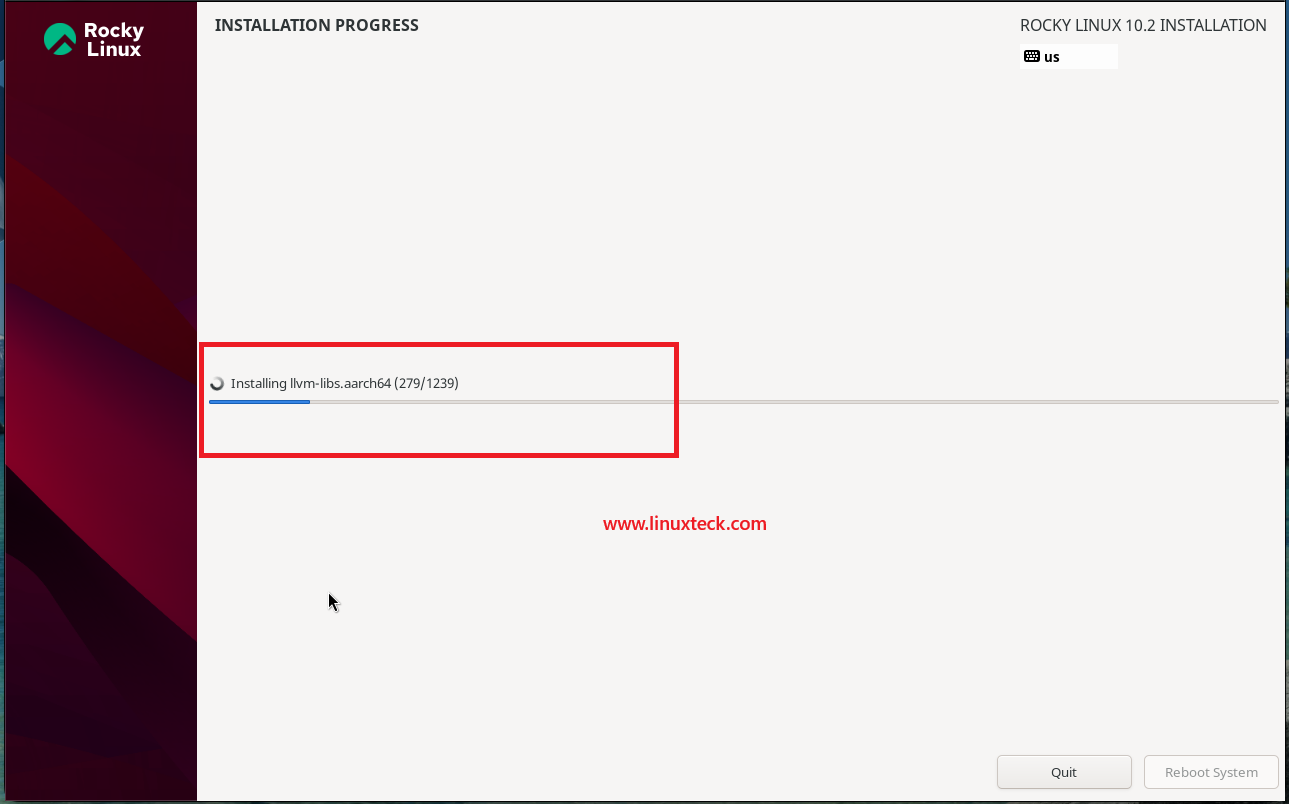
Note:
Once the installation is complete, click Reboot System. If you installed Rocky Linux from a USB drive, remove it before the system restarts. For virtual machines, detach the ISO image from the CD/DVD drive before rebooting. After the restart, you will be presented with the Rocky Linux login screen. Log in using the user account created during the installation.
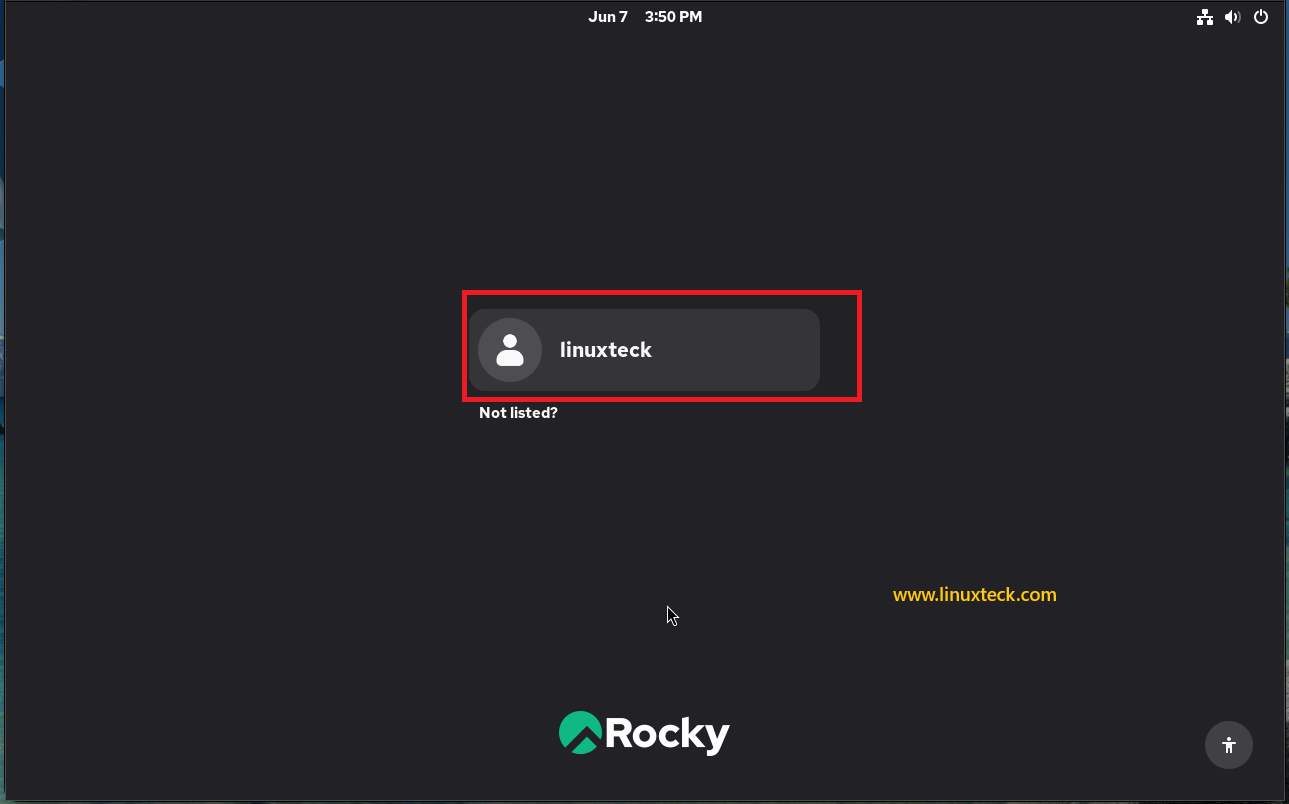
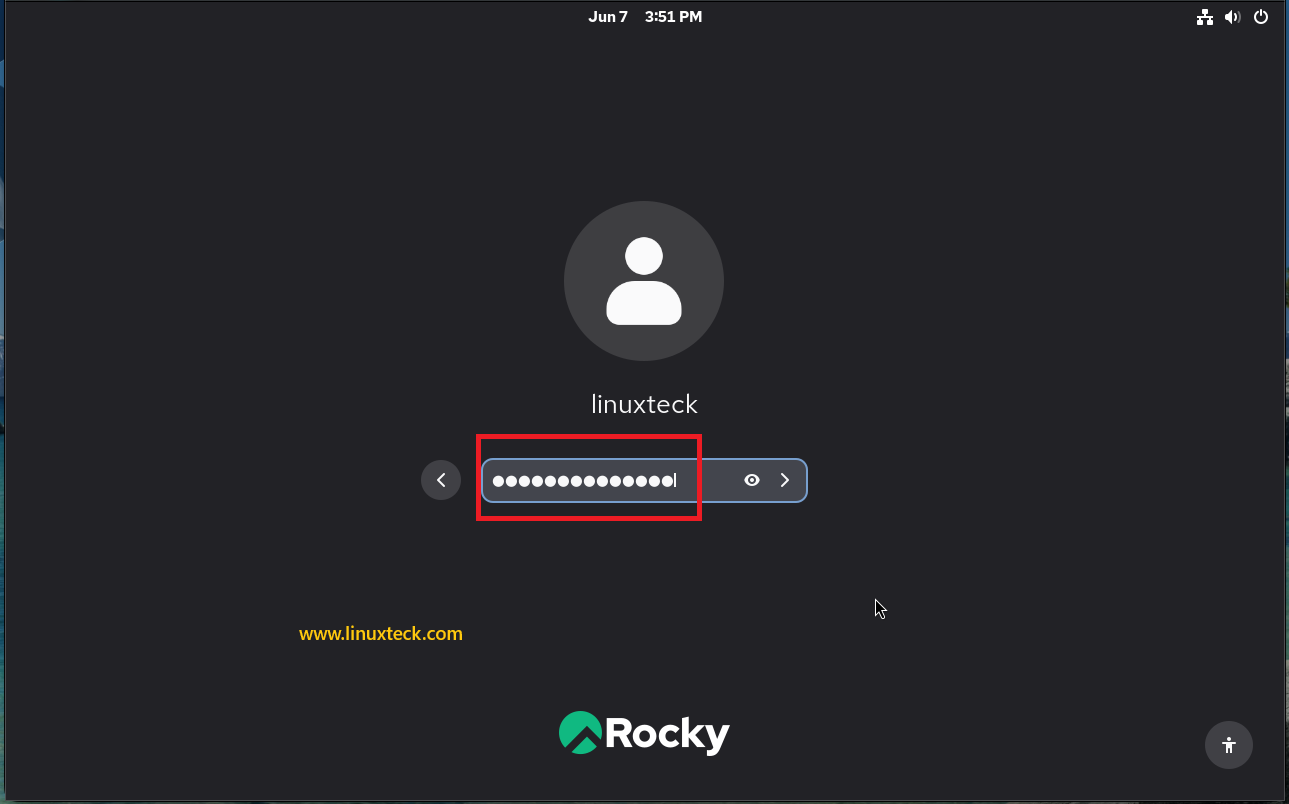
Note:
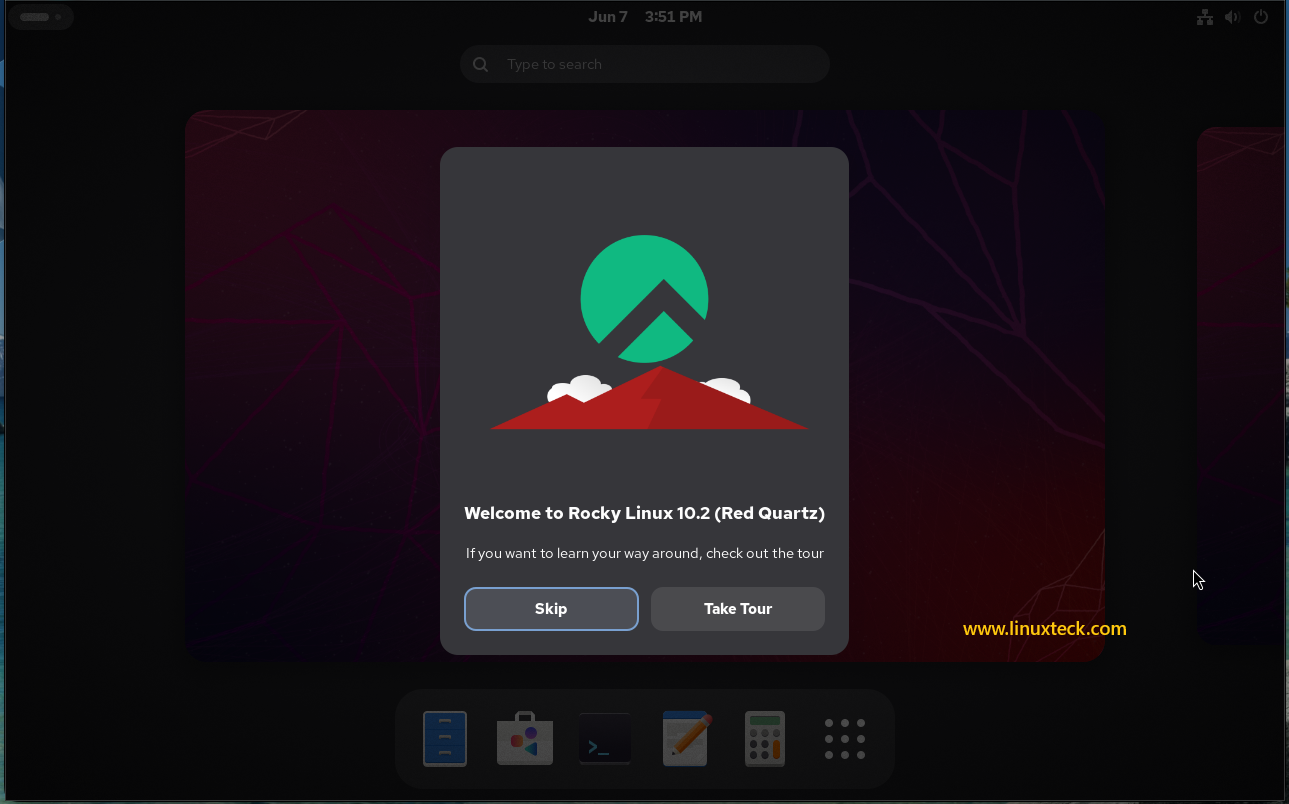
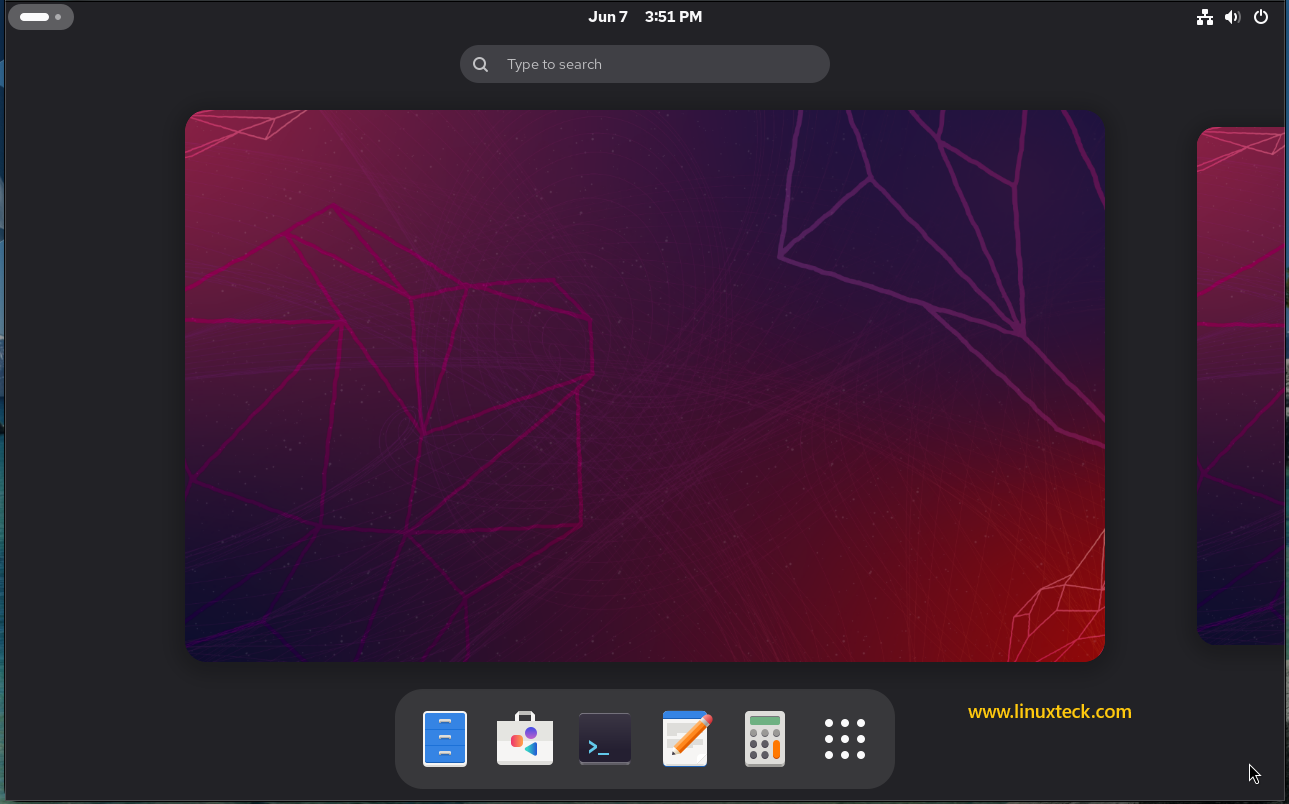
This screen displays the Rocky Linux 10.2 GNOME desktop along with a welcome tour designed to help new users become familiar with the desktop environment. You can choose to take the tour or skip it and continue directly to the desktop.
Step-8: Post-Installation & Verification
Post-Install Checklist:
After the first login, a few things are worth doing right away before you build anything on top of the system.
- Verify the hostname is set correctly by checking the system identity. If it still shows localhost, fix it now before services start caching the wrong name.
- Confirm your network interface is up and has the expected IP address.
- Enable the firewall if it is not already active. A minimal install does not always start firewalld by default.
- Run a full system update to pull in any security fixes released since the ISO was built. For reference on managing packages, the DNF guide for beginners covers the package manager in detail.
- If you plan to set up a web server next, the LAMP stack installation guide for Rocky Linux is a natural next step.
Conclusion
You have successfully installed Rocky Linux 10.2 with a properly partitioned disk, a configured hostname, an admin user ready for sudo, and the system sitting at first boot. The next logical step is hardening SSH and locking down remote access before this server faces any traffic. You can also follow our Linux server hardening checklist to work through the post-install security steps in a structured order. Drop me your feedback/comments. Feel free to share this article with others if you like it.
Thank you!
To find all the Rocky Linux articles, click here
How to Install Rocky Linux 10.2: Questions I Get Asked All the Time
My CPU is older than Haswell. Can I still install Rocky Linux 10.2?
No. Rocky Linux 10 raised the CPU baseline to x86-64-v3, which requires AVX2 support. Intel Haswell (2013) and AMD Excavator (2015) are the oldest compatible generations. If your hardware predates those, Rocky Linux 9 is your option. It receives full support until May 2032, which is several years away. You can check CPU compatibility on an existing Linux system by running grep -o 'avx2' /proc/cpuinfo. If it returns avx2, you are good to go. If it returns nothing, stay on Rocky Linux 9.
What is the difference between Minimal Install and Server with GUI?
Minimal Install gives you roughly 300 packages, covering the bootloader, kernel, systemd, dnf, sshd, and basic utilities. No desktop, no display server, no extra services. It is the right starting point for servers because you only add what you actually need. Server with GUI pulls in GNOME, all its dependencies, display components, and a lot of desktop tooling that has no place on a production server. Choose Minimal for servers and headless environments, Server with GUI only when you genuinely need a graphical interface on the machine itself.
Can I install Rocky Linux 10.2 alongside Windows (dual boot)?
Yes, but it requires careful partition management. During the Installation Destination step, choose Custom partitioning. Do not touch the existing Windows partitions. Create a new partition in the free space for /boot/efi (if UEFI), /, and swap. The Anaconda installer detects existing operating systems and adds them to GRUB automatically. The biggest risk here is accidentally selecting the wrong disk or partition. Back up Windows data before you start and double-check your disk selection before clicking Accept Changes.
How do I check which version of Rocky Linux I installed after first boot?
Run cat /etc/rocky-release at the terminal prompt. This prints the full release string, something like Rocky Linux release 10.2 (Red Quartz). You can also run hostnamectl to see both the OS version and the hostname in one output. If you want more detail about the kernel version running, use uname -r. These are the three checks most sysadmins run immediately after a fresh install to confirm the system is what they expect.
The installer is asking me to set a root password but I want to use sudo only. What should I do?
In Rocky Linux 10, root is disabled by default. You can leave the Root Password section alone and focus entirely on creating an admin user with wheel group membership checked. That user can run any administrative command using sudo. If you do want root available, enable it in the Root Password screen and set a strong password, but disable SSH root login at the same time. Allowing password-based SSH root login on a public-facing server is a configuration you will regret. The safer default is sudo-only management through a named user account.
Why does my partition size show slightly different from what I entered in the installer?
This is normal Anaconda behavior. When you request 2 GB for /boot, the installer may create a partition that shows as 1907 MiB. That is because Anaconda works in binary units (MiB) while most people think in decimal (GB). Rocky Linux 10 increased the default /boot baseline to 2 GiB to accommodate multiple kernel versions without running out of space during updates. Similarly, LVM overhead and BIOS boot partition space get subtracted from your total before the remaining space is divided. The sizes you see in the summary differ slightly from what you typed, but the math is correct. Accept the changes and move on.
Explore LinuxTeck for practical guides covering Rocky Linux, RHEL, AlmaLinux, Ubuntu, Debian, Fedora, Linux administration, shell scripting, networking, and enterprise Linux technologies.