Why Commands Alone Won't Get You Hired
Picture this. You are sitting in a technical interview. The room is quiet. The interviewer slides a question across the table — or types it into the chat:
Your mind races. You know the commands. You have typed them dozens of times. But putting them into a structured, confident answer? That is where most beginners freeze — and where interviews are lost.
Here is the truth that nobody tells you early enough: knowing a command is the starting point, not the finish line. Interviewers are not testing whether you can recite syntax. They are testing whether you think like someone who has actually sat in front of a broken server at 2am and fixed it.
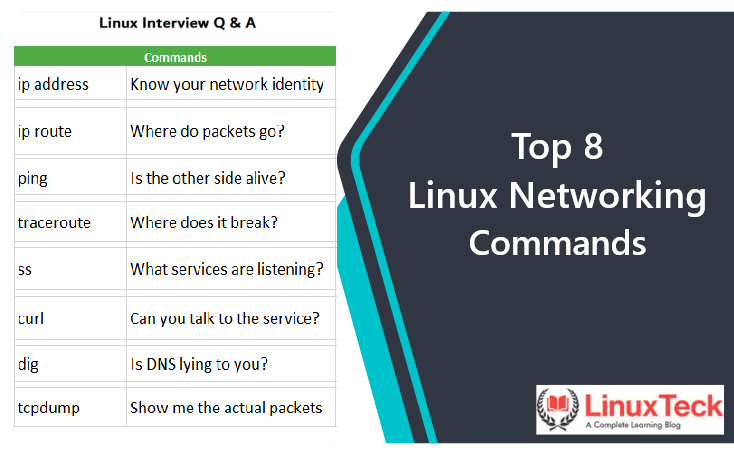
This post covers 8 Linux networking commands that every beginner should not just memorize, but truly understand. Each section gives you the command, what it does in plain language, how to explain it in an interview, and how it plays out in a real server situation.
Linux Networking Commands Explained for Interview Preparation
Before you can troubleshoot anything, you need to answer one basic question: does this server even have a working network connection? That is exactly what this command tells you.
Many beginners still use the older ifconfig. Modern Linux systems use:
ip address           # full form — recommended in scripts
ip a                 # shorthand — same result

# Old command (still works on FreeBSD/OpenBSD):
ifconfig
- ▸All network interfaces — eth0, ens192, lo
- ▸Whether each interface is UP (active) or DOWN (inactive)
- ▸IPv4 and IPv6 address assigned to each interface
- ▸Subnet mask — which network range this IP belongs to
- ▸MAC address — the physical hardware identifier of the network card
"I use ip address to check whether the network interface is up and which IP is assigned. If the interface is DOWN, that is the root cause — nothing else will work until the interface is active."
You SSH into a server after a user reports connectivity problems. Before touching anything else, you run ip address. The interface shows as DOWN. That is your answer — not DNS, not firewall, not routing. The interface itself is inactive.
ip address is part of the iproute2 package — not always installed on minimal systems or containers. Also, ifconfig still works on FreeBSD and OpenBSD where iproute2 is not available.
Having an IP address does not mean traffic can actually leave your server. The system needs to know where to send packets. Think of routing like GPS for network traffic — without it, data has no road to travel on.
ip route             # modern command
route -n             # older alternative, still works
- ▸The default gateway — the exit door to reach outside networks
- ▸Static routes — specific paths for certain subnets or destinations
- ▸Which network interface handles each route
"I check ip route to see the routing table. If the default gateway is missing, the server has no way to reach external networks — no matter what else looks fine. This is one of the first things I verify during any connectivity issue."
Server cannot reach the internet. Interface is UP, IP is assigned. You check ip route — the default gateway is completely missing. The server has an identity but no road to travel on. Adding the default route fixes it immediately.
Always check routing before jumping to DNS or firewall when external connectivity fails. A missing default gateway means zero external connectivity — and nothing else will fix that.
Everyone learns ping on day one. But most beginners only know how to run it — not how to read what it is telling them. That is where the real value is.
ping 8.8.8.8          # test connectivity to an IP address
ping google.com       # test connectivity + DNS resolution
ping -c 4 8.8.8.8     # send exactly 4 packets then stop
- ▸You get replies → network path is working, destination is reachable
- ▸Packet loss → something is dropping traffic along the path
- ▸Destination Host Unreachable → no route exists to get there
- ▸Request Timeout → target not responding or ICMP blocked by firewall
"ping checks basic network reachability using ICMP. The more important skill is interpreting the result — if pinging an IP works but pinging a hostname fails, the network is fine. The problem is DNS. That one comparison points you to a completely different fix."
User says server cannot reach google.com. You run ping 8.8.8.8 — works perfectly. Then ping google.com — fails. Internet is fine. DNS is broken. Two completely different problems, two different teams to call.
When ping tells you something is unreachable, the next question is: where is it failing? Traceroute shows every step the packet takes on its journey — and exactly where it stops.
traceroute google.com       # standard command
tracepath google.com        # alternative, no root needed
mtr google.com              # live view — best for intermittent issues
- ▸A numbered list of every router (hop) between your server and destination
- ▸Response time at each hop — spot slowness in the path
- ▸* * * on a line = that hop timed out or does not respond to probes
- ▸Where the output stops = where traffic is being blocked or dropped
"traceroute shows the packet path hop by hop. If traffic stops at a specific point, it usually means a firewall or router is blocking it there. It helps me prove whether the issue is on my server, in the middle of the network, or at the destination."
Your server cannot reach a vendor's API. You run traceroute. Traffic travels cleanly for 6 hops — then stops at the network firewall. You now know exactly where the block is and have evidence to prove it. Not your problem. Network team's problem.
The mtr command combines ping and traceroute into a live, continuously updating view. Incredibly useful for spotting intermittent packet loss. Try mtr google.com if available on your system.
Knowing your network is up is one thing. Knowing whether your application is actually listening for incoming connections is another. This command is your window into that — and it replaces the old netstat.
# Full long-form (recommended in scripts and articles):
ss --listening --tcp --udp --numeric --processes

# Shorthand once you understand the flags:
ss -tulnp
- ▸--tcp / -t → Show TCP connections
- ▸--udp / -u → Show UDP connections
- ▸--listening / -l → Only show ports actively listening for connections
- ▸--numeric / -n → Show port numbers, do not resolve to service names
- ▸--processes / -p → Show which process owns each port
"I use ss to check which ports are open and which process is listening on them. It confirms whether a service is running and whether it is accessible from outside or bound to localhost only."
App is running but external users cannot connect. You check ss and see the service is bound to 127.0.0.1:8080 — localhost only. Change the bind address to 0.0.0.0:8080 and external connections work immediately.
Network is up. Service is listening. But is it actually responding? curl lets you test that at the application level — the same way a browser or API client would.
curl -I http://example.com         # fetch headers only — quick response check
curl http://localhost:8080/health  # test a local app endpoint
curl -v http://example.com         # verbose — full request and response
- ▸200 OK → service is responding normally
- ▸301 / 302 → redirect is happening — check it goes to the right place
- ▸403 Forbidden → server is up but access is denied
- ▸500 Server Error → server responds but the application has an error
- ▸Connection refused → nothing is listening on that port at all
"curl lets me test an HTTP endpoint and see the actual response. Unlike ping which only checks network reachability, curl confirms whether the application itself is working. It is how I prove a service is up or down with a clean, repeatable command."
App reported down. Instead of opening a browser, you run curl -I http://yourapp.com — HTTP 500. Server is reachable, application is throwing an error. You know exactly which team acts on it. No guesswork, no screenshots, just a clean repeatable result.
A huge percentage of "network problems" are actually DNS problems in disguise. Something is not resolving, resolving to the wrong IP, or using an old cached answer. dig lets you ask DNS directly and see exactly what it returns.
dig google.com                  # query your default DNS server
dig @8.8.8.8 yourwebsite.com    # query a specific DNS server
dig google.com +short            # just the IP, nothing else
- ▸ANSWER SECTION → the actual IP address the domain resolved to
- ▸SERVER → which DNS server answered your query
- ▸TTL → how many seconds this result is cached before expiring
- ▸NXDOMAIN → the domain does not exist in DNS at all
"I use dig to query DNS records directly. If a hostname resolves to the wrong IP or does not resolve at all, application connectivity will fail even when the network is perfectly fine. dig tells me exactly what DNS returns and which server said it."
Website works on some servers but not others. You run dig on both. Server A returns the old IP from before a migration. Server B returns the new IP. Classic DNS caching issue. Flush DNS cache on Server A and everything works. Without dig you would be chasing ghosts.
This is the command that separates beginners from professionals. Every other command tells you what should be happening. tcpdump shows you what is actually happening at the packet level. Arguments end when you run it.
tcpdump -i eth0 port 443          # capture HTTPS traffic on eth0
tcpdump -i eth0 host 10.0.0.5     # capture traffic to/from a specific IP
tcpdump -i any port 8080          # watch all interfaces for port 8080
- ▸Whether requests are actually arriving at your server
- ▸Whether your server is sending responses back out
- ▸Whether a TCP handshake is completing successfully
- ▸The exact source and destination of every packet
"tcpdump captures live network packets. If I see packets arriving but no response going back, the problem is server-side. If no packets arrive at all, the issue is somewhere upstream. It removes all ambiguity — no more 'I think' or 'maybe'."
App team insists their requests are reaching your server. You run tcpdump -i eth0 port 8080 while they send requests.
📦 No packets appear → their requests are not arriving. End of debate.
📦 Packets arrive, nothing goes back → server receives but does not respond. Your problem.
📦 Both arrive and go out → server is fine. Problem is between server and client.
No drama. Only facts.
tcpdump captures raw network traffic which can include sensitive data in plaintext. Always use it only on systems you are authorised to monitor. Root or sudo access is typically required.
The Troubleshooting Flow Every Admin Uses
Work through this in order when a network issue is reported. It will save you hours of random guessing.
Interview Drill — Practice These Out Loud
Do not just read these. Say them out loud. The goal is to sound like someone who has actually sat in front of a broken server — not someone who memorized an answer the night before.
Final Thoughts — Commands Are Tools. Thinking Is the Skill.
Every experienced admin has something in common. They do not just type commands — they have a mental model of how networks work, and commands are how they interrogate that model.
When you run ip address — you are asking: "Does this server have a working identity on the network?"
When you run ip route — you are asking: "Does this server have a path out to the world?"
When you run tcpdump — you are saying: "I do not want assumptions. Show me the actual traffic."
That shift in thinking — from running a command to asking a specific question and reading the answer — is what makes the difference between a beginner and someone an interviewer trusts with production systems.
Linux networking is not about knowing 8 commands. It is about knowing when to use each one, what the output means, and what to do next. That is the thinking that gets you hired.
Keep Learning With LinuxTeck
A complete learning blog for Linux beginners, sysadmins, and everyone preparing to level up. Practical, honest, and built for real-world use.