
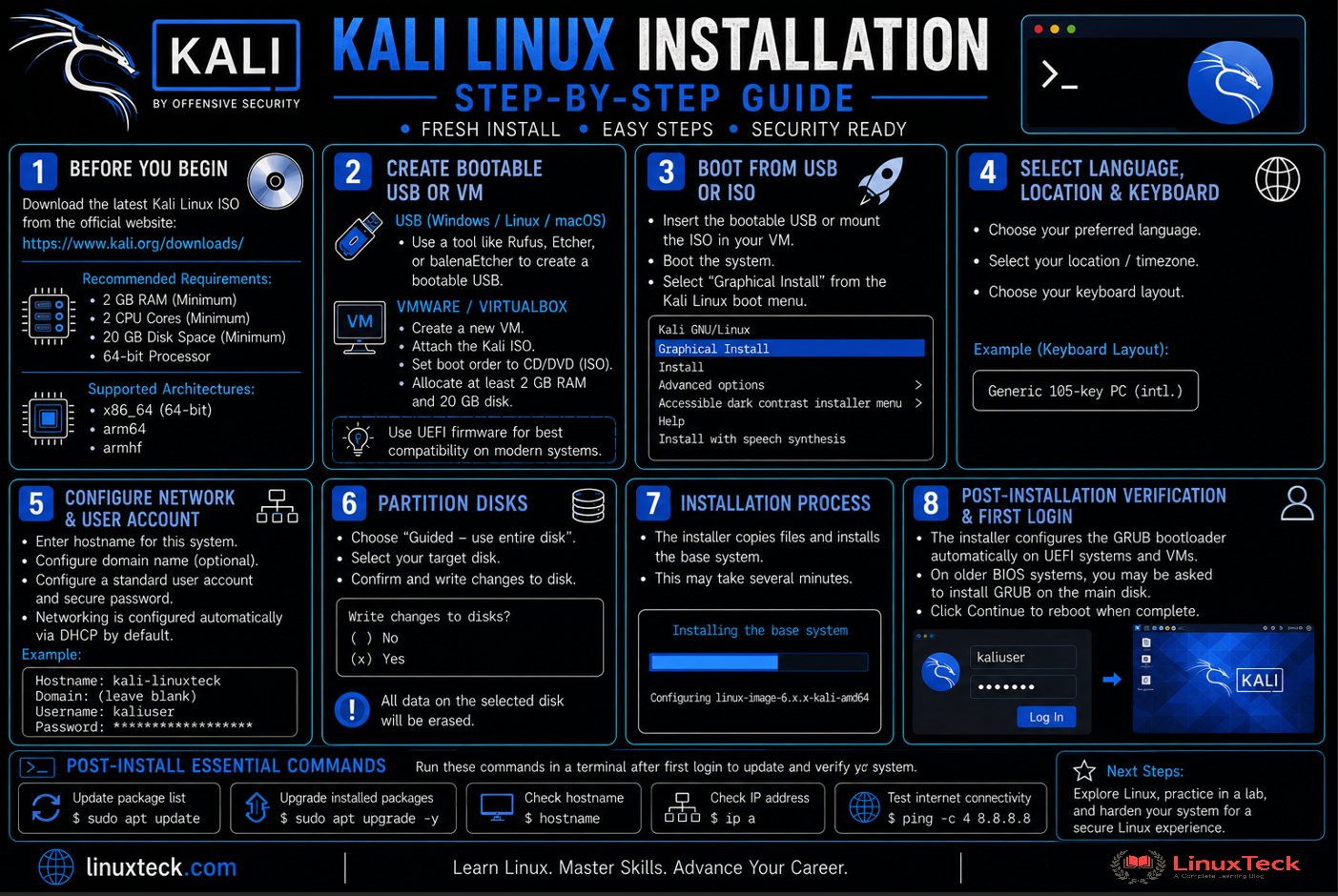
Learning how to install Kali Linux step by step is the first practical step for beginners stepping into cybersecurity, learning to install and configure Kali Linux is the first practical step. This guide walks you through a straightforward installation process using 8 clear steps.
The latest version of Kali Linux includes updated kernel versions, improved hardware detection, and better support for modern systems. Whether you are building a home lab environment or preparing for ethical hacking certifications, you will find Kali Linux an essential tool for practicing offensive security techniques.
What's New in Kali Linux (2026 Edition):
- Debian Testing base to ensure the absolute latest security tools and packages
- Improved live boot mode with auto-login capabilities for testing
- Pre-configured security tools ready to use immediately after installation
- Better memory efficiency and faster bootup on both VM and physical hardware
- Integrated Kali NetHunter mobile penetration testing capabilities
This guide covers installation in 8 manageable steps. You will be able to install Kali Linux on either a physical machine or a virtual machine within about 20 to 30 minutes following this tutorial. After installation, you can explore Linux security tools for ethical hackers and practice with real-world scenarios.
Prerequisites :
HDD minimum : 20 GB (25 GB recommended for tools)
RAM minimum : 2 GB (4 GB recommended for smooth operation)
System Type : x86_64 (64-bit), amd64, or ARM variants
Installation kit : Bootable USB Drive or DVD or .iso file for VM
Note:
This guide uses a virtual machine running VirtualBox with 50 GB disk space and 4 GB RAM allocated. Kali Linux runs on both physical hardware and virtual environments. The installation process is identical whether you boot from USB on a real machine or attach the ISO to a VM. If you are testing on physical hardware for the first time, it is safer to practice in a virtual machine first to understand the partitioning step.
Step-1: How to Download the Kali Linux ISO Image for Installation
Download Kali Linux
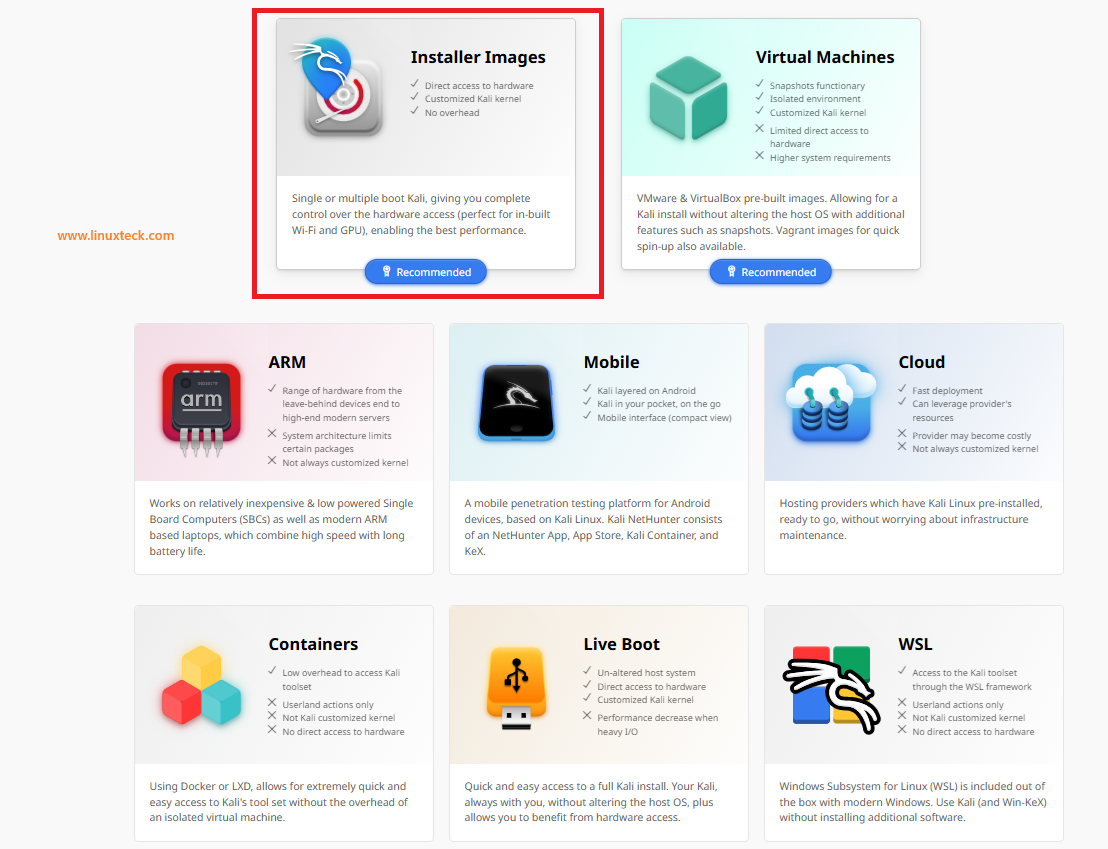
Visit the official Kali Linux website and download the appropriate ISO file for your architecture. Three main variants are available. The Installer image (about 3-4 GB) is recommended for full installation with all tools. The Live image boots Kali without installing, useful for testing hardware compatibility. For ARM devices like Raspberry Pi or Orange Pi, ARM-specific images are available. After download, verify the SHA256 checksum to ensure file integrity and protect against corrupted or tampered files.
Note:
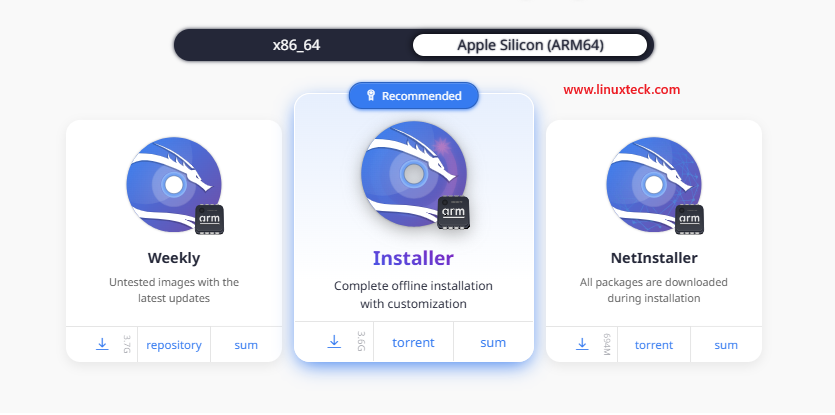
Apple Silicon (ARM64) Support: In our lab environment, we are using Apple Silicon (ARM64) architecture. Kali Linux provides dedicated ARM64 images specifically optimized for Apple M1/M2/M3 processors. When downloading from the official Kali website, ensure you select the ARM64 version (not x86_64) as the x86_64 ISO will not boot on Apple Silicon. The ARM64 image provides full compatibility with Mac hardware including built-in WiFi cards and GPU acceleration for penetration testing tools.
Note:
Checksum verification is a critical security step and part of ethical hacking security practices. Use the sha256sum command on Linux or a dedicated tool on Windows/Mac to verify the downloaded file matches the official checksum. This ensures you are installing genuine, unmodified Kali Linux and prevents potential security risks from corrupted media.
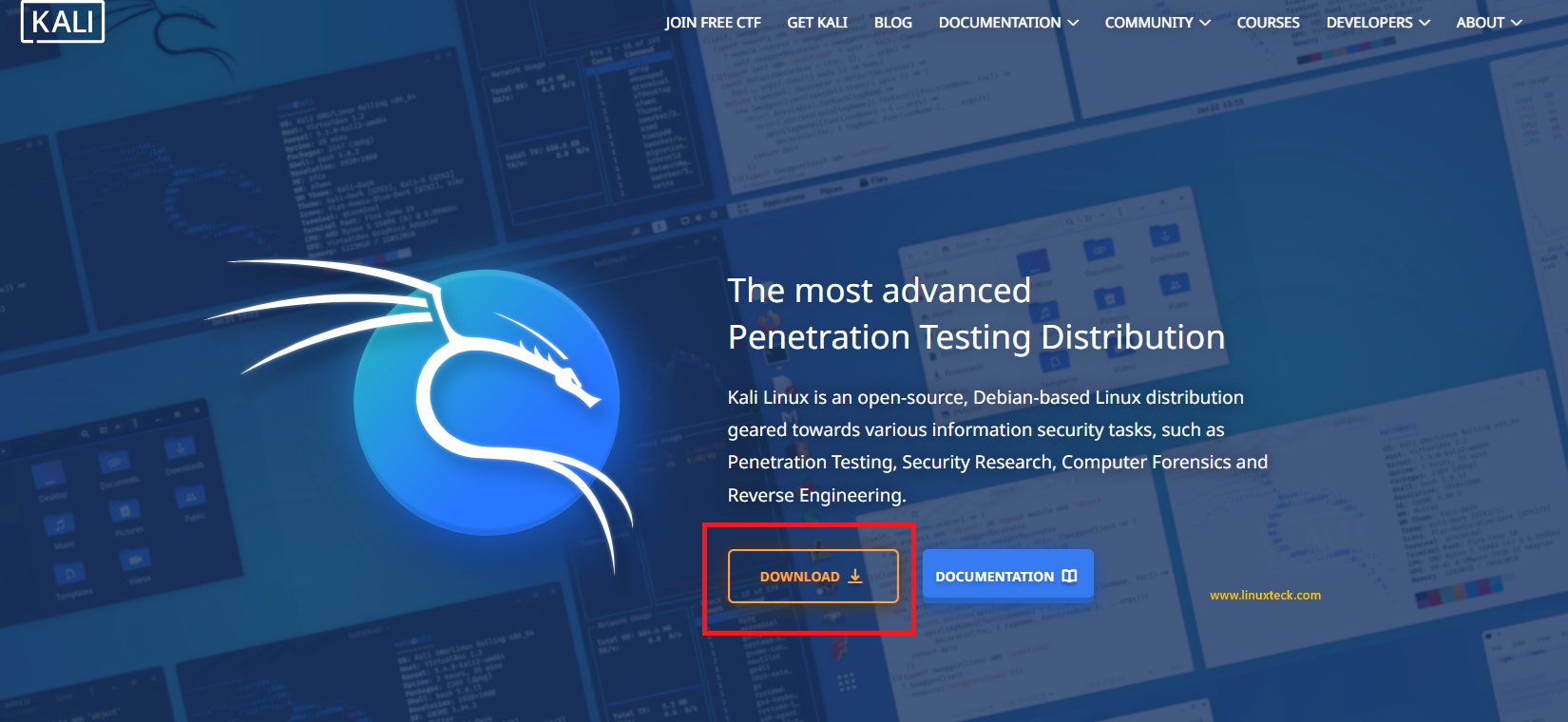
Kali Linux provides multiple download options to suit different hardware platforms and deployment scenarios. Choose the edition that best matches your device and installation method before proceeding.
If you're using an Apple Silicon Mac (M1/M2/M3), choose the ARM64 Installer instead of the x86_64 version.
Step-2: Create a Bootable USB Drive or Configure VM
Note:
For physical installation, you need a USB drive with at least 8 GB capacity. On Windows, use Rufus (free, portable). On Linux, use Balena Etcher or the dd command. On Mac, Balena Etcher works well. For virtual machine installation, simply attach the ISO file to the VM's CD/DVD drive without creating physical bootable media. This is faster for testing and does not consume USB hardware. In case of difficulty, refer to this step-by-step guide on creating a bootable USB.
Step-3: Boot from USB or Start the Virtual Machine
Note:
Once your USB or VM is ready, insert the media (or attach the ISO) and boot from it. Access your system's boot menu using F12, F2, or Del depending on your hardware. On VMware, simply power on the VM with the ISO attached and it will boot directly into the installer.
Select "Graphical Install" to proceed with the installation wizard. Press Enter to continue.
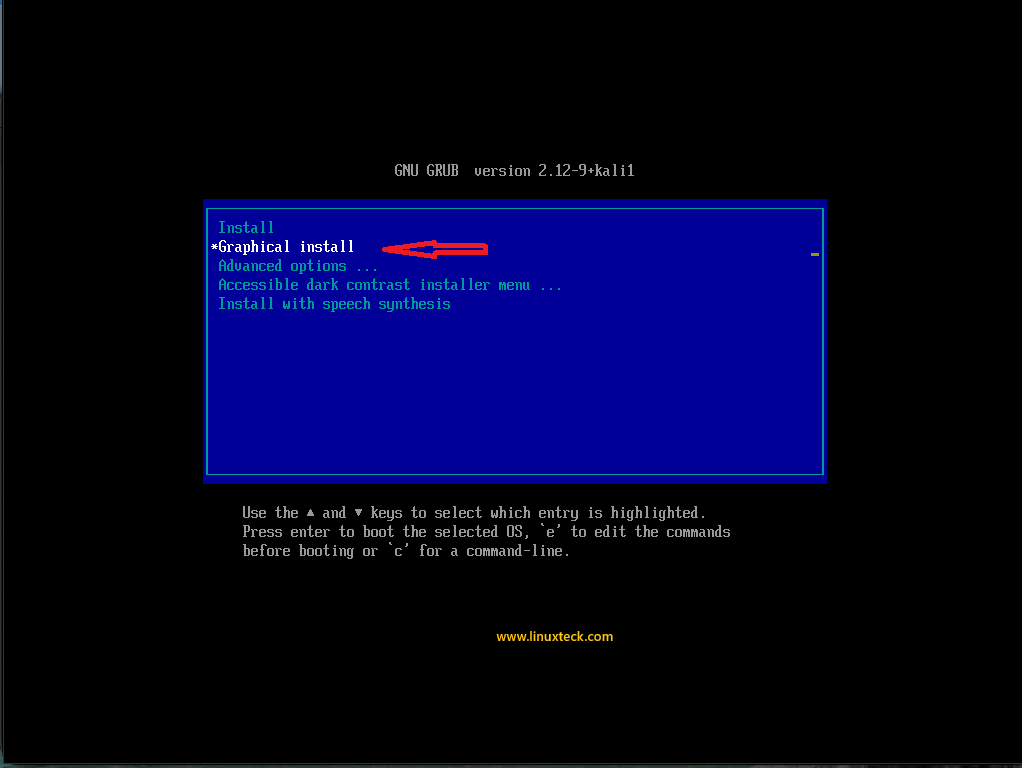
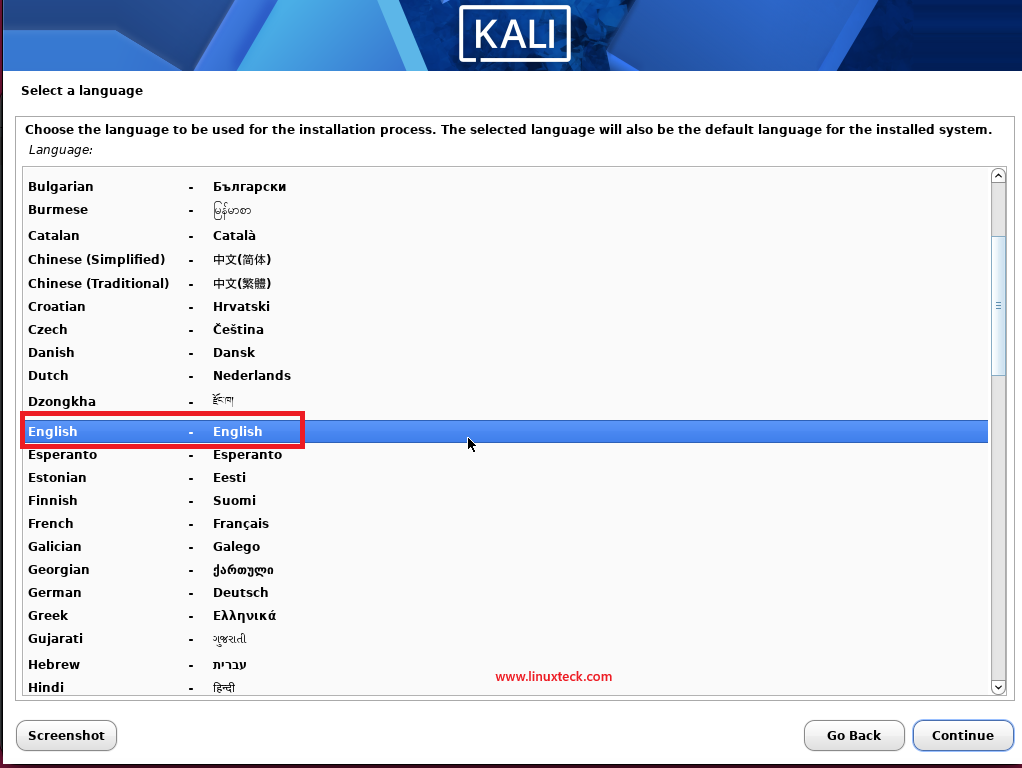
Step-4: Choose Language, Location, and Keyboard Layout
Note:
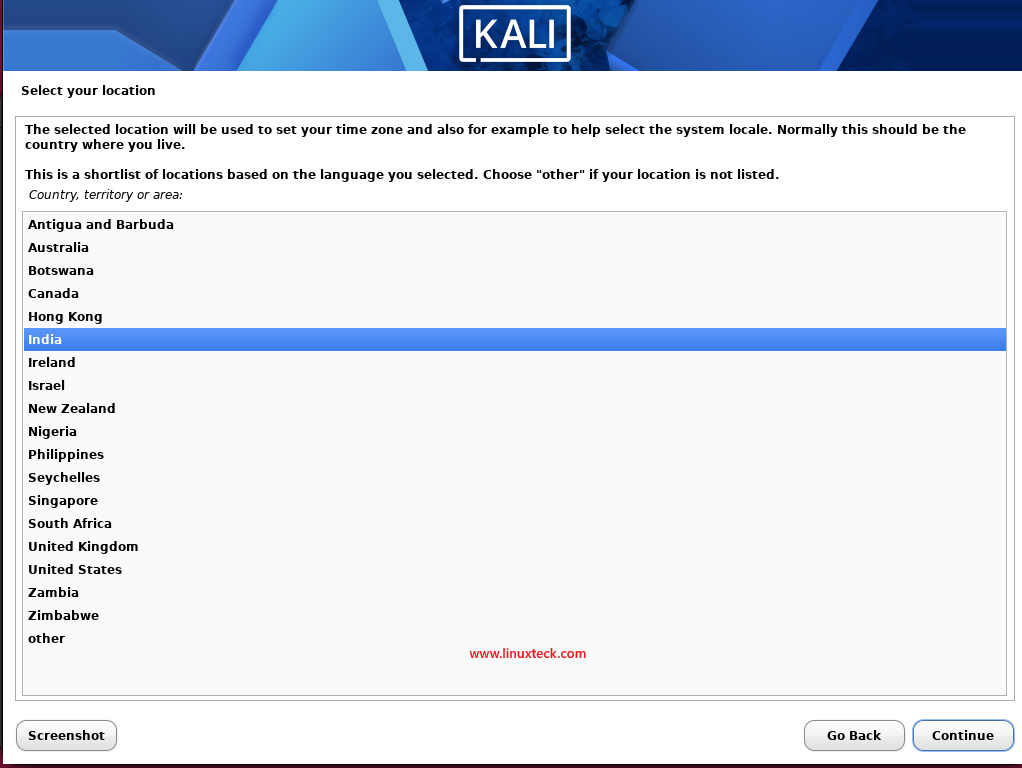
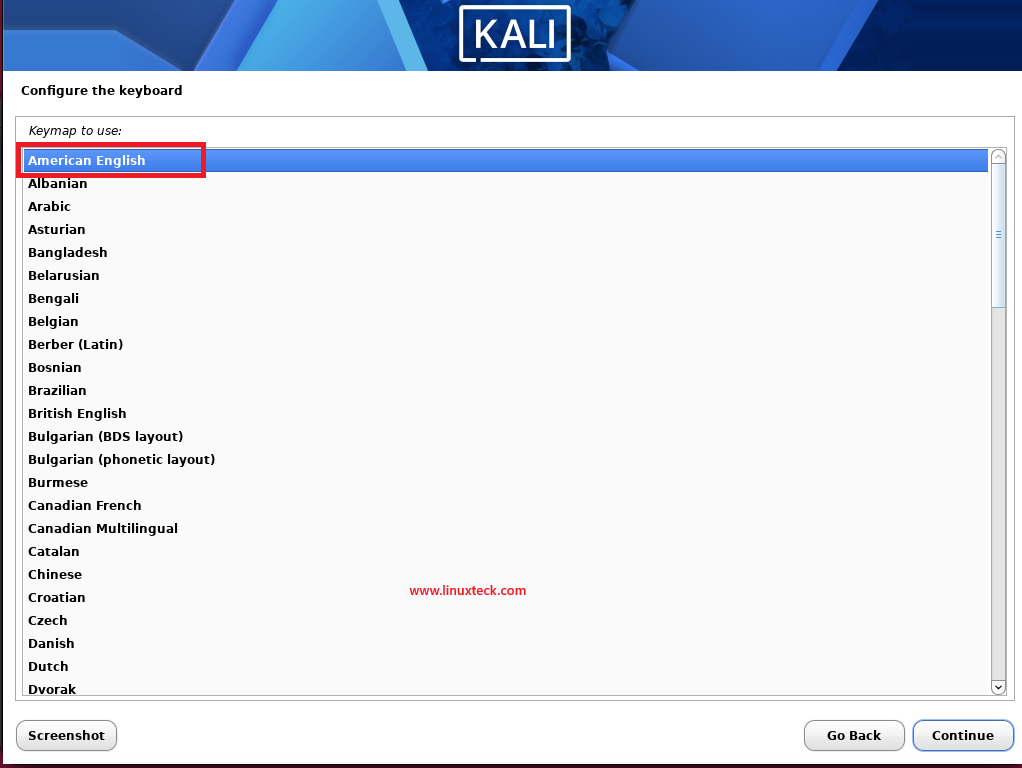
The installer begins by asking for your preferred language. This affects locale settings but does not lock you into that language later. Select your country or region next, which influences timezone and keyboard layout. These choices affect system time synchronization and the language of system messages. You can change these settings after installation if needed, but selecting correctly now saves time.
Select your country (e.g., India) instead of the default United States to configure the correct locale and time zone.
Select your keyboard layout and click "Continue"
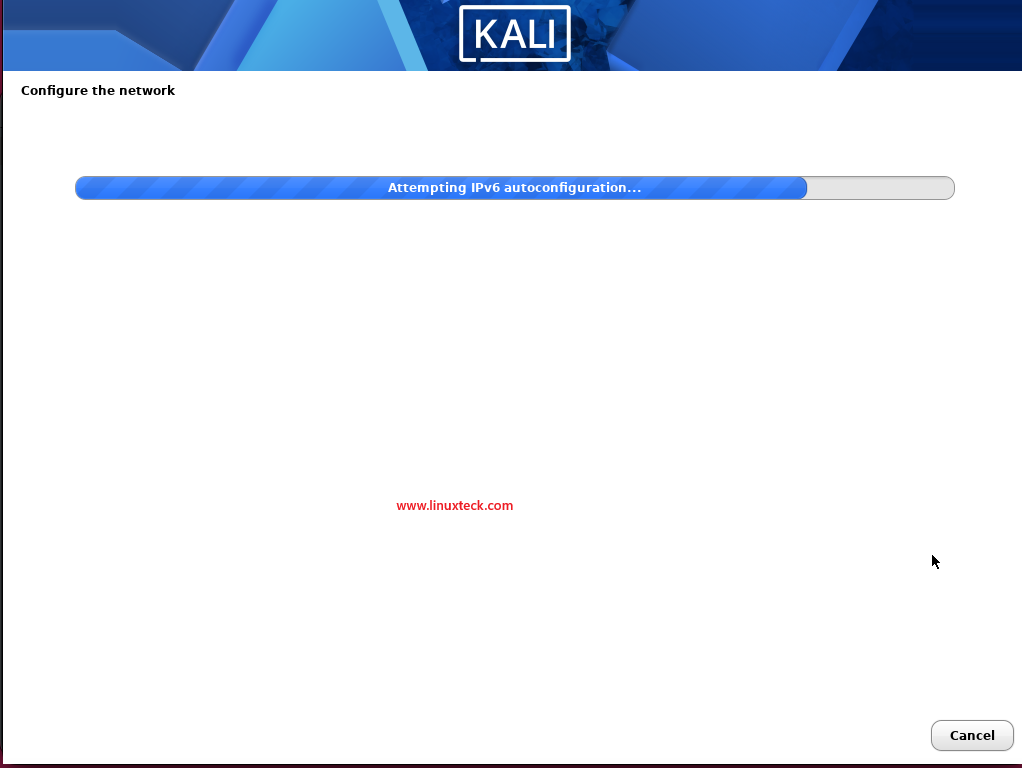
Please wait while the installer initializes the required packages and automatically configures the network.
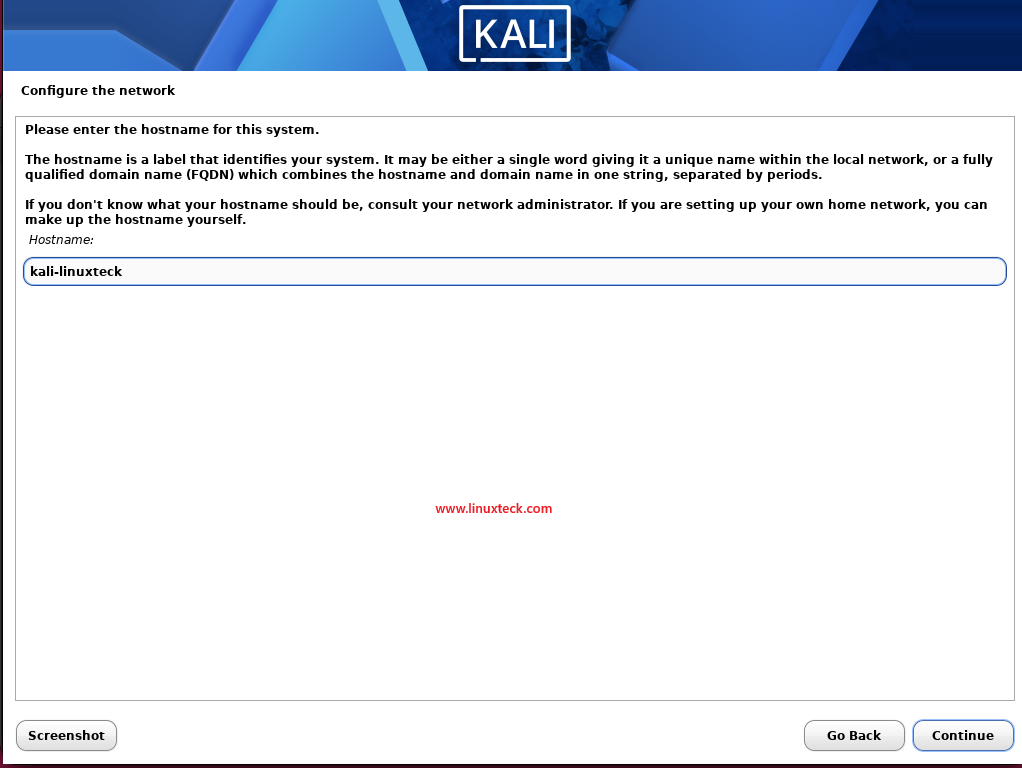
The installer automatically detects your network and prompts you to specify a hostname for your system. In this demo, we've used kali-linuxteck.
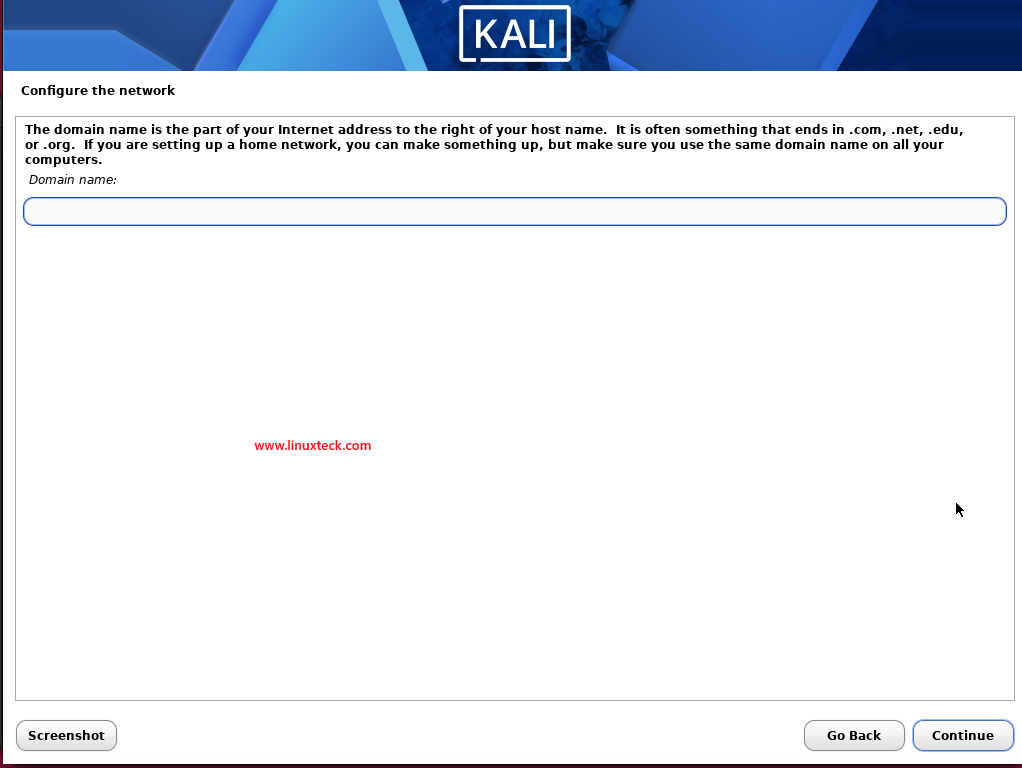
Enter a domain name if your system is part of a network; otherwise, leave this field blank and continue.
Step-5: Create User Account During Kali Linux Installation Process
Note:
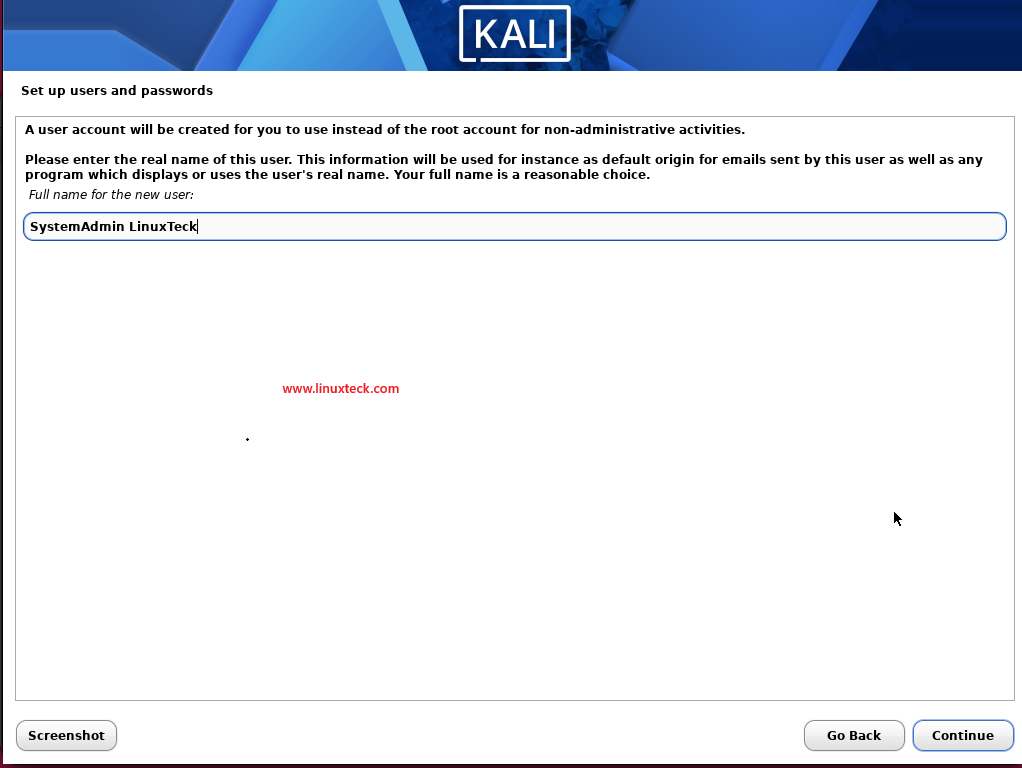
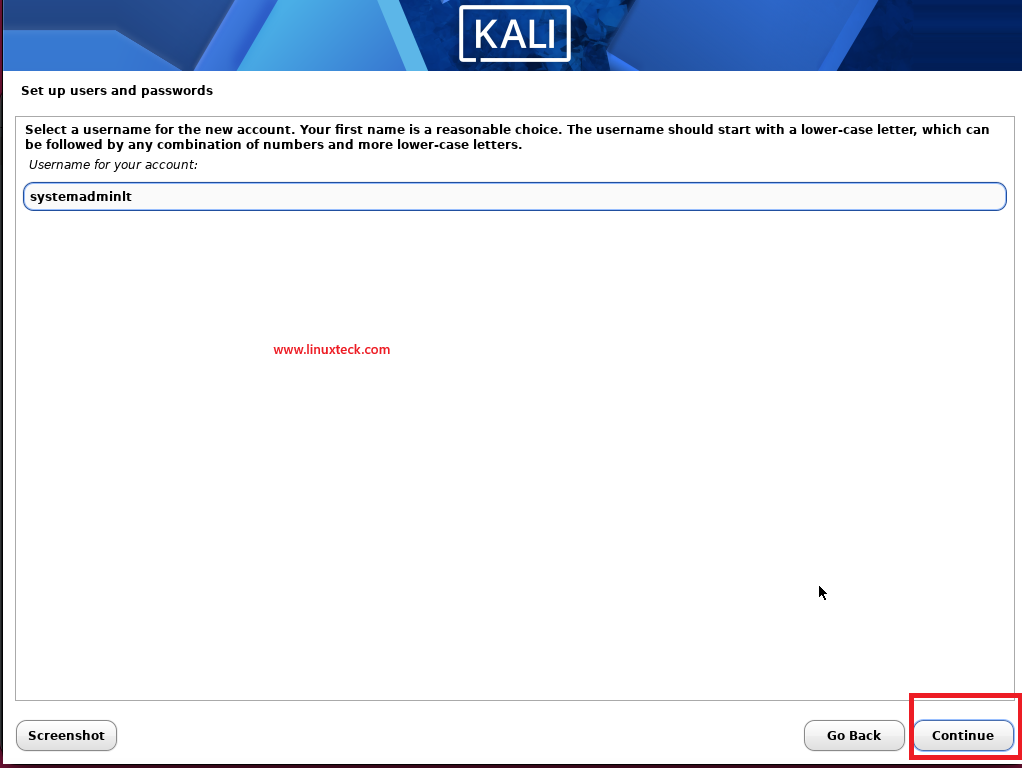
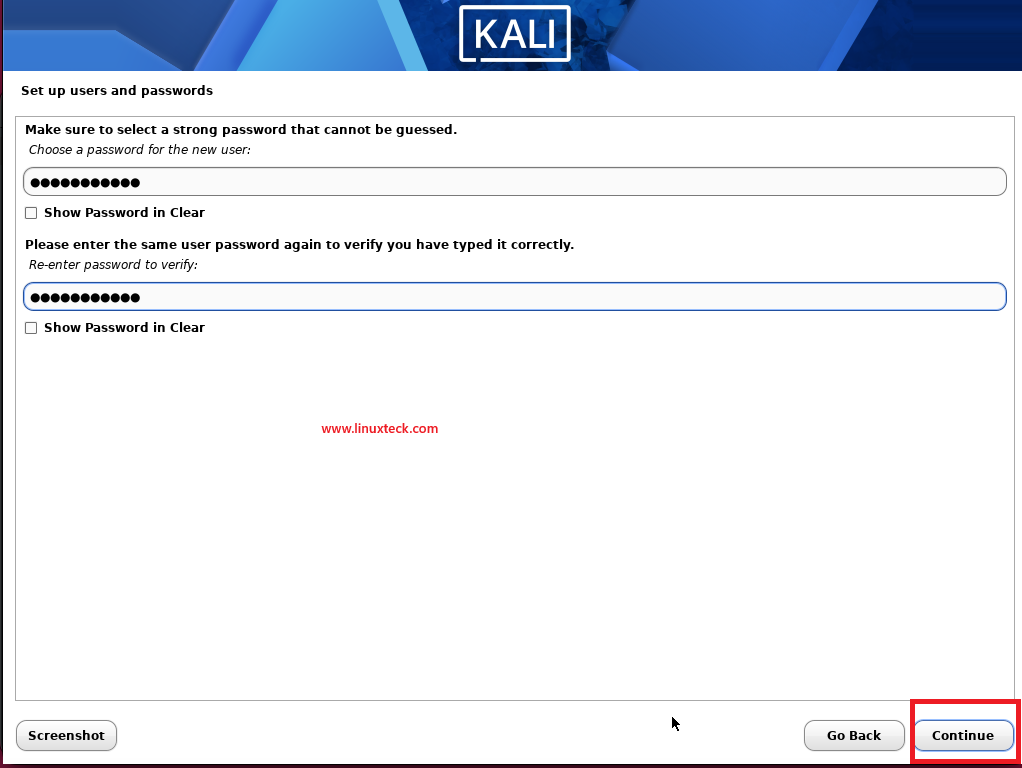
The installer prompts you to create a non-root user account. This follows Linux user management best practices for security. You will use this account for daily work. Root access is still available when needed using the sudo command. Enter your full name, username, and a strong password. The password must contain a mix of uppercase, lowercase, numbers, and special characters to be secure.
Create a strong password for your user account and re-enter it to confirm before continuing.
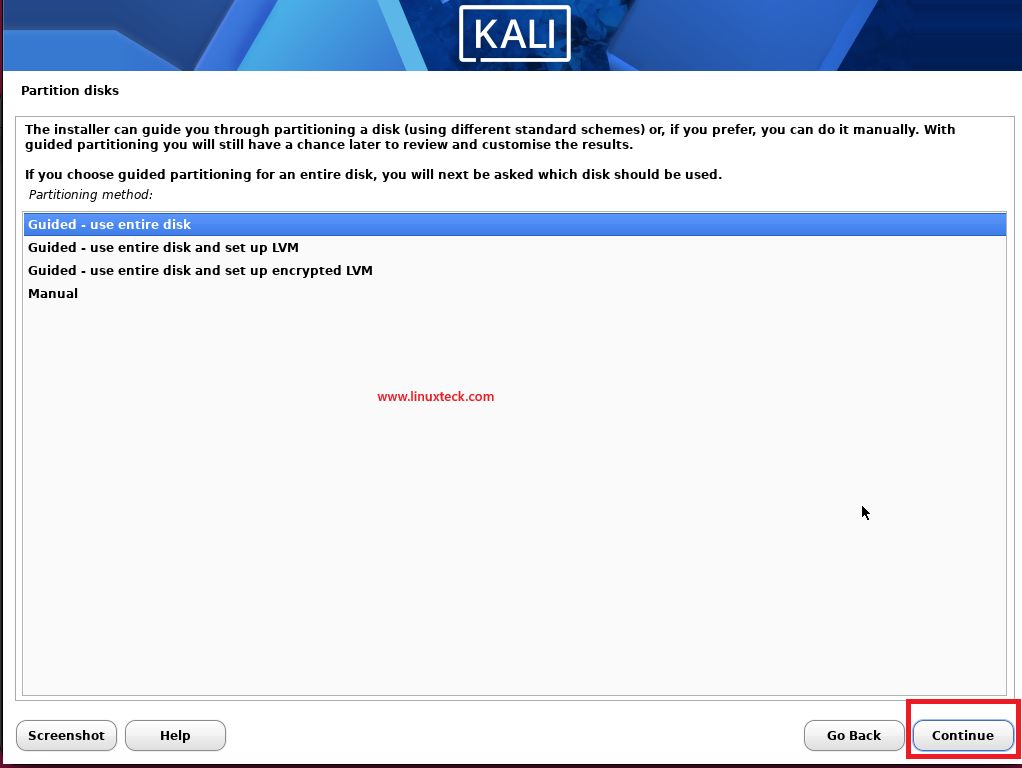
Step-6: Partition Disk and Configure Storage
Note:
Disk partitioning is where first-time installers often struggle. For beginners, selecting "Guided - use entire disk" is safest. This automatically creates necessary partitions without manual configuration. If you are testing in a VM, this option is ideal. For physical machines with existing operating systems, the "Manual" option lets you allocate specific space for Kali alongside Windows or other systems.
Warning:
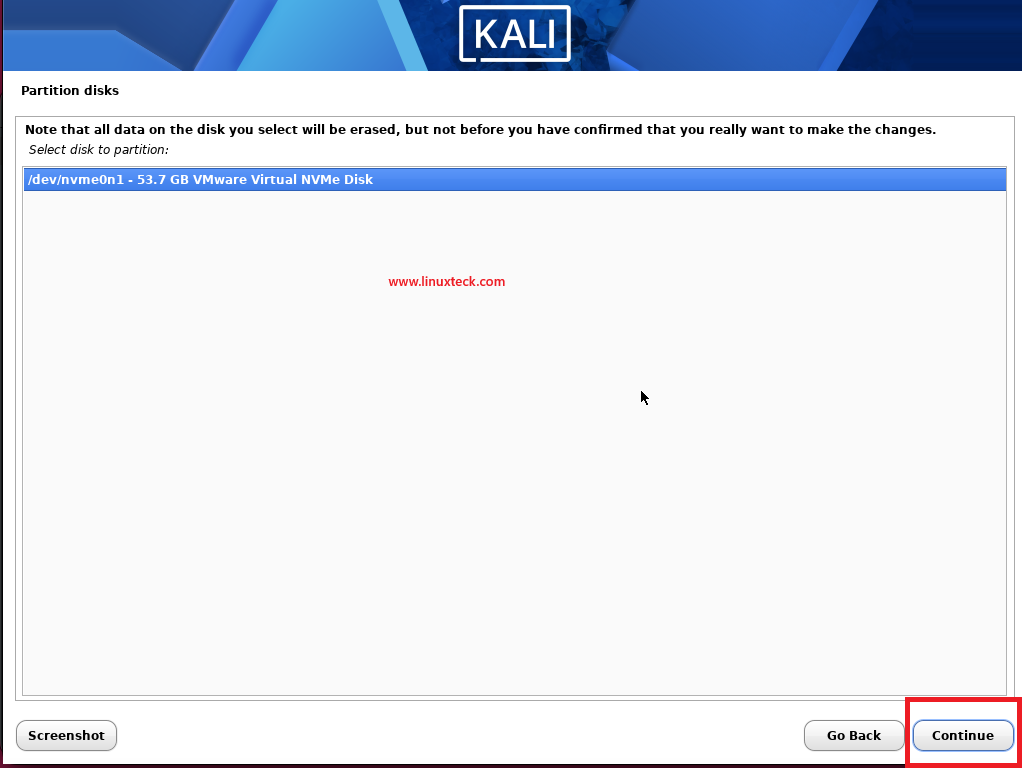
Disk partitioning is irreversible. Any data on the selected disk will be permanently deleted. Double-check that you have selected the correct disk before proceeding. In multi-disk systems, verify the disk size matches your target device. Back up any important data before installation.
Note:
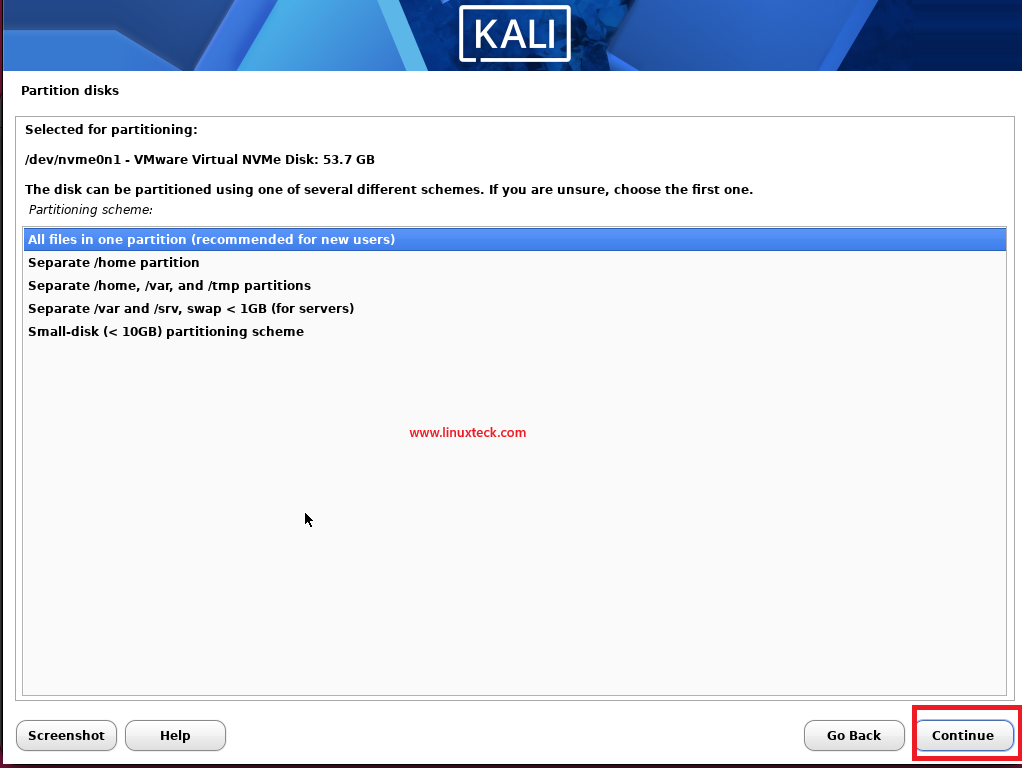
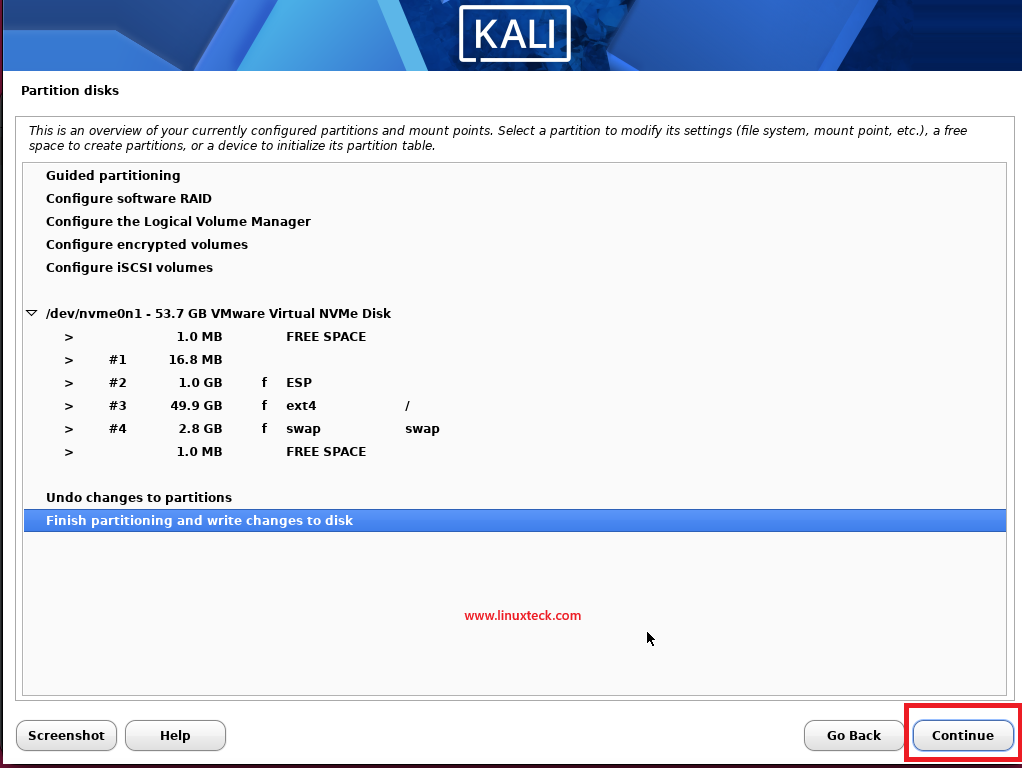
Kali Linux uses the ext4 filesystem by default, which is standard for Debian-based systems. Partition sizes are automatically calculated. For a typical 50 GB installation, the partitioner creates an EFI system partition (512 MB), root partition (about 48 GB), and swap space. You can review the proposed layout before confirming changes.
Select the disk where you want to install Kali Linux. In this example, the VMware virtual disk is selected.
Choose a partitioning scheme. The default "All files in one partition" option is recommended for beginners.
Review the partition layout, then select "Finish partitioning and write changes to disk" to begin installing Kali Linux.
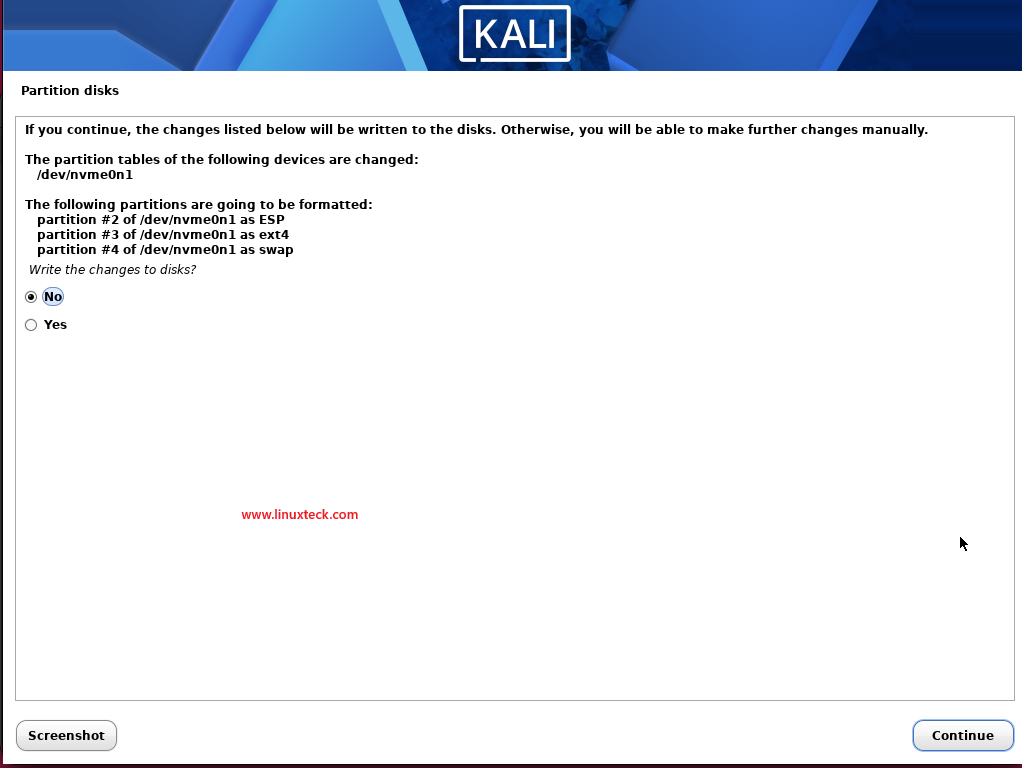
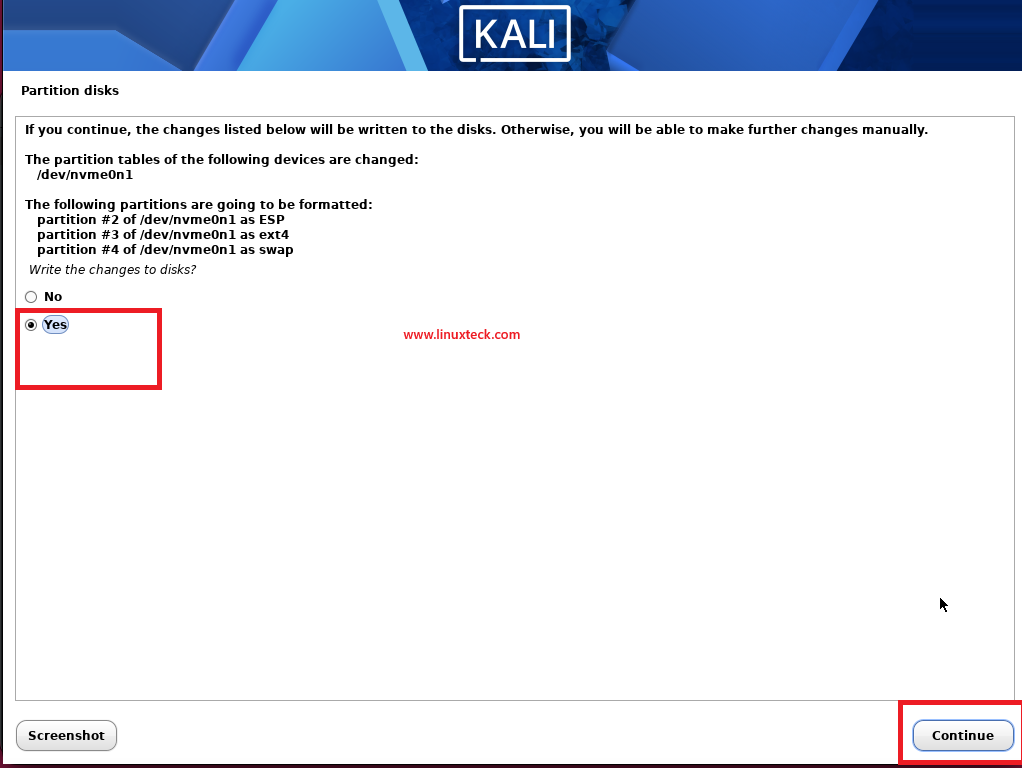
The installer displays a final confirmation. Change the default selection from "No" to "Yes" to apply the disk changes and continue.
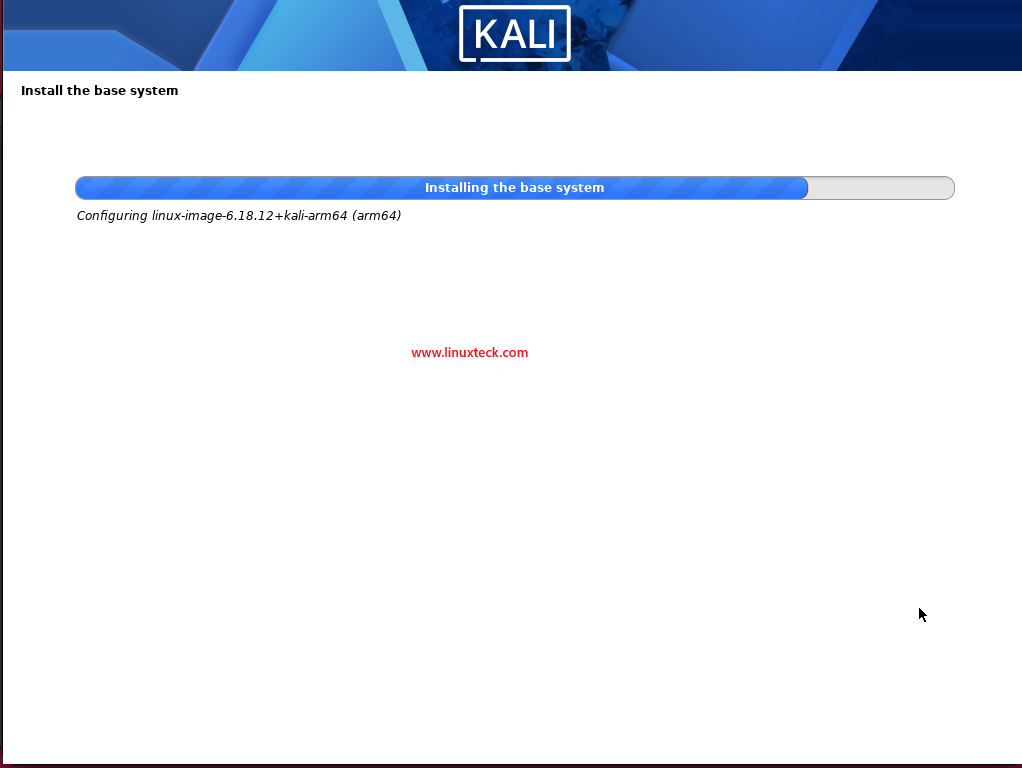
Please wait while Kali Linux installs the base system and configures the core operating system components.
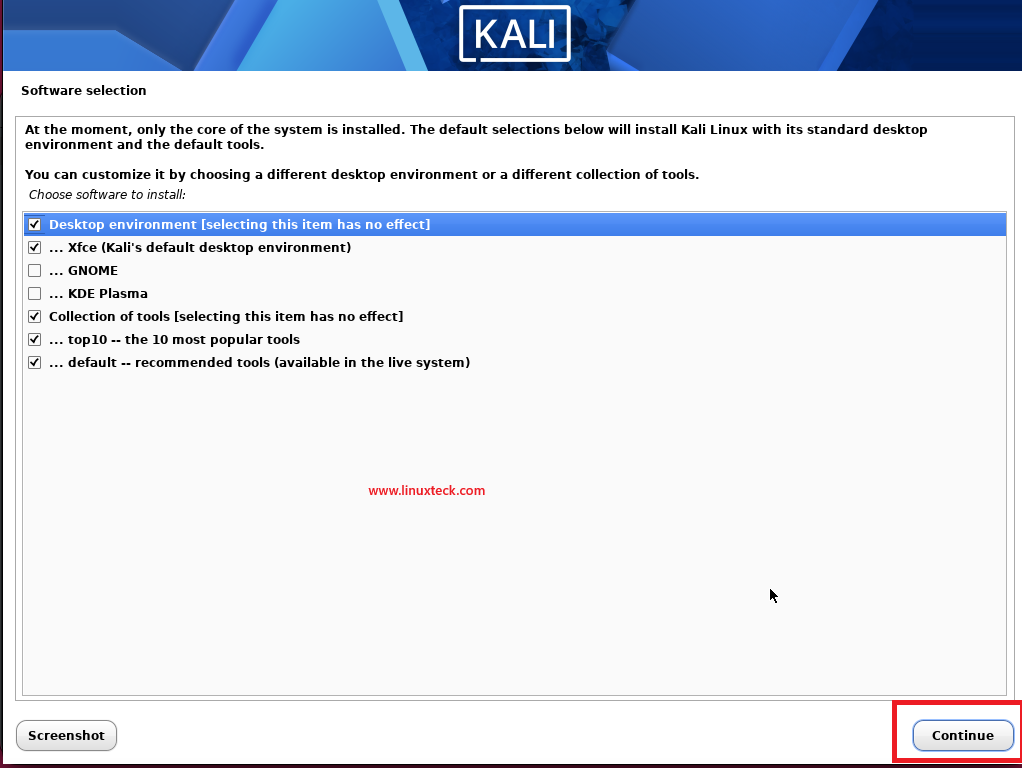
For a typical installation, leave the default software selections unchanged and click Continue.
Step-7: Install GRUB Bootloader and Complete Installation
Note:
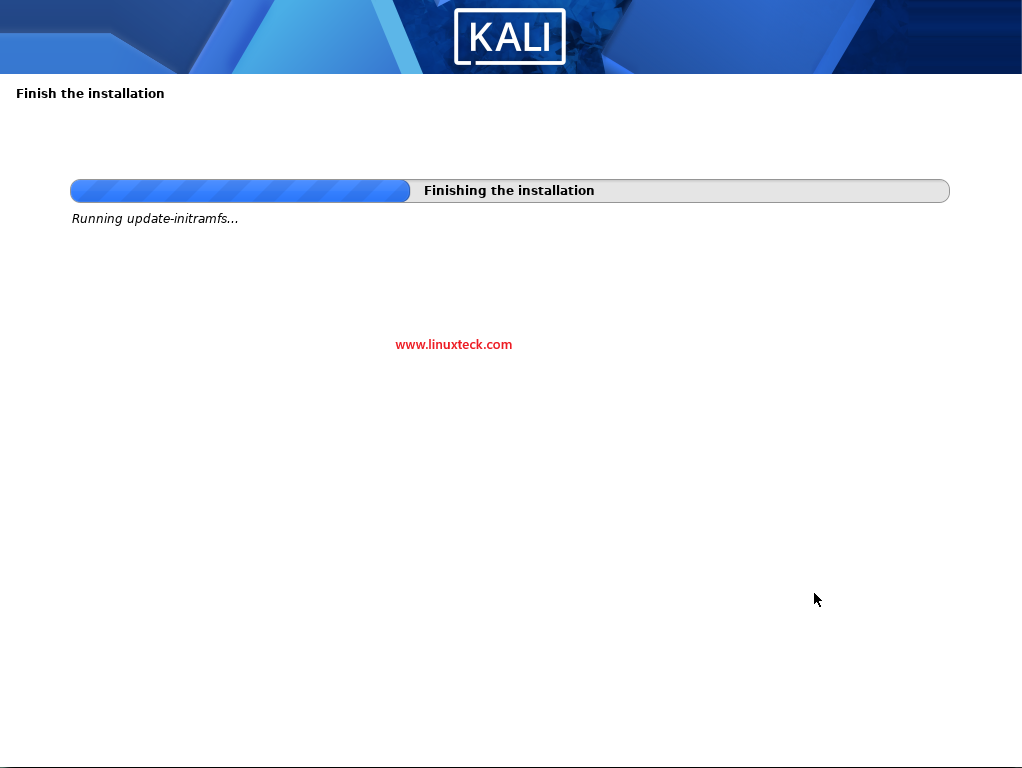
GRUB is the bootloader that starts Kali Linux when your system powers on. Understanding Linux boot sequences and bootloaders helps troubleshoot issues if needed. On modern UEFI systems and most virtual machines, the installer automatically configures GRUB without requiring any manual input. On some older BIOS/Legacy systems, you may be prompted to choose the target disk for GRUB installation simply select the primary system drive (not an individual partition). The installer then copies the required system files, installs packages, and completes the remaining setup. Depending on your system performance, this process may take several minutes.
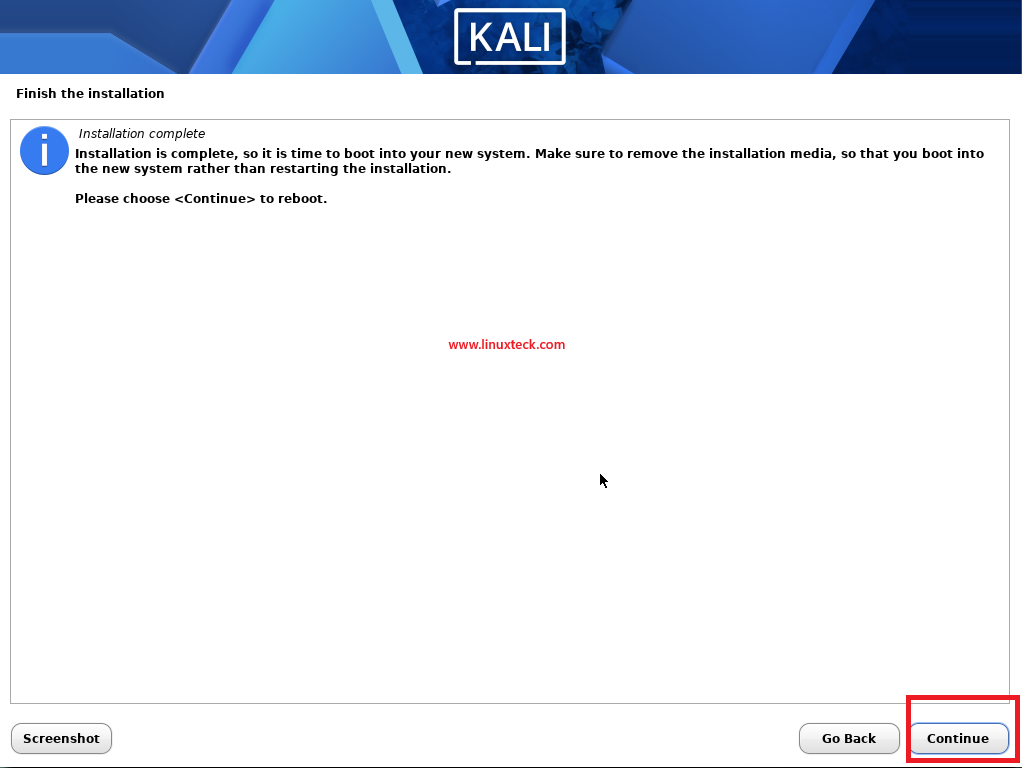
After the installation is complete, click Continue to reboot the system. Remove the installation media (or allow your virtual machine to boot from the virtual disk), then the GRUB menu appears briefly before the Kali Linux login screen is displayed.
Step-8: Log In to Kali Linux and Verify Installation
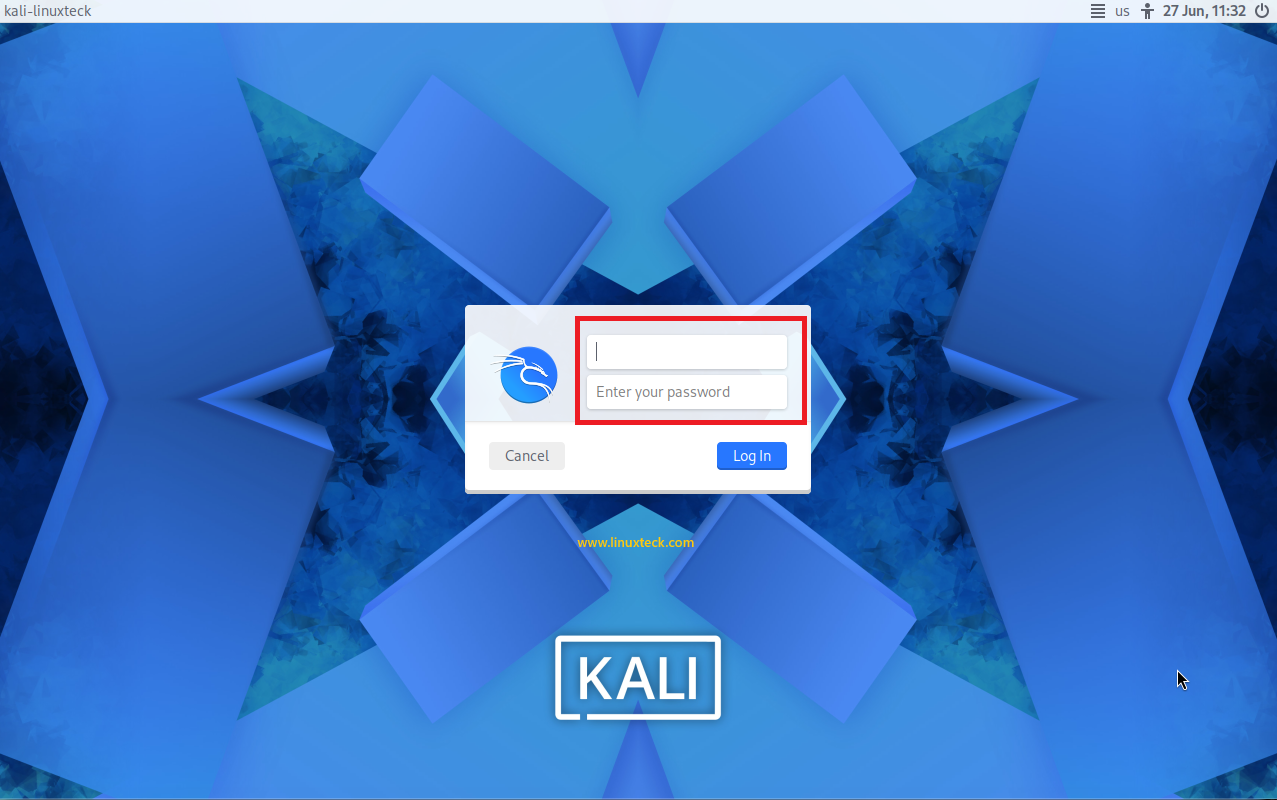
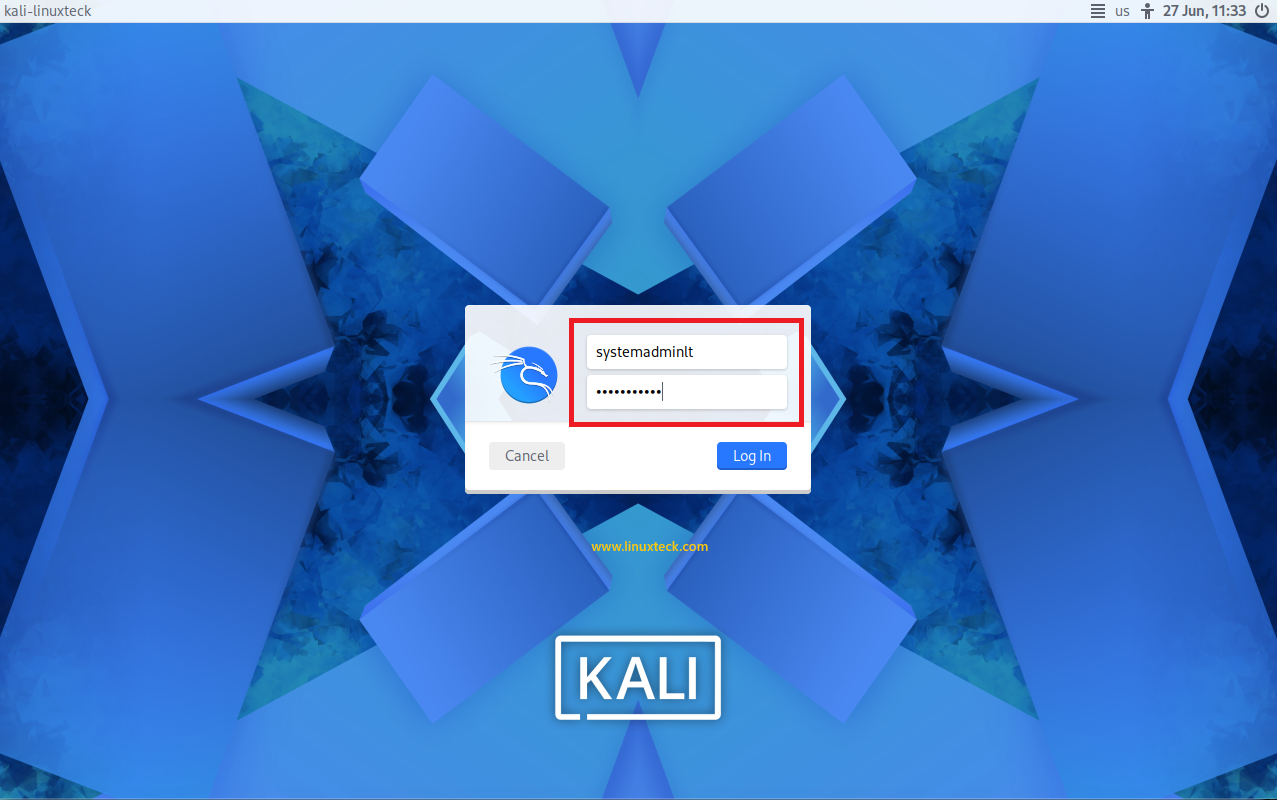
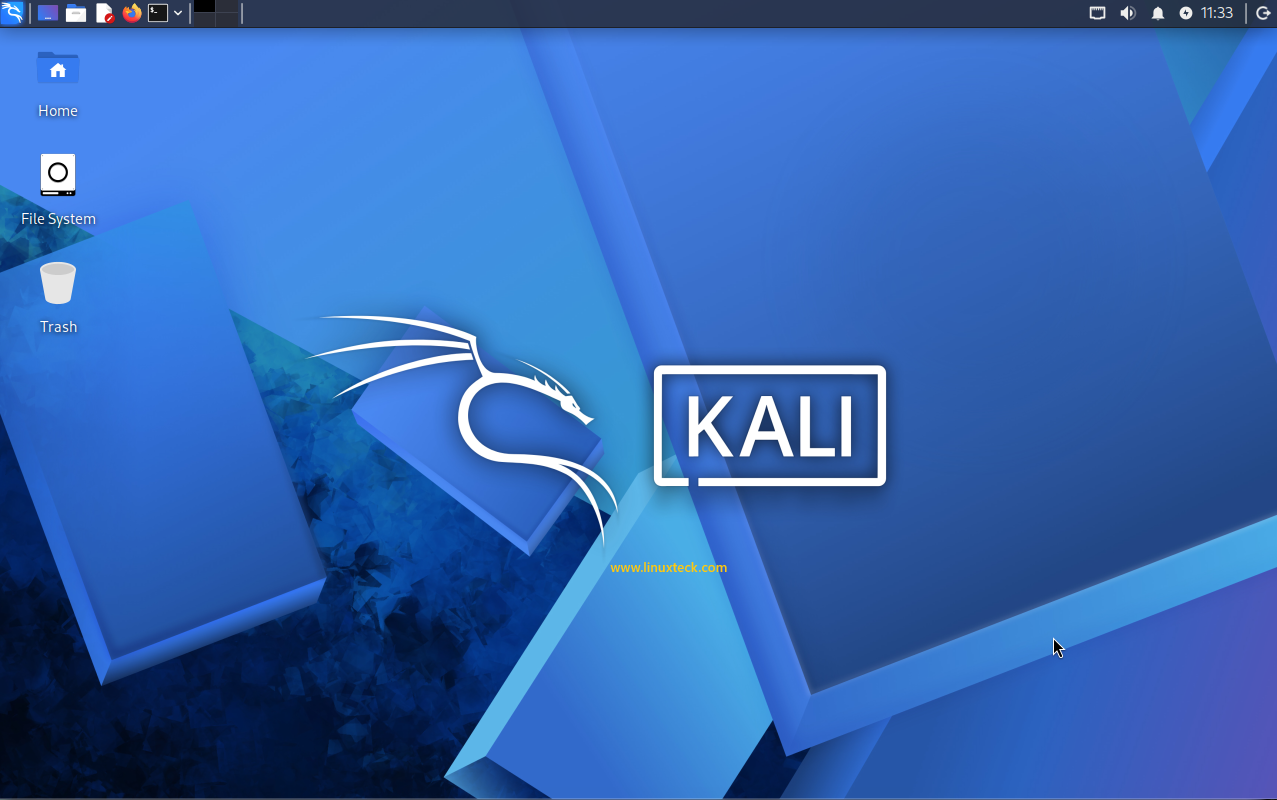
After the installation is complete, log in using the username and password you created during setup to access the Kali Linux desktop.
Post-Install Checklist:
Take these verification steps immediately after first login to ensure your system is properly configured.
- Log in with the user account you created during installation. The password is required on first login.
- Open a terminal and use essential Linux terminal commands to verify the hostname. This helps identify your system on a network.
- Update the package list by running
sudo apt update. This downloads the latest software repository information. - Upgrade installed packages with
sudo apt upgrade. This installs security patches and software updates critical for a secure system. - Verify internet connectivity by pinging a reliable host like Google DNS. Type
ping 8.8.8.8and press Ctrl+C after 3-4 packets. - Next steps: explore Linux server hardening checklist or dive into setting up a lab environment for practice.
Conclusion
You now have a fully functional Kali Linux system ready for security research and penetration testing. The installation process is straightforward when you understand each step. Many beginners skip the post-installation verification steps, which is a missed opportunity to catch configuration issues early. Keep your system updated regularly and back up any custom configurations you create.
Thank you!
To find all the Linux articles, click here
Frequently Asked Questions
Can I install Kali Linux alongside Windows on the same machine?
Yes, dual boot is possible. During the partitioning step, choose "Manual" instead of "Guided - use entire disk". The installer shows your current partitions. Allocate space for Kali while preserving your Windows partition. You will see the GRUB bootloader at startup, allowing you to select Windows or Kali each time you boot. Many beginners practice this setup to keep their working environment intact while testing Kali.
What is the difference between the Installer and Live ISO versions?
The Installer ISO installs Kali permanently to your disk, creating a full system with all pre-installed tools and configurations. The Live ISO boots Kali from USB without installing, letting you test hardware compatibility, troubleshoot problems, or use Kali temporarily. The Live version is useful for checking if your hardware works with Kali before committing to installation. Once you power off, changes made in Live mode are lost.
My system has only 2 GB RAM. Will Kali run smoothly?
Kali will install and run on 2 GB RAM, but performance will be sluggish. The graphical desktop environment consumes significant memory, especially when multiple security tools run simultaneously. Adding more RAM is the best solution. If that is not possible, consider using a lighter desktop environment like Xfce instead of GNOME, or practice command-line only setups which are common in penetration testing anyway.
How do I verify the ISO checksum to ensure my download is legitimate?
On Linux, open a terminal in the download directory and run sha256sum kali-linux-2026.1-installer-amd64.iso. Compare the output with the official checksum on the Kali website. On Windows, download a tool like 7-Zip or use PowerShell's Get-FileHash command. On Mac, use shasum -a 256 kali-linux-2026.1-installer-amd64.iso. If the checksums match exactly, your ISO is genuine and uncorrupted.
Can I install Kali Linux on a Raspberry Pi or other ARM device?
Yes, Kali Linux provides ARM images for devices like Raspberry Pi, Orange Pi, and Odroid. Download the ARM64 image from the official website and follow the same installation process adapted for ARM architecture. Performance is lower than x86 systems, but ARM devices are excellent for learning and for building portable penetration testing kits. Raspberry Pi 4 with 4 GB RAM provides adequate performance for most Kali tools.
What are the default credentials if I login as root or using the Live boot?
In the Live boot environment, the default credentials are username "kali" and password "kali". Kali Linux officially moved away from the default root user policy starting with version 2020.1. During a persistent installation, you will create your own custom non-root user account. If you ever need root privileges while in the live environment or your regular installation, simply use the sudo command or switch to a root shell using sudo su.
Explore LinuxTeck for practical guides covering Kali Linux, penetration testing, ethical hacking, Linux security tools, system administration, and cybersecurity foundations for beginners and professionals.