Distro-specific walkthrough for Ubuntu 22.04/24.04, Rocky Linux 9, and RHEL 9 using AWS Application Migration Service (MGN). Includes CLI commands, troubleshooting, and post-migration validation scripts.
Note: AWS MGN is a critical component for Business Continuity and Disaster Recovery (BCDR), ensuring Linux workloads remain resilient against ransomware and local data center failures.
What This Guide Covers:
- Choosing between AWS MGN, AWS DataSync, and AWS DMS
- Pre-migration system readiness checks (with Bash commands)
- Distro-specific AWS Replication Agent installation: Ubuntu 22.04/24.04, Rocky Linux 9, RHEL 9
- Full MGN console walkthrough: replication, test instance, cutover
- 6 real troubleshooting scenarios with exact fix commands
- Post-migration validation script
- Security hardening and IAM lockdown after migration
- FAQ: 8 questions Linux sysadmins actually ask
Migrating a Linux server to an Amazon Web Services (AWS) environment seems as simple as it is complex, most people encounter their first kernel panic when they are trying to cut over to the new instance. Or they may experience a silent stall of their replication agent at 0%, with no idea why this is happening; after all, no one mentioned port 1500. This guide was written to provide guidance for Linux system administrators and DevOps Engineers who want to migrate a production server into an AWS -EC2 Environment with little surprise.
We take a deeper dive into the replication agent installation process specific to Rocky Linux 9 and RHEL 9. Additionally, we explain how SELinux can silently block the AWS Application Migration Service (MGN) agent process without obvious errors. This guide also covers the post-cutover Bash validation checks that should be performed before directing production traffic to the migrated environment through DNS.
We use AWS Application Migration Service (AWS MGN) as the primary migration tool throughout this guide, as it is currently AWS’s recommended service for lift-and-shift server migrations. All examples in this article are based on AWS MGN workflows. The screenshots referenced were captured from the AWS Management Console in early 2026. Although your console layout may have minor differences, the service names and overall workflows should remain consistent.
Which AWS Migration Tool Do You Actually Need?
This is the question every sysadmin asks first. Here is the complete decision table.
| Tool | Use Case | Linux Compatible | Cost (2026) | Best For |
|---|---|---|---|---|
| AWS MGN | Full server / VM migration | Yes (Ubuntu, Rocky, RHEL, CentOS, SUSE) | Free 90 days/server | Lift-and-shift entire OS + apps to EC2 |
| AWS DataSync | Data / file transfer only | Yes (NFS, SMB, EFS, S3) | $0.0125 per GB transferred | Moving files/data to S3, EFS, FSx |
| AWS DMS | Database migration only | Yes (MySQL, PostgreSQL, Oracle, etc.) | From $0.018/hr (t3.micro) | Migrating databases with minimal downtime |
| AWS SMS | VM migration (VMware/Hyper-V/Azure) | Deprecated | Being retired, use MGN | Legacy VMware migrations only |
Tip:
If you are moving a full Linux server (OS + applications) to EC2, use AWS MGN. If you only need files moved to S3, use DataSync. If you are migrating a MySQL or PostgreSQL database separately, combine MGN (for the app server) with DMS (for the database). Do not use SMS for new migrations as it is being retired.
Environment and Prerequisites
| Requirement | Details | Status |
|---|---|---|
| AWS Account | With MGN service enabled in your target region | REQUIRED |
| IAM User (Replication) | Dedicated IAM user with AWSApplicationMigrationAgentInstallationPolicy | REQUIRED |
| Source Linux Server | Root SSH access, 10 GB+ free disk, Python 3.8+, GRUB2 bootloader | REQUIRED |
| Network Connectivity | Outbound TCP 443 and TCP 1500.
Note: Port 1500 must be TCP (not UDP) and routed specifically to the Staging Subnet interface.
|
REQUIRED |
| Target VPC | Pre-configured VPC with staging subnet (private) and target subnet | REQUIRED |
| AWS CLI | v2 installed on a management host for verification steps | OPTIONAL |
| AWS Direct Connect / VPN | For large servers or compliance-restricted environments | OPTIONAL |
Warn:
Do not use your AWS root account to create the IAM replication user. AWS MGN requires programmatic access keys, and using root credentials here is a serious security risk. Create a dedicated IAM user with the minimum required policy only. You will rotate these keys post-migration anyway (see Section 6)
For a deeper look at Linux server hardening principles that apply both before and after migration, the Linux Server Hardening Checklist on LinuxTeck covers the key security controls you should have in place on your source server before moving it to a cloud-exposed environment.
Architecture Overview
The diagram below shows the full AWS MGN migration pipeline from your on-premises Linux server to the target EC2 instance. Understanding this flow upfront will make each step in Section 4 make sense.
 ON-PREMISES ENVIRONMENT                AWS CLOUD (Target Region)
 ─────────────────────────              ─────────────────────────────────────────────

 ┌─────────────────────────┐            ┌───────────────────────────────────────────┐
 │  Source Linux Server    │            │  Your VPC  (e.g., 10.0.0.0/16)           │
 │                         │            │                                           │
 │  Ubuntu 22.04 / 24.04   │  TCP 443   │  ┌─────────────────────────────────────┐ │
 │  Rocky Linux 9          │ ─────────► │  │  Staging Area Subnet (private)      │ │
 │  RHEL 9                 │  TCP 1500  │  │                                     │ │
 │                         │ ─────────► │  │  ┌──────────────────────────────┐   │ │
 │  [AWS Replication Agent]│            │  │  │  AWS Replication Server      │   │ │
 │  (installed on source)  │            │  │  │  (EC2, auto-provisioned)     │   │ │
 └─────────────────────────┘            │  │  └──────────────┬───────────────┘   │ │
                                        │  │                 │ Continuous         │ │
                                        │  │                 │ block-level        │ │
                                        │  │                 │ replication        │ │
                                        │  └─────────────────┼───────────────────┘ │
                                        │                    │                     │
                                        │  ┌─────────────────▼───────────────────┐ │
                                        │  │  Target Subnet (public or private)  │ │
                                        │  │                                     │ │
                                        │  │  ┌──────────────────────────────┐   │ │
                                        │  │  │  Test EC2 Instance           │   │ │
                                        │  │  │  (validate before cutover)   │   │ │
                                        │  │  └──────────────────────────────┘   │ │
                                        │  │                                     │ │
                                        │  │  ┌──────────────────────────────┐   │ │
                                        │  │  │  Cutover EC2 Instance        │   │ │
                                        │  │  │  (production target)         │   │ │
                                        │  │  └──────────────────────────────┘   │ │
                                        │  └─────────────────────────────────────┘ │
                                        └───────────────────────────────────────────┘

 MIGRATION PHASES:
 ─────────────────
 Phase 1: REPLICATE  → Agent installed → Continuous replication starts
 Phase 2: TEST       → Launch test instance → Validate app + connectivity
 Phase 3: CUTOVER    → Launch cutover instance → Update DNS → Finalize
 Phase 4: VALIDATE   → Run post-migration script → Remove staging resources

 KEY PORTS (MUST BE OPEN OUTBOUND FROM SOURCE):
 ───────────────────────────────────────────────
 TCP 443  → AWS MGN API endpoint (console access, agent auth)
 TCP 1500 → AWS Replication Server (block-level data transfer)
Key Insight:
The replication server in the staging area subnet is automatically provisioned by AWS MGN — you do not create it manually. It is a temporary EC2 instance (typically t3.small) that acts as a data relay. It is terminated after finalized cutover. This is the most misunderstood part of the architecture for people new to MGN.
Step-by-Step Implementation
Step 0 — Pre-Migration System Readiness Checklist
Run these checks on your source Linux server before touching the AWS console. Skipping this step is how teams end up with a cutover instance that will not boot.
Before performing any production migration, ensure you have verified backups and rollback recovery points available. Our guide to Linux server backup solutions covers modern backup strategies for cloud and on-premises Linux environments.
# Pre-Migration Readiness Check — LinuxTeck.com
# Run as root on the SOURCE Linux server before starting MGN setup
echo "===== 1. Kernel Version (must be 3.10 or newer) ====="
uname -r
echo ""
echo "===== 2. Bootloader Check (must be GRUB2) ====="
if command -v grub2-install >/dev/null 2>&1; then
grub2-install --version
elif command -v grub-install >/dev/null 2>&1; then
grub-install --version
else
echo "WARN: Could not detect GRUB. Check bootloader manually."
fi
echo ""
echo "===== 3. Filesystem Types (ext2/3/4, xfs, btrfs supported) ====="
df -T | grep -v tmpfs | grep -v devtmpfs
echo ""
echo "===== 4. Free Disk Space (minimum 2 GB recommended on root) ====="
df -h /
echo ""
echo "===== 5. Python Version (3.8+ required for agent) ====="
python3 --version 2>&1 || echo "WARN: python3 not found"
echo ""
echo "===== 6. Outbound Port 443 to AWS ====="
(timeout 5 bash -c 'cat < /dev/null > /dev/tcp/mgn.us-east-1.amazonaws.com/443') 2>/dev/null \
&& echo "OK: Port 443 reachable" \
|| echo "FAIL: Port 443 blocked - check firewall"
echo ""
echo "===== 7. Outbound Port 1500 to AWS ====="
(timeout 5 bash -c 'cat < /dev/null > /dev/tcp/mgn.us-east-1.amazonaws.com/1500') 2>/dev/null \
&& echo "OK: Port 1500 reachable" \
|| echo "FAIL: Port 1500 blocked - replication WILL stall at 0%"
echo ""
echo "===== 8. SELinux Status (Rocky/RHEL only) ====="
getenforce 2>/dev/null || echo "N/A (not SELinux-based distro)"
echo ""
echo "===== 9. Running Services Snapshot (save for post-migration compare) ====="
systemctl list-units --type=service --state=running | head -20
Pro-Tip:
We use the /dev/tcp/ bash internal method for these port checks instead of the traditional nc (netcat) command. This ensures the script is truly zero-dependency and will work perfectly on minimal installs of Rocky Linux 9, RHEL 9, and Ubuntu where netcat is often not installed by default.
===== 1. Kernel Version =====
5.14.0-362.24.1.el9_3.x86_64

===== 2. Bootloader Check =====
grub2-install (GRUB) 2.06

===== 3. Filesystem Types =====
Filesystem     Type   Size  Used Avail Use%  Mounted on
/dev/sda1      xfs     50G   18G   32G  36%  /

===== 4. Free Disk Space =====
Filesystem  Size  Used Avail Use% Mounted on
/dev/sda1    50G   18G   32G  36% /

===== 5. Python Version =====
Python 3.11.2

===== 6. Outbound Port 443 =====
OK: Port 443 reachable

===== 7. Outbound Port 1500 =====
OK: Port 1500 reachable

===== 8. SELinux Status =====
Enforcing

===== 9. Running Services Snapshot =====
  sshd.service  loaded active running  OpenSSH server daemon
  httpd.service loaded active running  The Apache HTTP Server
Warn:
If port 1500 shows FAIL, do not proceed. This is the single most common cause of replication stalling at 0% after agent installation. Open TCP 1500 outbound in your on-premises firewall before continuing. Replace us-east-1 with your actual target region in the commands above.
If you are using Rocky Linux or RHEL, review these firewall-cmd command examples to verify outbound firewall rules and service access before starting replication.
Hardening: Configuring SELinux for AWS MGN
On Rocky Linux and RHEL 9, SELinux may block the agent's attempt to read the source disk at the block level. Rather than disabling security, apply the correct file context to the agent binaries.
semanage fcontext -a -t bin_t "/var/lib/aws-replication-agent(/.*)?"
# Apply the context to the filesystem
restorecon -Rv /var/lib/aws-replication-agent
Rocky/RHEL 9 Requirement:
Unlike older CentOS 7 versions, Rocky Linux 9 requires the make, gcc, and kernel-devel packages to build the replication kernel module on the fly. Use dnf to install them before running the agent:
sudo dnf install make gcc kernel-devel-$(uname -r) -y
Engineer's Tip:
Production environments rarely allow permissive mode. Using restorecon is the professional way to ensure the agent has the right permissions to read your source disks without compromising your security posture.
Step 1 — Create IAM User for the AWS Replication Agent
You need a dedicated IAM user with programmatic access. The agent will use its access key and secret during installation. Do not reuse your personal IAM user or admin credentials here.
Console Steps (with screenshots reference):
- Open the AWS IAM Console and navigate to Users → Create user
- Name the user mgn-replication-agent (or your naming convention)
- Select Attach policies directly
- Search for and attach: AWSApplicationMigrationAgentInstallationPolicy
- Create the user, then navigate to Security credentials → Create access key
- Choose Application running outside AWS and download the CSV. Store it securely — you will use it in Step 3.
Senior Engineer's Security Note : IAM Hardening
While AWS provides the AWSApplicationMigrationAgentInstallationPolicy as a standard, a production-grade setup should never rely on global permissions. To prevent "credential leak" disasters, you should add a Condition block to the policy. This ensures that even if the keys are stolen, they cannot be used from an unauthorized network.
"IpAddress": {
"aws:SourceIp": "YOUR_OFFICE_IP/32"
}
}
Implementation Tip: If your migration source uses a static NAT gateway or a fixed VPN IP, replace the placeholder above with that specific address to lock down the installation process.
aws iam create-user --user-name mgn-replication-agent
aws iam attach-user-policy \
--user-name mgn-replication-agent \
--policy-arn arn:aws:iam::aws:policy/AWSApplicationMigrationAgentInstallationPolicy
aws iam create-access-key --user-name mgn-replication-agent
# Save the AccessKeyId and SecretAccessKey from the output
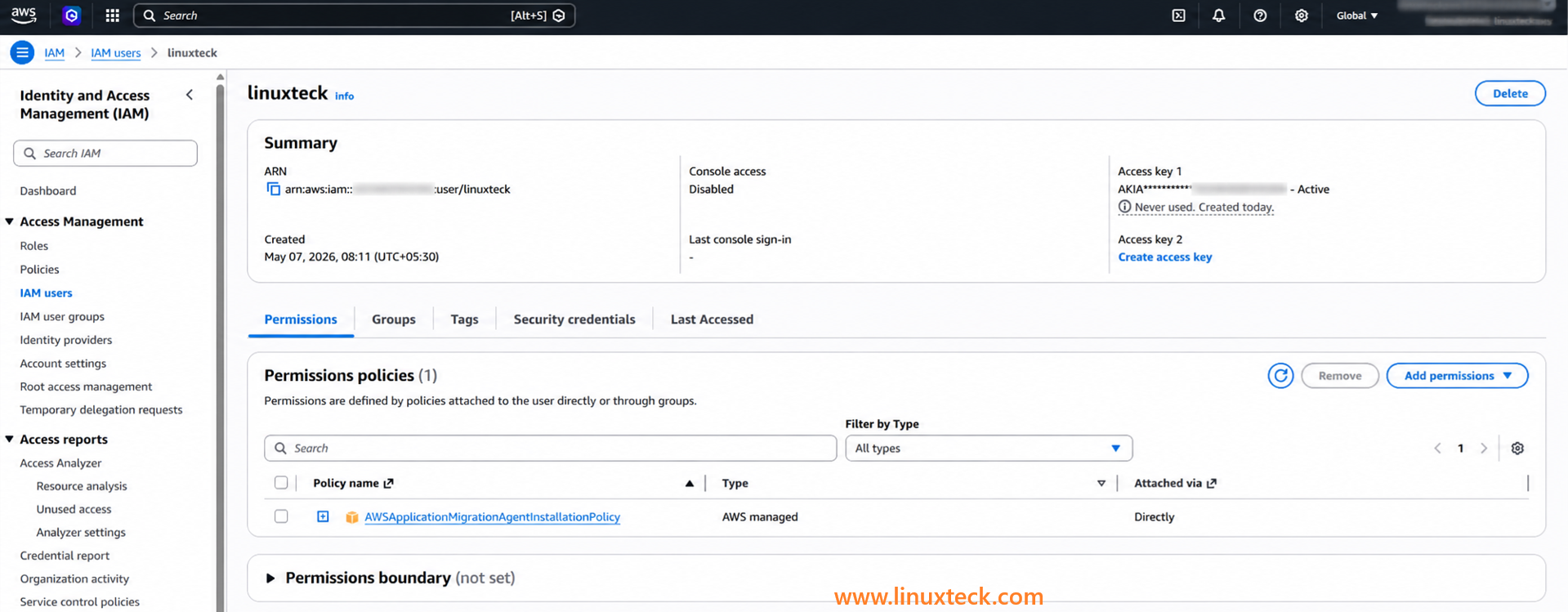
"mgn-replication-agent" with 1 attached policy. The access key creation screen shows a
one-time download option. If you miss this, you must delete the key and create a new one.
Note:
Screenshot reference: In the AWS Console, after creating the user and attaching the policy, the user list will show "mgn-replication-agent" with 1 attached policy. The access key creation screen shows a one-time download option. If you miss this, you must delete the key and create a new one — there is no way to retrieve the secret key again.
Step 2 — Initialize AWS MGN and Create Replication Settings Template
Before installing the agent on your source server, you need to initialize MGN in your target AWS region and configure where replicated data will land inside your VPC.
- Open the AWS MGN Console at console.aws.amazon.com/mgn
- Select your target region (e.g., us-east-1 or eu-west-1)
- Click Get started if this is your first time using MGN in this region
- Under Replication settings template, configure the following:
| Setting | Recommended Value | Notes |
|---|---|---|
| Staging area subnet | subnet-xxxxxxxx (private) | Must have outbound internet via NAT GW |
| Replication server instance type | t3.small | Default; use t3.medium for large disks |
| EBS volume type | gp3 | Better cost/performance vs gp2 |
| Data plane routing | Public internet | Change to Private if using Direct Connect |
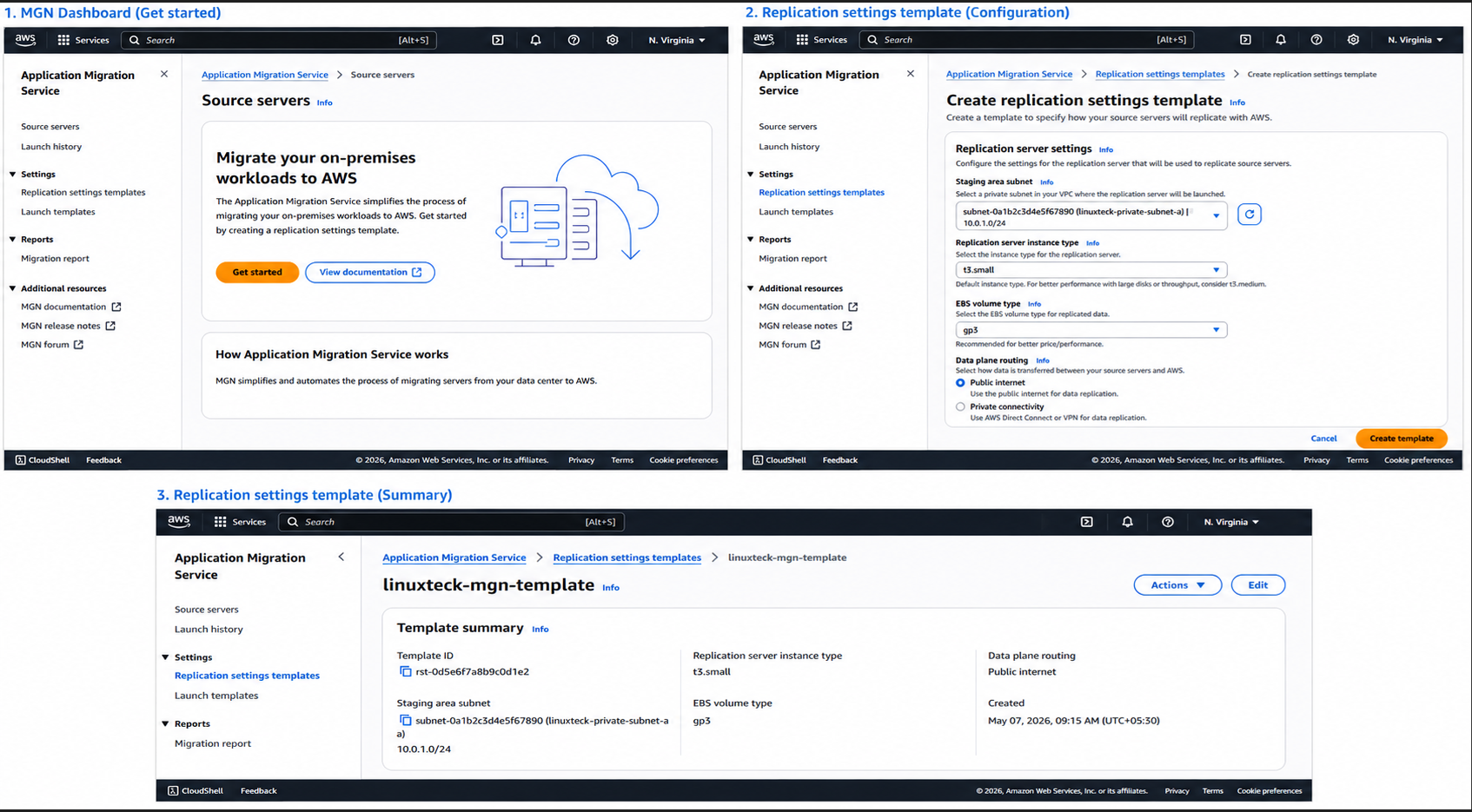
Screenshot Note:
The MGN console shows a Replication settings template page with a VPC/subnet dropdown and instance type selector. The staging subnet you choose here must be in the same VPC you plan to launch your final EC2 instance in. All replicated data flows through the replication server in this subnet before landing on your EBS volumes.
Step 3 — Install the AWS Replication Agent (Distro-Specific)
This is where most guides fail you. The installation command is the same across distros, but the dependencies, SELinux handling, and Python requirements differ significantly between Ubuntu, Rocky Linux, and RHEL. Run the correct block for your distro.
# Run as root or with sudo
# 1. Update packages and ensure Python3 + pip are present
sudo apt-get update -y
sudo apt-get install -y python3 python3-pip wget
# 2. Verify Python version (must be 3.6 or higher)
python3 --version
# Expected: Python 3.10.x or 3.12.x
# 3. Download the MGN agent installer
# Replace us-east-1 with your target region
wget -O ./aws-replication-installer-init.py \
https://aws-application-migration-service-us-east-1.s3.amazonaws.com/latest/linux/aws-replication-installer-init.py
# 4. Run the installer (will prompt for credentials)
sudo python3 aws-replication-installer-init.py
# When prompted, enter:
# AWS Region Name: us-east-1 (your region)
# AWS Access Key ID: AKIA... (from Step 1)
# AWS Secret Access Key: xxxxxxx (from Step 1)
# The installer will auto-detect volumes to replicate
# 5. Verify agent service is running
sudo systemctl status aws-replication-daemon
# Expected: active (running)
# IMPORTANT: SELinux requires special handling on Rocky Linux 9
# 1. Install dependencies
sudo dnf install -y python3 python3-pip wget
# 2. Check SELinux mode — if Enforcing, you need the step below
getenforce
# If output is "Enforcing", run the SELinux policy fix:
sudo semanage permissive -a initrc_t 2>/dev/null || \
echo "semanage not found - install: dnf install -y policycoreutils-python-utils"
sudo dnf install -y policycoreutils-python-utils
sudo semanage permissive -a initrc_t
# 3. Download the agent installer
# Replace us-east-1 with your target region
wget -O ./aws-replication-installer-init.py \
https://aws-application-migration-service-us-east-1.s3.amazonaws.com/latest/linux/aws-replication-installer-init.py
# 4. Run installer
sudo python3 aws-replication-installer-init.py
# 5. Verify agent service
sudo systemctl status aws-replication-daemon
# 6. (Recommended) After agent is running, restore SELinux to Enforcing
# The agent will continue running once the policy exception is set
sudo semanage permissive -d initrc_t
# Note: RHEL 9 uses BYOL licensing — confirm Cloud Access entitlement
# 1. Install dependencies
sudo dnf install -y python3 python3-pip wget policycoreutils-python-utils
# 2. Check subscription status (RHEL requires active subscription for dnf)
sudo subscription-manager status
# If not subscribed, register: sudo subscription-manager register
# 3. SELinux — same handling as Rocky Linux 9
getenforce
sudo semanage permissive -a initrc_t
# 4. Download the agent installer
wget -O ./aws-replication-installer-init.py \
https://aws-application-migration-service-us-east-1.s3.amazonaws.com/latest/linux/aws-replication-installer-init.py
# 5. Run installer
sudo python3 aws-replication-installer-init.py
# 6. Verify
sudo systemctl status aws-replication-daemon
# 7. RHEL note: Your RHEL license (BYOL) carries over to EC2
# AWS MGN detects the OS and applies BYOL automatically
# No need to re-register with Red Hat after migration
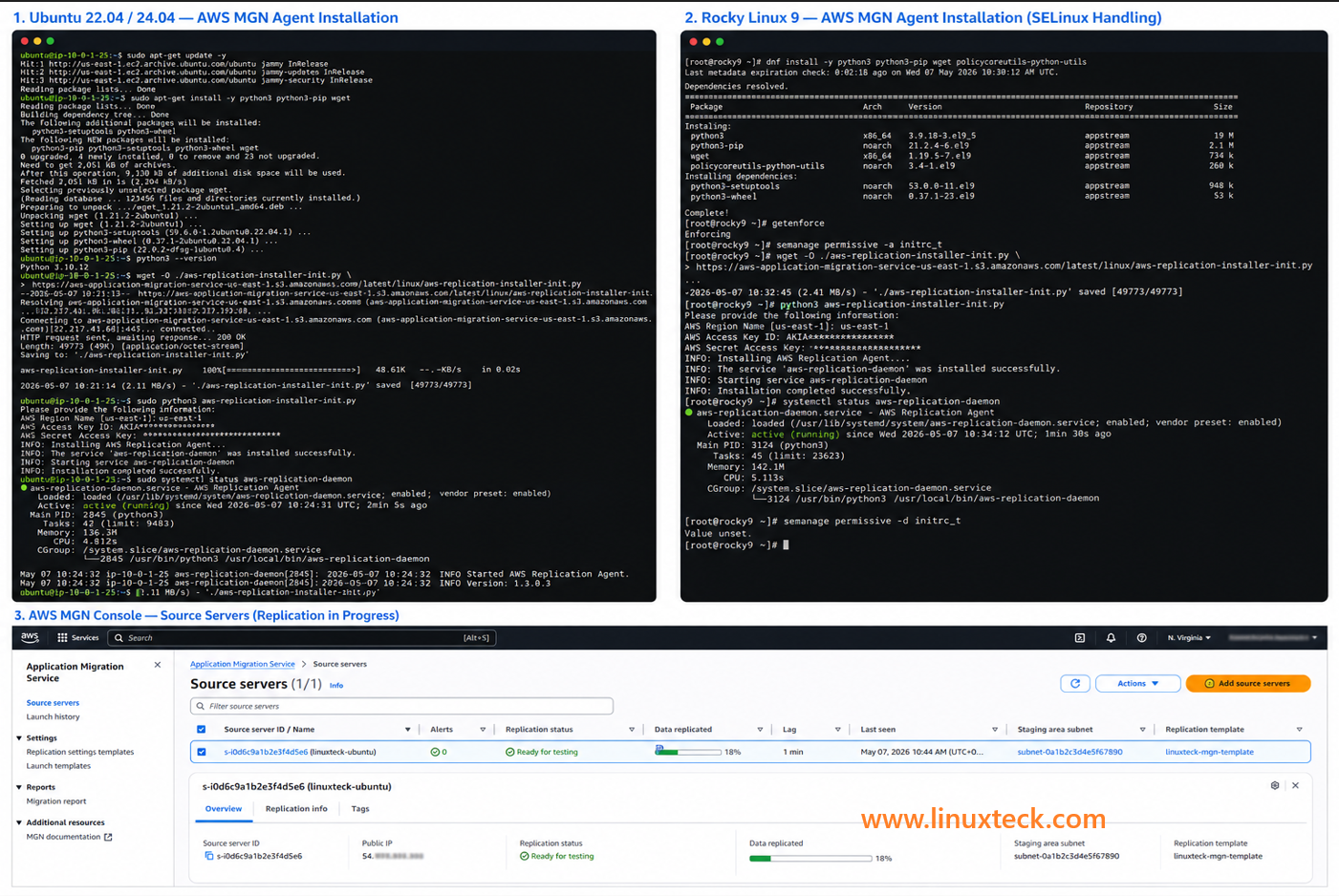
Expected Result:
After successful agent installation, your source server will appear in the AWS MGN Console → Source servers list with status "Not ready" initially, then moving to "Ready for testing" once initial replication sync completes (typically 20 minutes to several hours depending on disk size). You will also see a new EC2 instance (the replication server) appear in your staging subnet automatically.
Step 4 — Configure Launch Settings and Launch Test Instance
Before cutting over to production, you launch a test instance. This is a non-destructive step — your source server keeps running, and replication continues. The test instance lets you verify the migrated server boots, services are running, and applications respond correctly.
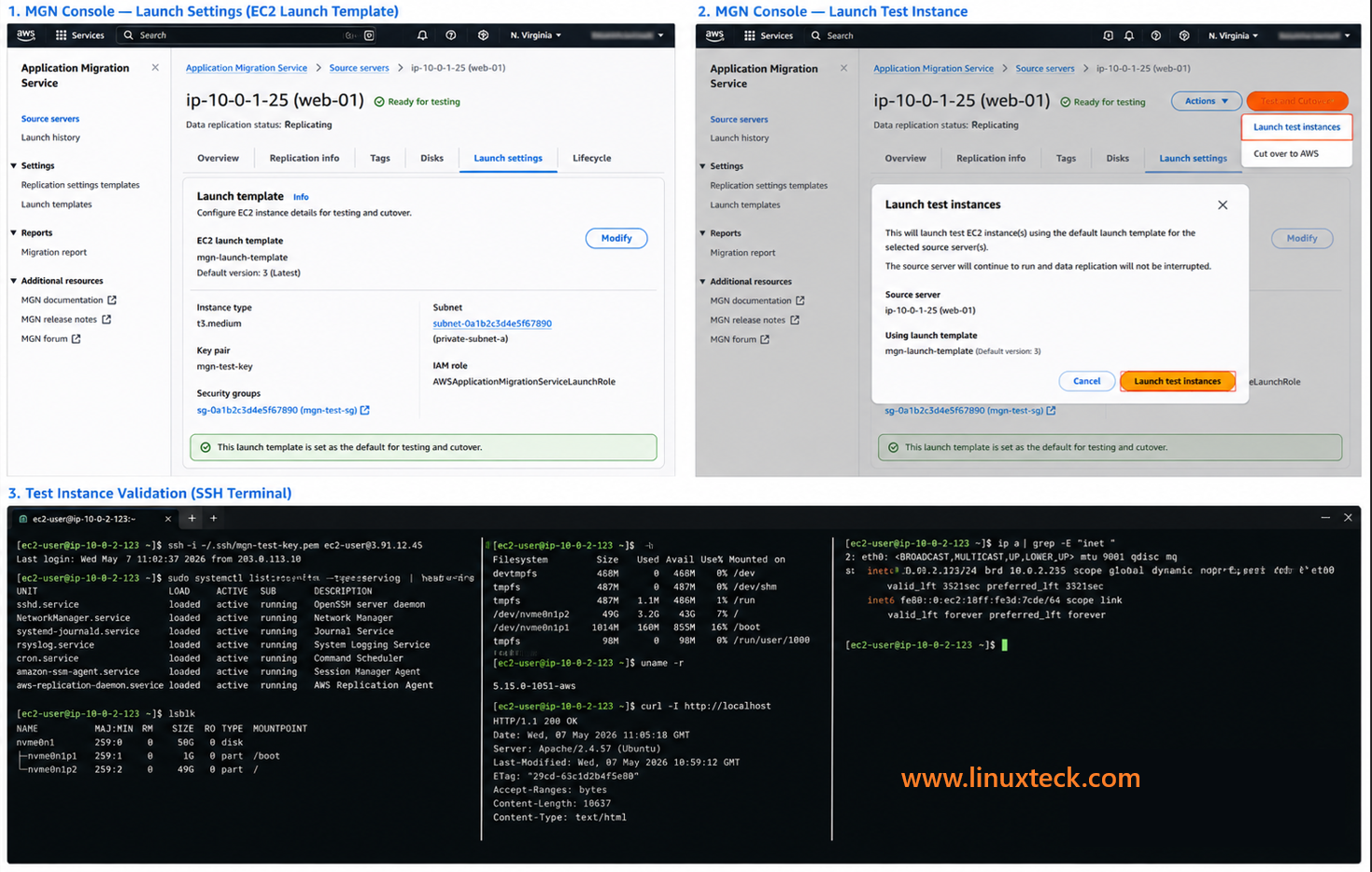
Configure EC2 Launch Settings in the MGN Console:
- In MGN Console, click your source server → Launch settings
- Under EC2 launch template, click Modify
- Configure: Instance type (match or right-size), Target subnet, Security group, Key pair
- Save the launch template version and set it as default
- Return to MGN → Source servers → Select server → Test and Cutover → Launch test instances
- Confirm the dialog. AWS MGN will launch a test EC2 instance in your target subnet.
# Replace with your test instance IP and key file
ssh -i ~/.ssh/your-key.pem ec2-user@<test-instance-ip>
# Ubuntu: use 'ubuntu' instead of 'ec2-user'
# Rocky/RHEL: use 'rocky' or 'ec2-user'
# Once connected, verify critical services
sudo systemctl list-units --type=service --state=running
# Check disk mounts match source
lsblk
df -h
# Check kernel (should match source)
uname -r
# Test application connectivity (example: Apache)
curl -I http://localhost
# Expected: HTTP/1.1 200 OK (or your application's expected response)
# Check network interface
ip a
Disk layout in lsblk should match the source.
curl -I http://localhost should return HTTP/1.1 200 OK.
Critical:
Do not proceed to cutover if the test instance shows any service failures or unexpected behavior. The test instance is your safety net. Fix issues at this stage, not after you have pointed production DNS at the cutover instance.
Step 5 — Launch Cutover Instance and Update DNS
Cutover is the moment you switch production traffic from the on-premises server to the new EC2 instance. Preparation determines whether your downtime is 3 minutes or 3 hours.
Pre-cutover actions (do these 24 hours before):
# This ensures DNS changes propagate quickly during the cutover window
# Do this in your DNS provider (Route53, Cloudflare, etc.)
# Example using AWS CLI for Route53:
aws route53 change-resource-record-sets \
--hosted-zone-id <YOUR_ZONE_ID> \
--change-batch '{
"Changes": [{
"Action": "UPSERT",
"ResourceRecordSet": {
"Name": "app.example.com",
"Type": "A",
"TTL": 60,
"ResourceRecords": [{"Value": "<CURRENT_SOURCE_IP>"}]
}
}]
}'
# Lower TTL to 60 seconds now
# After cutover succeeds, raise it back to 300 or 3600
# Step 2: Take a final snapshot of the source server
# (Backup before any disruptive action)
aws ec2 create-snapshot \
--description "pre-cutover-backup-$(date +%Y%m%d)" \
--volume-id <source-volume-id>
Snapshot creation returns SnapshotId: snap-xxxxxxxxxxxxxxxxx
Cutover steps in MGN Console:
- In MGN Console, select source server → Test and Cutover → Launch cutover instances
- Confirm the action. AWS MGN performs a final replication sync then launches the cutover EC2 instance.
- Once the instance shows Running in EC2, SSH into it and verify services (same checks as Step 4).
- Update DNS to point to the new EC2 instance's Elastic IP or private IP (via load balancer).
- Monitor for 15-30 minutes. Watch application logs, CPU, and connection counts.
- When satisfied, return to MGN Console → Finalize cutover. This terminates the replication server and stops replication.
Critical:
Do not finalize cutover immediately. Once you click Finalize, the replication server is terminated and you cannot roll back to the source via MGN. Give yourself at least 30 minutes of stable production traffic on the new EC2 instance before finalizing. Keep your source server running for 24-48 hours post-cutover as a manual rollback option.
If you are migrating more than one Linux server, do not run them all in parallel on your first attempt. Use a phased wave approach:
Real-World Migration Problems and Solutions
These are the six failure patterns that come up on real migrations. If you skip this section, your future self (at 2 AM, mid-cutover) will wish you had not.
Replication Agent Install Fails — Python Dependency Error
Environment: Ubuntu 22.04 or Rocky Linux 9. The installer exits with ModuleNotFoundError or fails silently with a pip conflict error.
Failure pattern: A production web server that had Python 2.7 still symlinked to /usr/bin/python caused the installer to invoke Python 2 instead of Python 3, producing a silent failure with no clear error. The agent never appeared in the MGN console.
which python3 && python3 --version
# Ubuntu: if python3 is missing
sudo apt-get install -y python3 python3-pip python3-venv
# Rocky/RHEL: ensure python3 is installed
sudo dnf install -y python3 python3-pip
# Always call the installer explicitly with python3
sudo python3 aws-replication-installer-init.py
# NOT: sudo python aws-replication-installer-init.py
Replication Stuck at 0% — Port 1500 Blocked
Environment: Any Linux distro behind a corporate firewall or strict on-premises network policy.
Failure pattern: Agent installs successfully, source server appears in MGN console, but the Data replication status stays at 0% or "Initiating" for hours. No obvious error in the MGN console. The agent log shows repeated connection timeouts. Port 443 was open but the network team had never heard of port 1500 and it was blocked at the perimeter firewall.
nc -zv -w5 mgn.us-east-1.amazonaws.com 1500
# If that fails, check agent logs
sudo tail -100 /var/log/aws-replication-agent.log
# Open TCP 1500 outbound in iptables (temporary test)
sudo iptables -I OUTPUT -p tcp --dport 1500 -j ACCEPT
# If that fixes it, make it permanent via your firewall rules
# For firewalld (Rocky/RHEL):
sudo firewall-cmd --add-port=1500/tcp --permanent
sudo firewall-cmd --reload
Test Instance Launches But SSH Fails
Environment: Any distro. Test or cutover EC2 instance is Running but SSH connections time out.
Failure pattern: Two causes are common. First, the wrong key pair was selected in the EC2 launch template. Second, the security group attached to the test instance does not allow inbound TCP 22 from your IP. Both are fixable without relaunching the instance.
aws ec2 describe-security-groups \
--group-ids <sg-id> \
--query 'SecurityGroups[*].IpPermissions'
# 2. Add SSH inbound rule if missing
aws ec2 authorize-security-group-ingress \
--group-id <sg-id> \
--protocol tcp \
--port 22 \
--cidr <your-ip>/32
# 3. If key pair is wrong, use EC2 Instance Connect (in AWS Console)
# or attach an SSM role to the instance and use Session Manager
Cutover Instance Kernel Panic — Bootloader Mismatch
Environment: RHEL 7 or CentOS 7 migrated to EC2 (older bootloader edge case). Less common on modern distros but still seen on legacy workloads.
Failure pattern: EC2 instance enters a boot loop or kernel panic visible in the EC2 serial console. Usually caused by GRUB legacy (not GRUB2) on the source, or a UEFI vs BIOS mismatch in the launch template.
ls /boot/grub2/ 2>/dev/null && echo "GRUB2 found" || echo "GRUB2 not found"
ls /boot/grub/ 2>/dev/null && echo "GRUB legacy found"
# If GRUB legacy is present, upgrade to GRUB2 before migrating
# (CentOS/RHEL 7 example — already has grub2 but may default to legacy)
sudo grub2-install /dev/sda
sudo grub2-mkconfig -o /boot/grub2/grub.cfg
# In the MGN EC2 launch template:
# Set Boot mode = Legacy BIOS (not UEFI) unless your source is UEFI
# Check in: MGN Console > Source server > Launch settings > Edit > Boot mode
DNS Does Not Propagate After Cutover
Environment: Any. DNS TTL was not lowered before cutover, so old IP addresses are cached by resolvers worldwide for hours.
Failure pattern: You updated DNS to point to the new EC2 Elastic IP but customers are still hitting the old server. Some get the new server, some get the old one. The old server is already cut off from database updates. Data inconsistency begins.
# Set TTL to 60 seconds so changes propagate within 1 minute
# If you forgot: check current TTL
dig +nocmd yourdomain.com +noall +answer
# Force local DNS cache flush (test from your machine)
# Linux:
sudo systemd-resolve --flush-caches
# macOS:
sudo dscacheutil -flushcache; sudo killall -HUP mDNSResponder
# For Route53: use a small TTL record change immediately
# For Cloudflare: DNS propagation is typically under 30 seconds regardless of TTL
SELinux Silently Blocks Agent on Rocky Linux / RHEL
Environment: Rocky Linux 9 or RHEL 9 with SELinux in Enforcing mode (the default on fresh installs).
Failure pattern: The agent installer completes without error, the systemd service starts, but replication never begins. The SELinux audit log shows the agent process being denied socket operations. The MGN console shows the server as "Disconnected" 10 minutes after install.
sudo ausearch -m avc -ts recent | grep aws-replication
# Or tail the audit log
sudo tail -50 /var/log/audit/audit.log | grep denied
# Quick diagnosis: temporarily set permissive mode
sudo setenforce 0
# Then check if replication starts in the MGN console (within 2 minutes)
# Proper fix: create a targeted SELinux policy exception
sudo dnf install -y policycoreutils-python-utils
sudo semanage permissive -a initrc_t
sudo setenforce 1
# The agent now runs with SELinux enforcing but with a specific exemption
Post-Migration Validation Script
Run this script on the newly migrated EC2 instance immediately after cutover. It checks everything that matters: services, disks, kernel, network, and application endpoints. Save the output and compare it against your pre-migration snapshot from Step 0.
# Post-Migration Validation Script — LinuxTeck.com
# Run on the NEW EC2 instance after cutover
# Compare output to pre-migration snapshot from Step 0
echo "============================================"
echo " POST-MIGRATION VALIDATION — $(date)"
echo " Hostname: $(hostname)"
echo " Instance: $(curl -s http://169.254.169.254/latest/meta-data/instance-id 2>/dev/null || echo 'N/A')"
echo "============================================"
echo ""
echo "--- 1. KERNEL VERSION ---"
uname -r
echo ""
echo "--- 2. DISK MOUNTS ---"
lsblk
echo ""
df -h | grep -v tmpfs
echo ""
echo "--- 3. RUNNING SERVICES ---"
systemctl list-units --type=service --state=running --no-pager | head -30
echo ""
echo "--- 4. NETWORK INTERFACES ---"
ip a | grep -E 'inet |eth|ens|eno'
echo ""
echo "--- 5. DEFAULT ROUTE ---"
ip route show default
echo ""
echo "--- 6. APPLICATION ENDPOINT CHECK ---"
for port in 80 443 8080 3306; do
(bash -c "cat < /dev/null > /dev/tcp/localhost/$port") 2>/dev/null \
&& echo "Port $port: OPEN" \
|| echo "Port $port: CLOSED (may be expected)"
done
echo ""
echo "--- 7. HTTP RESPONSE CHECK (if web server) ---"
curl -s -o /dev/null -w "HTTP Status: %{http_code}\n" http://localhost/ 2>/dev/null \
|| echo "No HTTP server detected on port 80"
echo ""
echo "--- 8. MEMORY AND CPU ---"
free -h
echo ""
nproc && echo "CPU core(s)"
echo ""
echo "--- 9. SYSTEM UPTIME ---"
uptime
echo ""
echo "--- 10. LAST 20 SYSTEM LOG ERRORS ---"
journalctl -p err -n 20 --no-pager 2>/dev/null \
|| tail -20 /var/log/messages 2>/dev/null
echo ""
echo "============================================"
echo " VALIDATION COMPLETE"
echo " Review output against pre-migration snapshot"
echo "============================================"
# Save to file:
sudo ./post-migration-validate.sh | tee migration-report-$(date +%Y%m%d).txt
Usage:
Save this script to post-migration-validate.sh, run chmod +x post-migration-validate.sh && sudo ./post-migration-validate.sh and pipe the output to a file for the migration record: sudo ./post-migration-validate.sh | tee migration-report-$(date +%Y%m%d).txt
Security and Compliance Notes
IAM Least Privilege
CloudTrail Audit
HIPAA / PCI DSS Ready
EBS Encryption at Rest
AWS MGN is free for the first 90 days per migrated server. This is the most financially significant fact in this article. Here is what the numbers actually look like:
Practical example: Migrating a 200 GB Ubuntu server over 2 weeks via public internet costs roughly: replication server ($0.023 x 336 hrs = $7.73) + EBS staging ($0.08 x 200 GB = $16) + data transfer (~$18 for 200 GB initial sync) = approximately $42 total for the migration. The MGN service itself is free within the 90-day window.
Post-Migration Security Hardening Checklist
aws iam delete-access-key \
--user-name mgn-replication-agent \
--access-key-id <AKIA_KEY_FROM_STEP_1>
# 2. Remove staging area security group rules (staging SG no longer needed)
# In AWS Console: EC2 > Security Groups > find staging SG > delete inbound rules
aws ec2 revoke-security-group-ingress \
--group-id <staging-sg-id> \
--protocol all \
--source-group <staging-sg-id>
# 3. Enable EBS encryption for future volumes (set account-level default)
aws ec2 enable-ebs-encryption-by-default
# 4. Enable CloudTrail for the MGN project region (if not already enabled)
aws cloudtrail create-trail \
--name mgn-migration-audit \
--s3-bucket-name <your-cloudtrail-bucket>
aws cloudtrail start-logging --name mgn-migration-audit
# 5. Remove public IP from EC2 instance if it was only needed during testing
# Use an Elastic IP or put instance behind a load balancer instead
# 6. Lock down the production Security Group to minimum required ports
# Remove any 0.0.0.0/0 SSH rules — use bastion host or Systems Manager instead
aws ec2 revoke-security-group-ingress \
--group-id <prod-sg-id> \
--protocol tcp \
--port 22 \
--cidr 0.0.0.0/0
Verify with: aws iam list-access-keys --user-name mgn-replication-agent
For a detailed checklist of Linux security controls to apply to your newly migrated EC2 instance, see the top Linux security tools guide and the Linux security command cheat sheet. The network hardening steps that apply on-premises also apply in EC2 — the difference is you now also have AWS security groups, IAM, and CloudTrail as additional layers.
Monitoring and Maintenance Checklist
EC2 instance CPU exceeds 90% for more than 5 minutes — right-size instance type (AWS Compute Optimizer)
EBS volume IOPS throttling alerts — upgrade from gp3 to io2 if database workload requires it
Application endpoint returning non-200 responses after DNS cutover — check security group and application logs immediately
SSH or SSM connection failure to EC2 — check instance status checks in EC2 console, verify IAM instance profile
Review AWS Cost Explorer for unexpected EC2, EBS, or data transfer charges — common in first 30 days post-migration
Check CloudWatch metrics: CPUUtilization, NetworkIn/Out, DiskReadOps, DiskWriteOps — compare to pre-migration baseline
Verify EBS snapshot backups are running — ensure automated snapshots via AWS Backup or custom cron are configured
Run AWS Compute Optimizer to check right-sizing recommendations — EC2 instances are often over-provisioned to match on-prem specs
Apply OS security patches on EC2 instance (apt-get update && apt-get upgrade or dnf update) — cloud exposure makes patching more urgent than on-prem
Review IAM Access Advisor for the mgn-replication-agent user — confirm it has zero recent activity and consider deactivating it permanently
Run AWS Well-Architected Framework review on migrated workload — specifically the Reliability and Cost Optimization pillars
Evaluate Reserved Instance or Savings Plans purchase if EC2 instance has been running consistently — typically 30-40% cost reduction vs On-Demand
Decommission the original on-premises server hardware after 90 days of stable EC2 operation — document the decommission date for audit records
For ongoing Linux system monitoring on your new EC2 instance, the best Linux monitoring tools guide covers both traditional sysadmin tools and cloud-native options that integrate with CloudWatch. Also see the Linux system monitoring command cheat sheet for quick reference commands you will use frequently on the EC2 instance.
Frequently Asked Questions
Does AWS MGN support Rocky Linux 9?
Yes. AWS MGN officially supports Rocky Linux 9 as a source operating system. The installation procedure is the same as RHEL 9, with the same SELinux handling requirement. Check the AWS MGN supported operating systems page for the full current list, as it is updated regularly.
How long does AWS cloud migration take for Linux servers?
The initial replication sync depends on disk size and network bandwidth. A 100 GB server over a 100 Mbps internet connection takes roughly 2-3 hours for the initial sync. After that, MGN performs continuous incremental replication. The actual cutover window (when the server is unavailable) is typically under 15 minutes. Planning, testing, and validation add days or weeks for production workloads.
What is the difference between AWS MGN, AWS SMS, and AWS DataSync?
AWS MGN (Application Migration Service) migrates full servers including the OS, applications, and data to EC2. AWS SMS (Server Migration Service) is the older predecessor to MGN and is being retired — do not use it for new migrations. AWS DataSync moves files and data between storage systems (NFS, S3, EFS) but does not migrate an operating system. See the tool comparison table at the top of this article for a complete breakdown.
Can I migrate a bare-metal Linux server (not a VM)?
Yes. AWS MGN supports bare-metal physical servers. The replication agent runs directly on the physical server and replicates disk data to AWS over TCP 1500. There is no requirement for a hypervisor. Physical servers work the same as VMs in the MGN workflow. The main difference is that rollback is more disruptive since you cannot simply revert a VM snapshot.
What happens to my IP address after migration?
Your on-premises IP address does not carry over to EC2. Your new EC2 instance receives a private IP from your VPC CIDR range. For public-facing services, assign an Elastic IP to the instance (static public IP) and update DNS records to point to it. For internal services, update any hardcoded IP references in configuration files to use either the new EC2 private IP or, better, DNS names for service discovery.
What Linux filesystems does AWS MGN support?
AWS MGN supports ext2, ext3, ext4, XFS, and Btrfs on Linux source servers. XFS is the default on Rocky Linux 9 and RHEL 9 and is fully supported. Btrfs is supported but less commonly tested in production migrations. Unsupported filesystem types on the root or boot volume will cause the agent to error out during volume detection. Run df -T on your source server to confirm.
How do I minimize downtime during cutover?
Three actions minimize cutover downtime: (1) Lower DNS TTL to 60 seconds at least 24 hours before cutover so DNS changes propagate in under a minute. (2) Allow continuous replication to run for at least 24 hours before cutover so the final delta sync is small. (3) Schedule cutover during your lowest traffic window. With these steps, actual user-facing downtime is typically 2-5 minutes.
Is AWS MGN actually free? What are the hidden costs?
The MGN service itself is free for 90 days per server. The hidden costs are the replication server EC2 instance (t3.small at ~$0.023/hr), the EBS staging volumes ($0.08/GB/month on gp3), and data transfer charges ($0.09/GB over the public internet). For a typical 200 GB server migrated over 2 weeks, total costs are roughly $40-60. Use AWS Direct Connect or migrate within the same AWS region to eliminate data transfer charges.
Conclusion
AWS MGN has made the process for migrating a Linux server genuinely straightforward compared to the CloudEndure and SMS era. The agent installs within minutes, continuous replication runs in the background, and the test instance model lets you validate before going live. The issues that keep teams working round the clock are almost always the same three: a firewall blocking port 1500 that the network team was never told about, SELinux silently killing the agent on Rocky Linux, and a DNS TTL that was never lowered before cutover.
Long-term trends: Lift-and-shift is an entry point, not a final destination. It is typically followed by right-sizing, then Auto Scaling for variable workloads, and later evaluating whether containerization makes sense for stateless application components.
The Linux DevOps Career Guide provides a practical overview of how teams can progress through these stages after migration.
Once workloads are successfully migrated, the next challenge is optimizing cloud infrastructure costs, security, and long-term operational reliability. Our guide to Linux cloud hosting environments explores production hosting considerations for modern Linux deployments.
For teams managing many servers across Rocky Linux 9 and RHEL environments, understanding the differences between those distributions before migration matters more than most guides admit. The RHEL vs Ubuntu Server comparison is worth reading if your migration involves mixed distro environments, since post-migration management differences compound over time on EC2. Also keep an eye on Linux security threats in 2026 — moving to a cloud-exposed EC2 instance increases your attack surface compared to a server sitting behind an on-premises firewall.
This guide covered how to migrate Linux servers from on-premises to AWS using AWS Application Migration Service (MGN) with distro-specific steps for Ubuntu, Rocky Linux, and RHEL.
LinuxTeck's Enterprise Linux category focuses on production-ready Linux infrastructure skills including:
AWS cloud migration for Linux servers, AWS MGN replication agent setup,
Ubuntu and Rocky Linux EC2 migration, lift-and-shift server migration,
post-migration validation and security hardening, and on-premises Linux to AWS cutover workflows.