Linux · Ubuntu · Installation Guide
To install Ubuntu 24.04 LTS step by step: download the Noble Numbat ISO from ubuntu.com, flash it to a USB drive, boot from USB, choose language and keyboard, select installation type, configure your disk partition layout, set your timezone, create a user account, and reboot. The full process takes under 20 minutes on modern hardware — and Ubuntu 24.04 LTS receives security updates through April 2029.
Install Steps
Install Time
LTS Support
Supported Until
Why Install Ubuntu 24.04 LTS "Noble Numbat"?
Learning how to install Ubuntu 24.04 LTS step by step is easier than ever — codenamed Noble Numbat, this is Canonical's latest long-term support release, launched in April 2024. It ships with the Linux 6.8 kernel, a polished GNOME 46 desktop, Python 3.12, GCC 14, and an entirely new Flutter-based App Center. Whether you're building a developer workstation, a production server, or your first personal Linux machine, Noble Numbat delivers a rock-solid foundation backed by official security updates through April 2029.
This practical, step-by-step guide walks you through every stage of the Ubuntu 24.04 LTS installation — from downloading the ISO and creating a bootable USB, to partitioning your disk and logging into a fully running GNOME 46 desktop. Every step is paired with a real screenshot so you know exactly what to expect on each screen. If you previously followed our Ubuntu 22.04 LTS installation guide, you'll find the 24.04 installer noticeably more streamlined. Without further delay, let's begin.
Want to practice the installation without risking your physical machine? Run through all 9 steps inside a VM first — spin up a VirtualBox or VMware virtual machine, attach the ISO, and follow every step in this guide exactly as you would on bare metal.
Prerequisites & System Requirements
Before starting the installation, confirm your hardware meets the minimum requirements below. The installer will run on the minimum spec, but the recommended spec provides a significantly smoother experience — particularly with GNOME 46's Wayland compositor and fractional display scaling.
Ubuntu 24.04 LTS — Minimum vs Recommended Requirements
| Component | Minimum | Recommended |
|---|---|---|
| HDD / Storage | 25 GB | 50 GB+ NVMe SSD |
| RAM | 4 GB | 8 GB+ |
| CPU | 2 GHz dual-core 64-bit | 4-core 64-bit, 2.5 GHz+ |
| System Type | 64-bit x86_64 | 64-bit x86_64 / ARM64 |
| Installation Media | Bootable USB 8 GB+ | USB 3.0, 16 GB+ |
| Display | 1024 x 768 | 1920 x 1080 |
| Firmware | BIOS or UEFI | UEFI with Secure Boot |
Download the Latest Ubuntu 24.04 LTS
Download Ubuntu 24.04 LTS Desktop from the official Canonical website at ubuntu.com/download/desktop. Select the Ubuntu 24.04 LTS (Noble Numbat) entry — the ISO is approximately 5.7 GB. Always download from the official source to guarantee authenticity.
# Verify the SHA256 checksum after downloading
sha256sum ubuntu-24.04-desktop-amd64.iso

# Compare output with the hash shown on ubuntu.com
# Strings must match exactly — any difference means the download is corrupted
Create a Bootable DVD / USB
With a verified ISO in hand, write it to a USB drive (minimum 8 GB). All existing data on the drive will be permanently erased during this process. Use the tool that matches your current operating system:
-
→
Linux: Use the dd command or Balena Etcher for a graphical option. -
→
Windows: Download Rufus, select GPT + UEFI (non-CSM), point to the ISO, and click Start. -
→
macOS / Cross-platform: Balena Etcher works on Linux, macOS, and Windows — safest choice for beginners since it won't let you overwrite your system disk.
Start the Ubuntu 24.04 LTS Installation
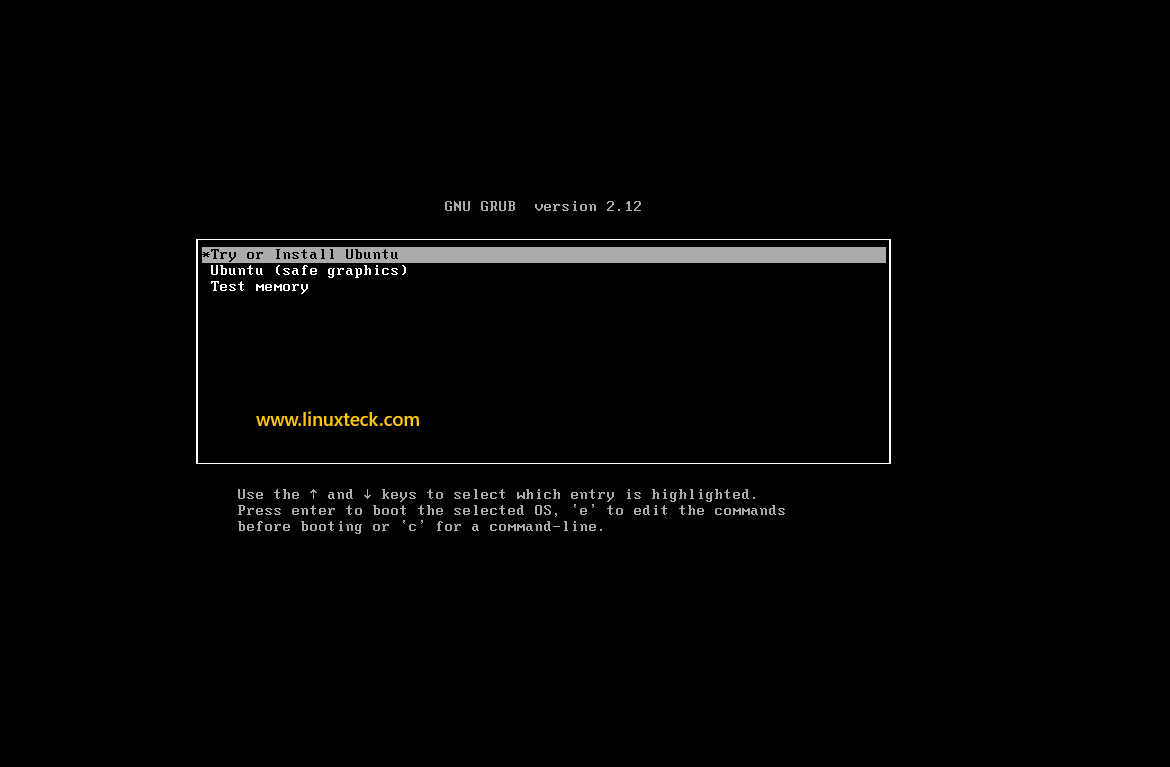
Insert the bootable USB into your target machine (or attach the ISO in your VM settings), power on, and enter the boot menu — typically F12, F10, ESC, or DEL during POST. Select the USB drive to boot from it.
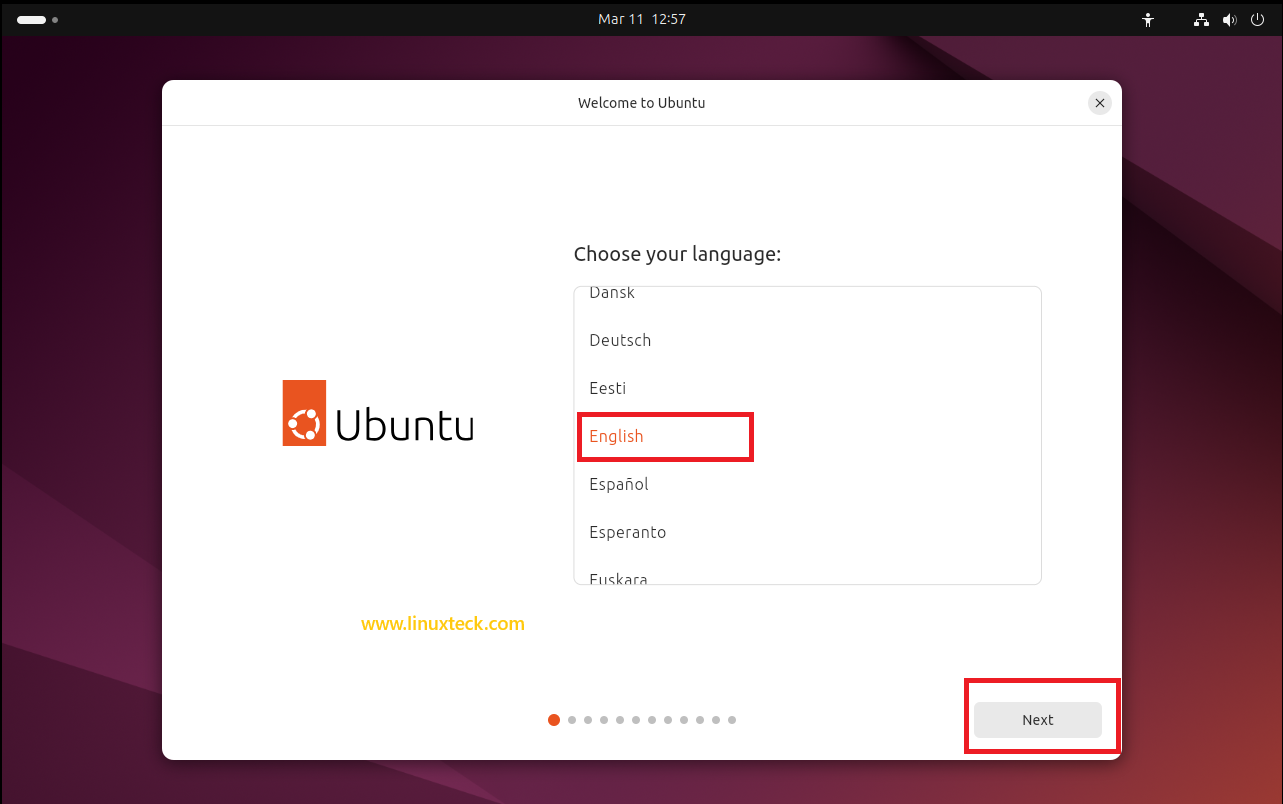
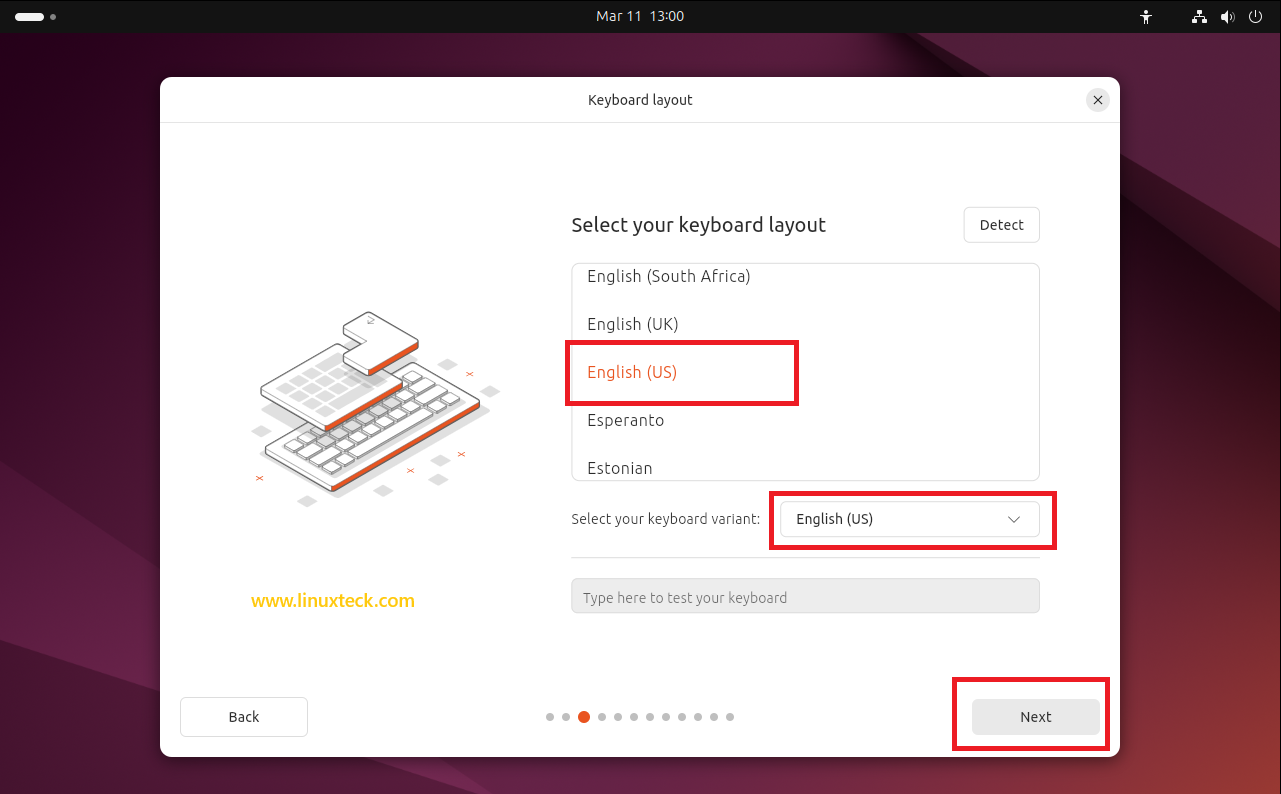
Select Keyboard Layout
The installer now asks you to choose a keyboard layout. By default English (US) is pre-selected. If your keyboard uses a different regional variant — UK English, German, French, Spanish, or any other — use the search box to locate it. Use the test input field at the bottom of the screen to confirm that key presses register correctly before proceeding.
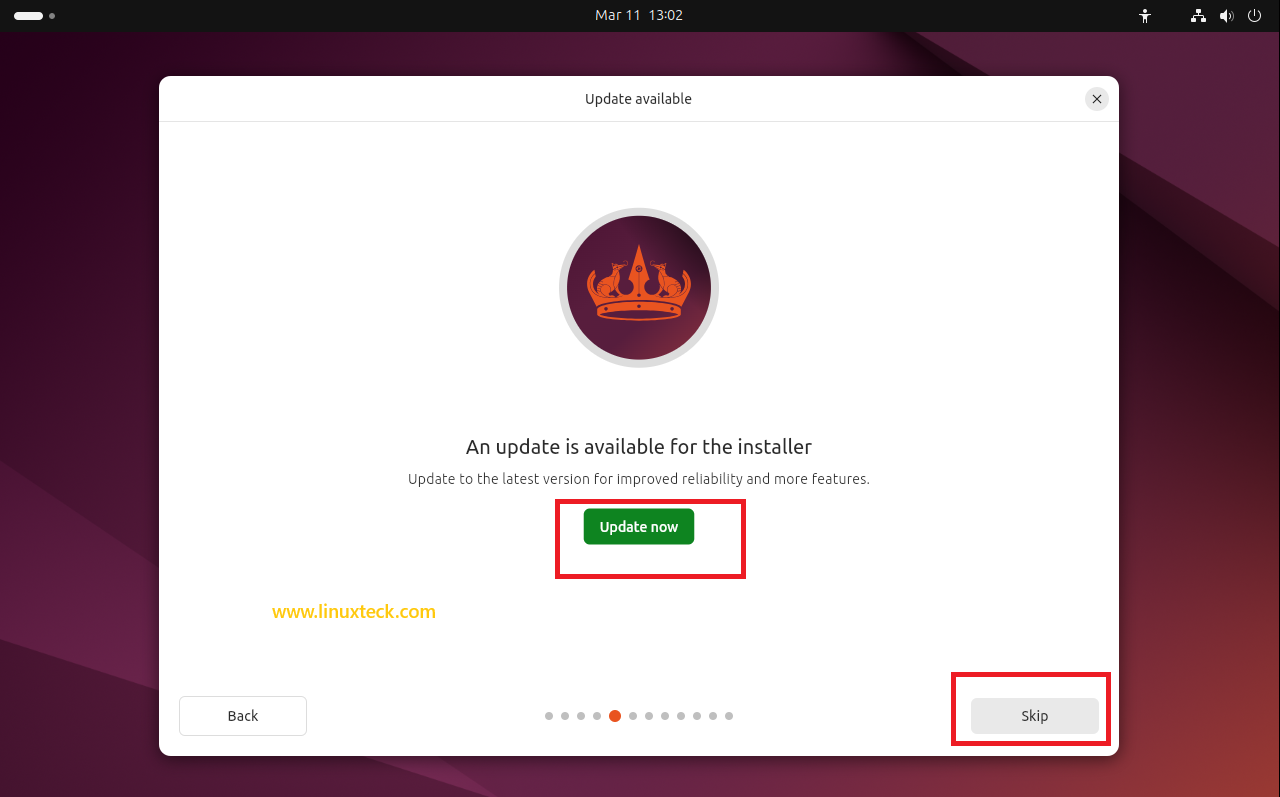
Update Available — Update the Installer
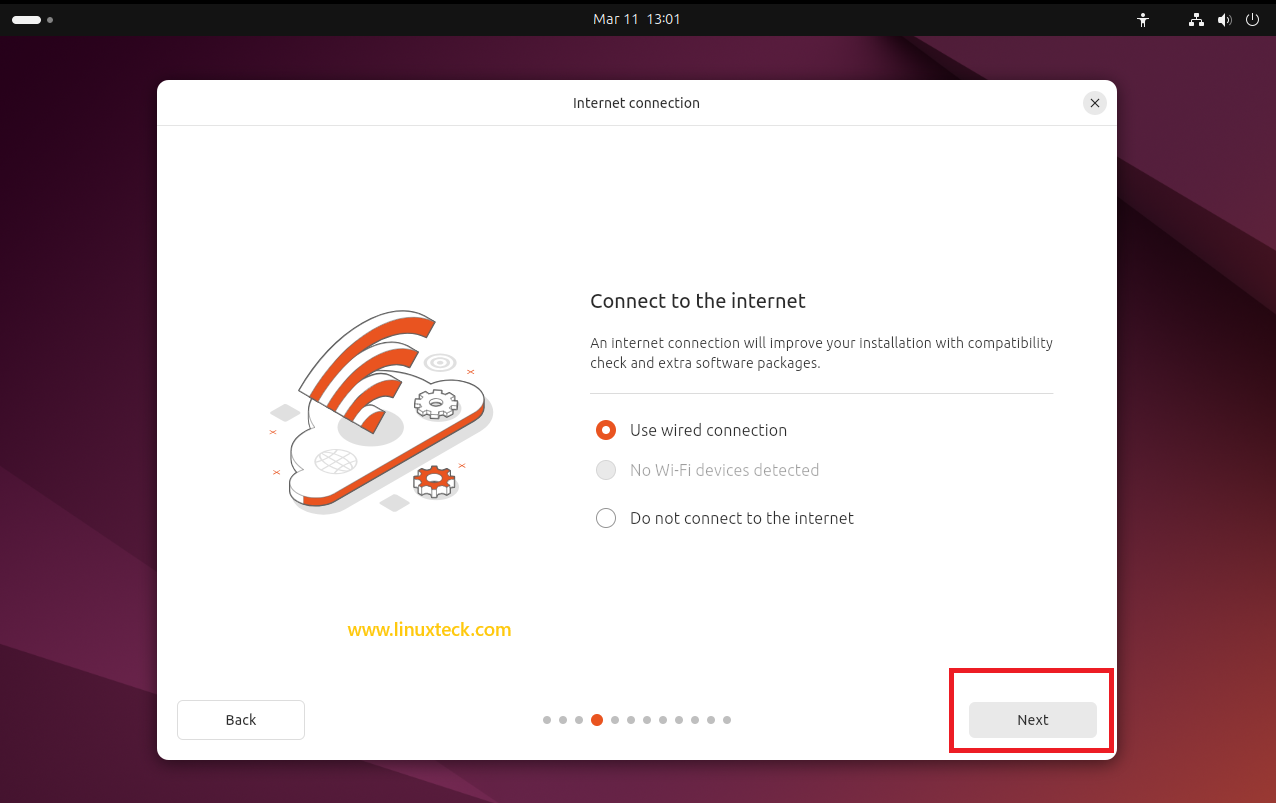
After connecting to the internet, Ubuntu 24.04 LTS introduces a brand new screen not present in Ubuntu 22.04 — the installer checks for its own updates automatically. If a newer version of the installer is available, this screen appears offering improved reliability and additional features.
Installation Setup — Type, Software & Disk Configuration
Ubuntu 24.04 LTS introduces several new screens during this phase that were not present in Ubuntu 22.04. Work through each sub-step in order — they flow one directly after the other inside the installer.
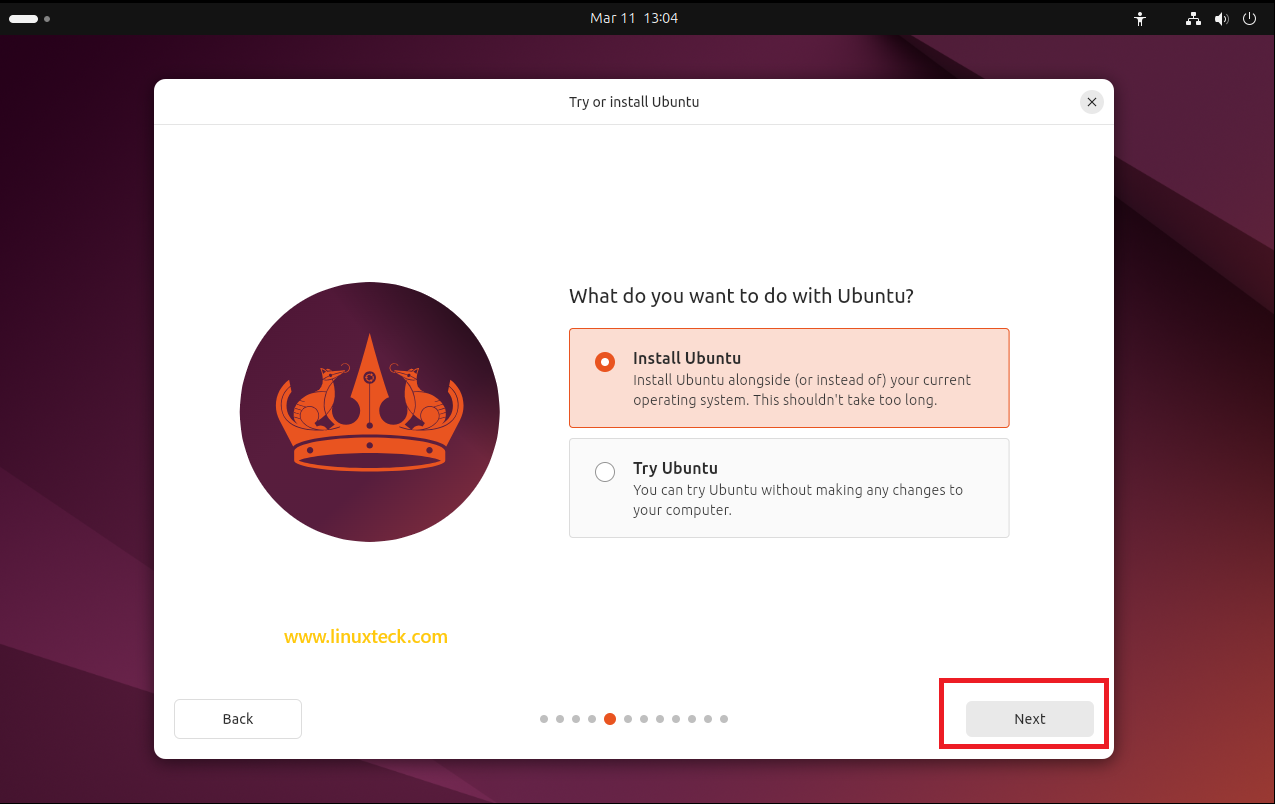
Step 6a — Try or Install Ubuntu
After the installer update screen, a redesigned "Try or install Ubuntu" screen appears. Select what you want to do:
-
→
Install Ubuntu — Installs Ubuntu alongside (or instead of) your current operating system. This is the option we proceed with in this guide. -
→
Try Ubuntu — Runs a fully functional live session from the USB without making any changes to your computer. Useful for testing hardware compatibility before committing to an install.
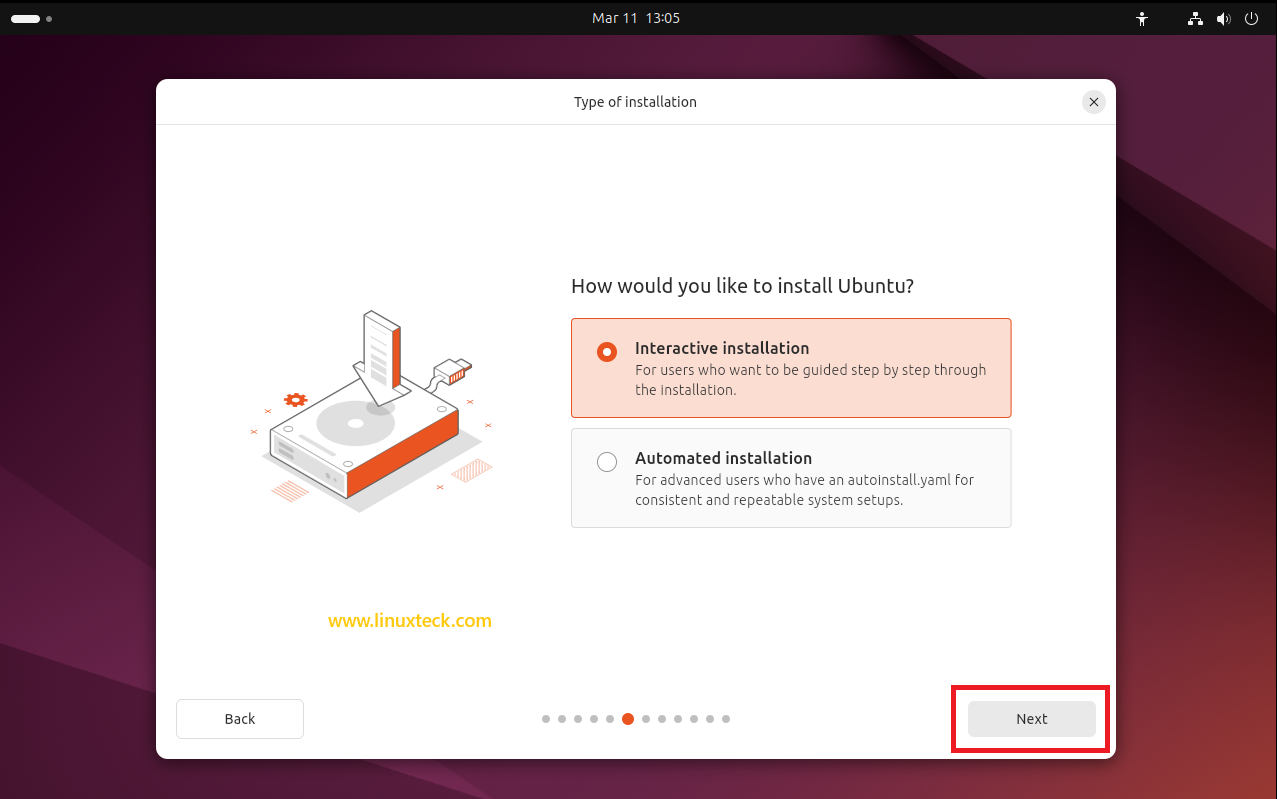
Step 6b — Type of Installation
Ubuntu 24.04 LTS introduces a completely new "Type of installation" screen that replaces the old Normal / Minimal choice from Ubuntu 22.04. You now choose how the installation is driven:
-
→
Interactive installation — The installer guides you through each step manually. Recommended for all standard desktop and server installations, and the path followed throughout this guide. -
→
Automated installation — For advanced users and DevOps engineers who have a pre-configured autoinstall.yaml for consistent, repeatable, zero-touch deployments.
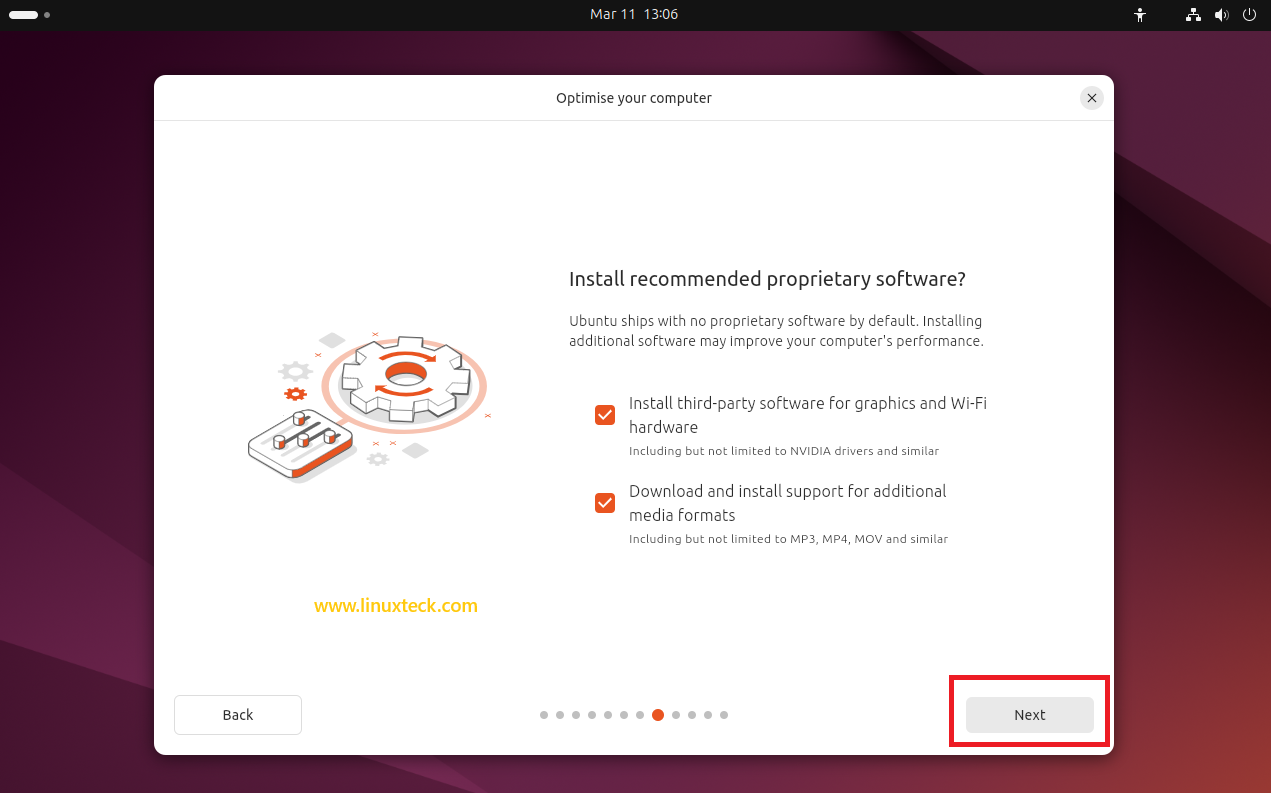
Step 6c — Optimise Your Computer
Ubuntu 24.04 ships with no proprietary software by default. This new "Optimise your computer" screen lets you install recommended proprietary packages for better hardware performance and media support:
-
→
Install third-party software for graphics and Wi-Fi hardware — Includes NVIDIA drivers and proprietary Wi-Fi firmware. Strongly recommended if your machine has an NVIDIA GPU or a Wi-Fi adapter requiring a closed-source driver. -
→
Download and install support for additional media formats — Installs codecs for MP3, MP4, MOV, and similar formats. Recommended for any desktop system where audio and video playback matters.
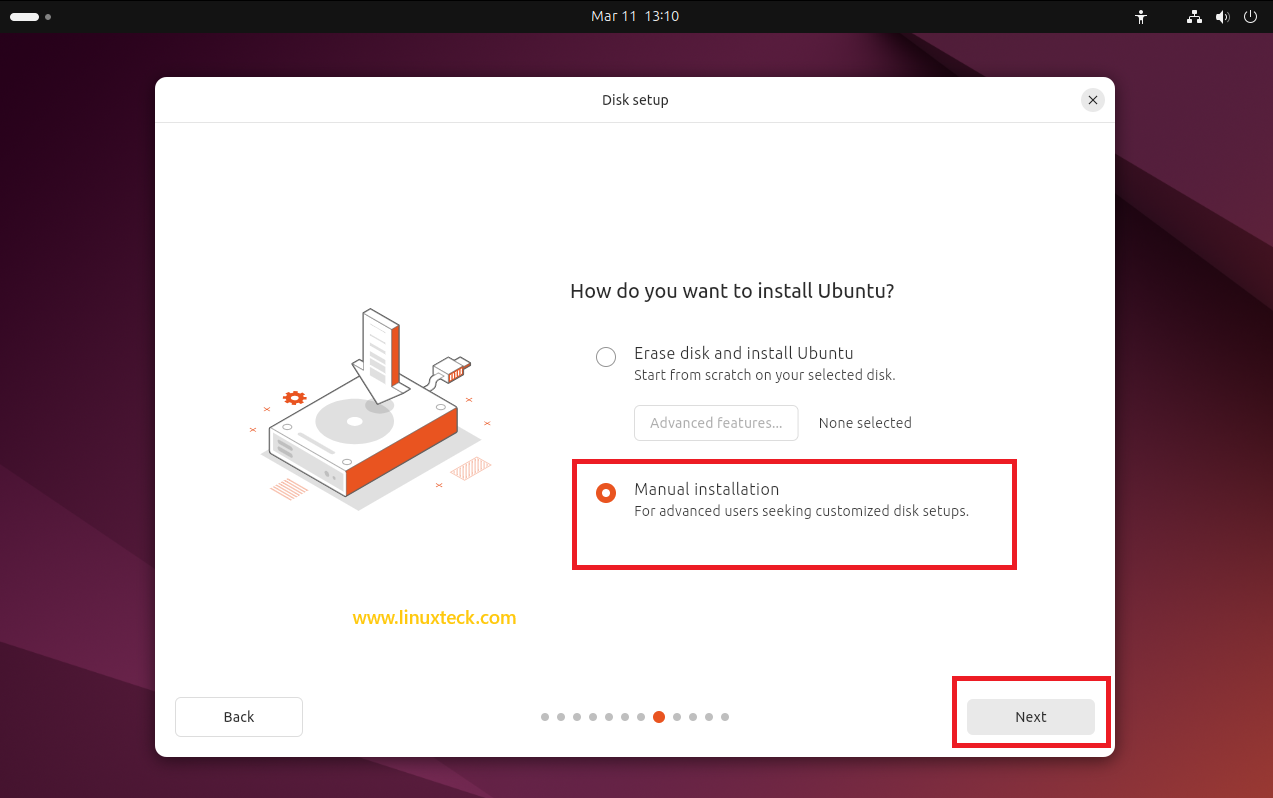
Step 6d — Disk Setup & Partition Configuration
This is the most critical screen in the process. The Ubuntu 24.04 installer presents a redesigned "Disk setup" screen — replacing the old partition method naming from Ubuntu 22.04. Two options are available:
-
→
Erase disk and install Ubuntu — The entire disk is wiped and Ubuntu automatically creates an optimised partition layout. Designed for beginners. Fast and reliable, but irreversible — always back up first. An Advanced features button also appears here, offering LVM and full-disk encryption (LUKS + TPM 2.0) options. -
→
Manual installation — Full control over partition sizes, filesystems, and mount points. Suitable for intermediate and advanced users, dual-boot configurations, and structured /boot /root /home /var swap layouts.
Selecting "Erase disk and install Ubuntu" permanently destroys all data on the chosen drive. Create a full backup before proceeding. For dual-boot setups alongside Windows, use "Manual installation" and allocate only the unpartitioned free space.
Manual Partitioning Screen — Your Disk Overview
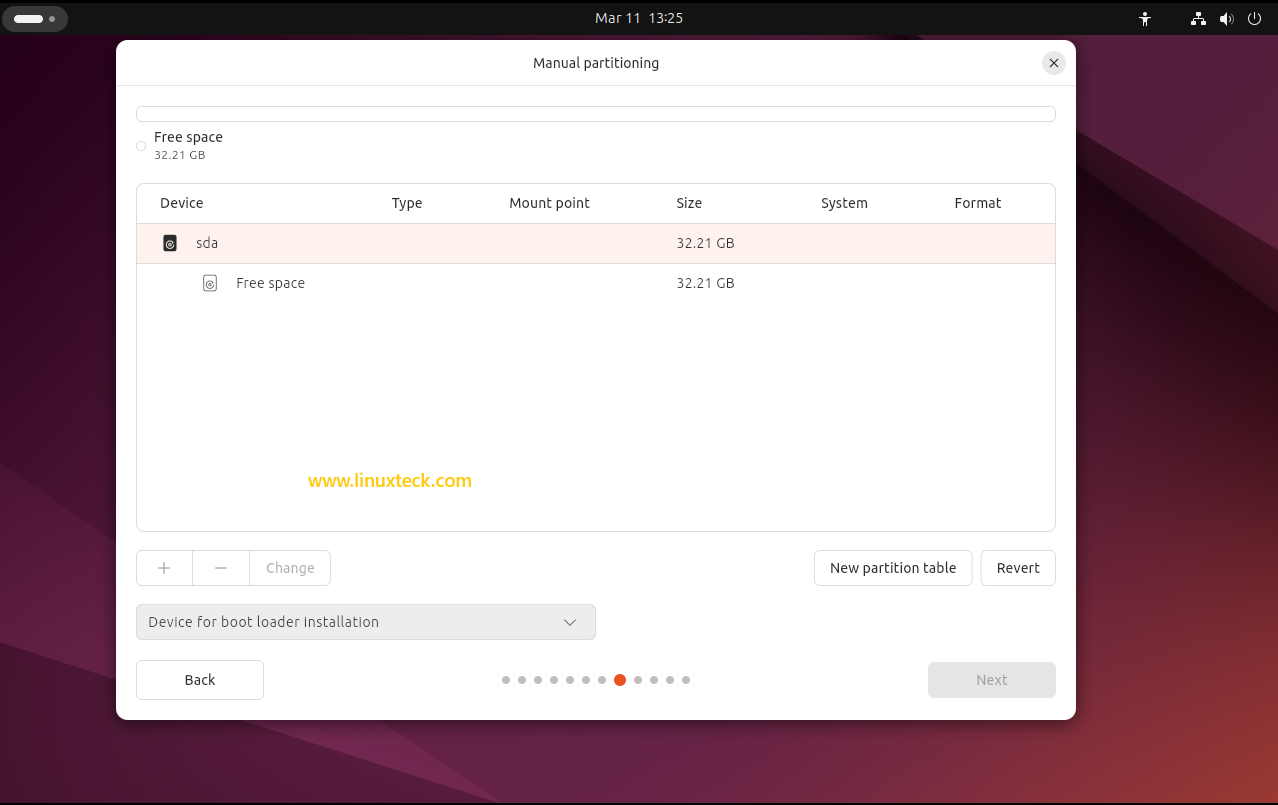
Clicking Next opens the Manual partitioning screen. Your disk appears here as a single device (e.g. sda) with all available free space listed below it. Use the "+" button to create each partition. Click "New partition table" first if working with a completely blank or new disk.
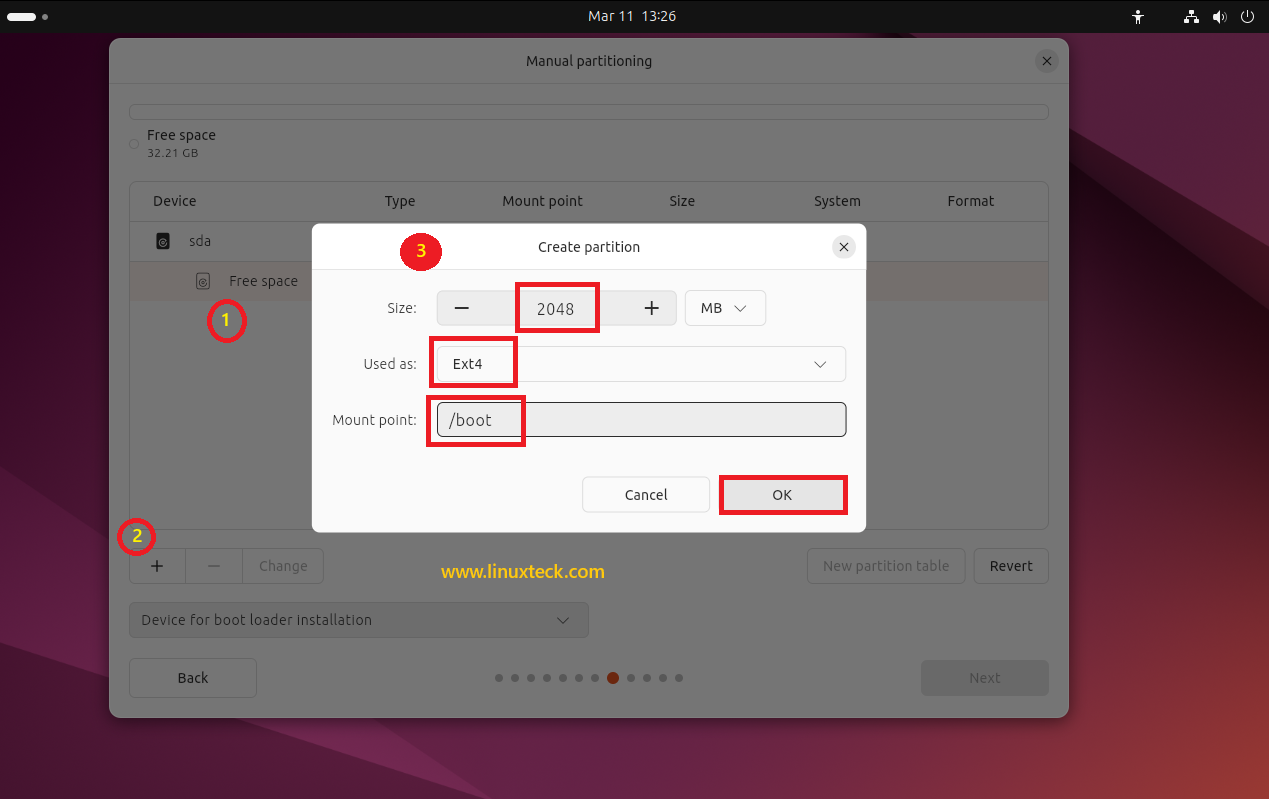
Create the /boot Partition — 2 GB, Ext4
Select the free space entry and click "+". In the Create partition dialog, set size to 2048 MB, filesystem Ext4, mount point /boot. Click OK.
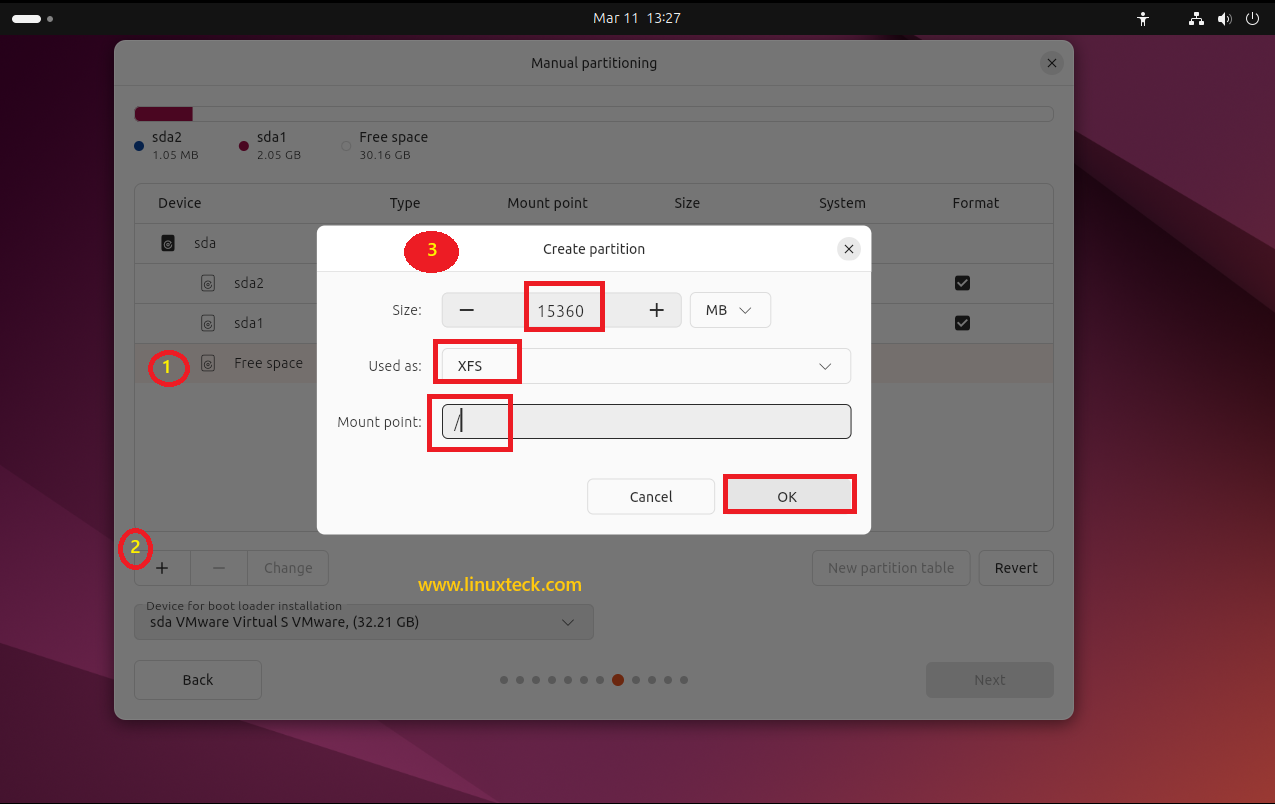
Create the / (Root) Partition — 15 GB, XFS
Select the remaining free space, click "+", set size to 15360 MB, filesystem XFS, mount point /. Click OK.
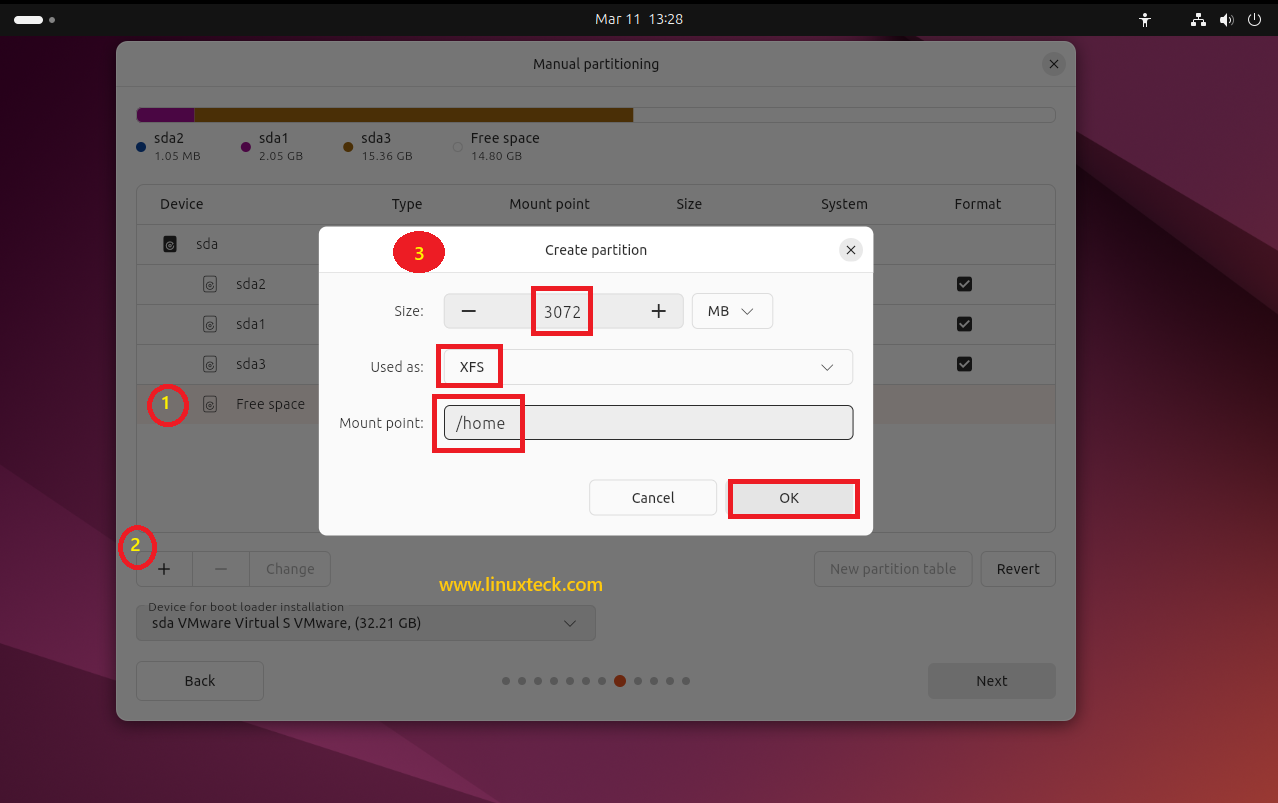
Create the /home Partition — 3 GB, XFS
Click "+", set size to 3072 MB, filesystem XFS, mount point /home. Click OK. A separate /home partition means all your personal files and user data survive an OS reinstall completely intact.
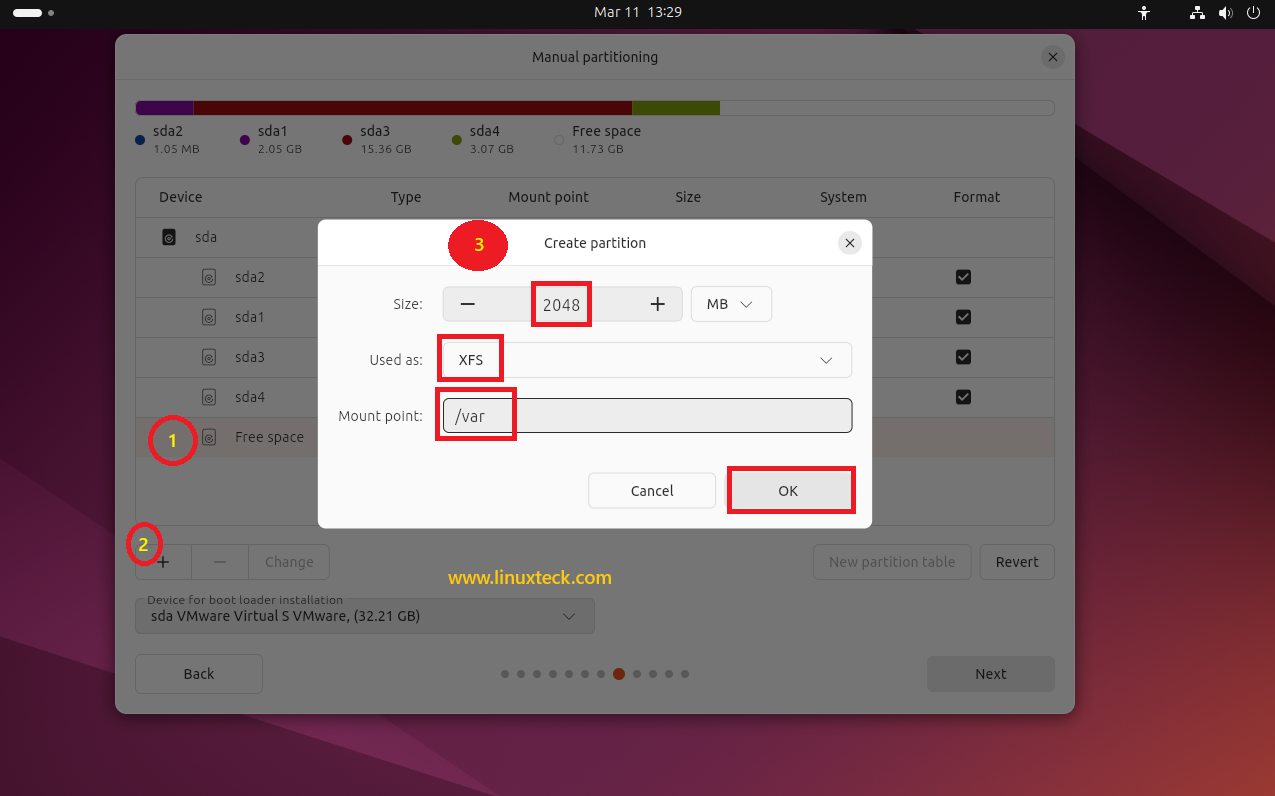
Create the /var Partition — 2 GB, XFS
Click "+", set size to 2048 MB, filesystem XFS, mount point /var. Click OK. Isolating /var prevents log files and package caches from ever filling your root filesystem.
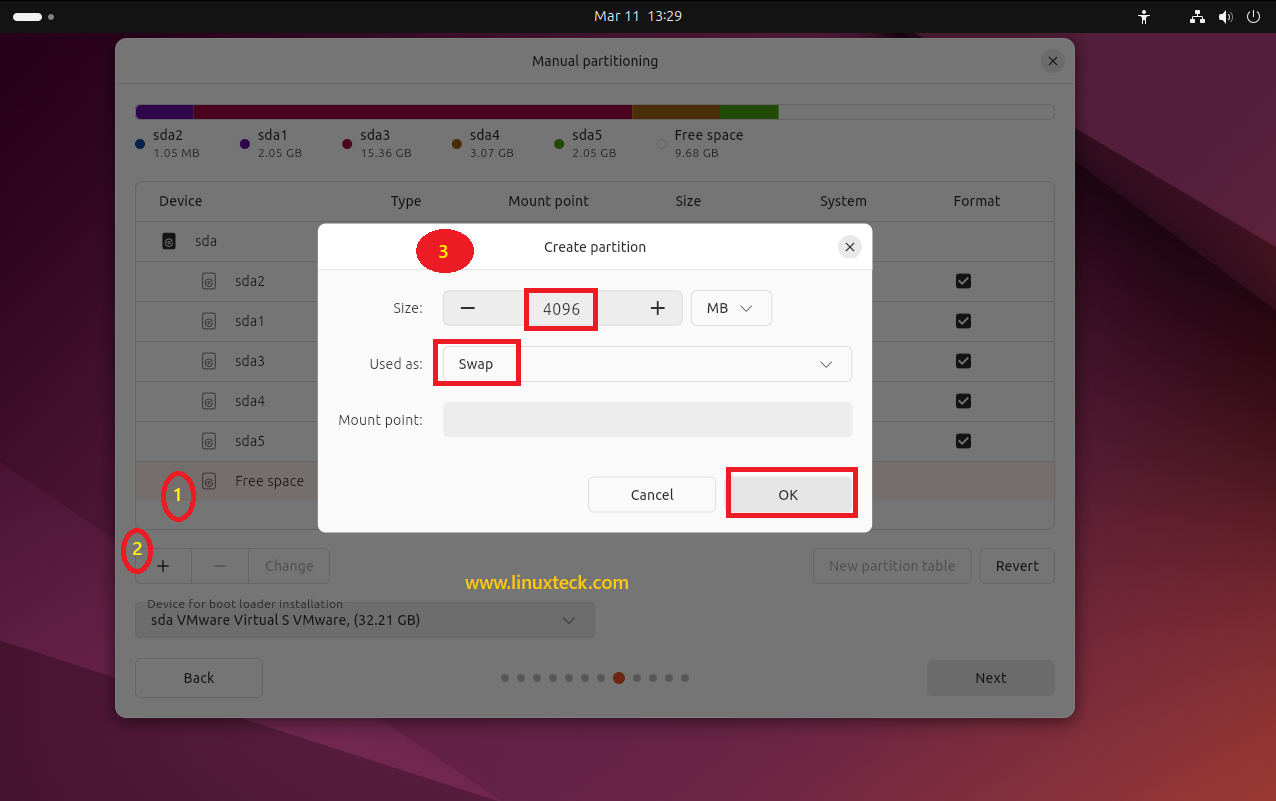
Create the Swap Partition — 4 GB
Click "+", set size to 4096 MB, change filesystem to Swap. No mount point is required — the field will be greyed out automatically. Click OK.
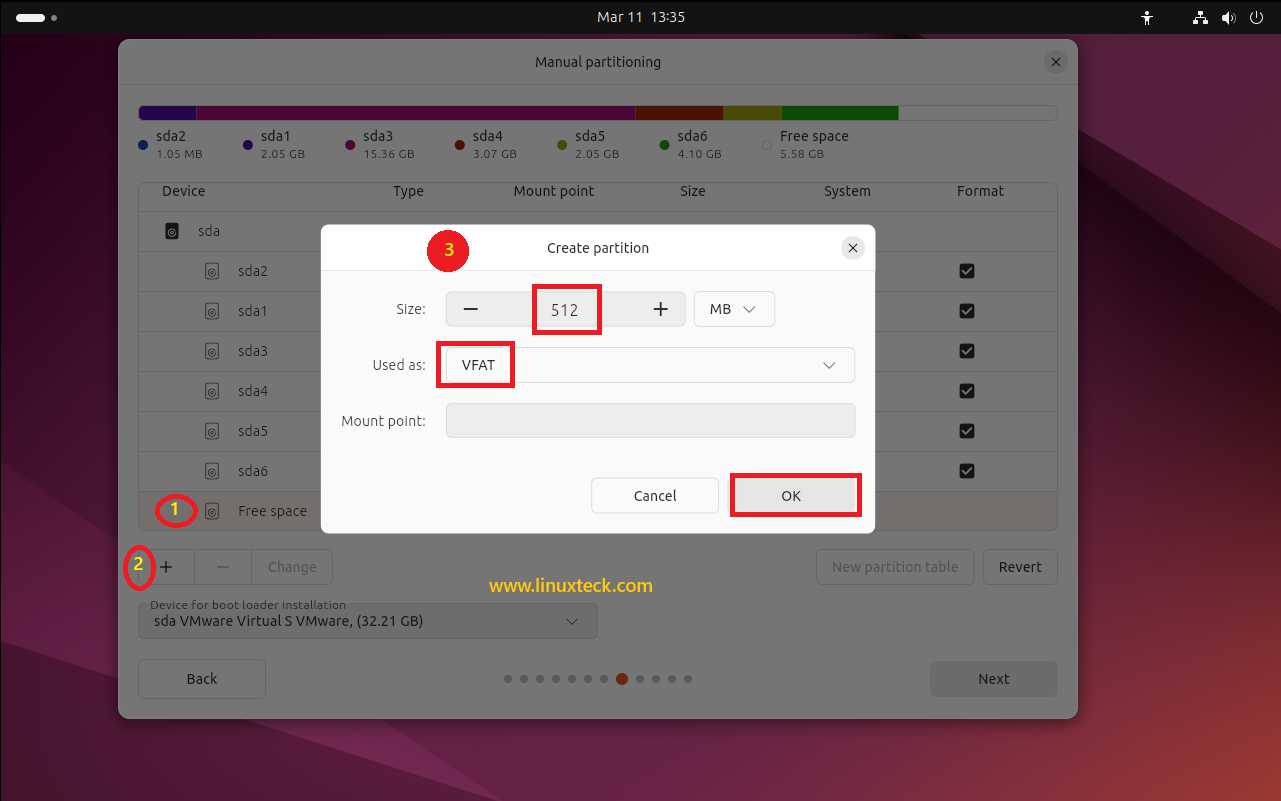
Create the EFI Partition — 512 MB, VFAT (UEFI Only)
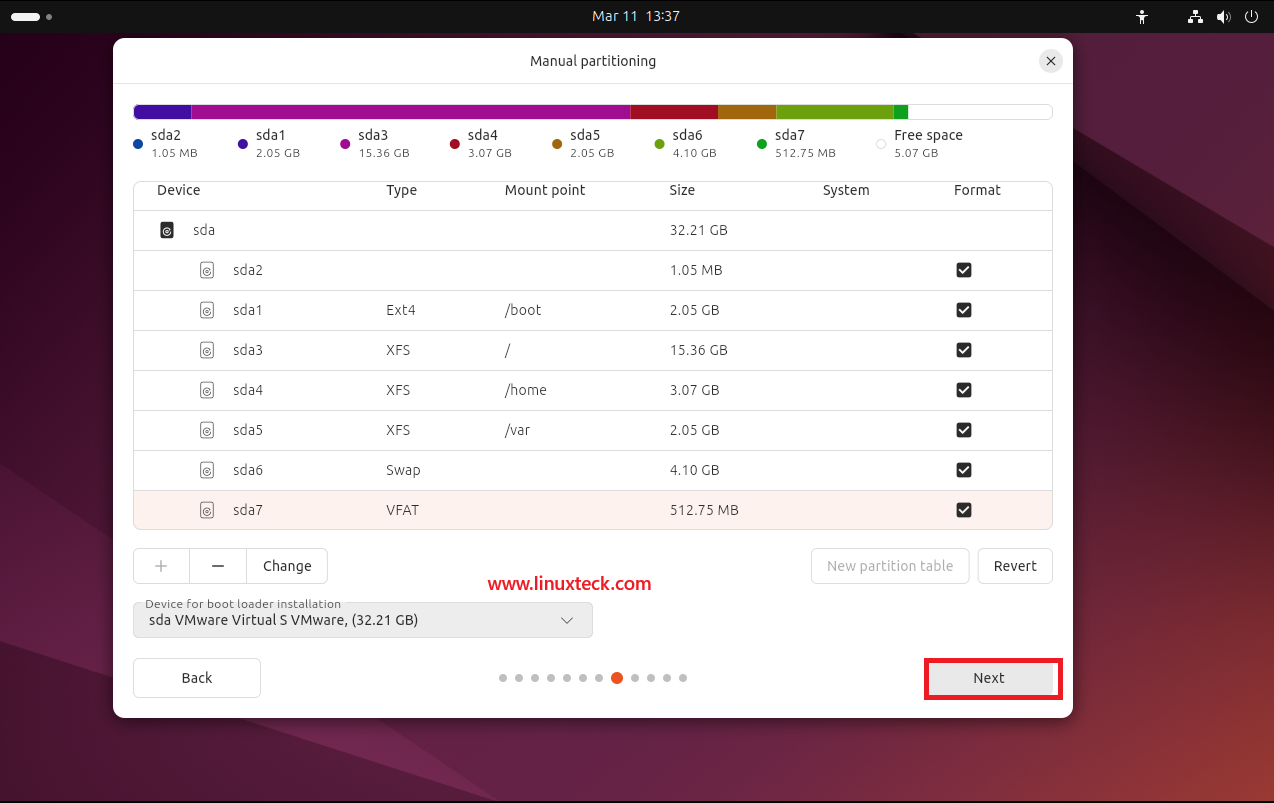
Review the Complete Partition Layout — Click Next
With all partitions created, the Manual partitioning screen displays your complete layout. For our demo, we will use the following partitions and 30 GB of virtual disk space. Verify each entry matches the table below before clicking Next to write the partition table and begin the installation.
Final Partition Layout — 32 GB Demo Disk
| Device | Type | Mount Point | Size |
|---|---|---|---|
| sda2 | — | — | 1.05 MB (BIOS boot) |
| sda1 | Ext4 | /boot | 2.05 GB |
| sda3 | XFS | / | 15.36 GB |
| sda4 | XFS | /home | 3.07 GB |
| sda5 | XFS | /var | 2.05 GB |
| sda6 | Swap | — | 4.10 GB |
| sda7 | VFAT | — | 512.75 MB (EFI) |
Create Your Account
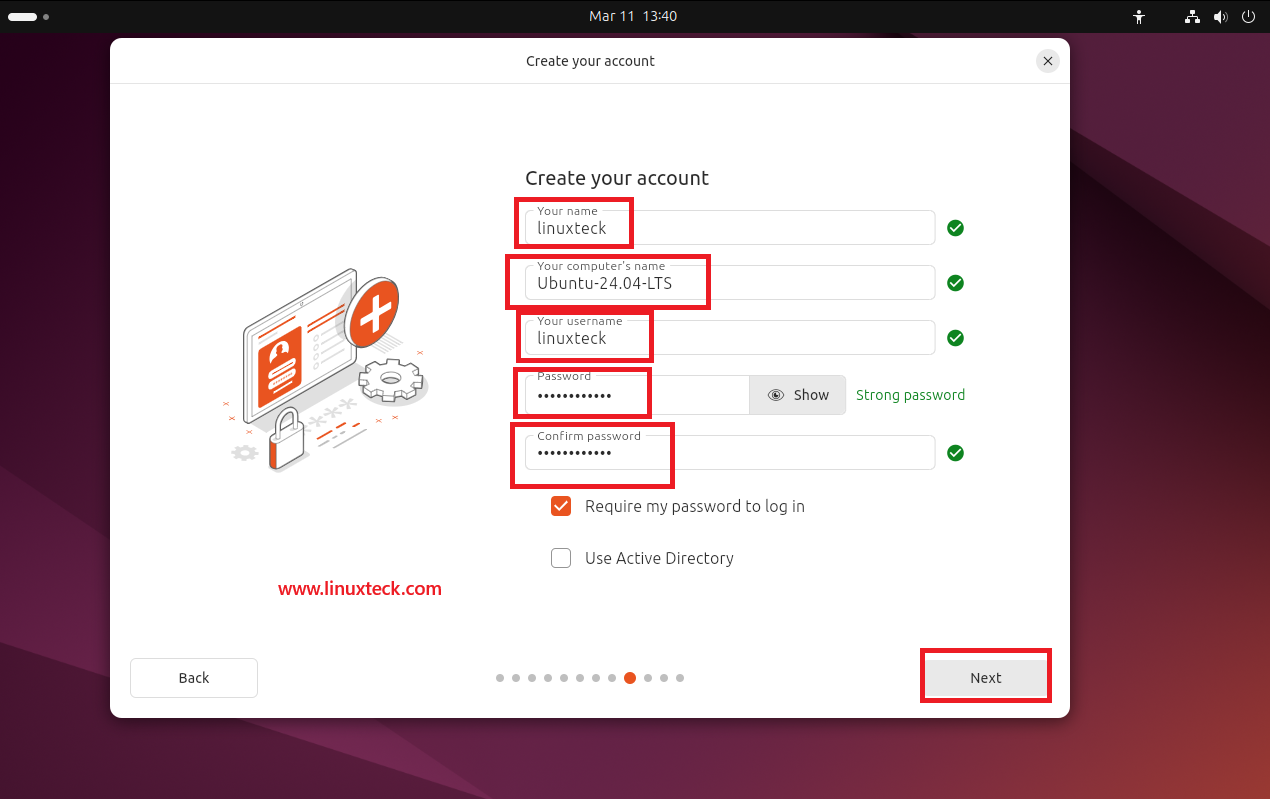
After completing the partition setup, the installer asks you to create your primary user account. This screen is titled "Create your account" and contains five fields to fill in before clicking Next:
-
→
Your name — Display name; can contain spaces and capitals (e.g. linuxteck). -
→
Your computer's name — The hostname / network identity of this machine. Keep it short, lowercase, and hyphen-separated (e.g. Ubuntu-24.04-LTS). -
→
Your username — Login name; must be lowercase with no spaces (e.g. linuxteck). This also becomes your home directory name. -
→
Password & Confirm password — Use a strong password. The installer will indicate strength — aim for Strong password before proceeding.
Select Your Timezone
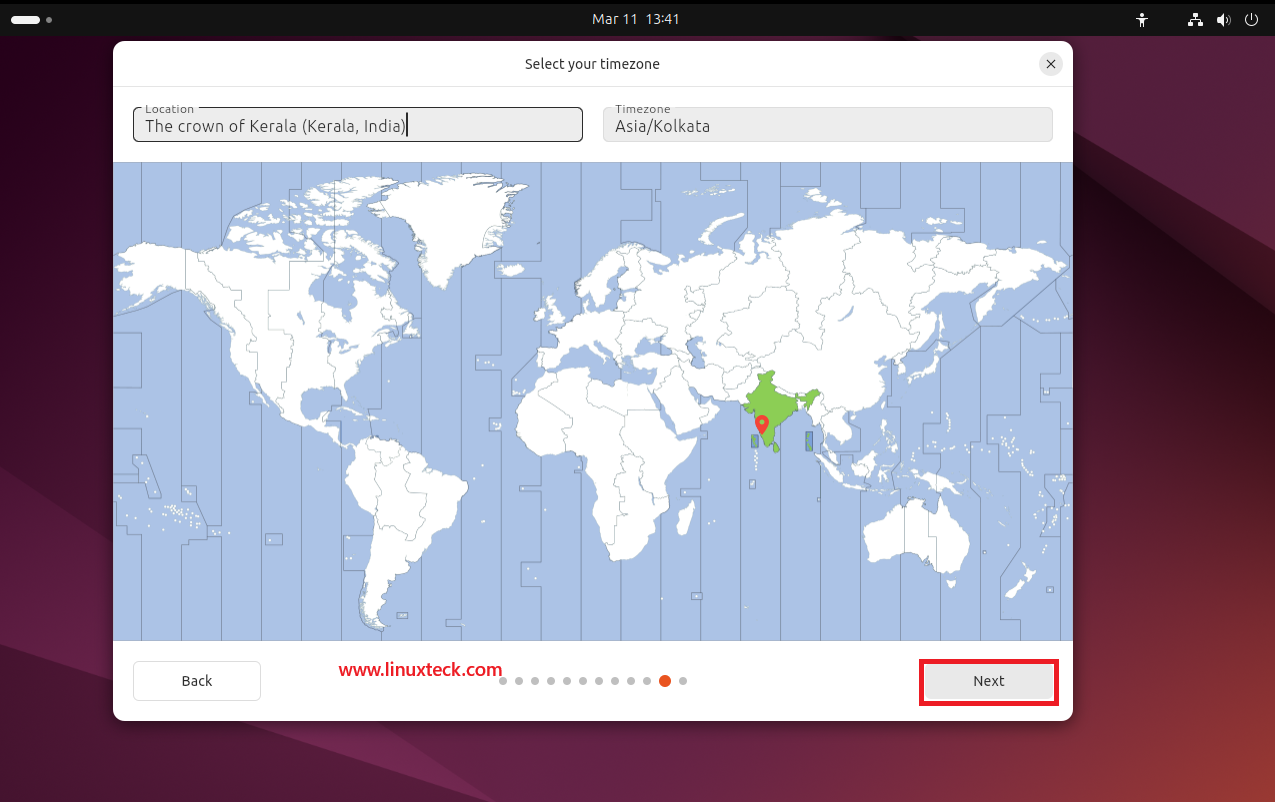
The installer displays a world map for timezone selection titled "Select your timezone". Click your country or city on the map, or type a location name directly in the Location field. The Timezone field on the right will auto-populate to match.
Review & Install — Final Confirmation
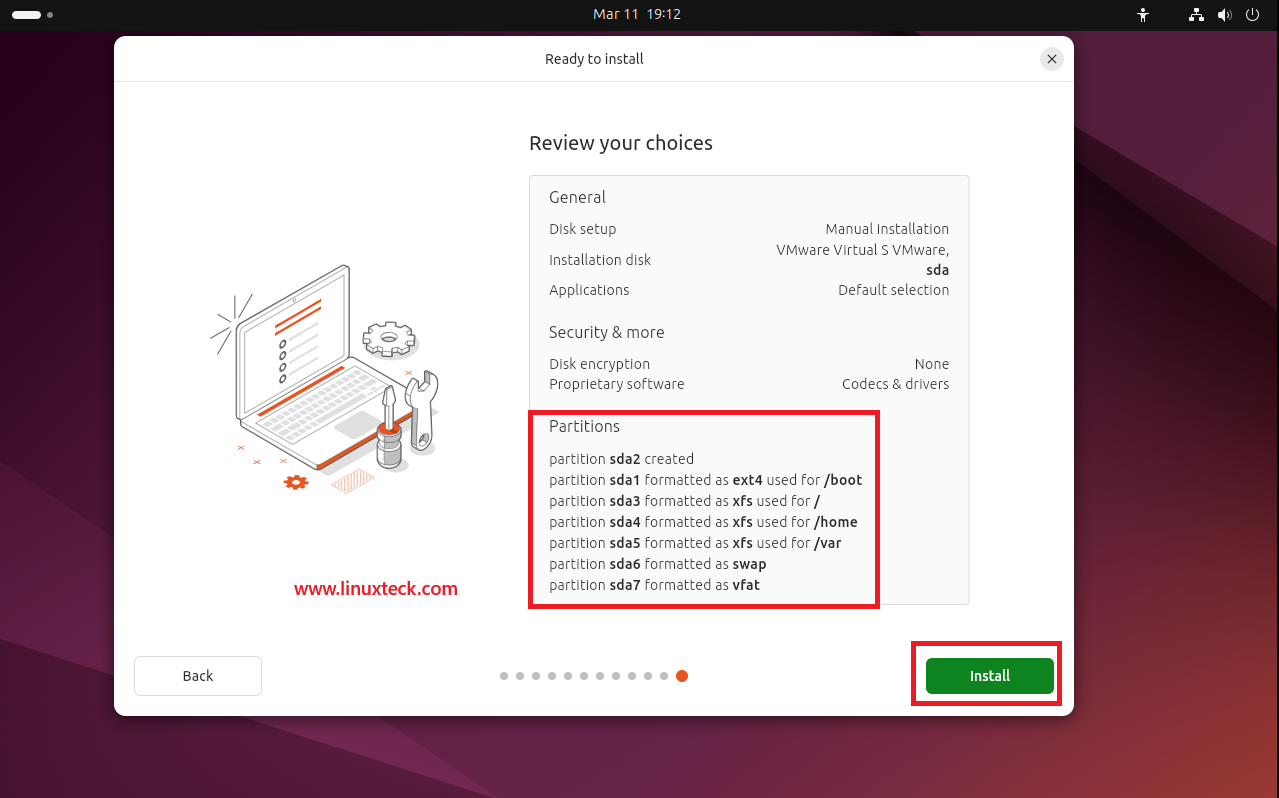
Ubuntu 24.04 LTS introduces a brand new "Ready to install" screen not present in Ubuntu 22.04 — a full summary of every choice you made throughout the installer before anything is written to disk. Review the three sections carefully:
-
→
General — Confirms disk setup (Manual installation), installation disk (sda), and applications (Default selection). -
→
Security & more — Shows disk encryption (None) and proprietary software selection (Codecs & drivers). -
→
Partitions — Lists every partition that will be created and formatted: sda1 (ext4, /boot), sda3 (xfs, /), sda4 (xfs, /home), sda5 (xfs, /var), sda6 (swap), sda7 (vfat).
This is your final opportunity to review before any changes are written to disk. Click Back if you need to correct anything. Once you click Install, the partition table is written and the process cannot be undone.
Installation Progress
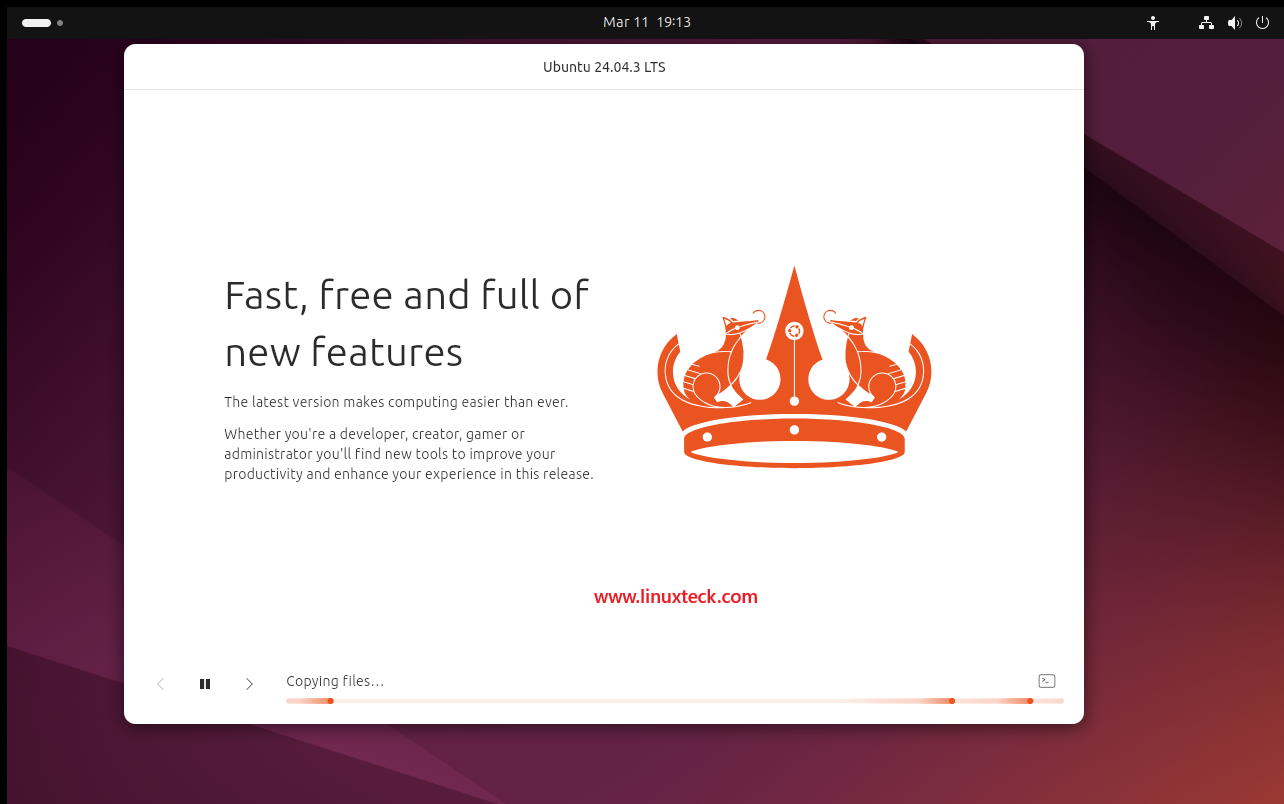
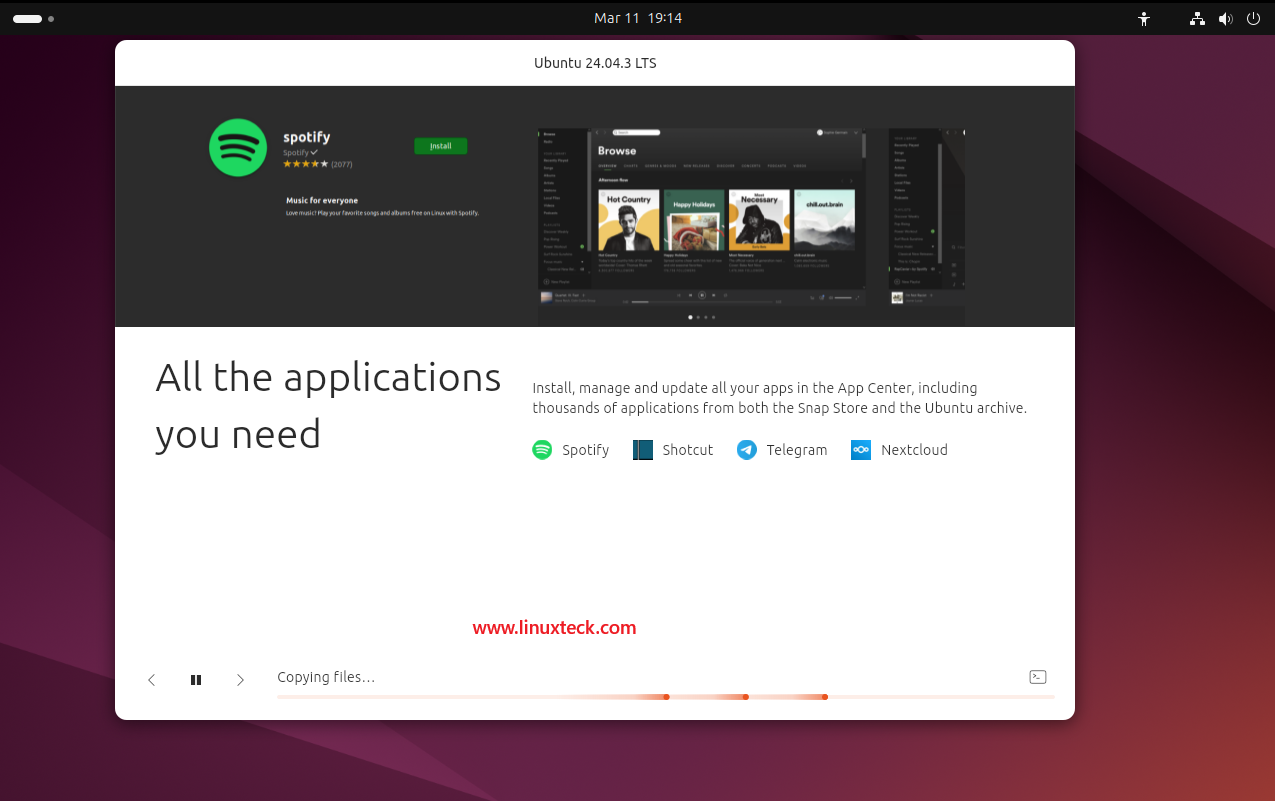
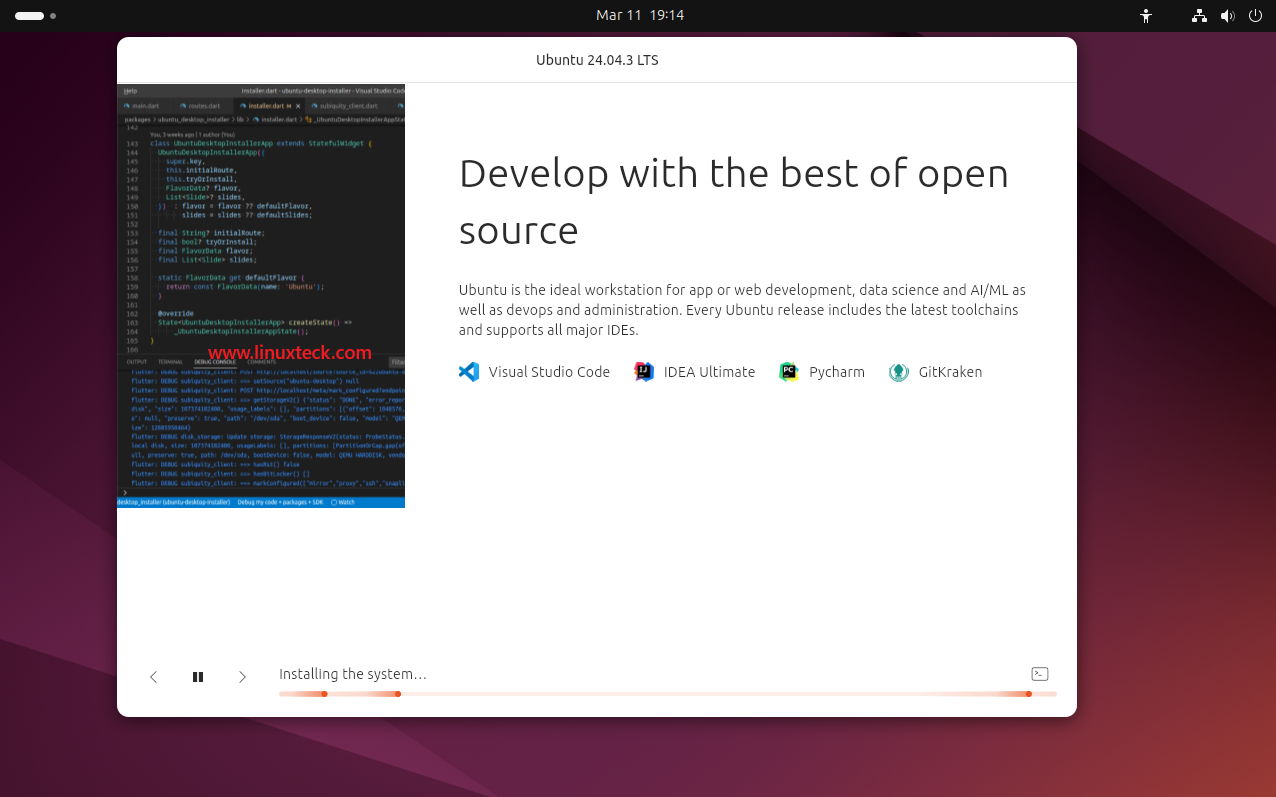
Once you click Install, the installer takes over completely. A full-screen progress display appears showing the Ubuntu 24.04.3 LTS branding alongside informational slides that cycle automatically while files are being copied and the system is configured. The bottom bar shows real-time progress with the current operation displayed as text.
Installation Complete — Restart Now
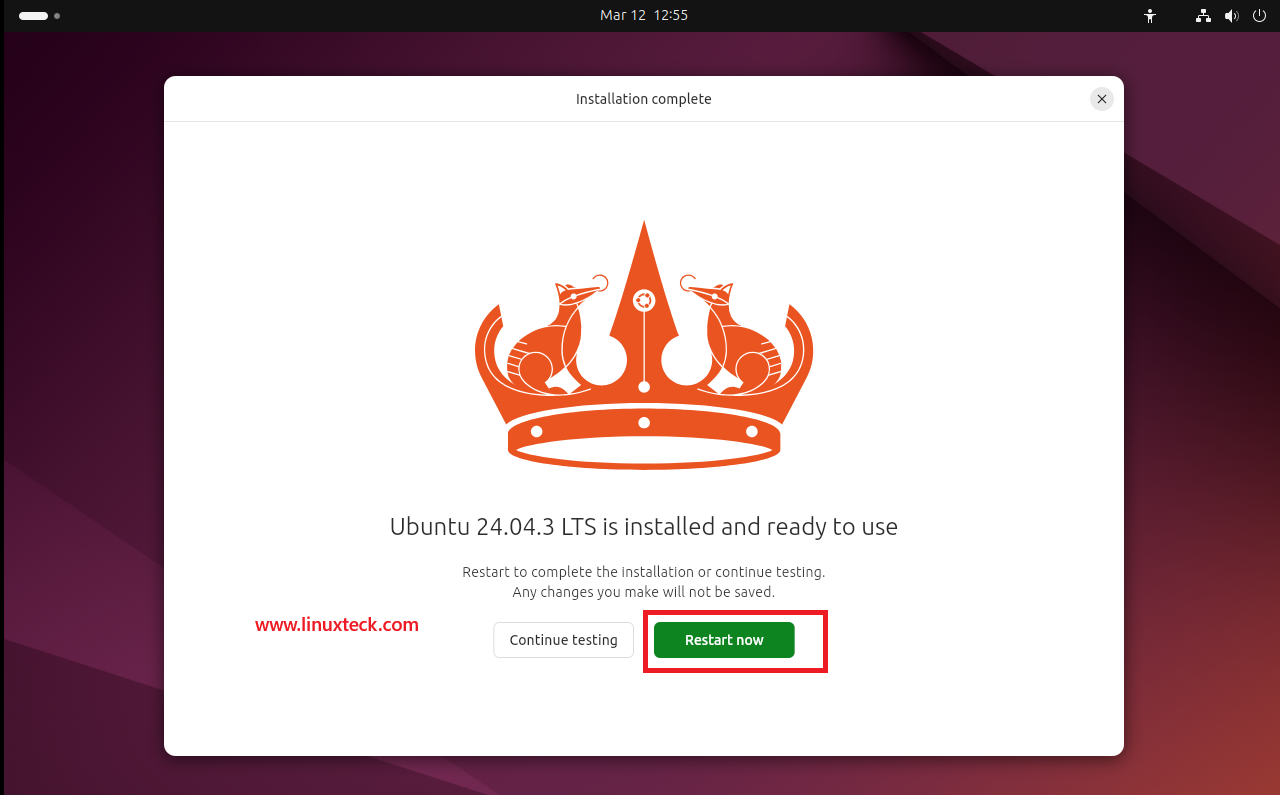
When the installation finishes, a clean "Installation complete" dialog appears displaying the Ubuntu Noble Numbat crown and the message "Ubuntu 24.04.3 LTS is installed and ready to use." You now have two options:
-
→
Restart now — Reboots immediately into your newly installed Ubuntu 24.04 LTS system. Remove the USB drive when prompted. -
→
Continue testing — Returns to the live session without rebooting. Any changes made here will not be saved to your installed system.
Login to Ubuntu 24.04 LTS
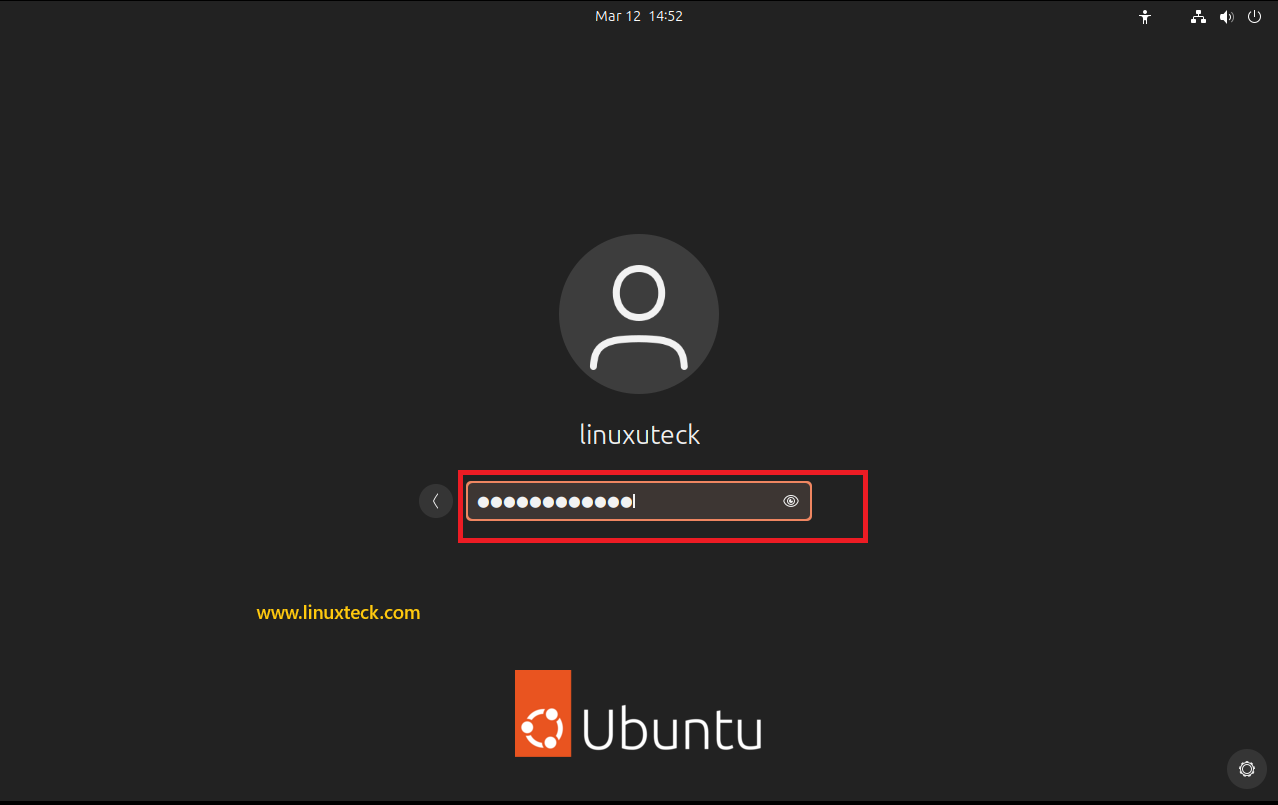
After restarting, the GNOME 46 login screen greets you. Your username is displayed automatically — click on it, type the password you set during installation, and press Enter.
First-Login Setup Wizard
On the very first login, Ubuntu 24.04 LTS launches a brief setup wizard to help you configure a few final options. All of these are completely optional and can be changed later through Settings.

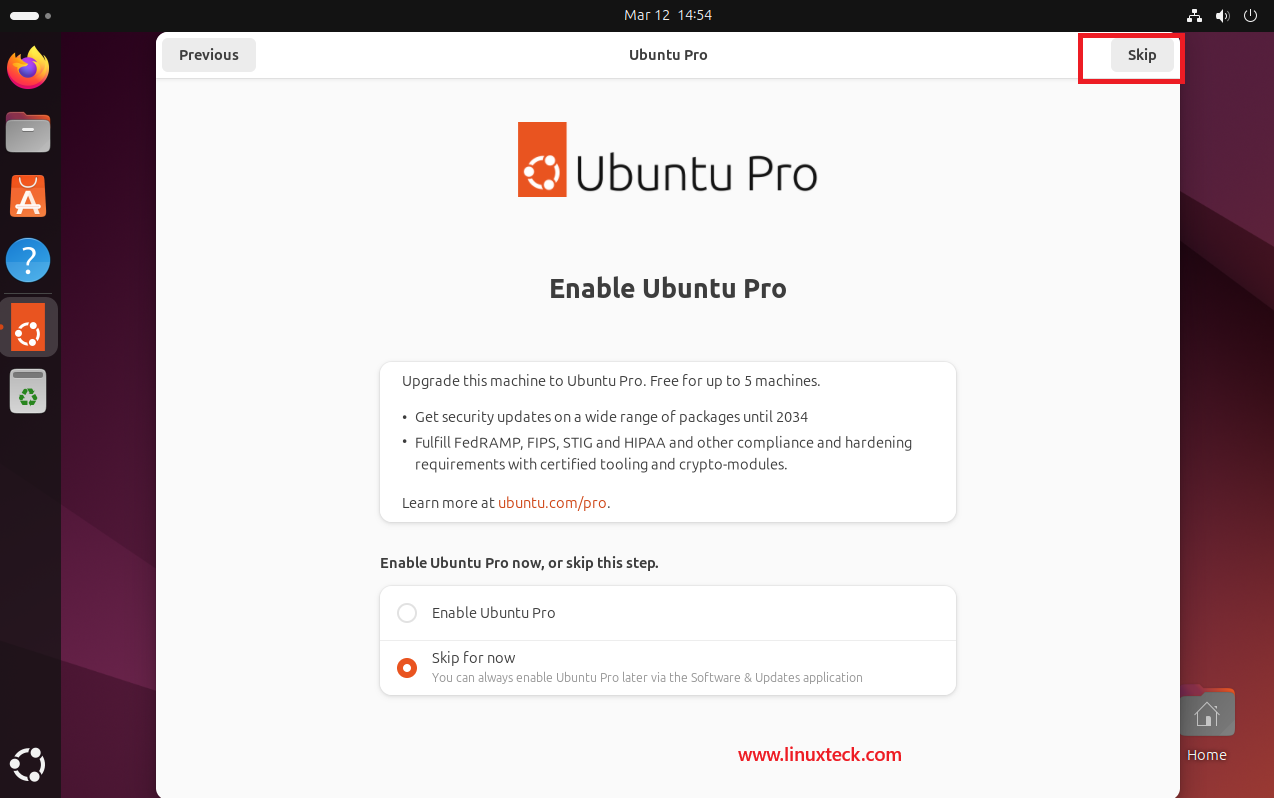
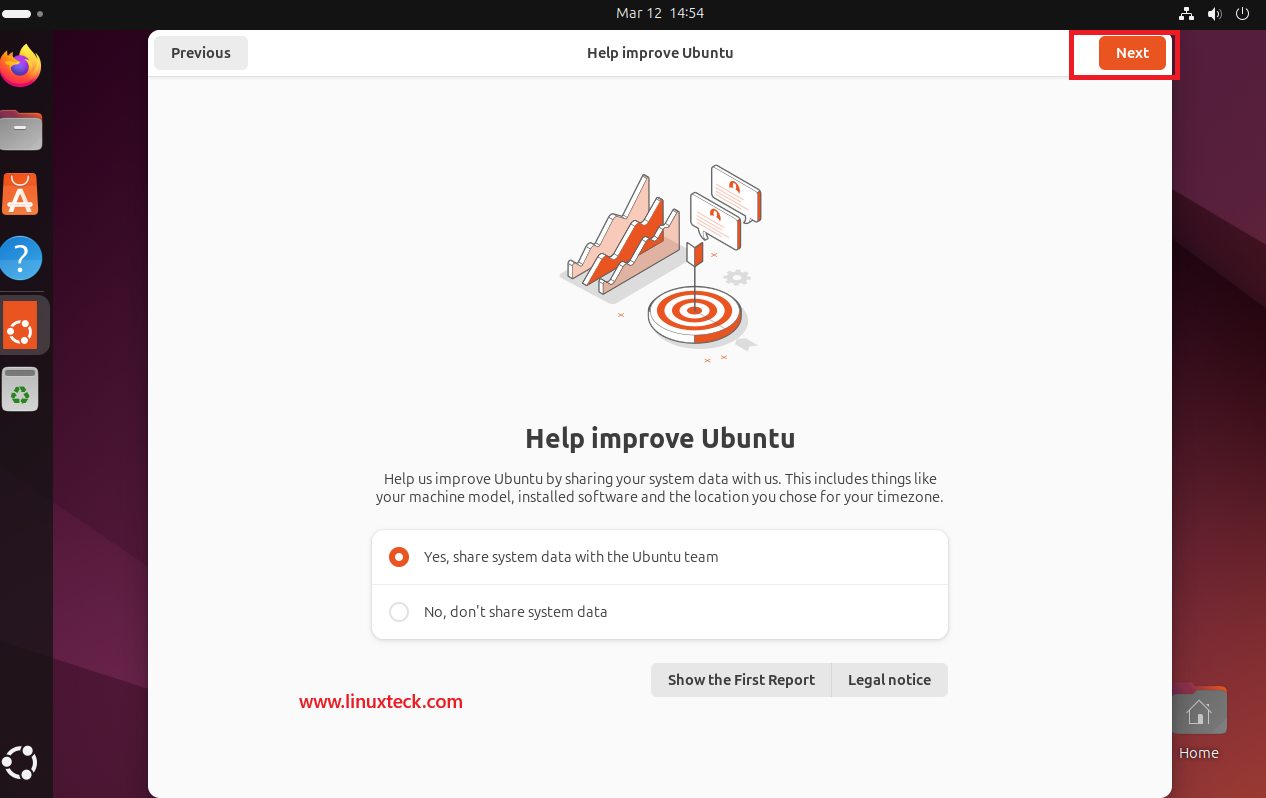
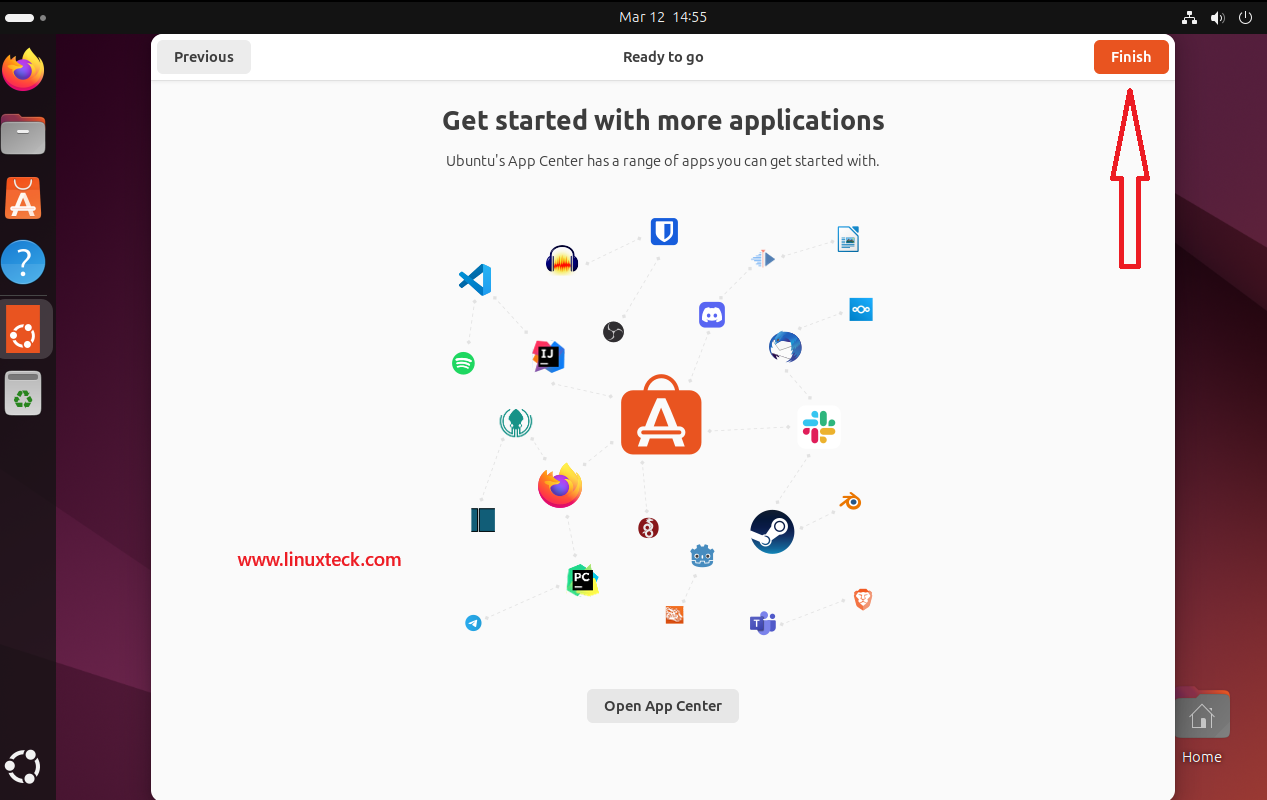
Ubuntu 24.04 LTS Noble Numbat is now fully installed and running. Your system is ready for configuration, development, or server hardening. Continue below to apply the essential post-install updates.
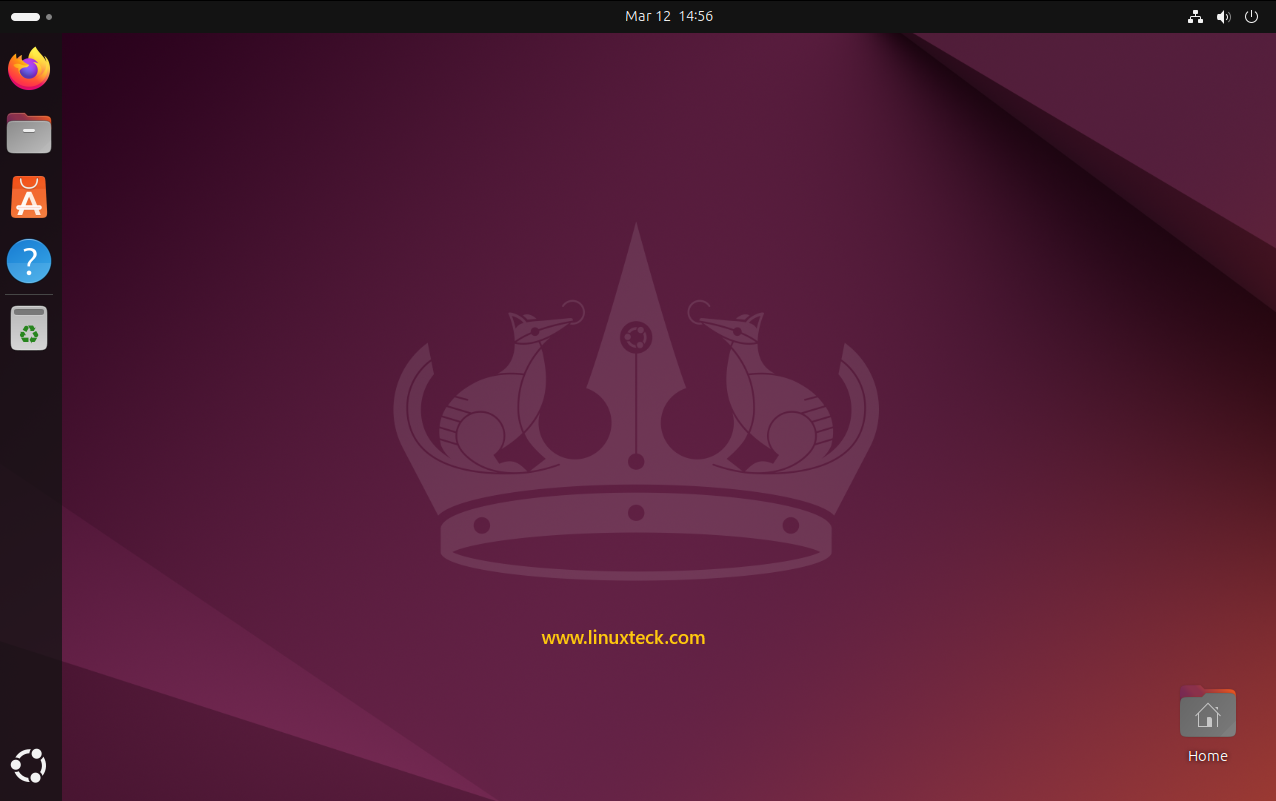
Ubuntu 24.04 LTS Noble Numbat is now installed and running. Your system is ready for configuration, development, or server hardening. Continue below to apply the essential post-install updates.
Essential Post-Installation Commands
Open the terminal with Ctrl + Alt + T and run the following commands to bring your new Ubuntu 24.04 system fully up to date:
# 1. Refresh package index and apply all available updates
sudo apt update && sudo apt upgrade -y

# 2. Install essential build tools and common admin utilities
sudo apt install -y build-essential curl wget git vim htop net-tools

# 3. Install Ubuntu Restricted Extras (MP3 codecs, Microsoft fonts)
sudo apt install -y ubuntu-restricted-extras

# 4. Auto-detect and install the best available GPU / Wi-Fi drivers
ubuntu-drivers devices
sudo ubuntu-drivers autoinstall

# 5. Enable automatic security updates
sudo dpkg-reconfigure --priority=low unattended-upgrades

# 6. Confirm the installed kernel version
uname -r
For server and DevOps deployments, also explore our Linux server hardening checklist, top Linux security tools, and best Linux monitoring tools.
Ubuntu 22.04 Jammy vs Ubuntu 24.04 Noble — Key Differences
Weighing whether to upgrade from Ubuntu 22.04? Here's the definitive side-by-side breakdown. The in-place upgrade path is officially supported via do-release-upgrade, though a clean install is recommended for production systems.
Ubuntu 22.04 Jammy Jellyfish vs Ubuntu 24.04 Noble Numbat
| Feature | Ubuntu 22.04 LTS (Jammy) | Ubuntu 24.04 LTS (Noble) |
|---|---|---|
| Kernel | Linux 5.15 (HWE: 6.5) | Linux 6.8 |
| Desktop | GNOME 42 | GNOME 46 |
| Python | 3.10 | 3.12 |
| GCC | 11 | 14 |
| Display Server | Xorg default | Wayland default |
| Software Store | GNOME Software | App Center (Flutter) |
| Full Disk Encryption | LUKS passphrase only | LUKS + TPM 2.0 option |
| Standard Support Until | April 2027 | April 2029 |
| ESM (Ubuntu Pro) Until | April 2032 | April 2034 |
The in-place upgrade from Ubuntu 22.04 to 24.04 is officially supported and generally smooth for desktop systems. On production servers always test on a staging environment first before upgrading. Considering other distros too? Compare with the latest Fedora Linux 44 features.
Ubuntu 24.04 LTS Desktop — Successfully Installed!
Congratulations — you have successfully installed Ubuntu 24.04 LTS Noble Numbat! Thank you for taking the time to work through this guide. We hope these step-by-step instructions and screenshots have made the entire installation process clear and straightforward, whether this was your very first Linux install or an upgrade on a production machine.
Ubuntu 24.04 Noble Numbat brings a genuinely compelling set of improvements — the Linux 6.8 kernel, GNOME 46 with polished Wayland support, Python 3.12, and extended security coverage through April 2029 make it one of the strongest Ubuntu LTS releases to date. If you're curious what comes next, see what's new in Ubuntu 26.04 LTS. Drop your feedback or questions in the comments below, and feel free to share this guide with others working through their first Ubuntu installation.
Thank you!
To explore all Ubuntu guides on LinuxTeck, click here.
Use the automated "Erase disk and install Ubuntu" option — it handles partitioning for you. Once logged in, build your skills with our Linux commands for beginners guide.
Follow the manual partition layout with dedicated /var and /home. Immediately lock down the system using our Linux server hardening checklist before exposing it to a network, and stay aware of recent Ubuntu desktop vulnerabilities.
Automate at scale using Canonical's Subiquity autoinstall YAML with cloud-init or Ansible. Explore TPM-backed FDE for fleet security. See our Linux server hardening checklist and best Linux monitoring tools for post-deploy hardening and observability.
LinuxTeck — A Complete Linux Infrastructure Blog
LinuxTeck is your definitive resource for everything Ubuntu and Linux — from first-time installations and desktop configuration to advanced server hardening, Bash scripting, SSH security, performance tuning, and DevOps automation. Whether you're spinning up your first Ubuntu VM or managing an enterprise fleet of Noble Numbat servers, find step-by-step guides, cheat sheets, and real-world command references at linuxteck.com.
Thank you for reading and for being part of this journey. If this article saved you time, consider buying me a coffee. Every contribution helps me keep producing in-depth, practical Linux content for readers like you.

Thank you for your endless support