Typing a password every time you SSH into a server is fine until it isn't. Once you're managing more than two or three machines, or running any kind of automation, that habit becomes a real bottleneck. I learned this the hard way when I disabled password authentication on a remote box before confirming my key actually worked. That got me locked out completely, and the recovery process was embarrassing. This guide walks you through the setup in the right order, so that doesn't happen to you.
This is for anyone moving from password-based SSH to passwordless SSH login, whether you're on Rocky Linux, RHEL, Ubuntu, Debian or Fedora. By the end you'll have a working key pair, your public key deployed to the remote server, and password authentication turned off cleanly.
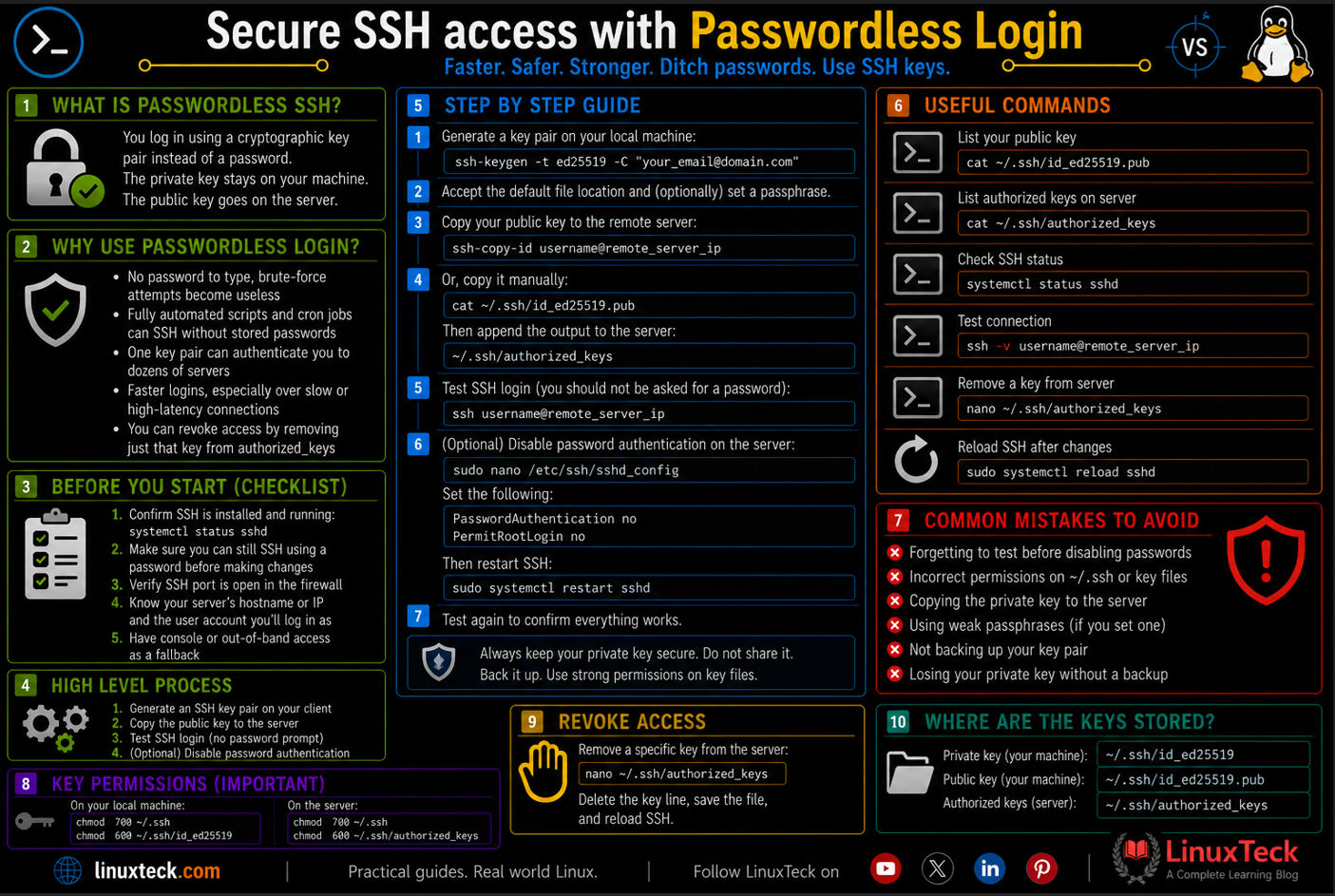
Here are some of the advantages of passwordless SSH login:
- No password to type, making brute-force attempts against your SSH port far less effective.
- Fully automated scripts and cron jobs can connect via SSH without storing plaintext passwords.
- One key pair can authenticate you to dozens of servers without creating separate credentials.
- Key-based authentication is a hard requirement for many compliance frameworks, including CIS and NIST.
- Faster logins in general, especially over slow or high-latency connections.
- You can revoke access for a specific machine by simply removing its key from the
authorized_keysfile.
Prerequisites :
Operating System         :   Rocky Linux, RHEL, Ubuntu, Debian , Fedora
Packages and Dependencies:   openssh-server (server), openssh-clients (client)
User Account             :   root user or user account with sudo privileges
                             Recommended to run all administrative commands with sudo instead of root.
Need help setting up a sudo user first? Check the guide on how to configure sudo in Linux before continuing.
Below is a checklist of things to do before starting:
- Confirm SSH is installed and running on the remote server:
systemctl status sshd - Make sure you can still reach the server using password-based SSH before making any changes.
- Verify that the SSH port is open in the firewall. See
basic firewall-cmd commands
if you need a refresher. - Know your remote server's hostname or IP address and the user account you will use to log in.
- Have console or out-of-band access available as a fallback in case you lock yourself out during testing.
If you're working on a fresh Linux server setup, the SSH server installation and security guide covers the initial setup in detail.
The lab setup below reflects my test environment. The steps in this guide work across all distros listed in the prerequisites above.
New to Rocky Linux? Follow the step-by-step Rocky Linux 10 installation guide to get your server ready before continuing.
My Lab Setup :
Passwordless SSH Server:

Operating System    :   Rocky Linux release 10.2 (Red Quartz)
Hostname            :   linuxteck-srv01
IP Address          :   192.168.10.105
Step 1: Check for an Existing SSH Key Pair
Note:
Before generating anything new, check whether you already have an SSH key pair on your local machine. If you generate a new key without checking, you'll overwrite any existing keys that other servers may already trust. That's a quick way to lock yourself out of multiple servers at once.
Run this on your local machine, not the server. It lists any existing public key files in your SSH directory.
LinuxTeck.com
Tip:
If you see a key file listed, you can reuse it and skip Step 2. If the command returns "No such file or directory" or no output at all, proceed to generate a fresh key pair in the next step.
Step 2: Generate a New SSH Key Pair
Note:
The ssh-keygen command creates two files: a private key (stays on your local machine, never shared) and a public key (copied to the server). The Ed25519 algorithm is the modern recommended choice in 2026. It generates shorter keys with better security than RSA 2048 and is supported on all current Linux distributions. If you're on a very old server running OpenSSH below 6.5, fall back to -t rsa -b 4096 instead.
Run this on your local client machine. Replace the email comment with something that identifies the key's purpose or origin.
LinuxTeck.com
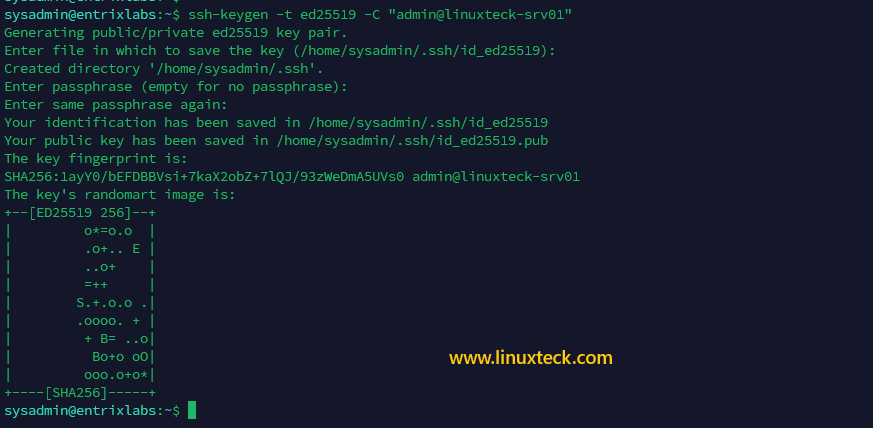
Enter file in which to save the key (/home/admin/.ssh/id_ed25519):
Enter passphrase (empty for no passphrase):
Enter same passphrase again:
Your identification has been saved in /home/admin/.ssh/id_ed25519
Your public key has been saved in /home/admin/.ssh/id_ed25519.pub
The key fingerprint is:
SHA256:xKv3Lm9QpR8nWzYtJ2aFcDsEbUoH1iMgNk5VePqXw7 admin@linuxteck-srv01
The key's randomart image is:
+--[ED25519 256]--+
| .o+. |
| . o=o |
| . +.=. |
| o B+o. |
| . S=+... |
| .+oo=. |
| .oB+. |
| .+Eo. |
| .o. |
+----[SHA256]-----+
Note:
When prompted for a passphrase, you have a choice. A passphrase adds an extra layer of protection if your private key is ever stolen. For automation and scripts you'll likely leave it empty. For interactive logins on production boxes, a passphrase plus ssh-agent is the right setup. Press Enter twice to skip the passphrase for now.
Step 3: Copy the Public Key to the Remote Server
Note:
The public key needs to be placed in the ~/.ssh/authorized_keys file on the remote server, under the account you want to log into. The ssh-copy-id command handles this automatically including creating the directory and setting the correct permissions. Getting permissions wrong on .ssh or authorized_keys is one of the most common reasons key-based login silently fails.
Replace admin with your actual username on the remote server and update the IP to match your setup.
LinuxTeck.com
/usr/bin/ssh-copy-id: INFO: attempting to log in with the new key(s), to filter out any that are already installed
/usr/bin/ssh-copy-id: INFO: 1 key(s) remain to be installed -- if you are prompted now it is to install the new keys
admin@192.168.10.105's password:
Number of key(s) added: 1
Now try logging into the machine, with: "ssh 'admin@192.168.10.105'"
and check to make sure that only the key(s) you wanted were added.
Tip:
If ssh-copy-id is not available on your local machine (some minimal installs lack it), use this manual method instead:
cat ~/.ssh/id_ed25519.pub | ssh admin@192.168.10.105 "mkdir -p ~/.ssh && chmod 700 ~/.ssh && cat >> ~/.ssh/authorized_keys && chmod 600 ~/.ssh/authorized_keys"
This does the same job but sets the permissions explicitly, which is good practice either way.
Step 4: Test the Passwordless SSH Login Connection
Note:
Do not skip this step and jump straight to disabling password authentication. Test first, confirm it works, then lock things down. This is the step most people rush past, and it's exactly why they end up locked out.
From your local machine, SSH to the server. You should connect without being asked for a password.
LinuxTeck.com
[admin@linuxteck-srv01 ~]$

Warning:
If the connection still asks for a password, stop here. Do not proceed to Step 5. Troubleshoot the key setup first. Common causes: wrong permissions on ~/.ssh (should be 700) or ~/.ssh/authorized_keys (should be 600), or SELinux restorecon issue on RHEL/Rocky Linux. Check with ssh -vvv admin@192.168.10.105 to see verbose debug output showing exactly where the authentication is failing.
Step 5: Fix Permissions on the Remote Server (If Needed)
Note:
SSH is strict about file permissions. If the .ssh directory or authorized_keys file is world-readable or group-writable, OpenSSH will silently ignore the key and fall back to password auth. This catches a lot of people who manually copy the key without setting the right permissions. On Rocky Linux and RHEL you may also need to restore the SELinux context on the .ssh directory.
Log into the remote server and run these permission fixes on the target user account.
LinuxTeck.com
chmod 600 ~/.ssh/authorized_keys
ls -la ~/.ssh/
drwx------. 2 admin admin 29 Jun 7 08:40 .
drwx------. 4 admin admin 112 Jun 7 08:38 ..
-rw-------. 1 admin admin 572 Jun 7 08:40 authorized_keys
Tip:
On Rocky Linux and RHEL 9, if permissions look correct but key auth still fails, run this SELinux restore command on the server:
restorecon -Rv ~/.ssh
SELinux mislabeled context on .ssh is a silent killer for key-based auth on these distros. Most tutorials skip this entirely.
Step 6: Disable Password Authentication in SSH Config
Note:
This step is optional but strongly recommended for any server facing the public internet. Once key-based login is confirmed working, disabling password auth eliminates brute-force attacks entirely. Only do this after Step 4 and Step 5 pass cleanly. Edit the SSH daemon config on the remote server, not your local machine. On Ubuntu 22.04 and later there may be a drop-in config directory at /etc/ssh/sshd_config.d/ that can override the main file. Check for conflicting files there before editing.
Open the SSH daemon configuration file on the remote server.
LinuxTeck.com
Find and update these three directives. If they are commented out, uncomment them and set the values as shown.
LinuxTeck.com
ChallengeResponseAuthentication no
UsePAM yes
# UsePAM yes is kept to preserve session logging and resource limits
# Save the file after making these changes
Warning:
On Ubuntu 22.04 and later, there is often a file at /etc/ssh/sshd_config.d/50-cloud-init.conf that contains PasswordAuthentication yes. That file overrides your changes in sshd_config. Check it exists and either delete it or update it to no before restarting the service. This is a very common Ubuntu-specific gotcha.
Step 7: Restart the SSH Service and Verify
Note:
The service name differs by distribution. On Rocky Linux, RHEL, CentOS, and Fedora the service is called sshd. On Ubuntu and Debian it is called ssh. Using the wrong name returns an error that looks like the service failed, when actually you just used the wrong name. After restarting, always check the service status to confirm it came back up cleanly.
Restart SSH on Rocky Linux or RHEL:
LinuxTeck.com
sudo systemctl status sshd
Loaded: loaded (/usr/lib/systemd/system/sshd.service; enabled; preset: enabled)
Active: active (running) since Sun 2026-06-07 08:55:02 IST; 3s ago
Docs: man:sshd(8)
man:sshd_config(5)
Main PID: 3412 (sshd)
Tasks: 1 (limit: 23168)
Memory: 1.3M
CPU: 18ms
CGroup: /system.slice/sshd.service
└─3412 "sshd: /usr/sbin/sshd -D [listener] 0 of 10-100 startups"
On Ubuntu or Debian, the service name is different. Use this instead:
LinuxTeck.com
sudo systemctl status ssh
Loaded: loaded (/lib/systemd/system/ssh.service; enabled; vendor preset: enabled)
Active: active (running) since Sun 2026-06-07 08:55:18 UTC; 2s ago
Step 8: Final Connection Test from a New Terminal
Note:
Open a completely new terminal window for this final test. Do not reuse the session that is already connected to the server. If passwordless SSH login is set up but key auth is broken for some reason, a new connection attempt will fail immediately rather than silently using your existing session. Keep the old session open until you confirm the new connection works.
From a new terminal window on your local machine, connect one more time to confirm everything is clean.
LinuxTeck.com
[admin@linuxteck-srv01 ~]$
Tip:
Connected without a password prompt? That's the setup complete. If you want to confirm password auth is truly disabled, try connecting from a machine without the key: ssh -o PubkeyAuthentication=no admin@192.168.10.105. You should see "Permission denied (publickey)" with no password prompt at all.
Conclusion:
Your server now accepts only key-based SSH logins. For a deeper look at hardening the SSH service itself, the Linux server hardening checklist covers the next set of changes worth making. For a full reference on client-side SSH commands, see the basic SSH client commands guide. For the official OpenSSH documentation visit openssh.com/manual.html. Drop me your feedback/comments. Feel free to share this article with others if you like it.
FAQ
Why does it still ask for a password even after I ran ssh-copy-id?
Almost always a permissions issue. SSH refuses to use a key if the ~/.ssh directory is not exactly 700 or authorized_keys is not exactly 600. Run chmod 700 ~/.ssh and chmod 600 ~/.ssh/authorized_keys on the server and try again. On Rocky Linux or RHEL, also run restorecon -Rv ~/.ssh to fix any SELinux context mislabeling.
Can I use the same key pair for multiple servers?
Yes, and it's common practice. Run ssh-copy-id pointing to the same public key file on each server. The private key stays on your local machine. If you ever need to revoke access on one server, just remove that server's entry from ~/.ssh/authorized_keys on that machine without touching anything else.
What happens if I lose my private key?
You lose access to any server that trusts that key, assuming password auth is disabled. Before disabling password auth, make sure you have at least one alternative way in, such as console access, a backup key pair, or a second user account with its own key. Generating a new key pair and copying the new public key to the server is the recovery path, but you need another way in to do it.
Should I use Ed25519 or RSA for the key type?
Ed25519 is the right choice in 2026 for anything running OpenSSH 6.5 or newer. The keys are shorter, the math is faster, and the security is solid. Use RSA 4096 only if you're dealing with very old systems or legacy hardware that doesn't support Ed25519. You can check the server's OpenSSH version with ssh -V if you're unsure.
Is it safe to leave the passphrase empty when generating the key?
For automation, scripts, and cron jobs, an empty passphrase is standard. For interactive logins to critical production servers, a passphrase plus ssh-agent is better because it means a stolen private key file is not immediately usable without the passphrase. The trade-off is convenience vs. defense in depth. Most teams use passphrase-protected keys for production and empty passphrase keys for service accounts running automation.
I disabled password auth and now I'm locked out. What do I do?
This is why the pre-checklist step asks you to have console or out-of-band access ready. Log in via your cloud provider's console, a physical terminal, or a management network connection. Edit /etc/ssh/sshd_config, set PasswordAuthentication yes temporarily, and restart sshd. Then fix the key setup properly before disabling passwords again. If you're on a VPS, most providers offer a rescue mode or VNC console for exactly this situation.
From your first terminal command to advanced sysadmin skills every guide here is written in plain English with real examples you can run right now.