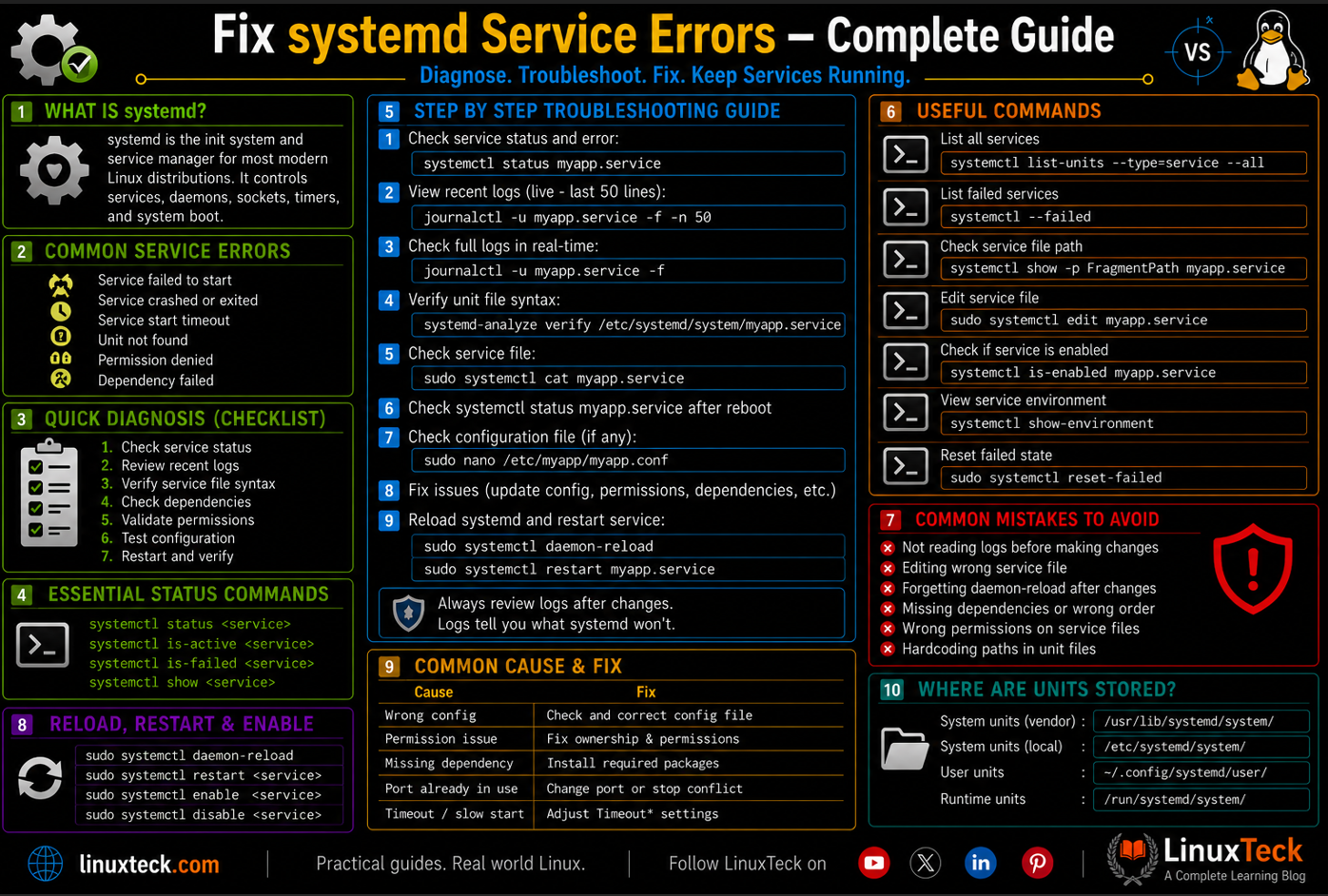
When a Linux service fails to start, it can affect applications, websites, databases, and other critical workloads. Whether the problem is caused by missing dependencies, incorrect permissions, configuration errors, or startup timeouts, identifying the root cause quickly is essential for minimizing downtime.
In this guide, you'll learn a practical, step-by-step approach to troubleshooting and fixing systemd service failures. From checking service status and reading logs to resolving dependency, permission, and startup issues, these techniques will help you restore services quickly and keep Linux systems running reliably.
Here are some of the advantages of mastering systemd troubleshooting:
- Quickly diagnose why services fail instead of blindly restarting
- Fix services in minutes instead of hours by targeting the actual problem
- Prevent service failures at boot by catching dependency issues before production
- Understand exit codes and log messages that usually look like gibberish
- Configure resource limits and timeout values that prevent phantom failures
- Set up automatic restart policies so your services recover without manual intervention
- Implement health checks that catch failures systemd itself can't detect
Prerequisites :
Operating System        :   Ubuntu 20.04+, Rocky Linux 8+, CentOS 8+, Debian 10+
Packages and Dependencies:  systemd, systemd-journal, curl (for checking service endpoints)
User Account            :   root user or user account with sudo privileges
                            All commands run with sudo for system-level access
Having trouble with sudo? Check out the complete guide to configuring sudo in Linux.
Before you start, verify these prerequisites:
- You have SSH access or terminal access to the affected server.
- You know the name of the service that is failing (e.g., nginx, mysql, myapp.service).
- Your user account has sudo privileges to run
systemctlcommands. - You have basic familiarity with Linux command line and log files, covered in our Linux commands for beginners guide.
- You understand what the service is supposed to do (web server, database, API, etc.).
For this guide, we'll use a practical example throughout. We have a Node.js application service that should start automatically at boot but consistently fails. Let's diagnose and fix it step by step.
My Lab Setup :
Application Server:

Operating System    :   Rocky Linux 9.2
Hostname            :   app-server-01
IP Address          :   192.168.1.100
Service Name        :   myapp.service
Step 1: Check the Service Status First
Note:
This is where every diagnosis begins. The systemctl status command tells you the current state of the service, when it last started, and the last few lines of output. If the service crashed, you'll see the exit code here. This single command often points directly to the problem, which is why it's the first place to look before diving into logs.
Open your terminal and check what systemd knows about your failing service. This command gives you immediate information about whether the service is running, stopped, or in a failed state.
LinuxTeck.com
Loaded: loaded (/etc/systemd/system/myapp.service; enabled; vendor preset: disabled)
Active: failed (Result: exit-code) since Thu 2026-06-25 08:23:15 UTC; 2h 34min ago
Process: 1234 ExecStart=/usr/bin/node /opt/myapp/server.js (code=exited, status=1/FAILURE)
Main PID: 1234 (code=exited, status=1/FAILURE)
Jun 25 08:23:14 app-server-01 systemd[1]: Starting Node.js Application Server...
Jun 25 08:23:15 app-server-01 node[1234]: Error: connect ECONNREFUSED 127.0.0.1:3306
Jun 25 08:23:15 app-server-01 systemd[1]: myapp.service: Main process exited, code=exited, status=1/FAILURE
Jun 25 08:23:15 app-server-01 systemd[1]: Failed to start Node.js Application Server.
Warning:
If the status output is truncated (you see "lines 1-15/27" at the bottom), press 'q' to exit, then run the command with the -l flag to see the full output. Truncated output can hide critical error messages like missing files or permission denials.
Step 2: Read the Detailed Logs with journalctl
Note:
systemctl status shows only the last few log lines. journalctl gives you the complete history of what the service tried to do. Look for the actual error message from your application (not just the systemd wrapper message). The application error is what tells you what actually went wrong. In our example, the Node.js app is trying to connect to MySQL on port 3306, which isn't responding. This immediately tells us the database isn't running.
When the status output is cryptic or truncated, journalctl is your detailed log viewer. This command pulls everything systemd recorded about your service's startup attempt.
LinuxTeck.com
Jun 25 08:23:15 app-server-01 node[1234]: [2026-06-25T08:23:15.234Z] INFO: Starting app on port 8080
Jun 25 08:23:15 app-server-01 node[1234]: [2026-06-25T08:23:15.456Z] ERROR: Cannot connect to database at 127.0.0.1:3306
Jun 25 08:23:15 app-server-01 node[1234]: [2026-06-25T08:23:15.457Z] ERROR: Error: connect ECONNREFUSED 127.0.0.1:3306
Jun 25 08:23:15 app-server-01 node[1234]: [2026-06-25T08:23:15.458Z] FATAL: Database connection failed, exiting
Jun 25 08:23:15 app-server-01 systemd[1]: myapp.service: Main process exited, code=exited, status=1/FAILURE
Jun 25 08:23:15 app-server-01 systemd[1]: myapp.service: Unit entered failed state.
Tip:
For real-time log monitoring while you troubleshoot, use: sudo journalctl -u myapp.service -f. This works like tail -f and shows new log entries as they happen. Invaluable when restarting the service multiple times while testing fixes.
Step 3: Check If the Service Starts Manually
Note:
Some services fail at boot but work fine when started manually. This tells you the problem is likely a dependency that isn't available at boot time, not a configuration or file permission issue. This distinction matters because it changes your fix strategy. Manual start success points to "dependency order" problems. Manual start failure points to missing files, bad config, or permission issues.
Try starting the service manually right now. This tells you if the problem is a boot-time dependency issue or something more fundamental.
LinuxTeck.com
Loaded: loaded (/etc/systemd/system/myapp.service; enabled; vendor preset: disabled)
Active: active (running) since Thu 2026-06-25 10:45:22 UTC; 2s ago
Main PID: 5678 (node)
Tasks: 12 (limit: 4915)
Memory: 45.2M
CGroup: /system.slice/myapp.service
└─5678 /usr/bin/node /opt/myapp/server.js
In our example, after ensuring the database is running first, the service starts perfectly when restarted manually. This is a classic dependency problem. The service has no guarantee that MySQL is running when the system boots.
Step 4: Fix Missing or Incorrect Dependencies
Note:
When a service needs another service (database, cache, network) to function, systemd needs to know this explicitly. Without dependency declarations, systemd might try to start your app before MySQL is ready. The After= and Requires= directives in the service file tell systemd the proper startup order. After= says "start after this service is ready." Requires= says "fail if this service isn't available." Together, they prevent race conditions that cause mysterious boot failures.
Edit the service file to declare dependencies. Use systemctl edit, which creates an override file and automatically reloads systemd.
LinuxTeck.com
After=mysql.service
Requires=mysql.service
Wants=network-online.target
After=network-online.target
[Service]
Restart=on-failure
RestartSec=10
Save the file (Ctrl+O, Enter, Ctrl+X in nano). Systemd automatically detects the change and reloads. Now reload and restart:
LinuxTeck.com
$ sudo systemctl status myapp.service
● myapp.service - Node.js Application Server
Loaded: loaded (/etc/systemd/system/myapp.service; enabled; vendor preset: disabled)
Active: active (running) since Thu 2026-06-25 10:47:00 UTC; 3s ago
Step 5: Fix Permission and File Ownership Issues
Note:
Services run as specific users (nginx, postgres, mysql, etc.). If the service user doesn't have permission to read config files, write to log directories, or access the binary, it fails silently with a permission denied error. The error message is usually vague, but if you check the directory permissions, the problem becomes obvious. This is especially common after migrations when directory ownership doesn't get updated.
Check what user the service runs as, then verify that user owns the required directories and files:
LinuxTeck.com
Now verify that appuser owns the necessary directories:
LinuxTeck.com
drwxr-xr-x 3 root root 4096 Jun 25 10:30 /opt/myapp/
-rw-r--r-- 1 root root 1234 Jun 25 10:30 server.js
-rw-r--r-- 1 root root 890 Jun 25 10:30 config.json
(Notice root owns the files, but the service runs as appuser)
Warning:
Before fixing ownership, verify the service user actually exists. If it doesn't, the service will exit immediately. Create the user if needed: sudo useradd --system --no-create-home --shell /sbin/nologin appuser
Fix the ownership for all directories the service needs:
LinuxTeck.com
$ ls -la /opt/myapp/
total 24
drwxr-xr-x 3 appuser appuser 4096 Jun 25 10:30 /opt/myapp/
-rw-r--r-- 1 appuser appuser 1234 Jun 25 10:30 server.js
Restart the service:
LinuxTeck.com
Step 6: Verify the Service Survives a Reboot
Note:
The final test. Services that work when manually restarted sometimes still fail at boot because system state is different during startup. Check that the service is enabled for auto-start, then reboot to confirm it actually comes up. This is the only real proof that the problem is truly fixed.
Ensure the service is enabled to start at boot:
LinuxTeck.com
enabled
Now reboot and verify the service came up automatically:
LinuxTeck.com
Wait 30 seconds for reboot, then log back in and check:
LinuxTeck.com
Loaded: loaded (/etc/systemd/system/myapp.service; enabled; vendor preset: disabled)
Active: active (running) since Thu 2026-06-25 11:02:33 UTC; 2min 15s ago
Main PID: 1456 (node)
Tasks: 12 (limit: 4915)
Memory: 48.1M
CGroup: /system.slice/myapp.service
└─1456 /usr/bin/node /opt/myapp/server.js
Tip:
If your service has a health endpoint (HTTP, TCP, or internal check), add a quick verification after reboot. Curl the endpoint or connect to verify it's truly functional, not just started. systemctl status only says "running" but doesn't verify the application itself is healthy.
Fix Systemd Service Errors: Understanding Exit Codes
When systemctl status shows an exit code, it tells you specifically what went wrong. Here are the ones you'll encounter most:
Exit Code 2 = Invalid arguments passed to the service
Exit Code 127 = Command/binary not found (wrong path in ExecStart)
Exit Code 203 = EXEC failure (Failed to execute binary or bad permissions)
Exit Code 217 = Service user does not exist
Exit Code 226 = Service namespace execution or SIGPIPE setup failed
Exit Code 128+9 = Out of memory (OOMkiller terminated the process)
Exit Code 143 = Service killed by SIGTERM (normal shutdown signal)
For exit code 127, verify the binary path is correct:
LinuxTeck.com
Verify the binary exists:
LinuxTeck.com
-rwxr-xr-x 1 root root 67890 Jan 15 10:30 /usr/bin/node
Fixing Timeout Failures
Note:
By default, systemd waits 90 seconds for a service to start. If your application takes longer to initialize (database migrations, loading large datasets, etc.), systemd kills it as a timeout. The solution is adjusting TimeoutStartSec in the service file. But only increase it if the application actually needs more time. Timeouts exist to prevent hung services from breaking the boot process.
If you see "systemd[1]: myapp.service: Main process exited, code=exited, status=124", the service timed out during startup. Check the logs for what's actually taking so long:
LinuxTeck.com
Jun 25 11:05:00 app-server-01 node[2345]: Starting database migrations...
Jun 25 11:05:45 app-server-01 node[2345]: Migration complete
Jun 25 11:05:45 app-server-01 node[2345]: Server listening on port 8080
If the service needs more than 90 seconds, edit it to increase the timeout:
LinuxTeck.com
TimeoutStartSec=300
Then reload and test:
LinuxTeck.com
Fix Systemd Service Errors with Automatic Recovery Setup
Note:
Production services should auto-restart when they crash. The Restart= directive tells systemd when to restart: always (every time, including on-success), on-failure (only if the exit code indicates failure), or no (never restart). Pair this with RestartSec to control how long to wait between restart attempts. This prevents rapid restart loops that consume CPU while still ensuring your service recovers from temporary failures.
Add automatic restart to your service so it recovers from crashes without manual intervention:
LinuxTeck.com
Restart=on-failure
RestartSec=10
StartLimitBurst=5
StartLimitIntervalSec=300
This configuration means:
RestartSec=10 = Wait 10 seconds between restart attempts
StartLimitBurst=5 = Allow maximum 5 restart attempts
StartLimitIntervalSec=300 = Within a 5-minute window
After 5 failures in 5 minutes, systemd gives up to prevent infinite restart loops. Manual intervention becomes necessary once this limit is hit. Reload and test:
LinuxTeck.com
Conclusion:
Systemd service failures always have a cause, and that cause is discoverable by following this systematic approach. Check status, read the logs, identify the pattern (dependency, permission, resource, configuration), and apply the targeted fix. Test manually first, then verify it survives a reboot. Once you've done this a few times, service troubleshooting becomes routine instead of panic.
For deeper understanding of systemd, check out the official systemd.service manual. You can also explore our guides on system monitoring commands and Linux logging best practices for more context on production operations.
Drop me your feedback in the comments. Share this article if you found it useful.
Frequently Asked Questions
My service works when I manually start it but fails at boot. Why?
This is almost always a dependency issue. When you start the service manually, other services (like databases) are already running. At boot, systemd starts services in parallel unless you explicitly declare order with After= and Requires=. Add the dependency declarations to your service file and it will wait for MySQL or whatever else it needs before starting.
I see "Permission denied" in my logs but the file permissions look correct. What's happening?
Check two things: First, verify the service is running as the user you think it is (grep User= in the service file). Second, check the directory ownership recursively. A file might be readable, but if the parent directory isn't readable by the service user, the service still can't access it. Run chown -R appuser:appuser /path/to/service on the entire directory tree.
How do I safely restart a service in production without downtime?
If your service supports graceful shutdown (most modern apps do), systemd will send SIGTERM and wait for the process to exit cleanly. The default timeout is 30 seconds. After that, it sends SIGKILL. For zero-downtime restarts, use systemctl reload-or-restart instead of restart. This reloads configuration if the app supports it, or restarts only if necessary. Always test this on staging first.
My service keeps hitting the restart limit and stopping. How do I debug this?
Increase StartLimitBurst or StartLimitIntervalSec temporarily to allow more restarts. Then watch journalctl -u myapp.service -f in one terminal while manually triggering failures in another. This lets you see the error pattern. Usually it's a missing dependency that's not yet running, or a resource limit being hit. Fix the root cause, not the restart limits.
How do I view the exact ExecStart command that systemd is running?
Use systemctl show myapp.service --property=ExecStart or the shorter systemctl show myapp.service | grep ExecStart. This shows exactly what command systemd is executing, with full paths. If the command looks wrong (missing flags, wrong path, etc.), edit the service file with systemctl edit and test a restart manually to confirm the fix.
Can I run the service in the foreground to debug it directly?
Yes. Extract the ExecStart command from the service file, then run it manually in your terminal. For example: /usr/bin/node /opt/myapp/server.js. This bypasses systemd and shows you the actual error output. You'll see what the app is trying to do and why it's failing, much clearer than reading systemd logs.
From your first terminal command to advanced sysadmin skills, every guide here is written in plain English with real examples you can run right now.