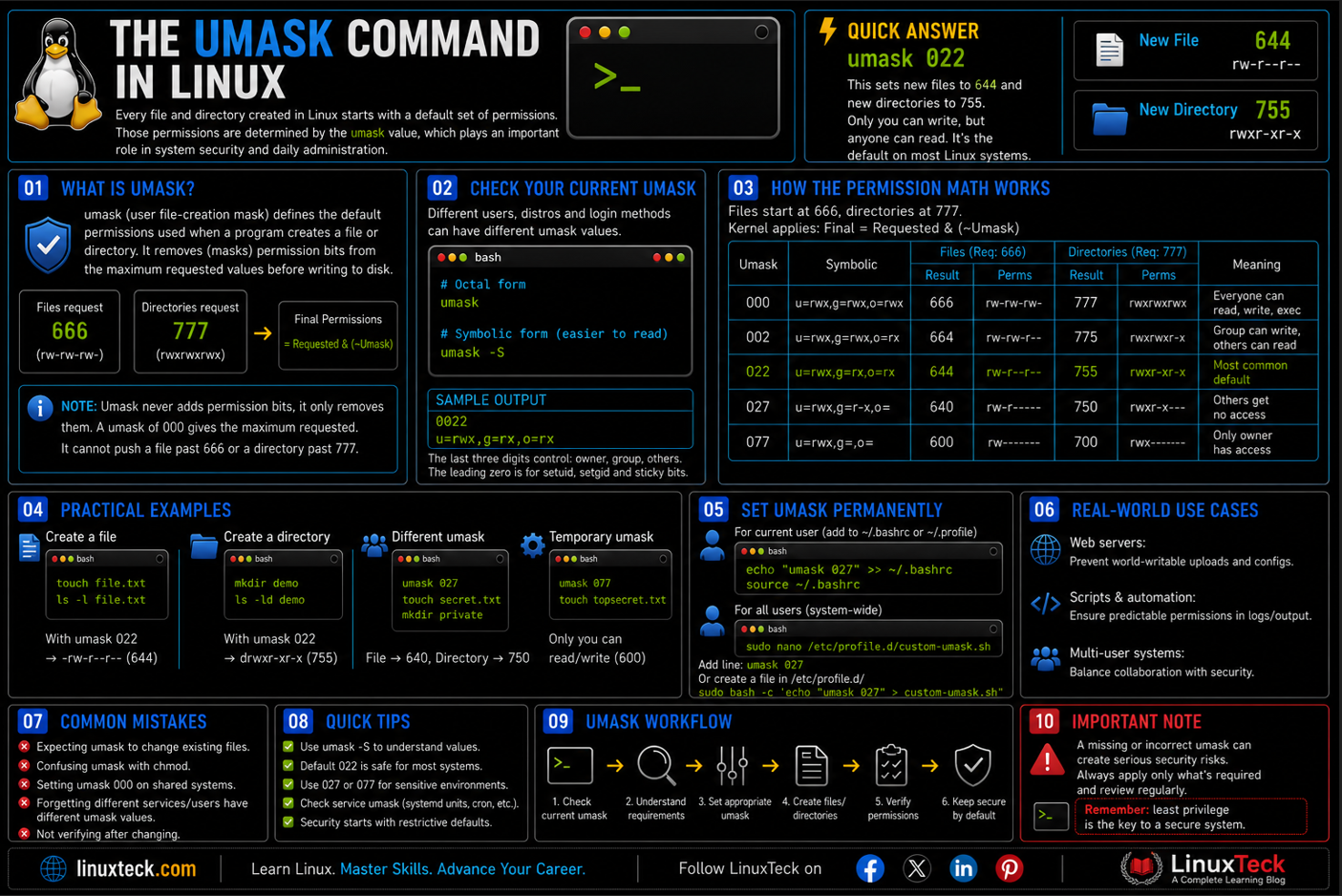
Every file and directory created in Linux starts with a default set of permissions. Those permissions are determined by the umask value, which quietly plays an important role in both system security and day-to-day administration. In this guide, you'll learn how umask works, how to calculate it, and how to configure it correctly.
Quick Answer:
This sets the default so new files land at 644 and new directories land at 755, meaning only you can write to them but anyone can read them. It's the value most Linux systems ship with out of the box.
Examples
Umask does not touch permissions on files that already exist. It only decides what a brand new file or folder looks like the moment it's created, before you ever run chmod on it.
The Umask Command in Linux: Why It Exists Before You Even Touch a File
Every time a program creates a file, it asks the kernel for a set of permissions. Text editors typically request 666 (read and write for everyone), and programs that create folders request 777 (read, write, execute for everyone). If the kernel just handed that out as-is, every new file on every Linux box would be world-writable by default. Nobody wants that, so the kernel subtracts the umask from the requested permission before the file is actually written to disk.
That's not arithmetic subtraction even though it looks that way for the common values. What the kernel actually does is a bitwise AND between the requested permission and the complement (bitwise NOT) of the umask, or in short form: Final Permissions = Requested & (~Umask). For plain values like 022 and 027 the result happens to line up with subtraction, which is why the shortcut works so often, but it stops matching once a umask bit overlaps with a bit that was never requested in the first place. A file request of 666 with a umask of 022 comes out to 644. A directory request of 777 with the same umask comes out to 755. Once you see it that way, permissions on a fresh ls -l stop looking random.
Note:
Umask never adds permission bits, it only removes them. A umask of 000 gives you the maximum the program asked for. It cannot push a file past 666 or a directory past 777 on its own.
Checking the Umask You're Actually Running On
Before changing anything, look at what your shell is already using. Different distros, different login methods, and even different users on the same box can end up with different values.
LinuxTeck.com
umask
# Symbolic form, easier to read at a glance
umask -S
u=rwx,g=rx,o=rx
The leading zero in 0022 refers to the setuid, setgid, and sticky bits, and you'll almost never touch it. The three digits that matter are the last three: owner, group, others. The symbolic output from umask -S shows what's allowed rather than what's removed, and a lot of people find that direction easier to reason about.
How the Permission Math Actually Works
Files start life at a max request of 666, directories at 777. That's it, those are the only two starting points umask ever works against. The table below covers the values you'll actually run into.
| Umask | New Files | New Directories | Typical Use |
|---|---|---|---|
| 022 | 644 (rw-r--r--) | 755 (rwxr-xr-x) | Default on most distros, readable by everyone |
| 002 | 664 (rw-rw-r--) | 775 (rwxrwxr-x) | Shared group folders, team projects |
| 027 | 640 (rw-r-----) | 750 (rwxr-x---) | Servers, group access without world access |
| 077 | 600 (rw-------) | 700 (rwx------) | Private keys, personal servers, CIS-hardened boxes |
Setting It for One Session vs Setting It for Good
Running umask with a value only changes the current shell. Close that terminal and it reverts to whatever the login process set. For anything that needs to stick, you set it in a file that runs at login.
LinuxTeck.com
umask 077
For a single account, add the line to your own shell startup file so it survives reboots and new terminals.
LinuxTeck.com
source ~/.bashrc
For every user on the machine, you set it system-wide instead of per account, and this is where Ubuntu and RHEL-family systems part ways slightly.
On Ubuntu and Debian-based systems, the cleanest approach is dropping a script into /etc/profile.d/, which every login shell sources automatically.
LinuxTeck.com
# Inside the file:
umask 027
On Rocky Linux and other RHEL-family systems, you'll often see a UMASK line inside /etc/login.defs and it's tempting to assume that's your global shell umask. It isn't, at least not on its own. That setting only controls the permissions applied to a user's home directory at the moment useradd creates it. It has no effect on the umask your interactive shell actually runs with once you log in.
LinuxTeck.com
sudo grep -i umask /etc/login.defs
For a real, global shell umask on modern RHEL-family systems, the same /etc/profile.d/ approach used on Ubuntu is the correct one. Every login shell sources it automatically, and it applies consistently regardless of which account logs in.
LinuxTeck.com
# Inside the file:
umask 027
Either way, changes here only apply to new logins, not sessions that are already open. That single detail explains most "I changed it but nothing happened" reports you'll see on forums.
Tip:
If you're locking down a shared server, pair a stricter umask with a proper look at a hardening checklist rather than treating umask as the whole solution. It's one control among several.
Umask in Practice
Reading a table only gets you so far. Here's what umask looks like across the situations you'll actually run into.
I. Checking what a fresh file inherits
A beginner move worth doing once: create a file and folder with the default umask and just look at what comes out.
LinuxTeck.com
mkdir demo_dir
ls -ld demo.txt demo_dir
drwxr-xr-x 2 karan karan 4096 Jul 19 10:02 demo_dir
II. Comparing two umask values back to back
Switching the value in the same shell makes the effect obvious without touching any config file.
LinuxTeck.com
touch fileA
umask 077
touch fileB
ls -l fileA fileB
-rw------- 1 karan karan 0 Jul 19 10:06 fileB
III. Testing a value inside a subshell without risking your session
You don't need to touch your login shell to test a umask. A subshell keeps the change contained.
LinuxTeck.com
ls -l grouptest
-rw-rw---- 1 karan karan 0 Jul 19 10:09 grouptest
Notice the outer umask still reports 0022. The 007 only applied inside the parentheses.
Teams that push code from a shared account often want new files writable by the whole deploy group without opening them to the rest of the server. A umask of 002 inside the deploy script covers that for most commands, but git pull is one of the exceptions worth knowing about.
Note:
Git does not rely on the shell's umask when it writes objects into a repository. It uses its own internal setting instead, so a umask set at the top of the script won't reliably carry through to files git creates during the pull. Set core.sharedRepository once on the repo and git handles the group permissions itself from then on.
LinuxTeck.com
umask 002
git config core.sharedRepository group
git pull origin main
sudo chown -R :webdeploy /var/www/app
The sudo in front of chown matters too. Deploy accounts are rarely the owner of the whole web root, and without it the ownership change just fails with a permission error instead of doing anything useful. Pair this with the right ownership on the folder itself using chown and chgrp, since umask only controls new files, not the ones already sitting there.
V. Locking down a directory that holds credentials
Anything holding API keys, private SSH material, or database dumps should never inherit a permissive umask. Setting 077 before the operation guarantees nothing but the owner can read the result.
LinuxTeck.com
mkdir -p ~/.secrets
ssh-keygen -t ed25519 -f ~/.secrets/deploy_key
This matters more than people assume for passwordless SSH setups, since a key file with group or world read access is exactly the kind of thing an audit will flag, and rightly so.
VI. The mistake: a cron job silently creating world-writable logs
This is close to what caught me out. A cron job runs as root, or as a service account, using whatever umask that account's shell profile defines. If that account's profile was never hardened, every log file the job writes ends up 644 or worse, sitting there readable by anyone with a shell on the box.
LinuxTeck.com
0 2 * * * /opt/scripts/backup.sh >> /var/log/backup.log
Warning:
Cron does not inherit your interactive shell's umask. It uses its own default, which on most systems is 022, and on some minimal images can be even more permissive. If the log contains database credentials or internal hostnames, that 644 permission just handed read access to every local account on the server.
The fix is to set the umask explicitly at the top of the script itself, so it never depends on whatever the environment happens to provide.
LinuxTeck.com
umask 027
BACKUP_DIR=/var/backups/app
mkdir -p $BACKUP_DIR
tar -czf $BACKUP_DIR/backup.tar.gz /opt/app
A single line at the top of the script fixed it for good, and it stopped depending on whichever account happened to be running it. If you're building anything that runs unattended, this is worth reading alongside how the script handles errors in general, since a silent permission problem is really just another failure mode you didn't check for.
When Umask Doesn't Seem to Apply
Three things trip people up almost every time. First, umask only affects new files, so running it after the fact does nothing to what already exists, you still need chmod for that. Second, some programs request permissions more restrictive than 666 or 777 to begin with, so a lenient umask won't loosen them, umask can only remove bits, never add them. Third, systemd services and cron jobs often don't read your shell profile at all, which is why setting umask inside .bashrc changes nothing for a service that runs independently of any login shell.
If you manage several user accounts, it's worth pairing a sane umask policy with a look at how new accounts get created, since the umask a new user inherits usually traces straight back to how that account was set up in the first place, whether through useradd on RHEL-based systems or the equivalent on Ubuntu.
FAQ
Does umask affect files that were already created before I changed it?
No, and this trips up almost everyone the first time. Umask only shapes permissions at the moment a file or folder is created. Anything that existed before your change keeps whatever permissions it already had. If you need to fix existing files, that's a job for chmod applied directly, or a recursive chmod across a directory tree.
Why did changing umask in my terminal not affect my cron job?
Cron runs in its own minimal environment and doesn't source your interactive shell's startup files, so whatever umask you set in .bashrc simply never reaches it. The reliable fix is putting umask directly inside the script cron calls, right at the top, before any file gets created.
What's the safest umask value for a production server?
027 is the common middle ground a lot of hardening guides land on. It keeps files readable and writable by the owner, readable by the group, and completely closed off to everyone else. Go with 077 if the box handles sensitive data and doesn't need any group collaboration at all.
Why do files and directories get different permissions from the same umask?
They start from different maximums. Files never get created with execute permission by default, so they start at 666, while directories start at 777 because they need execute permission just to be entered. Subtract the same umask from each and you naturally land on different results, like 644 versus 755 with a 022 umask.
Can I set a different umask for one specific script without changing it system-wide?
Yes, and it's actually the better habit. Put the umask command at the top of the script itself, or wrap the relevant commands in a subshell using parentheses. Either approach keeps the change local and means the script behaves the same no matter which account or environment runs it.
Important Points
- Umask subtracts permission bits from new files (starting at 666) and new directories (starting at 777). It never adds permissions.
- Running umask alone only affects the current shell session. Permanent changes go in ~/.bashrc for one user, or /etc/profile.d/ for the whole system (note: /etc/login.defs only applies to new home directories during creation).
- Cron jobs and systemd services don't read your interactive shell profile, so set umask explicitly inside any script that runs unattended.
- 022 is the common default, 027 works well for servers needing group access without world access, and 077 is the right call for anything holding credentials.
- Umask has no effect on files that already exist. Existing permissions need chmod applied directly.
For the full reference on man7.org, the umask man page covers the underlying system call in more depth than most people need day to day, but it's worth a skim if you're curious about the ACL interaction mentioned earlier. If you're working through permissions more broadly, special permissions like setuid and sticky bits and the security command cheat sheet are natural next stops, and if you're scripting around any of this, configuring sudo correctly matters just as much as the umask itself.
From your first terminal command to advanced sysadmin skills, every guide here is written in plain English with real examples you can run right now.