Linux file permissions control who can read, write, and execute files, but some tasks require more than standard permissions. This is where special permissions such as SUID, SGID, and the sticky bit come into play. They provide controlled elevated access, simplify collaboration, and help protect shared directories when used correctly.
If you've ever run ls -l and noticed an unexpected s or t instead of an x, you're not alone. In this guide, you'll learn what these special permissions mean, how they work, when to use them, and how to configure them safely with practical examples that are easy to follow.
Note:
If regular file permissions are still shaky ground for you, it's worth reviewing the chmod command in Linux first. Everything in this guide builds on top of that foundation.
Examples
What Are Special Permissions in Linux?
Regular Linux permissions cover three things: who owns a file, what group it belongs to, and what everyone else can do with it. Special permissions add a fourth layer on top of that, one that changes how a file or directory behaves rather than just who can touch it.
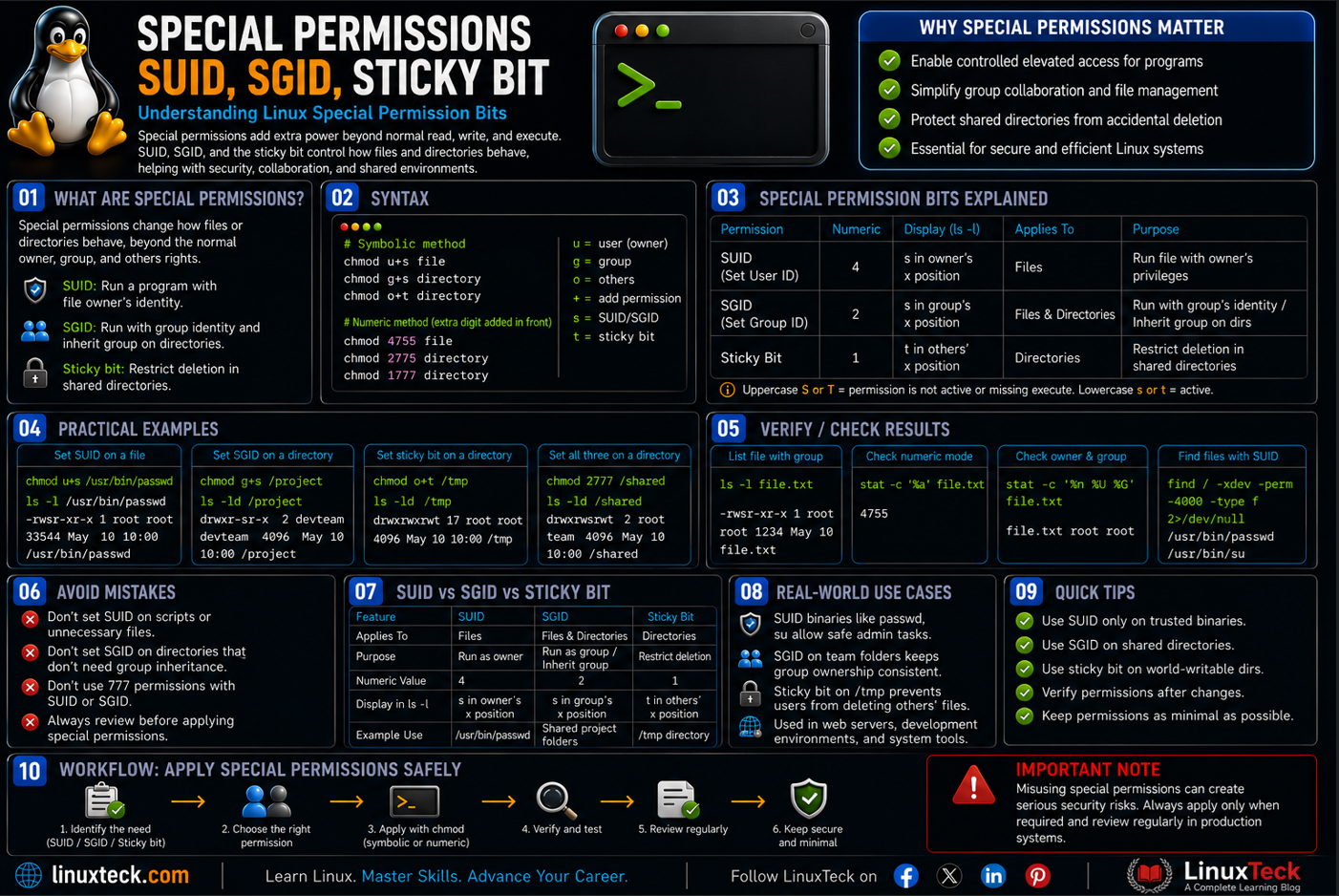
There are three special permissions: SUID (Set User ID), SGID (Set Group ID), and the sticky bit. SUID makes a program run with the identity of its owner instead of the person running it. SGID does something similar for group ownership, and on directories it makes new files inherit the parent directory's group automatically. The sticky bit doesn't touch execution at all, it just controls who's allowed to delete files inside a shared directory.
You've almost certainly used SUID already without noticing it. Every time you run passwd to change your own password, that binary is running as root behind the scenes, because it needs root access to edit /etc/shadow, and that only works because of SUID. This ties directly into the broader idea of how Linux treats different file types, since special permissions behave differently depending on whether you're looking at a regular file or a directory.
Syntax for Setting Special Permissions
Special permissions can be set with either the symbolic method or the numeric method, the same two approaches you'd use for regular chmod operations.
LinuxTeck.com
chmod u+s file
chmod g+s directory
chmod o+t directory
# numeric method, extra digit added in front
chmod 4755 file
chmod 2775 directory
chmod 1777 directory
The numeric method adds a fourth digit in front of the usual three. SUID is 4, SGID is 2, sticky bit is 1, and you can combine them by adding the values together, so 6 sets both SUID and SGID at once.
Note:
If you drop the special permission digit entirely, chmod assumes 0 and clears whatever special permission was already set. That has caught more than one person off guard while trying to just tweak regular read or write access on a file that already had SUID applied.
Special Permission Flags and Values
| Symbol / Value | What It Does | When to Use It |
|---|---|---|
| u+s / 4 | Sets SUID, the file runs as its owner regardless of who executes it | System binaries like passwd that need elevated access for one specific task |
| g+s / 2 | Sets SGID, files run as the group owner, or new files in a directory inherit its group | Shared project directories where multiple users need consistent group access |
| o+t / 1 | Sets the sticky bit, only the file owner or root can delete files inside the directory | World-writable shared folders like /tmp or upload directories |
| u-s / g-s / o-t | Removes the respective special permission | Cleaning up a binary or directory after a security review |
| -perm -4000 | Used with find to locate every file that has SUID set | Security audits, checking a server for unexpected SUID binaries |
| -perm -2000 | Used with find to locate every file that has SGID set | Same type of audit work, focused on group level exposure |
Examples You'll Actually Use
I. Check Whether a File Has SUID Set
Before changing anything, it helps to know how to read what's already there. The passwd binary is the classic example.
LinuxTeck.com
Notice the lowercase s sitting where the execute bit for the owner would normally be. That's SUID, telling you passwd always runs as root no matter who launches it.
II. Set SUID on a File
Say you have a monitoring script that needs to read a log file only root can access.
LinuxTeck.com
ls -l /opt/scripts/logcheck
This is where SGID earns its keep. Set it on a directory and every new file created inside inherits the directory's group automatically.
LinuxTeck.com
Tip:
Pair this with a shared group and consistent chown ownership when setting up a team directory. If you haven't organized shared groups before, our user management guide covers creating those groups first. Otherwise new files still land with each user's default group and the whole point of SGID gets lost.
IV. Set the Sticky Bit on an Upload Folder
Any folder where multiple users can write files but shouldn't be able to delete each other's work needs this.
LinuxTeck.com
ls -ld /srv/uploads
That lowercase t at the end is your confirmation. This is exactly how /tmp works on every Linux system you've ever logged into.
V. Combine SGID and Sticky Bit Using Numeric Mode
You don't have to set these one at a time. A shared department folder often needs both group inheritance and delete protection together.
LinuxTeck.com
The 3 comes from adding SGID (2) and sticky bit (1). Files created here inherit the shared group, and only the file's own creator can remove it later.
VI. Remove SUID From a File
If a security scan flags a binary with SUID that shouldn't have it, pulling it off is a one-liner.
LinuxTeck.com
VII. Find Every SUID File on the System
This is the command you'll actually run during a security review, and one worth memorizing.
LinuxTeck.com
/usr/bin/sudo
/usr/bin/su
/usr/bin/mount
/opt/scripts/logcheck
Read this list carefully after every new deployment. If find turns up something you don't recognize on that list, treat it as a red flag and investigate before anything else.
VIII. Real World: Group Collaboration on a Web Server
A small dev team shares a deployment directory on a staging server. Without SGID, every deploy from a different team member changes the file's group and breaks the next person's write access.
LinuxTeck.com
chmod 2775 /var/www/staging
After this, every file any team member drops into that directory keeps the devteam group automatically, no more manually fixing ownership after every deploy. If you haven't set up chgrp based group ownership before, this is a good place to start practicing it.
An internal file server lets an entire department drop files into one shared folder. Without the sticky bit, anyone in that group could delete anyone else's uploads by accident, or on purpose.
LinuxTeck.com
stat -c %A /srv/dept-share
X. Mistake: Expecting SUID to Work on a Shell Script
This one trips up a lot of people moving from a course into real servers. Setting SUID on a bash script does not give it root privileges, even though the permission bit shows correctly.
LinuxTeck.com
./cleanup.sh
Warning:
The Linux kernel deliberately ignores SUID on interpreted scripts, this includes bash, python, and perl. It's a security decision, not a bug. If you need a script to run with elevated rights, the correct fix is a scoped sudo rule or a small compiled C wrapper, not SUID on the script itself.
Set up a specific sudoers entry instead if the script genuinely needs elevated access. Our sudo configuration guide walks through doing this safely without opening the door wider than it needs to be.
XI. Check Special Permissions With Numeric Output
Sometimes you want the raw permission number rather than reading symbols off the screen, especially when scripting a compliance check.
LinuxTeck.com
The leading 4 confirms SUID before you even look at the rest of the number.
Why Special Permissions Matter
Without SUID, a huge chunk of ordinary Linux workflows would break outright. Regular users couldn't change their own passwords, mount removable drives, or ping a remote host, because all of those actions genuinely need root level access for one narrow operation. SUID lets that access exist only where it's needed instead of handing everyone root permanently.
On the flip side, an unmonitored SUID binary is one of the oldest privilege escalation tricks in the book, and it's still how a surprising number of real breaches happen on servers that skip regular audits. Running that find / -xdev -perm -4000 sweep after every patch cycle or new package install isn't paranoia, it's basic hygiene, similar to how the official chmod manual documents these bits as deliberate, security relevant behavior rather than convenience flags. It's worth folding this check into a wider server hardening routine rather than treating it as a one-time task.
Key Takeaways
- SUID makes a program run as its file owner, not the user who launched it, which is why passwd works without giving you root access directly.
- SGID on a directory forces every new file inside to inherit the directory's group automatically, which fixes most shared folder ownership headaches.
- The sticky bit only controls deletion rights inside a directory, it has no effect at all when applied to an individual file.
- Linux ignores SUID on shell scripts by design, use a scoped sudo rule instead if a script needs elevated access.
- Run
find / -xdev -perm -4000 -type fafter deployments and patches to catch unexpected SUID binaries before they become a problem. - Combine special permissions by adding their numeric values, 2 plus 1 gives you 3 for SGID and sticky bit together.
- An uppercase S or T means the special permission is set, but the corresponding execute (x) bit is missing, leaving the special permission inactive and requiring attention.
Questions I Get Asked About This All the Time
I set SUID on my script but it's still running as my own user, what's going on?
That's expected behavior, not a bug. Linux blocks SUID on interpreted scripts like bash or python for security reasons. If you need elevated access for a script, set up a specific sudo rule instead of trying to force SUID onto it.
Why does ls show an uppercase S instead of lowercase on one of my files?
An uppercase S means SUID or SGID is set, but the file lacks the underlying execute (x) permission for that owner or group. This means the special permission is inactive. To resolve this, simply add execute permissions to the file (for example, using chmod u+x filename).
Does setting SGID on a directory affect files that already exist inside it?
No, it only affects files created after SGID is applied. Anything already in the directory keeps its original group ownership until you manually fix it with chgrp.
Is it safe to remove SUID from passwd or sudo if I don't need it?
Don't do this on system binaries like passwd, sudo, or mount. Removing SUID from those will break basic functionality for every user on the box. Focus your cleanup on custom scripts and third party tools instead.
Can I set the sticky bit on a single file instead of a directory?
You can technically run the command, but it does nothing on modern Linux. The sticky bit only has an effect when applied to directories, so setting it on a file is wasted effort.
How do I quickly audit a whole server for SUID and SGID files at once?
Run find with -perm -4000 for SUID and -perm -2000 for SGID separately, redirecting errors to /dev/null so permission denied messages don't clutter the output. Save both lists somewhere so you can diff them after future audits.
From your first terminal command to advanced sysadmin skills, every guide here is written in plain English with real examples you can run right now.