
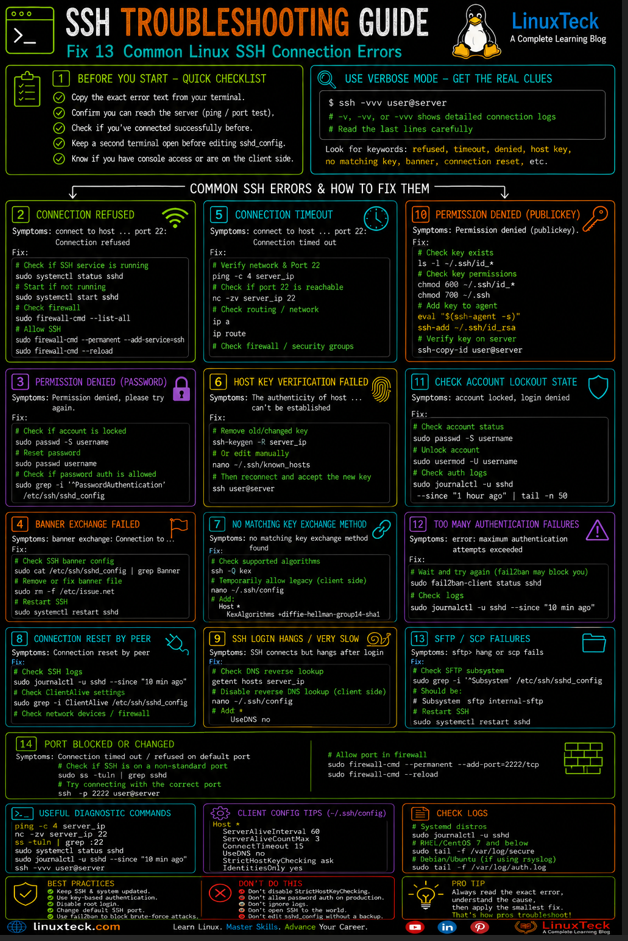
SSH troubleshooting is one of the most important skills every Linux administrator needs. A simple connection attempt can fail because of authentication issues, incorrect permissions, network problems, host key mismatches, firewall rules, or server-side configuration errors. The challenge is that many SSH errors look similar at first glance, even though the root causes can be completely different.
Knowing how to troubleshoot SSH methodically is an essential Linux administration skill. Instead of guessing or repeatedly changing settings, experienced administrators follow a structured process to identify where the connection is failing and why. Understanding what each error message actually means can save hours of troubleshooting and help avoid changes that create bigger problems.
This guide walks through the most common SSH connection errors encountered on Ubuntu, Rocky Linux, RHEL, and other Linux distributions. You will learn how to diagnose authentication failures, permission problems, host key warnings, network connectivity issues, and server-side SSH configuration mistakes using practical examples and proven troubleshooting techniques.
Here is why a flowchart approach actually works for SSH errors:
- You stop guessing and go straight to the exact branch that matches your error.
- Each error message points to a small, specific set of causes instead of checking everything.
- You learn to read auth.log and verbose SSH output instead of relying on trial and error.
- Covers both client-side mistakes and server-side misconfigurations in one place.
- Works the same whether you are using Ubuntu, Rocky Linux, RHEL, or Debian.
- Saves you from risky shortcuts such as disabling StrictHostKeyChecking out of frustration.
Prerequisites :
Operating System         :   Ubuntu 22.04/24.04, Rocky Linux 8/9, RHEL 8/9, Debian 11/12
Packages and Dependencies:   openssh-client (client side), openssh-server (server side)
User Account             :   root or a user account with sudo privileges
Recommended to run diagnostic and config commands with sudo instead of logging in as root directly.
Difficulties setting up a sudo user on your server? Click here to find the steps before you go further.
Before you touch any config file, run through this checklist:
- Copy the exact error text from your terminal, word for word. It usually tells you which troubleshooting path to follow.
- Confirm you can reach the server at all before blaming SSH specifically. Test basic network connectivity first.
- Check whether you have connected to this server successfully in the past. Previous successful access changes the diagnosis significantly.
- Keep a second terminal session open and logged in if you plan to edit
sshd_configon a remote system. See our guide on installing and securing an SSH server to understand why this is important. - Know whether you are troubleshooting from the client side or whether you have console/physical access to the server. The available fixes can be very different.
If you are still getting familiar with basic SSH usage, our SSH client commands guide is worth a quick read before diving into the flowchart below.
My Lab Setup :
SSH Client and Server (used for this guide):

Client Operating System  :   Ubuntu 24.04 LTS
Server Operating System  :   Rocky Linux 9.4
Server Hostname           :   sshs02.linuxteck
Server IP Address         :   192.168.1.150
SSH Port (custom)         :   22 (default, noted where changed)
Step 1: Read the Exact Error Before Doing Anything Else
Note:
Most people skip this and start randomly trying fixes. The actual wording of the SSH error tells you almost everything. "Connection refused" means a service responded and rejected you. "Connection timed out" means nothing responded at all. "Permission denied" means you reached the server but failed authentication. These are three completely different problems with different fixes, so do not treat them the same.
Run the connection with verbose mode on so you get real diagnostic detail instead of a one line error.
LinuxTeck.com
debug1: Connecting to 192.168.1.150 [192.168.1.150] port 22.
debug1: connect to address 192.168.1.150 port 22: Connection refused
ssh: connect to host 192.168.1.150 port 22: Connection refused
Tip:
Use -vvv instead of -v if the single v output is not detailed enough. It adds two more levels of debug detail, including which keys were offered and why each one was rejected, which matters a lot in Step 4 below.
Step 2: Fix Connection Refused
Note:
Connection refused means your packet reached the server and something actively rejected it. This is not a network routing problem, it is almost always one of three things, the SSH daemon is not running, it is listening on a different port than you expect, or a local firewall on the server is dropping the connection before sshd even sees it.
First, confirm sshd is actually running on the server. You will need console access or an existing session for this.
LinuxTeck.com
Loaded: loaded (/usr/lib/systemd/system/sshd.service; enabled; preset: enabled)
Active: inactive (dead) since Mon 2026-06-22 09:14:02 UTC; 18h ago
If it shows inactive, start it and enable it so it survives a reboot.
LinuxTeck.com
Next, check which port sshd is actually bound to. Plenty of people forget the server was hardened to a custom port and keep hammering port 22.
LinuxTeck.com
That output shows sshd is on port 2222, not 22. You would need to connect with ssh -p 2222 john@192.168.1.150 for this to work. If you have networking basics that feel shaky, our Linux networking commands guide covers tools like this one in more depth.
Warning:
If sshd is running and on the right port but you still get refused, check the local firewall on the server itself. On Rocky Linux and RHEL this is firewalld, on Ubuntu and Debian it is usually ufw. A firewall that blocks the port often produces "Connection refused" rather than a timeout, depending on the rule type, so do not assume refused always means a service problem.
LinuxTeck.com
success
On Ubuntu/Debian with ufw, the equivalent is covered in detail in our firewall-cmd commands article, which also explains the difference between firewalld zones if you are managing both distro types.
Step 3: Fix Connection Timeout
Note:
A timeout is different from a refusal in one important way, nothing answered at all. Your packets went out and either got dropped silently by a firewall somewhere in the path, the server is actually offline, or you have the wrong IP address entirely. This is a network reachability problem before it is ever an SSH problem.
Start with basic reachability. If ping fails, stop troubleshooting SSH and start troubleshooting the network or the server itself.
LinuxTeck.com
Request timeout for icmp_seq 0
Request timeout for icmp_seq 1
Request timeout for icmp_seq 2
Request timeout for icmp_seq 3
--- 192.168.1.150 ping statistics ---
4 packets transmitted, 0 received, 100% packet loss
If ping itself times out, that could just mean ICMP is blocked, which is common and not a real problem on its own. Test the SSH port specifically with netcat instead, that is a more accurate test.
LinuxTeck.com
That confirms it is the port specifically, not just ICMP. If you are on a cloud VM, this is where most people get stuck, because the operating system firewall is not the only thing in the way. Check your cloud provider's security group or network ACL too, since those silently drop traffic before it ever reaches the instance. If you are running production workloads, this kind of layered firewall check should really be part of your server hardening checklist from day one, not something you discover during an outage.
Tip:
If you are connecting from a corporate network or through a VPN, ask whoever manages it whether outbound port 22 is allowed. A lot of corporate networks block it by default for security reasons, and that produces the exact same timeout symptom as a server side firewall issue.
Step 4: Fix Permission Denied
Note:
This is the one that confuses people most because the connection itself worked fine. The server answered, SSH negotiated, and then it rejected your identity. That narrows things down to four areas, wrong username, wrong or missing key, bad file permissions on the key or the authorized_keys file, or the server config simply does not allow the method you are using.
Run verbose mode again and look specifically at which authentication methods were offered and which keys were tried.
LinuxTeck.com
debug1: Authentications that can continue: publickey,password
debug1: Trying private key: /home/john/.ssh/id_ed25519
john@192.168.1.150: Permission denied (publickey,password).
That tells you the client offered a key but the server rejected it. Check whether the matching public key actually exists in authorized_keys on the server.
LinuxTeck.com
If your public key is missing from that file, that is your answer. If it is present, the next most common cause is file permissions. SSH is strict about this and will silently ignore keys with permissions it considers unsafe.
LinuxTeck.com
Warning:
Do not run "chmod 777 ~/.ssh" to try to force it to work. I have seen this exact mistake more than once. Wide open permissions on the .ssh folder make SSH reject the key entirely as a security measure, and on some distros it can lock out password auth too. Always use 700 for the directory and 600 for key files, never anything looser.
If permissions and authorized_keys both check out and you are still denied, check the server config for what auth methods are actually permitted.
LinuxTeck.com
PasswordAuthentication no
PermitRootLogin no
If you are trying to log in as root and PermitRootLogin is set to no, that explains the denial right there, and it is intentional hardening, not a bug. Create or use a regular sudo user instead. Our guide on installing and securing an SSH server walks through exactly why root login gets disabled and how to set up a proper sudo account in its place.
Tip:
If you manage multiple SSH keys with an agent, sometimes the wrong key gets offered first and the server hits MaxAuthTries before your correct key is ever tried. Force a specific key with "ssh -o IdentitiesOnly=yes -i ~/.ssh/correct_key john@server" to skip past that problem entirely.
Step 5: Fix Host Key Changed Warnings
Note:
This warning exists because SSH remembers the server's identity from your last connection and compares it every time. A changed key means one of two things happened, either the server was legitimately rebuilt or reinstalled, or there is something genuinely suspicious sitting between you and the server intercepting traffic. Treat it as a real question, not just an obstacle to clear.
Here is what the warning looks like in full.
@ WARNING: REMOTE HOST IDENTIFICATION HAS CHANGED! @
@@@@@@@@@@@@@@@@@@@@@@@@@@@@@@@@@@@@@@@@@@@@@@@@@@@@@@@@@@@
IT IS POSSIBLE THAT SOMEONE IS DOING SOMETHING NASTY!
Someone could be eavesdropping on you right now (man-in-the-middle attack)!
Host key verification failed.
Before removing anything, verify with whoever manages the server whether it was actually rebuilt, reimaged, or had its IP reassigned recently. If the answer is yes, this is expected, and you can safely remove the old key. If nobody touched the server and you are not on a trusted network, stop and investigate further before connecting.
LinuxTeck.com
/home/john/.ssh/known_hosts updated.
Original contents retained as /home/john/.ssh/known_hosts.old
That removes just the one stale entry instead of wiping the entire known_hosts file. Connect again and you will be asked to accept the new key fingerprint, which gets recorded fresh.
LinuxTeck.com
ED25519 key fingerprint is SHA256:k9F2mP...
Are you sure you want to continue connecting (yes/no/[fingerprint])? yes
Warning: Permanently added '192.168.1.150' (ED25519) to the list of known hosts.
Warning:
Never run "ssh -o StrictHostKeyChecking=no" as your default habit just to make the warning go away faster. It disables the entire protection this feature exists for. Use it only for short lived automation against servers you fully control, like disposable test VMs, never against anything that touches production or sensitive data.
Step 6: Fix Wrong Key Type or Passphrase Issues
Note:
This is a deeper version of the permission denied problem from Step 4. Sometimes the key itself is fine and is in authorized_keys correctly, but the server has been hardened to only accept certain key types, or your key has a passphrase that is not loading into the agent the way you expect. Both produce a denial that looks identical to a missing key at first glance.
Check what key types the server actually accepts before assuming your key is wrong.
LinuxTeck.com
If that line is missing entirely, newer OpenSSH versions reject old RSA-SHA1 keys by default, an Ed25519 key is the safer bet going forward. Generate a fresh one if needed.
LinuxTeck.com
Enter file in which to save the key (/home/john/.ssh/id_ed25519):
Enter passphrase (empty for no passphrase):
Your identification has been saved in /home/john/.ssh/id_ed25519
If you are sure the key type is fine and it is a passphrase problem instead, confirm the key is actually loaded in your agent.
LinuxTeck.com
An empty agent means it forgot your passphrase protected key after a reboot or logout. Add it back manually.
LinuxTeck.com
Identity added: /home/john/.ssh/id_ed25519 (john@workstation)
Tip:
On RHEL or Rocky Linux specifically, if the key type and passphrase both check out and access is still denied, check SELinux context on the .ssh folder with "ls -Z ~/.ssh", a mislabeled context can silently block key reads even when standard permissions look correct.
Step 7: Fix Too Many Authentication Failures
Note:
This happens when your SSH agent or config holds multiple keys and offers all of them to the server one after another. The server has a limit on how many failed attempts it tolerates per connection, and once your agent burns through that limit before reaching the correct key, it disconnects you, even though the right key was sitting right there.
Here is exactly what this looks like when it happens.
LinuxTeck.com
Disconnected from 192.168.1.150 port 22
Check how many keys your agent is currently holding, this is usually the root cause if you use 1Password, GNOME Keyring, or a similar SSH agent integration.
LinuxTeck.com
256 SHA256:def2... /home/john/.ssh/work_key (ED25519)
2048 SHA256:ghi3... /home/john/.ssh/old_rsa_key (RSA)
4096 SHA256:jkl4... /home/john/.ssh/client_key (RSA)
Four keys being offered against a server with a low MaxAuthTries setting is a recipe for exactly this error. Fix it permanently by pointing this specific host at one identity file only.
LinuxTeck.com
Now ssh sshs02 uses only the one key you specified, regardless of how many others sit in your agent.
Step 8: Fix Slow SSH Login Before the Prompt Appears
Note:
This one is not technically a failure, the connection eventually succeeds, but there is a long pause before you see any prompt. Almost always this comes down to the server trying to resolve your IP address back to a hostname through reverse DNS, and waiting on a DNS server that never answers. A high server load or GSSAPI authentication attempts can cause the same delay too.
Confirm it is DNS related by checking the timing difference with verbose output.
LinuxTeck.com
user 0m0.034s
sys 0m0.021s
If login is fast with GSSAPI off but slow without that flag, you have found your cause. Disable reverse DNS lookups permanently on the server side instead of adding flags every time you connect.
LinuxTeck.com
Step 9: Fix SSH Connections That Drop With Broken Pipe
Note:
Different problem entirely from the four main branches, this one happens after a successful login, sometimes minutes or hours in. Either side decided the connection was idle and closed it, or something in between, a NAT device, a corporate firewall, dropped the session quietly without telling either end.
The error usually looks like this right in the middle of a command.
Add keepalive settings on the client side so SSH sends a small signal regularly, which stops routers and firewalls from treating the session as idle.
LinuxTeck.com
If you control the server too, set the matching server side option so both ends agree on keeping idle sessions alive.
LinuxTeck.com
Step 10: Fix Permission Denied at the Account Level
Note:
This is the version of permission denied that has nothing to do with keys or passwords at all. The account itself might be locked, expired, restricted to a non-login shell, or simply not in the list of users sshd_config allows to connect. Your key could be perfect and you would still get denied.
Check the account status directly on the server, this rules out keys and passwords as the cause entirely.
LinuxTeck.com
Password expires : never
Password inactive : never
An expired account explains a denial with no error about keys at all. Extend or remove the expiry as needed.
LinuxTeck.com
Also confirm the account has a real login shell, not /sbin/nologin or /bin/false, which exist specifically to block interactive SSH sessions.
LinuxTeck.com
That shell setting blocks interactive login entirely regardless of how correct your key is. Fix it with usermod if this account is meant to log in.
LinuxTeck.com
Warning:
Also check for an AllowUsers or AllowGroups line in sshd_config. If that directive exists and your account is not listed, you get denied no matter what, and this is one of the most overlooked causes because nothing in the client side debug output points to it directly. Run "sudo grep -i allowusers /etc/ssh/sshd_config" to check.
Step 11: Fix Algorithm or Cipher Mismatch Errors
Note:
This one shows up most often when an old appliance, a legacy router with an SSH management interface, or a very old Linux box tries to talk to a modern OpenSSH client that has dropped support for outdated algorithms. The connection fails before authentication even starts because the two sides cannot agree on how to negotiate the session at all.
The error is usually very explicit about what is missing.
Their offer: diffie-hellman-group1-sha1
You can confirm which algorithms your client supports for comparison against what the old device is offering.
LinuxTeck.com
ecdh-sha2-nistp256
diffie-hellman-group14-sha256
Notice diffie-hellman-group1-sha1 is not in that list, which is exactly why negotiation failed. If you genuinely need to reach this one legacy device, add the old algorithm back for just that connection instead of weakening your client globally.
LinuxTeck.com
Warning:
Treat any device that only supports these legacy algorithms as a sign it needs a firmware update or replacement plan. Group1-sha1 and similar old methods are considered weak by modern cryptography standards, this fix gets you in for now, it is not a long term answer.
Step 12: Fix SCP and SFTP Transfer Failures
Note:
A confusing situation for a lot of people, regular SSH login works perfectly, but the moment you try to copy a file with scp or open an SFTP session, it fails. This almost always means the SFTP subsystem is not configured correctly in sshd_config, or a custom shell or login banner is interfering with the file transfer protocol specifically.
Test SFTP directly to see the actual error instead of guessing from a failed scp command.
LinuxTeck.com
remote-host: /usr/lib/ssh/sftp-server: not found
Connection closed
Check the Subsystem line in sshd_config to confirm the path it points to actually exists on this server.
LinuxTeck.com
ls: cannot access '/usr/libexec/openssh/sftp-server': No such file or directory
On Rocky Linux and RHEL the binary actually lives under /usr/libexec/openssh/sftp-server, while the config still points at the older /usr/lib/ssh path from a different distro template. Fix the mismatch directly.
LinuxTeck.com
For a full walkthrough of setting this up correctly from scratch on Rocky Linux, see our dedicated SFTP server setup guide.
Step 13: Fix Port Forwarding and Tunneling Issues
Note:
The last common category, and one a lot of beginner guides skip entirely. You can log in just fine, but a local or remote port forward you are trying to set up through SSH refuses to work. This is controlled by its own separate settings in sshd_config, completely independent from authentication.
Try a basic local forward and see what comes back.
LinuxTeck.com
Last login: Mon Jun 22 14:02:11 2026
You still get a shell, but the forward itself silently failed. Check whether forwarding is disabled on the server side, this is a common hardening setting that gets left on by accident when it is actually needed.
LinuxTeck.com
That setting blocks all forwarding regardless of how correct your ssh -L command is. Enable it deliberately if you need this feature.
LinuxTeck.com
Tip:
Only enable AllowTcpForwarding on servers where you actually need tunneling. On a general purpose server with multiple users, leaving it on by default gives every user the ability to tunnel arbitrary traffic through your box, which is worth thinking about as part of your overall server hardening checklist.
Conclusion:
Every SSH error you will run into in real work fits into one of these branches, refused, timeout, denied in its various forms, host key changes, algorithm mismatches, or the transfer and tunneling issues covered above. Once things are stable, lock the server down properly with our SSH server hardening guide, and keep the official OpenSSH client config documentation bookmarked for anything not covered here. Drop me your feedback/comments. Feel free to share this article with others if you like it.
Frequently Asked Questions
I changed the SSH port but I still cannot connect on the new port, what gives?
Nine times out of ten this is SELinux on RHEL based systems blocking the new port even though sshd is listening on it correctly. Run "sudo semanage port -a -t ssh_port_t -p tcp YOUR_PORT" to tell SELinux the new port is allowed, then check your firewall separately too, because both have to permit it.
Why does it keep asking for a password even though I set up a key?
Usually one of three things, the public key never made it into authorized_keys on the server, the permissions on .ssh or the key file are too open, or PubkeyAuthentication is set to no in sshd_config. Run ssh with -v and check exactly which key gets offered, that will tell you fast.
Is it ever okay to just delete my whole known_hosts file when I get the host key warning?
You can, but it is a blunt tool. It wipes the trust record for every server you have ever connected to, not just the one giving you trouble. Using ssh-keygen -R with the specific hostname or IP only removes that one entry, which is cleaner and safer.
My connection works fine for a while then drops with broken pipe, is that an SSH bug?
Not a bug, almost always an idle timeout either on your network equipment, a corporate firewall, or the server's own ClientAliveInterval setting. Adding ServerAliveInterval to your local SSH config sends a small keepalive packet so the connection does not look idle and get cut.
Can I use the same SSH key pair across multiple servers?
Yes, technically the same public key can be added to authorized_keys on as many servers as you want. Whether you should is a different question, a lot of teams prefer separate keys per environment so a compromised laptop does not mean every server is exposed at once.
I am on a cloud VM and the firewall on the OS itself looks fine, why is the port still unreachable?
Check the cloud provider's security group or network ACL next. Those sit in front of the OS level firewall and will silently drop traffic before it ever reaches sshd, which produces the exact same timeout symptom and trips up a lot of people who only check ufw or firewalld.
From your first terminal command to advanced sysadmin skills every guide here is written in plain English with real examples you can run right now.