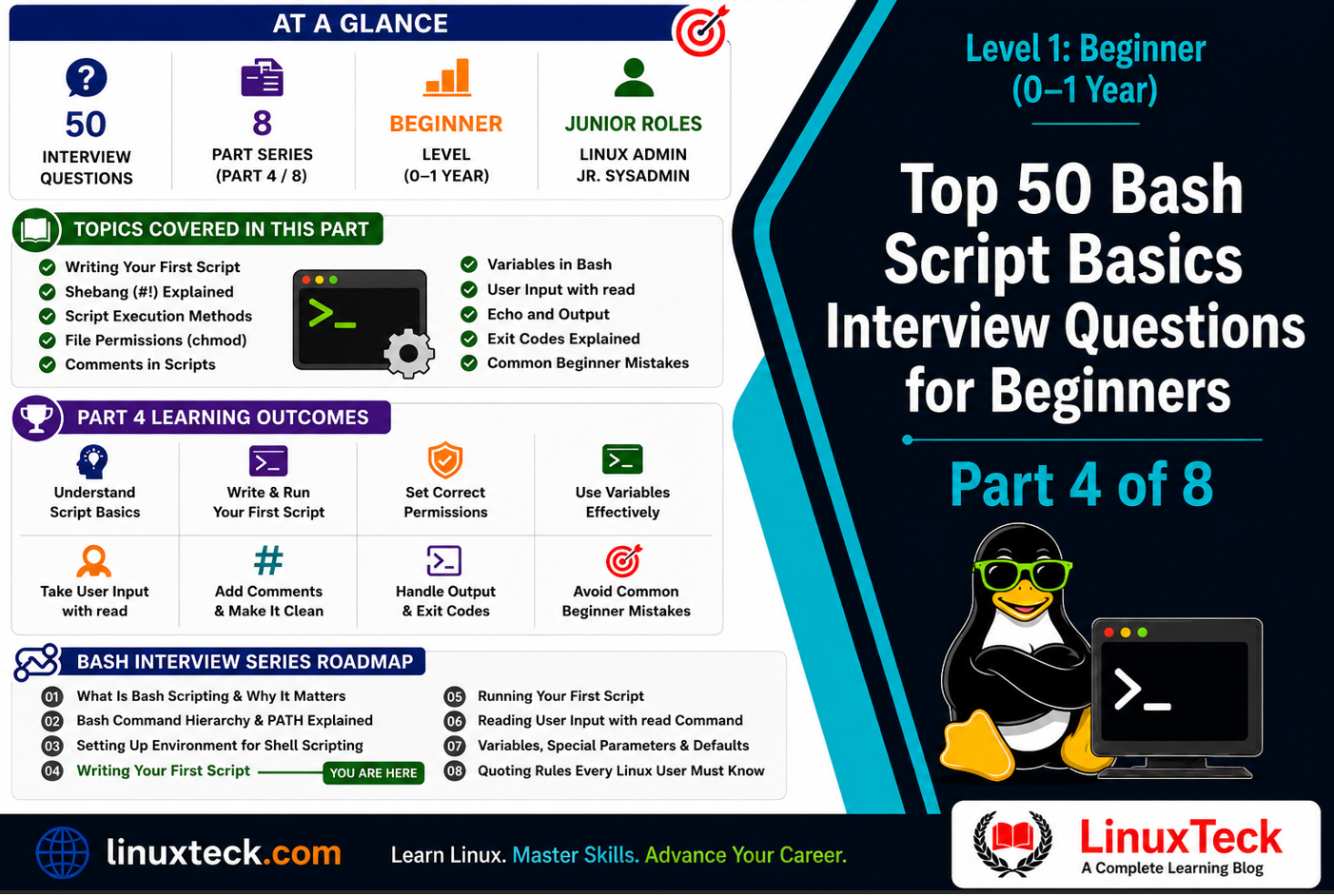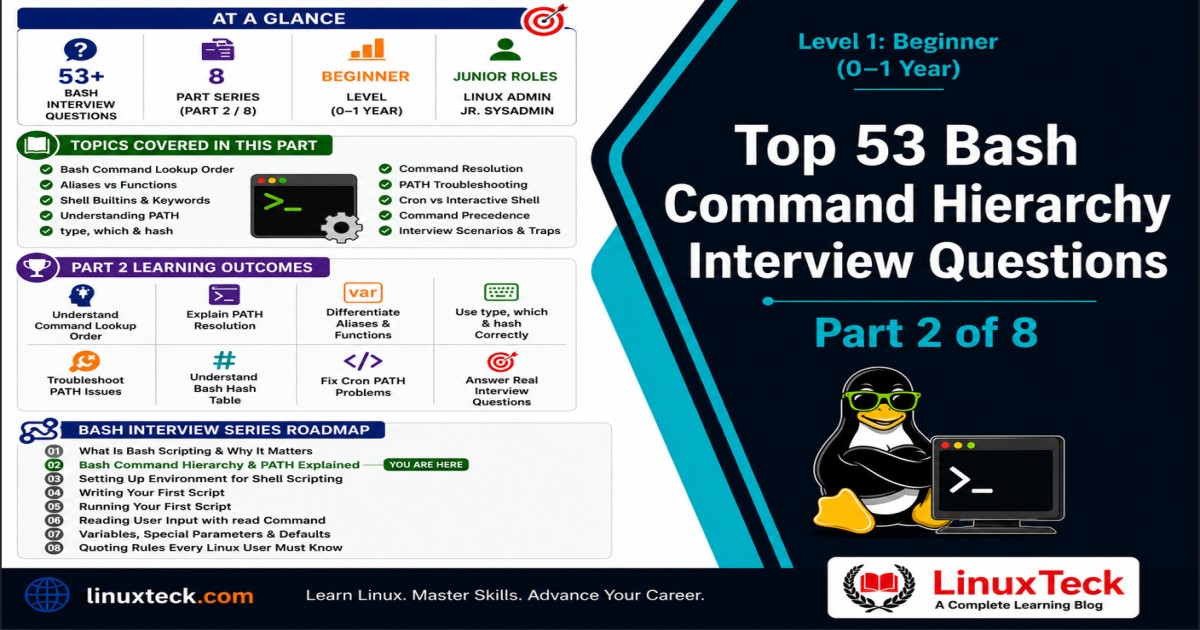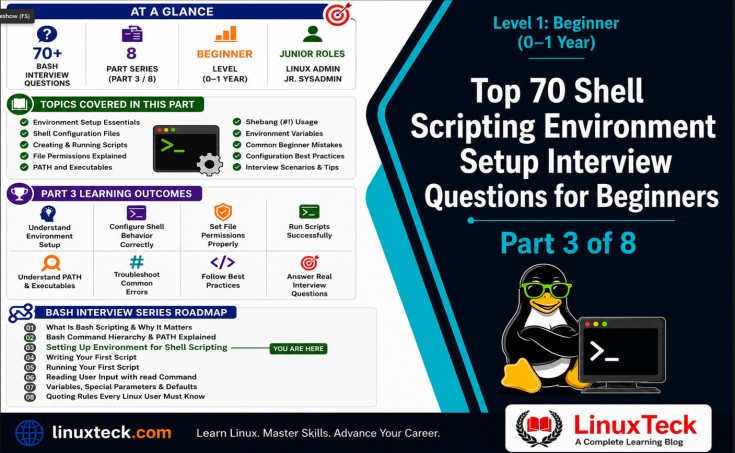
What Is Required to Set Up a Shell Scripting Environment
Shell scripting environment setup is the foundation every Linux beginner needs to master before writing production scripts. A proper shell scripting environment setup requires understanding which shell to use, how to create executable scripts with the correct shebang line, and what tools are essential for automation. This article covers everything interviewers ask about shell scripting environment setup - from the fundamental shebang line to file permissions with chmod and PATH configuration.
Consider a situation where you create a script that works perfectly when you run it with bash scriptname.sh, but fails completely when you try ./scriptname. Or you write correct commands but the system can't find tools that should be on the PATH. These are not script logic problems - they are environment setup problems. Understanding how Linux finds interpreters, manages permissions, and searches for commands is exactly what separates someone struggling with the basics from someone who can write real automation.
This guide covers the fundamentals that every junior sysadmin, DevOps engineer, and aspiring Linux professional needs to master before they even start writing real scripts. By the end, you will understand shebang lines, file permissions, the PATH variable, and the core tools needed to get productive with shell scripting.
Level 1 - Beginner (0-1 Year):
These questions target candidates with under one year of Linux experience. They appear in junior sysadmin screens, helpdesk-to-Linux-admin transitions, and entry-level DevOps hiring pipelines.
What This Article Covers:
Most beginners can type commands and follow tutorials, but cannot explain the complete shell scripting environment setup process. When asked to set up a shell scripting environment or troubleshoot why scripts fail, they freeze. That gap shows up immediately in interviews.
- Complete shell scripting environment setup: shebang line, permissions, and PATH
- Why proper shell scripting environment setup prevents "permission denied" errors
- How to configure your shell scripting environment setup for different shells
- PATH configuration in shell scripting environment setup and command resolution
- Essential tools for shell scripting environment setup and script development
If you cannot explain complete shell scripting environment setup from scratch, this article fixes that immediately.
Before diving in, it helps to know this topic connects directly to how PATH resolution works under the hood, so keep that reference open if you want the deeper technical breakdown after this section.
Shell Scripting Environment Setup Fundamentals and Core Concepts
This is where most Level 1 interviews start - understanding what a shell script actually is and why you need to set up an environment before writing one. The interviewer is testing whether you have actually created a script and run it, or if you are just reciting definitions from tutorials.
Q01. What is shell scripting?
Shell scripting is writing a series of commands in a text file that the shell reads and executes one after another. Instead of typing commands manually each time, you put them in a script file and run it. This saves time and lets you automate repetitive tasks on your Linux system.
Q02. Why do Linux professionals use shell scripts?
Shell scripts automate daily tasks like backups, system monitoring, and log processing. In production environments, a single script can replace dozens of manual steps, reduce human error, and run on schedules automatically. That's why every sysadmin and DevOps engineer needs to write scripts.
Q03. What is the difference between a shell and a shell script?
A shell is an interactive command interpreter where you type commands at a prompt and see results immediately. A shell script is a text file containing commands that the shell runs in batch mode without waiting for your input. The shell reads the file line by line and executes each command.
Q04. What is Bash?
Bash stands for Bourne Again Shell. It's the most widely used shell on Linux systems and is the default shell on most modern distributions. Bash includes scripting features, command history, and tab completion that make it powerful for both interactive use and automation.
Q05. What is /bin/bash and why does it matter?
/bin/bash is the absolute file path to the Bash executable on Linux systems. When you write a script, you specify this path in the shebang line to tell the system which interpreter to use. Without the correct path, your script won't run properly even if the commands inside are correct.
Interview Signal:
Interviewers test if you understand that scripts need an explicit interpreter. You might be asked why a script fails to execute even though you know the commands are valid.
Choosing the Right Shell for Your Shell Scripting Environment Setup
Once candidates understand what Bash is, interviewers test whether they know why Bash specifically is the standard choice for most environments. This separates people who just use Bash because it's default from people who understand the ecosystem.
Q06. What shells are available on Linux besides Bash?
Common shells include sh (the POSIX shell), zsh, ksh, and fish. Each has different features and syntax variations. For interviews and production work on most Linux systems, you'll work with Bash because it's standard and portable across distributions.
Q07. Should a beginner learn Bash or sh?
Start with Bash because it's the default on most systems and includes helpful features like command completion and history. Scripts written in Bash will run on almost every Linux system you encounter. The sh shell is more minimal and mostly useful when you need maximum portability to systems that don't have Bash.
Q08. What is the difference between /bin/sh and /bin/bash?
On most modern systems, /bin/sh is actually a symbolic link to /bin/bash or another shell. However, when sh runs, it operates in POSIX-compatible mode with fewer Bash-specific features. If you want all Bash features, you should always use /bin/bash in your shebang line.
Creating Your Shell Scripting Environment Setup Script and Shebang Line
This is where environment setup becomes concrete. Candidates need to understand the shebang line, file creation, and basic structure before anything else can work.
Q09. What is the shebang line and why is it required?
The shebang line is the first line of a script that starts with #! followed by the interpreter path, like #!/bin/bash. It tells the system which interpreter to use when executing the script. Without it, the system doesn't know whether to run the file as a Bash script, Python script, or something else.
Q10. What goes on the first line of every shell script?
The first line must be #!/bin/bash (or #!/bin/sh depending on your shell choice). This is the shebang. The # is required, and there should be no spaces between #, !, and the path.
Q11. Can you write a shell script without a shebang line?
Technically yes, but it's a bad idea. If you try to run the script directly using ./scriptname, the system will fail without a shebang. You can still execute it using bash scriptname from the command line, but this is unreliable for production scripts.
Common Mistake:
Beginners often write correct commands but then can't execute the script because they forgot the shebang. The script appears to fail when the real problem is the interpreter isn't specified.
Q12. What file extension should a shell script have?
Shell scripts typically use the .sh extension like myscript.sh, but this is just a convention. Linux doesn't require an extension for scripts to work. The executable permission and shebang line matter much more than the filename.
Shell Scripting Environment Setup: File Permissions and chmod Commands
File permissions are the practical gatekeeper between a valid script and a runnable one. This section tests whether candidates understand that code is not enough - you need the right permissions to execute anything.
Q13. What does chmod 755 mean?
chmod 755 sets file permissions where 7 means the owner can read, write, and execute, and 5 means others and the group can only read and execute. For shell scripts, 755 is standard because it makes the script executable while protecting it from accidental changes by other users.
Q14. How do you make a shell script executable?
Use the chmod command. The most common way is chmod +x scriptname which adds execute permission for everyone. Another way is chmod 755 scriptname which sets specific read, write, and execute permissions in numeric notation.
Q15. What does chmod +x do?
chmod +x adds execute permission to a file for all users - owner, group, and others. After running this command, you can run the script using ./scriptname directly from the command line instead of having to type bash scriptname.
Q16. Can you run a shell script if it's not executable?
Yes, you can still run it using bash scriptname or sh scriptname even if the execute bit isn't set. However, you cannot run it directly using ./scriptname. For production scripts and automation, you need the execute permission set.
Q17. What does ./scriptname mean when you run a script?
The ./ means execute this file from the current directory. Without the ./, the shell would look for the script in your PATH variable and fail if it's in the current directory. The ./ explicitly tells the system to look in the current working directory.
Shell Scripting Environment Setup: PATH Variables and Command Resolution
PATH is the environment variable that determines what commands are available to scripts and interactive sessions. Understanding it is critical to understanding why scripts behave differently in different contexts.
Q18. What is the PATH variable?
PATH is an environment variable that contains a list of directories where the shell looks for executable programs. When you type a command like ls or grep, the shell searches through these directories in order to find the actual executable file. If a program isn't in your PATH, you have to use the full path to run it.
Q19. How do you check your current PATH?
Type echo $PATH in the terminal. This shows all the directories separated by colons. For example, /usr/local/sbin:/usr/local/bin:/usr/sbin:/usr/bin:/sbin:/bin. The shell searches these in order from left to right.
Q20. How do you add a directory to your PATH?
Use export PATH=$PATH:/new/directory in the terminal or add this line to your ~/.bashrc file. This adds the new directory to the end of your PATH so the shell will search there. Changes in ~/.bashrc take effect when you open a new terminal or run source ~/.bashrc.
Interview Signal:
Interviewers often ask why a script you created works in one terminal but not another. Usually it's a PATH issue, and this understanding shows you know how Linux finds programs.
Q21. What are environment variables?
Environment variables are key-value pairs that store configuration information for your shell and programs. Examples include PATH, HOME, USER, and SHELL. Processes inherit environment variables from their parent shell, so scripts can access this information.
Q22. What is the difference between a variable and an environment variable?
A regular variable exists only in the current shell session and is not inherited by child processes. An environment variable is marked with export and is available to all child processes spawned by the shell. If you want a script to use a value, make it an environment variable.
Shell Scripting Environment Setup Tools and Text Editors
The right tools make scripting easier, but most scripting happens with basic, universal tools that exist on every Linux system. This section tests whether candidates know which tools are essential and which are just nice-to-have.
Q23. What text editors can you use to write shell scripts?
You can use vi, vim, nano, gedit, or any plain text editor. For beginners, nano is simpler with built-in help. For production work and experienced users, vim offers powerful editing capabilities. Never use word processors like LibreOffice because they add formatting that breaks scripts.
Q24. Why can't you use a word processor to write shell scripts?
Word processors add invisible formatting codes, line breaks, and special characters that aren't plain text. When you try to run a script created in a word processor, the shell gets confused by these hidden characters and the script fails to execute correctly.
Q25. What is nano and how do you use it?
Nano is a beginner-friendly text editor. Type nano filename to create or edit a file. You can use Ctrl+O to save, Ctrl+X to exit, and Ctrl+K to cut lines. Nano shows all commands at the bottom of the screen, making it easy to learn.
Basic Script Commands and Variable Usage
Once the environment is set up, scripts need actual commands. This section covers the fundamental commands that appear in almost every beginner script.
Q26. What does the echo command do in a script?
Echo prints text to the terminal. In scripts, you use echo to display messages, values of variables, or status updates. For example, echo "Script is starting" shows that text on the screen when the script runs.
Q27. How do you print the value of a variable in a script?
Use echo $variablename. For example, if you set NAME="Linux", then echo $NAME will print Linux. The dollar sign $ tells the shell to substitute the variable's value.
Q28. What is the difference between single and double quotes in echo?
Double quotes allow variable expansion - echo "$NAME" will print the value of NAME. Single quotes treat everything literally - echo '$NAME' will print the text $NAME without expanding the variable. Choose based on whether you want the shell to interpret variables.
Q29. How do you create a variable in a script?
Use the syntax VARIABLE_NAME=value with no spaces around the equals sign. For example, USERNAME="john" creates a variable named USERNAME with the value john. Variable names are case-sensitive.
Q30. What is the difference between $VARIABLE and ${VARIABLE}?
Both access the variable's value. The curly braces ${VARIABLE} are useful when the variable is followed by text that could be interpreted as part of the name. For example, echo ${NAME}_file works correctly, while echo $NAME_file tries to access a variable called NAME_file.
User Input and Interactive Scripts
Interactive scripts are more useful than ones that only run the same way every time. This section covers how to make scripts that respond to user input.
Q31. What is the read command?
The read command pauses a script and waits for the user to type input from the keyboard. Whatever the user types gets stored in a variable that you specify. For example, read USERNAME waits for input and stores it in the USERNAME variable.
Q32. How do you read user input into a variable?
Type read VARIABLE in your script. The script will pause and wait for the user to type something and press Enter. That input is now stored in VARIABLE and you can use it in the rest of your script.
Q33. How do you prompt the user before reading input?
Use echo to print a message, then read on the next line. For example: echo "Enter your name:" followed by read NAME. Or use read -p "Enter your name: " NAME which includes the prompt in the read command itself.
Q34. Can read get multiple values at once?
Yes, you can do read FIRST LAST to capture two values in one command. The user types both values separated by a space, and they get stored in FIRST and LAST. If the user provides more values than variables, the extra values go into the last variable.
Interview Signal:
Interviewers test if you can write interactive scripts. This shows you understand how to build tools that users can actually use, not just automated processes.
Running, Testing, and Debugging Scripts
A correct script is only useful if you can run it properly. This section covers the different ways to execute scripts and how to find what went wrong.
Q35. What are the different ways to run a shell script?
Three main ways: (1) ./scriptname if the file has execute permission, (2) bash scriptname to run it with Bash explicitly, (3) source scriptname to run it in the current shell without spawning a new process. For most cases, ./scriptname is best because it uses the shebang to pick the right interpreter.
Q36. What does bash scriptname do differently from ./scriptname?
bash scriptname explicitly runs the script with Bash, ignoring the shebang line. This is useful for testing or if the script doesn't have the shebang. The ./scriptname method respects the shebang and is more portable because it works with any shell type.
Q37. What does the source command do?
The source command (or . for short) runs a script in the current shell instead of spawning a new one. Variables and changes made by the script affect your current session. This is useful for loading configuration files or functions, but not for most executable scripts.
Q38. What is bash -x and why would you use it?
bash -x runs your script in debug mode. The shell prints each command before executing it, prefixed with a plus sign. This helps you see exactly what the script is doing and find where errors occur. Use it when your script isn't working as expected.
Script Structure, Comments, and Best Practices
Professional scripts follow a consistent structure that makes them maintainable and debuggable. This section covers what makes a script actually usable in production environments.
Q39. What is a comment in a shell script?
A comment is text that the shell ignores when running the script. It starts with # and goes to the end of the line. Use comments to explain what your code does, making it easier for you and others to understand later.
Q40. What should a comment include in a professional script?
At the top of the script, include your name or team, the date, what the script does, and any requirements. For complex sections, add line comments explaining the logic. In production, this documentation helps other engineers maintain your code or quickly understand what went wrong.
Q41. Can you comment out multiple lines in a script?
Yes, add # to the beginning of each line you want to disable. This is useful for testing or debugging. Some editors let you select multiple lines and comment them all at once, which is faster than editing each line individually.
Q42. What is the basic structure of a shell script?
Start with #!/bin/bash, then add comments explaining the script, then declare variables, then write the main logic with functions if needed, and finally cleanup or exit statements. This structure keeps scripts organized and maintainable even as they grow.
Conditional Logic in Scripts
Conditionals let scripts make decisions. This section tests whether candidates understand how to build scripts that respond to different situations.
Q43. What is an if statement?
An if statement checks whether a condition is true or false. If true, the script executes one block of commands. If false, it skips to the next part. This lets your script make decisions instead of running the same commands every time.
Q44. What is the basic syntax of an if statement in Bash?
The structure is: if [ condition ]; then commands fi. The [ and ] are test operators. The semicolon separates the condition from "then". The "fi" closes the statement.
Q45. How do you test if a file exists?
Use the -f option: if [ -f filename ]; then ... fi. The -f tests if a regular file exists. Use -d to test for directories. These tests are essential when your script needs to work with files.
Q46. What is the difference between = and ==?
In Bash, both = and == compare strings and work the same way in [ ] tests. Use [ "$VAR" = "value" ] to check if two strings match. The = operator is more portable across different shells.
Loops and Repetition
Loops are how scripts process lists of items or repeat actions. This section covers the fundamental loop types that appear in almost every real script.
Q47. What is a loop?
A loop repeats a block of commands multiple times. Instead of writing the same commands over and over, you write them once inside a loop that executes them as many times as needed. Loops are essential for processing lists of items or repeating tasks.
Q48. What are the main loop types in Bash?
Bash has for loops, while loops, and until loops. A for loop runs a set number of times. A while loop continues while a condition is true. An until loop continues until a condition becomes true. Choose based on whether you know in advance how many repetitions you need.
Q49. What is the basic syntax for a for loop?
The structure is: for variable in list; do commands using $variable done. The variable takes each value from the list, one iteration at a time. The done keyword closes the loop.
Q50. How do you loop through files in a directory?
Use for file in *.txt; do ... done to loop through all .txt files. The * is a wildcard that matches filenames. Inside the loop, $file holds the current filename. This is common when processing multiple files with the same script logic.
Interview Signal:
This shows you can write automation scripts that handle multiple items, a core skill for any sysadmin or DevOps role.
Q51. What is a while loop?
A while loop runs as long as a condition is true. When the condition becomes false, the loop stops. Use while loops when you don't know in advance how many iterations you need, like reading lines from a file until there are no more lines.
Working with Command Output and Redirection
Scripts rarely exist in isolation - they work with other commands' output and need to capture or redirect results. This section covers the essential techniques.
Q52. What is command substitution?
Command substitution runs a command and uses its output as input to another command or assigns it to a variable. Use the syntax $(command) or backticks `command`. For example, TODAY=$(date +%Y-%m-%d) captures today's date in a variable.
Q53. How do you capture command output in a variable?
Use VARIABLE=$(command) or VARIABLE=`command`. The modern syntax $(command) is preferred because it's clearer and nests better. For example, FILES=$(ls *.txt) puts the list of text files in FILES.
Q54. What is output redirection?
Output redirection sends a command's output to a file instead of the terminal. Use > to overwrite a file: echo "text" > file.txt. Use >> to append: echo "more" >> file.txt. This lets your script save results or logs for later review.
Q55. What is the difference between > and >>?
The > operator overwrites the file with new content, erasing what was there before. The >> operator appends new content to the end of the file. Use >> when building log files or appending results over time.
Error Handling and Exit Codes
Professional scripts check for errors and handle them gracefully. This section covers the techniques that separate working scripts from production-ready ones.
Q56. What is an exit code?
An exit code is a number returned by a command that indicates success or failure. Exit code 0 means success. Any non-zero value means failure. In scripts, you check exit codes using $? to know if a command worked before proceeding.
Q57. How do you check the exit code of the last command?
Type echo $? to see the exit code of the previous command. In a script, test the exit code immediately after the command you're checking because $? changes with every new command.
Q58. How do you set an exit code for your script?
Use the exit command with a number: exit 0 for success, exit 1 for failure. You can use different numbers for different errors. At the end of your script, exit 0 signals that everything completed successfully.
Q59. What does && and || do in a script?
The && operator means "run the next command only if the previous one succeeded". The || operator means "run the next command only if the previous one failed". For example: grep "error" log.txt && echo "Errors found" || echo "No errors".
Interview Signal:
Understanding these operators shows you can write robust scripts that handle errors gracefully and don't proceed with invalid data.
Q60. Why is error handling important in production scripts?
Production scripts run without human supervision. If a command fails and you don't check for it, the script continues with bad data and causes bigger problems. Error handling catches these issues early and either fixes them or stops the script before damage occurs.
Common Beginner Mistakes and How to Avoid Them
Even experienced developers make these mistakes on their first few shell scripts. Knowing them in advance saves hours of debugging.
Q61. What happens if you forget spaces around the equals sign when setting a variable?
The shell treats it as a command instead of a variable assignment. For example, NAME=John works fine, but NAME = John fails because the shell tries to execute NAME as a program with = and John as arguments.
Common Mistake:
This is one of the most frequent errors beginners make. The shell is very particular about syntax, and skipped spaces are almost invisible but break everything.
Q62. What is the issue with writing code and then forgetting chmod +x?
Without execute permission, you cannot run the script directly with ./scriptname. You'll get a permission denied error even though the script logic is correct. Always remember to chmod +x after creating a script.
Q63. Why do quotes matter when using variables?
Without quotes, variables with spaces break into multiple arguments. For example, echo $VAR with VAR="hello world" prints two separate values, not one. Using echo "$VAR" keeps it as a single value. In scripts, proper quoting prevents unexpected word splitting and globbing.
Q64. What does it mean when you see "command not found" for a script in the current directory?
You forgot to use ./ before the filename. Without ./, the shell looks in PATH and doesn't check the current directory. Always use ./scriptname to run scripts in your current directory, or add the current directory to PATH with caution.
Practical Setup Examples and Real-World Scripts
Theory only gets you so far. This section covers minimal working examples that you can build on to create real automation.
Q65. What is a minimal shell script that works?
The simplest working script contains: #!/bin/bash and at least one command. For example: echo "Hello, World!". That's it. Save this, run chmod +x on it, and then ./scriptname to execute.
Q66. How do you structure a script for backup automation?
Start with shebang and comments describing what it backs up. Define variables for source and destination directories. Check if the source exists, create a timestamp in the backup filename, copy files, and check the exit code. This structure ensures your backups are reliable and traceable.
Q67. What tools should you have installed to write scripts effectively?
You need a text editor (nano, vim, or gedit), and the basic Unix utilities that come with Linux. Most systems have everything pre-installed. The only real requirement beyond that is understanding how to use the tools you have.
Q68. How do you ensure your script works before putting it in production?
Test it in a development environment with test data first. Use bash -x to debug any issues. Have someone else read through the logic if possible. Run it several times with different inputs to make sure it handles edge cases gracefully.
Q69. What does a production-ready shell script need besides correct commands?
Proper error handling with exit codes, helpful comments explaining the logic, logging to track what the script did, cleanup of temporary files, and documentation for other engineers who might maintain it later.
Q70. How do you keep shell scripts maintainable as they grow?
Use functions to break repetitive code into reusable blocks, use meaningful variable names, add comments before each section, keep the logic flow clear and linear, and avoid nesting conditionals too deeply. Scripts that are easy to read are easy to debug and modify later.
How Interviewers Actually Score These Answers
At Level 1, interviewers are not looking for perfection or memorized definitions. What separates a 7 out of 10 answer from a 9 out of 10 answer is usually how you arrive at the answer and whether you can explain the "why" behind it. A candidate who says "you need execute permission so the shell can run the file, and chmod +x adds that" often scores better than one who just says "chmod +x makes it executable" without any reasoning.
Confidence matters less than clarity of thinking. If you get a question wrong but correct yourself once you think it through, that is scored as a positive signal. Interviewers are watching for whether you can reason in real time, because that is exactly what debugging a broken script on a live system actually requires. Silence is worse than an imperfect answer - saying "let me think through this" buys you real credit, even when the path takes a few wrong turns first.
The other thing that quietly separates strong candidates is connecting concepts back to real failure scenarios without being asked. If someone asks what the shebang line does and you mention unprompted that scripts fail silently without it, that single sentence often scores better than a textbook definition. It signals you have hit this problem before or understand why it matters enough to bring it up yourself.
Frequently Asked Questions
How detailed should my answers be when explaining shell scripting environment setup?
Keep initial answers short and direct, two or three sentences. Save the deeper explanations and edge cases for follow up questions. If the interviewer wants more detail, they will ask for it.
Do I need to memorize the exact PATH structure or is understanding the concept enough?
Understanding the concept matters much more than exact memorization. Know that PATH is colon-separated directories and that order matters. If you forget the exact syntax, saying "I would check with echo $PATH" is a completely acceptable answer.
What if I forget the correct shebang syntax during an interview?
Say it starts with #! and the interpreter path, and that you would look up the exact path if needed. Saying "it's something like #!/bin/bash to tell the system to use Bash" is good enough and shows you understand the concept.
Will they actually ask me to write basic shell scripts from scratch in an interview?
Yes, fairly often at Level 1. Expect short tasks like creating a script that uses variables and loops, or one that checks if files exist. Make sure you can write these without looking them up.
Is it bad if I have never personally had to troubleshoot a PATH issue before?
Not at all. Many candidates haven't hit this in their early career. Just be able to explain why PATH problems happen once they're described to you. Understanding the mechanism matters more than having lived through every scenario.
Should I bring up edge cases or advanced topics if the interviewer does not ask about them?
Only if it fits naturally into the conversation. Forcing in advanced topics usually reads as trying too hard rather than genuine expertise. Answer what's asked, and let the interviewer steer into deeper topics if they want.
You Are Ready - Here Is What Comes Next
You now understand the complete environment setup required for shell scripting and can explain why each piece matters. This foundation covers the majority of what gets asked about shell scripting environment setup at Level 1. From here, move into deeper scripting concepts like loops and conditionals, and check the official GNU Bash manual whenever you need a reference.
Related Articles
- What is Bash & Why It Matters in Linux Interview Questions (Part 1 of 8)
- Bash Command Hierarchy and PATH Interview Questions (Part 2 of 8)
Real interview questions for every experience level - from Beginner to Advanced Linux Engineer.