Linux DNS troubleshooting usually starts the same way: "the site is down," and nobody wants to touch it. Nothing kills a Monday morning faster than realizing the outage is a DNS problem hiding in plain sight. Half the team assumes it's the app, the other half blames the network, and DNS quietly sits in the middle being the actual cause the whole time.
This guide is for anyone running Ubuntu, Rocky Linux, or RHEL who needs a clear way to isolate a DNS failure instead of guessing. By the end you will have a working method to confirm whether it's your resolver, your config file, your firewall, a container, a VPN, or the upstream DNS server, and you will know exactly which command to run at each stage.
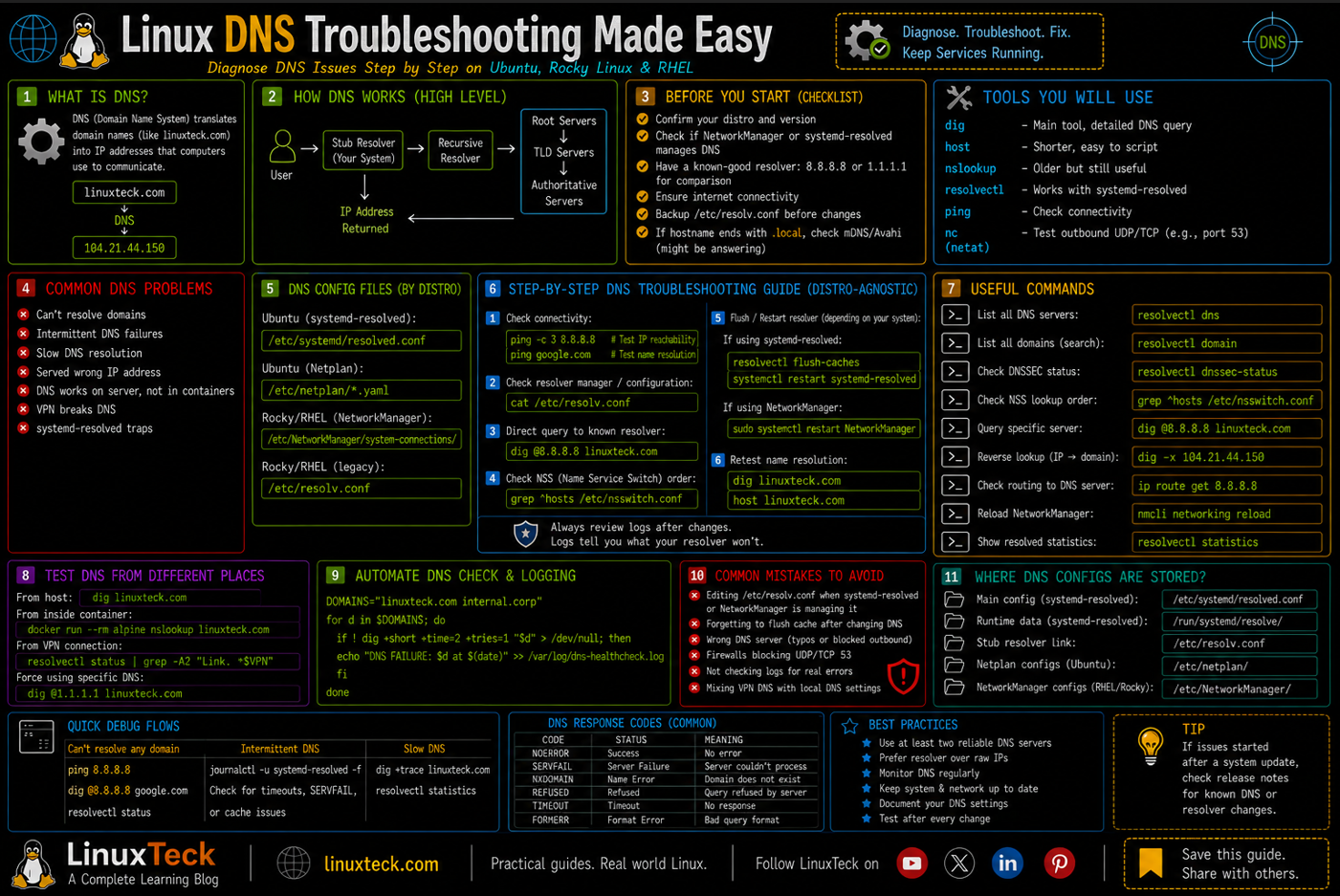
You will lean on a handful of tools throughout this guide. dig is the main one, it queries DNS servers directly and gives detailed output. host does the same job with a shorter, easier to script output. nslookup is older but still around, mostly useful if you already know it from Windows. resolvectl is specific to systemd-resolved and shows you which server actually answered a query, which plain dig cannot tell you. You do not need to memorize all four, just know they exist and which one fits which question.
Prerequisites :
Operating System        :   Ubuntu 22.04/24.04, Rocky Linux 8/9, RHEL 8/9
Packages and Dependencies:  bind-utils (dig, host) on RHEL/Rocky, bind9-dnsutils on Ubuntu (the older dnsutils name still works as a transitional alias, but it just pulls in bind9-dnsutils), iputils-ping
User Account            :   root user or a user account with sudo privileges
Recommended to run all administrative commands with sudo instead of logging in as root directly.
If you are not comfortable switching between root and a sudo user yet, walk through how to configure sudo in Linux first, it will save you from a few permission errors below.
If any of this DNS trouble started right after you spun up a fresh VPS, it is worth knowing that resolver defaults vary quite a bit between providers, something we cover briefly when comparing DigitalOcean and Vultr hosting setups.
My Lab Setup :
DNS Test Server:

Operating System    :   Rocky Linux release 9.4
Hostname            :   dns-test01.local
IP Address          :   192.168.1.50
Linux DNS Troubleshooting: Diagnostic Steps
Step 1: Confirm It Is Actually a DNS Problem
Note:
Before touching any config file, rule out a plain network outage. If ping by IP works but ping by name fails, the network is fine and DNS is your actual problem. Skipping this step is how people spend an hour editing resolver configs when the real issue was a dead interface.
Start with a hostname you know should resolve, then fall back to its IP if that fails.
LinuxTeck.com
If that fails, try the same test against a raw IP address to confirm the network layer itself is fine.
LinuxTeck.com
64 bytes from 8.8.8.8: icmp_seq=2 ttl=115 time=11.9 ms
64 bytes from 8.8.8.8: icmp_seq=3 ttl=115 time=12.1 ms
Do not stop at IPv4 if your network is dual stack. A record can resolve fine while the AAAA record is missing or broken, and some applications will try IPv6 first and time out before ever falling back.
LinuxTeck.com
getent ahosts linuxteck.com
104.21.44.150 STREAM linuxteck.com
104.21.44.150 DGRAM
104.21.44.150 RAW
Step 2: Check What Is Actually Managing Your Resolver
Note:
Modern distros rarely let you edit /etc/resolv.conf directly and have it stick. On systems running systemd-resolved, that file is usually a symlink pointing at a stub resolver, and hand-editing it gets overwritten on the next reboot or DHCP renewal. Knowing which one you have saves you from fighting the wrong tool.
Worth knowing up front: on Rocky Linux and RHEL 8/9, NetworkManager manages /etc/resolv.conf by default rather than systemd-resolved. Ubuntu, on the other hand, ships systemd-resolved as the default resolver manager. Same troubleshooting logic applies either way, but the file you actually need to edit differs.
Check the file first, then confirm whether systemd-resolved is the one steering it.
LinuxTeck.com
ls -la /etc/resolv.conf
resolvectl status
options edns0 trust-ad
lrwxrwxrwx. 1 root root 37 Aug 9 09:12 /etc/resolv.conf -> /run/systemd/resolve/stub-resolv.conf
Global
Protocols: -LLMNR -mDNS -DNSOverTLS DNSSEC=no/unsupported
Link 2 (eth0)
Current Scopes: DNS
DefaultRoute setting: yes
Current DNS Server: 192.168.1.1
DNS Servers: 192.168.1.1
Warning:
If /etc/resolv.conf is a plain file with no symlink and you are on a distro that ships systemd-resolved, someone probably edited it by hand at some point. That works until the next reboot, then it silently reverts and the DNS problem "comes back" with no explanation. Fix the actual source of truth instead of the symlink target.
Note:
If the name you cannot resolve ends in .local, this step will not help you, that suffix is usually claimed by mDNS/Avahi rather than DNS at all. Check with avahi-resolve -n hostname.local before assuming your resolver config is broken, since a .local failure is a completely different problem with a completely different fix.
Step 3: Query DNS Directly and Skip the Local Resolver
Note:
This is the step that tells you whether the problem is local or upstream, and it's the core move in most Linux DNS troubleshooting sessions. If you query a public DNS server directly and it answers correctly, your local resolver setup is the broken piece, not the internet or the domain itself.
Point dig straight at a known-good server and bypass whatever your system is configured to use.
LinuxTeck.com
dig linuxteck.com +short
;; connection timed out; no servers could be reached
That kind of split output is a very clear signal. The domain resolves fine against Google's resolver, your own resolver never answers. Now check the port itself before assuming it's a config typo.
LinuxTeck.com
nc -zuv 8.8.8.8 53
services: dhcpv6-client dns ssh
ports: no additional ports open
Connection to 8.8.8.8 53 port [udp/domain] succeeded!
Look at the services line specifically. If dns is not listed there and port 53 is not open under ports either, outbound DNS queries can get silently dropped, and the nc test above confirms whether that is actually happening. Firewall rules block a surprising number of "random" DNS outages. If you have not gone through this before, the firewall-cmd command basics guide covers the commands you will need for that check in more detail.
Other DNS Tools Worth Knowing
dig is not the only option, and sometimes it is not even the fastest one for the question you are actually asking.
LinuxTeck.com
nslookup linuxteck.com
resolvectl query linuxteck.com
dig +trace linuxteck.com
linuxteck.com: 104.21.44.150 (via systemd-resolved, server 192.168.1.1)
linuxteck.com. IN A
. 518389 IN NS a.root-servers.net.
com. 172800 IN NS a.gtld-servers.net.
linuxteck.com. 300 IN A 104.21.44.150
host gives you a one-line answer that is easy to script against. resolvectl query is the only one of the four that tells you which specific server actually answered, useful when you have several DNS servers configured and need to know which one is misbehaving. dig +trace walks the whole path from the root servers down, which is the move when a public resolver answers fine but you still suspect something is wrong further up the chain.
Step 4: Check the NSS Order in nsswitch.conf
Note:
This one gets missed constantly, and it trips up more Linux DNS troubleshooting sessions than almost anything else on this list. Even with a perfectly working resolver, if /etc/nsswitch.conf does not list dns (or resolve on systemd-resolved systems) in the hosts line, the system will never actually query DNS for name lookups. Tools like dig will still work because they talk to DNS directly, but regular applications using standard name resolution will fail.
LinuxTeck.com
Do not blindly overwrite that line. Open the file and check it by hand, since a working line usually has other modules on it too, like myhostname or mdns4_minimal, and stomping over them with a rewrite can break local hostname lookups and mDNS. Just confirm that resolve (on systemd-resolved systems) or dns (on plain glibc nss-dns setups) is present alongside files, and add whichever one is genuinely missing without removing anything else.
LinuxTeck.com
# Confirm the hosts line includes resolve or dns alongside files, e.g:
# hosts: files mdns4_minimal [NOTFOUND=return] resolve [!UNAVAIL=return] dns myhostname
# Add only the missing module, keep every other module already listed
getent hosts linuxteck.com
Step 5: Rule Out DNSSEC and Cache Corruption
Note:
DNSSEC validation failures produce a confusing symptom, the domain resolves fine everywhere else but SERVFAIL locally. A stale or corrupted resolver cache can cause something similar. Both are worth ruling out before you go any further down the config rabbit hole.
Ubuntu's systemd-resolved does not validate DNSSEC locally by default, that is the DNSSEC=no/unsupported line you saw back in Step 2, so this step matters far less on a stock Ubuntu box. It matters a lot more on Rocky Linux and RHEL setups pointed at a validating upstream resolver, or any environment running BIND, which does validate by default.
LinuxTeck.com
resolvectl flush-caches
systemctl restart systemd-resolved
linuxteck.com. 300 IN A 104.21.44.150
;; flags: qr rd ra cd; QUERY: 1, ANSWER: 1, AUTHORITY: 0, ADDITIONAL: 1
If +cd resolves the query but a normal dig does not, DNSSEC validation is rejecting a signature it should not be. That is a narrow enough problem that you can now stop guessing and go straight to the resolver's DNSSEC setting.
Warning:
Disabling DNSSEC validation to make a symptom go away removes protection against a spoofed or tampered response for that resolver. Treat +cd as a diagnostic step, not a permanent fix, and go find out why the real validation is failing instead of leaving it off in production.
Step 6: Check DNS Inside Docker Containers
Note:
This is the trap that catches people who just spent five steps confirming the host resolves fine, then a container on the same box still can't reach anything. Containers do not automatically use the host's systemd-resolved stub. On the default bridge network Docker copies the host's resolv.conf at container creation, but on a custom network Docker's own embedded DNS at 127.0.0.11 takes over instead, and 127.0.0.53 means nothing inside a container's network namespace since that address only exists on the host.
Start by checking whether the container can resolve anything at all, then look at what resolv.conf actually looks like from inside it.
LinuxTeck.com
docker run --rm alpine cat /etc/resolv.conf
nameserver 127.0.0.11
options ndots:0
A nameserver of 127.0.0.11 means the container is talking to Docker's embedded DNS, and that in turn forwards to whatever resolver the host itself uses, so if the host's own DNS is broken this will fail too. If you need to hand a container a specific working resolver instead of relying on the default, set it explicitly.
LinuxTeck.com
Address: 104.21.44.150
To make that permanent for every container instead of passing flags each time, set it in the daemon config. A quick Docker management command cheat sheet is handy to keep nearby once you start digging into daemon-level settings like this.
LinuxTeck.com
# Edit /etc/docker/daemon.json and add: { "dns": ["8.8.8.8", "1.1.1.1"] }
sudo systemctl restart docker
Step 7: Fix DNS Behind a VPN Split Tunnel
Note:
DNS working fine until the VPN connects, then internal names failing, or the reverse, is one of the most common versions of this problem. A split-tunnel VPN routes some traffic through the tunnel and some over the regular network, and DNS queries need to go to the right resolver for the right domain, otherwise internal hostnames leak out to your regular ISP resolver or external lookups get stuck waiting on a tunnel resolver that only knows internal names.
Check which resolver is actually being used once the VPN is up, per interface.
LinuxTeck.com
resolvectl domain
Current Scopes: DNS
Current DNS Server: 10.8.0.1
DNS Domain: ~corp.internal
Link 2 (eth0)
Current Scopes: DNS
Current DNS Server: 192.168.1.1
DNS Domain: ~.
The tilde in front of a domain marks it as a routing domain, meaning that resolver is only used for names matching that suffix, everything else still goes over the regular interface. If corp.internal names are failing, confirm tun0 actually shows that domain, and if external sites are slow or failing over VPN, confirm eth0 still has the wildcard ~. domain so general lookups are not being forced through the tunnel resolver unnecessarily.
Make Linux DNS Troubleshooting a Non-Event Next Time
Once things are working, a small health check script beats waiting for someone to report the site is down. Drop this in cron to catch a DNS failure before it becomes an incident.
LinuxTeck.com
DOMAINS="linuxteck.com internal-app.corp.internal"
for d in $DOMAINS; do
if ! dig +short +time=2 +tries=1 "$d" > /dev/null; then
echo "DNS FAILURE: $d did not resolve at $(date)" >> /var/log/dns-healthcheck.log
fi
done
Wire that into cron every five minutes and pipe the log into whatever alerting you already have, and you find out about a DNS outage the same way you find out about any other monitored failure, not from a support ticket.
Conclusion
Working through these layers in order, host and network, resolver ownership, direct queries, NSS order, DNSSEC, containers, and VPN routing, takes the guesswork out of a DNS outage. Once your resolver is stable, review your broader server hardening checklist and keep an eye on service failures with a systemd troubleshooting guide so DNS issues do not blindside you again. For the full command reference, the official dig man page is worth bookmarking. Drop me your feedback/comments. Feel free to share this article with others if you like it.
Questions I Get Asked About This All the Time
Why does dig work but my browser still says it can't resolve the site?
dig talks to DNS servers directly and skips your system's normal resolution path. Your browser goes through NSS and whatever local resolver is configured, so if that path is broken (nsswitch.conf, a bad resolv.conf symlink) dig can succeed while everything else fails. Check Step 4 first.
I edited /etc/resolv.conf and it reverted after reboot, what happened?
You're almost certainly on systemd-resolved or NetworkManager, both of which regenerate that file. Edit the actual source instead, either resolved.conf or your NetworkManager connection profile, not the symlink target.
Can a firewall really block DNS even though the internet works fine for everything else?
Yes, and it's more common than people expect. UDP port 53 outbound can get blocked while TCP traffic for web browsing sails right through. Test it directly with nc -zuv against port 53 instead of assuming, the -u flag matters since DNS runs over UDP, not TCP.
Some domains resolve and others don't on the same server, is that still DNS?
Usually yes. If internal domains fail but external ones work, look at split-horizon DNS or a missing internal zone on your resolver. If it's the reverse, an internal record or forwarder is probably misconfigured.
Do I need to restart the whole server after fixing a DNS config?
No, restarting the resolver service (systemctl restart systemd-resolved) or flushing its cache is almost always enough. A full reboot is rarely necessary for a DNS fix.
How do I know if it's DNSSEC and not just a broken record?
Run dig +cd against the domain. If that succeeds where a normal dig fails with SERVFAIL, DNSSEC validation is the culprit, not the record itself. That's the fastest way to tell the two apart.
Why can my host resolve everything fine but my Docker containers can't?
Containers don't automatically share the host's systemd-resolved setup. On a custom Docker network they use Docker's own embedded DNS at 127.0.0.11, and 127.0.0.53 means nothing inside a container namespace. Check Step 6 and set an explicit --dns flag or daemon.json entry if the default isn't working.
My VPN is connected but internal hostnames still won't resolve, why?
Check resolvectl domain for the VPN interface. If the internal domain suffix isn't listed as a routing domain on the tunnel interface, queries for those names never get routed to the tunnel's resolver in the first place. That's a split-tunnel DNS routing issue, not a broken resolver.
From your first terminal command to advanced sysadmin skills every guide here is written in plain English with real examples you can run right now.
Support My Work
Thank you for reading and for being part of this journey. If this article saved you time, consider buying me a coffee. Every contribution helps me keep producing in-depth, practical Linux content for readers like you.

Thank you for your endless support