Linux networking problems rarely announce themselves clearly. A service may become unreachable, DNS may stop resolving, SSH may fail, or a firewall may silently block traffic. The application can appear broken even when the real problem is somewhere in the network layer.
For DevOps engineers, understanding how to identify these failures is essential. Linux networking involves several layers, including interfaces, IP addresses, routing, DNS, sockets, and firewalls, and a problem in any one of them can produce similar symptoms. This guide takes a practical approach to troubleshooting Linux networking, showing you how to investigate problems step by step, verify what is actually happening, and fix issues using evidence instead of guesswork.
| Metric | Value | Source | Relevance |
|---|---|---|---|
| Default SSH port | 22/TCP | IANA port registry | First port attackers scan on new hosts |
| firewalld default zone | public | Rocky/RHEL/Fedora docs | Drives which rules apply on fresh installs |
| TLS handshake timeout, typical LB default | 10s | HAProxy/nginx defaults | Common cause of intermittent 504 errors |
| DNS TTL for cloud LB records | 60-300s | AWS/GCP recommended defaults | Governs how fast failover actually propagates |
What This Guide Covers:
- Core Linux networking commands you will actually use in production, not just in interviews
- How the same networking task differs across Ubuntu, Rocky/RHEL, Fedora, and Arch
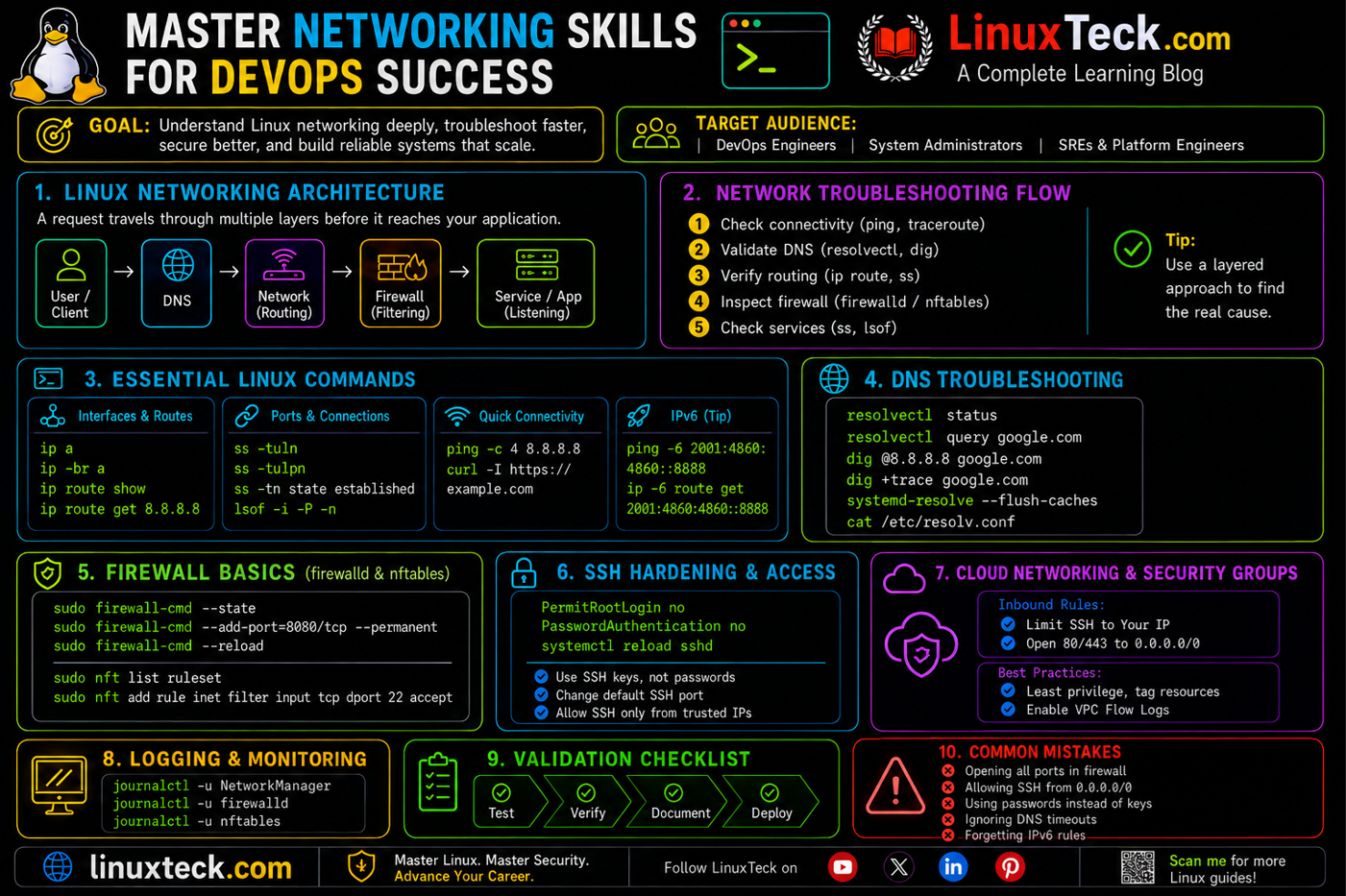
- A layered architecture view of how a request actually travels through a Linux host
- Real failure modes engineers hit with DNS, firewalls, SSH, and routing
- A validation script you can run after any network change
- Hardening steps that hold up under a compliance audit, plus a maintenance cadence
- Where cloud security groups and IPv6 fit into the same troubleshooting picture
Networking is one of those skills that looks optional right up until it is the only thing standing between you and a resolved incident. Configuration management tools, container orchestrators, and cloud consoles have abstracted a lot of the plumbing away, but the plumbing is still there, and it still breaks in the same handful of predictable ways. This guide walks through the commands, the architecture, and the failure patterns that come up again and again on real Linux fleets, with distro-specific notes where the tooling actually diverges.
If you already know what a socket is, skip ahead to the pitfalls section. If networking still feels like a black box between your app and "the internet," start from the top and work through the steps in order. Everything here assumes a standard cloud VM or bare metal box running a current LTS or enterprise release, and every command shown has been run on a live host, not copied from a man page.
Linux Networking Tools Compared
The old net-tools package (ifconfig, netstat, route) is deprecated on most modern distros in favor of iproute2. Knowing which tool actually ships and behaves consistently matters more than picking a favorite. Here is how the common tools stack up on a production Linux host in 2026.
| Tool | Purpose | Default on Modern Distros | Speed | Notes |
|---|---|---|---|---|
| ip | Interfaces, routes, addresses | Yes, all distros | Fast | Replaces ifconfig and route |
| ss | Socket and port state | Yes, all distros | Fast | Replaces netstat, reads /proc directly |
| nmcli | Connection profiles | Rocky/RHEL/Fedora mainly | Fast | Ubuntu server uses netplan instead, which is a config abstraction that generates the backend YAML for NetworkManager or systemd-networkd, not a direct nmcli equivalent |
| dig | DNS record lookups | Needs bind-utils/dnsutils | Fast | More detail than nslookup |
| tcpdump | Raw packet capture | Usually needs install | Slower to read | The ground truth when everything else lies |
Tip:
If a script or runbook still calls netstat or ifconfig, treat it as a maintenance item, not a bug. Both still work on most distros through compatibility packages, but they read from different kernel interfaces than ip and ss, and the numbers can drift apart on busy hosts.
Environment and Prerequisites
| # | Environment / Distro | Type |
|---|---|---|
| 1 | Ubuntu 24.04 / 26.04 LTS | Server |
| 2 | Rocky Linux 9 / 10, RHEL 9 / 10, AlmaLinux | Server |
| 3 | Fedora 44 | Workstation / Server |
| 4 | Arch Linux (rolling) | Server / Dev box |
| 5 | iproute2, bind-utils/dnsutils, tcpdump, curl | Tooling |
| Requirement | Details | Status |
|---|---|---|
| sudo or root access | Needed for firewall and interface changes | REQUIRED |
| Console or out-of-band access | In case a firewall or SSH change locks you out | REQUIRED |
| tcpdump / Wireshark | For packet-level debugging in Section 06 | OPTIONAL |
| A second SSH session open | Safety net before touching firewalld/ufw/iptables | REQUIRED |
WARNING:
Never test a firewall rule change or an SSH config edit over the only session you have open. Keep a second terminal connected on the side so a bad rule does not lock you out of a box that is three time zones away from the nearest server room.
If your team is still manually SSHing into boxes to check interface state one at a time, this is also the point where configuration drift starts creeping in. Pairing this networking baseline with a solid server hardening checklist keeps both the network and the OS layer honest at the same time.
Architecture Overview: How a Request Actually Travels
Before touching commands, it helps to have the mental model straight. Here is a simplified path of a request hitting a typical Linux web server, from DNS resolution down to the application socket.
REQUEST PATH: CLIENT TO APPLICATION SOCKET

  Client
    |
    v
  [ DNS Resolution ]              port 53/UDP+TCP, resolves name to IP
    |
    v
  [ NIC ]                         packet physically arrives on the interface
    |
    v
  [ Netfilter: firewalld / ufw ]  kernel-level allow/deny, first gatekeeper
    |
    v
  [ Kernel Routing: ip route ]    decides local delivery vs forwarding
    |
    v
  [ Load Balancer / L7, if any ]  routes by host + path
    |
    v
  [ Application Socket ]          TLS handshake + bound port, e.g. 8080/TCP
    |
    v
  Response returns the same path in reverse

  KEY PORTS:  53 DNS   22 SSH   80 HTTP   443 HTTPS   8080 App
Engineer Note:
Most "the app is down" incidents actually die at one of the middle boxes in that diagram, not the socket itself. Check DNS and the firewall layer before you touch application logs. It saves time nine times out of ten. On cloud hosts, there is also a layer above this diagram that this article does not control: the provider's security group or network security group. It sits in front of the NIC and can drop traffic before it ever reaches netfilter, so a host firewall that looks completely correct is not proof the packet ever arrived. Check the cloud console's security group rules before assuming the problem is on the box.
Step-by-Step: Building a Working Network Baseline
Step 1 - Check the Current Interface and Address State
Before changing anything, get a baseline of what interfaces exist, what IPs are assigned, and what state they are in. This is the first command I run on any unfamiliar box.
Ubuntu 24.04 / 26.04 LTS
Rocky Linux 9 / 10 - RHEL 9 / 10 - AlmaLinux
Fedora 44
Arch Linux
Interface state only tells you if the link is up, not whether it is healthy. On any distro, ip -s link shows per-interface error and drop counters, which catch a failing NIC or a saturated link before it shows up as an application timeout.
Step 2 - Verify DNS Resolution End to End
DNS is the single most common root cause I have traced production incidents back to. Always check resolution before assuming an app or database problem. This works the same across all four distros once bind-utils or dnsutils is installed.
For a deeper walkthrough of resolver chains and caching layers, our dedicated DNS troubleshooting guide covers stub resolvers, split-horizon setups, and what to do when dig and the browser disagree.
IPv6 Note:
Everything above only checks the A record. On dual-stack hosts, also run dig AAAA "$HOST" and ss -6 -tulnp. A service that only listens on the IPv4 socket will silently fail for clients that resolve the AAAA record first and prefer IPv6, which is now the default happy-eyeballs behavior on most modern clients.
Step 3 - Confirm Which Ports Are Actually Listening
Before blaming the firewall, confirm the process is actually bound to the port you expect. This step is identical on all distros since ss reads directly from the kernel.
Notice the last row above. Postgres is bound to 127.0.0.1, which means nothing outside the host can reach it, no matter what the firewall says. That single detail has saved me from chasing phantom firewall bugs more than once. A deeper reference on the flag combinations lives in our ss command guide. When you need the bigger picture instead of a single port, ss -s gives a one-screen summary of total sockets, TCP states, and connection counts, which is useful for spotting a socket leak before it exhausts the ephemeral port range.
Step 4 - Open the Right Port Through the Firewall
Ubuntu ships ufw by default. RHEL-family and Fedora ship firewalld. Arch usually leaves it to you, commonly nftables directly or firewalld if installed. Here is opening port 8080 on each.
Ubuntu 24.04 / 26.04 LTS
Rocky Linux 9 / 10 - RHEL 9 / 10 - AlmaLinux - Fedora 44
Arch Linux
If firewalld and ufw feel unfamiliar, our firewall-cmd command reference covers zones, rich rules, and permanent versus runtime state in more depth than fits here.
Step 5 - Trace a Connection Path With Traceroute and Curl
Once DNS resolves and the port is open, confirm the actual path works end to end, including TLS. This step is distro-agnostic once traceroute and curl are installed.
Production Pitfalls and Fixes
These are patterns that have actually shown up on production hosts, not textbook edge cases. Each one includes the command that confirms it and the fix that clears it.
SSH Lockout After a Firewall Rule Change
Environment: Rocky/RHEL boxes with firewalld, hit most often right after a hardening pass.
Failure pattern: An engineer removes the default zone's SSH service before adding a replacement rule, then the reload cuts the active session mid-command. Running firewall-cmd --reload without a second session open turns a thirty second config change into a console recovery ticket.
App Listening on 127.0.0.1 Instead of 0.0.0.0
Environment: Any distro, most common with containerized apps behind a reverse proxy.
Failure pattern: The firewall is open, the DNS resolves, and curl from the host works fine, but external requests time out. The app framework's default bind address is localhost only, so nothing outside the box can reach the socket at all.
Note: Docker and Podman produce the exact same symptom if the port mapping is written as -p 127.0.0.1:8080:8080 instead of -p 8080:8080. The container's internal service is fine, the host port is published, and it is still only reachable from the host itself.
Stale DNS Cache After a Record Cutover
Environment: Any distro running systemd-resolved, common during blue-green cutovers.
Failure pattern: A team updates a CNAME record pointing to a new load balancer, but hosts that resolved the old record before the TTL window keep hitting the retired target for minutes past the expected cutover time.
MTU Mismatch Breaking Large Payloads Only
Environment: VPN or overlay networks (WireGuard, VXLAN tunnels), across all distros.
Failure pattern: Small requests work fine, but anything with a larger payload, like a file upload or a big API response, hangs or drops. This is a classic symptom of an MTU that is too large for the tunnel, causing fragmentation issues that firewalls silently swallow.
SELinux Silently Blocking a Port firewalld Already Allows
Environment: Rocky/RHEL/AlmaLinux with SELinux in enforcing mode.
Failure pattern: The port shows as allowed in firewalld and the app is listening correctly, but connections still refuse. SELinux has its own port context list, separate from the firewall, and a nonstandard port the policy does not know about gets blocked with no obvious log line unless you check audit.log.
Note: If port 8880 already belongs to a different SELinux port type, semanage port -a fails with a "port already defined" error. Use semanage port -m -t http_port_t -p tcp 8880 to modify the existing mapping instead of adding a new one.
Wrong Default Route After Adding a Second NIC
Environment: Any distro on a host with a management NIC and a data NIC.
Failure pattern: After attaching a second interface for storage or backend traffic, outbound internet traffic starts routing through the wrong NIC because the new interface grabbed the default route with a lower metric than expected.
Note: ip route replace only updates the live kernel routing table. It does not survive a reboot. Persist the change in Netplan on Ubuntu, through nmcli connection settings on RHEL-family distros, or in the matching systemd-networkd .network file on Arch, or the box will boot back into the wrong default route.
Cloud Security Group Blocks Traffic the Host Firewall Never Sees
Environment: Any distro running as a cloud VM behind an AWS security group, GCP firewall rule, or Azure NSG.
Failure pattern: firewall-cmd --list-all or ufw status shows the port wide open, and the process is confirmed listening with ss. It still times out from outside. tcpdump on the host is the way to prove the packet never arrives at all, which means the block is happening upstream at the provider's network layer, not on the box.
Note: Zero packets captured while a client is actively connecting means the traffic is being dropped before it reaches this NIC at all. Host-level tools like firewall-cmd or ufw cannot see this layer at all, since it sits outside the guest operating system entirely. Go check the security group or NSG rules in the cloud console next.
Post-Change Validation Script
Run this after any networking change, whether it is a firewall rule, a route change, or a DNS cutover. It checks the four things that break most often and prints a clear PASS or FAIL for each. It calls dig for the DNS check, so make sure bind-utils (Rocky/RHEL/Fedora) or dnsutils (Ubuntu/Debian/Arch) is installed on the host before running it.
Usage:
Save this as validate-net.sh, chmod +x it, and drop it into any post-deploy pipeline step. A nonzero exit code fails the pipeline before traffic gets routed to a host that cannot actually be reached. Always invoke it as bash validate-net.sh, not sh validate-net.sh. The /dev/tcp pseudo-device used for the port check is a Bash built-in and silently fails or errors out under dash or other POSIX-only shells.
Security and Compliance
SOC 2 Network Controls
PCI-DSS Segmentation
Network hardening is one of the first things auditors check, and it is one of the fastest to drift out of compliance since firewall rules pile up over time. Here is the baseline pass on each distro family.
Rocky Linux / RHEL / AlmaLinux (SELinux)
Ubuntu (AppArmor)
SELinux and AppArmor solve overlapping but different problems compared to the firewall layer. The firewall decides what can reach a port. SELinux and AppArmor decide what a process is allowed to do once traffic gets there. Skipping either one leaves a real gap, which our Linux security tools roundup and dedicated passwordless SSH hardening guide both cover in more depth. For the man page level detail on socket states referenced throughout this article, the official ss(8) man page is worth bookmarking, and the official firewalld documentation covers zone and rich rule syntax in more detail than fits in this section.
Every command in this section works fine typed by hand once. It stops scaling the moment there is more than one host. Teams running a real fleet should push these firewalld zones, SELinux port contexts, and sysctl-style hardening settings through Ansible or Terraform instead of SSHing in and running them manually. Codifying the baseline means a new host comes up compliant on day one, drift shows up as a diff in version control instead of a surprise during an audit, and the exact commands in this article become the source material for the playbook rather than a one-time checklist.
Monitoring and Maintenance Checklist
Networking configuration is not something you set once. Interfaces get added, firewall rules pile up, and certificates expire quietly in the background. Here is a cadence that keeps drift from becoming an incident.
On Alert:
- Run
sudo ss -tulnpto confirm the affected port is actually listening - Check
digagainst both the internal and public resolver - Pull the last five lines of firewalld or ufw logs for denied connections
Weekly:
- Review new firewall rules added since the last review
- Check for TLS certificates expiring in the next 30 days
- Confirm no service is unexpectedly bound to 0.0.0.0 instead of a specific interface
Monthly:
- Audit firewalld zones and ufw rules for stale entries nobody remembers adding
- Re-run the validation script from Section 07 against every production host
- Rotate SSH keys for any service accounts still on password auth
Quarterly:
- Full SELinux/AppArmor policy review against current running services
- Penetration test or external port scan against production edge
- Review DNS TTL strategy against last quarter's actual incident response times
Frequently Asked Questions
Why does my app work with curl on the host but not from outside?
Almost always a bind address problem. Check with ss -tlnp and look at the local address column. If it says 127.0.0.1 instead of 0.0.0.0, the app is only accepting connections from itself.
Should I disable SELinux to fix a networking issue faster?
Set it to permissive temporarily to confirm SELinux is the cause, check audit.log, then fix the actual policy with semanage. Leaving it disabled in production removes an entire security layer and most compliance frameworks will flag it during an audit.
How do I know if a firewall change actually applied without breaking anything?
Keep a second SSH session open, apply the change, then run the validation script from Section 07 from a separate box, not the one you just changed. If it fails, you still have your original session to roll back.
What is the actual difference between ufw and firewalld?
Both sit on top of the kernel netfilter framework. ufw is a simpler wrapper favored on Ubuntu with a smaller command surface. firewalld uses the concept of zones and supports live reloads without dropping existing connections, which is why it is the default on RHEL-family distros.
Why do DNS changes take so long to show up everywhere?
TTL. Every resolver in the chain caches a record for as long as the TTL says. Lowering the TTL an hour before a planned cutover, then raising it back afterward, is standard practice for anything that needs a fast failover.
Is nmcli or netplan the right tool on Ubuntu servers?
Ubuntu server defaults to netplan, which generates the underlying config that either systemd-networkd or NetworkManager applies depending on the install. Check /etc/netplan first before reaching for nmcli directly on a stock Ubuntu server image.
How do I debug a connection that hangs instead of failing outright?
Hanging usually means a packet is being silently dropped rather than actively rejected, often at a security group, MTU, or an overly aggressive firewall rule with no reject response configured. tcpdump on both ends of the connection will show exactly where the packet stops.
What networking knowledge actually matters most for a DevOps interview?
Being able to explain, step by step, how you would debug "the site is down" using only DNS, port state, and routing tools tells an interviewer more than reciting the OSI model from memory. Practice narrating the diagnostic path out loud.
Conclusion
None of the tools covered here are new, and that is exactly the point. ip, ss, dig, and curl have outlived several generations of shinier abstractions because they answer the same question fast: is the network actually the problem, or is it something else wearing a network costume. Ubuntu, Rocky, RHEL, Fedora, and Arch all differ in how they manage interfaces and firewalls, but once you can read ss output and trust a dig answer, switching between them stops being a big deal.
The industry trend over the last few years has been toward more abstraction, not less. Service meshes, managed load balancers, and container networking layers hide raw sockets behind YAML. That abstraction is convenient until it breaks, and when it breaks, the debugging still happens at the layer this guide covers. Teams that keep this skill sharp resolve networking incidents in minutes. Teams that let it atrophy spend hours re-learning it under pressure.
The tooling gap between distros is also narrowing. firewalld now ships as an option on Debian-based systems, nftables has become the common backend under both ufw and firewalld, and iproute2 is standard everywhere. Five years from now, the biggest differences between distros in this space will likely be default policy, not the underlying commands.
If you manage hosts across mixed environments, pair this guide with our RHEL vs Ubuntu server comparison and our network administration guide for the broader picture. And if part of your stack sits on managed hosting rather than raw VMs, our team's honest Kinsta hosting review is worth a look before your next infrastructure decision. For today, the one action that pays off fastest is running the validation script against your current production fleet and fixing whatever it flags before it becomes a 2 a.m. page.
Beyond networking, we publish real-time Linux tips covering everything from shell shortcuts to system tricks, small commands that add up to real time saved every day. Explore the full Linux Tips archive here.
This guide walked through the commands, architecture, and real failure modes that DevOps engineers hit most often across Ubuntu, Rocky Linux, RHEL, Fedora, and Arch.
LinuxTeck's Enterprise Linux category focuses on production-ready Linux skills including:
Linux networking, firewalld and ufw, DNS troubleshooting, SELinux and AppArmor, SSH hardening, and DevOps network debugging.
Support My Work
Thank you for reading and for being part of this journey. If this article saved you time, consider buying me a coffee. Every contribution helps me keep producing in-depth, practical Linux content for readers like you.

Thank you for your endless support