Have you ever run cd reports successfully, only to get "No such file or directory" when you run the same command from another folder? The reason is simple: Linux handles absolute and relative paths differently. Once you understand how each one works, navigating the filesystem becomes much easier and path-related errors are easier to avoid.
This distinction becomes especially important in scripts and automated jobs. A relative path depends on the directory where a command starts, while an absolute path points to a fixed location. A script that works perfectly when you run it manually can fail when cron or another service runs it from a different directory.
In this guide, you'll learn how absolute and relative paths work, when to use each one, and how to check where you are in the filesystem. You'll also see practical examples with pwd, realpath, cd, and other common Linux commands.
Concept:
If you're still shaky on basic navigation, it's worth pairing this with a quick look at practical cd command tips before you dig into paths, since the two go hand in hand.
Examples
What Is an Absolute Path and What Is a Relative Path?
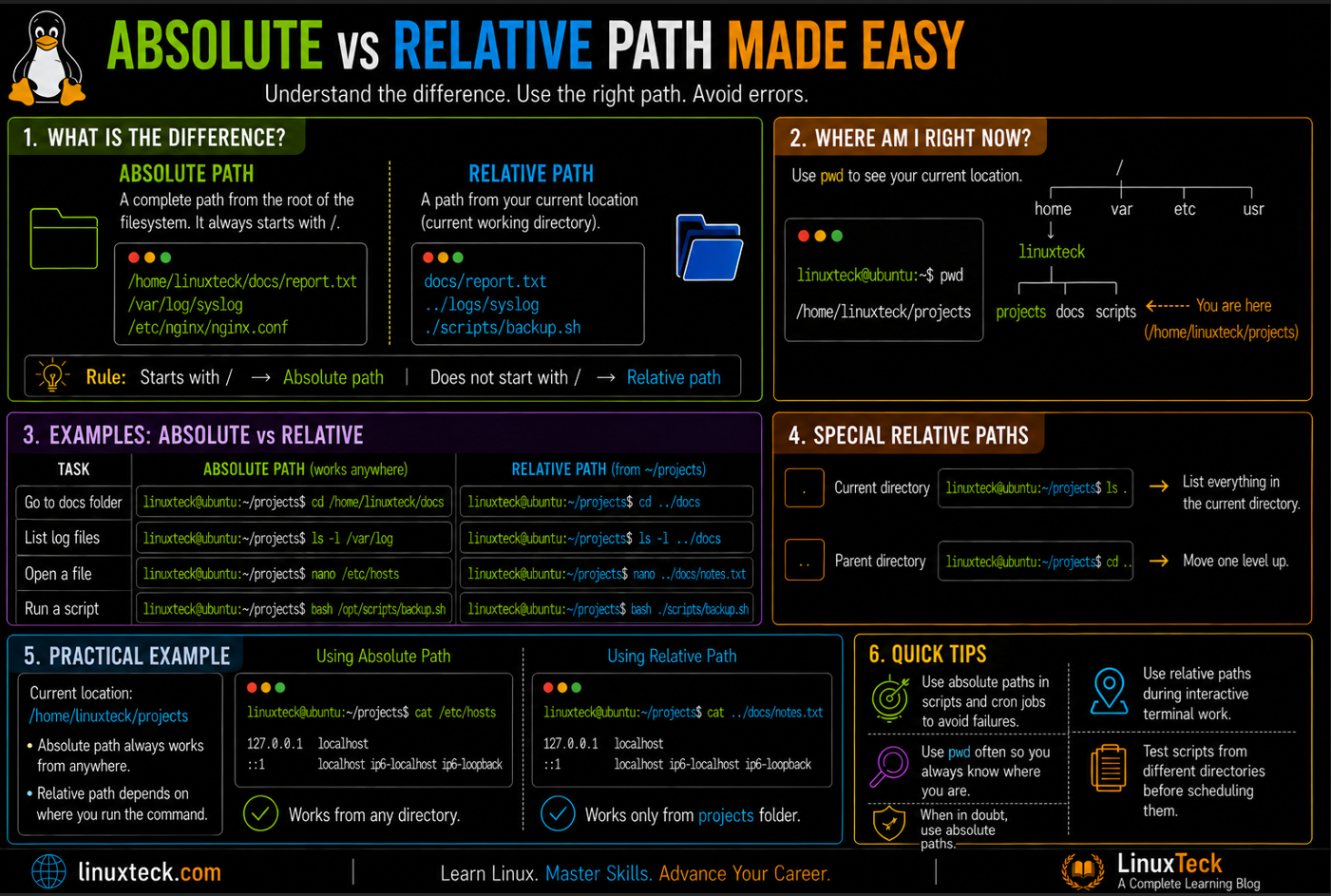
An absolute path is a full address. It always starts at the root of the filesystem, that single / at the very top, and spells out every folder you'd need to pass through to reach a file, no matter where you're currently sitting in the terminal. A relative path, on the other hand, is directions from wherever you happen to be standing right now.
Think of it like giving someone your location. "123 Main Street, Springfield" works no matter where the other person is starting from, that's an absolute path. "Two blocks down, turn left" only makes sense if you're both starting from the same spot, that's relative. Neither one is better on its own, they're just built for different jobs.
Every time you run ls, cd, cp, or open a file in a text editor, you're feeding it one of these two path types whether you notice it or not. Getting comfortable telling them apart at a glance is what stops half the "file not found" errors before they happen. If the bigger picture of how directories nest under root is still fuzzy, our Unix file system guide is worth a read alongside this one.
How Linux Tells the Two Apart
The rule Linux actually uses is simple: if a path starts with a forward slash, it's absolute. Anything else is treated as relative to your current working directory, whatever that happens to be at that moment.
LinuxTeck
That output from pwd (print working directory) is an absolute path. Every relative path you type is silently measured from that exact spot. So cd projects means "go into projects, starting from /home/linuxteck." Change your current folder, and that same relative command now points somewhere completely different. This is a good moment to get comfortable with how the Linux file system is structured from the ground up, since paths only make sense once the hierarchy does.
Concept:
A lot of beginners assume ~ is a relative path since it's short, but it always expands to your absolute home directory (like /home/linuxteck), so it behaves like an absolute path no matter where you run it from. Worth knowing this expansion is a shell trick, not a filesystem feature. Bash swaps ~ for your full home path before the command ever runs, the underlying kernel calls like open() and chdir() have no idea what a tilde is and never see it.
Path Symbols You'll Actually Use
| Symbol / Command | What It Means | When You'd Actually Use It |
|---|---|---|
| / | Filesystem root, start of every absolute path | Writing a path that must work no matter where it's run from |
| . | Your current directory | Running a local script with ./script.sh |
| .. | One directory up from where you are | Stepping back out of a folder you just went into |
| ~ | Your home directory, resolved as an absolute path | Jumping home from anywhere without typing the full path |
| pwd | Prints your current absolute location | Confirming exactly where you are before running something risky |
| realpath | Converts a relative path into its absolute form | Turning a fragile relative reference into a solid one for scripts |
Concept:
realpath ships by default on GNU/Linux as part of coreutils, so every mainstream distro has it out of the box. On macOS or minimal environments like Alpine or a stripped down BSD, it may not be installed. On Linux and Alpine/BusyBox, readlink -f is a reliable fallback. macOS's built-in readlink doesn't support -f at all though, so on a Mac the more dependable fix is installing coreutils with Homebrew (brew install coreutils) and using grealpath instead.
Absolute and Relative Paths in Practice
I. Check Where You Actually Are
Before you type any path, it helps to confirm your starting point. This is the single habit that prevents most path confusion.
LinuxTeck
II. Move With a Relative Path
You're in /home/linuxteck/projects and want to get into a subfolder. No need to spell out the whole address.
LinuxTeck
Pair this with ls once you land in a new folder to confirm what's actually there before you go typing more paths blind.
III. Jump Home Instantly
Doesn't matter how deep you've wandered into the filesystem, this always works the same way.
LinuxTeck
IV. Go Straight There With an Absolute Path
Same destination, but written so it works from literally anywhere, including from inside a script you don't fully trust yet.
LinuxTeck
V. Stack Multiple Dots to Climb Up
You can chain .. to hop up several levels at once instead of running cd .. over and over.
LinuxTeck
Each .. steps up exactly one level: the first gets you out of img into assets, the second out of assets into website, the third out of website into projects. Three dot-dot segments, three levels up, landing back at ~/projects. If you'd rather see the whole nested structure at once instead of climbing it blind, the tree command lays it out visually in one shot.
VI. Resolve a Relative Path Into an Absolute One
When you're not sure exactly what a relative path points to, realpath will tell you the full truth.
LinuxTeck
VII. Real World: Chasing a Symlink to Its True Location
LinuxTeck
VIII. Search Using a Relative Starting Point
You can point find at "." to search everything under your current folder without typing the full location.
LinuxTeck
If you want a broader introduction to searching by name, type, or modification time, the find command guide covers it in more depth.
IX. Reference a File Reliably in a Cron Job
Cron jobs start from your home directory ($HOME) by default when they run from your personal user crontab, not from wherever you happen to keep your scripts. System-level cron jobs, the ones in root's crontab or dropped into /etc/cron.d, commonly start from / instead. Either way, if your script lives somewhere else and you lean on relative paths inside it, cron will look for those relative files starting from the wrong place and come up empty. This is the exact mistake I mentioned earlier.
LinuxTeck
Production Tip:
Every path inside a cron entry, and every path inside the script it calls, should be absolute. If you're running this on a VPS you don't fully control, this one habit will save you an entire evening of confused troubleshooting. It's the same reason we push absolute paths hard when we set up scripts on hosting from providers like Verpex, where jobs often run under a different shell environment than your interactive login.
X. Copy Between Two Relative Locations
Both sides of a command can be relative at once, as long as you're clear on what they're relative to.
LinuxTeck
XI. The Mistake: A Script That Only Works From One Folder
This is basically a rebuild of the exact bug that once quietly wrecked my backup job for three days straight.
LinuxTeck
cd ../logs
tar -czf archive.tar.gz *.log
Common Mistake:
That cd ../logs only lands in the right place when the script is launched from ~/scripts. Run it from cron, from another user's shell, or as a systemd timer, and "one directory up" means something completely different, or nothing at all. The fix is to anchor the script to its own location and build every path from there.
LinuxTeck
set -e
SCRIPT_DIR="$(cd "$(dirname "${BASH_SOURCE[0]}")" && pwd)"
cd "$SCRIPT_DIR/../logs" || exit 1
shopt -s nullglob
log_files=(*.log)
if [ ${#log_files[@]} -eq 0 ]; then
echo "No log files found, skipping archive"
exit 0
fi
tar -czf archive.tar.gz "${log_files[@]}"
Common Mistake:
Anchoring the script to its own folder isn't enough on its own. If cd fails for any reason, permissions, a missing directory, a bad mount, bash just keeps going and runs tar in whatever directory it started in, silently archiving the wrong files. Adding || exit 1 after cd (or turning on set -e at the top of the script) stops execution the moment that happens instead of letting it fail quietly. The nullglob check matters too, since a bare *.log glob with no matching files gets passed to tar as a literal, unmatched string and throws an error instead of just archiving nothing.
If you want to go deeper into building scripts that survive being run from anywhere, our first bash script walkthrough and the guide on how bash actually looks up commands are good next stops. If that if check on the array length above looks unfamiliar, our guide to bash conditional statements breaks that syntax down.
Why This Distinction Actually Matters
Nobody thinks about paths until something breaks in exactly the wrong moment. A deploy script that worked fine on your laptop suddenly can't find its own config file on the server. A cron job silently fails at 2am because the working directory it assumed just isn't there when systemd launches it. The command was never wrong, the assumption about where it would be run from was.
Once you actually internalize that a relative path is a promise about your current location, and an absolute path makes no such promise at all, you start writing scripts differently. You stop typing cd .. chains and start reaching for realpath or $(dirname "$0") without thinking twice. That single habit shift is one of the more reliable signs that someone has moved from copying commands to actually understanding the filesystem underneath them, and it's the kind of thing you'll notice matters more, not less, as you move into managing production servers where you don't always control the working directory a job starts from.
It also changes how you read documentation. Man pages and reference material lean on this distinction constantly without spelling it out, and understanding it makes the rest of the filesystem, including things like how realpath resolves symbolic links, click into place a lot faster.
Key Points
- A path starting with / is always absolute, everything else is relative to wherever pwd currently points.
- Use realpath when you're not sure what a relative path actually resolves to, especially around symlinks.
- Any path used inside cron, systemd timers, or scripts triggered by another process should be absolute.
- ~ always resolves to an absolute path even though it looks short and relative.
- pwd -P shows the real physical location, which matters when a folder is actually a symlink.
- Anchor scripts to their own location with $(dirname "$0") instead of assuming a fixed starting folder.
- Chain multiple .. together (like ../../..) to climb several directory levels in one command.
- Cron jobs start from your home directory by default in a user crontab (system crontabs often start from /), so always add || exit 1 after a cd in a script instead of assuming it succeeded.
Frequently Asked Questions
Why does my script work when I run it by hand but fail in cron?
Almost always it's a relative path problem. A user crontab doesn't start your job from wherever you normally launch it from by hand, it starts from your home directory (and a system crontab in /etc/cron.d often starts from / instead), so any "./file" or "../folder" reference points to the wrong place, or nowhere. Swap those for absolute paths and it usually just starts working.
What's the actual difference between ./script.sh and just script.sh?
./script.sh explicitly tells bash to look in your current directory. Just typing script.sh makes bash search your PATH variable instead, and unless the script's folder is listed there, it won't find it and you'll get a "command not found" even though the file is sitting right in front of you.
How do I quickly find the absolute path of a file I'm looking at?
Run realpath followed by the filename, even if you only know it by a relative reference. It'll print the full absolute path back to you instantly, symlinks resolved and all.
Does cd - always take me back to my exact previous directory?
Yes, cd - jumps you to whatever directory you were in immediately before your last cd command, and it toggles back and forth if you keep using it. Handy when you're bouncing between two folders repeatedly. Under the hood it's just reading the $OLDPWD environment variable, so if you're inside a subshell or a fresh script where $OLDPWD was never set, cd - will fail with a "not set" error instead of moving anywhere.
Why doesn't ~ expand when I put it inside quotes?
Bash only expands ~ when it's unquoted or at the very start of a word. Wrap it in double or single quotes and bash treats it as a literal tilde character instead of your home directory, which trips people up constantly in scripts. If you need quotes around the path, for spaces or variables, use "$HOME/path" instead. $HOME expands correctly inside double quotes while ~ does not.
Should I just always use absolute paths in my scripts to be safe?
For anything that might run outside your interactive shell, cron jobs, systemd services, deployment scripts, yes, absolute paths (or a path anchored to the script's own location) are worth the extra typing. For quick one off commands you're running by hand, relative paths are fine and honestly faster to type.
From your first terminal command to advanced sysadmin skills, every guide here is written in plain English with real examples you can run right now.
Support My Work
Thank you for reading and for being part of this journey. If this article saved you time, consider buying me a coffee. Every contribution helps me keep producing in-depth, practical Linux content for readers like you.

Thank you for your endless support