
Pick the wrong desktop environment on a low-RAM laptop and you will spend your first week fighting stutter instead of doing actual work. That is the real cost of this decision, not whether the icons look pretty.
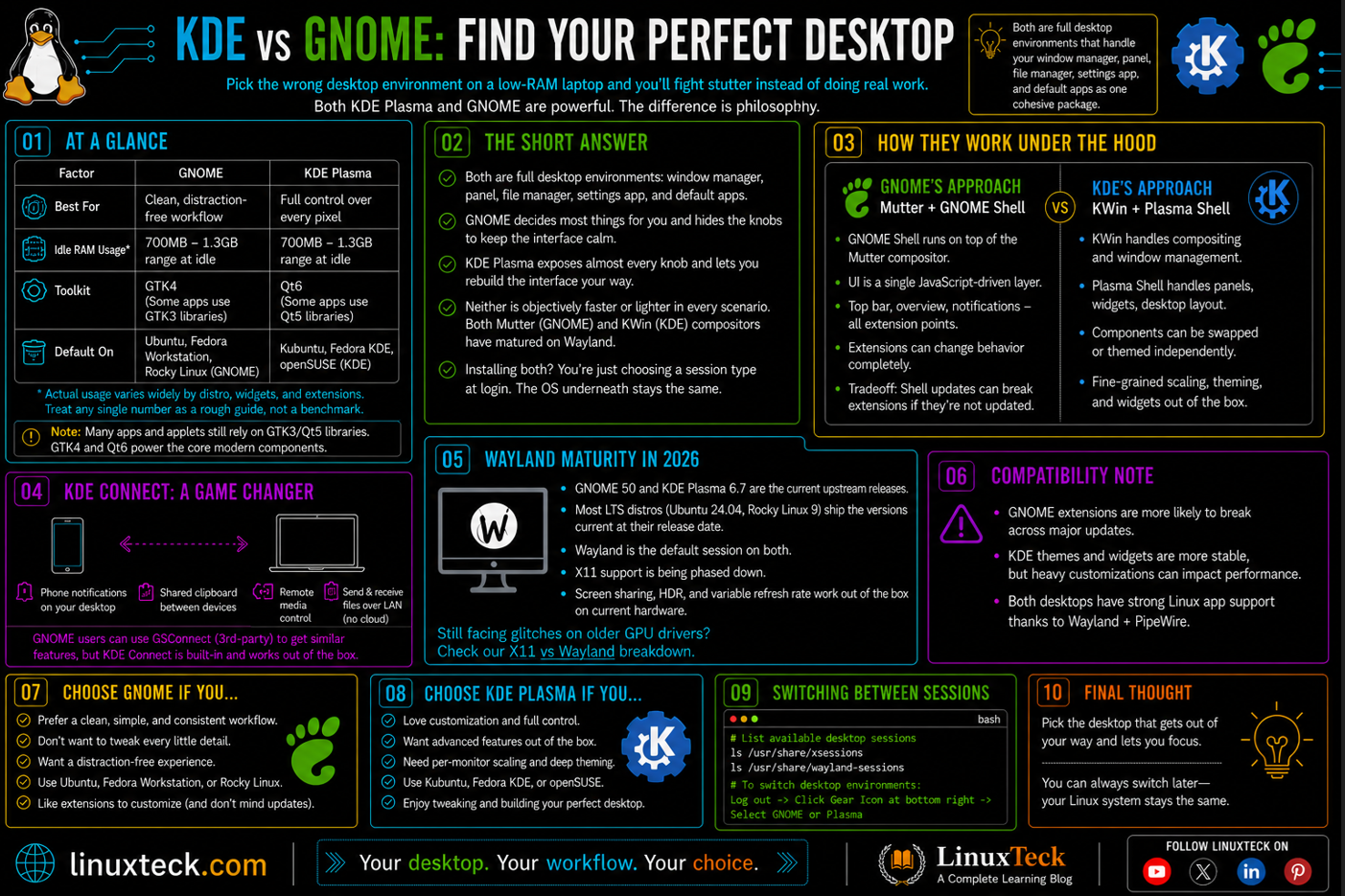
| Best For | GNOME for a clean, distraction-free workflow. KDE for full control over every pixel. |
| Idle RAM Usage | Both typically sit in the 700MB-1.3GB range at idle. Actual usage swings widely by distro, widgets, and extensions loaded, so treat any single fixed number you see online, including this one, as a rough guide rather than a benchmark. |
| Toolkit | GNOME uses GTK4, KDE Plasma uses Qt6 |
| Default On | Ubuntu, Fedora Workstation, Rocky Linux (GNOME) vs Kubuntu, Fedora KDE, openSUSE (KDE) |
The Short Answer
GNOME and KDE Plasma are both full desktop environments for Linux, meaning they handle your window manager, panel, file manager, settings app, and default applications as one cohesive package. The difference is philosophy. GNOME decides most things for you and hides the knobs so the interface stays calm. KDE Plasma exposes almost every knob it has and lets you rebuild the interface into something that barely resembles the default.
Neither one is objectively faster or lighter in every scenario. GNOME's Mutter compositor and KDE's KWin compositor have both matured a lot on Wayland over the last two years, and the gap that used to exist in screen tearing and multi-monitor handling has mostly closed. What has not closed is the gap in configuration philosophy, and that is what actually decides which one you will be happy running six months from now.
If you install both on the same machine, which is common on distros that ship separate spins, you are not choosing an operating system twist. You are choosing a session type at login, and everything else on the system underneath (the kernel, the package manager, systemd) stays identical.
Key Point:
How They Actually Work Under the Hood
Most comparisons stop at screenshots of the app launcher. That tells you nothing about how the two environments behave once you are actually running a session for eight hours a day.
GNOME's Approach: Mutter and GNOME Shell
GNOME Shell is written on top of the Mutter compositor and treats the desktop as a single JavaScript-driven UI layer. Every visual piece, the top bar, the activities overview, the notification tray, is a GNOME Shell extension point under the hood. That is why third-party extensions can completely change GNOME's behavior even though the base interface looks locked down. The tradeoff is that a GNOME Shell update can break extensions overnight if the extension has not been updated to match the new API version.
KDE's Approach: KWin and Plasma Shell
KDE Plasma separates concerns more cleanly. KWin is the compositor and window manager, Plasma Shell handles panels, widgets, and the desktop layout, and each piece can be swapped or themed independently through System Settings without touching a config file by hand. This is why KDE ships with things like fine-grained fractional scaling per monitor, a fully themeable panel, and a widget system that behaves more like a desktop OS from the 2000s, just modernized.
KDE Connect: A Feature Worth Switching For On Its Own
One feature that regularly pulls people toward KDE is KDE Connect, a built-in tool that pairs your phone with your desktop over the local network. Once paired, you get phone notifications on your desktop, shared clipboard between devices, remote media control, and the ability to send files both directions without a cable or a cloud account in between. GNOME users can get roughly the same functionality through GSConnect, a third-party extension that reimplements the KDE Connect protocol, but it is an extra install rather than something that ships in the box.
Wayland Maturity in 2026
As of this writing, GNOME 50 and KDE Plasma 6.7 are the current upstream releases, though most LTS distros (Ubuntu 24.04, Rocky Linux 9) still ship the versions that were current at their release date, not the bleeding edge. Wayland is the default session on both now, X11 support is being phased down, and screen sharing, HDR, and variable refresh rate all work out of the box on current hardware. If you are still on an older GPU driver stack, check our X11 vs Wayland breakdown before you assume Wayland is the problem when something glitches.
Compatibility Note:
GNOME Shell extensions are tied to specific GNOME versions. If you jump from GNOME 46 to GNOME 48 through a distro upgrade, expect some extensions to disable themselves until the maintainer pushes a compatibility update. KDE widgets do not have this problem nearly as often because the Plasma widget API changes less aggressively between point releases.
Performance Note:
Fractional scaling behaves differently between the two compositors specifically for legacy X11 apps running through XWayland. KWin on KDE Plasma renders XWayland applications crisply at fractional scales like 125% or 150%, matching native Wayland apps. Mutter on GNOME downscales the XWayland buffer by default instead, which is why some non-GTK apps look slightly soft or blurry on a GNOME Wayland session even when your native GNOME apps look sharp. This is a compositor-level default, not a bug you can patch from inside the app itself.
Compatibility Note:
The walkthroughs in this article are pinned to Ubuntu 24.04 LTS and Rocky Linux 9, since both remain fully supported and are still the versions most production fleets are standardized on. Ubuntu 26.04 LTS is now the current LTS release and ships GNOME 50 with a higher 6GB minimum RAM requirement, and Rocky Linux 10 is now the current major Rocky series. The commands here still apply conceptually on both, but package manager behavior is shifting across the whole RHEL family right now, some 10.x releases lean on the newer dnf5 tooling and some still behave like classic dnf4, so do not assume the exact groupinstall/groupremove syntax shown in the Rocky 9 examples below will work unmodified on a Rocky 10 box. Run dnf --version first to confirm what you are actually working with.
Installing and Switching Between Them
You do not have to reinstall your operating system to try the other desktop. Both can run side by side and you just pick a session at the login screen. Here is how that actually looks on the two distros most LinuxTeck readers run in production and on their workstations. If you want a clean throwaway environment to test both without touching your daily driver, our guide to the best Linux VPS hosting will help you pick a provider and spin up a fresh Ubuntu or Rocky Linux box in minutes.
Install KDE Plasma on Ubuntu 24.04
Ubuntu ships GNOME by default, so adding KDE Plasma means pulling in the Kubuntu desktop metapackage alongside your existing session.
LinuxTeck.com
sudo apt update
# Install the Plasma desktop metapackage
sudo apt install kde-plasma-desktop -y
# Optional: set SDDM as the default display manager (interactive prompt)
sudo dpkg-reconfigure sddm
Ubuntu runs GDM3 by default, not SDDM, so do not restart or force-switch the display manager while you are inside an active desktop session. That kills your GUI session immediately and can leave an unsaved file gone. Log out or reboot instead, and pick the Plasma session from the dropdown menu on the login screen.
The first time I did this on a client's design workstation, I skipped checking the display scaling settings before handing the machine back. Every monitor in that three-screen setup came up with mismatched font sizes, one screen razor sharp and two slightly blurry, because Plasma's per-display fractional scaling had not been set to match each panel's actual DPI. Fifteen minutes in System Settings would have caught it before the client ever saw it.
Install KDE Plasma on Rocky Linux 9
Rocky Linux defaults to GNOME through the standard workstation group. KDE lives in the EPEL repository, so you need that enabled first.
LinuxTeck.com
sudo dnf install epel-release -y
sudo dnf config-manager --set-enabled crb
sudo dnf makecache
# Install the full KDE workspace group
sudo dnf groupinstall "KDE Plasma Workspaces" -y
# Confirm the system boots into the graphical target
sudo systemctl set-default graphical.target
If you would rather test this without touching your daily driver, spin up a throwaway VM on a cheap VPS first. We compared providers for exactly this kind of disposable testing box in our DigitalOcean vs Vultr comparison, which is a fast way to get a clean Rocky or Ubuntu image up in minutes.
Verify Which Session Is Currently Active
After switching, confirm which desktop and display protocol you actually landed on. This matters when you are troubleshooting later and need to know if you are on X11 or Wayland.
LinuxTeck.com
echo $XDG_CURRENT_DESKTOP
# Shows wayland or x11
echo $XDG_SESSION_TYPE
# Shows exact session type via systemd loginctl
loginctl show-session $(loginctl | grep $(whoami) | awk '{print $1}') -p Type
Clean Up Duplicate App Launchers After a Dual-Desktop Install
Once both desktops are installed, your application menu ends up cluttered with duplicate core apps, Konsole sitting next to GNOME Terminal, Dolphin next to Files. You do not need to uninstall anything to fix this. Copy the app's .desktop file into your local applications folder and add a filter line telling that specific menu which desktop it should stay hidden from.
LinuxTeck.com
cp /usr/share/applications/org.kde.konsole.desktop ~/.local/share/applications/
# Tell the GNOME menu specifically to hide this entry
echo "NotShowIn=GNOME;" >> ~/.local/share/applications/org.kde.konsole.desktop
The reverse works the same way with NotShowIn=KDE; on a GNOME app's desktop file, or you can use OnlyShowIn=KDE; if you want an entry to appear only inside one specific desktop's menu rather than excluding it from the other.
Uninstall a Desktop Environment You No Longer Want
If you tested the other desktop and decided to stick with your original one, remove it cleanly instead of leaving unused packages and services around.
LinuxTeck.com
sudo apt purge kde-plasma-desktop sddm -y
# Clears out now-unused dependency packages
sudo apt autoremove --purge -y
LinuxTeck.com
sudo dnf groupremove "KDE Plasma Workspaces" -y
# Clears out now-unused dependency packages
sudo dnf autoremove -y
Reboot after either purge so systemd falls back cleanly to your remaining display manager instead of hanging on a session type that no longer exists.
KDE vs GNOME: Full Comparison
| Feature | GNOME | KDE Plasma | Verdict |
|---|---|---|---|
| Idle memory usage | ~700MB-1.3GB (varies by config) | ~700MB-1.3GB (varies by config) | Too close to call, published benchmarks disagree, test on your own hardware |
| Laptop battery life | Generally reported as slightly better out of the box | Comparable once tuned through Power Devil | GNOME needs less tuning, KDE catches up with setup |
| NVIDIA on Wayland | Works, but historically stricter about driver readiness before enabling Wayland by default | More tolerant of falling back to X11 on older NVIDIA driver stacks | Check your driver version before committing to Wayland on either |
| Customization depth | Limited without extensions | Nearly everything is a setting | KDE wins outright |
| Out-of-the-box consistency | Very consistent, opinionated | Consistent but more surface area | GNOME wins outright |
| HiDPI and fractional scaling | Global scaling, improving per-display support | Per-monitor fractional scaling built in | KDE wins outright |
| Default toolkit apps | GTK4, tightly integrated GNOME apps | Qt6, KDE Gear app suite | Depends on your other apps |
| Extension and widget stability across updates | Extensions frequently break on major upgrades | Widgets are generally more update-stable | Check compatibility before upgrading |
| Default on enterprise distros | RHEL, Rocky Linux, Ubuntu, Fedora Workstation | openSUSE, Kubuntu, Fedora KDE Spin | GNOME has wider enterprise default coverage |
| Learning curve for new Linux users | Gentle, fewer decisions to make | Steeper, more menus to learn | GNOME for beginners |
Enterprise Insight:
If you manage a fleet of workstations across a team, GNOME's smaller surface area for customization is actually an advantage for support tickets. Fewer configuration paths means fewer ways for a user to break their own session. This is part of why RHEL and its downstream distros default to GNOME rather than KDE for corporate desktops. Our RHEL vs Ubuntu server comparison covers this same philosophy on the server side.
Performance Note:
On genuinely low-spec hardware (4GB RAM or less, integrated graphics from before 2018), consider a lighter environment entirely, like Xfce or LXQt, rather than forcing either GNOME or KDE. Both have gotten heavier over the last few release cycles even as their compositors got more efficient, and neither one was designed with sub-2GB systems as the primary target anymore.
Locking Down Desktop Settings for Team Workstations
If you are rolling either desktop out to more than a handful of machines, letting every user reconfigure everything is how support tickets pile up. Both desktops support centrally enforced settings, the mechanism is just different for each.
GNOME: Mandatory Settings With dconf
GNOME reads mandatory site-wide overrides from /etc/dconf/db/site.d/. A profile locks specific keys so users cannot override them from Settings or through gsettings, even with their own account privileges. See the official GNOME system administration guide for the full lockdown reference.
LinuxTeck.com
cat <<EOF | sudo tee /etc/dconf/db/site.d/00-security
[org/gnome/shell]
disable-user-extensions=true
EOF
# Compiles the override so it actually takes effect
sudo dconf update
KDE: Immutable Keys in kdeglobals
KDE takes a different route. Instead of a separate mandatory database, you mark individual keys as immutable directly inside the config file by appending [$i] to the key name inside /etc/xdg/kdeglobals. Once marked, System Settings greys that option out for every user reading that config.
Enterprise Insight:
The [$i] suffix is KDE's config-cascade immutability marker. It works the same way across most kioslave-backed config files, not just kdeglobals, so the same trick applies if you need to lock down keyboard shortcuts or panel layout files for a shared lab machine. See the official KDE administration documentation for the full list of lockable files.
For more than a handful of machines, write these dconf and kdeglobals changes into your existing configuration management run (Ansible, kickstart post-scripts, or a golden image) rather than applying them by hand on each box. A single dconf profile or kdeglobals file copied through a playbook keeps every workstation in sync without a manual pass per machine. If you are hardening these workstations beyond just locking desktop settings, the Linux server hardening checklist covers the OS-level steps that apply regardless of which desktop sits on top.
Red Flags: What Breaks and What It Means
Most of the pain with either desktop shows up right after a switch or an upgrade, not during normal daily use. These three come up constantly in support threads and forums.
SDDM login loops back to the login screen after selecting Plasma:
This almost always means two display managers are fighting for control, typically gdm3 from a GNOME install still running alongside sddm from a fresh KDE install. Check which one is actually active first, then disable the one you are not using. The fix command is distro-specific, so do not run the Ubuntu command on Rocky or the reverse.
LinuxTeck.com
systemctl status display-manager
On Ubuntu or Debian, switch the default with:
LinuxTeck.com
sudo dpkg-reconfigure sddm
On Rocky Linux or RHEL, dpkg does not exist, so switch it directly through systemd instead:
LinuxTeck.com
sudo systemctl disable --now gdm
sudo systemctl enable --now sddm
The --now flag stops gdm and starts sddm immediately, so run this from a different session if possible, over SSH from another machine, or from a virtual terminal (Ctrl+Alt+F3), not from inside the active GNOME session you are trying to replace. If you run it directly in your current graphical session, expect that session to drop the moment gdm stops.
See our systemd service troubleshooting guide if the display manager itself fails to start at all.
Blurry fonts and mismatched icon sizes across monitors:
This is a fractional scaling mismatch, and it happens on both desktops but shows up more often right after switching to KDE on a multi-monitor HiDPI setup, exactly the issue from the personal example earlier in this article. Fix it per-display rather than globally.
LinuxTeck.com
kscreen-doctor -o
# Sets a specific output's scale directly
kscreen-doctor output.1.scale.1.5
GNOME Shell extensions greyed out or disabled after an update:
GNOME Shell versions its extension API tightly, so an extension that worked on GNOME 46 can silently disable itself after a distro upgrade to GNOME 48 or later until the author pushes a compatible release. Check the actual shell version first before assuming the extension is dead.
LinuxTeck.com
gnome-shell --version
# Lists every extension the shell has auto-disabled
gnome-extensions list --disabled-only
Our Linux quick start guide covers how to safely roll back a desktop upgrade if extensions you depend on are not ready yet.
Black screen or frozen cursor right after a GPU driver update:
This is the most common failure mode of the two, more common than the display manager or scaling issues above, and it hits both desktops equally since it lives at the driver and compositor layer rather than inside GNOME or KDE specifically. A kernel or NVIDIA driver update landing mid-session, followed by a reboot, can leave the compositor unable to initialize. Drop to a virtual terminal with Ctrl+Alt+F3 and check the logs before assuming a reinstall is needed.
LinuxTeck.com
journalctl -b -1 -p err --no-pager | tail -n 50
# Filters kernel messages for graphics driver errors
sudo dmesg | grep -i -E "drm|nvidia|amdgpu"
If the logs point to a proprietary NVIDIA module mismatch, booting into the previous kernel from the GRUB menu and waiting for a follow-up driver update is usually faster than troubleshooting the current one further.
Quick Recovery: Restart the Compositor Without Logging Out:
If your session freezes or looks broken after messing with themes, extensions, or scaling, you usually do not need to log out on KDE. GNOME is more restrictive here depending on which session type you are on.
LinuxTeck.com
busctl --user call org.gnome.Shell /org/gnome/Shell org.gnome.Shell Eval s "meta_restart()"
This DBus call reliably restarts GNOME Shell in place on X11 sessions. On Wayland, Mutter restricts in-place shell restarts for stability reasons, so meta_restart() may silently do nothing or behave inconsistently depending on your exact GNOME build. Check your session type first with echo $XDG_SESSION_TYPE from earlier in this article. If you are on Wayland and the shell is genuinely stuck, log out and back in instead of fighting the DBus call, GNOME does not currently offer a supported way to hot-restart the Wayland compositor without dropping the session.
LinuxTeck.com
kquitapp6 plasmashell && kstart plasmashell
Plasma's version works reliably on both X11 and Wayland since KWin keeps running underneath while only the shell process restarts, which is exactly why it does not have the same restriction GNOME does.
KDE vs GNOME - FAQ
Which desktop environment uses less RAM, KDE or GNOME?
Neither has a settled, consistent advantage. Both commonly land in the 700MB to 1.3GB idle range depending on distro, loaded widgets, and background indexing services, and published benchmarks disagree on which one comes out ahead. Run free -h right after logging into each session on your own hardware rather than trusting a fixed number from any single article, including this one.
Is KDE Plasma better for Linux gaming than GNOME?
Both run Steam and Proton titles well under Wayland at this point. KDE Plasma's KWin compositor currently exposes more accessible built-in controls for HDR, variable refresh rate, and per-monitor fractional scaling directly in System Settings, which matters more for a desktop gaming rig with mixed-refresh monitors than for a simple laptop setup. Check vulkaninfo to confirm your GPU driver stack is exposing Vulkan correctly regardless of which desktop you land on.
Can I install both KDE and GNOME on the same machine without conflicts?
Yes, and it is common on distros with multiple official spins. Each desktop installs its own packages and session file, and you pick between them at the login screen dropdown, not during boot. The only real risk is display manager conflicts, which you can check with systemctl status display-manager. Disk space is the only meaningful cost, usually 1-2GB extra for the second environment.
Why does my system feel slower after installing a second desktop environment?
Installing a second desktop does not make your active session slower by itself, since only one compositor runs at a time. What usually slows things down is background services from both environments starting at boot, like GNOME's tracker file indexer running even while you are in a KDE session. Run systemctl --user list-units --type=service inside your active session to see what is actually loaded.
Does switching from GNOME to KDE break my existing dotfiles or app configs?
Desktop-level settings like panel layout and theme are stored separately for each environment, so switching will not touch your shell config, git setup, or application data. Some GTK apps running under KDE will look slightly out of place until you install a matching Qt theme or a GTK theme bridge. Standard terminal tools and anything covered in our Linux commands for beginners guide behave identically regardless of which desktop you are running. If you are still building foundational knowledge, our Linux fundamentals guide is a solid starting point before diving into desktop environment differences.
Is it safe to test both desktops without touching my main workstation?
Yes, spinning up a disposable VM on a cheap VPS is the safest way to try both before committing on real hardware. You get a clean install, can snapshot before testing, and destroy it when you are done. We break down provider pricing and performance for exactly this kind of throwaway testing in our Cloudways vs Vultr comparison.
Which one is better for a remote development server with a lightweight GUI?
Neither is ideal for a headless dev server since both are full desktop stacks meant for daily workstation use. If you occasionally need a GUI over a remote connection, a minimal window manager is lighter, but if you specifically want GNOME or KDE remotely, KDE's Plasma tends to feel more responsive over RDP due to lower baseline compositing overhead. Check free -h after login to confirm your actual memory headroom before deciding.
Do GNOME and KDE both support the same Flatpak and Snap applications?
Yes, Flatpak and Snap packages run independently of the desktop environment since they bundle their own runtime dependencies. The only visible difference is theming, a GTK app will look native under GNOME and slightly different under KDE, and a Qt app is the reverse. Run flatpak list to confirm what is installed regardless of which session you are currently in. If you are not sure which packaging format to use, our Flatpak vs Snap vs AppImage comparison covers the trade-offs in detail.
Final Thoughts: Pick Based on How You Actually Work, Not the Screenshots
GNOME rewards people who want the desktop to get out of the way. KDE rewards people who want to shape every part of it. Neither choice locks you in permanently since both install side by side and cost you nothing but disk space to try.
If you are setting this up for a team or a production workstation fleet, budget a single afternoon to test both on a throwaway VM before you standardize. That is enough time to hit the login screen, poke through settings, and install a couple of real apps you use daily.
For next steps, check our Ubuntu 24.04 install walkthrough if you are starting fresh, our Rocky Linux 9 install guide if you are building a server-adjacent workstation, and our Debian vs Ubuntu comparison if the base distro itself is still an open question.
Further Reading on LinuxTeck:
X11 vs Wayland Explained - covers the display protocol running underneath both desktops and why it affects screen sharing and gaming.
Best Linux Distro for Beginners - a broader starting point if you have not settled on a distro before picking a desktop.
Best Linux Distros for Developers in 2026 - useful if your desktop choice is really a development environment decision in disguise.
Fixing PipeWire Audio Issues on Linux - relevant since both GNOME and KDE now rely on PipeWire for audio and screen capture.
DigitalOcean Review 2026 - a solid option if you want a cheap, reliable box to test desktop environments before committing on real hardware.
If you want to test both desktops properly — fresh Ubuntu 24.04 for GNOME, a separate Rocky Linux 9 instance for KDE — without touching your main machine, Cloudways is worth considering. Their managed cloud platform lets you spin up clean Linux VMs on your choice of underlying provider, with a straightforward control panel that stays out of your way once the server is up. Tear it down when the testing is done and you have paid for an afternoon of compute, not a permanent subscription.
LinuxTeck - A Complete Linux Infrastructure Blog
LinuxTeck covers everything from beginner Linux commands to advanced Linux system administration and DevOps career guidance, written by practitioners for professionals working on Ubuntu, Rocky Linux, RHEL, and enterprise Linux environments every day.
Thank you for reading and for being part of this journey. If this article saved you time, consider buying me a coffee. Every contribution helps me keep producing in-depth, practical Linux content for readers like you.

Thank you for your endless support



