Linux PAM (Pluggable Authentication Modules) is one of the most important parts of a Linux system. It controls how users are authenticated when they log in through SSH, use sudo, switch users with su, or access other PAM-enabled services. A small mistake in a PAM configuration file can prevent users from logging in, so understanding how it works is essential for every Linux administrator.
In this guide, you'll learn what PAM is, how the PAM architecture works, how to read files in /etc/pam.d/, understand control flags and modules, and safely configure authentication without locking yourself out of your system.
Note:
If you are not comfortable with basic SSH access yet, it is worth reading through basic SSH client commands in Linux before touching authentication files, since a mistake in PAM can cut off remote access entirely.
Examples
Why Linux PAM Architecture Actually Matters
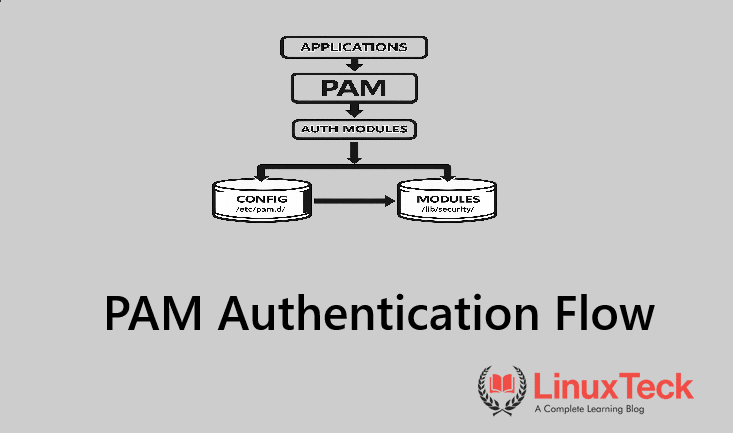
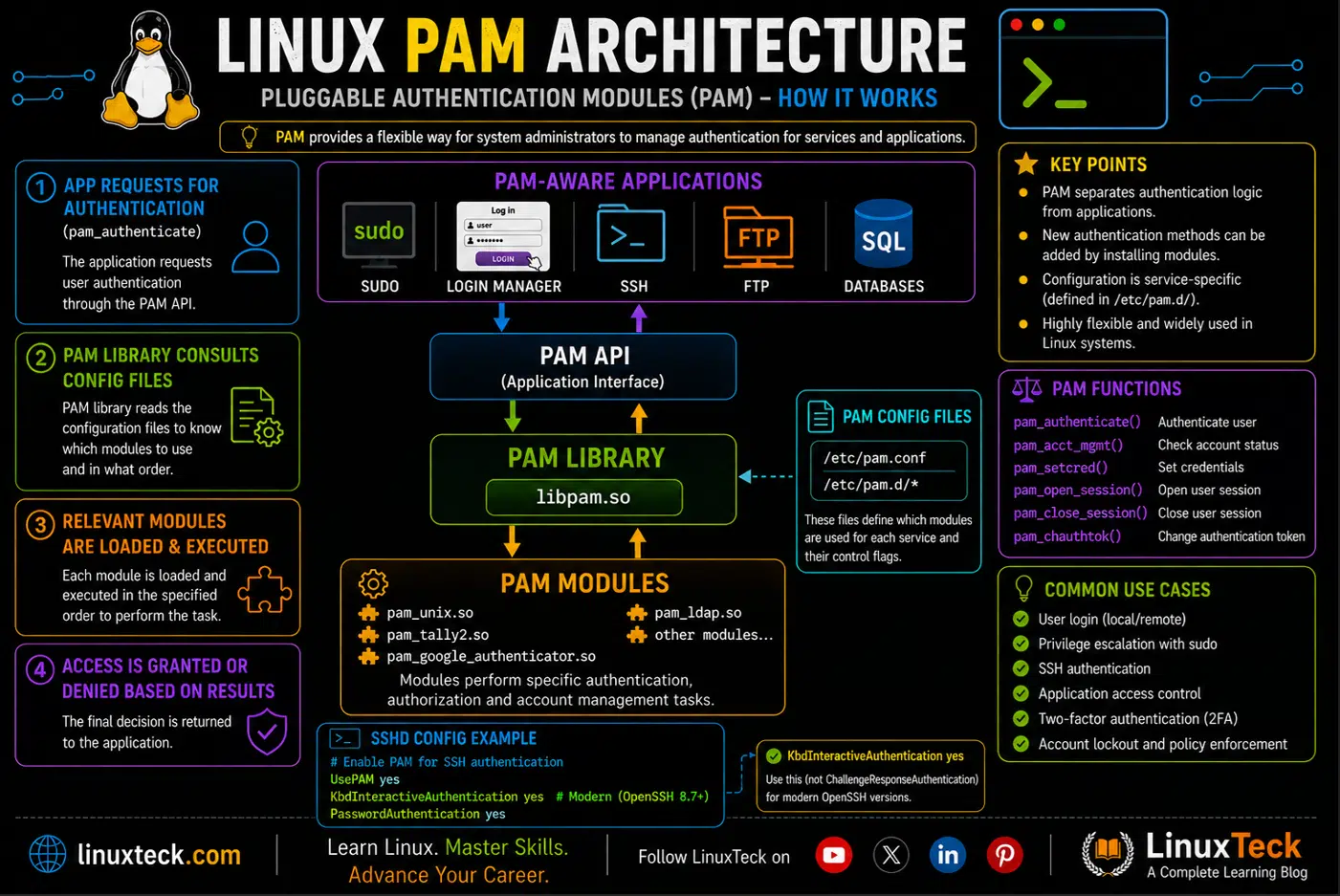
PAM stands for Pluggable Authentication Modules. It is the layer that decides whether you actually get in when you type a password, tap a security key, or run sudo, and it sits between the application and the actual authentication logic.
Before PAM existed, every program that needed to check a password had its own hardcoded way of doing it. Login had its own code, FTP had its own code, and su had its own code. If you wanted to add fingerprint login or lock accounts after failed attempts, you had to patch every single program separately.
PAM changed that by moving authentication logic into small, swappable modules that any PAM-aware program can call. Think of it like a bouncer at a club who checks a list of rules handed to him by management. Change the rules, and the bouncer behaves differently, without anyone rebuilding the club itself.
Every time you type your password for sudo, unlock your screen, or SSH into a box, PAM is quietly running through a stack of these modules behind the scenes to decide yes or no.
The Syntax Behind Every PAM Rule
Every line inside a file in /etc/pam.d/ follows a standardized structure containing three mandatory fields and an optional fourth field for arguments. Once you can read one line, you can read all of them.
LinuxTeck.com
auth required pam_unix.so nullok
account include system-auth
password include system-auth
session required pam_limits.so conf=/etc/security/limits.conf
account include system-auth
password include system-auth
session required pam_limits.so conf=/etc/security/limits.conf
The first field is the module type, meaning whether this line handles authentication, account checks, password changes, or session setup. The second field is the control flag, which decides what happens if the module succeeds or fails. The third field is the actual module doing the work, and anything after that is arguments passed to it. That fourth field is optional though, most include and system-auth lines skip it entirely because the module needs nothing extra to do its job.
Note:
Most distro-provided pam.d files do not list every rule directly. They pull in a shared file like system-auth or common-auth using the include or substack control. If you edit the wrong file expecting a change and nothing happens, this is usually why.
Control Flags You Will Actually Use
The control flag is the part people get wrong most often, because it looks like a minor detail but it decides whether one failed module locks a user out or gets quietly ignored.
| Control Flag | What It Does | When to Use It |
|---|---|---|
| required | Must pass, but the rest of the stack still runs even if it fails | Core checks like pam_unix.so where you still want later modules to log the attempt |
| requisite | Must pass, and stops the whole stack immediately on failure | Blocking obviously invalid users early, before wasting time on further checks |
| sufficient | If it succeeds, the stack succeeds immediately without checking what comes after | Alternate login methods, like allowing key-based auth to skip a password prompt |
| optional | Only matters if it is the only module of that type in the whole stack | Cosmetic modules like pam_motd.so that print a message but shouldn't block login |
| include | Pulls in every rule of the matching type from another file | Reusing a shared baseline like system-auth across many services |
| substack | Like include, but a jump or failure inside it does not skip the parent stack | Nesting a config file inside another without letting it hijack the whole chain |
PAM in Practice: Examples You Can Actually Run
I. Listing the PAM configuration files on your system
Start by seeing what's already there before you change anything.
LinuxTeck.com
-rw-r--r-- 1 root root 142 Jun 12 10:04 sshd
-rw-r--r-- 1 root root 201 Jun 12 10:04 sudo
-rw-r--r-- 1 root root 976 Jun 12 10:04 system-auth
II. Finding out which PAM modules are actually installed
Before referencing a module in a config file, confirm it exists on this machine.
LinuxTeck.com
Debian and Ubuntu store these under /usr/lib/x86_64-linux-gnu/security/, while RHEL, Rocky Linux, AlmaLinux, and Fedora use /usr/lib64/security/. The wildcard above matches either one, so the same command works everywhere.
III. Reading the sudo PAM stack line by line
The sudo file is short, which makes it a good first file for actually reading the four-field syntax in context.
LinuxTeck.com
account include system-auth
session include system-auth
IV. Enforcing password complexity with pam_pwquality
Rejecting weak passwords at the OS level instead of trusting people to pick good ones.
LinuxTeck.com
Warning:
Modern distributions manage shared baseline files automatically. On RHEL and Rocky Linux, use authselect to modify profiles. On Debian and Ubuntu, use pam-auth-update. Directly editing or appending to system-auth or common-auth may get overwritten on the next system update or profile sync, and appending a rule to the bottom of a stack can also break execution logic depending on how the flags above it are set.
Tip:
Always test a password policy change by opening a second terminal session first and running passwd there before closing your original session, so you can undo it if the rule locks out valid passwords too.
V. Restricting su to members of the wheel group
A common hardening step so random local users can't attempt to become root.
LinuxTeck.com
usermod -aG wheel your_username
Warning:
Confirm your own account is already in the wheel group before uncommenting the pam_wheel line below. If it isn't, you will lock yourself out of su the moment you save the file.
LinuxTeck.com
Uncommenting that single line means only accounts in the wheel group can use su at all, everyone else gets denied before a password prompt even appears.
VI. Locking an account after repeated failed logins
This is the kind of protection people assume exists by default. It doesn't, you have to add it.
LinuxTeck.com
When Type Source Valid
2026-06-30 09:14:02 RHOST 203.0.113.44 V
That output is coming from pam_faillock, which tracks failed attempts per account. Pair it with a line in system-auth to actually lock accounts after a set number of tries.
VII. Adding two-factor authentication to SSH
A real-world scenario most teams run into once they get serious about server access. This stacks a code prompt on top of the normal password or key check.
LinuxTeck.com
Warning:
Appending directly to a pam.d file managed by your distro's profile tool can be overwritten later. On RHEL and Rocky Linux, add this through authselect. On Debian and Ubuntu, run it through pam-auth-update instead of editing the file by hand where possible.
This alone won't do anything until KbdInteractiveAuthentication yes is also set in sshd_config. That's the current directive name on OpenSSH 8.7 and newer, which ships with Ubuntu 22.04+, RHEL 9+, and Debian 12. On older OpenSSH versions you'll still use ChallengeResponseAuthentication yes instead, since the newer name didn't exist yet. Check this alongside your SSH server hardening steps.
VIII. Restricting login to business hours only
Useful on shared or contractor-facing systems where access outside working hours shouldn't be possible at all.
LinuxTeck.com
That single rule tells pam_time to only allow the contractor account to log in on weekdays between 8am and 6pm, and reject it entirely outside that window.
IX. Enforcing resource limits through PAM
An enterprise-grade example. On shared build servers, one runaway process can starve everyone else, and PAM is where you stop it before it starts.
LinuxTeck.com
That line is what makes the values in /etc/security/limits.conf actually take effect for every session, things like max open files or max processes per user.
X. Debugging a PAM failure through the logs
When something breaks, PAM tells you exactly why, if you know where to look.
LinuxTeck.com
sshd[2214]: pam_faillock(sshd:auth): Consecutive login failures for user devuser account temporarily locked
XI. The mistake: reordering lines in sshd's PAM stack
This is close to what actually happened to me. Someone moves a requisite line above the module that actually establishes identity, incorrectly assuming order doesn't matter. It matters more than anything else in the file.
LinuxTeck.com
auth requisite pam_deny.so
auth required pam_unix.so
Warning:
pam_deny.so always fails by design. Placed above pam_unix.so with requisite, it kills the entire stack before the real password check ever runs, so every login attempt fails instantly, valid credentials or not.
LinuxTeck.com
auth required pam_unix.so
auth requisite pam_deny.so
Keep a root session open in a second terminal any time you touch a live pam.d file. If you get locked out, that second session is the only way back in without console access.
Why PAM Architecture Actually Matters
Without PAM, every login decision on your system would be scattered across dozens of programs with no shared rulebook. One stack, one set of files, one place to enforce policy across SSH, sudo, login, and cron all at once, that consistency is the entire point.
Once you understand the stack, security work stops feeling like guesswork and starts feeling like editing a short list of rules you actually control. Compliance checklists that ask for account lockout, MFA, or session logging usually come down to a handful of lines in /etc/pam.d/, not a separate product. The official reference for every module and control flag lives in the pam.conf man page, and it is worth bookmarking.
Key Points
- Read the module type first, not the module name, since the same module can appear under auth, account, or session with different effects.
- Use requisite instead of required when you want a failed check to stop the stack immediately rather than letting it run to the end.
- Most distro pam.d files rely on include or substack pointing at system-auth or common-auth, so check there first when a change doesn't seem to apply.
- Always keep a second authenticated session open before editing a live file in /etc/pam.d/, especially sshd or sudo.
- pam_faillock and journalctl together are the fastest way to see exactly which module rejected a login and why.
- Order inside a stack is not cosmetic. Two identical lines in a different order can produce completely different login behavior.
Frequently Asked Questions
I just locked myself out of SSH after editing pam.d, what do I do?
If you still have a root session open somewhere, undo the last edit right away. If not, you'll need console or out-of-band access to the machine to fix the file directly, since PAM is what SSH itself relies on to authenticate you.
Why did my change to pam.d/sshd not seem to do anything?
Check whether that file includes system-auth or common-auth further down. If it does, your actual rules are probably living in that shared file, not the one you edited.
What's the safest way to test a new PAM rule without breaking login?
Keep an existing authenticated session open in another window before you save the change, then try logging in fresh in a third window. If it fails, you still have a way back in to revert it.
Should I edit pam.conf or the files inside pam.d?
Almost always pam.d. If that directory exists on your system, and it does on every modern distro, pam.conf is ignored entirely, so editing it won't do anything.
How do I know which control flag to use for a new module?
Ask whether failure should stop everything right away, that's requisite, or whether success alone should be enough to grant access, that's sufficient. Most core checks just use required.
Does changing PAM settings affect graphical login too, not just SSH?
Yes. Display managers like GDM and LightDM are also PAM-aware applications, so a broken rule in a shared file like system-auth or common-auth can lock you out of both the desktop login screen and SSH at the same time.
From your first terminal command to advanced sysadmin skills, every guide here is written in plain English with real examples you can run right now. See our server hardening checklist, sudo configuration guide, top security tools, user management cheat sheet, security command cheat sheet, and passwordless SSH access for related reading.