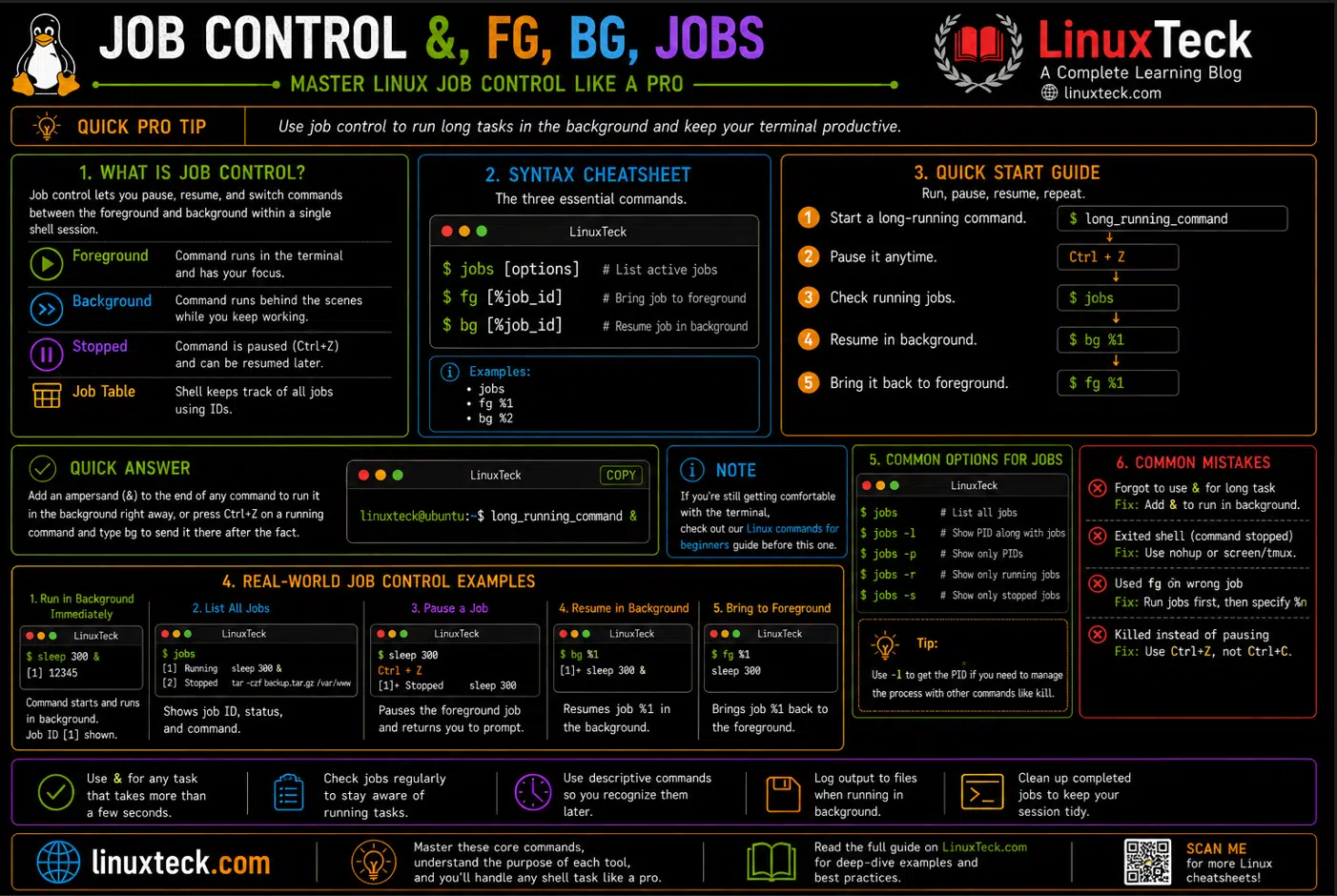
When working in the Linux terminal, long-running commands don't have to keep your shell occupied. Linux job control allows you to pause, resume, move, and manage running processes without stopping them, making it easier to work efficiently from a single terminal session.
In this guide, you'll learn how to use Linux job control with jobs, fg, bg, and the background operator (&). We'll also cover practical examples, common mistakes, and best practices for managing foreground and background processes, whether you're a beginner learning the Linux command line or an experienced administrator working on production systems.
Quick Answer:
Add an ampersand to the end of any command to run it in the background right away, or press Ctrl+Z on a running command and type bg to send it there after the fact.
LinuxTeck
Note:
If you're still getting comfortable moving around the terminal itself, it's worth spending ten minutes with our Linux commands for beginners guide before this one. Everything here assumes you can already open a shell and run a basic command.
Examples
What Is Job Control in Linux?
Job control is just a fancy name for pausing, resuming, and switching commands between the foreground and background inside a single shell session. That's it. Nothing about it needs to feel abstract once you've done it a couple of times.
Technically, every command you type in bash becomes a "job" the moment it starts running, and the shell keeps a small table tracking each one, whether it's actively running in the foreground, paused, or humming along quietly in the background. You interact with that table using three tools: jobs to list what's running, fg to bring something back to the front, and bg to send a paused command off to run in the background. This matters the moment you're doing more than one thing at once in a terminal, which for most people running Linux day to day is basically always.
Think about the last time you kicked off a backup, a big file copy, or a long compile and then just sat there staring at the terminal doing nothing else. That wasted time is exactly what job control gets rid of, and it's the same instinct behind a lot of the terminal tricks that make you faster day to day.
Syntax
LinuxTeck
linuxteck@ubuntu:~$ fg [%job_id]
linuxteck@ubuntu:~$ bg [%job_id]
jobs on its own lists everything the current shell knows about. fg and bg both take an optional job specifier written as a percent sign followed by a number, like %1 or %2. Leave the job ID off and either command just acts on whatever job is currently marked as the "current" one, which is usually the most recently backgrounded or suspended command.
Concept:
Job numbers are not the same as process IDs. Job numbers only exist inside the shell that created them and reset every time you open a new terminal. PIDs are system-wide and stick around until the process actually exits, which is why ps and kill use PIDs while fg and bg use job numbers.
Common Options and Job Specifiers
| Flag / Specifier | What It Does | When You'd Use It |
|---|---|---|
| jobs -l | Lists jobs with their process IDs included | You need the PID to hand off to ps or kill |
| jobs -p | Prints only the PIDs, no job numbers or commands | Feeding output straight into another command or script |
| jobs -r | Shows only jobs that are actively running | You've got a mix of running and stopped jobs and want to filter |
| jobs -s | Shows only jobs that are stopped | Checking what's sitting suspended before you fg or bg it |
| %n | References job number n directly | You have more than one job and need to target a specific one |
| %+ or %% | Refers to the current job | Quick shorthand when you only care about the most recent job |
| %- | Refers to the previous job | Switching back and forth between two jobs |
| %string | Matches a job whose command starts with string | Example: %rsync brings back the job that starts with rsync |
| %?string | Matches a job whose command contains string anywhere | Example: %?tar matches a job with tar anywhere in the command line |
| disown -h %n | Keeps the job in the job table but flags it to ignore SIGHUP | You want the job protected from a hangup but still want to see it in jobs |
| disown %n | Removes the job from the shell's job table entirely, without stopping it | You need a job to survive after the terminal closes and don't need to track it anymore |
| kill %n | Sends a signal (SIGTERM by default) to job n using its job number instead of a PID | You want to end a background job outright instead of foregrounding it just to Ctrl+C it |
| wait [%n] | Pauses the current shell until the given job, or all background jobs, finish | A script backgrounds several tasks and needs to block until they're all done |
Examples
I. Check What's Currently Running With jobs
Before you background or foreground anything, it helps to actually see what the shell thinks is going on. This is usually the first command people learn and the last one they stop using.
LinuxTeck
II. Send a Running Command to the Background With &
If you already know a command is going to take a while, put an ampersand at the end from the start. Your prompt returns immediately and the command keeps working behind the scenes.
LinuxTeck
That number in brackets is the job number, and the second number is the PID. You'll see both again in jobs -l.
III. Pause a Foreground Job With Ctrl+Z
This is the one people forget exists. If you forgot to add the ampersand and a command is already hogging your terminal, you're not stuck. Ctrl+Z suspends it on the spot.
LinuxTeck
^Z
Stopped does not mean killed. The process is frozen in place and using no CPU, but it's still there waiting.
IV. Resume a Paused Job in the Background With bg
Now that the job from the last example is sitting stopped, bg wakes it back up and keeps it out of your way.
LinuxTeck
V. List Jobs With Process IDs Using jobs -l
Once you're juggling more than one background job, plain jobs stops being enough. Add -l when you actually need the PID to hand off to ps or kill.
LinuxTeck
[2]+ 29017 Running tar -czf backup.tar.gz /var/www &
Once you're this deep into process tracking, our ps command guide is a natural next stop for viewing everything running on the system, not just what's tied to your shell. If you'd rather watch things live instead of taking a snapshot, htop shows the same processes updating in real time.
VI. Bring a Specific Job to the Foreground With fg %n
With more than one job running, plain fg grabs whatever's marked current, which isn't always the one you want. Target it directly with the job number.
LinuxTeck
If you actually want to end that job rather than look at it, you don't need to foreground it first just to Ctrl+C it. kill %2 sends the signal directly using the job number, which is faster and safer than hunting down the PID with ps.
VII. Redirect Output Before Backgrounding a Long Job
LinuxTeck
VIII. Detach a Job From the Shell With disown
LinuxTeck
IX. Start a Job That Survives a Shell Exit With nohup
If you know ahead of time a job needs to outlive your terminal session, plan for it up front instead of scrambling with disown afterward.
LinuxTeck
[1] 30988
Database migrations and long exports like this one are exactly where an underpowered VPS shows its limits, disk I/O in particular gets ugly fast. If you're picking a provider for that kind of workload, our Vultr review breaks down how it actually performs under sustained load rather than just on paper specs.
X. Common Mistake: Trusting exit the Same Way You'd Trust a Real Disconnect
This one catches people constantly, including me the first time it happened, and it's confusing precisely because bash is inconsistent about it.
Common Mistake:
Assuming a backgrounded job is protected just because typing exit and logging out didn't kill it last time. On most distributions, bash's huponexit setting is off by default, so a deliberate exit or Ctrl+D in a session you're closing on purpose usually leaves background jobs running untouched. A dropped SSH connection or a closed terminal window is a different event entirely. That's a real hangup at the terminal level, and it sends SIGHUP straight to your shell and everything still attached to it, whether you meant to log out cleanly or not. Treating the two as interchangeable is what gets people, because the safe case is the one most people test.
Since you can't fully control which one happens, the honest fix is to stop relying on the distinction at all. If you know before you start that the job needs to outlive the session, launch it with nohup:
LinuxTeck
If the job is already running and you only realize now that you need it to survive, skip nohup (it only works at launch) and detach it instead:
LinuxTeck
Pick one or the other depending on timing, there's no need to stack both. Neither one is completely bulletproof though. nohup and disown only block the SIGHUP signal itself, and a job that reads or writes to a terminal that's no longer there can still misbehave. For anything that genuinely needs to survive across sessions and keep producing output you can come back to, a terminal multiplexer is the more reliable habit:
LinuxTeck
Run your long job inside that tmux session as normal, no ampersand needed, then detach with Ctrl+B followed by D whenever you need to disconnect. The whole session, including any live output, keeps running on the server and you reattach later with tmux attach -t work. screen works the same way if that's what's already installed. If you need something more bulletproof than nohup for a single stubborn process without pulling in a multiplexer, setsid nohup ./long_task.sh > task.log 2>&1 </dev/null & fully detaches the process into its own session so it isn't part of your shell's process group at all, which is the same trick daemons use to survive their parent shell no matter how it exits. If you're running scheduled or long lived tasks anyway, it's worth reading how we moved from cron jobs to systemd timers, since anything that needs to run unattended long term is usually better off there than in a job at all.
XI. Why bg Doesn't Actually Work on vim (or Any Interactive Program)
LinuxTeck
XII. Wait for Several Background Jobs to Finish
Once you're comfortable backgrounding one thing, the next natural step is backgrounding several and waiting for all of them before moving on, which is common in backup and deployment scripts.
LinuxTeck
linuxteck@ubuntu:~$ tar -czf db.tar.gz /var/lib/mysql &
linuxteck@ubuntu:~$ wait
linuxteck@ubuntu:~$ echo "Both backups finished"
Both tar commands run in parallel instead of one after another, and wait with no arguments blocks until every background job in the current shell has completed before the script continues. This is the same building block behind a lot of the process management cheat sheet, worth a look if you're writing scripts that juggle more than one task at a time.
Why Job Control Actually Matters
Without job control, every terminal session turns into a queue. You run one thing, wait, run the next, wait again, and if you need to check something else you're stuck opening a new window or a new SSH connection just to avoid interrupting whatever's already running. On a laptop that's mildly annoying. On a production server where you're managing dozens of small tasks across a shift, it adds up to real wasted time and real risk, because more open sessions means more places where something can be left running and forgotten.
What actually shifts once you're comfortable with jobs, fg, and bg is how casually you start things. You stop being precious about whether a command is "worth" backgrounding and just do it by default for anything that takes more than a few seconds. That habit alone changes how you work, because you're no longer blocked waiting on your own terminal. It also forces you to think about SIGHUP and process lifetime earlier than most people do, which pays off the first time a client asks why a job died the moment you disconnected.
Underneath all of this is process group membership, which is the part most tutorials skip. When you start a job, its processes get placed in a process group tied to your shell's session. That's the actual mechanism behind SIGHUP propagating to background jobs on a real hangup, the terminal driver signals the whole session, not each process individually, which is also why disown and setsid work the way they do: disown just stops the shell from resending the signal, while setsid moves a process into a brand new session entirely so it was never reachable through your terminal's session in the first place.
The gap most guides skip is what happens at the edges: SSH sessions that drop, scripts that assume an interactive shell and throw the no job control in this shell error, and jobs that quietly vanish because nobody thought about nohup until after the fact. Bash documents the mechanics of this well in its own manual, and the official GNU Bash job control reference is worth skimming once you've got the basics down, since it covers signal behavior in more depth than any blog post reasonably can.
Key Points
- Add & to the end of a command to background it immediately instead of waiting for it to finish.
- Use Ctrl+Z to pause a foreground command you forgot to background, then bg to send it back without losing it, but skip bg entirely for interactive programs like vim, they'll just stop themselves again.
- Job numbers only exist inside the current shell, use jobs -l when you need the actual PID for ps or kill.
- fg %n and bg %n target a specific job when you have more than one running at once, and kill %n ends one outright without foregrounding it first.
- Redirect output with > file 2>&1 before backgrounding anything that prints regularly, or it'll clutter your session.
- A dropped SSH connection or a closed terminal window sends SIGHUP to attached jobs, but a deliberate exit usually doesn't since huponexit is off by default, don't treat the two as the same thing.
- Use nohup up front or disown after the fact to protect a job from SIGHUP, and reach for tmux or screen when you also need to reattach and see the output later.
- wait blocks a script until every backgrounded job finishes, which is how you run several tasks in parallel and still know when they're all done.
Questions I Get Asked About This All the Time
I already ran a command without the ampersand, is it too late to background it?
Not at all. Hit Ctrl+Z to pause it, then type bg. The job picks up right where it left off, just quietly this time.
Why did my background job just disappear when I closed my terminal?
That's SIGHUP doing its job. Closing the shell sends a hangup signal to every job still attached to it. Use nohup before starting the command, or disown after, if you need it to survive.
What's actually different between bg and disown?
bg just resumes a paused job in the background, it's still fully tracked by the shell. disown removes it from that tracking entirely so the shell no longer sends it a hangup signal on exit. You'll often use them in sequence: bg to wake the job up, followed by disown to detach it.
My script says "no job control in this shell," what's going on?
Job control is an interactive shell feature and most scripts run non-interactively, so fg and bg simply aren't available there. If you genuinely need it inside a script, add set -m near the top, though it still won't help commands that need an actual terminal.
How do I keep track of several background jobs at once without losing count?
Run jobs -l regularly, it lists every job with its number and PID. If a job's output is noisy, redirect it to a log file when you start it so you're not scrolling through mixed output trying to figure out which job printed what.
Can I get back to a job after my SSH connection actually drops on its own?
Only if you planned for it. A dropped connection sends the same hangup signal as closing it deliberately, so anything not protected with nohup or disown is gone. This is the main reason people move long running remote work into tmux or screen instead of a plain job.
Why does vim freeze instead of actually going to the background when I use bg?
That's expected, not broken. vim needs to read your keystrokes and draw the screen, so the instant it's running in the background it tries to read from a terminal it no longer has access to and stops itself again. You'll see "Stopped (tty input)" instead of "Running." Use fg to bring it back and exit normally, bg isn't the right tool for anything interactive.
From your first terminal command to advanced sysadmin skills, every guide here is written in plain English with real examples you can run right now.
Support My Work
Thank you for reading and for being part of this journey. If this article saved you time, consider buying me a coffee. Every contribution helps me keep producing in-depth, practical Linux content for readers like you.

Thank you for your endless support