

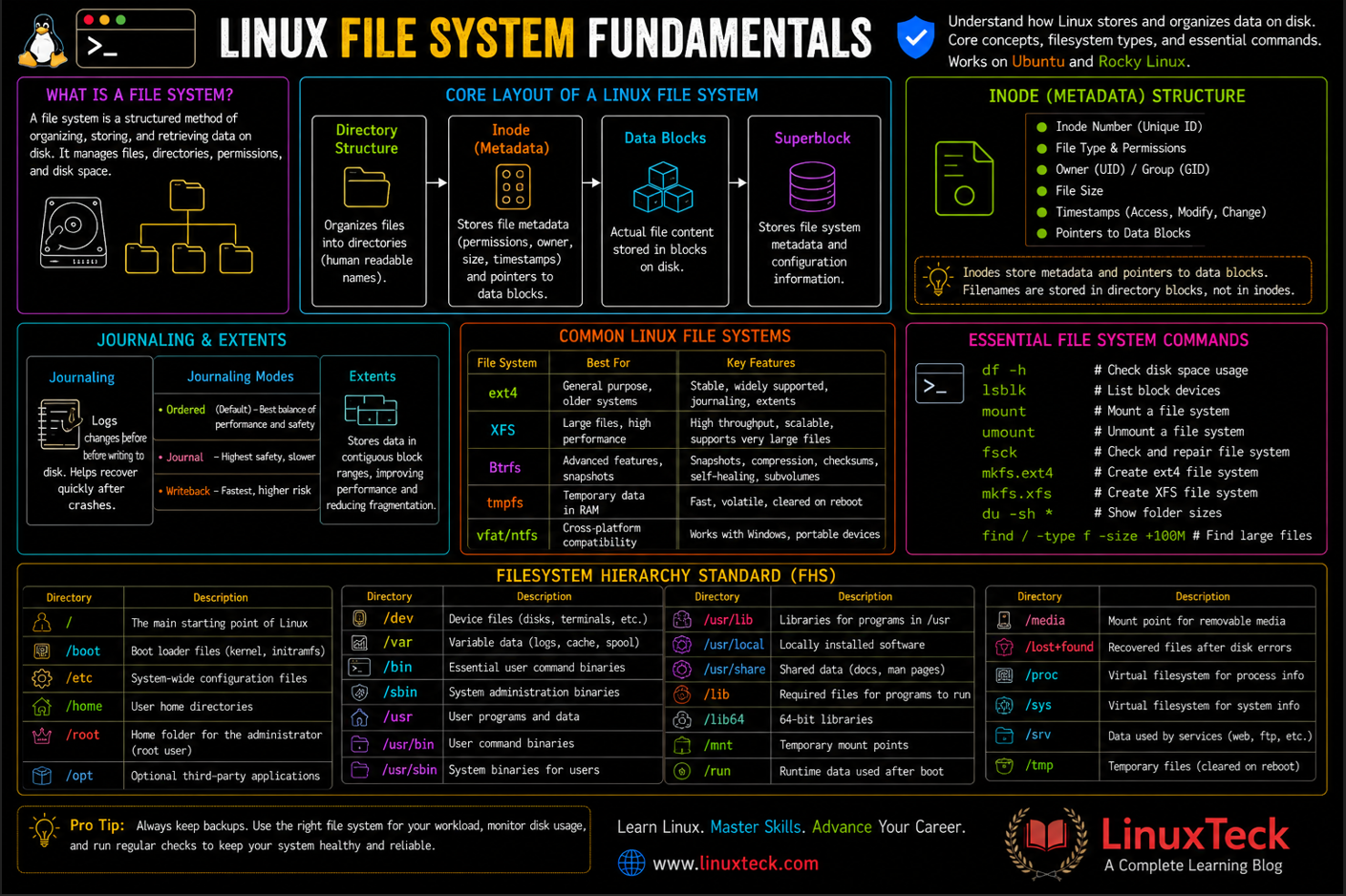
The Linux filesystem is the foundation of how every Linux system stores, organizes, and retrieves data. Whether you're managing a personal workstation, a web server, or an enterprise environment, understanding how filesystems work is essential for maintaining performance, reliability, and data integrity. This guide explains the core concepts behind Linux filesystems, including inodes, journaling, the Filesystem Hierarchy Standard (FHS), and the differences between ext4, XFS, and Btrfs. You'll also learn practical filesystem management commands for Ubuntu and Rocky Linux, along with best practices for monitoring storage, troubleshooting common issues, and selecting the right filesystem for your workload.
| What It Is | A structured method of organizing, storing, and retrieving data on disk |
| Key Building Block | The inode, a data structure that holds metadata and pointers to actual data blocks |
| Directory Standard | Filesystem Hierarchy Standard (FHS) dictates where system files, user files, and configs go |
| Most Common Today | ext4 on older systems, Btrfs on newer, XFS for large data and high throughput |
Linux File System Fundamentals: What It Actually Does
In simple terms, a filesystem is the referee between your applications and the hard disk. When you run a program that tries to save a file, the filesystem decides where that file goes, how the disk space gets carved up, what happens if the power cuts out mid-write, and whether another user can read or delete that file. Most of the time this works silently. You never think about it.
But underneath, the filesystem maintains a giant map of which disk blocks belong to which file, stores metadata (size, permissions, timestamps, ownership), and handles the physical writing to disk. Different filesystems make different trade-offs. ext4 prioritizes stability and backward compatibility. XFS prioritizes throughput and large file handling. Btrfs adds snapshots and self-healing but carries more complexity.
All of this starts with the inode. An inode is a tiny data structure that holds everything the system needs to know about a file or directory, except the filename itself. It stores the file size, permissions, owner, timestamps, and a list of pointers to the actual data blocks where the file content lives. The inode number is what Linux uses internally to track files, not the human-readable name. For deeper technical details, refer to the official inode manual page.
Key Takeaway:
How Filesystems Organize Data and Protect Against Failure
Most explanations of Linux filesystems stop after describing inodes and directories. But the real value appears when things go wrong. That's where journaling and metadata checksumming enter.
The Three Layers Every Filesystem Has
A Linux filesystem actually sits in three layers. The logical layer is what your applications see, the virtual layer is what lets Linux work with many filesystem types at once, and the physical layer is the actual disk. Most users never need to think about this, but it explains why you can use ext4, XFS, and an NTFS USB drive all at the same time on one machine. The VFS abstraction makes them all look the same from the application's perspective.
Journaling: Why Your System Boots Faster After a Crash
When you kill power to a server mid-write, the filesystem is in an inconsistent state. Files might be partially written, metadata might not match the actual data. Older filesystems like ext2 had to run a full disk check every boot to repair this. That took minutes or hours on large drives. Journaling filesystems fix this by maintaining a journal, a special log that records every change before it actually writes to disk. If the power cuts out, the filesystem just replays the journal on the next boot. This typically takes seconds.
There are three journaling modes. Ordered mode logs only metadata but guarantees data is written before metadata is updated, giving a good balance of safety and speed. Journal mode logs both, slower but safest. Writeback mode logs metadata only without enforcing write order, fastest but riskiest. Most production systems use ordered mode by default.
Extents and Block Allocation: Why Large Files Matter
Old filesystems allocated storage one block at a time. A large file might be scattered across thousands of tiny blocks. This fragmentation kills performance, especially on mechanical drives. Modern filesystems use extents, which are contiguous ranges of blocks. Instead of tracking 10,000 individual block pointers, the filesystem tracks "blocks 50000 through 60000 belong to this file." This is faster and uses less memory. It's why ext4 and Btrfs outperform ext2 by such a large margin on real workloads.
Why Journaling Modes Matter:
Understanding the Filesystem Hierarchy Standard (FHS)
While filesystems manage the physical bits on your disk, the Linux Directory Structure follows a strict rulebook called the Filesystem Hierarchy Standard (FHS). Here is where your critical data lives. Understanding this hierarchy prevents you from accidentally deleting something important or looking in the wrong place for configuration files.
| Directory | Purpose & What It Contains |
|---|---|
| / | The main starting point of Linux. Everything on your system branches from here. The root filesystem. |
| /boot | Files needed to start the system. Contains the kernel image and bootloader configuration (GRUB). Critical for system boot. |
| /etc | System settings and configuration files. Network configs, user accounts, service settings, SSH keys, and application config files live here. |
| /home | Personal folders for users. Each user gets a subdirectory here (e.g., /home/username) where they store files and settings. |
| /root | Home folder for the administrator (root user). Separate from /home for security reasons. |
| /opt | Extra or third-party software. Self-contained applications and packages that don't fit elsewhere go here (e.g., commercial software). |
| /dev | Files that represent hardware devices. Device nodes for disks (/dev/sda), terminals, and other hardware are stored here. |
| /var | Files that change often (logs, cache, temp data). System logs (/var/log), cache files, and database spools are here. Grows over time. |
| /bin | Basic commands used by users. Essential user commands like ls, cp, cat that work in single-user mode. |
| /sbin | System-level commands for admins. Administrative utilities like ifconfig, shutdown, and fsck are stored here. |
| /usr | Installed programs and shared tools. Contains /usr/bin (user programs), /usr/lib (libraries), and /usr/share (documentation). |
| /lib | Required files for programs to run. Shared libraries and kernel modules needed by binaries in /bin and /sbin. |
| /proc | Live system and process information. A virtual filesystem that shows running processes, CPU info, and kernel state. Not stored on disk. |
| /sys | System and hardware information. Another virtual filesystem exposing kernel and hardware configuration in a hierarchical way. |
| /mnt | Temporary place to attach storage. Mount points for manually mounting filesystems like external drives or network shares go here. |
| /media | USB drives, CDs, and external devices. Auto-mounted removable media appears here (e.g., /media/usb-drive). |
| /run | Runtime data used after boot. Temporary files created by running processes and services. Cleared on each reboot. |
| /lost+found | Recovered files after disk errors. When fsck repairs a filesystem, orphaned files appear here for recovery. |
| /srv | Data used by services (web, ftp, etc.). Website files, FTP data, and other service-specific data are stored here. |
Working With Filesystems on Ubuntu and Rocky Linux
Theory is nice, but you need to know what commands actually work when you're setting up a server or troubleshooting storage problems. Here are the practical commands you'll run repeatedly.
Check What Filesystems Your System Currently Supports on Ubuntu
First step is understanding what your system can work with. This command shows all filesystem types the kernel knows about.
LinuxTeck.com
# Output shows all supported filesystems
nodev sysfs
nodev rootfs
nodev ramfs
nodev bdev
nodev proc
nodev cgroup
nodev cgroup2
nodev tmpfs
nodev devtmpfs
nodev debugfs
nodev tracefs
ext4
vfat
iso9660
fuseblk
fuse
msdos
Check What Filesystems Your System Currently Supports on Rocky Linux
The command is identical on Rocky Linux. The output will show a similar list, including ext4 and likely XFS if it's a RHEL-based system.
LinuxTeck.com
# XFS usually appears on RHEL-based systems
nodev sysfs
nodev rootfs
nodev ramfs
nodev bdev
nodev proc
nodev cgroup
nodev cgroup2
nodev tmpfs
nodev devtmpfs
ext4
xfs
vfat
iso9660
Check Your Current Filesystem Type and Usage on Ubuntu
When you need to know what filesystem you're actually using and how full the disk is, the df command is your go-to. The -h flag shows sizes in human-readable format (GB instead of blocks).
LinuxTeck.com
# Shows all mounted filesystems
Filesystem Size Used Avail Use% Mounted on
/dev/sda1 20G 8.5G 11.5G 43% /
/dev/sdb1 50G 25G 25G 50% /home
tmpfs 3.8G 0 3.8G 0% /run
Check Your Current Filesystem Type and Usage on Rocky Linux
Rocky Linux might use XFS on the root partition depending on how it was installed. The output format is identical, but you'll likely see xfs in the Filesystem column instead of ext4.
LinuxTeck.com
# Rocky Linux often uses XFS
Filesystem Size Used Avail Use% Mounted on
/dev/sda1 30G 12G 18G 40% /
/dev/sda2 50G 30G 20G 60% /var
tmpfs 4.0G 0 4.0G 0% /run
Find Inode Usage on Ubuntu
Inodes can fill up independently of disk space. A filesystem can have plenty of free megabytes but zero free inodes, making it impossible to create new files. This command shows inode usage per filesystem.
LinuxTeck.com
# -i flag shows inodes instead of disk space
Filesystem Inodes IUsed IFree IUse% Mounted on
/dev/sda1 1310720 150000 1160720 11% /
/dev/sdb1 3276800 200000 3076800 6% /home
tmpfs 974000 50 973950 1% /run
Find Inode Usage on Rocky Linux
Same command, same output format. The inode count depends on how the filesystem was formatted when the system was installed. Rocky Linux typically allocates more inodes on /var since it handles lots of small log files.
LinuxTeck.com
# Rocky Linux /var partition often has high inode count
Filesystem Inodes IUsed IFree IUse% Mounted on
/dev/sda1 1960000 250000 1710000 13% /
/dev/sda2 5242880 520000 4722880 10% /var
tmpfs 1048576 75 1048501 1% /run
Get Detailed Inode Information for a Specific File on Ubuntu
When you need to dig into a specific file and see its inode number, ownership, permissions, and timestamps, use stat. This is what you run when you're debugging permission issues or tracking down what user created a file.
LinuxTeck.com
# Shows detailed inode information
File: /etc/hostname
Size: 12 Blocks: 8 IO Block: 4096 regular file
Device: 10302h/66306d Inode: 3670298 Links: 1
Access: (0644/-rw-r--r--) Uid: ( 0/ root) Gid: ( 0/ root)
Access: 2026-06-20 14:32:10.000000000 +0000
Modify: 2026-06-15 08:22:45.000000000 +0000
Change: 2026-06-15 08:22:45.000000000 +0000
Birth: -
Get Detailed Inode Information for a Specific File on Rocky Linux
Identical command and output. This is one of the beauties of Linux consistency across distros. Your scripts and commands port directly from Ubuntu to Rocky Linux without changes.
LinuxTeck.com
# Rocky Linux output is the same
File: /etc/hostname
Size: 11 Blocks: 8 IO Block: 4096 regular file
Device: 10304h/66308d Inode: 2507641 Links: 1
Access: (0644/-rw-r--r--) Uid: ( 0/ root) Gid: ( 0/ root)
Access: 2026-06-18 10:15:30.000000000 +0000
Modify: 2026-06-10 09:45:12.000000000 +0000
Change: 2026-06-10 09:45:12.000000000 +0000
Birth: -
Comparing Filesystems: ext4 vs XFS vs Btrfs
Not all filesystems are created equal. They make different bets about what matters. ext4 bets on stability and ubiquity. XFS bets on throughput. Btrfs bets on features. Your job is picking which bet matters for your use case.
| Feature | ext4 | XFS | Btrfs | Use It For |
|---|---|---|---|---|
| Max File Size | 16 TB | 8 EB | 16 EB | ext4 fine for most |
| Max Volume Size | 1 EB | 8 EB | 16 EB | ext4 standard |
| Journaling | Yes (ordered mode default) | Yes (metadata only) | Yes (advanced) | All are safe |
| Snapshots | No | No | Yes (built-in) | Btrfs only |
| Compression | No | No | Yes (zstd, lz4) | Btrfs only |
| Self-Healing | No | No | Yes (if mirrored) | Btrfs only |
| Online Resize | Yes | Yes | Yes | All support it |
| Encryption | Partial | No | Yes | Btrfs better |
| Throughput | Good | Excellent | Good | XFS wins |
| Stability / Maturity | Excellent | Excellent | Stable but newer | ext4 default |
The Storage Quirk Nobody Mentions:
When You Actually Need Snapshots:
Red Flags: What Goes Wrong and How to Fix It
Filesystems fail in very specific ways. Recognizing these patterns saves hours of debugging.
Inode Exhaustion: "No space left on device" When Disk is 80% Empty:
df -i | grep 100% to find the culprit partition. Then diagnose what's consuming inodes with find . -type f | wc -l in the bloated directory. If it's log files or caches, archiving old content frees inodes instantly. If it's millions of tiny files from an application, you need to reformat with more inodes or migrate to a different partition. This is why knowing your system's architecture matters in production.
Filesystem Corruption After Unclean Shutdown:
fsck -n /dev/sda1 (read-only mode first, always). For XFS, use xfs_repair -n /dev/sda1. If errors exist, unmount and run without -n to repair. Modern systems rarely hit this, but it's worth knowing. This is why regular backup testing matters more than single-filesystem reliability.
Slow Writes on Full Filesystems:
df -h and keep filesystems under 85% capacity. If you're consistently hitting 85%, the answer is almost never to delete old data; it's time to add storage. Know your growth rate by checking du -sh /path/to/partition weekly and trending it.
Frequently Asked Questions
Q1: How do I check which filesystem my system is using right now?
Run df -T to see the filesystem type for each mounted partition. For just the root filesystem, try stat / | grep -i "filesystem" or simply look at the root entry in df -T. Ubuntu typically defaults to ext4, while Rocky Linux often uses XFS on the root partition. If you want even more detail including block size and inode count, use tune2fs -l /dev/sda1 for ext4 or xfs_info /dev/sda1 for XFS. This is essential information when administering production systems.
Q2: Can I convert from ext4 to Btrfs without losing data?
Direct in-place conversion doesn't exist in Linux. The safe path is: back up everything to another disk, wipe the partition, format it as Btrfs, then restore the data. This takes time proportional to your data volume. Some tools claim to convert in-place, but none are trustworthy enough for production data. The safer approach is to migrate gradually, putting new data on a Btrfs partition while keeping the ext4 partition around as a fallback. This is why robust backup practices matter more than the filesystem itself.
Q3: What does "journaling" actually prevent and what does it not prevent?
Journaling prevents filesystem inconsistency after a crash. If the power dies mid-write, journaling lets the filesystem replay the journal on next boot and skip a lengthy fsck. What it does NOT prevent: application-level corruption (if your database app writes garbage before the crash, journaling won't fix that), or hardware failure (bad sectors still destroy data). Journaling is a safety net for power loss and kernel crashes, not for everything. Most users conflate "journaling" with "safe," but they're not the same thing. Reliable storage requires multiple layers of protection.
Q4: How many inodes do I actually need when formatting a filesystem?
Default inode allocation is usually 1 inode per 16KB of disk space. For a 1TB partition, that's about 64 million inodes, which is plenty for most workloads. But if you're building a mail server or log aggregation system, where files are tiny, you might need an inode per 1KB or less. When formatting, use mkfs.ext4 -i 1024 /dev/sda1 to allocate one inode per 1024 bytes. You set this at format time; you can't change it later without reformatting. If you're unsure, benchmark your actual workload with a test partition first before committing production storage. Over-allocating inodes costs a tiny amount of space, under-allocating costs a lot of downtime.
Q5: Should I use XFS or ext4 for a general-purpose Linux server?
ext4 is the conservative choice. It's deployed everywhere, tools are mature, and you'll never be the only person debugging an issue. XFS is faster on high-throughput workloads (databases, media serving) but requires more knowledge to tune and repair. If you're building a standard web server, use ext4. If you're handling a petabyte data warehouse or running HPC workloads, XFS wins. When in doubt, pick whatever your distro defaults to and spend your time on other optimization. The difference in real-world performance is usually smaller than the cost of a operator who doesn't understand the filesystem they chose. Read more on how these filesystems compare in detail.
Q6: What happens when two processes write to the same file at the same time?
The filesystem doesn't stop them. Both writes land on disk, interleaved and probably corrupted. The kernel has file locking mechanisms (fcntl) and applications use them to prevent this. But the filesystem itself doesn't enforce mutual exclusion by default. This is why databases use advisory locks and why writing a log file from multiple processes usually requires a dedicated logging daemon. The filesystem gives you the tools to be safe (locking, atomic operations) but doesn't force you to use them. Understanding this separates experienced operators from those who get bitten by weird bugs.
Final Thoughts: Filesystems Are Infrastructure, Not Magic
Every file on your Linux system lives in a filesystem. That filesystem made decisions about how to allocate blocks, track inodes, and handle crashes. Different filesystems make different choices, and those choices ripple through your infrastructure. You don't need to be a filesystem engineer, but you do need to understand what you're using and why.
Start by knowing your current setup. Run df -T and df -i regularly. Understand your growth rate. Know when you're approaching capacity, and plan ahead. If you're building new infrastructure, pick ext4 unless you have a specific reason for XFS (high throughput) or Btrfs (snapshots and self-healing). The best filesystem is the one your team understands.
As you dive deeper, explore system administration practices and Unix filesystem principles to understand the broader context. The filesystem is one layer in a much larger stack of storage reliability and performance.
Further Reading on LinuxTeck:
ext4 vs XFS vs Btrfs: A Complete Comparison - Deep dive into performance characteristics and when to use each.
df Command in Linux with Examples - Master the df command for real-time disk monitoring.
du Command: Finding What's Consuming Your Disk Space - Troubleshoot disk usage issues with du and find commands.
7 Types of Files in Linux You Need to Know - Understand regular files, directories, device files, and special files.
Linux Logging Best Practices and systemd-journald - How to manage logs without exhausting inodes on your filesystem.
LinuxTeck - A Complete Linux Infrastructure Blog
LinuxTeck covers everything from beginner Linux commands to advanced Linux system administration and DevOps career guidance, written by practitioners for professionals working on Ubuntu, Rocky Linux, RHEL, and enterprise Linux environments every day.




2 replies on “Linux File System Fundamentals: A Directory-Level Overview”
Thank you very much Aneeshya, for Thank you very much for this article, it is very enlightening article about Linux.
Thank you, Emrah! I appreciate your feedback and support.