

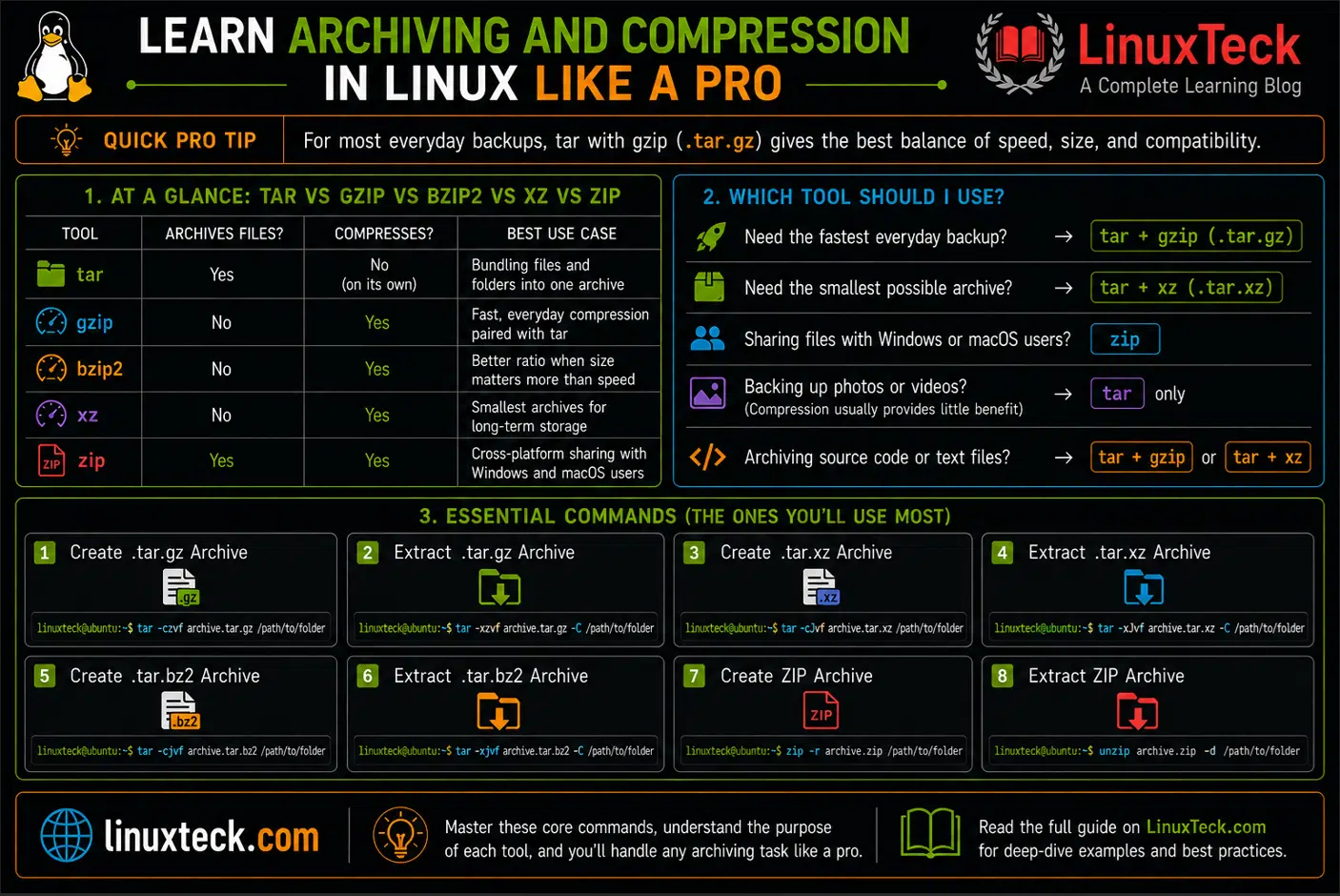
Linux offers several powerful tools for archiving and compressing files, but knowing which one to use isn't always obvious. This guide walks you through tar, gzip, bzip2, xz, and zip, explaining their differences with practical examples you can apply in everyday Linux administration.
Quick Answer:
This bundles the folder into a single archive and compresses it with gzip in one step. It is the command most people actually need 90 percent of the time.
LinuxTeck
This guide is for anyone who has typed tar and then guessed at the flags, or anyone who already knows the basics but wants a clean reference for gzip, bzip2, xz, and zip without digging through man pages mid-task. By the end you will know which tool fits which job, how to avoid the extraction mistakes that catch almost everyone once, and how to handle archiving at a level that actually holds up in production.
Note:
If you are still getting comfortable with the terminal itself, it is worth working through basic Linux commands for beginners before jumping into archiving, since a lot of this builds on things like paths and permissions.
At a Glance: tar vs gzip vs bzip2 vs xz vs zip
| Tool | Archives Files? | Compresses? | Best Use Case |
|---|---|---|---|
| tar | Yes | No (on its own) | Bundling files and folders into one archive |
| gzip | No | Yes | Fast, everyday compression paired with tar |
| bzip2 | No | Yes | Better ratio than gzip when size matters more than speed |
| xz | No | Yes | Smallest archives for long-term storage |
| zip | Yes | Yes | Cross-platform sharing with Windows and macOS users |
- Need the fastest everyday backup? →
tar + gzip (.tar.gz) - Need the smallest possible archive? →
tar + xz (.tar.xz) - Sharing files with Windows or macOS users? →
zip - Backing up photos or videos? →
taronly. Compression usually provides little benefit because these files are already compressed. - Archiving source code or text files? →
tar + gziportar + xz
Examples
What Is Archiving and Compression in Linux?
Archiving means packing multiple files and folders into one file. Compression means shrinking the size of that data. They sound similar but they solve two different problems, and Linux keeps them as separate tools on purpose.
tar is the archiving tool. On its own it just bundles files together, it does not shrink anything. Compression comes from pairing it with a utility like gzip, bzip2, or xz. zip is the odd one out because it does both archiving and compression in a single format, which is why it is the one most people already know from Windows and macOS.
Think about it the way you would pack a suitcase. tar zips your clothes into one bag so you are not carrying twenty loose items. Compression is what happens when you sit on the suitcase to make it fit. You need the packing step before the squeezing step actually makes sense.
This is the exact workflow behind almost every backup script, deployment pipeline, and log rotation job you will ever touch on a Linux server, which is why getting comfortable with it early pays off for years.
tar Command Syntax
LinuxTeck
The command itself
Create a new archive
Compress using gzip
Verbose, shows each file as it's added
Name of the archive file, must come last
What you're archiving
When you bundle short options together like -czvf, order among the flags that don't take an argument (c, z, v) doesn't matter much, but f is different because it expects an argument right after it, the archive filename. That's why f is written last in the group, so the filename that follows lines up with it correctly. Write tar -fcz archive.tar.gz dir/ and tar will try to use "c" as the filename instead, which throws people off constantly. This matters even more with the old-style syntax that drops the leading dash entirely, like tar czvf archive.tar.gz dir/, since without a dash there's no unambiguous way to attach an argument to a flag except by position, so keeping f last and its filename immediately after it is the safe habit either way.
Concept:
tar does not need dashes in front of its flags. tar czvf works exactly the same as tar -czvf. Both are correct, it's just an old convention carried over from tape backup days that GNU tar still honors.
Common tar and Compression Flags
| Flag | What It Does | When You'd Use It |
|---|---|---|
| -c | Create a new archive | Any time you're packing files together |
| -x | Extract files from an archive | Unpacking a downloaded or received tarball |
| -t | List archive contents without extracting | Checking what's inside before you unpack it |
| -z | Compress or decompress with gzip | Fast, everyday compression that most systems can read |
| -j | Compress or decompress with bzip2 | When file size matters more than speed |
| -J | Compress or decompress with xz | Long-term storage where you want the smallest possible file |
| -v | Verbose output | Watching progress or confirming what got included |
| -f | Specifies the archive filename | Required on almost every tar command you'll write |
| -C | Change to a directory before extracting | Extracting into a folder other than your current one |
| --exclude | Skip specific files or patterns | Leaving out node_modules, .git, or cache folders |
Compression Format Comparison
| Format | Compression Speed | Compression Ratio | CPU Usage | Best For |
|---|---|---|---|---|
| gzip | Fast | Moderate | Low | Everyday backups and quick transfers |
| bzip2 | Slower | Better than gzip | Moderate | Database dumps and backups where size matters more than speed |
| xz | Slowest | Best of the four | High | Long-term archives and releases where size is the priority |
| zip | Fast | Moderate | Low | Cross-platform sharing rather than pure compression efficiency |
Common Archive File Extensions
- .tar — An uncompressed archive that simply bundles multiple files together.
- .tar.gz — A tar archive compressed with
gzip; the most common archive format on Linux. - .tgz — A shorter filename extension for
.tar.gz. - .tar.bz2 — A tar archive compressed with
bzip2; offers better compression than gzip but is slower. - .tar.xz — A tar archive compressed with
xz; provides the smallest archives but takes longer to compress. - .gz — A single compressed file created with
gzip; it is not a multi-file archive. - .zip — An archive and compression format combined into one file, commonly used on Windows and macOS.
Archiving and Compression Examples
I. Compress a Single File with gzip
The most basic compression job there is, useful for shrinking a log file or a text export before you send it somewhere.
LinuxTeck
By default gzip runs silently and just replaces the file with no message at all. Adding -v is the only way to actually see the compression ratio and confirm it worked, which is worth doing the first few times until you trust it.
II. Create a tar Archive Without Compression
Sometimes you just want to bundle files, not shrink them, especially if the files are already compressed formats like images or videos.
LinuxTeck
Pictures/vacation1.jpg
Pictures/vacation2.jpg
Pictures/screenshot.png
III. Create a Compressed .tar.gz Archive
This is the one you'll type more than any other, packing and compressing a whole directory in a single command.
LinuxTeck
project/src/
project/src/main.js
project/package.json
project/README.md
IV. Extract a .tar.gz Archive
Pulling files back out is the reverse of creating them. Swap -c for -x and keep everything else the same.
LinuxTeck
project/src/
project/src/main.js
project/package.json
project/README.md
V. List Contents of an Archive Without Extracting
Good habit before extracting anything you didn't create yourself, especially if you're not sure what's actually inside it.
LinuxTeck
-rw-r--r-- user/user 1204 2026-07-14 project/package.json
-rw-r--r-- user/user 890 2026-07-14 project/README.md
VI. Compress Using bzip2 for a Better Ratio
When the archive size matters more than how long it takes to build, bzip2 usually shaves off more than gzip does.
LinuxTeck
/var/lib/mysql-dump/full.sql
/var/lib/mysql-dump/schema.sql
VII. Compress Using xz for Maximum Compression
xz is slower than both gzip and bzip2 but usually produces the smallest file, which matters for archives you're storing long term rather than moving around daily.
LinuxTeck
old-projects/site-v1/
old-projects/site-v2/
VIII. Exclude Files While Archiving
You almost never want node_modules, .git, or cache directories inside a backup. --exclude keeps the archive lean and the build fast.
LinuxTeck
app/src/
app/package.json
app/index.js
A Real-World Backup Workflow
The next few examples move from single commands into how archiving actually fits into a production routine. A solid backup process usually follows the same basic flow regardless of what you're archiving:
Create Archive
→
Verify Archive
→
Test Extraction
→
Copy to Off-site Storage
→
Remove Old Backups
→
Automate with Cron
Skipping the verify and test extraction steps is where most backup routines quietly fail, the archive gets created every night for months, but nobody finds out it's corrupted or incomplete until the day it's actually needed.
IX. Back Up a Website Directory Before a Deployment
LinuxTeck
html/wp-content/
html/index.php
html/wp-config.php
X. Archive and Rotate Old Log Files
LinuxTeck
error.log
access.log
XI. Split a Large Archive Into Multiple Parts
LinuxTeck
This command produces no terminal output on its own since both tar and split run silently here. Run ls bigdata.tar.gz.part* right after to confirm the parts were actually created.
LinuxTeck
bigdata.tar.gz.partab
bigdata.tar.gz.partac
cat bigdata.tar.gz.part* > bigdata.tar.gz before extracting.XII. The Extraction Mistake Almost Everyone Makes Once
This one gets people constantly. You extract an archive expecting it to create a folder, but instead it dumps dozens of files straight into your current directory.
Common Mistake:
Running tar -xzvf website-files.tar.gz assuming the archive contains a top level folder, when it actually just contains loose files at the root. You end up with a messy directory and no easy way to tell which files came from the archive.
LinuxTeck
style.css
script.js
Making the destination folder yourself and pointing tar at it with -C solves the mess before it happens. Placing -C before the archive flag, rather than after, is the more portable habit since it works consistently across GNU tar and older BSD-style tar implementations. It also means you can check tar -tzvf first, per example V, before you commit to extracting anything.
Why Archiving and Compression Skills Actually Matter
Most people learn tar because they need one command to work once, then forget it exists until the next emergency. That's backwards. On any server you're responsible for, backups break silently more often than they fail loudly, and the difference between a five minute recovery and a lost weekend usually comes down to whether your archiving process was actually tested, not just written.
The flags stop being trivia once you're moving real data under time pressure. Knowing that gzip is fast but xz is smaller changes what you reach for when you're compressing a nightly database dump versus archiving a project you're shelving for two years. Knowing how --exclude works means your backups don't balloon with cache files nobody needed in the first place. None of this is complicated, but it only becomes second nature once you've been burned by not knowing it, the same way I was burned by choosing zip on a 40GB directory.
At the production level, archiving ties directly into how a team thinks about disaster recovery. A properly compressed and scheduled backup, combined with a solid server backup strategy, is often the only thing standing between a bad deployment and a full outage. The GNU project maintains the full tar manual if you ever need to go deeper than what's covered here, and it's worth bookmarking once you start relying on tar for anything critical.
zip, gunzip, and the Other Archive Utilities Worth Knowing
tar and gzip cover most day to day work, but there's a second tier of tools that come up often enough to be worth knowing, especially once you're working with logs, packages, or files shared with non-Linux systems.
zip and unzip for cross-platform archives
Unlike tar, zip both archives and compresses in a single step and format, which is why it's the one most people already recognize from Windows and macOS.
LinuxTeck
adding: website/index.html (deflated 61%)
adding: website/style.css (deflated 72%)
Pulling it back apart is unzip website-files.zip, or unzip website-files.zip -d website/ to send it into a specific folder the same way -C works for tar.
gunzip to decompress .gz files
gunzip is just a shortcut for gzip -d. Either command decompresses a .gz file and removes the compressed copy once it's done.
LinuxTeck
gzexe - for compressing executables in place
gzexe compresses a binary but leaves it runnable, since it silently decompresses itself into memory each time you execute it. It's a niche tool, mostly seen on space-constrained systems.
LinuxTeck
Concept:
gzexe keeps a backup of the original as my_program~ by default. It's worth deleting that once you've confirmed the compressed version still runs correctly.
ar - for building static libraries
ar shows up outside the typical backup and transfer context. It's the tool behind C and C++ static libraries, and it's also what .deb package files are built from under the hood.
LinuxTeck
Searching and viewing compressed files without extracting them
This is the part people usually don't know exists until they need it. gzip and bzip2 both ship with wrapper tools that let you search, page through, and diff compressed files directly, without ever writing an uncompressed copy to disk.
LinuxTeck
192.168.1.22 - - [14/Jul/2026:11:05:41] "GET /missing.css 404 -"
| Tool | What It Does | Works On |
|---|---|---|
| zgrep | Searches inside a compressed file for a pattern | .gz files |
| bzgrep | Same idea as zgrep, for bzip2 archives | .bz2 files |
| bzless / bzmore | Pages through a compressed file's contents on screen | .bz2 files |
| zdiff | Compares two compressed files line by line | .gz files |
| bzdiff / bzcmp | Same comparison, for bzip2 archives | .bz2 files |
None of these decompress anything to disk in the process, which is exactly why they're worth using on log archives you only need to glance into occasionally rather than fully restore.
Common Mistakes Worth Avoiding
- Forgetting the
-foption before the archive filename. - Compressing files that are already compressed, such as images, videos, or ZIP archives.
- Extracting archives into the current directory instead of a dedicated folder.
- Never testing whether a backup can actually be restored.
- Forgetting
--excludeand accidentally archiving directories likenode_modulesor.git. - Keeping backups only on the same server they are meant to protect.
- Never verifying archive contents before extracting an unfamiliar file.
Who Uses These Commands?
| Role | Common Usage |
|---|---|
| Linux Administrator | Scheduled system backups, log archiving, disk space cleanup |
| DevOps Engineer | Packaging build artifacts, deployment rollbacks, CI/CD pipeline archives |
| System Administrator | Server migrations, configuration backups, disaster recovery prep |
| Database Administrator | Compressing database dumps before storage or transfer |
| Web Administrator | Backing up site files and databases before updates |
| Developer | Sharing project archives, packaging releases, moving code between environments |
Key Takeaways
- Use tar with -z for everyday compressed archives, it's the fastest and most universally supported option across systems.
- Reach for -j (bzip2) or -J (xz) only when the smaller file size is worth the extra compression time.
- Always put -f last in a combined flag group since tar reads whatever follows it as the archive filename.
- Run tar -tzvf on an unfamiliar archive before extracting so you know exactly what you're about to unpack.
- Use --exclude to keep node_modules, .git, and cache directories out of your archives automatically.
- Extract into a dedicated folder with -C instead of your current directory to avoid scattering loose files everywhere.
- Pair scheduled archiving with cron and offsite storage rather than relying on a single local backup copy.
Command Cheat Sheet
| Task | Command |
|---|---|
| Create archive | tar -cvf archive.tar folder/ |
| Create .tar.gz | tar -czvf archive.tar.gz folder/ |
| Extract archive | tar -xzvf archive.tar.gz |
| List archive contents | tar -tzvf archive.tar.gz |
| Exclude directories | tar --exclude='node_modules' -czvf archive.tar.gz folder/ |
| Split large archives | tar -czf - folder/ | split -b 500M - archive.tar.gz.part |
Questions I Get Asked About This All the Time
My tar command says "Cannot open: No such file or directory", what am I doing wrong?
Nine times out of ten it's a path issue. Double check you're pointing at the right directory with the find command if you're not sure where the folder actually lives, and make sure you're not missing a trailing slash where it matters.
Why did my archive extract into the wrong folder?
That's the exact mistake covered in example XII above. tar extracts relative to wherever you run the command unless you tell it otherwise with -C. Always make a destination folder first if you're not sure what's inside the archive.
Should I use zip or tar.gz for a backup I'm sending to a Windows user?
Use zip in that case. tar.gz is more common in Linux and DevOps workflows, but zip is what opens natively on Windows and macOS without extra software, so it saves the other person a step.
How do I check how much space I'll save before I actually compress a folder?
Run du -sh on the folder first to see its current size, then compare that against the resulting archive size afterward. It's a quick sanity check before committing to a long compression job on a huge directory.
My compression is taking forever on a large directory, is that normal?
Depends on the tool. xz is genuinely slow by design, that's the tradeoff for the smaller file. If gzip is also crawling, check available disk space first, since a nearly full disk can slow everything down, not just compression.
Is it safe to automate archiving on a production server?
Yes, and it's honestly better than doing it manually since manual backups get forgotten. Most teams wire this up as a scheduled backup script and push the resulting archives offsite, whether that's cloud storage or a separate VPS, so a single server failure doesn't take the backups down with it.
If part of your archiving workflow includes shipping backups off the server entirely, which it should, the hosting side matters just as much as the compression side.
Teams comparing where to store offsite backups or run a secondary server often weigh options like Cloudways against Vultr or check a DigitalOcean review before committing, and it's worth doing that homework before your archive job has nowhere reliable to land. If you're migrating that backup pipeline to the cloud entirely, this guide on moving a Linux server to AWS covers the groundwork, and our compression and archiving cheat sheet is worth keeping open in another tab while you get the commands into muscle memory.
If there's one idea worth carrying away from all of this, it's the split at the center of the whole topic: tar bundles files together, while gzip, bzip2, xz, and zip focus on compression. Once that distinction actually clicks, almost every command and flag in this guide stops feeling like something to memorize and starts feeling obvious.
From your first terminal command to advanced sysadmin skills every guide here is written in plain English with real examples you can run right now.
Support My Work
Thank you for reading and for being part of this journey. If this article saved you time, consider buying me a coffee. Every contribution helps me keep producing in-depth, practical Linux content for readers like you.

Thank you for your endless support




2 replies on “Learn Archiving and Compression in Linux like a Pro”
archiving like a pro without zstd 🤣
Thanks for the suggestion. zstd is an excellent modern compression tool and has become a great default for many workloads. This guide focuses on the classic tools most Linux users encounter every day, but zstd definitely deserves its own dedicated comparison.