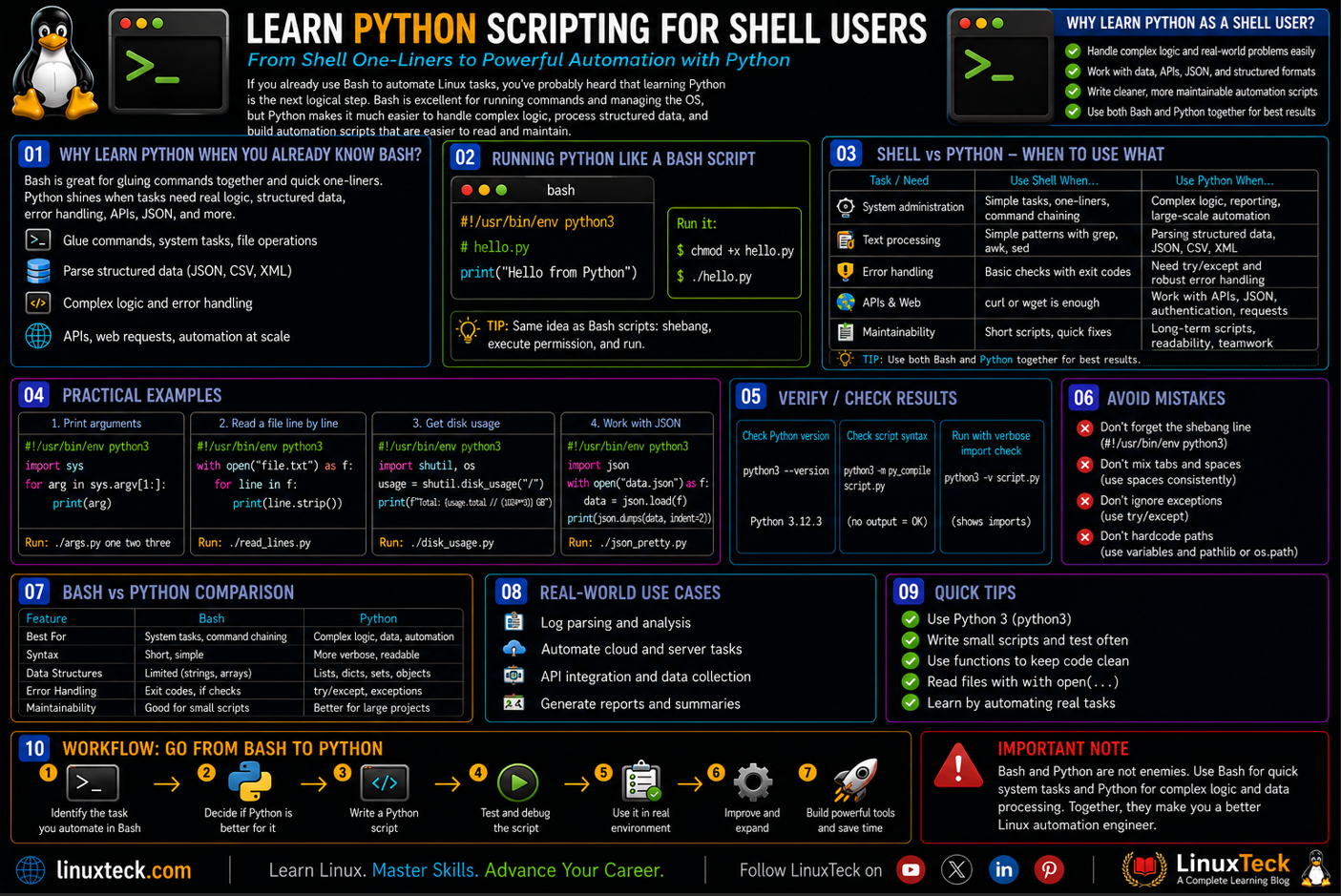
If you already use Bash to automate Linux tasks, you've probably heard that learning Python is the next logical step. While Bash is excellent for running commands and managing the operating system, Python makes it much easier to handle complex logic, process structured data, and build automation scripts that are easier to read and maintain.
This guide is designed for Linux users who already know the basics of Bash scripting and want to understand where Python fits into their workflow. By the end, you'll know when to use Bash, when Python is the better choice, and how to start writing simple Python scripts with confidence.
The Moment Bash Stops Being Enough:
You have a folder of server logs. You need to pull out every entry with a specific error code, group them by hour, and email yourself a summary. In bash this usually turns into a wall of piped grep, awk, and sed commands that works, but that nobody (including you, six months later) wants to touch again.
- The script grows past 150 lines and readability falls apart
- You need real data structures, not just text streams
- Error handling turns into a maze of exit code checks
If any of that sounds familiar, you are exactly at the point where Python starts to make your life easier.
Before jumping in, it helps to already be comfortable with the basics covered in what bash scripting actually does, since a lot of what follows compares the two directly.
Why Python for Shell Users Beats Pure Bash
Bash is unbeatable for one thing: gluing commands together. If you need to check disk space, restart a service, or copy files around a server, nothing beats a quick bash one-liner. That is not going away, and you should not stop writing bash scripts.
Python earns its place once a task needs actual logic. Parsing structured data, handling errors gracefully, building anything with more than a handful of conditional branches, or working with APIs and JSON, all of that gets messy fast in shell and stays readable in Python. Most Linux admins end up using both, not one instead of the other.
LinuxTeck.com
# Confirm which shell and Python version you are on
echo "Current shell:"
echo $SHELL
python3 --version
/bin/bash
Python 3.12.3
Most modern distros, including Ubuntu and Rocky Linux, ship with Python 3 already installed. If yours does not have it, a quick sudo apt install python3 or sudo dnf install python3 handles it. This pairs well with getting your terminal environment set up properly, which the shell scripting environment setup guide walks through in more detail.
Running Python the Same Way You Run a Bash Script
This is the part that trips people up the least, and it should. If you can write and run a bash script, you already know 80 percent of what you need to run a Python one. The shebang line, the execute permission, all of it works the same way.
LinuxTeck.com
# hello.py
print("Hello from Python")
Save that as hello.py, then treat it exactly like a bash script:
LinuxTeck.com
./hello.py
The chmod +x step matters here for the same reason it matters in every bash script you write. Without execute permission, the kernel will not let you run the file directly, and you would have to call it with python3 hello.py instead. If permissions in general still feel fuzzy, the special permissions in Linux guide covers exactly what chmod is doing under the hood.
Note:
The shebang line #!/usr/bin/env python3 is more portable than hardcoding #!/usr/bin/python3, because it uses whatever python3 is first in your PATH rather than assuming a fixed location. If you have not read through how bash resolves commands using PATH, the bash PATH explained article makes this a lot clearer.
From Bash Variables to Python Variables
In bash, everything is technically a string until you force it not to be, and you reference a variable with a dollar sign. Python drops the dollar sign entirely and actually cares about data types, which feels strange for the first week and then feels like a relief.
LinuxTeck.com
name="LinuxTeck"
count=5
echo "Site: $name, Servers: $count"
The equivalent in Python drops the quotes around the number and never needs a dollar sign to read a variable back:
LinuxTeck.com
count = 5
print(f"Site: {name}, Servers: {count}")
Both scripts print the same line. The difference is that Python knows count is an integer, not text, which matters the moment you try to do math with it. Bash treats numbers as strings unless you wrap the operation in something like $(( )), and that quirk trips up a lot of people writing their first bash script.
Loops and Conditionals, Side by Side
If you already understand bash if statements and bash for loops, the logic here does not change at all. Only the syntax does, and honestly Python's version reads closer to plain English.
LinuxTeck.com
for file in /var/log/*.log; do
if [ -f "$file" ]; then
echo "Found log: $file"
fi
done
The Python version, using the pathlib and glob modules from the standard library:
LinuxTeck.com
for file in glob.glob("/var/log/*.log"):
print(f"Found log: {file}")
Found log: /var/log/bootstrap.log
Found log: /var/log/alternatives.log
Notice Python does not need a separate if [ -f ] check here, since glob.glob only returns files that actually exist. That is a small thing, but it is the kind of detail that quietly removes a whole category of bugs.
Common Mistake:
New Python users coming from bash often mix tabs and spaces for indentation, or copy code from two different sources with different indent widths. Bash does not care about whitespace at all, so this habit never causes problems there. Python uses indentation to define code blocks instead of fi or done, so mixing tabs and spaces throws an IndentationError and the whole script refuses to run.
Fix: pick spaces (4 is the standard) and stick to them everywhere in the file. Most editors, including VS Code and vim with the right settings, can convert tabs to spaces automatically on save.
Functions in Python vs Bash Functions
Bash functions work fine for short reusable blocks, but they only return exit codes, not actual data, which is limiting once your script needs to pass real values around. This is one of the biggest practical differences once you move past simple scripts, and it connects directly to what is covered in writing reusable bash functions.
LinuxTeck.com
if usage_percent > 90:
return "critical"
elif usage_percent > 75:
return "warning"
return "ok"
status = disk_warning(93)
print(f"Disk status: {status}")
That function returns an actual string you can store, compare, or pass along. Doing something equivalent in bash usually means echoing a value and capturing it with command substitution, which works but adds an extra layer nobody enjoys debugging at 2am.
Bash and Python for Shell Users, Working Together
You do not have to pick one language and abandon the other. A very common pattern on production servers is a bash script that handles the system-level work like checking a service or triggering a cron job, and calling out to a Python script for the actual data processing.
LinuxTeck.com
# backup_report.sh
# Runs the backup, then hands log parsing to Python
BACKUP_DIR="/var/backups"
if [ -d "$BACKUP_DIR" ]; then
echo "Backup directory found, generating report..."
python3 /opt/scripts/parse_backup_log.py "$BACKUP_DIR"
else
echo "Backup directory missing, exiting"
exit 1
fi
Parsed 42 backup entries
3 failures found, report sent to admin@example.com
This is the pattern worth remembering more than any single syntax comparison. Bash owns the system checks and the exit code discipline, which lines up with what is covered in bash exit codes and error handling, and Python owns the actual data work. If you are scheduling either one regularly, it is also worth reading how systemd timers compare to cron jobs for running these on a schedule.
Python's subprocess module can also call bash commands directly when you need shell behavior inside a Python script, which is handy when you are only replacing part of a workflow instead of rewriting the whole thing.
Now that you have both languages talking to each other, the real skill is not "bash vs Python," it is knowing which one to reach for based on what the task actually needs. Short system tasks, service checks, quick file operations, that is still bash territory, and it always will be. The moment a script needs to parse structured data, call an API, handle multiple types of errors gracefully, or get maintained by more than one person, **python for shell users** stops being optional and starts being the practical choice. Nothing here replaces solid bash fundamentals either, and the official GNU Bash reference manual is worth bookmarking for anything this article did not cover.
Frequently Asked Questions
Do I need to stop writing bash scripts once I learn Python?
No, and honestly you shouldn't. Bash is still the faster option for quick system tasks like checking service status or copying files. Python earns its place once the logic gets more complex, not as a full replacement.
Why does my Python script say "command not found" but chmod worked fine?
That usually means the shebang line points to a Python path that does not exist on your system, or python3 is not in your PATH. Try running it with python3 script.py directly to confirm it's not a permissions issue first.
Can I call a bash command from inside a Python script?
Yes, the subprocess module handles this. On its own, subprocess.run(["ls", "-la"]) just runs the command and prints straight to your terminal, it does not hand the output back to you. To actually capture it as a string, use subprocess.run(["ls", "-la"], capture_output=True, text=True) and then read result.stdout to work with it inside your script.
Why does my Python script throw an IndentationError when the bash version never had this problem?
Bash uses fi, done, and similar keywords to close blocks, so whitespace never mattered. Python uses indentation itself to define blocks, so mixing tabs and spaces, even by one character, breaks the script.
Is Python slower than bash for simple tasks?
For a one-line command like checking disk space, yes, bash starts faster since it has less to load. For anything involving loops over large data or string processing, Python usually ends up faster and easier to maintain.
Do I need pip and virtual environments just to run a simple automation script?
Not for scripts that only use Python's standard library, which covers most system automation. You only need pip and a virtual environment once you start pulling in external packages like requests or pandas.
Summary
Now that you have both languages working together instead of picking one, the next step is just practice. Write a small Python script that replaces one messy part of an existing bash script you already maintain, and see how it feels. If you want a refresher on the fundamentals before going further, the bash scripting automation guide is a solid place to circle back to.
Related Articles
- Write Your First Bash Script (Part 4/8)
- Bash Functions: Writing Reusable Code (Part 21 / 34)
- Bash If Elif Else Statement With Examples (Part 10 of 34)
- Bash Script Exit Codes and Error Handling (Part 5 of 34)
- Switch From Cron Jobs to Systemd Timers
This article is part 34 of a 34 part Bash Scripting series built for beginners who want to actually understand shell scripting, not just copy commands. Every part is explained the practical way, with real scripts, real output, and real mistakes people run into along the way.
If you landed on this one first, it still works standalone, but going through the full series from the start will give you a much stronger foundation before you get here.
Learn step-by-step how to automate Linux tasks with real-world scripts and practical examples.