Most people who lock themselves out of a Linux server or accidentally delete the wrong user account weren't careless. They just skipped the fundamentals. User management sounds like a boring admin task until things go wrong, and when they do, it goes wrong fast.
I watched a junior admin on our team run userdel without -r on a test box, then spent an hour confused about why the user was gone but the home directory was still sitting there eating up space. That kind of thing sticks with you. This guide is for anyone who wants to get solid on Linux user management before they need it.
Note:
If you are also new to the terminal itself, start with our Linux commands for beginners guide first, then come back here.
Examples
What Is Linux User Management?
Linux is a multi-user operating system. That means multiple people and processes can run on the same system at the same time, each with their own identity, permissions, and space. User management is how you control all of that.
At its core, managing users in Linux means creating accounts, assigning them to groups, setting passwords, controlling what they can access, and removing them when they're no longer needed. Every file, process, and service on a Linux system is tied to a user identity. Get this right and your system is organized and secure. Get it wrong and you open up permission issues, data exposure, or orphaned files that pile up over time.
Think of it like building access in an office. Some people get a key card to everything. Others only get in through the front door. That structure exists in Linux through UIDs, GIDs, and file permissions. And you, as the admin, control who gets what. File permissions work hand-in-hand with user identities, and understanding the chmod command becomes a lot clearer once you have users and groups set up properly.
On Ubuntu, Rocky Linux, RHEL, and Debian, the core commands are the same. A few configuration paths differ between distros, which we'll flag as we go.
User Types and Key System Files
Before touching any command, it helps to know what Linux considers a "user" and where that information lives.
There are three broad categories of users on any Linux system:
Root (UID 0): The superuser. No restrictions. Root can read, write, and delete anything on the system. You should almost never log in directly as root on a production server. Use sudo access instead.
System users (UID 1-999): These are non-human accounts created by services like nginx, mysql, or sshd. They keep services isolated so a compromised service doesn't have access to the whole system.
Regular users (UID 1000+): Actual humans with login accounts. Each gets a home directory under /home/ and a default shell.
All of this information lives in four key files:
| File | What It Stores | Who Can Read It |
|---|---|---|
| /etc/passwd | Username, UID, GID, home dir, shell | All users (world-readable) |
| /etc/shadow | Encrypted passwords, expiry settings | Root only |
| /etc/group | Group names, GIDs, group members | All users |
| /etc/sudoers | Who gets sudo and what they can run | Root only (edit with visudo) |
Note:
Authentication logs differ by distro. On Ubuntu and Debian, check /var/log/auth.log. On Rocky Linux and RHEL, look at /var/log/secure. On systems using systemd, journalctl -u sshd or journalctl _COMM=sudo works across both.
Core User Management Commands
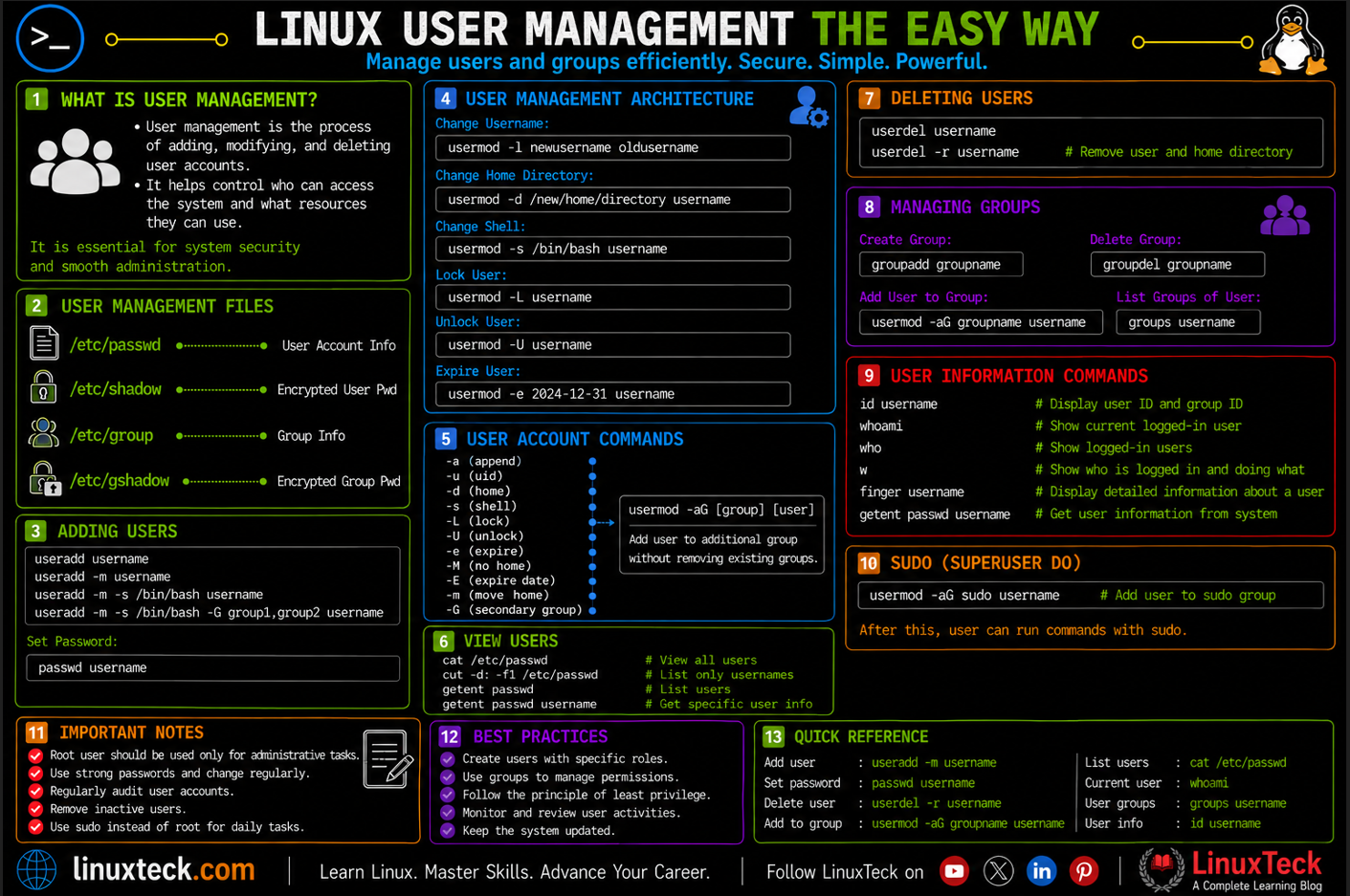
These are the commands you'll reach for every time you need to create, modify, or remove users and groups. Learn what each flag actually does, not just the syntax. If you want a quick one-page reference after finishing this guide, the user management command cheat sheet covers all of these in a single table.
| Command | What It Does | Common Flag |
|---|---|---|
| useradd | Creates a new user account | -m (create home), -s (set shell), -aG (append to groups) |
| usermod | Modifies an existing user account | -aG (append group), -L (lock), -U (unlock) |
| userdel | Deletes a user account | -r (remove home directory too) |
| passwd | Sets or changes a user's password | -l (lock account), -u (unlock), -e (force expiry) |
| groupadd | Creates a new group | -g (set specific GID) |
| groupdel | Removes a group | No flags needed unless GID conflicts |
| id | Shows UID, GID, and group membership | -u (UID only), -g (GID only), -G (all groups) |
| chage | Manages password expiry and aging | -l (list policy), -E (set expiry date), -M (max days) |
Practical Linux User Management Examples
I. Create a Basic User Account
The simplest case: add a new user to the system. On Ubuntu, adduser is the friendlier wrapper. On Rocky Linux and RHEL, useradd with -m is more common. If you're working specifically on a RHEL or CentOS environment, see the dedicated guide on creating users in RHEL for distro-specific details.
LinuxTeck.com
sudo useradd -m -s /bin/bash alice
# Set a password for alice
sudo passwd alice
Retype new password:
passwd: password updated successfully
Tip:
Always use -m with useradd. Without it, no home directory is created, and the user will have nowhere to land when they log in.
II. Check a User's Identity and Group Memberships
Before changing anything about a user, check their current state. The id command tells you everything at a glance.
LinuxTeck.com
id alice
III. Create a Group and Add Users to It
On a team server, you'll often want a shared group so multiple users can access the same directories. Create the group, then add users one by one.
LinuxTeck.com
sudo groupadd developers
# Add alice and bob to the developers group
sudo usermod -aG developers alice
sudo usermod -aG developers bob
# Verify alice's group memberships
groups alice
Tip:
The -a in -aG means "append." Leave it out and you'll replace all of the user's existing group memberships, not add to them.
IV. Lock and Unlock a User Account
When someone goes on extended leave or you need to suspend access without deleting the account, lock it. This disables login without touching any files.
LinuxTeck.com
sudo passwd -l alice
# Check the lock status
sudo passwd -S alice
# Unlock when they return
sudo passwd -u alice
alice LK 2026-06-15 0 99999 7 -1 (Password locked.)
# Note: RHEL/Rocky Linux shows "LK" for locked. Ubuntu/Debian shows "L".
V. Set Password Expiry with chage
Compliance frameworks like CIS benchmarks and SOC 2 require password rotation. chage is how you enforce it without manual reminders.
LinuxTeck.com
sudo chage -M 90 -m 7 -W 14 alice
# Verify the policy applied
sudo chage -l alice
Password expires : Sep 13, 2026
Password inactive : never
Account expires : never
Minimum number of days between password change: 7
Maximum number of days between password change: 90
Number of days of warning before password expires: 14
VI. Grant Sudo Access to a User
The correct way to grant sudo access differs slightly between Ubuntu and Rocky Linux/RHEL. On Ubuntu, add the user to the sudo group. On Rocky Linux or RHEL, add them to the wheel group.
LinuxTeck.com
sudo usermod -aG sudo alice
# Rocky Linux / RHEL / CentOS
sudo usermod -aG wheel alice
# Verify groups
groups alice
Note:
After adding a user to the sudo or wheel group, they need to log out and back in for the group change to take effect in their current session.
Note for RHEL/Rocky users:
If you add a user to the wheel group and they still receive a "not in the sudoers file" error, run sudo visudo and verify that the line %wheel ALL=(ALL) ALL is uncommented.
VII. Create a User Without a Login Shell (Service Account)
When deploying applications like nginx or a monitoring agent, you want a dedicated user that owns the process but can't be logged into directly. This is the correct way to create one.
LinuxTeck.com
# -s sets a non-interactive shell (use /usr/sbin/nologin on Ubuntu/Debian)
# -d sets a custom home directory for app files
sudo useradd -r -s /sbin/nologin -d /var/lib/myapp myapp
id myapp
Note:
The path to nologin varies by distribution. RHEL and Rocky Linux typically use /sbin/nologin, while Ubuntu and Debian use /usr/sbin/nologin. You can check your system's valid shells by running cat /etc/shells.
VIII. Change a User's Default Shell
Sometimes a user needs a different shell, or you're migrating from bash to zsh on a developer box. Use usermod or chsh to update it.
LinuxTeck.com
sudo usermod -s /bin/zsh alice
# Confirm the change in /etc/passwd
grep alice /etc/passwd
IX. Find All Users Currently Logged In
On a shared or production server, you sometimes need to check who is actually active before making system changes. Two commands cover this well.
LinuxTeck.com
who
# Show users + what they are running + idle time
w
alice pts/0 192.168.1.42 10:15 0.00s 0.03s 0.01s w
bob pts/1 192.168.1.55 09:42 5:03 0.12s 0.12s bash
X. Delete a User Properly (With Home Directory)
When removing a departed team member, you almost always want their home directory gone too. That's where the -r flag matters.
LinuxTeck.com
sudo userdel -r alice
# Confirm home directory is gone
ls /home/
Warning:
Running userdel without -r removes the account from /etc/passwd but leaves the home directory sitting in /home/. The files will be owned by a now-orphaned UID. Always use -r unless you specifically plan to archive that data first.
Additionally, userdel will fail if the user has active background processes or an open SSH session. Before deleting, forcefully terminate all of the user's active sessions by running sudo pkill -u alice or sudo killall -u alice.
XI. THE MISTAKE: Using usermod -G Without -a
This is one of the most common mistakes in Linux user management and it's painful when it happens on a production server.
LinuxTeck.com
sudo usermod -G docker bob
groups bob
# Output: bob : bob docker (sudo and developers access GONE)
# CORRECT — -a appends, never replaces
sudo usermod -aG docker bob
groups bob
# Output: bob : bob sudo developers docker
bob : bob docker
# After correct command:
bob : bob sudo developers docker
Warning:
If a user loses their sudo group membership this way and is currently logged in, they'll still have sudo for that session. But their next login will deny it. This has caused real production confusion. Always use -aG.
XII. Real-World: Onboarding a New Developer on a Rocky Linux Server
Here's how a complete user onboarding flow actually looks when you're setting up a new developer on a shared RHEL or Rocky Linux server with SSH key access and the right group permissions. If you're new to SSH key-based login, the guide on setting up passwordless SSH access walks through the key generation side in detail. The SSH client command reference is also worth bookmarking once you're managing multiple servers.
LinuxTeck.com
sudo useradd -m -s /bin/bash -G wheel,developers carlos
sudo passwd carlos
# 2. Set up SSH key authentication
sudo mkdir -p /home/carlos/.ssh
sudo chmod 700 /home/carlos/.ssh
sudo tee -a /home/carlos/.ssh/authorized_keys <<EOF
ssh-ed25519 AAAAC3NzaC... carlos@workstation
EOF
sudo chmod 600 /home/carlos/.ssh/authorized_keys
sudo chown -R carlos:carlos /home/carlos/.ssh
# 3. Set password policy
sudo chage -M 90 -W 14 carlos
# 4. Confirm everything looks right
id carlos
Why User Management Matters More Than You Think
Every security incident I've seen on a Linux server had something to do with users. Either someone had too much access, an old account was never removed, or a service was running as root when it had no business doing so. Getting user management right isn't a one-time setup task. It's a habit you build into every deployment and offboarding process. The Linux security command cheat sheet is a good companion reference for the broader set of commands that tie into this workflow.
On production systems, this directly affects your server hardening posture and how easily you can pass audits. Compliance frameworks ask: who has access, when did they last log in, and are passwords rotating? All of that lives inside the commands covered in this guide. User management is also one of the core pillars covered in the Linux system administration guide if you want to see how it fits into the bigger picture. The Linux manual pages at man7.org document every flag if you need to dig deeper into edge cases.
Key Takeaways
- Always use
useradd -mwhen creating regular user accounts. Without-m, no home directory is created and the user will have nowhere to land after login. - Use
usermod -aGnotusermod -G. The missing-awill silently remove all existing group memberships and you won't know until the user complains they can't run sudo anymore. - On Ubuntu, the sudo group grants admin access. On Rocky Linux and RHEL, it's the wheel group. Mixing these up is a common cross-distro mistake.
- Use
passwd -lto lock accounts temporarily instead of deleting them. You keep the data, you keep the audit trail, and you can reverse it in seconds. - Service accounts should always use a non-login shell. On RHEL and Rocky Linux, set
-s /sbin/nologin; on Ubuntu and Debian, use-s /usr/sbin/nologin. If a service gets compromised, a non-login shell stops an attacker from dropping into an interactive session. - Run
chage -l usernameto audit password policy on any account. This one command tells you everything about expiry, last change, and warning periods at a glance. - After any group change with
usermod, the affected user must log out and back in. The new group membership is only active in fresh sessions, not the current one.
Frequently Asked Questions
I just ran useradd but the user can't log in. What did I miss?
You probably didn't set a password. useradd creates the account but leaves it locked until you run sudo passwd username. Also check that you used -m to create the home directory. Without it, the user account exists but there's no home folder, which causes login issues on some systems.
I added a user to a group but they still can't access that group's files. Why?
The group membership change only takes effect in a new session. The user needs to log out and log back in. If they're connected over SSH, they need to close that connection entirely and reconnect. You can also use newgrp groupname to switch to the new group without logging out, but that only affects the current shell.
What's the difference between passwd -l and usermod -L?
Both lock an account, but they do it differently. passwd -l locks the password by adding an exclamation mark to the password hash in /etc/shadow. usermod -L does essentially the same thing. Either works for locking out login access. To unlock, use passwd -u or usermod -U respectively.
Do I need to edit /etc/sudoers directly to give a user sudo access?
No, and you shouldn't. On Ubuntu, add them to the sudo group with usermod -aG sudo username. On Rocky Linux and RHEL, use the wheel group. Only use visudo to edit /etc/sudoers directly when you need to grant specific command restrictions or passwordless sudo for automation. Direct file edits without visudo can corrupt the file and lock you out.
How do I see what groups a user belongs to without logging in as them?
Run id username or groups username from any account with read access. Both show the same information. id gives you the numeric UIDs and GIDs as well, which is useful when troubleshooting file permission issues. You can also check /etc/group directly with sudo grep username /etc/group to see every group that lists them as a member.
What happens to files owned by a user after I delete them with userdel?
If you use userdel -r, the home directory and mail spool are deleted along with the account. Any other files the user owned elsewhere on the system will remain but show as owned by a numeric UID with no name attached. To find those orphaned files, run find / -nouser 2>/dev/null. It's good practice to search for these after any user removal and reassign or archive them.
From your first terminal command to advanced sysadmin skills every guide here is written in plain English with real examples you can run right now.