You've got an application that's currently running in a production environment, and now some of its behavior isn't what you expected. You do not have enough time to load a 50MB log file into your favorite text editor.
You simply type tail -f /var/log/syslog and watch it live. This one trick has helped save my backside many times during those late-night calls.
The purpose of this tutorial is to help you master the tail command in Linux, go beyond the standard ten lines of output, and use it more effectively as a monitoring tool.
Note:
If you are new to Linux file reading commands, check out the cat command guide and the head command guide to understand the full picture of how Linux handles text file output.
Examples
What Is the tail Command in Linux?
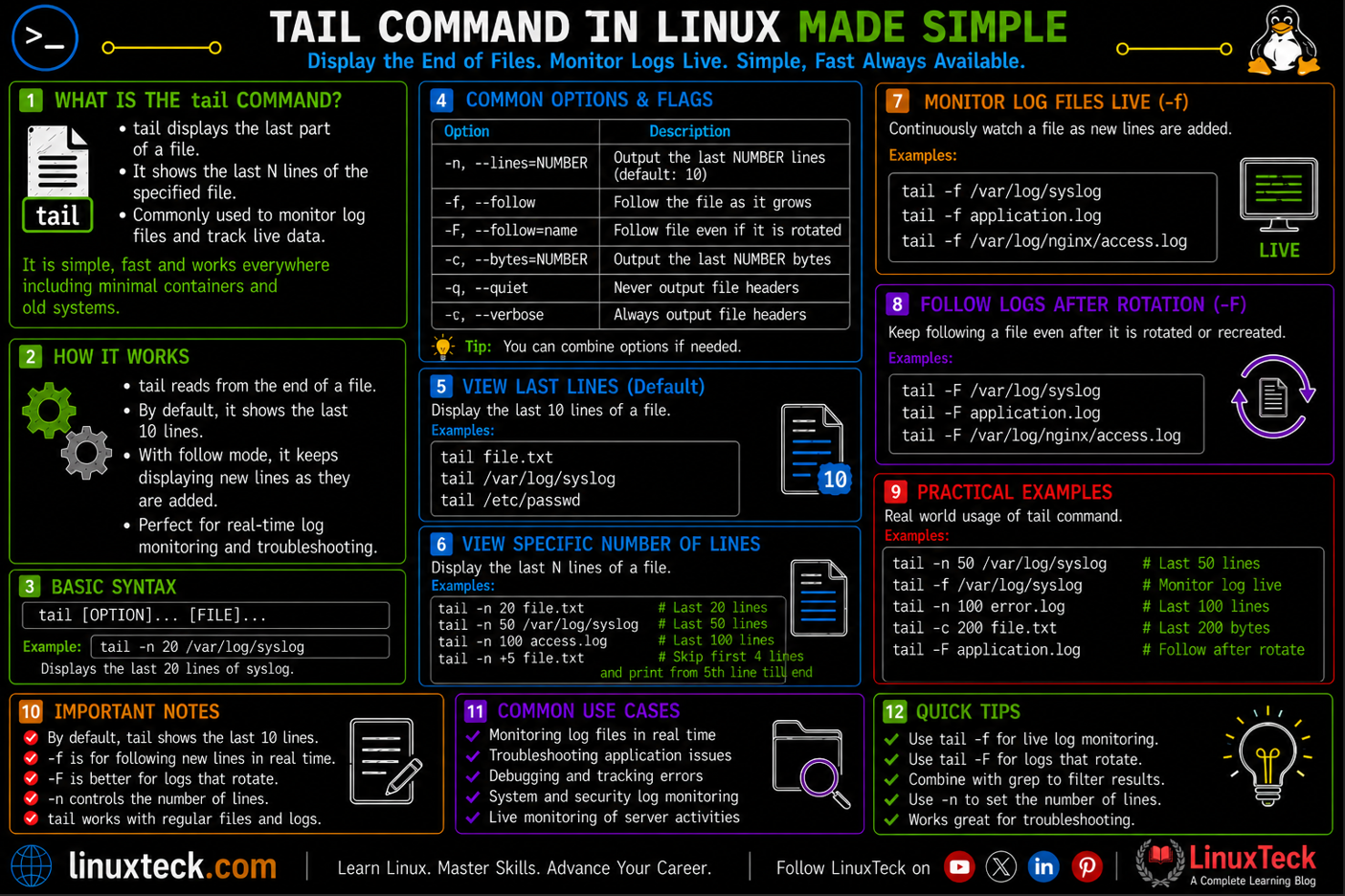
The tail command reads a file from the bottom and prints the last lines to your terminal. Think of it like opening a notebook from the back page rather than the front. When you are working with log files that grow from top to bottom, the newest entries are always at the end, and that is exactly where tail looks.
On every major Linux distribution including Ubuntu, Rocky Linux, RHEL, and Debian, tail ships as part of the GNU coreutils package. No installation needed. It is available the moment you log in. The most practical use case is watching application logs update in real time, something that gets used constantly on any live server.
Syntax and Structure
LinuxTeck.com
tail is the command itself. [OPTIONS] are the flags you pass to change its behavior, like how many lines to show or whether to follow the file. [FILE...] is one or more file paths. You can pass multiple files and tail will print results for each one, labeling each section with the filename by default.
One thing to know upfront: when you run tail filename with no flags at all, you get the last 10 lines. That is the built-in default and it surprises a lot of people the first time they expect to see more.
Note:
The default of 10 lines applies whether the file has 20 lines or 2 million. If you are not seeing what you expect, add -n 20 or increase the number to fit your use case.
Common Options at a Glance
| Flag | What It Does | When to Use It |
|---|---|---|
| -n [NUM] | Show the last NUM lines instead of the default 10 | When you need more context around a log event |
| -f | Follow the file and print new lines as they arrive | Watching live application or system logs |
| -F | Follow by filename, not file descriptor (handles rotation) | Production environments where logs rotate |
| -c [NUM] | Show the last NUM bytes instead of lines | Binary files or precise byte inspection |
| -q | Suppress filename headers when reading multiple files | Piping output from multiple files into another command |
| -v | Always print filename headers, even for a single file | Scripts where you want explicit file identification |
| --pid=[PID] | Stop following when the given process ID exits | Watching a specific process and auto-stopping with it |
| -s [SEC] | Sleep interval between checks when using -f | Reducing CPU usage on busy log monitoring sessions |
tail Command Examples
I. View the Last 10 Lines of a File
The most basic use. You have a file and you want to see what is at the bottom of it. No flags needed.
LinuxTeck.com
Jun 11 09:22:23 myserver systemd[1]: Started Session 42 of user ubuntu.
Jun 11 09:23:01 myserver CRON[2358]: (root) CMD (command -v debian-sa1 > /dev/null && debian-sa1 1 1)
Jun 11 09:24:14 myserver sshd[2401]: Accepted publickey for ubuntu from 192.168.1.10 port 52381
Jun 11 09:24:14 myserver systemd-logind[821]: New session 43 of user ubuntu.
Jun 11 09:25:14 myserver systemd[1]: Started Session 43 of user ubuntu.
Jun 11 09:25:00 myserver kernel: [UFW BLOCK] IN=eth0 OUT= MAC=... SRC=45.33.32.156
Jun 11 09:26:01 myserver CRON[2412]: (root) CMD (test -x /usr/sbin/anacron || ...)
Jun 11 09:26:23 myserver sudo: ubuntu : TTY=pts/0 ; PWD=/home/ubuntu ; USER=root
Jun 11 09:27:10 myserver CRON[2430]: (root) CMD (command -v debian-sa1 > /dev/null && debian-sa1 1 1)
Note:
RHEL / Rocky Linux users: /var/log/syslog does not exist on these distros. Use /var/log/messages instead. That is the equivalent system log path on all Red Hat based systems.
II. Show a Custom Number of Lines
Use -n when 10 lines is not enough context. You are debugging an application crash and need to see the 30 lines leading up to it. On RHEL and Rocky Linux, Apache logs live under /var/log/httpd/ rather than /var/log/apache2/.
LinuxTeck.com
tail -n 30 /var/log/apache2/error.log
# For RHEL/Rocky Linux:
tail -n 30 /var/log/httpd/error_log
[Tue Jun 11 09:01:02.341812 2026] [mpm_event:notice] [pid 1021] AH00094: Command line: '/usr/sbin/apache2'
[Tue Jun 11 09:05:11.228401 2026] [php7:error] [pid 1048] [client 192.168.1.20:44312] PHP Fatal error: ...
[Tue Jun 11 09:05:11.228512 2026] [core:error] [pid 1048] [client 192.168.1.20:44312] End of script output before headers
...
(30 lines total)
Tip:
You can shorten -n 30 to just -30 and it works the same way. Both are valid.
III. Follow a Log File in Real Time
This is the flag you will use most on a production server. The -f option keeps the connection open and prints new lines as they are written to the file. Press Ctrl+C to stop.
LinuxTeck.com
192.168.1.5 - - [11/Jun/2026:09:22:02 +0000] "GET /style.css HTTP/1.1" 200 1402
192.168.1.8 - - [11/Jun/2026:09:22:05 +0000] "POST /login HTTP/1.1" 302 0
192.168.1.12 - - [11/Jun/2026:09:22:11 +0000] "GET /dashboard HTTP/1.1" 200 8934
(new lines appear automatically as requests come in)
IV. Follow with More Starting Lines
Combining -n with -f gives you a bigger snapshot before watching starts. Useful when you want context from the last 50 lines before watching new entries.
LinuxTeck.com
Jun 11 09:18:00 myserver kernel: [UFW BLOCK] IN=eth0 SRC=45.33.32.156
Jun 11 09:19:01 myserver CRON[2412]: (root) CMD (test -x /usr/sbin/anacron || ...)
...
Jun 11 09:22:15 myserver sshd[2501]: Accepted publickey for devuser from 10.0.0.5
V. Watch Multiple Log Files at Once
Pass two files to tail -F and it watches both simultaneously, reconnecting to either file if log rotation replaces them. Each section is labeled with its filename. Handy when a problem spans two services.
LinuxTeck.com
192.168.1.5 - - [11/Jun/2026:09:24:01 +0000] "GET / HTTP/1.1" 200 5123
==> /var/log/nginx/error.log <==
2026/06/11 09:24:03 [error] 1048#1048: *7 open() "/var/www/html/favicon.ico" failed (2: No such file or directory)
Warning:
If you use lowercase -f here and Nginx rotates either log file, tail permanently loses track of that specific file stream. It will keep running but silently stop printing new lines from whichever file was rotated. Always use -F when watching multiple files on a production server.
Tip:
You can also use a glob pattern here: tail -F /var/log/nginx/*.log to watch all log files in a directory at once.
VI. Use -F Instead of -f for Rotated Logs
Log rotation is common on servers. When logrotate renames syslog to syslog.1 and creates a fresh file, tail -f keeps following the old renamed file. Use -F to track the filename, not the file descriptor. It reconnects automatically when the file is replaced.
LinuxTeck.com
tail: /var/log/syslog has become inaccessible: No such file or directory
tail: /var/log/syslog has appeared; following new file
Jun 11 09:25:02 myserver rsyslogd: -- MARK --
VII. Filter Output with grep
Piping tail into grep lets you watch only specific events in a live log. This is how you monitor for errors without reading every line.
LinuxTeck.com
Jun 11 09:26:19 myserver sshd[2519]: Failed password for invalid user root from 203.0.113.44 port 40231 ssh2
Tip:
For deeper grep usage with live logs, read the grep text processing guide which covers filtering patterns that work well in piped commands.
VIII. Skip the First N Lines and Show the Rest
Using + before the number tells tail to skip that many lines from the top and print everything after. The plus sign behavior is something most people do not know exists.
LinuxTeck.com
sync:x:4:65534:sync:/bin:/bin/sync
games:x:5:60:games:/usr/games:/usr/sbin/nologin
man:x:6:12:man:/var/cache/man:/usr/sbin/nologin
...
IX. Read Last Bytes Instead of Lines
When you want a fixed number of bytes from the end of a file rather than a line count, use -c. This comes up when parsing binary files or testing write positions.
LinuxTeck.com
Jun 11 09:30:01 myserver CRON[2502]
X. Suppress Headers When Combining Files
When you pass multiple files to tail, it labels each section with the filename. The -q flag removes those headers. Useful when piping combined output elsewhere.
LinuxTeck.com
Jun 11 09:28:23 myserver systemd[1]: Started session.
Jun 11 09:28:44 myserver kernel: ...
Jun 11 09:28:55 myserver sshd[2490]: ...
Jun 11 09:29:01 myserver CRON[2491]: ...
Jun 11 09:27:14 myserver sshd[2463]: Accepted publickey for ubuntu
Jun 11 09:27:14 myserver systemd-logind[821]: New session 44 of user ubuntu.
Jun 11 09:28:01 myserver sudo: ubuntu : TTY=pts/0
Jun 11 09:28:55 myserver sshd[2490]: pam_unix(sshd:session): session opened
Jun 11 09:29:10 myserver sshd[2495]: Disconnected from user ubuntu
XI. Watch a Log File and Stop When a Process Ends
If you are running a backup script and want to watch its log output until it finishes, use --pid with the process ID. The tail -f will exit automatically when that PID is gone.
LinuxTeck.com
2026-06-11 09:31:05 Compressing files...
2026-06-11 09:31:44 Upload to remote storage: 78%
2026-06-11 09:32:01 Backup complete. Total size: 1.2GB
(tail exits automatically when PID 3201 terminates)
XII. The Common Mistake: Using -f on a File That Gets Rotated
A lot of people run tail -f on a system log overnight and wonder why it stops updating after midnight. The file was rotated by logrotate and -f is still watching the old renamed file. The terminal looks active but no new lines ever appear.
LinuxTeck.com
tail -f /var/log/syslog
# Correct - reconnects to new file after rotation
tail -F /var/log/syslog
Warning:
On any system using logrotate, always prefer -F over -f for long-running monitoring sessions. The lowercase -f follows by file descriptor and loses track when the file is renamed or replaced overnight.
Why tail Matters for Real Work
Log visibility is what separates a reactive sysadmin from a proactive one. When something breaks on a live server, the first question is always: what did the logs say right before it happened? With tail -n 100 you have the answer in under a second. Without it, you are opening a 400MB file in nano and waiting for it to load. That is not just slow, it is the kind of thing that costs you under pressure.
For anyone learning bash scripting and automation, tail combined with grep inside a shell script is a standard pattern for writing lightweight monitoring tools. You don't need a full observability stack to catch a login failure spike or spot a runaway cron job. A few lines of bash using tail -F piped into a filter will get the job done on any distro. See the Linux logging best practices guide for how this fits into a broader log management setup.
Main Points
- Running
tail filenamewith no flags always shows 10 lines. Use-nto control how many lines you see before that default surprises you in a script. - Use
-Finstead of-fon any server where log rotation is active. The lowercase version loses track of the file after rotation and silently stops updating. - Pipe
tail -fintogrepto watch only the log events you care about:tail -f /var/log/auth.log | grep "Failed"cuts the noise immediately. - Pass multiple files to
tail -fto monitor them in a single terminal session. Each file is labeled by default, or suppress labels with-qfor clean piped output. - Use
--pidin automation scripts so your log watcher exits when the target process finishes, instead of leaving orphanedtailprocesses behind. - The
-n +NUMsyntax skips from the top rather than counting from the bottom. It is the one behavior that catches people off guard and is worth memorizing separately. - On Rocky Linux and RHEL, system logs may be managed by
journald. Usejournalctl -ffor journal-based logs, andtail -Ffor file-based ones under/var/log/.
Frequently Asked Questions
Why does tail -f stop showing updates after a while on my server?
Almost always a log rotation issue. Your system rotated the log file overnight, renamed it, and created a fresh one. The -f flag follows by file descriptor, so it is still watching the renamed old file. Switch to tail -F and it will reconnect to the new file automatically after rotation.
Can I use tail to watch a file that does not exist yet?
Yes, with -F (uppercase). It will keep retrying until the file appears and then start following it. The lowercase -f will just throw an error if the file is missing at startup.
How do I exit tail -f without killing my terminal session?
Press Ctrl+C. That sends a SIGINT to the tail process and stops it cleanly. Your terminal session stays open. If you want to run it in the background and come back to it, use tmux or screen instead.
My script runs tail and the output looks garbled when piped into another command. What is happening?
Buffering. When tail output is piped to another command like grep, the output may buffer in chunks rather than line by line. Add --line-buffered to your grep call: tail -f logfile | grep --line-buffered "pattern". That flushes the output after each matching line.
Is there a way to add a timestamp to lines that tail outputs?
Not built into tail itself. The classic approach is to pipe through awk: tail -f logfile | awk '{ print strftime("[%Y-%m-%d %H:%M:%S]"), $0; fflush(); }'. That prepends a timestamp to every line as it arrives.
On systemd-based distros (Ubuntu, Rocky Linux, RHEL), there is a simpler option if you install moreutils: tail -f logfile | ts '[%Y-%m-%d %H:%M:%S]'. Install it with apt install moreutils or dnf install moreutils. The ts command is less typing and handles flushing automatically.
On Rocky Linux the system logs are not in /var/log/syslog. Where do I look?
Rocky Linux and RHEL use journald by default and the main log file is /var/log/messages, not syslog. For live following use journalctl -f or target the file directly with tail -F /var/log/messages. If you installed rsyslog manually, check /var/log/syslog or /var/log/rsyslog. For the full list of flags and behavior across all distros, the tail man page on man7.org is the definitive reference.
From your first terminal command to advanced sysadmin skills every guide here is written in plain English with real examples you can run right now.