Linux/, a Unix based system that comes with an inbuilt utility 'ps' (processes status) to check the information on the running process. The process is nothing but a program in Linux/Unix to execute a specific task. For more daily essentials, see our Linux system administration cheat sheet. The ps command in linux is used to monitor all the currently running activities along with USER, PID, %CPU, %MEM, VSZ, RSS, TTY, STAT, START, TIME, COMMAND. It helps, mostly to the System Administrators to find the PID (processes identifier) of all the running processes to monitor and troubleshoot. For a more visual, interactive view, try the htop command.
This guide will help you on how to use various options with the PS command. All the below examples were tested on RHEL/CENTOS 7.6
Global Syntax of the PS command :
ps [options]
1. How to list the processes from the current shell?
# ps
 Note: Using the 'ps' command without any option will only list the running processes from the current shell. The result of the above command contains 4 columns, which are unsorted information.

2. How to list all the processes in the system (standard) format?
# ps -A OR # ps -e
 Note: Using the '-A or -e' option with the 'ps' command will list all the processes except the session leaders. Learn more about the session leader(Click Wiki details). In the above example, it is used to list all the processes in a standard format.
3. How to list the processes not associated with Terminal?
# ps -a
 Note: Using the 'ps -a' option we can view all the processes except both session leaders and processes that are not associated with a Terminal.
4. How to list all the running processes in the system?
# ps -x
 Note: Using the'-x' option with the ps command will list all the processes on your system. You can also see the processes that are not associated with the current TTY. The x option is always combined with other flags like a, u.
5. How to list all the processes in the system using BSD format?
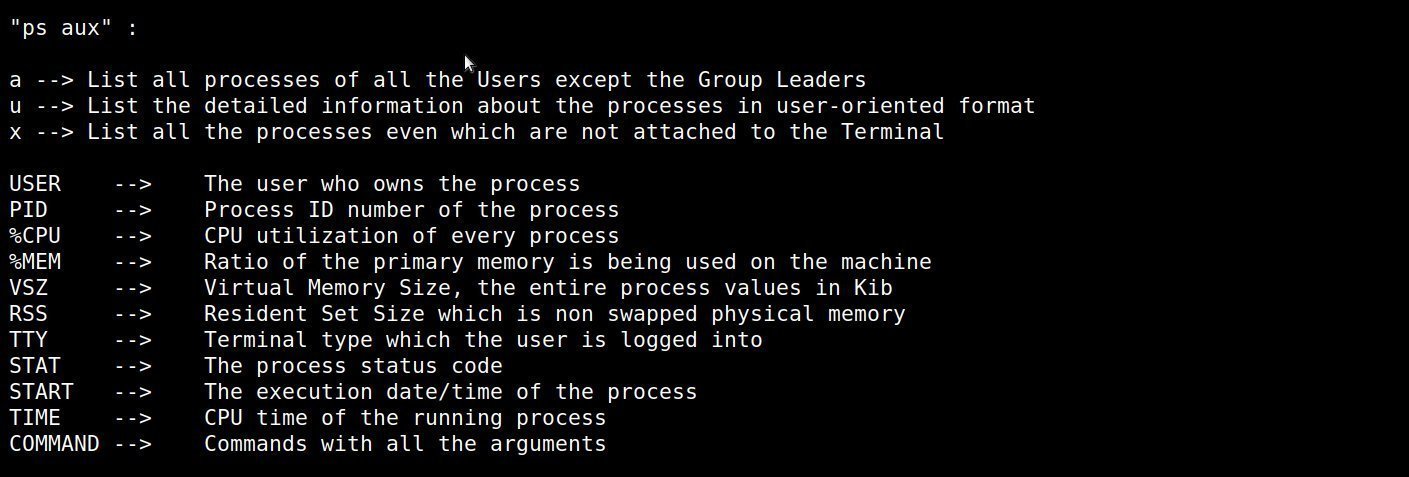
# ps aux
 Note : The ps command can accept options with two different formats i.e., BSD and Unix. In BSD we should not start the options with a dash and in UNIX we should start the options with a dash. Details of the arguments and outcome result as follows:
6. How do I perform the full format listing?
# ps -ef OR # ps -eF
 Note: Using the '-ef' option with the ps command will display the full format list and with uppercase '-F' option will display Extra full format. Details of the arguments and outcome result as follows:

7. How to list the information about the threading process?
# ps -eLF
 Note: Using the '-L' option with the 'ps' command will display information about the threads. Threads are also named as Light Weight Processes (LWP). Basically, it gives you an idea about how many concurrent threads are coming into the system, based on that you can analyze which of the processes are generating more threads. In the about output, you can see in column 4 and 6 (LWP and NLWP). LWP provides the Thread ID and NLWP provides the number of Threads. In the above example, you can see that PID 15111 (kdesvn) has 4 threads. It will be listed as single as well as multi-thread processes.
8. How to list all the running processes by username?
# ps -U linuxteck
 Note: Using the '-U' option with the 'ps' command will list all the processes running by the username. In the above example, it will list all the processes run by the liuxteck user. If you need a full-format listing, use '# ps -fU'.
9. How to list all the running processes by a particular group?
# ps -G gdm
 Note: Using the '-G' option with 'ps' command will list all the processes running by a particular group. In the above example, it will list all the processes run by the gdm group. If you need a full-format listing, use '# ps -fG'.
10. How to get the process name using the corresponding PID?
# ps -p 6967 -o comm=
Output:
kdesvn
Note: Using the above command we can fetch the process name using with its corresponding PID. Here the option '-p' indicates the PID and '-o' option indicates the output format and the 'comm=' indicates the name of the Command. In the above example, it printed the process name (kdesvn) of the PID no "6967".
11. How to search for a Processes ID?
# ps -C kdesvn
Output:
PID TTY TIME CMD
6967 ? 00:00:13 kdesvn
Note: Using the '-C' option with 'ps' command will get the processes whose executable name is given in the command-list. You can easily find the PID for running processes. In the above example, I have given the "kdesvn" name in the command list to execute and fetch the PID of the same.
12. How to find the uptime of the process?
# ps -eo comm,lstart,etime,user | grep svnserve
Output:
svnserve Wed Feb 27 15:42:36 2019 228-20:54:53 root
Note: Using the above command you can find the start date of the executable command and its overall uptime. In the above example, you can see, the "svnserve" service started on 27th Feb 2019 at 15:42:36 and the uptime of this service has been running almost 228 days, 20 hours,54 minutes and 53 seconds. The details of the above arguments are as follows:
comm --> Indicates the command name
lstart --> Date/Time of the command executed
etime --> The elapsed time of a process
user --> Name of the User
13. How to list the top 10 CPU consumption processes?
# ps -e --sort=-pcpu -o pid,pcpu,comm | head -n 11
 Note: The above command will display a list of the top 10 CPU consumption processes. See more tools in our Linux system monitoring cheat sheet.
14. How to list the top 10 memory consuming processes?
# ps -e --sort=-pmem -o pid,pmem,comm | head -n 11
 Note: The above command will display a list of the top 10 memory consuming processes. If memory is running high, see how to troubleshoot high Linux memory usage.
15. How to kill high CPU/Mem or unused programs/applications consuming processes in Linux?
# ps aux | grep firefox OR # ps -ef | grep firefox
Output:
linuxteck 2443 6.7 5.7 8895548 453380 ? Sl 09:16 33:38 /usr/lib64/firefox/firefox
linuxteck 2604 8.7 7.1 3424284 562304 ? Sl 09:17 43:23 /usr/lib64/firefox/plugin-container -greomni /usr/lib64/firefox/omni.ja -appomni /usr/lib64/firefox/browser/omni.ja -appdir /usr/lib64/firefox/browser 2443 tab
root 17704 0.0 0.0 112664 968 pts/1 S+ 17:35 0:00 grep --color=auto firefox
Note: The above command will list the PID of a particular application to kill. You can kill the process either by process ID or process name. In the above example I have selected two PID's "2443 and 2604". Use the following command to kill the PID's.
Syntax : <kill SIGNAL PID>
# kill -9 2443 2604
OR follow the command if you wish to terminate the processes by process name
# killall -9 firefox
NB: '-9' is meant to Kill signal
I hope this article will help you to learn 'ps' commands with examples. Drop me your feedback/comments. If you like this article, kindly share it ?, so that it may help others as well.
You can also check out the 13 top commands in Linux (Monitor Linux Server Processes), or explore our roundup of the best Linux monitoring tools.
Thank you!
Support My Work
Thank you for your support and for being a part of my journey, I would be very grateful if you could consider buying me a coffee. The contributions you make will help me to continue to produce quality content and enhance my readers' experience.

Thank you for your endless support!