Searching for files is one of the most common tasks in Linux, whether you're looking for a configuration file, troubleshooting an application, or tracking down a forgotten document. Many users start with the find command, which is powerful but can be slow when searching large filesystems.
This is where the locate command becomes useful. Instead of scanning the entire filesystem each time, it searches a prebuilt database and can return results almost instantly. For everyday file searches, this often makes locate one of the fastest and most convenient tools available on Linux.
This guide is designed for beginners and Linux administrators who want a quicker way to find files by name. By the end, you will understand how the locate command works, how its database is maintained, when results may become outdated, and how to use it effectively on Ubuntu, Rocky Linux, and RHEL systems.
Note:
If you are still learning your way around the terminal, it helps to get comfortable with basic Linux commands first, since locate works alongside tools like ls and cd that you will already be using daily.
Examples
What Is the Locate Command in Linux?
locate is a command that finds files by searching a database instead of scanning your whole disk. Think of it like searching a library's card catalog instead of walking down every aisle checking each shelf yourself.
That database gets built by a separate tool called updatedb, which usually runs automatically once a day through a systemd timer or cron job. Because locate just reads from that pre-built index, it returns results almost instantly even on systems with millions of files, the same way you might quickly check what's in a folder with a simple ls command instead of opening every file one by one. The tradeoff is that it only knows about files that existed the last time the database was updated. If you created a file five minutes ago and the database has not refreshed yet, locate has no idea it exists.
This is the exact reason a lot of beginners get confused the first time they use it. You make a new file, run locate, and get nothing back, even though the file is sitting right there in your home directory.
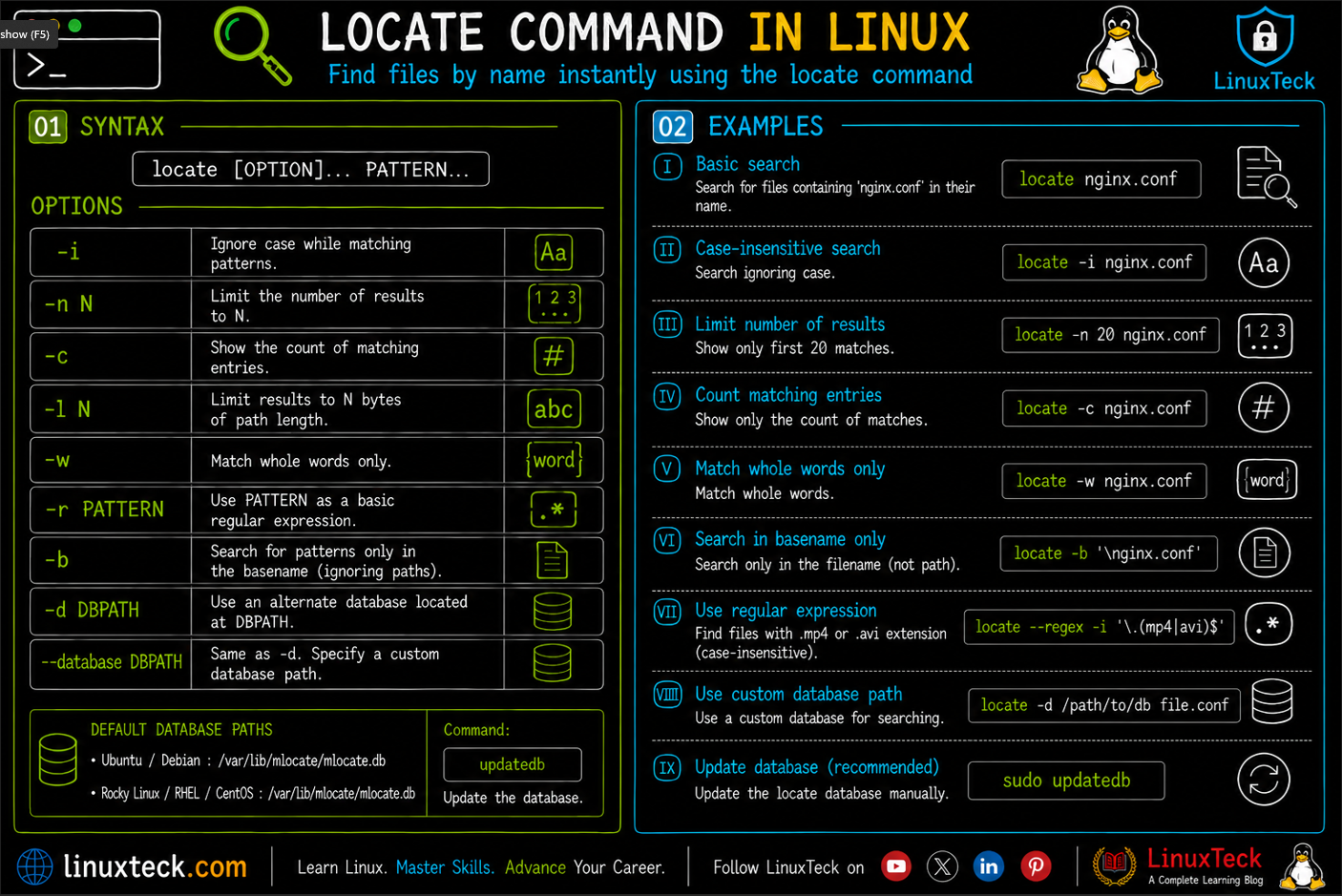
Locate Command Syntax
LinuxTeck.com
The PATTERN part is the text you are searching for. It does not need to be the exact filename. locate matches it against the full path, so searching for nginx will return every file and folder anywhere on the system that has "nginx" somewhere in its path, not just files literally named nginx.
The OPTION flags change how the search behaves, whether that means ignoring case, counting results instead of listing them, or only showing files that still actually exist on disk. The daily refresh itself usually runs through a scheduled job, similar to how a lot of routine maintenance gets handled with a cron command entry on older systems.
Note:
locate is case sensitive by default. Searching readme.md will not match README.md unless you add the -i flag. This trips up more people than you would think.
Locate Command Options Worth Knowing
| Flag | What It Does | When to Use It |
|---|---|---|
| -i | Ignores case when matching the pattern | When you are not sure how a filename was capitalized |
| -c | Prints only the number of matches, not the paths | Checking how many config files of a type exist before cleanup |
| -e | Only shows files that currently exist on disk | Avoiding stale results for deleted files |
| -n | Limits output to a set number of results | When a pattern returns thousands of hits and you just need a few |
| -b | Matches only the filename, ignoring the directory path | Searching for an exact filename without path noise |
| -r | Uses a regular expression instead of a simple pattern | Complex matches like file extensions at the end of a path |
| -S | Shows statistics about the locate database itself | Checking when the database was last built and how big it is |
| -0 | Separates results with a NUL character instead of newline | Piping results safely into xargs for filenames with spaces |
Locate Command Examples
I. Basic Search by Filename
The simplest way to use locate is to just type the pattern you're looking for. This works fine for a quick first attempt before you reach for any flags.
LinuxTeck.com
/etc/skel/.bashrc
/home/teckuser/.bashrc
/usr/share/base-files/dot.bashrc
II. Searching with a Wildcard
You can use the asterisk to widen or narrow your search. This is handy when you only remember part of a filename.
LinuxTeck.com
/etc/ssh/sshd.conf
/etc/php/8.3/fpm/php-fpm.conf
/etc/logrotate.conf
Note:
Always quote patterns that contain a wildcard. If you skip the quotes, your shell expands the asterisk before locate even sees it, which gives you wrong or empty results depending on your current folder.
III. Case Insensitive Search
Since locate is case sensitive by default, add -i whenever you are not sure how something was named.
LinuxTeck.com
/home/teckuser/projects/api/readme.md
/home/teckuser/scripts/ReadMe.md
IV. Counting Matches Instead of Listing Them
Sometimes you don't need the full list, you just want a number. Maybe you're checking how many log files of a certain type have piled up.
LinuxTeck.com
V. Limiting the Number of Results
A search for something common like .py can return thousands of hits. Use -n to cap the output so you're not scrolling forever.
LinuxTeck.com
/home/teckuser/scripts/deploy.py
/usr/lib/python3/dist-packages/setuptools/build_meta.py
/usr/lib/python3/dist-packages/pip/__init__.py
/usr/share/doc/python3/examples/Tools/build.py
VI. Matching Only the Filename, Not the Full Path
By default locate checks the entire path, so a search for nginx will also match folders that have nginx anywhere in their directory name. Use -b when you want the exact filename instead.
LinuxTeck.com
Note:
The leading backslash before the filename tells locate to match the exact basename rather than treating it like a loose substring.
VII. Searching with a Regular Expression
For more specific matches, like files that end in either .mp4 or .avi, a regular expression saves you from running two separate searches.
LinuxTeck.com
/home/teckuser/Videos/old_clip.avi
/mnt/storage/recordings/session3.MP4
VIII. Checking Database Statistics
If results feel off, checking the database stats tells you how large it is and gives you a clue about how stale it might be. It's a similar habit to checking disk space with df command before you start cleaning up files, a quick sanity check before you trust what you're looking at.
LinuxTeck.com
842,193 files
118,402 directories
67,481,920 bytes in file names
24,109,552 bytes used to store database
IX. Real World Scenario: Hunting Down a Misplaced Config File
This is close to the situation that taught me to actually use locate properly. You inherit a server and someone mentions there's a custom php.ini override somewhere, but nobody remembers exactly where.
LinuxTeck.com
/etc/php/8.3/fpm/php.ini
/var/www/legacy-app/config/php.ini
/var/www/legacy-app/config/php.ini.bak
Tip:
Notice the override sitting under /var/www/legacy-app, separate from the system defaults. This kind of scattered config is exactly why locate earns its place in a sysadmin's daily toolkit, especially when paired with a tool like find command for deeper attribute based searches afterward.
X. Real World Scenario: Verifying a Cleanup Script Before Running It
Before a script deletes anything, it's smart to preview exactly what it will touch. This pairs well with checking actual folder sizes using du command so you know roughly how much space a cleanup will free up. Piping locate into a count first gives you a sanity check.
LinuxTeck.com
The -e flag here matters a lot. Without it, that count could include files that were already deleted weeks ago, which would throw off your cleanup estimate entirely.
XI. Mistake Most Beginners Make
This is the trap nearly everyone falls into at least once. You create a brand new file and immediately try to locate it.
LinuxTeck.com
locate deploy_notes.txt
Warning:
Nothing comes back, and people assume the command is broken or that they typed the filename wrong. In reality the database simply has not refreshed since you created the file. locate is not lying to you, it just has not seen it yet.
The fix is to refresh the database manually before searching again.
LinuxTeck.com
locate deploy_notes.txt
Tip:
If you're scripting something that needs the very latest file state, run sudo updatedb right before your locate call. It only takes a few seconds on most systems and saves you from chasing a ghost bug.
Why the Locate Command Matters
On a server with a few hundred thousand files, running find without narrowing it down first can take a genuinely long time, especially over a slow disk or a busy production box. locate skips that entire problem because it's reading an index, not walking the tree. Once you get used to that speed, going back to a blind find search for something simple feels painful.
The part that actually matters for production work is knowing locate's limits cold. If you ever automate something around file existence checks, relying on locate without -e or without a fresh updatedb run can quietly feed wrong information into a script. According to the official locate man page, the command only ever reflects what was in the database at the time it was built, nothing more current than that.
Key Takeaways
- locate searches a pre-built database, so it returns results instantly but can miss files created since the last updatedb run.
- Run sudo updatedb manually whenever you need locate to reflect very recent file changes.
- Use -i whenever you are unsure how a filename was capitalized, since locate is case sensitive by default.
- Add -e before trusting locate's output in a script that depends on whether a file currently exists.
- Use -b to match an exact filename instead of getting noisy results from the full path.
- Quote any pattern containing a wildcard so your shell does not expand it before locate receives it.
- On Ubuntu 22.04 and newer, the package behind locate is plocate, not the older mlocate.
Frequently Asked Questions
I just installed locate and it says command not found, what now?
That means the package itself is not installed yet. On Ubuntu or Debian, run sudo apt install plocate. On Rocky Linux or RHEL, run sudo dnf install mlocate. Give it a minute after install since the first database build runs in the background.
Why does locate keep showing a file I already deleted?
The database has not caught up with that deletion yet. Either run sudo updatedb to refresh it, or just add -e to your search so locate filters out anything that does not actually exist anymore.
Is locate command in linux made easy enough for someone who has never touched a terminal?
Yes, honestly it's one of the friendliest search commands out there. You type locate followed by a word, hit enter, and you get paths back. The only real learning curve is understanding that it reads from a database instead of searching live, which this guide covers above.
What's the difference between mlocate and plocate, and does it matter which one I use?
plocate is the newer, faster implementation that most current Ubuntu and Debian releases ship with. mlocate is older and still common on RHEL based systems. The commands you type are basically identical day to day, so it rarely matters which one you're running unless you're chasing a specific performance issue.
My search returned way too many results, how do I narrow it down without learning regex?
Add -n followed by a number to cap the results, like locate -n 10 pattern. If that's still too broad, try -b to match only the filename instead of the whole path, which usually cuts out a lot of noise.
Can I use locate to search inside files, not just filenames?
No, locate only matches against filenames and paths, never file content. If you need to search inside files for a string, that's a job for grep, ideally combined with -r to search recursively through a directory.
From your first terminal command to advanced sysadmin skills, every guide here is written in plain English with real examples you can run right now.