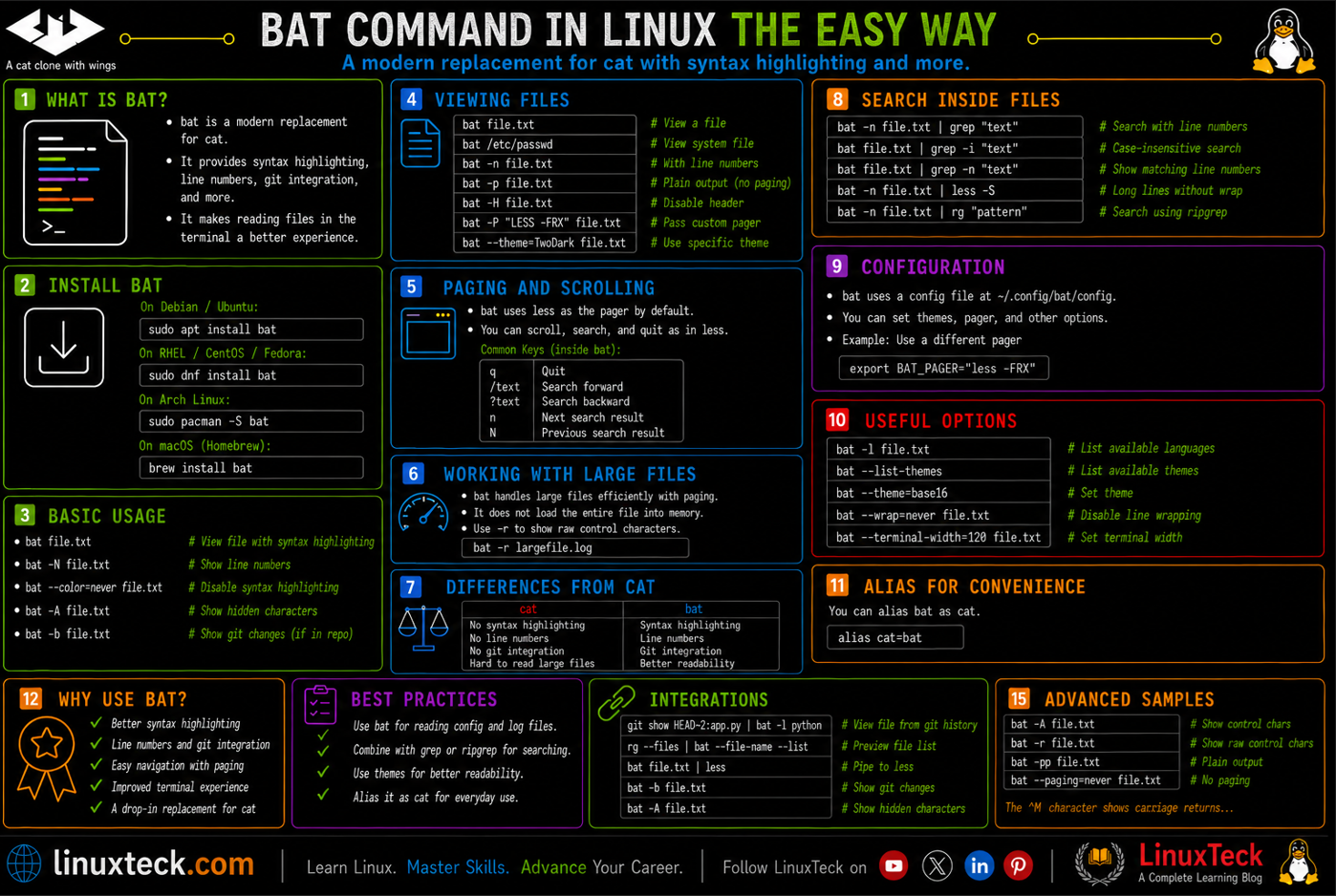
If you use Linux, you have probably used cat to read a file at least once today. It gets the job done, but every time it prints a file, you get a wall of plain white text with no color, no line numbers, and no clues about what changed. That is where bat comes in. The first time a colleague ran it on my terminal, the output looked like a proper code editor, right inside the shell. Colors, line numbers, and Git change markers, all working straight after install with zero config.
I had been staring at plain cat output for years before making the switch. It took about three minutes to set up and I have not gone back since. Whether you are new to the Linux terminal or someone who just wants a better way to read files quickly, this guide walks you through everything from installation to real daily use.
Note:
If you are still getting comfortable with basic file viewing, check out our guide on the cat command in Linux with examples before diving into bat. It will give you a solid foundation to appreciate exactly what bat improves.
Examples
What Is the bat Command in Linux?
Think of bat as cat with a built-in code editor's display. It reads files and prints them to the terminal, just like cat does. The difference is everything around that output: colored syntax, line numbers, a Git-aware margin, and automatic pagination when the file is long.
Under the hood, bat is written in Rust, which means it is fast and has no runtime dependencies. It was built by David Peter and is available under the MIT or Apache 2.0 license. The project lives at github.com/sharkdp/bat and is actively maintained.
If you are already comfortable with basic Linux commands, bat will feel natural immediately. The command syntax is almost identical to cat. You get extra features by default, and you can turn any of them off when piping output to other tools.
How to Install bat on Linux
Installation varies by distro. The key thing to know upfront: on Ubuntu and Debian, the binary is called batcat, not bat, because of a naming conflict with an existing package. You will need to create a symlink to use it as bat.
Ubuntu / Debian:
LinuxTeck.com
sudo apt install bat
# Create symlink so you can use 'bat' instead of 'batcat'
mkdir -p ~/.local/bin
ln -s /usr/bin/batcat ~/.local/bin/bat
Rocky Linux / RHEL / AlmaLinux:
LinuxTeck.com
sudo dnf install cargo
cargo install --locked bat
# Add Cargo binaries to your PATH
echo 'export PATH="$HOME/.cargo/bin:$PATH"' >> ~/.bashrc
source ~/.bashrc
Fedora:
LinuxTeck.com
sudo dnf install bat
Arch Linux:
LinuxTeck.com
sudo pacman -S bat
Once installed, confirm it is working:
LinuxTeck.com
Warning:
On Ubuntu and Debian, running bat directly after install will fail. The binary is named batcat by default. You must create the symlink shown above, or always type batcat instead.
bat Command Syntax
LinuxTeck.com
bat: the command itself. On Ubuntu/Debian use batcat unless you set up the symlink.
[OPTIONS]: any flags that change the display or behavior, like --plain, --theme, or --line-range. All optional.
[FILE...]: one or more file paths. Pass multiple files and bat will display them in sequence, just like cat.
Note:
By default, bat uses less as a pager when the file is longer than your terminal height. If you just want output printed directly without paging, add --paging=never. This is important when using bat inside scripts or piping its output to another command.
bat Options and Flags
| Flag | What It Does | When to Use It |
|---|---|---|
| -p / --plain | Removes line numbers and decorations, keeps syntax color | Piping output to grep, awk, or any other tool |
| --paging=never | Disables the less pager, prints directly to terminal | Scripts, CI environments, terminal output capture |
| -n / --number | Shows line numbers only, no other decorations | Reviewing configs where line numbers matter for troubleshooting |
| -r / --line-range | Displays only a specified range of lines | Jumping to a specific section of a large file |
| --diff | Shows only lines that changed since the last Git commit | Quick review of what you changed before committing |
| --theme | Sets the syntax highlighting color theme | Matching your terminal color scheme or personal preference |
| -A / --show-all | Displays non-printing characters like tabs and line endings | Debugging encoding issues or Windows CRLF line endings |
| -l / --language | Forces syntax highlighting for a specific language | Files without extensions or files with misleading extensions |
| --highlight-line | Highlights a specific line or range with a background marker | Calling attention to a specific section during a code review |
| --list-themes | Lists all available syntax highlighting themes with previews | Exploring your color options before setting BAT_THEME |
| --list-languages | Shows all languages bat can highlight | Checking if your language is supported before adding a custom syntax |
Practical bat Command Examples
I. View a File with Syntax Highlighting
The most basic use: just replace cat with bat. Try it on any config file or script and you will immediately see the difference.
LinuxTeck.com
1 # This is the sshd server system-wide configuration file.
2 Port 22
3 AddressFamily any
4 ListenAddress 0.0.0.0
5 PermitRootLogin no
6 PasswordAuthentication yes
7 ChallengeResponseAuthentication no
8 UsePAM yes
Tip:
bat automatically detects the file type from its extension and applies the correct syntax highlighting. You do not have to specify the language for common file types.
II. View Multiple Files at Once
Pass two or more files as arguments and bat displays them one after another, with a header showing the filename before each one.
LinuxTeck.com
1 # .bashrc
2 export PATH="$HOME/.local/bin:$PATH"
3 alias ll='ls -alF'
File: /home/user/.bash_profile
1 # .bash_profile
2 [[ -f ~/.bashrc ]] && . ~/.bashrc
III. View Only a Specific Line Range
Useful when you know roughly where the section you care about lives. No need to scroll through hundreds of lines.
LinuxTeck.com
41 gzip on;
42 gzip_types text/plain text/css application/json;
43
44 server {
45 listen 80;
46 server_name localhost;
47 root /usr/share/nginx/html;
48 }
Tip:
You can use -r :20 to show lines 1 to 20, or -r 50: to show from line 50 to the end of the file.
IV. Disable Paging for Use in Scripts
When using bat inside a shell script or piping its output, the pager will break things. Use --paging=never to print directly to stdout. This is the most important flag to know if you are using bat in automation contexts. If you work with bash scripting automation, this flag comes up constantly.
LinuxTeck.com
Jun 15 09:13:01 server01 sshd: ERROR: authentication failure for user root
V. Show Non-Printing Characters (Tabs, CRLF)
Files copied from Windows often have CRLF line endings that cause unexpected behavior in scripts. The -A flag makes these characters visible.
LinuxTeck.com
2 echo·"Starting deploy"·^M$
3 cd·/var/www/html·^M$
The ^M character represents a carriage return (\r) and the $ represents the line feed (\n), confirming Windows CRLF line endings.
Tip:
If you see ^M$ at the end of lines, your file has Windows line endings. Use sed -i 's/\r//' filename to strip them. Check out our sed commands guide for more text editing tricks like this.
VI. View Git Changes in a File
Inside a Git repository, bat shows which lines changed since the last commit using margin markers. No need to run a separate diff command for a quick check.
LinuxTeck.com
12 def get_user(id):
13+ user = db.query(id)
14+ return user.to_dict()
15- return db.get(id)
VII. View a Past Git Version of a File
This is one of the more powerful combinations: pipe a past Git commit's version of a file directly into bat for highlighted reading. Good when you want to see what a file looked like two commits ago without checking out a branch.
LinuxTeck.com
1 from flask import Flask
2 app = Flask(__name__)
3
4 @app.route('/')
5 def index():
6 return 'Hello World'
VIII. Change the Syntax Highlighting Theme
bat ships with many themes. List them all first, then pick one you like and either set it per-command or permanently via an environment variable.
LinuxTeck.com
bat --list-themes
# Use a specific theme for one command
bat --theme="Solarized (dark)" /etc/hosts
# Set a permanent theme for the session
export BAT_THEME="Dracula"
IX. Force Syntax Highlighting for Files Without Extensions
Log files, piped output, or custom config files often have no extension. Tell bat what language to use with the -l flag.
LinuxTeck.com
bat -l json /etc/docker/daemon
# View a YAML config without the .yaml extension
bat -l yaml /opt/myapp/config
X. Use bat as a Drop-in Alias for cat
The cleanest way to use bat daily is to alias it over cat in your .bashrc. After that you get all the benefits automatically, and existing muscle memory still works.
LinuxTeck.com
echo 'alias cat="bat"' >> ~/.bashrc
source ~/.bashrc
Note:
If you ever need plain cat behavior without any decoration (for scripting or piping in an alias context), bypass the alias with a backslash: \cat filename. This skips alias resolution and runs the real cat binary directly.
XI. Highlight a Specific Line While Reviewing Code
During a code review or debugging session, you can ask bat to visually mark a line or range with a background highlight. Helpful when you want to draw attention to a specific block.
LinuxTeck.com
bat --highlight-line 25:30 server.py
XII. Common Mistake: Using bat in a Script Without --paging=never
This is the most common mistake people make when first switching from cat to bat. They add bat to a script, and the script hangs waiting for a keypress inside less. Here is what happens and the fix:
LinuxTeck.com
# WRONG - script will hang waiting for less pager input
bat /etc/hosts
# CORRECT - always add --paging=never inside scripts
bat --paging=never /etc/hosts
Warning:
bat opens a pager by default when output exceeds the terminal height. In non-interactive shell scripts, this causes the script to freeze. Always use --paging=never when bat is inside a script or part of a pipeline. Learn more about writing reliable scripts in our bash exit codes and error handling guide.
Why bat Belongs in Your Daily Workflow
Reading files is something you do dozens of times a session. When every file you open has syntax coloring, line numbers, and visible Git changes, you catch things faster. A misplaced bracket in a config, an accidental blank line, a changed line you forgot to stage. These are not big things, but they add up when you are moving fast.
For teams on Rocky Linux or RHEL environments doing code reviews at the terminal, bat fits naturally alongside tools like awk and grep. Pipe bat output, filter it, or use it to spot changes before a commit. It does not replace your editor, but for read-only file inspection at the terminal, there is no faster tool. If you are building out a solid toolkit, also check our roundup of modern Linux tools worth adding to your workflow.
Main Points
- On Ubuntu and Debian, the binary installs as
batcat. Create a symlink to~/.local/bin/batso you can use it asbateverywhere. - Use
--paging=neverany time bat is inside a shell script or pipeline. Without it, the pager will cause the script to hang waiting for user input. - bat detects file type automatically from the extension. Force a language with
-l python,-l json, or-l yamlfor files that have no extension. - The
--diffflag is useful before committing: it shows only the lines that changed since the last Git commit, right inside the terminal. - Set
BAT_THEMEas a permanent environment variable in your.bashrcto keep your preferred theme across all sessions without re-specifying it every time. - Use
-Awhen troubleshooting encoding problems. It reveals invisible characters like CRLF line endings that cause shell script failures on Linux servers. - Piping
git show COMMIT:file | bat -l pythonlets you read any past version of a tracked file with full syntax color, without checking out a branch.
Frequently Asked Questions
I typed bat but it says command not found after installing. What happened?
On Ubuntu and Debian, the package installs as batcat, not bat. Run batcat filename to confirm it is installed. Then create a symlink: mkdir -p ~/.local/bin && ln -s /usr/bin/batcat ~/.local/bin/bat. After that, open a new terminal and bat will work.
My script stopped working after I switched from cat to bat. It just hangs.
bat opens the less pager by default when the file is too long for the terminal. In a script, there is no terminal to interact with, so it freezes. Add --paging=never to every bat call inside a script: bat --paging=never yourfile. That bypasses less entirely and prints straight to stdout.
Can I pipe output into bat to get syntax highlighting on command output?
Yes. Pipe anything into bat and use -l to tell it the format: curl -s api.example.com/data | bat -l json. You will get formatted, colored JSON output. Same works for YAML, XML, or any other language bat supports.
How do I make my theme choice permanent so I do not have to set it every time?
Add this to your ~/.bashrc: export BAT_THEME="Dracula" (or whatever theme name you prefer from bat --list-themes). Then run source ~/.bashrc. bat will use that theme automatically every time from that point forward.
bat is not showing colors when I pipe it to another command. Is that normal?
Yes, that is expected behavior. When bat detects its output is being piped, it strips ANSI color codes automatically to avoid polluting the downstream command. If you specifically want color codes in a pipe (for example, piping into less -R), add --color=always to force them through.
Does bat work on Rocky Linux and RHEL without EPEL?
bat is not in the default RHEL or Rocky Linux repos. The cleanest way without EPEL is to install Rust's package manager first: sudo dnf install cargo. Then, as your regular user (without sudo), run: cargo install --locked bat. Running cargo with sudo puts the binary in root's home directory instead of yours. After the build finishes, make sure ~/.cargo/bin is in your PATH by adding export PATH="$HOME/.cargo/bin:$PATH" to your ~/.bashrc and running source ~/.bashrc.
From your first terminal command to advanced sysadmin skills every guide here is written in plain English with real examples you can run right now.