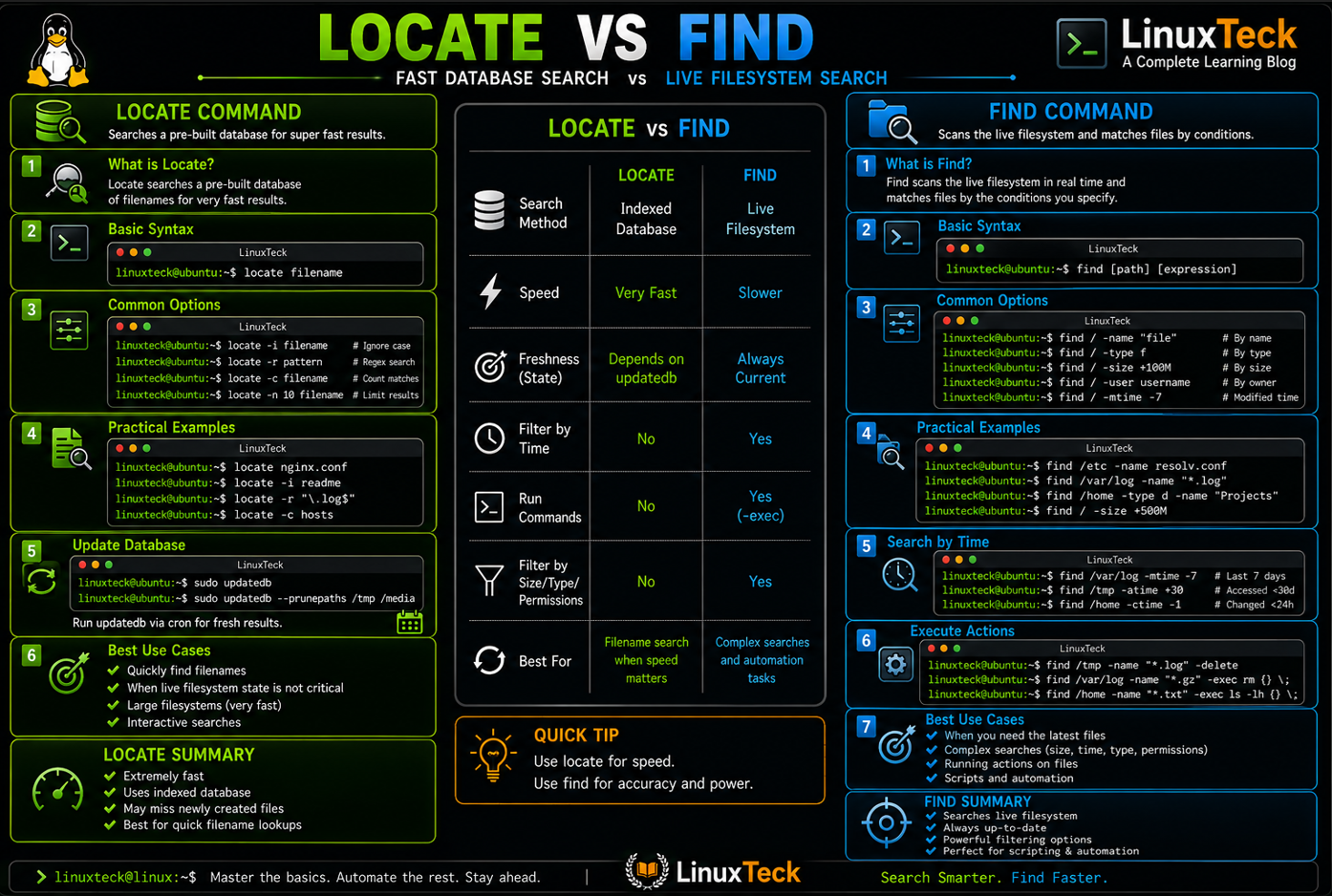
Many Linux beginners think locate and find do the same job, but the locate vs find command in Linux comparison comes down to one thing: locate searches a pre-built database for fast results, while find scans the filesystem in real time, making it slower but always up to date.
Quick Answer:
If you just need a file's path fast and don't care about live filesystem state, locate is the one you want. It reads from a database instead of scanning disk, so it answers almost instantly.
LinuxTeck
This is for anyone who keeps typing find / -name out of habit and wondering why it takes forever, or anyone who just discovered locate and got burned by it missing a brand new file. By the end you'll know exactly when to reach for which one, and how to stop getting surprised by either.
Note:
If you're still shaky on basic file operations, it's worth going through Linux commands for beginners before this one, since we assume you already know how to move around the filesystem.
Examples
What Is the Real Difference: Locate vs Find in Linux
locate looks up filenames in a database that gets built ahead of time. find walks the actual filesystem, folder by folder, checking every file it passes against whatever conditions you give it.
Think of locate as searching an index at the back of a book. It's fast because someone already did the reading for you. find is more like flipping through every page yourself, slower, but it sees exactly what's there right now, including the page someone added five minutes ago.
| Aspect | locate | find |
|---|---|---|
| Search method | Pre-built database | Live filesystem scan |
| Speed | Near instant | Depends on directory size |
| Freshness | Only as current as last updatedb run | Always current |
| Filter by time/size/permissions | No | Yes |
| Can run actions on results | No | Yes, via -exec |
Once you can afford your own server, or you're managing several, the database behind locate only stays useful if updatedb runs on schedule. That's worth keeping in mind if you're the one running backups and cron jobs for a fleet of boxes.
Basic Syntax for Both Commands
LinuxTeck
linuxteck@ubuntu:~$ find [path] [options] [expression]
locate just wants a pattern, that's it. find wants a starting point (where to look), then whatever conditions describe the file you're after. The path part trips people up early on, if you skip it, find defaults to your current directory, not the whole system.
Concept:
People assume find always searches everything by default. It doesn't. Leave out the path in Linux (GNU find) and it defaults to your current directory (.). Note: macOS and BSD find require specifying the path explicitly (e.g., find . -name "file").
Flags Worth Actually Remembering
| Command | Flag | What it's for |
|---|---|---|
| locate | -i | Ignore case, useful when you're not sure how something was named |
| locate | -c | Just count matches instead of listing them |
| locate | -r | Use a regex instead of a plain pattern |
| find | -name / -iname | Match filename, iname ignores case |
| find | -type f / -type d | Restrict to files or directories only |
| find | -mtime | Filter by modified time (-n for within n days, +n for older than n days) |
| find | -size | Filter by file size |
| find | -exec | Run a command against every match found |
Examples You'll Actually Run
I. Find a file by its exact name with locate
This is the whole point of locate. You know roughly what the file is called, you just want the full path back.
LinuxTeck
/run/systemd/resolve/resolv.conf
/run/systemd/resolve/stub-resolv.conf
II. Case-insensitive search with locate -i
Handy when someone else named the file and you're not sure if they used caps.
LinuxTeck
/usr/share/doc/bash/README
/opt/app/Readme.txt
III. Count matches instead of listing them
Sometimes you don't need the paths, you just want a number, maybe to check how many config backups piled up somewhere.
LinuxTeck
IV. Find a file by name using find
The find equivalent of example I, but it actually walks the tree in real time.
LinuxTeck
V. Find files modified in the last 7 days
Something locate simply cannot do, since it has no idea about timestamps beyond what was true at the last index run.
LinuxTeck
/var/log/auth.log
/var/log/nginx/access.log
VI. Delete old log files with find -exec
This is where find pulls ahead completely. Locate can only tell you where something is, find can act on it directly.
LinuxTeck
Security Warning:
Run this with a plain -print instead of -exec rm first, look at the list, then swap it back in. There's no undo once rm runs across a folder full of matches.
Production Tip:
find's own -delete action does the same job without spawning a separate rm process per match, and -exec rm {} + batches matches into far fewer process spawns than -exec rm {} \;. On a directory with thousands of matches either option finishes noticeably faster.
VII. Search file contents using find and grep
LinuxTeck
VIII. Search only within a specific directory
Both commands can be narrowed. With find it's the path argument, with locate you filter results after the fact.
LinuxTeck
/home/linuxteck/projects/web/.env.local
IX. Fix permissions across a directory tree
A common one on shared hosting or after moving files between users, permissions get inconsistent and things stop loading.
LinuxTeck
Production Tip:
Run -type f and -type d as two separate commands with different chmod values (usually 644 for files, 755 for directories). Applying one mode to both is a common way to accidentally lock people out.
X. Locate missing a file you just created
This is the mistake almost everyone makes once. You create a file, immediately try to locate it, and get nothing.
LinuxTeck
Common Mistake:
Assuming locate is broken or the file didn't save. It's neither. The database just hasn't been refreshed since the file appeared. Either wait for the scheduled updatedb run or trigger it yourself, shown next.
XI. Update the locate database manually
The fix for example X. Needs root because it scans directories a normal user can't always read.
LinuxTeck
Give it a moment on a system with a lot of files, this walks the whole tree once to rebuild the index. Once it finishes, the earlier locate command will find the file without any trouble.
XII. Search for directories only with find -type d
Useful when you're hunting for a folder rather than a specific file, like tracking down where a project's node_modules or venv directories are hiding.
LinuxTeck
/home/linuxteck/projects/web/node_modules
Why Knowing Both Actually Matters
The real skill here isn't memorizing flags, it's recognizing which situation you're in fast enough that you don't waste ten minutes on the wrong tool. On a small VPS with a handful of files, it barely matters, find is fast enough for almost anything. On a production box with millions of inodes across mounted volumes, running find / without narrowing the path can pin a CPU core and annoy whoever else is logged in.
I've seen people script cleanup jobs using locate because it felt faster, only to have those jobs silently skip files created that same day. That's not a locate bug, it's a misunderstanding of what locate is for. Anything that has to be reliable right now belongs with find. I learned that one the hard way after a locate-based cleanup cron job quietly left a week's worth of temp files behind.
If you're managing a fleet of servers, like the setups compared in DigitalOcean vs Vultr, keep updatedb on a predictable schedule, and check /etc/updatedb.conf if it's running slow, the PRUNEPATHS and PRUNEFS settings there stop it from crawling NFS mounts or Docker overlay filesystems it doesn't need to touch. Worth knowing too that fd exists as a faster, friendlier alternative for everyday interactive searches, while find stays the better choice for scripting. According to the GNU findutils manual, find's syntax is built for exactly that kind of composability.
Key Points
- Run
sudo updatedbmanually whenever locate misses a file you just created, don't assume it's broken. - Reach for find when you need to filter by time, size, type, or ownership, locate has no concept of any of that.
- Use
-inameinstead of-namein find whenever you're unsure how something was capitalized. - Pair find with
-execrather than piping results into a separate loop, it's faster and avoids word-splitting issues. - Test destructive find commands with
-printbefore swapping in-exec rmor-exec chmod. - Check whether your distro ships plocate or mlocate, most current Debian 12+ and Ubuntu 22.04+ systems default to plocate now, older or RHEL-family systems may still be on mlocate, the query syntax is the same either way.
- Use
-exec cmd {} +instead of-exec cmd {} \;when you can, it batches matches into fewer process spawns and runs noticeably faster on large trees. - Pipe find into
-print0 | xargs -0instead of a plain loop when filenames might contain spaces, it avoids silent word-splitting bugs. - Automated scripts that touch production files should use find, not locate, since the database can be hours stale.
Questions I Get Asked About This All the Time
I ran locate and it's not finding a file I just created, what's going on?
The database hasn't refreshed yet. Run sudo updatedb and try again, that forces an immediate reindex instead of waiting for the daily cron job.
Do I need sudo to run updatedb?
You need root, or at least the permissions your distro grants for rebuilding the search index. On most current systems that's the plocate database, refreshed by a systemd timer (plocate-updatedb.timer) as well as whatever you trigger manually. Older systems still on mlocate handle it through a daily cron job instead. Either way, run sudo updatedb unless your user already has that access configured.
Why does locate show me files I don't have permission to open?
That depends on which implementation you're running. Older plain GNU locate shows everything in the database regardless of permissions, while mlocate and plocate are permission-aware and filter results to what you can actually access. Check with locate --version if you're not sure which one you have.
My find command is taking forever on a big directory, is that normal?
Yes, especially across network mounts or directories with millions of files. Narrow the starting path as much as you can, and consider adding -maxdepth if you don't need it to go deep into subfolders.
Can I combine locate and find in the same workflow?
Sure, plenty of people use locate to get a quick rough idea of where something lives, then switch to find with a narrower path when they need to filter or act on it.
Why does find show a wall of "Permission denied" errors?
It's trying to read directories your user can't access, usually system folders. Append 2>/dev/null to the command to silence that noise and keep only the actual matches on screen.
I typed locate and got "command not found", what now?
Some minimal server images and containers don't ship locate at all. Install it with sudo apt install plocate on Debian or Ubuntu, sudo dnf install plocate on Fedora, or sudo yum install mlocate on older RHEL-family systems. Then run sudo updatedb once before your first search, otherwise you'll just get empty results.
What's the difference between locate, find, and whereis?
locate and find search for files anywhere on the system by name or attributes. whereis is a different tool entirely, it only looks for binaries, source, and man pages tied to a specific command name, like whereis python3. If you're hunting for an arbitrary file, use locate or find. If you're trying to find where an installed program actually lives, whereis is faster and more targeted.
Neither command replaces the other, they're just built for different moments. Grab locate when you want an answer right now and don't care if it's five minutes stale. Reach for find when the answer has to be accurate this second, or when you need to actually do something with what you find. Once that distinction clicks, you'll stop typing the wrong one out of habit. If you want to go deeper on either command on its own, there's a full breakdown of find command examples and a separate guide to the locate command worth bookmarking.
From your first terminal command to advanced sysadmin skills, every guide here is written in plain English with real examples you can run right now.