Switching to Linux for the first time is exciting, but searching for the "best" distribution can quickly feel overwhelming. With dozens of options all claiming to be beginner-friendly, it is hard to know where to start. This guide cuts through the confusion based on real hands-on experience to help you find what actually works for you.
There is no single "best" Linux distribution-only the one that fits how you use your computer every day. Before creating your bootable USB, take a look at our Linux quick start guide to get familiar with the basic concepts. Installing Linux is simple; building good habits in your first week is what makes the transition smooth.
Below is a practical rundown of eight top distros for beginners in 2026, along with lightweight options for older hardware, common setup mistakes to avoid, and answers to the most frequently asked questions.
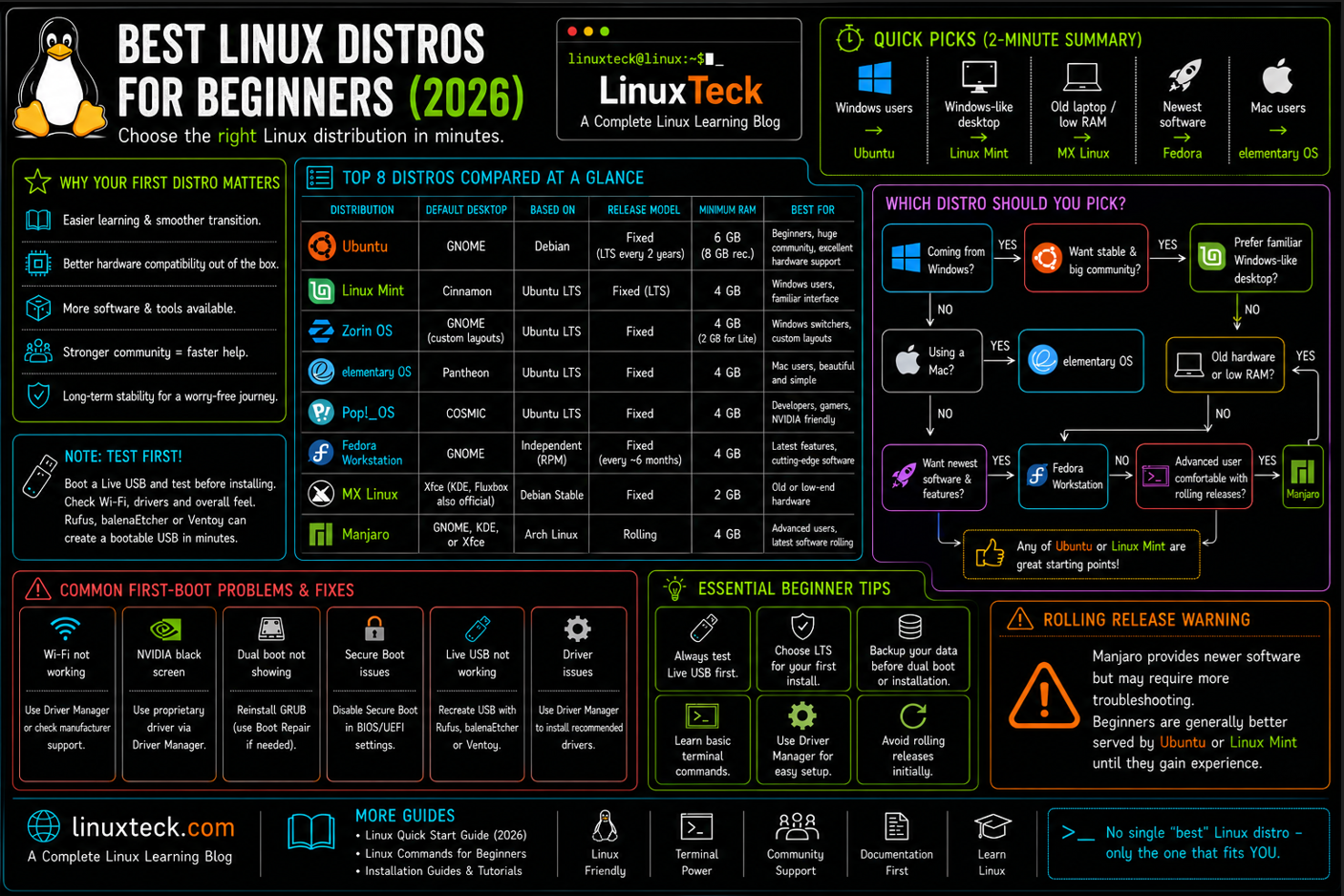
Quick Picks Before You Read Further:
If you just want a name and want to get moving, here is the short version.
- Coming from Windows and want the biggest community: Ubuntu
- Want something that looks and feels familiar right away: Linux Mint
- Older laptop with limited RAM: MX Linux
- Want the newest software without instability: Fedora Workstation
- Switching from a Mac: elementary OS
Note:
Before you commit to anything below, know that you do not have to install a thing to test it. Every distro on this list ships a live USB you can boot into and click around, browse, and connect to Wi-Fi without touching your current operating system. Rufus, balenaEtcher, or Ventoy will get an ISO onto a USB stick in a few minutes. If a live session feels unfamiliar or the Wi-Fi card is not detected, that is useful information before you install, not after.
Here is how the eight compare at a glance before you read the full breakdown of each one.
| Distro | Default Desktop | Based On | Release Model | RAM Minimum |
|---|---|---|---|---|
| Ubuntu | GNOME | Debian | Fixed (LTS every 2 years) | 6 GB (26.04 LTS) |
| Linux Mint | Cinnamon | Ubuntu LTS | Fixed (LTS) | 4 GB |
| Zorin OS | GNOME (custom layouts) | Ubuntu LTS | Fixed | 4 GB (2 GB for Lite) |
| elementary OS | Pantheon | Ubuntu LTS | Fixed | 4 GB |
| Pop!_OS | COSMIC | Ubuntu LTS | Fixed | 4 GB |
| Fedora Workstation | GNOME | Independent (RPM) | Fixed (every ~6 months) | 4 GB |
| MX Linux | Xfce (KDE, Fluxbox also official) | Debian Stable | Fixed | 2 GB |
| Manjaro | GNOME, KDE, or Xfce | Arch Linux | Rolling | 4 GB |
1. Ubuntu
Ubuntu is still the distro most beginners land on first, and there is a good reason for that beyond habit. It is built on Debian, which means rock solid package management, and it has the largest pile of tutorials, forum answers, and community fixes of any desktop distro out there. If something breaks, someone has already posted the fix.
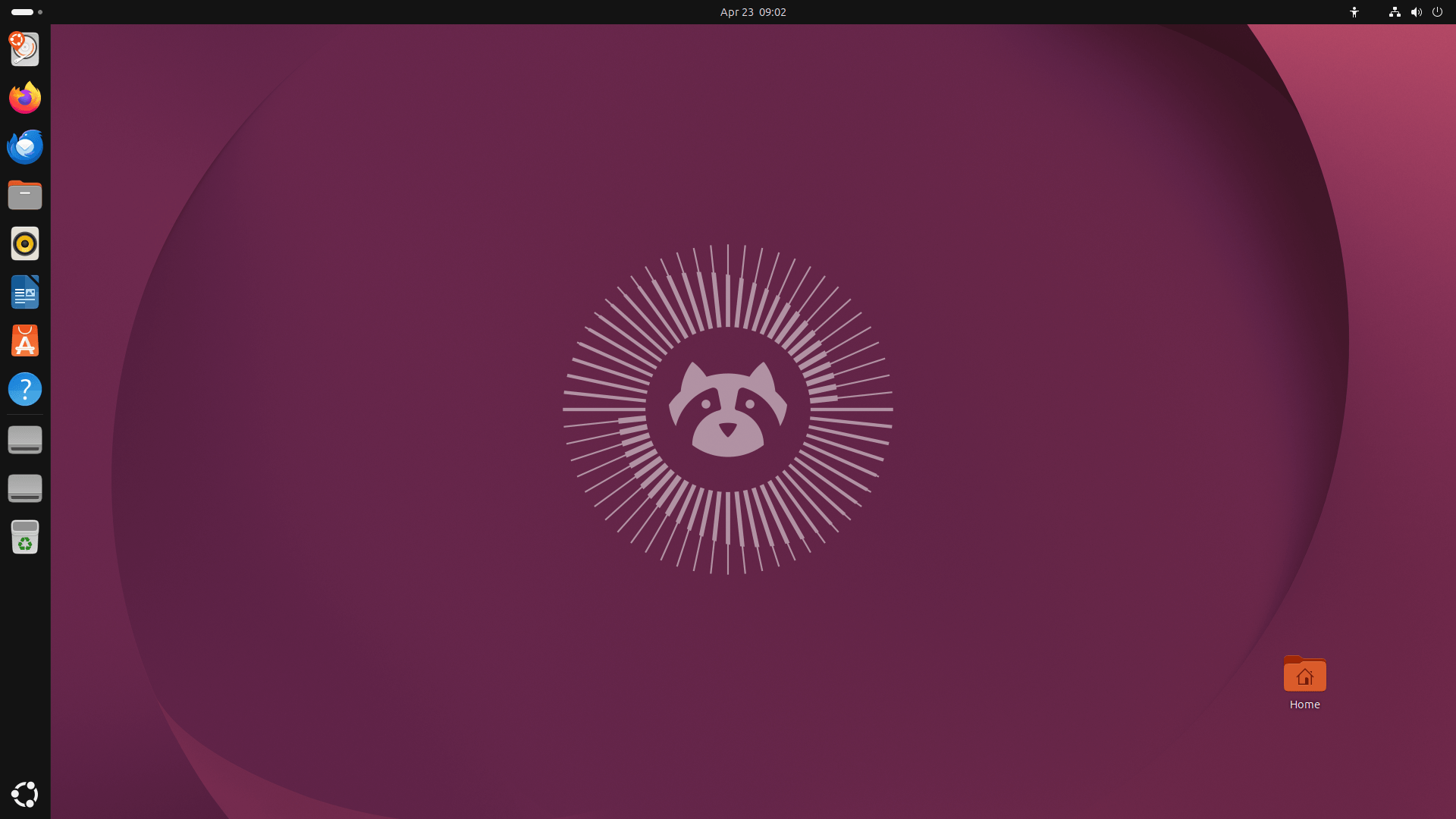
The GNOME desktop takes a day or two to get used to if you are coming from Windows, mostly because the workflow leans on an activities overview instead of a taskbar. Hardware support is excellent out of the box, and the Software Center handles most app installs without ever opening a terminal. When you are ready to actually get your hands dirty, our Ubuntu 26.04 LTS installation walkthrough covers the full process screen by screen (along with notes for 24.04 LTS users).
Note:
Stick to an LTS release for your first install. Non-LTS versions ship newer software but get half the support window, which is not what you want while you are still learning your way around.
Once you get comfortable clicking around, spend an hour in the terminal. It looks intimidating for about a week and then becomes the fastest way to do almost everything. A short list of Linux commands for beginners is enough to get you moving without memorizing a manual.
2. Linux Mint
Mint is what I hand to people who want Linux but do not want to relearn how a desktop works. The Cinnamon edition uses a bottom taskbar, a start menu, and a system tray that all behave close enough to what Windows users already know that the learning curve mostly disappears.
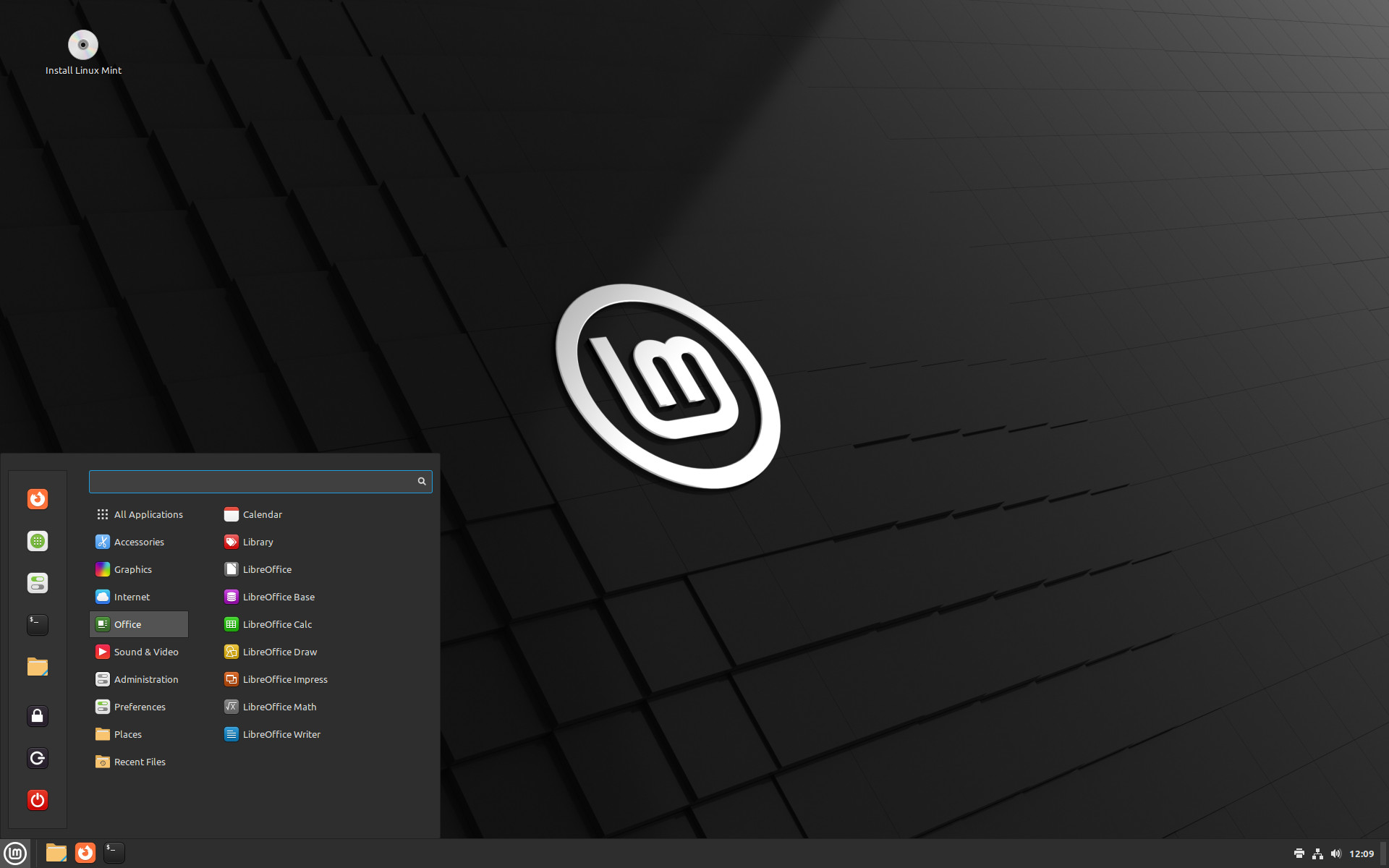
It is built on Ubuntu LTS underneath, so it inherits the same driver and package ecosystem, but Mint ships with more codecs and drivers pre-installed so things like video playback and Wi-Fi just work on day one. The Update Manager also flags kernel updates separately from app updates, which is a small thing that saves beginners from breaking their system on a routine update.
Since both Mint and Ubuntu trace back to Debian, it is worth understanding how the family tree actually splits. Our Debian vs Ubuntu comparison breaks down why that lineage matters for stability and software availability.
3. Zorin OS
Zorin leans hard into the transition experience. The layout switcher can make the desktop resemble Windows 11, Windows 7, or macOS with a couple of clicks, which genuinely lowers the anxiety for someone who has never left a Microsoft or Apple environment before.
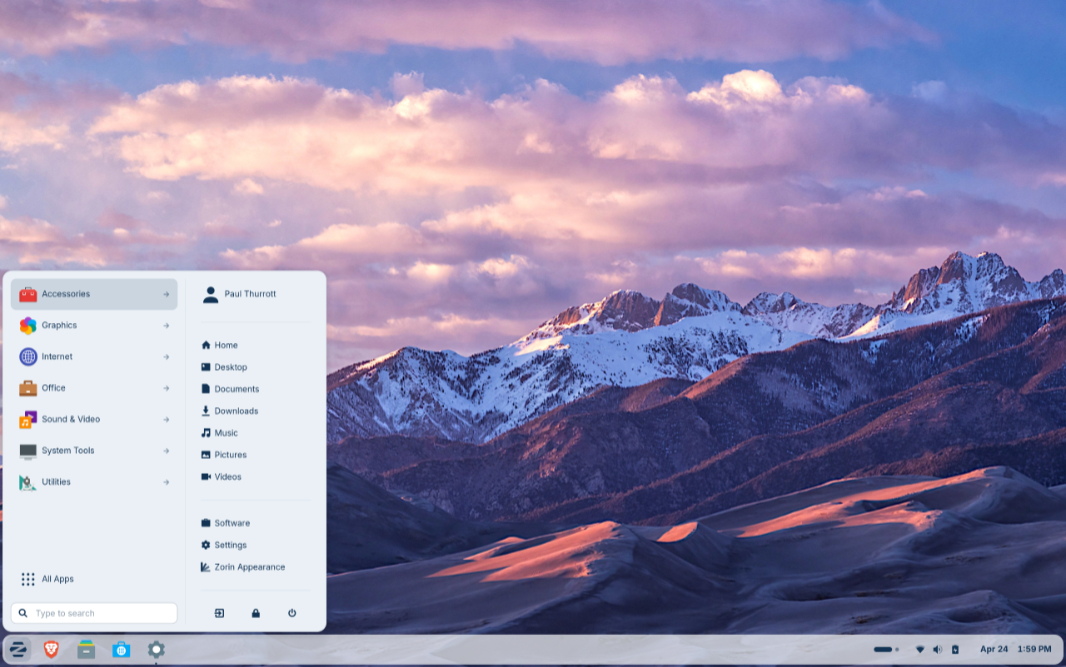
The free Core edition covers everything a beginner needs. The paid Pro tier adds extra layout presets and a handful of pre-installed apps, but you are not missing core functionality by staying on the free version, and there is no pressure to upgrade until you know you actually want to.
4. elementary OS
If your reference point is macOS rather than Windows, elementary OS is worth trying before anything else on this list. The Pantheon desktop is deliberately minimal, the window management is clean, and the whole thing feels considered rather than assembled from spare parts.
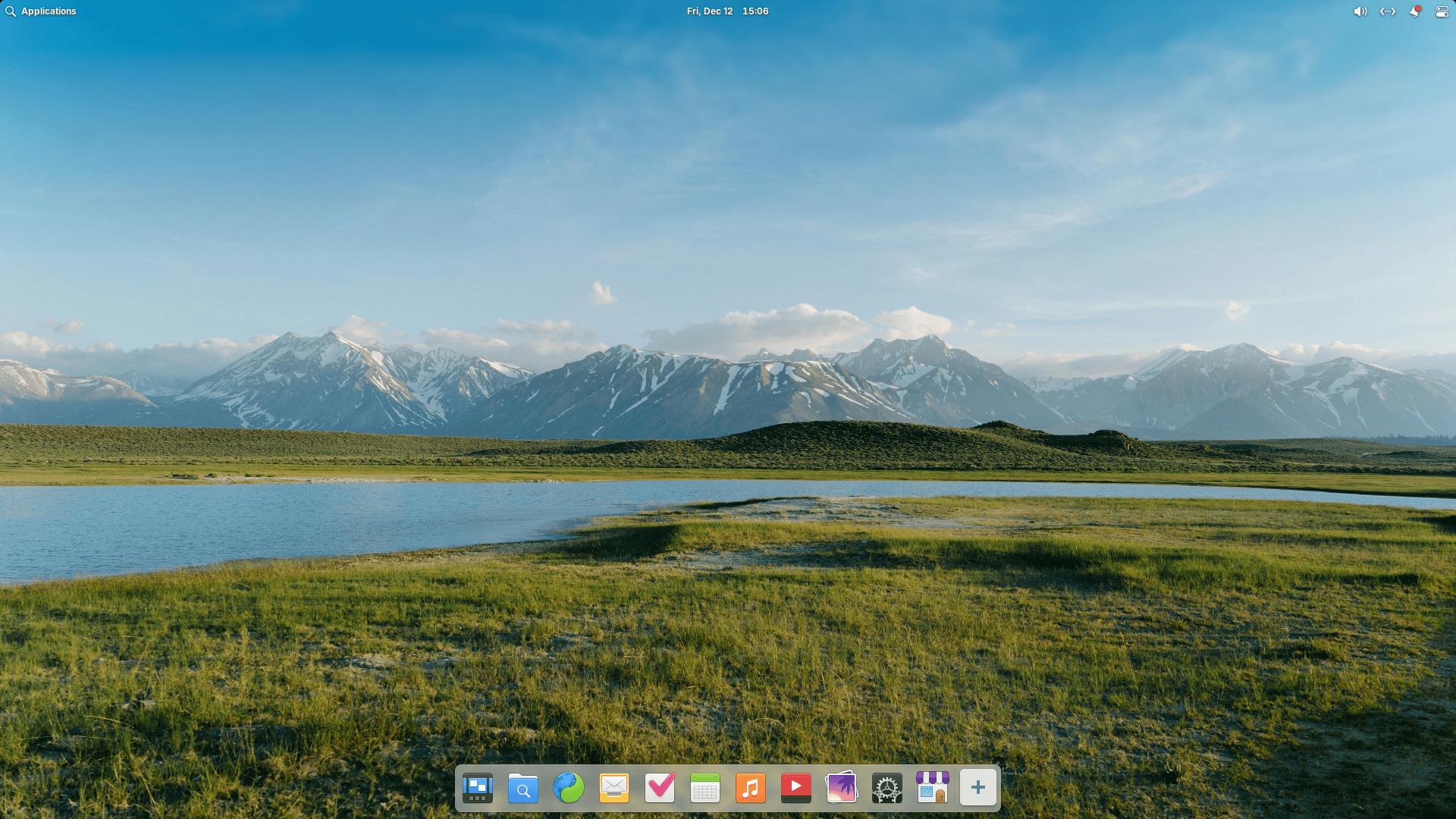
The tradeoff is app availability. The AppCenter is curated and smaller than Ubuntu's Software store, though Flatpak support fills most of the gaps once you know where to look.
5. Pop!_OS
Pop!_OS comes from System76, built around their custom, Rust-based COSMIC desktop environment. It features fluid auto-tiling out of the box, intuitive workspace management, and native Wayland support without complex configuration. It remains a top pick for technical and creative work, handling multi-monitor displays and dedicated NVIDIA GPUs with far less friction than most distros.
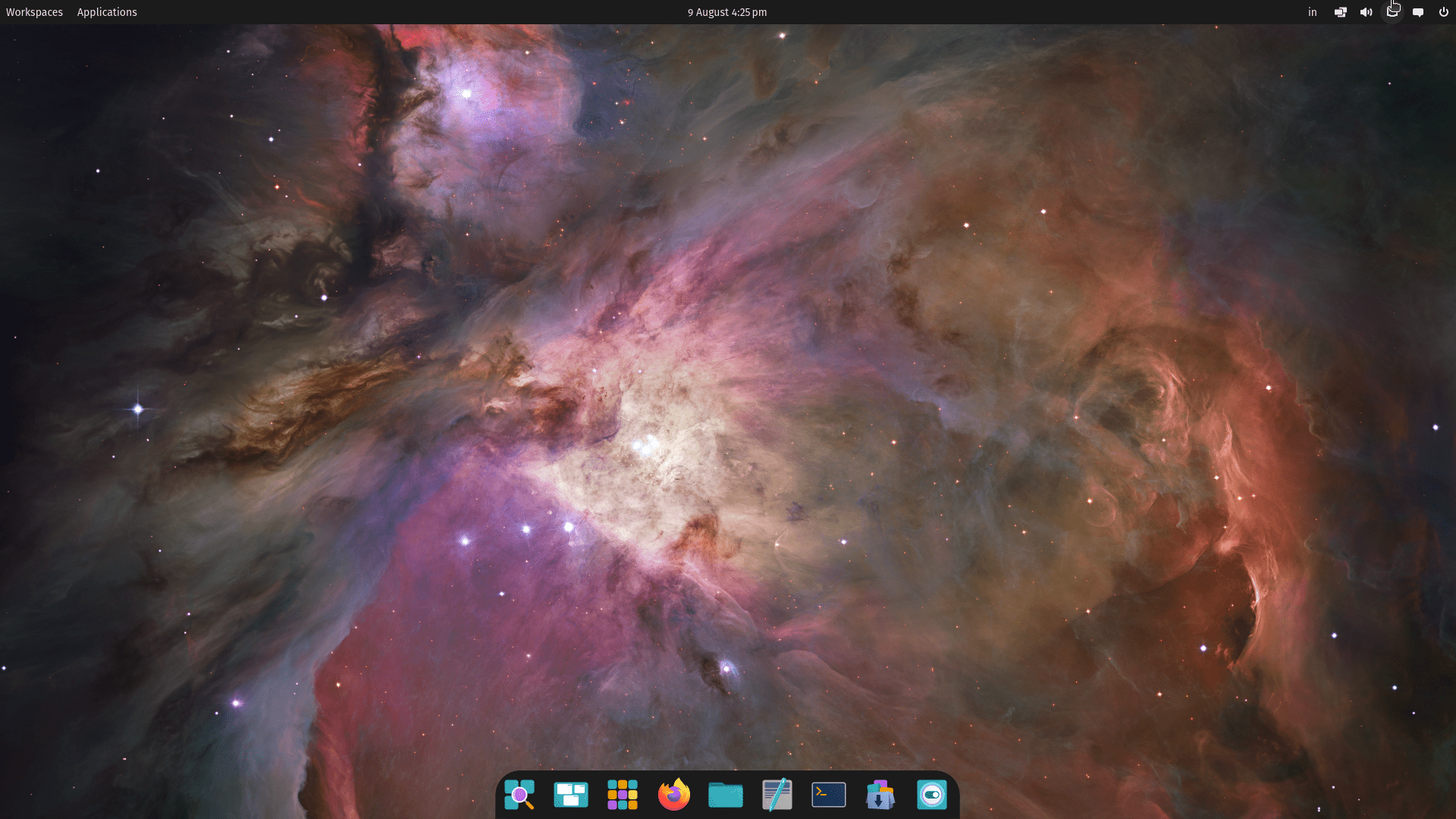
It is still built on Ubuntu underneath, so the same package ecosystem and driver support carries over, just wrapped in a workflow that rewards keyboard shortcuts once you learn a few of them.
6. Fedora Workstation
Fedora sits a step ahead of Ubuntu on software freshness. It ships newer kernels and newer GNOME releases first, backed by Red Hat, which also means what you learn here carries over reasonably well if you ever work with RHEL in a job. If you are weighing that path, our RHEL vs Ubuntu Server comparison is a useful next read.
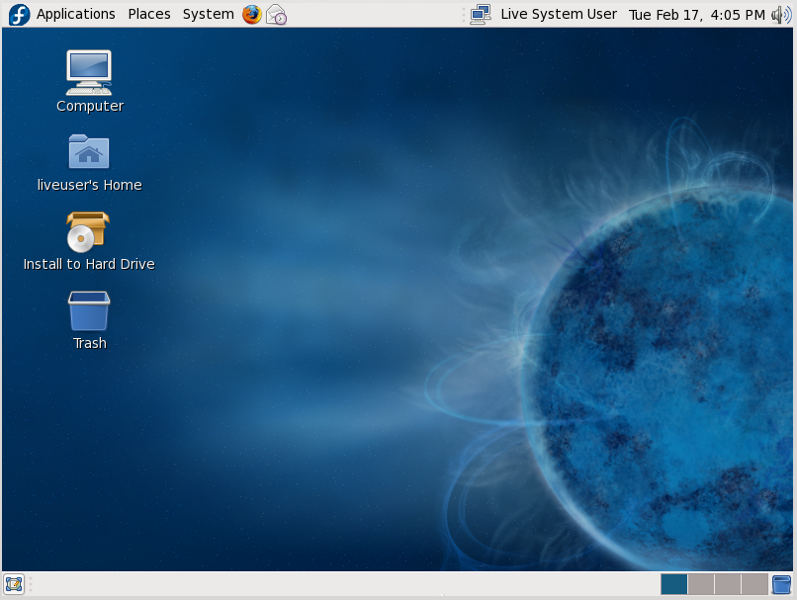
The catch for absolute beginners is proprietary driver support. Fedora ships with a strict open source policy by default, so NVIDIA drivers and some codecs need an extra repository (commonly RPM Fusion) added manually. It is not hard, but it is one more step than distros that bundle everything up front.
7. MX Linux
MX Linux is the one I recommend most often for an older laptop that Windows 11 refuses to run on anymore. It pairs a stable Debian base with a lightweight flagship Xfce desktop (alongside official KDE and Fluxbox editions), staying fast on hardware that would choke running heavier environments. If "lightweight Linux distro" is what actually brought you here, this is the strongest all-rounder on the list.
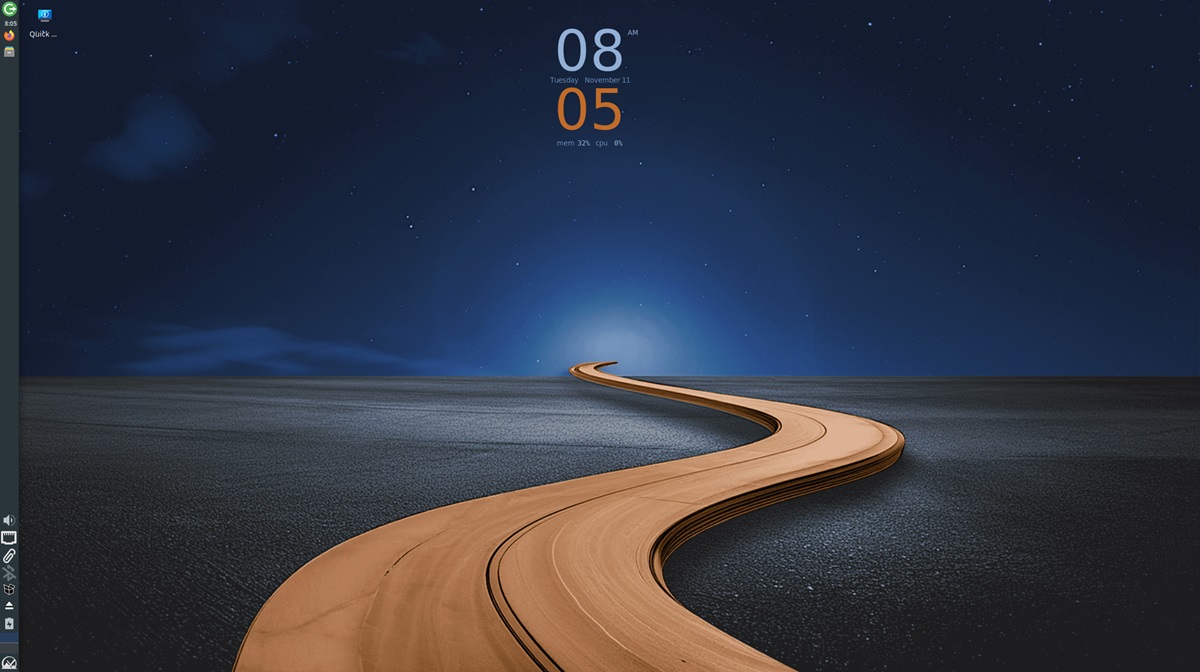
MX Tools, its bundled utility suite, wraps things like snapshot backups and driver management into simple dialogs, so you get some of the convenience of a heavier distro without the resource cost.
8. Manjaro
Manjaro takes Arch Linux, which has a reputation for being unforgiving, and wraps it in a graphical installer and sane defaults. You get access to the Arch User Repository (AUR) for practically any software you need, though keep in mind that because Manjaro delays Arch core packages briefly for testing, AUR builds can occasionally run into version mismatches.
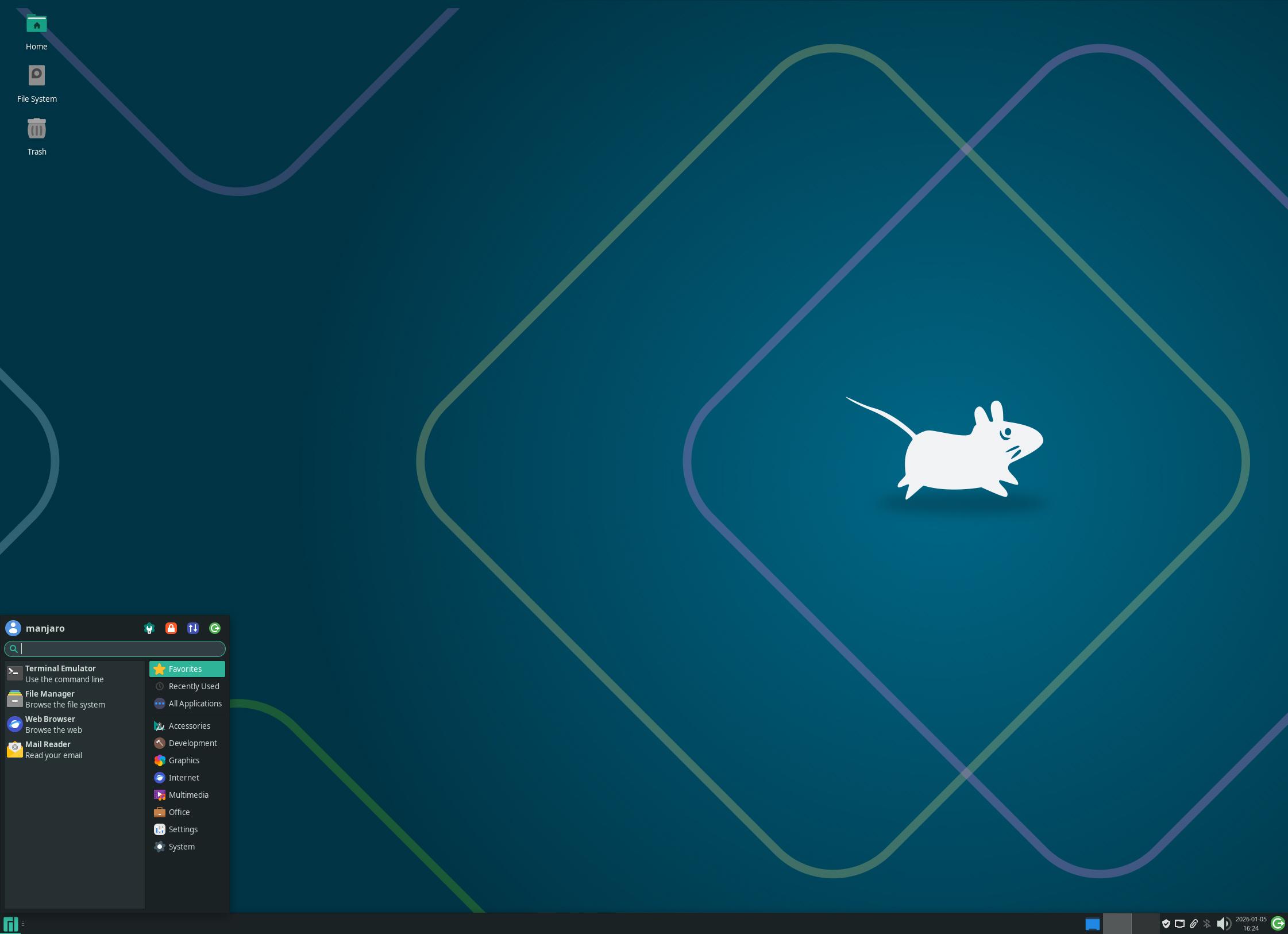
Manjaro is what is known as a rolling release distro, meaning it pushes updates continuously as they are ready instead of shipping numbered versions every year or two. You are always close to the newest software, but you never get a long, quiet stretch between updates the way you do on Ubuntu or Mint.
Warning:
That continuous update model is great for staying current, but it also means an update can occasionally break something with very little warning. If this is your very first Linux install, a fixed release distro like Mint or Ubuntu will give you a calmer learning environment. Save Manjaro for once you are comfortable troubleshooting on your own, and if you do run it, check the Manjaro forum's stable-branch announcements before running a large update.
Also Worth Knowing: Lightweight Options for Really Old Hardware
If MX Linux still feels heavier than what your machine needs, three names come up constantly in that specific corner of the community: Lubuntu, which pairs the LXQt desktop with Ubuntu's package base and runs comfortably on 2GB of RAM; antiX, a Debian based distro built specifically for aging hardware with no systemd dependency; and Puppy Linux, which can run entirely from RAM and boots from almost anything. None of these are as beginner friendly out of the box as the eight above, but if your goal is squeezing a few more years out of a 2010-era laptop, they are worth the extra research.
How to Choose the Best Linux Distro for Beginners
Ignore the "best distro" debates you see online, most of them are personal preference dressed up as fact. Ask yourself three questions instead: what does my hardware look like, what operating system am I switching from, and do I want stability or the newest software. Those three answers point you to a shortlist faster than any ranking article will.
It also helps to understand what you are actually running under the hood. The name "Linux" technically refers to just the kernel, and the full operating system experience beginners install is more accurately a Linux distribution, a point the GNU project documents in detail. Our own Linux fundamentals guide is a good companion read if you want that context before you install anything.
Note:
If you would rather test a distro on a cloud server before touching your own hardware, a comparison like this DigitalOcean review or Cloudways vs Vultr breakdown can help you spin up a cheap VPS to poke around in.
Quick Fixes for the Most Common First-Boot Problems
A handful of issues account for most beginner support threads, so it is worth knowing the fix before you hit the problem.
- Wi-Fi not detected after install: usually a proprietary driver issue, most common on Broadcom and some Realtek chipsets. Connect via Ethernet first, then use the distro's Driver Manager (Mint, Ubuntu) or Additional Drivers tool to pull in the proprietary module.
- Black screen or login loop after first boot: almost always an NVIDIA driver conflict. Reboot, select the "safe graphics" or "nomodeset" option from the boot menu, log in, then install proprietary drivers from the distro's driver tool before rebooting normally.
- Windows does not show up in the boot menu after dual booting: turn off Windows Fast Startup before installing Linux, since it can leave the shared partition in a state the installer flags as unsafe. If it still does not appear, boot into a live USB and run Boot Repair.
- Secure Boot blocks the installer or a driver: most of these distros support Secure Boot out of the box, but third-party NVIDIA modules on Fedora and Manjaro sometimes need Secure Boot temporarily disabled in the UEFI settings, or the driver enrolled with MOK (Machine Owner Key) during install.
Conclusion
Any distro on this list will get you off Windows or macOS without a rough first week, so stop overthinking the choice and just test one from a live USB tonight. Once the basics feel comfortable, the natural next step is picking up real terminal skills or looking at what changes if you move toward a developer focused distro, and if you want to turn this into an actual skill set, our Linux certifications guide lays out where that path leads. Drop me your feedback or comments. Feel free to share this article with others if you like it.
Thank you!
To find all the Linux Distro articles, click here
Questions I Get Asked About This All the Time
My laptop is seven years old with 4GB of RAM. Which distro should I install?
Skip anything running GNOME or KDE by default and go with XFCE instead. MX Linux is the one I would install on that machine without a second thought, it is Debian based so software availability is not a problem, and XFCE stays responsive even with 4GB of RAM in play. If the machine is older still, Lubuntu or antiX are worth a look too.
Do I need to know terminal commands before I install Linux?
No. Every distro on this list has a full graphical installer and app store, so you can install, update, and browse without ever opening a terminal. You will want to learn it eventually because it is faster once you know a handful of commands, but it is not a requirement to get started.
Can I install Linux alongside Windows instead of replacing it?
Yes, this is called dual booting and every installer on this list supports it. The installer will resize your existing Windows partition and create space for Linux next to it. Back up your files first regardless, and make sure Windows Fast Startup is turned off before you begin, otherwise the shared partition can get flagged as unsafe to mount.
Is Manjaro or Arch too advanced for a first distro?
Manjaro is genuinely usable as a first distro thanks to its graphical installer, but the rolling release model means updates can occasionally introduce a hiccup with very little warning. If you want zero surprises for your first few months, start with Mint or Ubuntu and come back to Manjaro once you are comfortable troubleshooting a broken update on your own.
Which distro is closest to what I already know on Windows or macOS?
Linux Mint's Cinnamon desktop is the closest match to Windows out of the box, with a start menu, taskbar, and system tray in familiar places. Zorin OS goes further and lets you actively switch the layout to mimic Windows or macOS. If you are coming from a Mac specifically, elementary OS matches that aesthetic and workflow more closely than anything else here.
Will my Wi-Fi card and printer actually work after installing?
Most modern hardware works immediately, especially on Ubuntu, Mint, and Fedora, which all ship with broad driver support. The exception is some NVIDIA GPUs and a handful of newer Wi-Fi chipsets, where you may need to install a proprietary driver from the distro's own driver manager after first boot. It usually takes a few minutes, not hours.
Explore LinuxTeck for practical guides covering Rocky Linux, RHEL, AlmaLinux, Ubuntu, Debian, Fedora, Linux administration, shell scripting, networking, and enterprise Linux technologies.