The head command in Linux is the fastest way to inspect a file without opening it. But when a log is 80,000 lines long and you just need the first twenty, opening it in an editor is a waste of time and, on a live server, sometimes risky. That is exactly where head earns its place in your toolkit.
Note:
If you are just getting started with Linux text commands, the cat command guide and the less command guide are solid companions to this one. Together, they cover most of what you need for reading files at the terminal.
Examples
What Is the head Command in Linux?
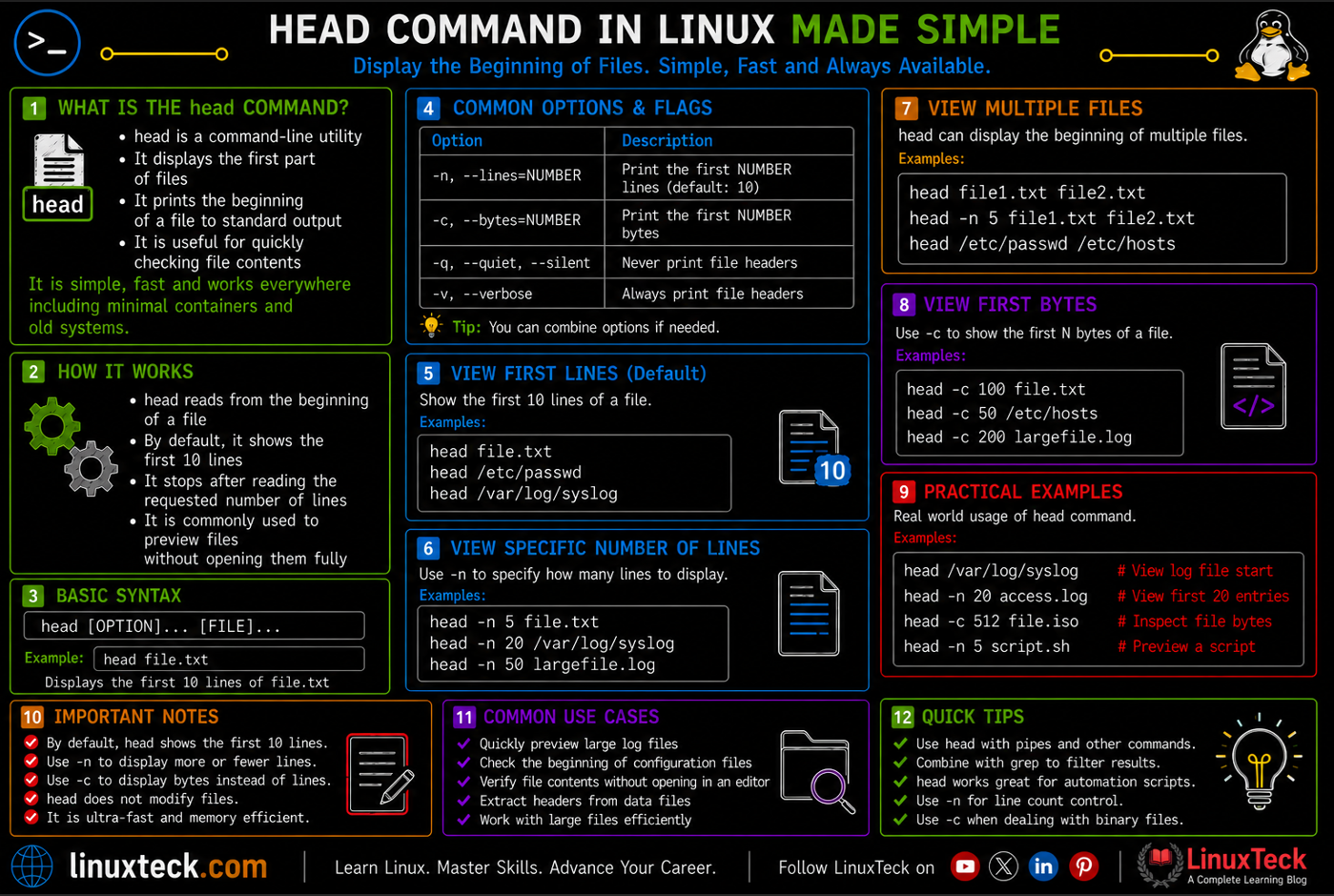
head reads a file and prints the first part of it to your terminal. By default, that means the first 10 lines. Nothing more, nothing less.
Think of it like the preview pane in a file manager, except you control exactly how much you see and you can feed its output directly into other commands. On any Linux system, whether Ubuntu, Rocky Linux, RHEL, Debian, or Arch, head is part of GNU coreutils and is available out of the box. You do not need to install anything.
If you are already comfortable running basic commands in the terminal, head will feel natural within the first five minutes. It follows the same logic as most Unix tools: one job, done well, composable with everything else.
Syntax and Basic Structure
LinuxTeck.com
Break it down: head is the command. [OPTIONS] are the flags you add to change what it shows. [FILE...] is the file you want to read. The three dots mean you can pass multiple files at once.
If you skip the file entirely and just run head, it reads from standard input. That means you can pipe output from another command straight into it, which is where a lot of the real power comes from.
Note:
The default is always 10 lines. No flag needed for that. If you want a different number, you have to say so with -n. A lot of beginners assume they can just run head -5 file.txt and it will work. It does on most modern systems, but the POSIX-compliant way is head -n 5 file.txt. Stick with -n to be safe across all distros.
Options and Flags Reference
| Flag | What It Does | When to Use It |
|---|---|---|
| -n NUM | Print first NUM lines instead of the default 10 | Previewing a specific number of log entries or config lines |
| -c NUM | Print first NUM bytes instead of lines | Binary file inspection, checking file headers, byte-level audits |
| -q | Suppress filename headers when reading multiple files | Piping multi-file output into another command cleanly |
| -v | Always print filename header, even for a single file | Scripts where you need clear file attribution in output |
| --help | Show usage summary in the terminal | Quick flag lookup without leaving the terminal |
Practical head Command Examples
I. View the First 10 Lines of a File (Default)
The most basic use. No flags, just the filename. You get the first 10 lines printed to your terminal immediately.
LinuxTeck.com
Jun 9 00:01:05 server01 systemd[1]: Started Daily apt download activities.
Jun 9 00:05:01 server01 CRON[3821]: (root) CMD (command -v debian-sa1 > /dev/null && debian-sa1 1 1)
Jun 9 00:17:01 server01 CRON[3956]: (root) CMD ( cd / && run-parts --report /etc/cron.hourly)
Jun 9 00:30:01 server01 CRON[4102]: (root) CMD ([ -x /usr/lib/php/sessionclean ] && if [ ! -d /run/systemd/system ]; then /usr/lib/php/sessionclean; fi)
Jun 9 01:05:01 server01 CRON[5344]: (root) CMD (command -v debian-sa1 > /dev/null && debian-sa1 1 1)
Jun 9 01:17:01 server01 CRON[5481]: (root) CMD ( cd / && run-parts --report /etc/cron.hourly)
Jun 9 01:30:01 server01 CRON[5602]: (root) CMD ([ -x /usr/lib/php/sessionclean ] && if [ ! -d /run/systemd/system ]; then /usr/lib/php/sessionclean; fi)
Jun 9 02:05:01 server01 CRON[6801]: (root) CMD (command -v debian-sa1 > /dev/null && debian-sa1 1 1)
Jun 9 02:17:01 server01 CRON[6943]: (root) CMD ( cd / && run-parts --report /etc/cron.hourly)
II. Print a Custom Number of Lines with -n
Need the first 5 lines of a config file? Pass -n followed by your number. Works with any file and any count.
LinuxTeck.com
worker_processes auto;
pid /run/nginx.pid;
include /etc/nginx/modules-enabled/*.conf;
error_log /var/log/nginx/error.log;
III. Read the First N Bytes with -c
Sometimes lines do not matter. If you need to check the first 50 bytes of a file (useful for magic byte verification or binary headers), use -c.
LinuxTeck.com
Note:
Newline characters count as 1 byte each with -c. So the output may cut mid-word or mid-line. That is expected behavior, not a bug.
IV. View Multiple Files at Once
Pass more than one filename and head will label each section with a header automatically. Useful when comparing config files across environments.
LinuxTeck.com
127.0.0.1 localhost
127.0.1.1 server01
::1 localhost ip6-localhost ip6-loopback
ff02::1 ip6-allnodes
ff02::2 ip6-allrouters
==> /etc/hostname <==
server01
V. Suppress File Headers with -q
When you are piping multi-file output into another command, those ==> filename <== headers will break your pipeline. Use -q to strip them out.
LinuxTeck.com
127.0.1.1 server01
::1 localhost ip6-localhost ip6-loopback
server01
VI. Pipe ls Output Into head to Get the Newest Files
Combine ls -lt (sorted by modification time, long format) with head to get the most recently changed files in a directory. Handy for checking what a deployment just touched. Note: ls -l output always starts with a total N summary line, so head -n 6 returns that summary plus the top 5 files.
LinuxTeck.com
-rw-r--r-- 1 root adm 87432 Jun 9 03:41 syslog
-rw-r--r-- 1 root adm 12094 Jun 9 02:17 kern.log
-rw-r----- 1 root adm 9882 Jun 9 01:53 auth.log
-rw-r--r-- 1 root root 4210 Jun 9 00:05 dpkg.log
-rw-r--r-- 1 root root 1024 Jun 8 23:14 cloud-init.log
VII. Extract Lines Between a Range (head + tail)
Want lines 15 through 25 of a file? Pipe head into tail. This is a common pattern when you know your data starts at a specific offset.
LinuxTeck.com
Jun 9 03:05:01 server01 CRON[8821]: (root) CMD (command -v debian-sa1 > /dev/null && debian-sa1 1 1)
Jun 9 03:17:01 server01 CRON[8956]: (root) CMD ( cd / && run-parts --report /etc/cron.hourly)
Jun 9 03:20:11 server01 sshd[9021]: Accepted publickey for deploy from 10.0.0.15 port 51284
Jun 9 03:20:12 server01 sshd[9024]: pam_unix(sshd:session): session opened for user deploy
Jun 9 03:25:01 server01 CRON[9102]: (root) CMD ([ -x /usr/lib/php/sessionclean ])
Jun 9 03:30:01 server01 CRON[9201]: (root) CMD (test -e /run/systemd/private)
Jun 9 03:35:04 server01 systemd[1]: Starting Message of the Day...
Jun 9 03:35:05 server01 systemd[1]: motd-news.service: Succeeded.
Jun 9 03:40:01 server01 CRON[9452]: (root) CMD (command -v debian-sa1 > /dev/null)
Jun 9 03:41:11 server01 kernel: [45821.004910] audit: type=1400 msg=audit(1749436871.004:192)
Tip:
The formula is: head -n LAST_LINE file | tail -n COUNT where COUNT equals LAST_LINE minus FIRST_LINE plus 1. So for lines 15 to 25, that is head -n 25 | tail -n 11.
VIII. Use head in a Script to Check CSV Headers
When processing data files in a script, validating the header row before doing anything else saves you from bad imports. Here is a quick check pattern you can drop into any pipeline script.
LinuxTeck.com
FILE="/data/exports/users.csv"
HEADER=$(head -n 1 "$FILE")
echo "Header row: $HEADER"
IX. Monitor the Start of Rotating Log Files
On production servers with log rotation, you often need a quick check of what is at the top of today's log versus yesterday's. Running head on both at once gives you an instant comparison.
LinuxTeck.com
10.0.0.21 - - [09/Jun/2026:00:00:04 +0000] "GET /api/health HTTP/1.1" 200 42
10.0.0.21 - - [09/Jun/2026:00:00:09 +0000] "GET /api/status HTTP/1.1" 200 87
10.0.0.22 - - [09/Jun/2026:00:00:14 +0000] "POST /api/data HTTP/1.1" 201 153
==> /var/log/nginx/access.log.1 <==
10.0.0.19 - - [08/Jun/2026:00:00:02 +0000] "GET /api/health HTTP/1.1" 200 42
10.0.0.20 - - [08/Jun/2026:00:00:06 +0000] "GET / HTTP/1.1" 200 6841
10.0.0.21 - - [08/Jun/2026:00:00:11 +0000] "GET /robots.txt HTTP/1.1" 200 67
X. Combine head with grep for Fast Log Triage
Grab the top of a log and filter it through grep in one shot. Useful for triaging an incident when you only want error entries from the start of the file.
LinuxTeck.com
Jun 9 01:02:34 server01 systemd[1]: ntpd.service: Failed with result 'exit-code'.
Tip:
You can find more grep techniques in the bash grep text processing guide. Pairing head with grep is one of those combos you end up using almost every day on a live server.
XI. The Mistake: Forgetting -n Produces Exactly 10 Lines
This is one of the most common traps. A developer runs head on a config file expecting to see the whole short file, but the file is 14 lines and they only see 10. They then assume the file is truncated or the last section is missing, and spend time troubleshooting something that is not broken.
LinuxTeck.com
head /etc/ssh/sshd_config
# Right - check the actual line count first
wc -l /etc/ssh/sshd_config
head -n 20 /etc/ssh/sshd_config
Warning:
head without -n always cuts at line 10. If your config or data file is longer than that, you are not seeing all of it. Always use -n with an explicit count when the full context matters. When in doubt, run wc -l filename first to know how many lines you are working with.
XII. Use head With find to Spot-Check Multiple Files
When auditing a directory of config files or data exports, combine find with a head loop to peek at the first line of every file. Useful for format validation across a batch.
LinuxTeck.com
echo "--- $f ---"
head -n 1 "$f"
done
user_id,username,email,created_at,status
--- /data/exports/orders.csv ---
order_id,user_id,product_sku,quantity,total,created_at
--- /data/exports/sessions.csv ---
session_id,user_id,ip_address,started_at,ended_at
Why head Belongs in Your Daily Workflow
The real value of the head command in Linux is not the command itself, it is what it prevents. On a server with a 500MB log file, opening that file carelessly in an editor or running cat on it can lock up your terminal session, push huge amounts of data through a slow SSH connection, and give you nothing useful faster than head -n 20 does. For good Linux logging practice, quick non-destructive inspection is the first step before any deeper analysis.
In scripting, head -n 1 is the standard way to read a file header, validate CSV column order, or extract a shebang line without loading the whole file into memory. If you are writing automation scripts or batch processing pipelines, understanding how bash scripting and automation tools like head work together will save you from a lot of slow, fragile code. The official documentation at man7.org covers all POSIX-level details if you ever need to go deeper on compatibility.
Main Points
- Running the head command in Linux without
-nalways gives you exactly 10 lines. Anything beyond that is not shown, which can mislead you if the file is short and you expect to see it all. - Use
-c NUMwhen you need byte-level control, such as checking magic bytes or the start of a binary header. Line-based output does not apply there. - When working with multiple files, the
==> filename <==header is printed automatically. Use-qto suppress it if you are piping the output somewhere else. - Combine
head -n LAST | tail -n COUNTto extract any line range from a file without loading the whole thing into memory. - In shell scripts,
head -n 1is the clean way to read a CSV header row or the first line of any structured file before processing begins. - Pairing
headwithgrep,sort, orfindturns it from a simple viewer into a flexible triage and audit tool. - On large log files,
headreads only what it needs and stops. That makes it significantly faster and safer thancator opening a file in an editor on a live system.
Frequently Asked Questions
I ran head on my config file and it only showed part of it. Is the file corrupted?
No. head stops at 10 lines by default. Your file is fine. Run wc -l yourfile to see the total line count, then use head -n 30 (or whatever the actual count is) to see it all. The command is doing exactly what it is supposed to.
Can I use head on a gzipped log file without extracting it first?
Yes, but not directly with head. Use zcat or zless piped into head: zcat /var/log/syslog.gz | head -n 20. That decompresses on the fly and sends the first 20 lines to your terminal without writing anything to disk.
What happens if I run head on a directory by mistake?
You will get an error: head: error reading '/path/to/dir': Is a directory. Nothing gets broken. If you want to list the top files in a directory, use ls | head -n 10 instead.
How do I use head inside a bash script to store just the first line in a variable?
Like this: FIRST_LINE=$(head -n 1 "$FILE"). The $() syntax runs the command and stores the output as a string. From there you can compare it, echo it, or pass it to another command. This is the standard pattern for reading CSV headers or checking file format before processing.
Is there a difference between head -n 5 and head -5?
On most modern Linux systems, both work. However, the -5 syntax violates standard GNU/POSIX utility guidelines. While many modern desktop shells still support it for legacy compatibility, it can fail on strict POSIX environments, minimalist containers, or embedded systems running busybox. Stick with -n 5 to ensure your scripts run flawlessly everywhere.
Can head read from a pipe as well as from a file?
Yes, and that is where it gets useful. When no file is specified, head reads from standard input. So cat bigfile.txt | head -n 5 works fine, as does ls -lt | head -n 10. You can drop it anywhere in a pipeline to limit the output flowing through.
From your first terminal command to advanced sysadmin skills, every guide here is written in plain English with real examples you can run right now.