The tree command in linux with examples is the fastest way to visualize any directory structure at a glance. ls -R is fine as long as there are only 400 files in the directory. At that point, you have scrolled through a mountain of text looking for the subdirectory where all your work was done. On the other hand, when you run tree, you will wonder why you had not done things like this from the very beginning.
The first time someone gave me a new server and told me to “poke around” to get an idea of the project layout, I ran ls -R. The results were a list of 600 lines of text with absolutely no visual organization. A senior engineer walked by while I was working, saw my screen, and said “you need to use tree.” He then continued on his way. After I installed tree, which took about 30 seconds, I have been using it every day since.
This document is for everyone who works with Linux directories on a regular basis, whether they are just starting out or have been doing this for years and simply never taken the time to sit down and learn what each flag does. By the end of this article, you should be able to look at a project’s directory layout and determine its overall structure. In addition to reading a project’s directory layout, you will also be able to filter what you want to see within that layout. This means you can choose to show only certain parts of a directory structure. Lastly, you will learn how to save copies of directory layouts to reference later if needed.
Note:
If you're new to Linux file navigation, it's worth getting comfortable with the ls command first tree builds directly on the same concepts, and understanding ls output makes tree's visual structure much easier to read.
Examples
What Is the tree Command in Linux?
The tree command reads a directory and prints its entire contents files, subdirectories, and nested subdirectories in a branching visual layout that looks like an actual tree. Instead of a flat list of filenames, you get indented branches with connecting lines showing you exactly how everything relates to everything else.
Under the hood, it's doing what ls -R does recursive directory listing but it formats the output so you can actually read it. The final line of every tree output also gives you a quick count of directories and files found, which is useful when you're auditing a directory and want a fast summary without counting manually.
Think of it like this: ls shows you what's in the room you're standing in; tree shows you the whole floor plan of the building. If you've ever used the find command just to understand what's inside a directory, tree will do that job with far less typing and far more readable output.
How to Install tree on Linux (Ubuntu, Rocky Linux, RHEL, Arch)
The tree command is not installed by default on most Linux distributions. It's in the standard repositories for all major distros, so installation is a single command.
Note:
tree is not a core utility it ships separately. Running it before installing will give you "command not found," which is the most common question beginners ask. Always check with which tree first; if there's no output, install it.
LinuxTeck.com
sudo apt install tree
# Rocky Linux 8/9 and RHEL 8/9 (preferred)
sudo dnf install tree
# RHEL / CentOS 7 (legacy)
sudo yum install tree
# Arch Linux
sudo pacman -S tree
On Rocky Linux 9 and RHEL 9, use dnf not yum. While yum is aliased to dnf on RHEL 8+, using dnf directly is the current standard and avoids any deprecation warnings on newer releases.
tree Command Syntax and Common Options
LinuxTeck.com
The tree part is the command itself. [options] are the flags you add to control what gets shown and how. [directory] is the path you want to inspect if you leave it blank, tree uses the current working directory. That's the most common usage: just type tree where you are.
| Flag | What It Does | When to Use It |
|---|---|---|
| -a | Include hidden files and directories | Auditing configs, dotfiles, .git directories |
| -d | List directories only, no files | Getting a clean structural overview before exploring files |
| -f | Print full path prefix for every file | When you need the path to copy it elsewhere or use in scripts |
| -L <n> | Limit display depth to n levels | Essential on large filesystems prevents infinite recursion |
| -h | Show file sizes in human-readable format (K, M, G) | Auditing disk usage by directory |
| -p | Print file type and permissions for each file | Permission audits, checking for unexpected executables |
| -u / -g | Print the file owner / group | Ownership audits on shared servers |
| -P <pattern> | Only show files matching the wildcard pattern | Finding all .conf, .log, or .py files in a large tree |
| -I <pattern> | Exclude files matching the wildcard pattern | Hiding node_modules, .git, __pycache__ from output |
| -t | Sort output by last modification time | Finding recently touched files during debugging |
| -o <file> | Save tree output to a file | Generating directory documentation, CI/CD snapshots |
| --du | Report accumulated sizes for each directory | Disk usage summary similar to du but with tree layout |
tree Command Examples: From Beginner to Real-World
I. Run tree with No Arguments
The simplest use: just type tree in any directory and it will recursively display everything from that point down. This is where most people start, and it's often all you need.
LinuxTeck.com
├── config
│ ├── nginx.conf
│ └── ssl
│ └── cert.pem
├── logs
│ ├── access.log
│ └── error.log
├── scripts
│ ├── deploy.sh
│ └── backup.sh
└── README.md
3 directories, 6 files
II. List Only Directories, No Files
When you want to understand the folder structure of a project without the noise of individual files getting in the way, -d gives you the skeleton only.
LinuxTeck.com
├── assets
│ ├── css
│ ├── images
│ └── js
├── controllers
├── models
├── routes
└── views
8 directories
III. Show Hidden Files Including Dotfiles
By default tree skips hidden files anything starting with a dot. When you're auditing a project for configuration files, SSH keys, or .env files, you need -a to see the full picture.
LinuxTeck.com
├── .env
├── .git
│ ├── config
│ ├── HEAD
│ └── hooks
│ └── pre-commit
├── .gitignore
├── app.py
└── requirements.txt
2 directories, 7 files
IV. Limit Display Depth to 2 Levels
On any directory with real depth, running tree with no depth limit is like opening every drawer in a filing cabinet at once. Use -L to control how deep it goes. Level 2 is a good starting point for most projects.
LinuxTeck.com
├── cron.d
│ ├── 0hourly
│ └── sysstat
├── nginx
│ ├── conf.d
│ └── nginx.conf
├── ssh
│ ├── sshd_config
│ └── ssh_config
└── systemd
└── system
7 directories, 4 files
Tip:
Start with -L 2 on any unfamiliar directory. If you need to go deeper on a specific subdirectory, run tree on that subdirectory directly rather than increasing the global depth limit.
V. Show Full File Paths for Every Entry
The -f flag forces tree to print the full path prefix for every entry relative to the directory argument provided. By passing the "$(pwd)" command substitution as the target directory, you trick the terminal into feeding tree an absolute starting point, yielding copy-paste-ready absolute file paths.
LinuxTeck.com
├── /home/user/project/config
│ └── /home/user/project/config/settings.yaml
├── /home/user/project/src
│ ├── /home/user/project/src/main.py
│ └── /home/user/project/src/utils.py
└── /home/user/project/README.md
2 directories, 4 files
VI. Show File Sizes in Human-Readable Format
Use the -h flag to display file and directory sizes in a human-readable format (like K, M, or G) instead of raw bytes. This makes it instantly obvious which files are consuming the most storage space.
LinuxTeck.com
├── [124K] nginx
│ ├── [4.2M] access.log
│ └── [312K] error.log
├── [48K] syslog
└── [1.1M] messages
1 directory, 4 files
VII. Show File Permissions, Owner, and Group
Combine -p, -u, and -g together to get a long-listing-style view of every file in the tree. This is useful during permission audits you get the full ownership picture across the entire directory structure in one output, which would take many individual ls -l commands to replicate.
LinuxTeck.com
├── [drwxr-xr-x root root ] assets
│ ├── [-rw-r--r-- root root ] style.css
│ └── [-rw-r--r-- root root ] app.js
├── [-rw-r--r-- apache apache ] index.html
└── [-rw-rw-rw- deploy www-data] config.php
1 directory, 4 files
Warning:
If you spot a file like config.php with world-writable permissions (-rw-rw-rw-) in a web root, that's a security problem. The tree -pug combination makes these stand out immediately which is exactly why it's worth running after any deployment.
VIII. Filter Files by Pattern Show Only .log Files
The -P flag accepts a wildcard pattern and limits output to only matching files. Use this when you know the type of file you're looking for and don't want to scroll through everything else. The --prune option removes empty directories from the output so you only see directories that actually contain matches.
LinuxTeck.com
├── nginx
│ ├── access.log
│ └── error.log
└── messages.log
1 directory, 3 files
IX. Sort Output by Last Modification Time
When debugging, you often want to know which files changed most recently. The -t flag sorts the tree by modification time rather than alphabetically. Pair it with -D to also print the modification timestamp alongside each file.
LinuxTeck.com
├── [May 20 22:14] nginx.conf
├── [May 18 09:30] conf.d
│ ├── [May 20 19:47] default.conf
│ └── [May 17 14:22] ssl.conf
└── [Apr 28 11:05] mime.types
1 directory, 4 files
X. Save tree Output to a File for Documentation
The -o flag redirects tree's output directly to a text file. This is genuinely useful for documentation: generate a snapshot of a project structure, commit it to the repo, and anyone joining the project gets an instant orientation. It's also useful in CI/CD pipelines where you want to record what was deployed and when.
LinuxTeck.com
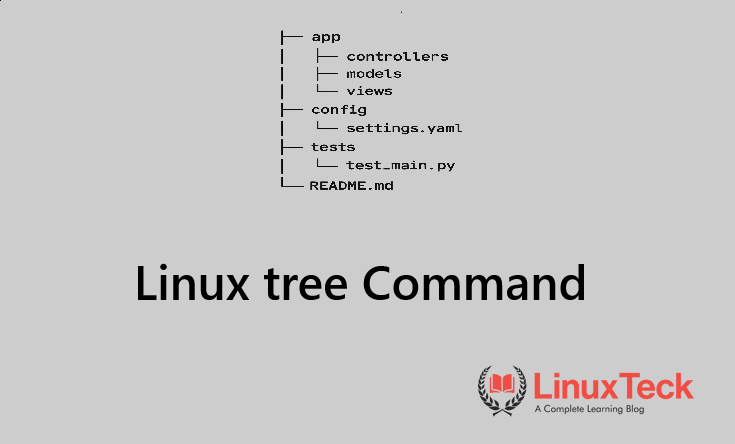
You can verify the contents of the generated documentation file using the cat command:
├── app
│ ├── controllers
│ ├── models
│ └── views
├── config
│ └── settings.yaml
├── tests
│ └── test_main.py
└── README.md
Tip:
While modern versions of tree support pipe-delimited pattern matching, using multiple explicit -I flags (e.g., -I node_modules -I .git -I __pycache__) ensures your commands remain universally compatible across older Linux installations. This efficiently strips out directories that are always heavy, irrelevant to humans, and clutter documentation. You can use the cat command to verify the saved file immediately after.
XI. Audit a Deployed Application Directory Before a Release
Before going live, run tree with permissions and ownership flags on your deployment directory. This gives you a single, scannable output showing the full structure plus ownership useful for catching files that deployed under the wrong user or directories that are missing entirely.
LinuxTeck.com
├── [drwxr-xr-x deploy www-data] public
│ ├── [-rw-r--r-- deploy www-data] index.html
│ └── [-rw-r--r-- deploy www-data] app.js
├── [drwxr-xr-x deploy www-data] uploads
│ └── [-rw-rw-rw- nobody nobody ] temp_upload.php
└── [-rw-r--r-- deploy www-data] .env
2 directories, 4 files
XII. The Mistake That Will Freeze Your Terminal
This is the one most people learn the hard way. Running tree / with no depth limit tells tree to recurse the entire filesystem every directory, every subdirectory, everything under /proc, /sys, and virtual filesystems. On a production server this can take minutes and produce millions of lines of output.
LinuxTeck.com
tree /
# RIGHT - always use -L on / and avoid /proc, /sys
tree -L 2 /
# or target the specific directory you actually need
tree -L 3 /var/www
Warning:
Running tree / without -L on a Linux server will recurse into /proc and /sys, which contain virtual filesystem entries that can loop indefinitely or produce enormous output. If you accidentally run it, press Ctrl+C to interrupt. Always specify a target directory or use -L 2 as a minimum when starting from root.
Why tree Belongs in Every Sysadmin's Toolkit
There's a certain kind of task that comes up constantly in this work: you inherit a server, a project, or a configuration directory you've never seen before and you need to understand it fast. Before you can fix anything, configure anything, or hand it off to someone else, you need a mental model of where everything is. ls shows you one level at a time. find gives you a flat list with no sense of hierarchy. tree shows you the whole shape at once, and that shape is often enough to tell you immediately what's wrong a missing directory, files where they shouldn't be, a structure that doesn't match what was documented.
In production environments, tree becomes a documentation tool as much as a navigation tool. Running tree -L 3 -I "node_modules|.git" -o structure.txt before a deployment gives you a pre-deployment snapshot you can compare against post-deployment. Running tree -pug on a web root gives you a permission audit in seconds that would take many minutes to replicate with repeated ls -l calls across subdirectories. These aren't clever tricks they're just efficient ways to do things you're already doing. The foundational Linux commands get you moving; tree is one of the tools that makes you faster at the work that actually matters. The official tree man page is also worth bookmarking for the less-common flags you'll reach for occasionally.
The bigger point is this: the commands that improve your workflow the most are rarely the complex ones. Tree is a small utility that does one thing and does it cleanly. Once it's in your muscle memory, you'll find yourself reaching for it instinctively whenever you land in an unfamiliar directory and the few seconds it saves you, dozens of times a day, add up to real time back in your week.
Key Takeaways
- tree is not installed by default run
which treefirst, and if it returns nothing, install it withsudo apt install tree(Ubuntu/Debian) orsudo dnf install tree(Rocky Linux / RHEL 8+). - Always use
-Lwhen running tree on large directories or from root. Runningtree /without a depth limit on a production server will recurse into virtual filesystems and hang your terminal. - Combine
-p,-u, and-gfor a permission audit across an entire directory tree in a single command far faster than runningls -lin each subdirectory individually. - Use
-I "node_modules|.git|__pycache__"to clean up output on modern development projects; without this, tree on a JavaScript or Python project is almost unreadable. - The
-oflag writes tree output directly to a text file use it to generate directory snapshots for documentation, onboarding files, or deployment records. - Use
-f "$(pwd)"to get absolute paths for every file this is the cleanest way to get copy-paste-ready paths without manually reconstructing them from the tree layout. -P "*.pattern" --pruneis the right tool when you want to find all files of a specific type across a deeply nested directory it filters the tree and removes empty branches so only relevant paths remain.
FAQ
tree says "command not found" even after I installed it what's going on?
Most likely the installation failed silently or you ran the wrong package manager for your distro. Run which tree if it returns nothing, try installing again. On Ubuntu/Debian that's sudo apt install tree; on Rocky Linux or RHEL 8/9 it's sudo dnf install tree. If you're on RHEL and getting a "no package" error, check that the BaseOS or AppStream repository is enabled with dnf repolist.
How do I stop tree from going too deep? It's showing way more than I need.
Use the -L flag followed by the number of levels you want. tree -L 2 is usually the right starting point for most projects it shows you the top-level directories and their immediate children without going further. If you need to explore a specific subdirectory deeper, just run tree on that subdirectory directly rather than increasing the global depth.
Can I save the tree output to a text file so I can share it?
Yes use the -o flag: tree -L 3 -o structure.txt. This writes the output directly to the file with no terminal display. You can then read it with cat structure.txt or open it in any text editor. This is the recommended approach over redirecting with > because the -o flag handles the file output cleanly without stripping the tree's line-drawing characters.
I only want to see directories, not files. Is there a flag for that?
Yes tree -d. It lists only directories and skips all files, which gives you a clean structural overview of a project. It's especially useful when you're handed an unfamiliar server and want to understand the directory layout before diving into individual files.
Does tree work on Rocky Linux 9 and RHEL 9?
Yes, fully. Install it with sudo dnf install tree on both Rocky Linux 8/9 and RHEL 8/9. The package is in the AppStream repository which is enabled by default. Avoid using yum install tree on RHEL 9 - while it still works as an alias, dnf is the current standard package manager on RHEL 8+ and Rocky Linux 8/9.
tree is printing millions of lines when I run it on a big directory. How do I stop it?
Press Ctrl+C to interrupt it immediately. Then re-run with -L 2 or -L 3 to limit the depth. If you ran tree / by accident, note that it may have entered /proc or /sys which contain virtual filesystem entries that can produce extremely large output. Always target a specific directory rather than running tree from root without a depth limit.
From your first terminal command to advanced sysadmin skills - every guide here is written in plain English with real examples you can run right now.