Google Docs works fine until your IT policy, your client's compliance team, or your own gut says your documents shouldn't be sitting on someone else's servers by default. Every tool on this list runs on Linux, most of them self-hostable on your own VPS, a couple with a genuinely usable free cloud tier if you'd rather skip managing infrastructure. All of them offer real-time collaboration and decent .docx compatibility with no forced Google account dependency.
A while back I set up a shared drafting space for a remote sysadmin team, and half of them refused to touch Google's stack over data residency rules in their contracts. That sent me down the road of self-hosting three of these on a spare box to see which held up under real editing load, and some of that shows up in the install notes below.
This list covers 6 tools, what each does well, what it costs, and the actual install commands for Docker, Ubuntu/Debian, and RHEL/Rocky Linux. A few also differ on things worth deciding upfront, like built-in AI writing help or a real mobile app versus just a browser tab, so keep those in mind as you go.
1. OnlyOffice Docs
OnlyOffice is an open source office suite built by Ascensio System SIA, and it's probably the closest thing to a drop-in Microsoft Office replacement that you can self-host. It ships as a Community Edition (free, AGPL licensed) and an Enterprise Edition with paid support and extra admin tools.
The editor covers documents, spreadsheets, presentations, and PDF forms, with co-editing modes that let you toggle between fast and strict collaboration. Format fidelity with .docx and .xlsx is genuinely strong, better than most open source alternatives, which matters a lot if your team exchanges files with people still on Microsoft Office.
The Community Edition is free with no cap on total users, but it's limited to 20 concurrent connections and single-server deployment, so it doesn't include some of the admin and scaling features. Enterprise pricing scales with the number of simultaneous connections you need and gets expensive fast for larger teams, so most solo admins and small teams stick with Community. ONLYOFFICE's own Enterprise FAQ breaks down exactly what the connection cap unlocks if you outgrow Community.
What sets it apart on this list is the plugin system. You can wire in translation tools, e-signature, or even a local AI model through the plugin marketplace, and cloud AI features can be switched off entirely if that's a concern for your server hardening policy.
Enterprise Insight:
OnlyOffice suspended its 8 year integration partnership with Nextcloud in early 2026 after Nextcloud and a coalition of European companies forked its editor code into a separate project called Euro-Office, and the two sides are now in a licensing dispute over that fork. OnlyOffice says it will keep supporting the existing Nextcloud connector for current users, so pairing the two still works today, but don't assume that relationship is permanent if you're planning a long-term deployment. Worth checking OnlyOffice's own blog for the latest before you commit either tool to a production stack that depends on the pairing.
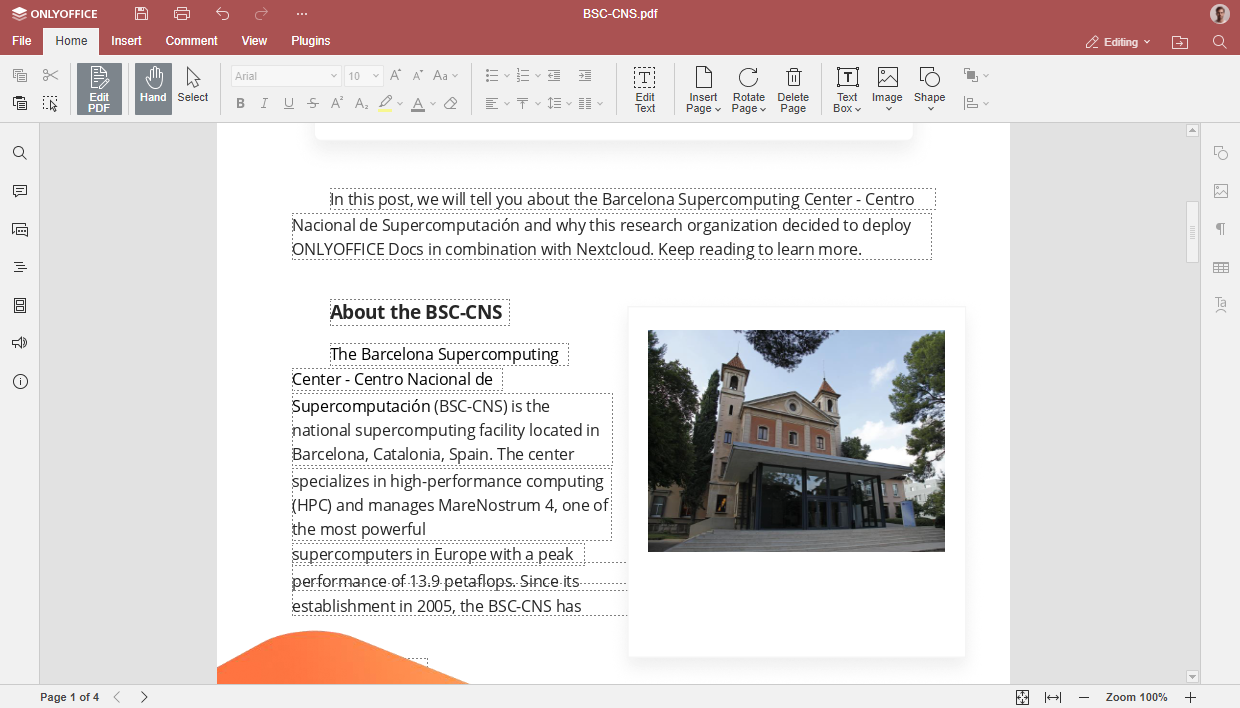
OnlyOffice Docs: the document editor open in a browser, showing the co-editing toolbar.
Installing OnlyOffice Docs on Linux
The Docker route is the fastest way to get a working instance, and it's what most people running this on a home lab or a small VPS actually use.
Using Docker (fastest method):
LinuxTeck
sudo docker run -i -t -d -p 80:80 --restart=always \
-v /app/onlyoffice/DocumentServer/logs:/var/log/onlyoffice \
-v /app/onlyoffice/DocumentServer/data:/var/www/onlyoffice/Data \
onlyoffice/documentserver
On Ubuntu/Debian:
LinuxTeck
sudo apt update && sudo apt install -y postgresql nginx
sudo systemctl enable --now postgresql
# create the database and user the document server expects
sudo -u postgres psql -c "CREATE DATABASE onlyoffice;"
sudo -u postgres psql -c "CREATE USER onlyoffice WITH PASSWORD 'onlyoffice';"
sudo -u postgres psql -c "GRANT ALL PRIVILEGES ON DATABASE onlyoffice TO onlyoffice;"
# grab and install the .deb package
wget https://download.onlyoffice.com/install/documentserver/linux/onlyoffice-documentserver_amd64.deb
sudo dpkg -i onlyoffice-documentserver_amd64.deb
sudo apt install -f
Compatibility Note:
The native package's post-install script expects an existing onlyoffice database and role in PostgreSQL. Create those first, or the .deb install will fail partway through configuration.
On RHEL/Rocky Linux:
LinuxTeck
sudo dnf install -y postgresql-server postgresql-contrib nginx
sudo postgresql-setup --initdb
sudo systemctl enable --now postgresql
# create the database and user the document server expects
sudo -u postgres psql -c "CREATE DATABASE onlyoffice;"
sudo -u postgres psql -c "CREATE USER onlyoffice WITH PASSWORD 'onlyoffice';"
sudo -u postgres psql -c "GRANT ALL PRIVILEGES ON DATABASE onlyoffice TO onlyoffice;"
# import the signing key, then install straight from the rpm
sudo rpm --import https://download.onlyoffice.com/GPG-KEY-ONLYOFFICE
sudo dnf install -y https://download.onlyoffice.com/install/documentserver/linux/onlyoffice-documentserver.x86_64.rpm
Once it's up, hit the server IP in a browser to confirm the welcome page loads before wiring it into Nextcloud or another front end. Most people pair OnlyOffice with a document management layer rather than using the bare document server on its own.
Key benefits:
- Best .docx and .xlsx compatibility of any open source editor on this list
- Plugin marketplace lets you add or remove features instead of running a bloated default install
- Community Edition has no artificial user cap, unlike some competitors' free tiers
- Works as a standalone document server or bolted onto Nextcloud, ownCloud, or Seafile
Production Tip:
Put OnlyOffice behind Nginx with a real TLS certificate before exposing it past localhost. Running the document server directly on port 80 without a reverse proxy in front is one of the most common misconfigurations people run into during setup.
2. Nextcloud Office (Collabora Online)
Nextcloud isn't just a document editor, it's a full file sync and share platform, and Nextcloud Office is the Collabora based editing layer bolted on top. If your team already needs shared storage and not just document editing, this is usually the better starting point than a bare editor.
Collabora Online, the engine behind Nextcloud Office, is built on LibreOffice's rendering code, so format support leans toward ODF but handles .docx reasonably well too. Editing feels closer to a desktop suite than a lightweight web app, with the full ribbon of formatting options.
Nextcloud itself is free and open source (AGPL), and the Collabora Online CODE package used for self-hosting is also free, but it's capped at 20 concurrent connections and 10 concurrent documents. That's fine for a small team, but plan on moving to Collabora's paid CODE Enterprise tier once you outgrow those numbers. Collabora's own FAQ page spells out the exact CODE vs Enterprise differences if you want to check current limits before committing.
What stands out here is that you get file storage, calendar, contacts, and document editing under one roof, so smaller teams often replace three or four separate cloud tools with a single Nextcloud instance running on a modest VPS setup.
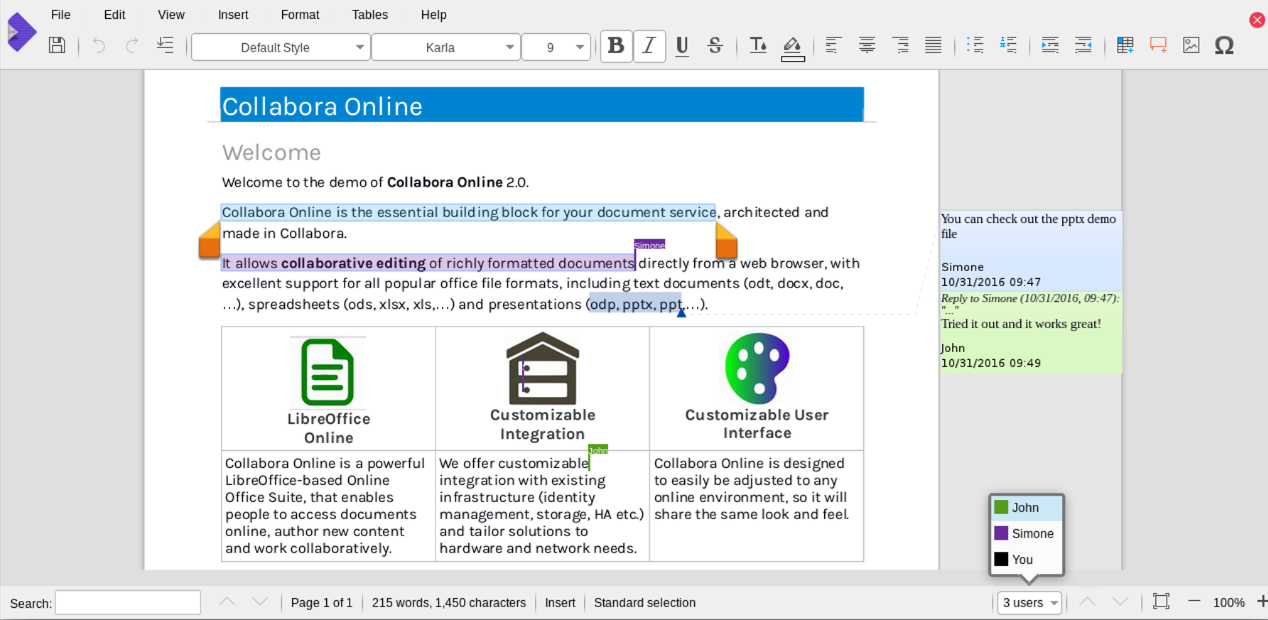
Nextcloud Office: a document open with the Collabora editing ribbon visible at the top.
Installing Nextcloud Office on Linux
Nextcloud and the Collabora CODE server are usually run as two separate containers that talk to each other.
Using Docker:
LinuxTeck
docker run -d -p 8080:443 -e "domain=cloud.example.com" \
--name codeserver --restart always \
-t collabora/code
# then start Nextcloud itself
docker run -d -p 8000:80 --name nextcloud nextcloud
On Ubuntu/Debian:
LinuxTeck
sudo apt update
sudo apt install -y apache2 mariadb-server libapache2-mod-php php-mysql
# download and unpack Nextcloud itself
wget https://download.nextcloud.com/server/releases/latest.zip
unzip latest.zip -d /var/www/
On RHEL/Rocky Linux:
LinuxTeck
sudo dnf install -y httpd mariadb-server php php-mysqlnd php-gd php-xml
sudo systemctl enable --now mariadb httpd
# fetch and unpack the release
wget https://download.nextcloud.com/server/releases/latest.zip
unzip latest.zip -d /var/www/html/
After both containers or services are running, you connect Collabora to Nextcloud from the Office app settings inside Nextcloud's admin panel, pointing it at the Collabora server's address. Getting the reverse proxy and SSL right between the two is the part people usually trip on first.
Common Mistake: "no connection possible" in the Office app settings:
This is the single most reported problem with this stack. It almost always comes down to a domain or SSL mismatch between Nextcloud and the Collabora server, since the WOPI protocol they use to talk to each other expects both sides to agree on HTTPS and a matching domain. Before digging through logs, point Nextcloud's Office settings at Collabora's public demo server first (https://demo.collaboraonline.com/) to confirm the Nextcloud side is configured correctly, then switch back to your own server once that test passes. If it still fails on your own instance, check that frame_ancestors in coolwsd.xml actually allows your Nextcloud domain, and check docker logs on the Collabora container for the specific rejection reason.
Key benefits:
- One platform for file storage, calendar, contacts, and document editing instead of juggling several tools
- Collabora's rendering engine is genuinely close to a desktop LibreOffice experience
- Huge app ecosystem if you later want to add Talk, Deck, or other Nextcloud apps
- Runs comfortably on a low-cost VPS for teams under about 20 people
3. CryptPad
CryptPad takes a different angle from the other tools here. It's built around end-to-end encryption by default, meaning the server hosting your documents can't actually read their content. That makes it a natural pick for legal, healthcare, or anything where zero-knowledge storage is a requirement, not a nice-to-have.
It covers rich text documents, spreadsheets, presentations, kanban boards, and even a whiteboard, all with live collaboration. Because encryption happens client-side in the browser, the server just stores encrypted blobs it can't decrypt on its own.
CryptPad is fully open source (AGPL) and free to self-host with no artificial limits. There's also a hosted version at cryptpad.fr with free and paid storage tiers if you'd rather not run the infrastructure yourself.
The trade-off is that because the server never sees your content, some of the convenience features you get with server-side search or previews in other tools simply aren't possible here. That's the price of the privacy model, and for a lot of teams it's a fair one.
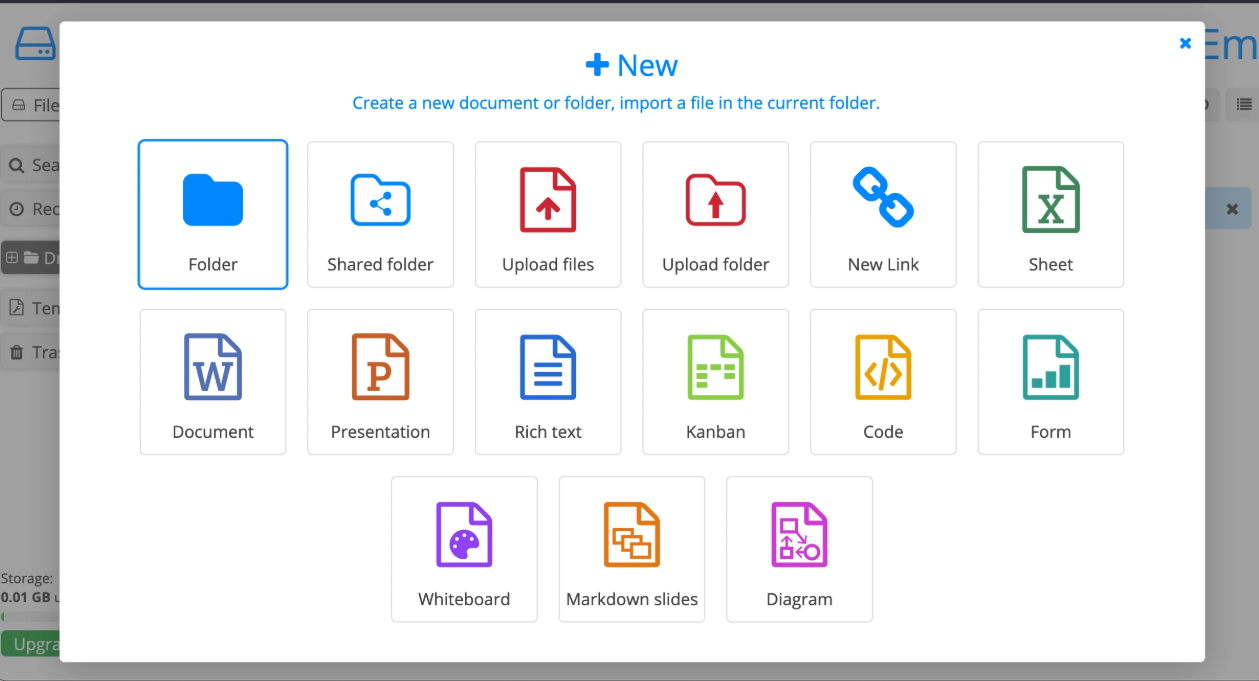
CryptPad: the dashboard showing encrypted documents, sheets, and a kanban board.
Installing CryptPad on Linux
Compatibility Note:
Skip third-party Docker images you find floating around for CryptPad. Several are outdated and no longer maintained. Use the official docker-compose.yml shipped in the upstream repository instead, which stays in sync with each release.
Using Docker (official compose file):
LinuxTeck
git clone https://github.com/cryptpad/cryptpad.git
cd cryptpad
docker compose up -d
On Ubuntu/Debian (source install):
LinuxTeck
sudo apt update && sudo apt install -y git nodejs npm
# clone the repo, install with the lockfile, then build
git clone https://github.com/cryptpad/cryptpad.git
cd cryptpad
npm ci
cp config/config.example.js config/config.js
npm run build
On RHEL/Rocky Linux (source install):
LinuxTeck
sudo dnf install -y git nodejs
# clone, install with the lockfile, copy the config, then build
git clone https://github.com/cryptpad/cryptpad.git
cd cryptpad
npm ci
cp config/config.example.js config/config.js
npm run build
Front the Node process with Nginx and a valid TLS certificate before letting anyone outside your local network touch it. Without HTTPS the zero-knowledge encryption model doesn't buy you much in practice.
Key benefits:
- Genuine end-to-end encryption, the server operator cannot read document content
- Covers documents, sheets, kanban, and whiteboards in one suite
- No per-user pricing if self-hosted, completely free at any scale
- Good fit for regulated industries where zero-knowledge storage is a real requirement
4. Etherpad
Etherpad is the lightweight option on this list. It's a plain text collaborative editor, no spreadsheets, no slides, just fast real-time editing with color-coded author highlighting and a built-in chat sidebar.
It's been around in some form since 2008, open sourced by Google under an Apache license in late 2009, with the current Node.js based codebase most people install today dating to around 2011. It's still actively maintained, now under the Etherpad Foundation with an Apache 2.0 license, though the GitHub project itself notes it runs on a small volunteer team and is actively looking for more maintainers, worth knowing if you're betting a business workflow on it long term. Because it does one thing, it runs on almost nothing resource-wise compared to a full office suite.
Completely free, no paid tier exists because there's no company behind it selling anything. Plugins extend it with things like export to PDF, spellcheck, or embedded images if you need a bit more than raw text.
What makes Etherpad stand out is speed. If your team just needs shared meeting notes, a quick collaborative draft, or a scratchpad that doesn't need a login wall, this loads and syncs faster than any full document suite will. When I set it up for that sysadmin team I mentioned earlier, it ended up being the only tool nobody complained about, mostly because nobody had to think about it at all.
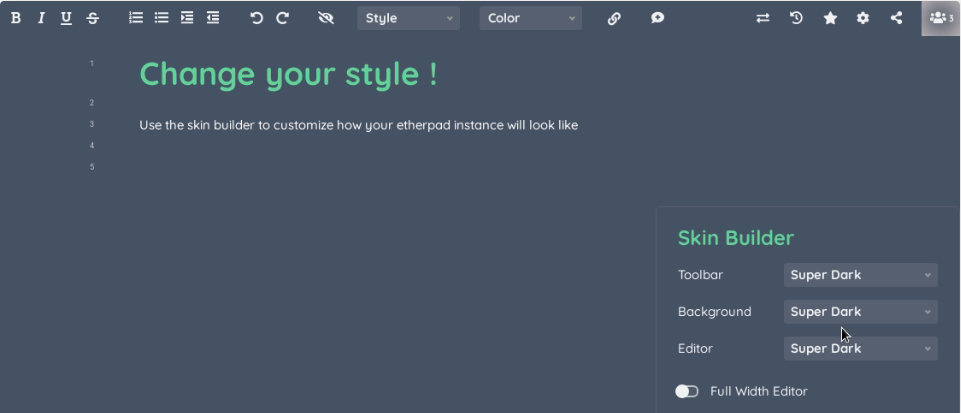
Etherpad: a shared pad with two authors' edits shown in different highlight colors.
Installing Etherpad on Linux
Using Docker:
LinuxTeck
docker run -d --name etherpad -p 9001:9001 etherpad/etherpad
On Ubuntu/Debian:
LinuxTeck
sudo apt update && sudo apt install -y git curl build-essential
# clone and run the bundled start script
git clone --branch master https://github.com/ether/etherpad-lite.git
cd etherpad-lite && src/bin/run.sh
On RHEL/Rocky Linux:
LinuxTeck
sudo dnf groupinstall -y "Development Tools"
sudo dnf install -y git curl
# clone and start it up
git clone --branch master https://github.com/ether/etherpad-lite.git
cd etherpad-lite && src/bin/run.sh
The first run generates an admin password in the terminal output, so check the console log before you close that session or you'll be digging through settings.json to find it later.
Key benefits:
- Loads and syncs faster than any full office suite on this list
- Extremely low resource footprint, runs fine on a $5/month VPS alongside other services
- Author color highlighting makes it easy to see who wrote what in real time
- Plugin ecosystem covers PDF export, spellcheck, and time-slider history
5. Zoho Writer
Zoho Writer is the cloud-only pick on this list, for teams that want something that feels close to Google Docs without running any infrastructure at all. It's part of Zoho's broader Workplace suite but works fine as a standalone document editor.
Format handling is solid, it opens and saves .docx cleanly, supports real-time co-editing with comments and suggestions, and includes an AI writing assistant called Zia that can be turned off if you'd rather not have it in the sidebar.
The free plan covers individual use with generous storage, and paid plans scale by team size with added admin controls, e-signature, and offline access through desktop and mobile apps. There's no self-hosted option here, which is the trade-off for not managing a server yourself.
What makes Zoho Writer worth including next to the self-hosted tools is that a lot of Linux users still want a browser-based editor without the setup overhead, and Zoho is the closest like-for-like Docs replacement in that category, particularly if your team already uses other Zoho apps.
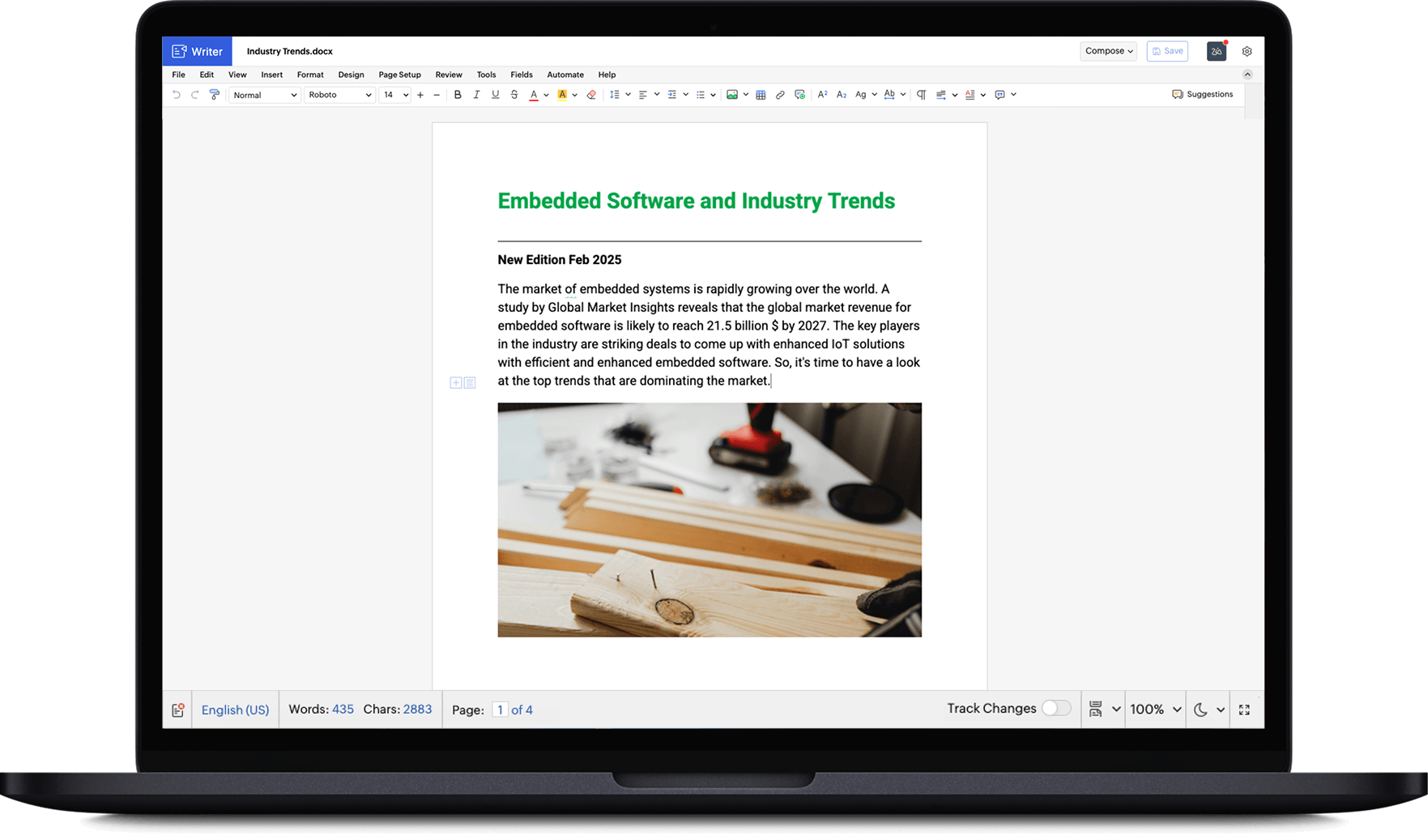
Zoho Writer: a document with the AI assistant sidebar and comment threads visible.
Installing Zoho Writer on Linux
There's nothing to install since it's a cloud service, but the desktop-like experience on Linux comes through a Progressive Web App, which behaves like a native window instead of a browser tab.
Using Docker (running Chromium in kiosk/app mode as a lightweight PWA wrapper):
LinuxTeck
docker run -d --name zoho-pwa -p 8090:80 linuxserver/chromium --app=https://writer.zoho.com
On Ubuntu/Debian (native PWA install):
LinuxTeck
sudo apt update && sudo apt install -y chromium-browser
chromium-browser --app=https://writer.zoho.com --user-data-dir=~/.zoho-writer
On RHEL/Rocky Linux (native PWA install):
LinuxTeck
sudo dnf install -y chromium
chromium --app=https://writer.zoho.com --user-data-dir=~/.zoho-writer
Sign in once and the session persists in that user data directory, so it behaves like a proper installed app on your desktop from then on.
Key benefits:
- Zero server maintenance, works the moment you sign in
- Genuinely free tier with no time limit, not a trial
- AI assistant is opt-in and can be disabled from settings
- Offline editing through desktop apps if you're between networks
6. LibreOffice via Collabora Online (Standalone)
If you already run Nextcloud and just want the same editing engine on its own, without the file sync layer, Collabora Online CODE can be deployed by itself and wired into a simpler front end or even used through its own web UI for quick document access.
It's the same rendering core mentioned earlier, built on LibreOffice, so anyone already comfortable with LibreOffice's desktop UI will recognize the menus immediately. This is the pick for teams that want the desktop-grade formatting fidelity without adopting a whole cloud storage platform.
Free and open source for the CODE edition, capped at 20 concurrent connections and 100 concurrent documents, with Enterprise CODE available from Collabora Productivity for organizations that need clustering, better scaling, and commercial support contracts once those caps get in the way.
Where it stands out from the pack is raw formatting depth. Complex tables, tracked changes, and page layout options that other browser editors simplify or drop entirely tend to survive intact here, which matters for anyone producing longer formal documents rather than quick collaborative notes.
Collabora Online: the standalone editor showing full LibreOffice-style formatting menus.
Installing Collabora Online on Linux
Using Docker:
LinuxTeck
docker run -t -d -p 9980:9980 -e "domain=cloud\.example\.com" \
--restart always --cap-add MKNOD collabora/code
On Ubuntu/Debian:
LinuxTeck
sudo mkdir -p /etc/apt/keyrings
wget -O- https://collaboraoffice.com/downloads/gpg/collaboraonline-release-keyring.gpg | sudo gpg --dearmor -o /etc/apt/keyrings/collaboraonline.gpg
# add the repo, pointing it at that keyring explicitly
echo "deb [signed-by=/etc/apt/keyrings/collaboraonline.gpg] https://www.collaboraoffice.com/repos/CollaboraOnline/CODE ./" | sudo tee /etc/apt/sources.list.d/collaboraonline.list
# install the CODE server package
sudo apt update && sudo apt install -y coolwsd
On RHEL/Rocky Linux:
LinuxTeck
sudo dnf install -y dnf-plugins-core
sudo dnf config-manager --add-repo https://www.collaboraoffice.com/repos/CollaboraOnline/CODE-rpm/
sudo dnf install -y coolwsd
After install, edit /etc/coolwsd/coolwsd.xml to set your domain and storage settings before starting the coolwsd service, then confirm it's listening with a quick systemctl status coolwsd check.
Key benefits:
- Strongest formatting fidelity for complex documents of any tool on this list
- Runs standalone or bolted onto Nextcloud, ownCloud, or a custom integration
- Free CODE edition with no artificial document count limit for small deployments
- Familiar interface for anyone who already uses desktop LibreOffice
Migration Tip:
If you're moving a team off Google Docs gradually rather than all at once, export existing docs as .docx first and test them in whichever tool you pick before the full cutover. Format drift shows up mostly in tables, headers, and tracked changes, so check those specifically.
How Much Server These Tools Actually Need
None of these needs a beefy box, but they're not all equally light. If you're sizing a VPS before picking a tool, this is roughly what each one wants at idle with a handful of concurrent users.
| Tool | Minimum RAM | Rec. RAM | Notes |
|---|---|---|---|
| OnlyOffice Docs | 2 GB | 4 GB | Document server plus PostgreSQL adds up fast under load |
| Nextcloud + Collabora | 2 GB | 4 to 8 GB | Two services running side by side, budget for both |
| CryptPad | 1 GB | 2 GB | Client-side encryption keeps server load light |
| Etherpad | 512 MB | 1 GB | Lightest tool on this list by a wide margin |
| Zoho Writer | None (cloud) | None (cloud) | No server to size, it's SaaS |
| Collabora Online (standalone) | 2 GB | 4 GB | Same engine as the Nextcloud pairing, minus the file sync overhead |
These are starting points, not hard rules. Concurrent editors, document size, and how many other services share the same box will push these numbers around, so treat them as a floor rather than a target.
Best Practice:
Whatever you pick, back it up like you mean it. For OnlyOffice and Nextcloud, that means a scheduled pg_dump or mysqldump of the database alongside the document storage directory, not just one or the other. For CryptPad and Etherpad, back up the data directory and the underlying database (SQLite, MariaDB, or PostgreSQL depending on how you configured it). Our server backup solutions guide and automatic backup script walkthrough cover the scripting side of this if you haven't set it up yet.
Google Docs Alternatives for Linux - FAQ
Q1: Is there a genuinely free Google Docs alternative I can self-host?
Yes, several. OnlyOffice Community Edition, Nextcloud with Collabora CODE, CryptPad, and Etherpad are all free to self-host with no per-user licensing cost. The trade-off is your own server time instead of a subscription fee. If you want something with zero infrastructure to manage, Zoho Writer's free tier is the closest cloud-based equivalent, though it isn't self-hosted.
Q2: Which of these works best for a small team on a single low-cost VPS?
Etherpad if you just need shared notes and drafts, since it runs comfortably on a $5/month box. If you need real document formatting and spreadsheets too, OnlyOffice Community Edition on its own (without pairing it to a full Nextcloud instance) keeps resource use lower than running the whole Nextcloud stack alongside Collabora.
Q3: Can I connect OnlyOffice or Collabora to Nextcloud, ownCloud, or Seafile at the same time?
You can run OnlyOffice's connector alongside Nextcloud, but check current compatibility before committing to that pairing long term. OnlyOffice suspended its long-standing Nextcloud partnership in 2026 after a licensing dispute over a Nextcloud-backed fork, so the two projects are no longer working together as closely as they once did, even though the existing connector is still supported for now.
Q4: Do any of these have real mobile apps, not just a responsive web page?
Zoho Writer has dedicated iOS and Android apps with offline editing. Nextcloud has a mobile app for file access and viewing, though document editing on mobile is more limited than on desktop. OnlyOffice, Collabora, CryptPad, and Etherpad are primarily browser-based on mobile, functional but not built around a phone-first experience.
Q5: What happens to my documents if I stop paying for or maintaining a self-hosted instance?
Unlike Google Docs, there's no vendor holding your data hostage, but there's also no automatic backup safety net. If your VPS lapses or your docker compose stack stops running, your documents are only as safe as your last backup. Export important documents as .docx or .odt periodically regardless of which tool you use, and keep that export somewhere outside the same server.
Conclusion
All six of these get you real-time document collaboration without locking you into Google's ecosystem, and every one of them runs on Linux, whether that means self-hosting on your own box or just running in a browser tab. The right pick depends less on features and more on how much infrastructure you actually want to manage. If you're going the self-hosted route, a decent VPS provider with predictable pricing makes the whole process a lot less painful than it sounds.
Our recommendations:
- OnlyOffice Docs: Use this if you need the closest thing to Microsoft Word compatibility on your own server
- Nextcloud Office: Use this if you want file storage, calendar, and documents all in one platform
- CryptPad: Use this if regulatory or client requirements demand true end-to-end encryption
- Etherpad: Use this if you just need fast shared notes without any of the office suite overhead
- Zoho Writer: Use this if you want a Docs-like experience with zero server maintenance
- Collabora Online (standalone): Use this if formatting fidelity for long, complex documents matters more than anything else
Before rolling any of these out past a test box, it's worth running through a basic server hardening checklist and setting up regular backups, since these tools now hold documents people can't afford to lose. If you're new to managing services like this on your own, our Linux quick start guide and Docker command cheat sheet cover the basics you'll lean on constantly while managing any of these. For picking between Ubuntu and RHEL family distros as the host OS, see our RHEL vs Ubuntu server comparison, and if you're still deciding on hosting itself, our breakdown of shared hosting vs VPS vs cloud hosting is worth a read first.
Did we miss a tool you rely on? Tell us in the comments below.
If this article helped, share it with someone on your team.
LinuxTeck - A Complete Linux Infrastructure Blog
LinuxTeck covers everything from beginner Linux commands to advanced Linux system administration and DevOps career guidance, written by practitioners for professionals working on Ubuntu, Rocky Linux, RHEL, and enterprise Linux environments every day.
Support My Work
Thank you for reading and for being part of this journey. If this article saved you time, consider buying me a coffee. Every contribution helps me keep producing in-depth, practical Linux content for readers like you.

Thank you for your endless support