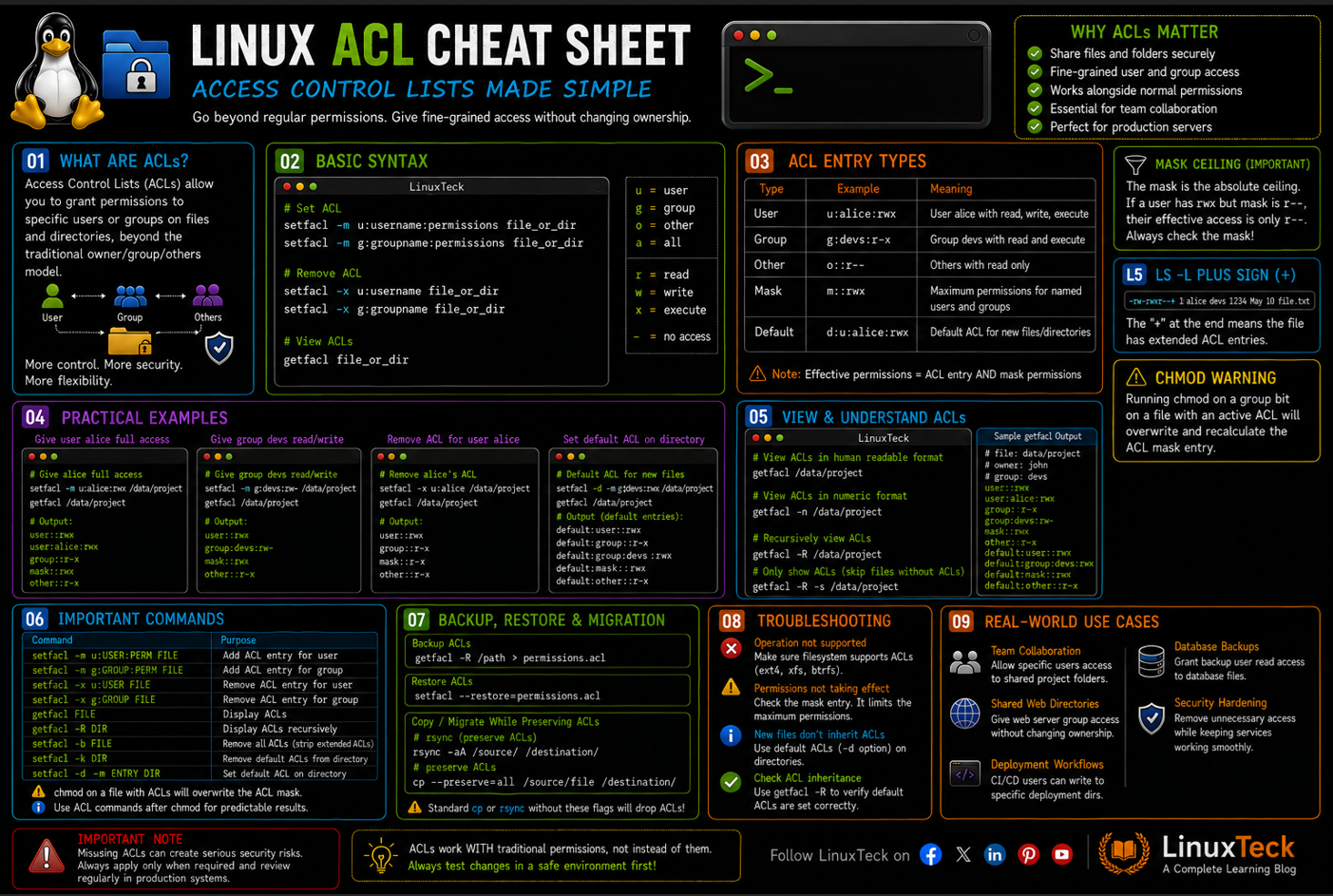
Access Control Lists let you give specific users or groups their own permissions on a file or directory, without touching the owner, the group, or everyone else. If you've ever needed one teammate to have write access while everyone else stays read-only, this is the tool for that.
LinuxTeck
Quick Answer:
This gives the user alice full read, write, and execute access to /data/project without touching the file's owner or group at all.
This guide is for anyone managing a Linux server where more than one person or team needs different levels of access to the same files. Beginners will get the full picture of why standard permissions run out of road, and if you already know the basics, there's enough here on defaults, masks, and production gotchas to actually be useful at work.
Debian
Rocky Linux
RHEL
ext4 or xfs filesystem
Note:
If you're still shaky on the basics of read/write/execute, it's worth a detour through chmod in Linux before diving into ACLs, since ACLs build directly on top of that model rather than replacing it.
Examples
What Is an ACL in Linux?
An ACL, short for Access Control List, lets you hand out permissions to specific users or groups on a file or directory, separate from the owner and the main group. Standard Linux permissions only give you three slots: owner, group, and everyone else. An ACL adds as many extra slots as you need.
Think of regular permissions like a house with one front door key given to the owner, one shared key given to the household, and a spare under the mat for anyone else. An ACL is like adding named keys, one for the plumber, one for the dog walker, each with their own access level, without changing who owns the house.
You'll usually reach for this the moment two people who aren't in the same Unix group need different access to the same shared directory, which happens constantly on any team-managed server. It's also one of the reasons ACLs come up so often alongside sudo configuration, since both are about giving the right access to the right person without loosening things for everyone else.
ACL Syntax and How It Actually Reads
LinuxTeck
The command that sets ACL entries
Modify mode, adds or updates an entry
Entity type (u for user), the name, then permissions
The target file or directory
Swap u for g and you're setting a group instead of a user. The permission part works exactly like chmod letters, r for read, w for write, x for execute, just applied to one specific user or group rather than the whole owner/group/other trio. If you manage user accounts often, this pairs naturally with creating and managing Linux users, since ACLs only make sense once you know exactly who you're granting access to.
Concept:
The moment a file gets even one ACL entry, ls -l starts showing a plus sign after the permission string, like -rw-rwxr--+. That plus sign is the only hint in a normal directory listing that extended permissions exist, so it's easy to miss if you're not watching for it.
Key setfacl and getfacl Flags
These are the flags that come up in day-to-day server work, not the entire man page. If you're already comfortable with firewall-cmd commands, the flag structure here will feel familiar since both tools follow the same modify, remove, list pattern.
| Flag | What It Does | When You'd Use It |
|---|---|---|
| -m | Modify or add an ACL entry | Everyday task of granting a user or group access |
| -x | Remove a specific ACL entry | Someone left the team and needs access pulled |
| -b | Strip all ACL entries at once | Resetting a file back to plain permissions |
| -k | Remove only the default ACL on a directory | Stopping inheritance without wiping the directory's own ACL |
| -R | Apply recursively through a directory | Setting ACLs on an entire project folder at once |
| -d | Set a default ACL on a directory | Making new files auto-inherit the same permissions |
| --set-file | Replace the whole ACL from a saved file | Restoring ACLs from a backup after a rebuild |
| getfacl -R | Recursively display ACLs | Auditing what's actually set across a whole directory tree |
Concept:
Everything on this page covers POSIX ACLs, which only work on locally mounted filesystems. If the directory lives on an NFS share, setfacl and getfacl either fail or silently do nothing useful, since NFSv4 uses its own ACL model. On an NFSv4 mount you need nfs4_setfacl and nfs4_getfacl instead, and the syntax is different.
ACL Examples You'll Actually Use
I. Check If ACLs Are Even Supported
Before doing anything, confirm the filesystem is mounted with acl support, since some minimal setups skip it. This is also a good moment to double check your filesystem type, since ACL support and behavior can vary slightly between ext4, xfs, and btrfs.
LinuxTeck
Concept:
On modern Linux enterprise distributions running XFS or ext4, ACL support is enabled by default in the kernel, so the (acl) flag may not always appear explicitly in the mount output.
II. Grant a Single User Read Access
The most common first ACL you'll ever set, giving someone outside the owning group a look at a file.
LinuxTeck
III. View the ACL on a File
getfacl shows you the full picture, owner, group, others, and every extra entry.
LinuxTeck
# owner: linuxteck
# group: linuxteck
user::rw-
user:raj:r--
group::rw-
mask::rw-
other::r--
IV. Give a Group Full Access to a Directory
Handy when a whole team, not just one person, needs to work inside a shared folder. This is the same pattern you'd use when setting up a shared directory for a shell scripting team that all need to push and pull automation scripts from one place.
LinuxTeck
V. Apply an ACL Recursively
Setting one entry file by file inside a big directory tree wastes your whole afternoon. Recursive mode fixes that.
LinuxTeck
Apply recursively through the whole directory tree
Modify mode, adds this entry
Group entry, read/write, plus conditional execute
Target directory
Concept:
Notice the capital X instead of lowercase x. Capital X only applies execute permission to directories and files that are already executable somewhere, so you don't accidentally make every plain text file executable across the whole tree.
VI. Set a Default ACL So New Files Inherit Permissions
Without a default ACL, every new file dropped into a shared folder starts from scratch and someone has to fix permissions manually every single time.
LinuxTeck
Set as a default ACL for future files
Modify mode, adds this entry
Group entry with full read, write, execute
Target directory
VII. Remove One Entry Without Touching Everything Else
Someone left the project, and you need their access gone without wiping the whole ACL.
LinuxTeck
VIII. Strip All ACL Entries Back to Plain Permissions
Sometimes it's cleaner to just reset a file and start over instead of chasing down every custom entry.
LinuxTeck
IX. Back Up and Restore ACLs Before a Migration
LinuxTeck
getfacl -R dumps every ACL entry across the whole tree into a plain text file, and you can restore it anytime on the new server using setfacl --restore=/backup/project-acls.txt.cp --preserve=all or rsync -A. A plain cp or rsync without those flags copies the data but drops the ACL entries.X. Lock Down a Sensitive Directory to One Auditor
LinuxTeck
Apply recursively through the whole directory tree
Modify mode, adds this entry
User entry, read plus conditional execute for traversal
Target directory
XI. The Mistake: Forgetting the Mask Silently Blocks Access
This one catches almost everyone at least once. You grant a user rwx, but they still can't write to the file, and there's no error telling you why.
LinuxTeck
Common Mistake:
The mask entry caps the effective permissions for every named user and group ACL entry, no matter what you set individually. If the mask is r-x and you gave someone rwx, their actual effective permission is capped at r-x and write silently fails. Always check the mask line with getfacl after making changes, and recalculate it with setfacl -m m::rwx /data/project if you need full access to actually apply.
LinuxTeck
Security Warning:
On RHEL, Rocky, and other SELinux-enforcing distros, a correct ACL can still get you "Permission denied." SELinux evaluates its own policy on top of ACLs and standard permissions, so if the ACL and the file mode both look right, check getenforce and the file's SELinux context with ls -Z before assuming the ACL is broken.
Why ACLs Matter Once You Manage Real Servers
Without ACLs, teams end up doing one of two things. Either they create a mess of overlapping Unix groups just to fake per-user permissions, or they give up and chmod everything 777 because it's easier. Both of those choices come back to bite you, usually during a security review or right after someone accidentally deletes a file they should never have had write access to in the first place.
Once you get comfortable with ACLs, the way you structure shared storage on a server changes. You stop thinking in terms of "which group does this person belong to" and start thinking in terms of "what does this specific person actually need here." That shift matters a lot more once you're running shared web roots, CI pipelines writing to shared build directories, or compliance folders that auditors touch briefly and then never again.
On any production Linux server with more than one team touching shared storage, getfacl -R as part of a regular audit script is one of the cheapest security habits you can build. According to the official acl man page, ACL entries are evaluated alongside the traditional permission bits rather than replacing them, which is exactly why leftover ACLs from old projects can quietly outlive the access they were meant to grant. If you're building out server hardening practices, ACL auditing belongs right next to your regular permission reviews, not as an afterthought.
Key Points
- Use setfacl -m u:name:perms for a single user and g:name:perms for a group, without touching the file's actual owner or group.
- Always check the mask with getfacl after setting permissions. A tight mask silently caps what you just granted.
- Set default ACLs with -d on directories so new files inherit permissions automatically instead of needing manual fixes every time.
- Use capital X instead of lowercase x during recursive changes so you don't make plain files executable by accident.
- Back up ACLs with getfacl -R before any migration or rebuild, since a plain copy or rsync without the right flags can drop them.
- The plus sign after permissions in ls -l is your only visual clue that a file carries extended ACL entries.
- Remove access with -x for a single entry, or -b when you want to wipe everything and start clean.
Frequently Asked Questions
I set the permission with setfacl but the user still can't write, what's going on?
Nine times out of ten it's the mask. Run getfacl on the file and check the mask:: line. If it's lower than what you assigned, that's your problem. Bump the mask up with setfacl -m m::rwx and try again.
Do I need to install anything to use setfacl and getfacl?
On most modern distros they ship by default, but if the command isn't found, install the acl package. On Ubuntu or Debian that's apt install acl, on Rocky or RHEL it's dnf install acl.
Will chmod wipe out the ACL I just set?
chmod on the group bits actually changes the mask, not the individual ACL entries, so it can indirectly cap access without deleting anything. It's a common surprise, so check getfacl after running chmod on a file that already has ACLs.
How do I copy the exact same ACL from one file to another?
Pipe getfacl straight into setfacl, like getfacl file1 | setfacl --set-file=- file2. It copies the whole ACL structure in one shot.
Why don't new files in a shared folder keep the ACL I set on the folder itself?
Because a regular ACL on a directory only applies to that directory, not to what gets created inside it. You need a default ACL for that, set with the -d flag, so new files and subfolders inherit the same rules automatically.
Is there a quick way to check every file on the server that has an ACL applied?
Yes, run getfacl -R -s /data 2>/dev/null. The -s (or --skip-base) flag tells getfacl to skip files that only have standard permissions and only show files with extended ACL entries. Alternatively, you can use find /data -hasacl.
From your first terminal command to advanced sysadmin skills, every guide here is written in plain English with real examples you can run right now.