

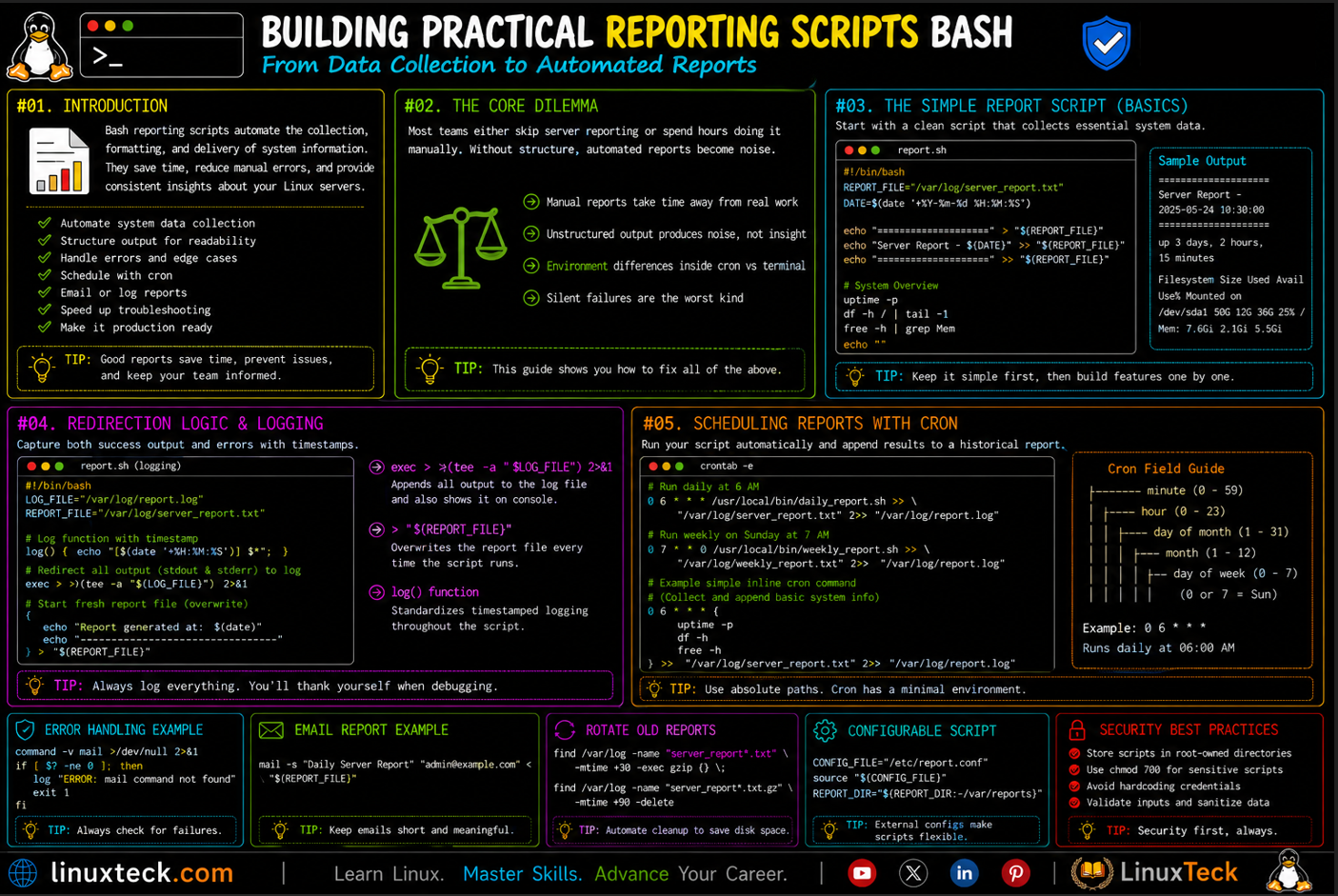
Building bash reporting scripts is one of the most practical uses of Bash in Linux administration. Whether you need daily system health reports, storage utilization summaries, backup verification reports, or operational status updates, Bash can automate the entire workflow with minimal overhead. Instead of manually collecting information from multiple commands, you can create reusable scripts that generate structured reports, log results, and run automatically through cron.
This guide walks through the process step by step, from creating your first report script to building production-ready reporting automation.
The Real Problem:
Most teams either skip server reporting entirely or spend hours manually collecting metrics. When you finally automate it, the output format matters. An unformatted dump of uptime, df, and free output isn't useful to anyone. You need structure, timestamps, and the ability to detect when something's actually wrong.
- Manual reports take time away from actual work
- Automated reports without proper structure produce noise, not insight
- When a cron job runs your script, the environment is different than your terminal
- Silent failures are the worst kind, the script runs but produces garbage output
That's what we're fixing in this article.
By the end, you'll have working reporting scripts that actually tell you what's happening on your servers. For more context on how bash works at a foundational level, check out our bash scripting guide.
Before Your First Line: Understanding the Shebang
That #!/bin/bash line isn't decoration. It's an instruction to your system: "When someone runs this file, use the bash interpreter, not sh or dash or anything else." This matters because bash has features that other shells don't, and scripts written for bash can behave differently when run under /bin/sh.
When you execute a script directly (like ./report.sh), your shell reads the shebang and finds the interpreter. If you instead run it as bash report.sh, it doesn't matter what shebang you used because you explicitly told bash to run it. But when cron runs your script, it uses the shebang. When you put the script in a startup routine, the shebang matters. When someone else tries to run it without knowing bash, the shebang is what saves them.
Always use #!/bin/bash for reporting scripts. Not #!/bin/sh. Not #/bin/bash (typo). Not #!/usr/local/bin/bash (wrong on most systems). Just #!/bin/bash.
Note:
The shebang must be on the first line with no spaces or special characters before it. The system reads only the first two bytes (#!), so it doesn't need a full path. The system finds bash.
The chmod +x Step That Everyone Gets Wrong
You write a bash script, save it, then try to run it. Nothing happens. You don't get an error, you just get Permission denied. That's the chmod moment. But here's what's actually happening: files on Linux have read, write, and execute permissions. Your script has read and write (you just created it), but not execute. The shell can read it but can't run it.
When you run chmod +x script.sh, you're adding execute permission for all users (you, your group, and everyone else). For a reporting script that cron will run, that's often what you want. But think about what the script does. If it's collecting system metrics and writing them to a file that contains sensitive information, do you want everyone on the system executing it?
For most reporting scripts, use chmod 755. This means the owner can read, write, and execute. The group and others can read and execute but not modify. If the report contains sensitive data, use chmod 700 so only the owner can run it.
LinuxTeck.com
ls -la report.sh
See that first part: -rwxr-xr-x. The three x's mean execute permission for owner, group, and others. Now the script can actually run. For sensitive reports, you'd use chmod 700 instead, which gives only the owner those permissions.
Common Mistake:
Running chmod 777 report.sh to fix permission issues. This is a security risk. While it makes the script executable, it also makes it writable by everyone, meaning anyone on your system can modify your reporting script to do anything they want.
Fix: Use chmod 755 for most scripts, chmod 700 for sensitive ones. Only use chmod 777 when you absolutely need others to modify the file, which is almost never for a reporting script.
Build Your First Bash Reporting Script: Variables and Formatting
A reporting script needs to collect data, format it readably, and output it. Let's start simple. This first example captures your system's uptime, disk usage, and memory, then displays it with timestamps and headers.
LinuxTeck.com
# Simple system health report
echo "=============================="
echo "System Health Report"
echo "Report Time: $(date)"
echo "=============================="
echo ""
echo "Hostname: $(hostname)"
echo "Uptime: $(uptime -p)"
echo ""
echo "Disk Usage:"
df -h / | tail -1
echo ""
echo "Memory Status:"
free -h | grep Mem
System Health Report
Report Time: Mon Jan 15 14:32:18 UTC 2026
==============================
Hostname: web-server-01
Uptime: up 45 days, 3 hours, 12 minutes
Disk Usage: /dev/sda1 /dev/sda1 50G 34G 16G 68% /
Memory Status:
Mem: 15Gi 8.2Gi 6.8Gi 29.1Gi 512Mi 1.2Gi
See what's happening here. Each piece of information has a label, making the report readable. We're using $(command) syntax to embed command output directly into our echo statements. This is command substitution, and it's how you get data from your system into the report.
Tip:
Use double quotes around your echo strings, not single quotes. Single quotes prevent variable expansion, so echo '$USER' prints the literal text $USER, while echo "$USER" prints your actual username. For reports, you always want double quotes.
Making It Work: Saving and Verifying Bash Reporting Scripts
You can echo output to your terminal, but a reporting script needs to save its output somewhere. Usually to a file, sometimes to a database, sometimes emailed. Let's capture output to a file with proper naming so you keep historical reports.
LinuxTeck.com
# Save report with timestamp in filename
REPORT_DIR="/var/reports"
REPORT_FILE="${REPORT_DIR}/system-report-$(date +%Y%m%d-%H%M%S).txt"
mkdir -p "${REPORT_DIR}"
{
echo "System Report: $(date)"
echo "Hostname: $(hostname)"
echo ""
df -h /
echo ""
free -h
} > "${REPORT_FILE}"
echo "Report saved to: ${REPORT_FILE}"
Two key things here. First, we use curly braces to group commands. Everything between { and } gets redirected to the same file with a single > file redirect. Second, we use timestamps in the filename so each report gets its own file. January 15, 2026, 14:32:18 becomes 20260115-143218, which sorts chronologically in any directory listing.
To learn more about working with these fundamental concepts, see our article on bash conditionals and control flow.
The Scheduling Part: Integrating with Cron
A reporting script sitting on your server doing nothing is useless. Cron runs it automatically on a schedule. But cron is different from your terminal. It doesn't have your shell aliases, your PATH might be different, and environment variables you rely on might not exist. This is where scripts break.
Create a complete reporting script that cron can actually run reliably. This one collects data and stores it with error checking.
LinuxTeck.com
set -e
REPORT_DIR="/var/reports"
REPORT_FILE="${REPORT_DIR}/daily-report-$(date +%Y%m%d).txt"
LOG_FILE="${REPORT_DIR}/report.log"
mkdir -p "${REPORT_DIR}" || exit 1
{
echo "[$(date)] Starting report"
echo "HOST: $(hostname)"
echo "DATE: $(date +%Y-%m-%d\ %H:%M:%S)"
echo ""
uptime -p
df -h /
free -h
} >> "${REPORT_FILE}" 2>> "${LOG_FILE}"
echo "[$(date)] Report complete" >> "${LOG_FILE}"
Notice set -e. This tells bash to exit immediately if any command fails. Without it, a failed command like a missing directory gets silently skipped and the script continues producing a broken report. With set -e, if mkdir fails, the entire script stops before creating an empty report.
To schedule this in cron, add this line (usually via crontab -e):
LinuxTeck.com
0 2 * * * /usr/local/bin/report.sh
That's minute, hour, day, month, day-of-week. 0 2 * * * means "every day at 2:00 AM". To learn more about cron scheduling, check our complete cron guide.
Common Mistake:
Putting your reporting script in the crontab without using absolute paths. You write * * * * * report.sh thinking cron will find it. But cron doesn't use your PATH. It only searches /bin, /usr/bin, and /usr/sbin. Cron won't find your script.
Fix: Always use absolute paths in cron. Instead of report.sh, use /usr/local/bin/report.sh or wherever you actually stored the script.
Production Reality: Error Handling and Verification
In production, things fail. Networks time out, disks fill up, commands hang. A production reporting script needs to handle these gracefully. This version adds error checking, timeout protection, and verification.
LinuxTeck.com
set -o pipefail
REPORT_DIR="/var/reports"
REPORT_FILE="${REPORT_DIR}/report-$(date +%Y%m%d-%H%M%S).txt"
ERROR_LOG="${REPORT_DIR}/errors.log"
TIMEOUT=10
if ! mkdir -p "${REPORT_DIR}" 2>/dev/null; then
echo "[$(date)] ERROR: Cannot create directory" >> "${ERROR_LOG}"
exit 1
fi
if ! timeout ${TIMEOUT} df -h / > /tmp/disk.txt 2>/dev/null; then
echo "[$(date)] WARNING: Disk check timed out" >> "${ERROR_LOG}"
else
cat /tmp/disk.txt >> "${REPORT_FILE}"
fi
if [ -s "${REPORT_FILE}" ]; then
echo "[$(date)] Report created" >> "${ERROR_LOG}"
exit 0
else
echo "[$(date)] ERROR: Report is empty" >> "${ERROR_LOG}"
exit 1
fi
Here we're using if statements to check whether commands succeed. The ! inverts the result, so if ! mkdir... means "if mkdir fails." We also use timeout to prevent commands from hanging forever. And [ -s file ] checks that the file exists and has content.
For deeper understanding of how these control flow patterns work, see our guide on bash error handling and exit codes.
Frequently Asked Questions
Why does my bash script work fine when I run it manually but fails in cron?
Cron runs in a minimal environment. It doesn't source your .bashrc or .bash_profile, so aliases, functions, and custom PATH settings don't exist. If your script relies on something that's only available in your interactive shell, cron fails silently. Use absolute paths for all commands in reporting scripts. Instead of just calling mycommand, use /usr/local/bin/mycommand.
How do I format data nicely in my bash report without using external tools?
Use awk or simple printf formatting. For example, df -h | awk '{printf "%-20s %10s\n", $6, $5}' gives you aligned columns. Or use printf built into bash: printf "%-20s: %s\n" "Hostname" "$(hostname)". These give professional-looking reports without requiring special tools beyond what's already in the system.
Can I email the report directly from my bash script?
Yes, use mail or sendmail. For example: mail -s "Daily Report" admin@example.com < ${REPORT_FILE} sends the report file as email. Or pipe the output directly: echo "Report:" | mail -s "Daily Report" admin@example.com. Make sure your system has mail configured.
What's the difference between chmod 755 and chmod 700 for a reporting script?
With 755, anyone on the system can read and execute your script (but not modify it). With 700, only the owner can run it. For sensitive reports that contain passwords or private data, use 700. For general system reports, 755 is fine. Remember: 777 is dangerous because it makes the script writable by everyone, allowing them to add malicious code.
How do I debug a bash script that works in the terminal but fails in cron?
Redirect error output to a log file in your cron entry: 0 2 * * * /usr/local/bin/report.sh 2>> /var/log/report-error.log. This captures any error messages that would normally be lost. You can also add set -x at the top of your script to see every command bash runs, which helps identify where it's failing.
Should I use a reporting script or install monitoring software?
Bash scripts are lightweight and don't require extra software. They're perfect for small teams or simple needs. Monitoring software handles complex scenarios better (alerting, historical data, dashboards). Most teams use both: simple bash reports for daily health checks, and monitoring tools for production systems. Start with bash, add tools when you outgrow it.
Summary
You now have everything needed to build working reporting scripts with bash. Start with a simple script that captures a few metrics, test it manually, then add it to cron. Use absolute paths, check for errors, and log failures. The six examples we covered go from basic output formatting all the way to production-ready scripts with timeout protection and verification. This is the foundation for any team that wants to automate their reporting without adding external dependencies.
The most important lesson: test locally first. Run your script from the terminal, verify the output, then add it to cron. Don't assume it will work automatically just because it ran on your command line. And always log errors. Silent failures are the worst, so redirect both stdout and stderr to files you can check.
From here, explore bash functions to make reports modular, or investigate systemd timers as a modern alternative to cron. You can also reference the GNU Bash Manual for authoritative documentation on any features you want to explore further.
Related Articles
- What is Bash Scripting: A Beginner's Foundation (Part 1 of 34)
- Your First Bash Script: Hello World and Beyond (Part 4 of 34)
- Bash For Loops: Iterate Through Data Like a Pro (Part 18 / 34)
- Bash Functions: Write Once, Reuse Everywhere (Part 21 / 34)
- Cron Scheduling: Automate Tasks on Any Schedule
- Exit Codes and Error Handling: Write Reliable Scripts (Part 5 of 34)
- Reading User Input in Bash: Interactive Scripts (Part 7 of 34)
- Systemd Timers: A Modern Alternative to Cron
- Shell Scripting Interview Questions: Prepare Like a Pro
- Linux Backup Solutions: Automate Your Data Protection
- Bash Command Hierarchy Interview Questions for Beginners (Part 2/8)
Learn step-by-step how to automate Linux tasks with real-world scripts and practical examples.




