
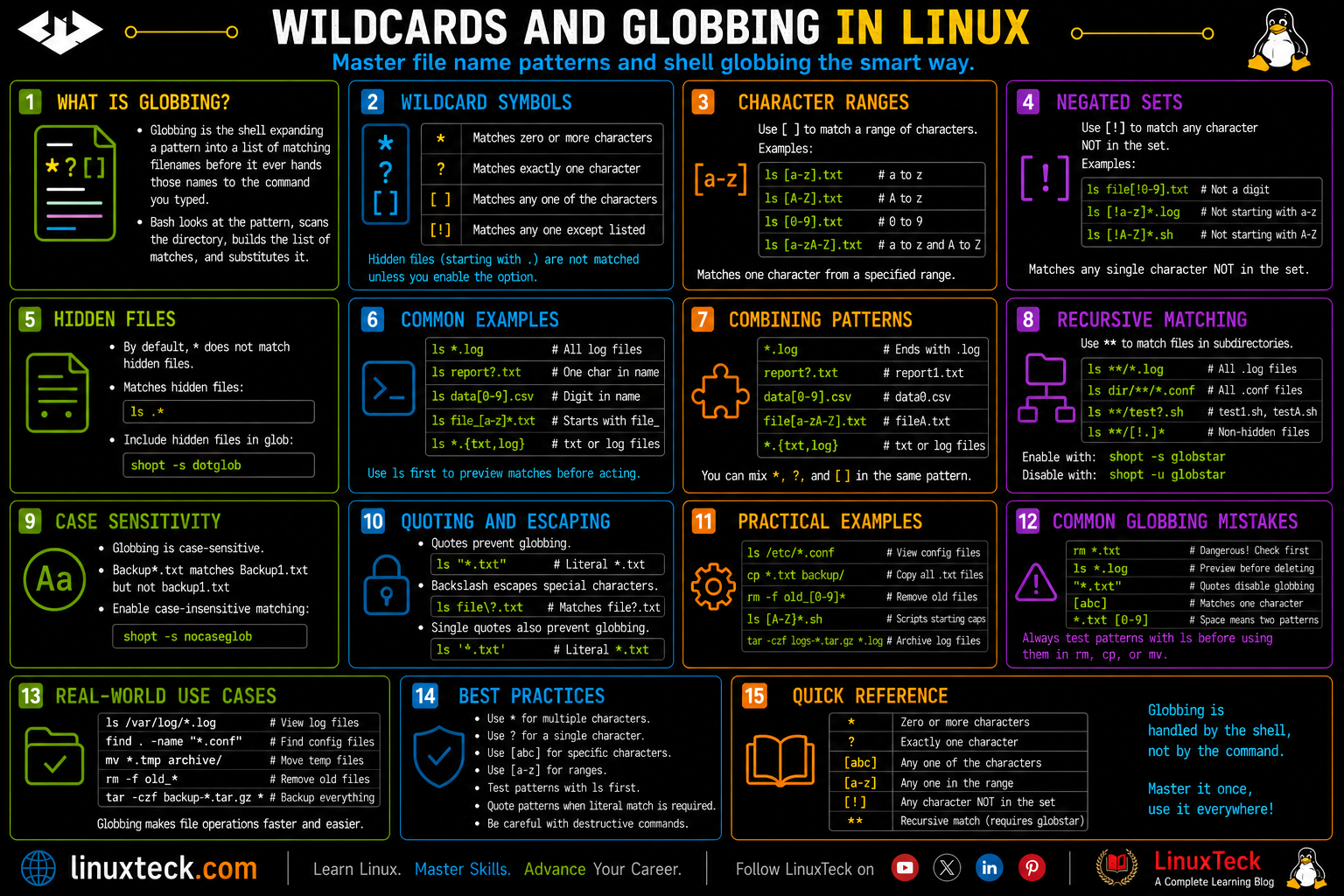
Wildcards and globbing in Linux are among the most commonly used shell features, yet many users rely on them without fully understanding how they work. A simple pattern such as * or ? can save time when managing files, but it can also produce unexpected results if used incorrectly.
This guide explains how wildcard patterns and globbing work in Bash, what happens behind the scenes when the shell expands a pattern, and how to use them safely in real-world scenarios. By the end of this article, you'll understand when to use each wildcard, how Bash interprets patterns, and how to avoid common mistakes when working across different Linux distributions.
Note:
Wildcards are a shell feature, not a command feature. If you are still shaky on how the shell processes a command line before anything even runs, our basic Linux commands guide is a good place to anchor that first.
Examples
What Is Wildcards and Globbing in Linux?
Globbing is the shell expanding a pattern into a list of matching filenames before it ever hands those names to the command you typed. Nothing fancy is happening inside ls or rm or cp when you use *.log. Those commands never see the asterisk at all. Bash looks at the pattern, scans the current directory, builds the list of matches, and substitutes that list right there on the command line.
That distinction matters more than it sounds like it should. The term comes from an old Unix program literally called glob, short for "global", which did exactly this kind of pattern expansion before it got baked into the shell itself. Today every POSIX shell, bash, zsh, dash, all implement the same basic glob behavior, even though each one has its own extra tricks layered on top.
Think about the last time you typed ls *.conf to eyeball every config file in a directory. You weren't asking ls to understand wildcards. You were asking bash to do the matching, then handing ls a clean list of real filenames. Once that clicks, half the "weird" globbing behavior you'll run into later stops being weird.
Glob Syntax, Piece by Piece
There is no separate "glob command" to run. You just drop these characters straight into any command that takes a filename or path.
LinuxTeck.com
ls file?.log
ls report[1-3].csv
ls archive[!0-9].tar
file1.log
report1.csv report2.csv report3.csv
archiveA.tar
* matches zero or more of any character. ? matches exactly one character, no more, no less. [...] matches exactly one character that is a member of the set or range you give it, and putting ! or ^ right after the opening bracket flips that into "anything except these". None of this touches hidden files, anything starting with a dot, unless you tell the shell otherwise, and none of it goes into subdirectories on its own.
Note:
If a glob matches nothing, bash's default behavior is to pass the literal pattern text straight through to the command instead of an empty list. Run ls nofilelikethis* in an empty test folder and you'll get an "No such file or directory" error mentioning the asterisk itself, not a silent empty result. This trips up a lot of scripts that assume no matches means no arguments.
Wildcard & Shell Expansion Reference Table
| Pattern | What It Does | When to Use It |
|---|---|---|
| * | Matches zero or more of any character | Catching every file with a shared prefix, suffix, or extension |
| ? | Matches exactly one character | Matching fixed-length suffixes, like log1.txt through log9.txt |
| [abc] | Matches one character from the listed set | Targeting specific letters or digits at one position |
| [a-z] | Matches one character from a range | Filtering by alphabetic or numeric ranges instead of listing every character |
| [!abc] / [^abc] | Matches one character NOT in the set | Excluding specific files while keeping the rest of a batch operation |
| {a,b,c} | Brace expansion, not technically globbing, expands to multiple literal strings | Matching files with completely different extensions in one command |
| ** | Recursive match into subdirectories, only with globstar enabled | Searching an entire directory tree without calling find |
| \ | Escapes the next character so it's treated literally | Matching filenames that genuinely contain * or ? characters |
Wildcards and Globbing in Practice
I. List Every File of One Type
The most common reason anyone reaches for a wildcard. You want every log file in a directory without typing each name.
LinuxTeck.com
II. Match a Single Character With ?
You've got numbered files and want to grab a fixed range without listing every name by hand.
LinuxTeck.com
Note:
This pattern will not catch report10.csv. The question mark wants exactly one character in that position, so a two digit number breaks the match. That's a different rule than the asterisk, and mixing the two up is one of the most common globbing mistakes.
III. Use a Character Range in Brackets
Same numbered files, but now you only want a specific slice of them.
LinuxTeck.com
IV. Exclude Characters With a Negated Set
You want every numbered file except one specific number.
LinuxTeck.com
V. Match Files Containing a Keyword Anywhere
You don't care where the keyword sits in the filename, just that it's in there somewhere.
LinuxTeck.com
VI. Copy Multiple File Types in One Command
Brace expansion isn't technically a glob, but you'll use it next to globs constantly, so it earns a spot here.
LinuxTeck.com
'app.cfg' -> '/tmp/backups/app.cfg'
'sshd.conf' -> '/tmp/backups/sshd.conf'
Warning:
Brace expansion happens before globbing, so bash builds *.conf and *.cfg as two separate literal patterns first and only then checks each one against real files. If .conf files exist in the folder but no .cfg files do, the *.cfg piece finds nothing, gets passed through as a literal string, and cp throws "cannot stat '*.cfg': No such file or directory" even though the .conf copies worked fine. Make sure both file types actually exist before relying on this pattern in a script.
VII. Search Recursively With Globstar
You want every .conf file under a directory tree, not just the top level. By default a glob will not walk into subdirectories on its own, so this needs an extra shell option turned on first.
LinuxTeck.com
ls /etc/**/*.conf
/etc/ssh/ssh_config.conf
/etc/sysctl.d/99-custom.conf
Tip:
globstar only persists for the current shell session unless you put the shopt line in your .bashrc. If you're scripting this, set it explicitly at the top of the script instead of assuming it's on, because plenty of distros ship with it off by default.
VIII. Include Hidden Files in a Match
By default, an asterisk skips anything starting with a dot. Sometimes you genuinely need dotfiles included, like when auditing a home directory.
LinuxTeck.com
ls *
IX. Filter Log Files by Date Pattern
A real-world scenario from rotating logs. You want only this month's logs out of a folder going back years.
LinuxTeck.com
X. Clean Up Old Archives in a Cron Job
Another real-world case, the kind of one-liner that ends up inside a maintenance script run by cron at 2am.
LinuxTeck.com
Note:
Notice the quotes around the pattern. Inside find, the asterisk needs to stay literal so find's own engine matches it, not bash. If you leave the quotes off and there happen to be matching files in your current directory when you run this, bash will expand the glob first and find will get a list of real filenames instead of a pattern, which breaks the whole point of the command.
Warning:
The -delete flag has to come at the very end of the find command, after every filter you want applied. find evaluates its arguments left to right, so if you move -delete in front of -name or -mtime, it deletes everything it finds before the other filters even get checked. Reordering this one flag is the difference between cleaning up old tarballs and wiping out an entire backup directory.
XI. The Mistake: Unquoted Globs With rm
This is close to the exact mistake from the intro, and it's worth seeing in full so the failure mode is obvious.
LinuxTeck.com
Warning:
Globbing is case-sensitive by default on Linux. backup_* will not match Backup_2024 or BACKUP_old. The fix is to either match the casing deliberately with a character class, or check first before you delete anything. Run ls backup_* on its own, look at exactly what comes back, then run the rm. Never chain a destructive command onto a glob you haven't visually verified first.
LinuxTeck.com
ls -d [bB][aA][cC][kK][uU][pP]*
backup_db.sql Backup_2024 backup_logs.tar BACKUP_old
Why Getting This Right Matters
Getting comfortable with wildcards and globbing in Linux is what separates a careful sysadmin from someone who gets lucky most of the time. The moment you put a glob in front of a destructive command like rm, mv, or chmod -R, you've handed the shell a decision-making role in something irreversible. On a personal laptop a bad match costs you an afternoon of restoring from backup. On a production server it costs you an incident report and a very uncomfortable conversation, because a quoted versus unquoted pattern in a deployment script can be the difference between deleting one stale release folder and deleting every release folder on the box.
Mastering globbing changes how you write one-liners and scripts permanently. You stop reaching for find for things a simple pattern already handles, and you start reaching for find the moment you actually need recursion, time filters, or permission checks that a glob alone can't do. According to the GNU Bash Reference Manual, pattern matching behavior can also shift slightly depending on shell options like nocaseglob and extglob, which is exactly why the same script can behave differently across two servers that both claim to be running bash.
Key Takeaways
- Mastering wildcards and globbing in Linux starts with knowing that the shell expands patterns before any command runs, not the command itself.
- Use a leading dot check or shopt -s dotglob when you actually need hidden files included in a match, since * skips them by default.
- Always run the bare glob through ls or echo first before chaining it to rm, mv, or chmod, so you see the exact match list before anything destructive happens.
- Quote glob patterns inside find, grep -r, and similar tools so the target program's own pattern engine handles the expansion instead of bash doing it early.
- Remember that ? matches exactly one character, so it will silently exclude longer numbers like file10 when you were expecting it to catch everything.
- Turn on shopt -s globstar explicitly in scripts if you're relying on ** for recursive matches, since it isn't on by default in every shell session.
- Globbing is case-sensitive on Linux, so use a character class like [bB] when filenames might not follow consistent casing.
- If a glob matches nothing, bash passes the literal pattern text through instead of an empty list, which can break scripts that assume "no match" means "no arguments".
Frequently Asked Questions
My glob isn't matching anything and the command just errors out instead of doing nothing, why?
That's the default nullglob behavior in bash. When a pattern matches zero files, bash hands the command the literal pattern text instead of removing it. Run shopt -s nullglob in your script if you want unmatched patterns to disappear instead of getting passed through as a literal string.
Is wildcard matching the same thing as regex?
No, and this mixes people up constantly. Globs are much simpler than regular expressions. A glob's * means "anything", while a regex's * means "repeat the previous character zero or more times". They share some symbols but the meaning behind them is different, so don't try to write a regex pattern inside an ls command expecting it to work.
Why did my cp command with a glob copy way more files than I expected?
Nine times out of ten this is a pattern that's broader than you think, usually a bare * somewhere it shouldn't be. Run the exact same pattern through ls by itself first. Whatever ls prints is exactly what cp, mv, or rm will operate on, so always sanity check there before running the real command.
Does globbing work the same way in zsh as it does in bash?
Mostly, but zsh ships with more glob qualifiers enabled out of the box and has a few extra features bash doesn't, like recursive ** matching being on by default instead of needing shopt -s globstar. If you're moving scripts between the two shells, test the glob behavior specifically rather than assuming it carries over untouched.
How do I match a filename that actually has an asterisk in it?
Escape it with a backslash, like file\*.txt, or wrap the whole pattern in single quotes. Either approach tells the shell to treat the character literally instead of trying to expand it as a wildcard.
Why does my script work fine when I run it manually but fail when cron runs it?
Cron often runs scripts with a different shell or a more minimal environment than your interactive login shell, so shell options like nullglob or globstar that you set in your .bashrc are not active. Set any needed shopt options explicitly at the top of the script itself, don't rely on your personal shell config being inherited.
From your first terminal command to advanced sysadmin skills every guide here is written in plain English with real examples you can run right now.