

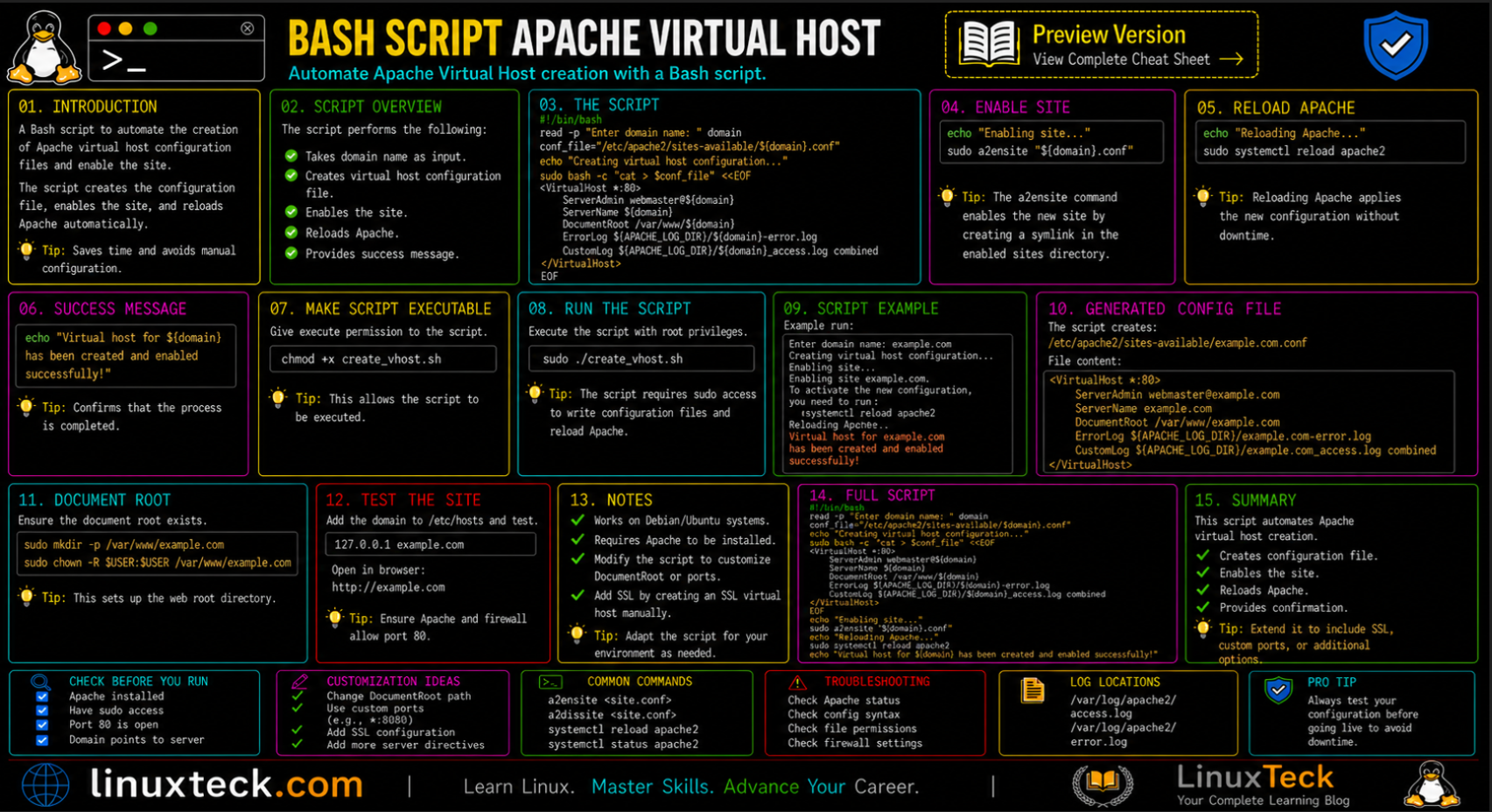
You've got three projects to spin up today, and the first thing you do is open /etc/apache2/sites-available/ and start typing another virtual host config from scratch. Again.
If you manage Apache on Ubuntu or Debian-based systems and find yourself creating virtual hosts more than once a week, this is for you. After working through this, you will have a script that creates the vhost config, enables the site, updates your hosts file, sets up the document root, and restarts Apache all from a single command.
Why This Actually Matters:
Every time you create a virtual host manually, you touch at least five files and run at least three commands. Miss one step and Apache either throws a config error, loads the wrong site, or silently ignores your new host entirely.
- Forget
a2ensiteand the config sits in sites-available doing nothing - Skip the
/etc/hostsentry and your local domain never resolves - Get the
DocumentRootpath wrong and Apache serves a 403 or 404 right away
A script removes all three failure points at once. One command, consistent result, every time.
If you're newer to shell scripting and want a solid foundation before diving into automation scripts, the introduction to bash scripting on LinuxTeck is worth reading first. It covers the basics you'll see throughout this article.
What the Script Actually Does Before You Write a Single Line
Before writing any code, it helps to know exactly what steps you're replacing. Creating an Apache virtual host manually on Ubuntu or Debian involves all of this:
- Creating the document root directory under
/var/www/ - Writing a
.conffile inside/etc/apache2/sites-available/ - Running
a2ensiteto enable it - Adding a line to
/etc/hostsfor local DNS resolution - Restarting or reloading Apache
That's five steps. When you do it ten times a week across different projects, it adds up fast. And if one person on your team does it slightly differently say, they forget a2ensite or set the wrong permissions on the document root you end up debugging things that should never need debugging.
The script we're building handles all five steps. You pass it a domain name. It does the rest.
Note:
This script targets Ubuntu and Debian-based systems using Apache2. The paths (/etc/apache2/sites-available/, a2ensite, apache2ctl) are specific to this stack. If you're on CentOS or Rocky Linux with httpd, the directory structure is different but the scripting logic is the same.
The Shebang Line and Why Skipping It Breaks Everything
Every bash script starts with this:
LinuxTeck.com
# Apache Virtual Host Creator
# Run with: sudo ./vhost-create.sh
That first line tells your system which interpreter to use when you execute the file. Without it, the shell uses whatever the current default is and on some systems, that's sh, not bash. The sh shell doesn't support all bash features like [[ conditionals, certain string operations, or local variables inside functions. Scripts that work fine when you run bash script.sh directly can break silently when you run ./script.sh without the shebang.
Always include it. Always use the full path /bin/bash. Never assume.
Common Mistake:
Writing a script without #!/bin/bash and then wondering why [[ -z "$VAR" ]] throws a syntax error. On Ubuntu, /bin/sh points to dash, not bash. Double brackets are a bash-only feature.
Fix: Always add #!/bin/bash as the very first line. No blank lines above it. Then run: bash -n script.sh to syntax-check before executing.
Make It Executable and Run It Right
After you create the script file, it won't run until you give it execute permission. This is the step that trips up beginners more than almost anything else.
LinuxTeck.com
ls -l vhost-create.sh
The x bit in rwx means the file is executable. Without it, you get a "Permission denied" error even though you own the file. The chmod +x command adds execute permission for the owner, group, and others. If you only want the owner to run it, use chmod u+x instead that's the safer choice for scripts that touch system files.
This script needs sudo because it writes to /etc/hosts and /etc/apache2/sites-available/. Both of those paths are root-owned. Run it like this:
LinuxTeck.com
Note:
The script checks for root at the top using $EUID the effective user ID. When you run with sudo, $EUID is 0. If you forget sudo, it exits immediately with a clear message rather than failing halfway through and leaving partial config behind.
The Full Bash Script for Apache Virtual Host Creation
Here's the complete script. Walk through each section below every block has a reason for being exactly where it is.
LinuxTeck.com
# Apache Virtual Host Creator
# Usage: sudo ./vhost-create.sh <domain>
APACHE_SITES="/etc/apache2/sites-available"
WEB_ROOT="/var/www"
HOSTS_FILE="/etc/hosts"
# Root check
if [ "$EUID" -ne 0 ]; then
echo "[ERROR] Run with sudo: sudo ./vhost-create.sh <domain>"
exit 1
fi
# Domain input
DOMAIN=${1:-}
if [ -z "$DOMAIN" ]; then
read -p "Enter domain name (e.g. myproject.local): " DOMAIN
fi
if [ -z "$DOMAIN" ]; then
echo "[ERROR] No domain provided. Exiting."
exit 1
fi
# Domain format validation
if [[ ! "$DOMAIN" =~ ^[a-zA-Z0-9.-]+$ ]]; then
echo "[ERROR] Invalid domain format. Use alphanumeric, dots, and hyphens only."
exit 1
fi
The configuration block at the top defines every path as a variable. This is intentional. If Apache is installed in a non-standard location, or you're adapting this for a staging server with different paths, you change three lines at the top not ten lines scattered through the script.
Right after the empty-domain check, the script runs a format validation using a regex pattern. It rejects anything that contains spaces, slashes, quotes, or other characters that don't belong in a hostname. If someone passes in my project/local by accident or types something with a trailing slash, the script exits cleanly before it has a chance to build a broken path and write it to a system file. Small input errors without this check can turn into very confusing file permission issues later.
Now the document root creation block:
LinuxTeck.com
CONF_FILE="$APACHE_SITES/$DOMAIN.conf"
# Create document root
if [ ! -d "$DOC_ROOT" ]; then
mkdir -p "$DOC_ROOT"
echo "<h1>$DOMAIN is working</h1>" > "$DOC_ROOT/index.html"
chown -R www-data:www-data "$WEB_ROOT/$DOMAIN"
echo "[OK] Document root created: $DOC_ROOT"
else
echo "[SKIP] Directory already exists: $DOC_ROOT"
fi
The chown -R www-data:www-data line matters. Apache runs as the www-data user on Ubuntu. If your document root is owned by root, Apache can read files but cannot write them. That means no uploads, no cache files, no writable logs in that directory. The chown is not optional.
Now the vhost config block this is the part that writes the actual Apache configuration file:
LinuxTeck.com
cat > "$CONF_FILE" <<EOF
<VirtualHost *:80>
ServerName $DOMAIN
ServerAlias www.$DOMAIN
DocumentRoot $DOC_ROOT
ErrorLog ${APACHE_LOG_DIR}/$DOMAIN-error.log
CustomLog ${APACHE_LOG_DIR}/$DOMAIN-access.log combined
<Directory "$DOC_ROOT">
Options -Indexes +FollowSymLinks
AllowOverride All
Require all granted
</Directory>
</VirtualHost>
EOF
echo "[OK] Vhost config written: $CONF_FILE"
# Enable site
a2ensite "$DOMAIN.conf" > /dev/null 2>&1
echo "[OK] Site enabled"
The Options -Indexes line in the directory block is a security measure. Without it, if your document root has no index file, Apache displays a file listing of everything in that directory. That's fine in development but a genuine risk in any environment where the wrong person can reach it. The script includes it by default.
The Hosts File Update and Final Apache Reload
For a local development domain to resolve in your browser, it needs an entry in /etc/hosts. This is the step that trips up the most people they create the vhost, enable it, reload Apache, open the browser, and get a DNS error because the hosts file was never touched.
LinuxTeck.com
if ! grep -qw "$DOMAIN" "$HOSTS_FILE"; then
echo "127.0.0.1 $DOMAIN www.$DOMAIN" >> "$HOSTS_FILE"
echo "[OK] Hosts file updated"
else
echo "[SKIP] Hosts entry already exists"
fi
# Validate config and reload Apache
apache2ctl configtest && systemctl reload apache2
echo "[DONE] Visit: http://$DOMAIN"
[OK] Vhost config written: /etc/apache2/sites-available/myproject.local.conf
[OK] Site enabled
[OK] Hosts file updated
Syntax OK
[DONE] Visit: http://myproject.local
The grep -qw check before appending to the hosts file is important. The -w flag matches whole words only, not substrings. Without it, grep -q "project.local" would match a line containing myproject.local and incorrectly skip adding your new domain. The -q flag suppresses output and uses the exit code only. Together, -qw gives you an exact, silent hostname match the right tool for this check.
Also notice the apache2ctl configtest before the reload. It validates the Apache config syntax before reloading. If the heredoc had an error (say, a variable that expanded to something unexpected), the reload would fail. Running configtest first means you catch that before Apache tries to load a broken config.
Tip:
Use systemctl reload apache2 instead of systemctl restart apache2. A reload re-reads the config without dropping existing connections. A restart kills all active connections first. For a development machine it doesn't matter much, but it's a good habit before you take it to production.
Debugging the Script When Something Goes Wrong
Scripts fail. When this one does, here's how to find out why quickly.
The first tool to reach for is bash -x. It prints every command the script executes, with variable values expanded, before running it. Run it like this:
LinuxTeck.com
+ WEB_ROOT=/var/www
+ HOSTS_FILE=/etc/hosts
+ '[' myproject.local '!=' '' ']'
+ DOC_ROOT=/var/www/myproject.local/public_html
...
Every line starting with + is a command that executed. You can see exactly what each variable expanded to. If something is wrong a path is empty, a variable didn't expand, a condition evaluated the wrong way it shows up immediately.
If your script exits early and you're not sure where, add set -e and set -x at the top right after the shebang. set -e exits immediately on any command that returns a non-zero exit code. Combined with -x, you see the exact line the script stopped on.
One important caveat if you add set -e to this script: commands used as conditions inside an if statement are exempt from set -e. Bash handles their exit code through the if construct itself, so grep returning 1 (no match) is treated as a false condition rather than a crash-worthy error. That means the grep -qw check works correctly under strict mode with no extra logic needed:
LinuxTeck.com
if ! grep -qw "$DOMAIN" "$HOSTS_FILE"; then
echo "127.0.0.1 $DOMAIN www.$DOMAIN" >> "$HOSTS_FILE"
echo "[OK] Hosts file updated"
else
echo "[SKIP] Hosts entry already exists"
fi
No extra logic is needed here. Bash does not trigger set -e on commands used as the condition inside an if statement the if construct handles the exit code itself, so grep returning 1 (no match found) is treated as a false condition, not a script-crashing error. The pattern above works correctly under strict mode without any || true workaround.
LinuxTeck.com
set -e # exit on error
set -x # trace commands
# rest of script...
Where set -e does cause unexpected exits is with standalone commands outside an if for example, grep -q "pattern" file on its own line will crash the script if there is no match. In those cases, grep -q "pattern" file || true is the right guard. But inside an if condition, you never need it. For a full breakdown of how exit codes flow through scripts, the bash exit codes and error handling guide on LinuxTeck is worth the read.
What You Can Automate Next and Why This Approach Scales
Once you have this working, the mental shift is more useful than the script itself. You start seeing every repetitive admin task as something scriptable. Setting up a new project means running one command instead of remembering a five-step checklist. Onboarding a new developer means handing them a script instead of writing instructions they'll follow imperfectly.
This same pattern collect input, validate, create files, update config, restart service applies to a lot of server tasks. Adding an nginx server block works the same way. Provisioning a new database and user follows the same structure. Even something like setting up SSH keys for a new user is three or four commands you can wrap in a script and run in five seconds.
The version of this script above is solid for local development. For a staging or production environment, you'd want to extend it. Input validation to reject domains with spaces or special characters. A cleanup function that removes the vhost, disables the site, and clears the hosts entry when you tear down a project. SSL integration using Certbot for a2enmod ssl. Maybe a --dry-run flag that prints what it would do without actually doing it. None of that is complicated once you have the structure. It's just adding blocks to something that already works.
You can also take this further with cron jobs for tasks like certificate renewal checks, or scheduled log rotation per virtual host. Scripting and scheduling work well together, and once you're comfortable with one, the other comes naturally. The official GNU Bash manual is the best reference when you're extending scripts and need to understand edge cases around parameter expansion or conditional expressions.
Questions I Get Asked About This All the Time
Why does my script work when I run bash script.sh but fail with ./script.sh?
Missing shebang. When you run bash script.sh you're explicitly telling the system to use bash. When you run ./script.sh, the system looks at the first line to decide which interpreter to use. Without #!/bin/bash, it falls back to /bin/sh, which on Ubuntu is dash, not bash. Double brackets, certain string operations, and bash-specific builtins break silently or throw syntax errors. Add the shebang, make the file executable, and run it as ./script.sh.
The script runs fine but my domain still shows the default Apache page. What did I miss?
Two likely causes. First, check that a2ensite actually ran look in /etc/apache2/sites-enabled/ for a symlink to your config file. If it's not there, run sudo a2ensite yourdomain.conf manually. Second, check your /etc/hosts file and confirm the entry is there. If both exist, run apache2ctl configtest and look for syntax errors. The default page loads when Apache can't match the incoming hostname to any virtual host.
Should I use systemctl restart or systemctl reload after enabling a new vhost?
Use reload. A reload re-reads the Apache config without stopping the server or dropping connections. Restart kills the process completely and brings it back up, which drops every active connection. For adding a new vhost on a dev machine it makes no real difference, but reload is the safer default. Just run apache2ctl configtest first so you don't reload a broken config.
Why does Apache return a 403 Forbidden even though the virtual host config looks right?
Almost always a permissions problem on the document root. Apache runs as www-data on Ubuntu. If the directory is owned by root with no read permission for others, Apache can't read the files. Run ls -la /var/www/yourdomain/ and check the ownership. Fix it with sudo chown -R www-data:www-data /var/www/yourdomain/. Also check that you have Require all granted inside the <Directory> block in your vhost config.
Can I run this script to create multiple virtual hosts at once?
Yes, wrap it in a for loop. Create a plain text file with one domain per line, then loop through it: while IFS= read -r domain; do sudo ./vhost-create.sh "$domain"; done < domains.txt. Each call to the script is independent, so duplicates are handled gracefully the hosts check skips existing entries and the directory check skips existing folders.
Do I need to run a2ensite every time, or is putting the file in sites-available enough?
You need to run a2ensite. Putting a config in sites-available does nothing on its own. The a2ensite command creates a symlink from sites-enabled to sites-available, and Apache only loads configs that are symlinked in sites-enabled. Think of sites-available as your config library and sites-enabled as what's actually active. The script handles this for you, but knowing why it's there helps when you're debugging manually.
Summary
Now that you have this working, spinning up a new local development site takes one command and about three seconds. The bash script to create Apache virtual hosts you built here handles every step that used to require opening multiple files and remembering a specific sequence: document root creation, permissions, vhost config, a2ensite, hosts file, and Apache reload. Get one step wrong manually and you're debugging for ten minutes. Let the script do it and you get a consistent result every time.
The next thing worth learning after this is how to add SSL to these local vhosts using mkcert or self-signed certificates. After that, wrapping this script in a fuller project provisioner that also sets up a database and maybe a basic PHP or Node environment. Small scripts compound quickly.
For more on writing reliable shell scripts that handle errors properly, the bash exit codes and error handling guide is the logical next read.
Related Articles
- What Is Bash Scripting in Linux (Part 1 of 34)
- Bash Script Exit Codes and Error Handling (Part 5 of 34)
- How to Install Apache on Rocky Linux
- Secure Apache with SSL in Rocky Linux
- Linux Bash Scripting Automation 2026
Learn step-by-step how to automate Linux tasks with real-world scripts and practical examples.




