Managing file permissions is an essential Linux administration skill, and group ownership plays a major role when multiple users need access to the same files or directories. The chgrp command lets you change the group ownership of files and folders, making collaboration and permission management much easier.
In this guide, you'll learn what the chgrp command does, understand its syntax, explore the most useful options, and work through practical examples. By the end, you'll be able to safely manage group ownership for both individual files and entire directory structures.
Note:
chgrp only touches group ownership. If you also need to change who owns the file, pair it with chown, or use chown with a colon to set owner and group in one shot.
Examples
What Is the chgrp Command in Linux?
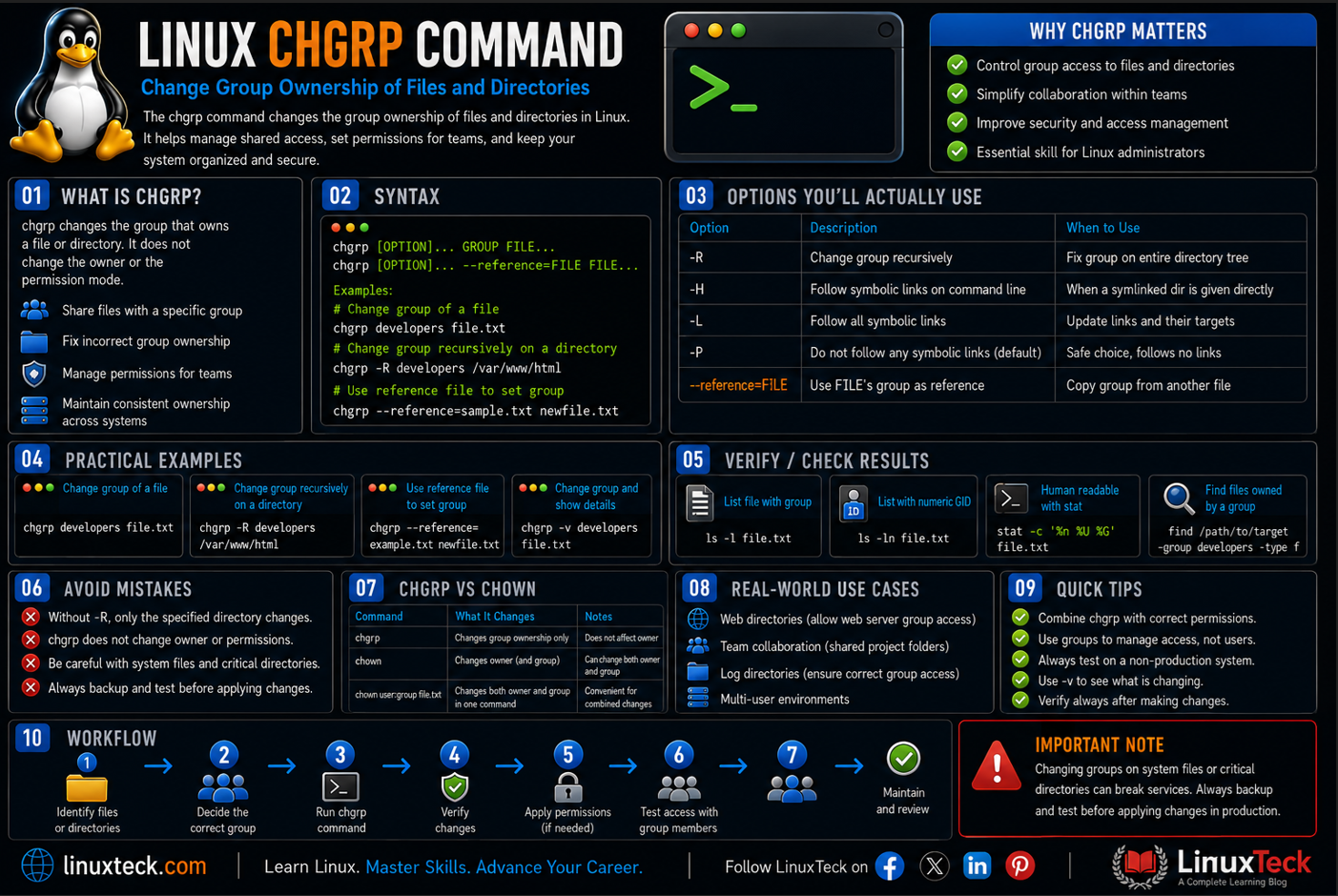
chgrp changes which group owns a file or directory. That's it. Every file on a Linux system carries three permission sets: owner, group, and everyone else, and chgrp is the tool that reassigns the group part.
Think of group ownership as a shared key. If five people are in the "developers" group and a file belongs to that group with group-read and group-write permissions, all five can touch it without you handing out individual access. chgrp is how you decide who's holding that shared key.
You'll reach for it most when you're setting up shared folders for a team, fixing ownership after copying files between servers, or cleaning up a directory where permissions have drifted over time. If you're not sure how many files are affected, find can locate every file owned by a specific group before you touch anything.
chgrp Syntax
LinuxTeck.com
chgrp [OPTION]... --reference=RFILE FILE...
GROUP is the name (or GID) you're assigning. FILE can be one file, several files, or a directory. The --reference form skips typing a group name entirely and just copies the group from another file you point it at.
Note:
By default chgrp does not go into subdirectories. If you point it at a folder with no flags, only that folder's own group changes, everything inside stays untouched. You need -R for that, covered in the options table below.
chgrp Options You'll Actually Use
| Flag | What It Does | When to Use It |
|---|---|---|
| -R | Applies the group change recursively through every file and subdirectory | Fixing ownership on an entire project folder or web root |
| -H | If a command line argument is a symlink to a directory, traverses into it during a recursive run | You passed a symlinked directory directly on the command line and want -R to follow it |
| -L | Traverses every symbolic link to a directory encountered anywhere during the recursive walk | Rare, and risky. Only use this if you fully understand the directory tree and want every linked directory followed |
| -P | Never traverses symbolic links during a recursive run. This is the default coreutils behavior | You don't need to specify it manually, but it's worth knowing this is what protects you by default |
| -v | Prints a line for every file it touches, changed or not | Confirming exactly what a recursive run did |
| -c | Only reports files where the group actually changed | Auditing a big run without wading through unchanged files |
| -f | Suppresses most error messages | Scripted runs where you handle failures separately and don't want noisy output |
| -h | Changes the symlink itself instead of the file it points to | Working with symlinked configs where the target shouldn't be touched |
| --reference=RFILE | Copies the group from RFILE instead of naming a group manually | Matching new files to an existing folder's ownership without looking up the group name |
| --from=OWNER:GROUP | Only changes group if the file currently matches the given owner and/or group | Safety check in scripts, so you don't overwrite group ownership on files you didn't mean to touch |
| --preserve-root | Refuses to run recursively on / | Extra safety net when writing automation that runs as root |
chgrp Examples From Basic to Real-World
I. Check the Current Group Before You Touch Anything
Always look before you change. ls -l shows you owner and group in one line.
LinuxTeck.com
Owner is arun, group is devops. If that group is wrong for your team setup, chgrp fixes it.
II. Change the Group of a Single File
The most common form. You need root or ownership of the file, plus membership in the target group.
LinuxTeck.com
III. Change Group Without Sudo
If you own the file and you're already a member of the target group, you don't need root at all.
LinuxTeck.com
Note:
Regular users can only switch a file to a group they already belong to. Root can assign any group that exists on the system. Run "groups" to see which ones you're in.
IV. Change Group on Multiple Files at Once
List as many files as you want after the group name.
LinuxTeck.com
V. Change Only the Directory, Not What's Inside
Without -R, chgrp stops at the folder itself.
LinuxTeck.com
VI. Recursively Change Group for an Entire Folder
Add -R and every file and subfolder underneath gets the new group too.
LinuxTeck.com
VII. Watch Exactly What a Recursive Run Touches
Combine -R with -v when you want a full trail of what changed, especially useful before you trust a script with this on production.
LinuxTeck.com
changed group of '/var/www/staging/index.php' from 'kcvirtual' to 'webteam'
changed group of '/var/www/staging/assets' from 'kcvirtual' to 'webteam'
VIII. Only Report What Actually Changed
On a big tree, -v gets noisy fast. -c only prints lines for files where the group was genuinely different before.
LinuxTeck.com
IX. Copy Group Ownership From Another File
Skip naming the group entirely and just clone it from a file that already has the ownership you want.
LinuxTeck.com
Tip:
This is handy in deployment scripts where you don't want to hardcode a group name that might differ between staging and production. Point it at a known reference file instead.
X. Real-World: Fixing Ownership After an Upload
You unzip a deployment bundle as root, and everything comes in owned by root:root instead of the app's actual group. This is one of the most common tickets on any shared hosting box.
LinuxTeck.com
Now the web server's group can actually read what got dropped in there, without you loosening permissions for everyone on the box.
A team of five needs a shared workspace. You put them all in a "projectx" group, then hand the folder over to that group so nobody needs individual sudo access just to edit a file their teammate created.
LinuxTeck.com
sudo chmod -R 2775 /srv/shared/projectx
The 2 in front of the chmod permission sets the setgid bit, so new files created inside that folder automatically inherit the projectx group too, instead of defaulting to whoever created them.
XII. Mistake: Running Recursive chgrp on the Wrong Path
This one stings because it looks harmless until you check the damage.
LinuxTeck.com
Warning:
Meant to target /var/backups and typed /var instead. That one missing folder name just handed group ownership of the entire /var tree, logs, mail, package caches, everything, to the backup group. Services that check group ownership before writing logs can start failing almost immediately.
The fix is to always be specific with the path and test on a narrow target first. This matters even more if the folder feeds into an automatic backup script, since a broken group can cause backup jobs to fail quietly for days before anyone notices.
LinuxTeck.com
Tip:
Before running chgrp -R on anything system-owned, run "ls -ld /path" first and read the full path back to yourself. It sounds basic. It saves you anyway.
Why chgrp Matters
Without proper group ownership, teams end up either sharing root access they shouldn't have, or constantly pinging each other to fix "permission denied" errors on files that should just work. Getting comfortable with user and group management commands alongside chgrp makes this whole workflow much smoother. chgrp is what lets a group of people collaborate on a filesystem without everyone needing individual grants.
On production systems it also protects you from accidental exposure. A backup script that writes into a folder owned by the wrong group can silently fail, or worse, silently succeed somewhere it shouldn't have write access at all. Getting group ownership right the first time is cheaper than auditing it after an incident. The official chgrp man page covers every flag if you need the exact behavior for a specific coreutils version.
Main Points
- Use ls -l before any chgrp run so you know the current group and can confirm the change afterward.
- chgrp without -R only changes the folder itself. Add -R when you need the whole tree updated.
- Regular users can only assign groups they already belong to. Root can assign any existing group.
- Combine -R with -v on a first run so you have a full log of what changed before you trust it unattended.
- Use --reference=RFILE in scripts instead of hardcoding a group name that might differ between environments.
- Pair chgrp with a setgid bit (chmod 2775) on shared team folders so new files inherit the right group automatically.
- Double check the full path before running chgrp -R as root. A missing subfolder name can reach much further than intended.
Frequently Asked Questions
I ran chgrp and got "operation not permitted," what's going on?
Either you don't own the file and aren't root, or you're not a member of the group you're trying to assign. Run "groups" to check your memberships, and if the file belongs to someone else, put sudo in front of the command.
Do I need sudo every single time I use chgrp?
No. If you already own the file and you're already in the target group, plain chgrp works without sudo. You only need root when the file belongs to another user or the target group is one you're not part of.
What's actually different between chgrp and chown?
chgrp only touches the group. chown can change the owner, the group, or both at once using the owner:group syntax. If you're only fixing group ownership, chgrp is the more direct tool.
Can I change a symlink's group without touching the file it points to?
Yes, use -h. By default chgrp follows the symlink and changes the target file. With -h it changes the link itself instead, which matters on systems where symlink ownership is tracked separately. Note: this depends on your Linux distribution's underlying support for the lchown system call on symlinks.
How do I check a file's group before I change anything?
Run ls -l on it. The group name shows up right after the owner in the output. For a quick directory-wide check, ls -l on the parent folder shows every file's group in one pass.
Does chgrp -R also touch file permissions, or just the group?
Just the group. Permissions stay exactly as they were. If you also need to adjust read, write, or execute bits across the same tree, that's a separate chmod command, not something chgrp handles.
From your first terminal command to advanced sysadmin skills, every guide here is written in plain English with real examples you can run right now. Check out our guides on Linux user management, configuring sudo, file management commands, and Linux file system fundamentals to keep building on what you learned here.