If you've ever wondered where your code actually lives and how teams work on it together, it all starts with a repository. Whether you're creating your first "Hello, World!" program, working on a collaborative engineering team located around the globe, or somewhere in-between, each and every one of these programs rely heavily on the same type of 'invisible' infrastructure that supports it, i.e., Repositories. Understanding how to use them will be the single best way to become a successful (and therefore, confident) programmer. If you're new to Linux environments, you can start with our Linux quick start guide.
This article will define what a repository is, introduce several types of repositories, provide examples from GitHub, and explain how using repositories can benefit both beginner and experienced developers alike.
Note:
This document will be focused on Git-based Repositories; These are the most common type of repository used in today's technology world. The information presented within this document can be applied to both GitHub, GitLab, Bitbucket, or any other website that uses Git as their repository source.
Examples
What Is a Repository?
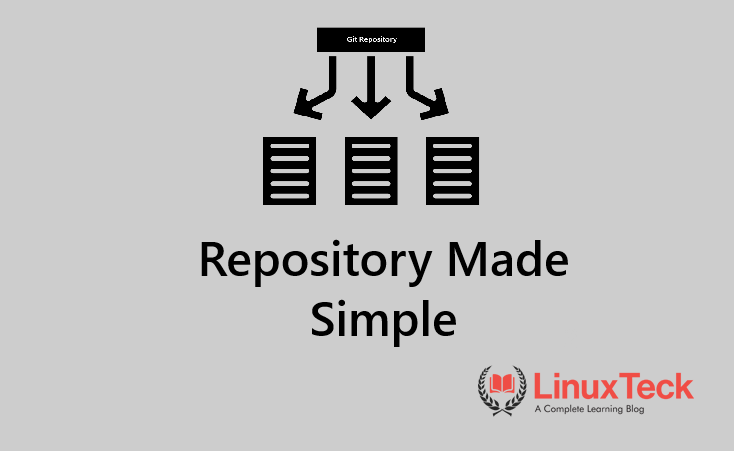
A Repository (commonly referred to as Repo) is simply a central location for storing all files, directories, and all revisions made to these files, along with their revision history. A repository using Git can be considered an intelligent directory that not only stores your files but also maintains a record of each revision, who made the change, and why.
A repository powered by Git tracks every modification you make, utilizing what is commonly referred to as version control. As such, you have the ability to go back in time to view any previous state of your project, compare your current version with earlier versions, and safely test new functions or ideas. To get comfortable with basic commands, check our
basic Linux commands guide.
| Component | What It Is | Example |
|---|---|---|
Working Tree |
Your actual project files as they appear on disk | index.html, app.py |
Staging Area |
A waiting zone for changes you're about to save | Files queued with git add |
Commit History |
A permanent log of every saved snapshot | List of commits shown by git log |
Types of Repositories
Local vs. Remote Repositories
An individual's primary distinction as a new developer will be an understanding of the differences between a local and a remote repository.
| Feature | Local Repository | Remote Repository |
|---|---|---|
| Location | Your own computer | A server (GitHub, GitLab, etc.) |
| Internet Required? | ❌ No — works offline | ✅ Yes — needs a connection |
| Who Can Access It? | Only you (unless shared) | Your whole team (or the public) |
| Typical Use | Day-to-day development work | Backup, collaboration, deployment |
| Created With | git init |
git clone / GitHub UI |
| Risk of Data Loss | High (if your machine fails) | Low (server-side redundancy) |
Public vs. Private Repositories
In addition to the differences between a local and remote repository, there are additional distinctions based upon whether they are public or private.
A public repository may be viewed by anybody that has access to the world wide web. Publicly available open source projects such as Linux, React, and VS Code exist within publicly accessible repositories, with thousands of possible contributors able to view, fork, and suggest changes. Conversely, a private repository is only accessible to you and those individuals you have invited (ideal for client work, proprietary applications or personal projects you do not wish to make publicly available).
How Repositories Work
The process in which developers create and update their code is directly related to their understanding of the basic operation of a repository. Below is an example of the normal flow of code in a repository from development through production. To understand how processes run in your system while executing these steps, you can explore the ps command.
- Initialize or Clone - You either create a new repo on your machine or download an existing one from a remote server.
- Make Changes - You edit, add, or delete files in your working directory.
- Stage Changes - You tell Git which changes you want to include in the next snapshot using
git add. - Commit - You save a permanent snapshot of the staged changes with a descriptive message using
git commit. - Push - You upload your local commits to the remote repository with
git pushso others can see your work. - Pull - You download and integrate changes made by your teammates with
git pull.
When we do a "commit", it's like taking a picture of our whole project at one particular time. We can store many copies of this picture by creating hashes for each version of our project. Every version has a unique hash so no-one can alter history quietly.
Tip:
Think of commits like save points in a video game. If something goes wrong, you can always reload a previous
save. The more frequently you commit with clear messages, the safer your project is.
Repository Examples (GitHub)
I. Create a New Local Repository
When I start working on a new project, the first thing I need to do is initialize a repository in my new project folder. The git add or git init command turns a regular project folder into a Git repository.
LinuxTeck.com
When I run the git init command, it will create a hidden .git/ directory inside my project. That .git/ directory contains everything about the history of my project. The information stored there includes: all of the versions of the project; the order those versions were created; the name given to each version; and where those versions came from. Never, ever touch anything in the .git/ directory.
Tip:
You can also run git init (without a folder name) inside an existing project folder to start
tracking it with Git immediately.
II. Clone a Remote Repository from GitHub
Creating a clone gives me an exact copy of all of the data in another person's remote repository. Cloning also brings down all of their versions of their project as well as all of their branches and the full history of how they got to where they are now.
LinuxTeck.com
remote: Enumerating objects: 9453821, done.
remote: Counting objects: 100% (245/245), done.
Receiving objects: 100% (9453821/9453821), 1.43 GiB | 8.22 MiB/s, done.
Now that I've cloned the kernel repository, I have a fully functioning local version of that repository. I could browse through all of the code in the repository, create some branches, make some edits...all of which would be completely separate from the actual remote repository.
Warning:
Large repositories (like the Linux kernel) can be several gigabytes. Use git clone --depth 1 <url>
for a shallow clone that downloads only the latest snapshot, which is far faster when you don't need
the full history.
III. Stage, Commit, and Push Changes
You will do this same process over and over again dozens of times per day. Once you edit a file, you stage it. Then you make a commit using a commit message and finally you will "push" those changes to the remote Git repository.
LinuxTeck.com
LinuxTeck.com
1 file changed, 42 insertions(+)
LinuxTeck.com
Counting objects: 100% (5/5), done.
Writing objects: 100% (3/3), 1.02 KiB | 1.02 MiB/s, done.
To https://github.com/yourname/your-repo.git
c3f82a1..4e7d1c3 main -> main
As long as there has been no issue with your computer, the remote version of the file was successfully added to the remote repository. Now your team can see the commit and the files involved. If you lose your computer, your local copy of the commit will be lost. But the commit will still exist remotely.
Note:
Always write meaningful commit messages like "Fix login bug on mobile" rather than vague ones
like "fix stuff". Good messages make your project history easy to navigate months later.
IV. Check the Status of Your Repository
It is always best to run git status before running git add or git commit. The git status command gives you a clear snapshot of your working directory and staging area at any moment.
LinuxTeck.com
Your branch is up to date with 'origin/main'.
Changes not staged for commit:
(use "git add <file>..." to update what will be committed)
modified: README.md
Untracked files:
(use "git add <file>..." to include in what will be committed)
config.js
The output from git status shows you exactly which files have changed since your last commit and which ones are completely new to Git (and thus untracked). It also shows you which files have already been staged, i.e., which files are ready for their next commit. This is likely your #1 diagnostic tool for debugging issues within your repository. For deeper troubleshooting, tools like the find command help locate files quickly in large projects.
Tip:
Run git status before and after every git add to confirm exactly what is going
into your next commit. It prevents accidental commits of files you didn't intend to include.
V. View the Commit History of a Repository
All repositories maintain a record of all past commits. The git log command allows you to view this historical information. With this information, you can find out who made a particular commit, when he/she did so and what message they used in their commit.
LinuxTeck.com
c3f82a1 Fix navigation bar alignment
b9a2e10 Initial project setup
7f310dc Add README and license files
With the --oneline option, you get one-line summaries of each commit with both the short hash and the commit message. So if you need to look through many commits quickly, you can simply scan down the list and see where you want to start digging.
Note:
For a more detailed view including author name, date, and full message, run git log without
any flags. Add --graph to visualize branch and merge history as an ASCII tree.
VI. Create and Switch to a New Branch
A major advantage of having branches is that you may want to add new features to your code base, or fix bugs in your code without affecting the rest of your main codebase. One way you can accomplish this is by creating a branch. Creating a branch creates an isolated environment where you can make as many commits as necessary.
LinuxTeck.com
Your commits will not become a part of the main branch unless you intend to merge them. This is how large teams can collaborate on a new feature, independently, and safely, and still deliver a stable product.
Tip:
On newer versions of Git (2.23+), you can use git switch -c feature/user-authentication
instead — it is clearer and purpose-built for branch switching, whereas checkout also
handles other tasks.
VII. Merge a Branch into Main
Once a feature is complete and tested on its own branch, you merge it back into the main branch to
make it part of the official project. The git merge command combines the histories of
both branches.
Once a feature has been completed and tested, you would then merge the two branches (feature and main), by using the git merge command. The git merge command allows you to combine the two histories of the branches.
LinuxTeck.com
LinuxTeck.com
Fast-forward
auth/login.js | 58 ++++++++++++++++++++++++++++++++++++++++++++++++++++++++++
auth/register.js | 42 ++++++++++++++++++++++++++++++++++++++++++
2 files changed, 100 insertions(+)
In this example, we were able to perform a fast-forward merge, because the main branch was able to move its head pointer, to include the new commits. After merging, you can now delete the feature branch with the git branch -d feature/user-authentication.
Warning:
Always pull the latest changes from the remote before merging to avoid introducing outdated code into
the main branch. Run git pull origin main first, resolve any conflicts, then merge.
VIII. Pull the Latest Changes from a Remote Repository
As a member of a team, you have members constantly pushing new commits to the remote repository. The git pull command will retrieve these new commits, and automatically merge them into your current local branch.
LinuxTeck.com
remote: Counting objects: 100% (8/8), done.
Unpacking objects: 100% (5/5), 1.24 KiB | 1.24 MiB/s, done.
From https://github.com/yourteam/your-repo
4e7d1c3..9d4b2f7 main -> origin/main
Updating 4e7d1c3..9d4b2f7
Fast-forward
package.json | 3 ++-
1 file changed, 2 insertions(+), 1 deletion(-)
At this point your local repository is synchronized with the remote. You now have all of the changes that your teammates pushed, and you can continue developing off of the latest version of the project.
Tip:
Make it a habit to run git pull at the start of every work session. This minimizes the
chance of large, painful merge conflicts caused by working on outdated code for too long.
IX. Undo the Last Commit Without Losing Changes
Occasionally, you will find yourself committing too quickly and realizing that you needed to add more changes to the same commit. The git reset command provides a means of removing a commit while preserving all of your file changes within the working directory.
LinuxTeck.com
With the use of the --soft flag along with the git reset command, you tell Git to remove the commit but retain your changes in both the files and staging area. At this point you are free to continue editing and eventually recommit your updated set of changes with a revised commit message.
Warning:
Never use git reset --hard HEAD~1 unless you are absolutely sure. The --hard
flag discards all uncommitted changes to your files permanently — there is no undo. Use
--soft or --mixed when you want to preserve your work.
X. Add a Remote Repository URL to a Local Repo
If you created a local repository with git init, and later created a corresponding empty repository on GitHub, you will need to register/link your local repository as a remote repository. Use the git remote add command to add the remote repository's URL, allowing you to make pushes and pulls to/from the repository.
LinuxTeck.com
LinuxTeck.com
origin https://github.com/yourname/my-project.git (push)
The name origin represents the conventional alias for your primary remote. You can always check whether your configuration is correct at anytime using the git remote -v command which displays information about all of your registered remotes and their respective URLs.
Note:
You can rename a remote with git remote rename origin upstream or remove one with
git remote remove origin. A repository can have multiple remotes — useful when
contributing to open-source projects alongside maintaining your own fork.
XI. View What Changed in a Commit (git diff)
Prior to adding changes to staging, it is helpful to know exactly which lines were added or deleted from each file. The git diff command is used to display a line-by-line comparison between your currently active files, and the previous commit.
LinuxTeck.com
index 3a9f1b2..c84e709 100644
--- a/README.md
+++ b/README.md
@@ -1,4 +1,7 @@
# My Project
-A simple web app.
+A full-stack web application built with Node.js and React.
+
+## Features
+- User authentication
Lines that begin with a - represent lines that were deleted (displayed in red). Lines that begin with a + represent lines that were added (displayed in green). The output of this command provides an exact and audited record of every change prior to being committed into your history.
Tip:
Use git diff --staged to see the diff of files you have already added to the staging
area with git add but not yet committed. This is perfect for a final review before
running git commit.
XII. Fork a Repository and Contribute via Pull Request
Forking is how you contribute to an existing public repository owned by another user, without requiring direct write access. When you fork an existing repository, you create your own private copy of that repository under your GitHub account. After you have completed your modifications to that private copy, you submit a "Pull Request" to the original owner requesting that they review your contributions, provide feedback via comment(s) if applicable, and ultimately merge your contributions into their original repository.
LinuxTeck.com
LinuxTeck.com
LinuxTeck.com
LinuxTeck.com
Counting objects: 100% (5/5), done.
Writing objects: 100% (3/3), 847 bytes | 847.00 KiB/s, done.
To https://github.com/YOUR-USERNAME/forked-repo.git
* [new branch] fix/typo-in-readme -> fix/typo-in-readme
To create a Pull Request after pushing your branch to your private fork, follow these steps: On GitHub navigate to your private copy of the repository; Click on New Pull Request; From there select Compare & pull request to open a Pull Request dialog box. Upon opening the Pull Request dialog box, the original repository owner will be notified that a Pull Request has been submitted. They will then be able to review your contributions, comment upon those contributions if desired, and merge those contributions directly into their original repository by clicking on Merge Pull Request button located in the right-hand corner of the screen.
Note:
This fork → branch → commit → push → pull request workflow is the standard contribution model for
virtually every major open-source project in the world, including React, Django, and the Linux kernel.
Learning it well opens the door to contributing to any public repository on GitHub.
Warning:
Never run git push --force on a shared branch without coordinating with your team first. Force-pushing
permanently overwrites remote history and can cause other developers to lose work they have
already based on those commits. On production branches, this can be catastrophic and irreversible.
Why Repositories Matter
Repository systems are much more than just tools for individual developers they serve as the basis for modern collaborative software development. Here is why everyone who writes code, manages projects, or produces documentation needs to fully understand them. If you are new to Linux-based development workflows, our Linux fundamentals guide is a great place to start.
1. Complete History of Every Change
Each modification ever made to every file is forever recorded. You can view what changes occurred, when they occurred, and by whom they occurred. Therefore, debugging and auditing are simple processes rather than painful ones.
2. Safe Experimentation with Branches
Repository systems allow you to create multiple parallel versions of your project. For example, you could create a separate branch to implement an experimental feature. You could test it extensively on this branch before integrating it into the master project. In case testing failed, deleting that branch would eliminate any negative impact on your master codebase.
3. Seamless Team Collaboration
Repository systems enable multiple developers to simultaneously work on an identical project without losing each other's work. Git will successfully integrate changes from various contributors and identify areas where contributors conflict. To monitor those processes in real time on your Linux server, tools like the htop command or the top command can help you keep an eye on system resource usage during large builds.
4. Backup and Disaster Recovery
Since remote repositories are duplicated across several servers, your entire project remains safe regardless of loss, theft or destruction of your laptop. Each developer holding a clone also maintains a total backup of all historical data.
5. Deployment and Automation
There is no "question" above — just a block of information about modern Continuous Integration / Continuous Deployment ("CI/CD") processes, how they trigger off changes made in an individual's version control system (a "repository"), what a repository is, and how a developer works with local versions of the repository versus remote versions on a server such as GitHub or GitLab. Also included is the "core workflow" of Git (the most widely used source control system), which consists of editing, staging, committing, pushing, and pulling. For automation workflows, explore Linux bash scripting.
| 420M+ | Public repositories on GitHub alone |
| 100M+ | Developers use Git worldwide |
| 94% | Professional developers use version control |
| ∞ | Times you can roll back a bad commit safely |
Key Takeaways
- Also included is the "core workflow" of Git (the most widely used source control system), which consists of editing, staging, committing, pushing, and pulling.
- Each commit represents a snapshot of the file(s) at that moment in time so each commit should have a very specific description written into it so that future developers will be able to understand why the commit was created.
- GitHub repositories are public by default; whereas GitLab repositories are private by default. The number of people who can view or modify a repository depends upon whether it has been designated as public or private — and even then, only those users who have been specifically invited to collaborate may make modifications.
- Commits are permanent snapshots; write clear, descriptive messages every time.
- Public repos are open to anyone; private repos restrict access to invited collaborators.
- Repositories power branching, collaboration, CI/CD pipelines, and disaster recovery.
- Never force-push to shared or production branches without team coordination.
People Also Ask
What is the difference between a repository and a directory?
A regular directory (folder) on your computer just stores files with no history or tracking. A Git
repository is a directory that has been initialized with git init, giving it a hidden
.git/ subfolder that records every change, branch, and commit. The key difference is
version control repositories remember the past; plain directories do not.
Is GitHub the same as a repository?
No. GitHub is a cloud platform (owned by Microsoft) that hosts Git repositories.
A repository is the actual collection of files and history. GitHub is simply a popular remote location
where you can store and share those repositories. Alternatives include GitLab, Bitbucket, and Codeberg.
Can a repository store more than just code?
Absolutely. Repositories can store any type of file documentation, configuration files, design assets,
data files, and even entire books. Many writers use Git to track drafts, and companies use repositories
to manage infrastructure-as-code, database schemas, and CI/CD configurations.
What happens if two people edit the same file in a repository?
Git will attempt to automatically merge the changes. If both people edited different
parts of the file, Git usually handles it without any issue. If they edited the same lines, Git
raises a merge conflict and asks a human to decide which version to keep. Conflict
resolution is a core skill every developer learns early.
How do I delete a repository safely?
On GitHub, go to your repository settings and scroll to the "Danger Zone" section, then click
Delete this repository. You'll need to type the repository name to confirm. Locally, you
can simply delete the project folder — but remember, this removes your local copy permanently and any
uncommitted changes will be lost. Always ensure your remote is up to date before deleting a local repo.
Do I need a GitHub account to use Git repositories?
No. Git is a tool you install on your computer and works completely offline with local repositories.
A GitHub account is only needed when you want to host a remote repository in the cloud to
collaborate with others or back up your work. You can use Git for years without ever creating a
GitHub account, though most developers eventually do. Offical git reference click here.
From your first terminal command to advanced sysadmin skills - every guide here is written in plain English with real examples you can run right now.