
— no prior Unix knowledge needed
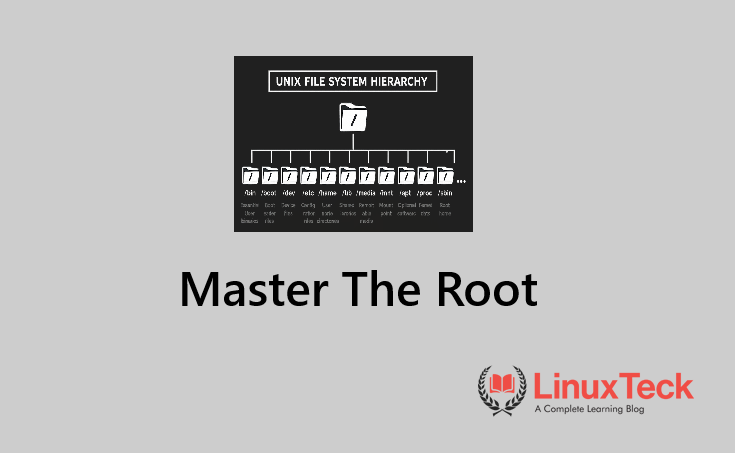
A simple way to think about the UNIX File System: all files, devices, and processes exist within a single root directory named
/.
Once you understand the purpose of each directory and why they exist, learning how to navigate any LINUX OR MAC OS environment will stop feeling like a guessing game.
Directories Covered
Root to Rule Them All
Standard Based
Design Still in Use
Why the Unix File System Feels Alien at First
Unix file system explained in a sentence: there is just One tree starting at the root directory /, and everything else lives underneath this single branch of the file system. Documents, binaries, USB drives plugged into your computer, running programs -- they are all part of the same branching structure.
New developers encounter confusion with the file system because most people have been taught to think about their files in terms of drives instead of paths.
When you open terminal on a Linux server for the first time and run the command ls /, and see a wall of folder names that look like an ancient cheat code. After you learn what each means, though, it starts to feel logical. It actually feels elegant. I'll show you exactly how the entire picture works out, from top to bottom.
Because this guide has been written as a result of my own hands-on work with Linux in actual production environments, rather than document every single item, I am going to describe exactly what happens to you when you are using your systems each day; and if you do something differently, or see it from an entirely different angle, please let me know that too.
Why Every Developer Needs to Understand This in 2026
Most of us use cloud-based infrastructure that relies on Linux. Containers like those in Docker rely on Linux. Your CI/CD Pipeline will likely run on a Linux environment. And while many programmers are now working directly on Macs, their file systems were derived from BSD Unix. As soon as we step away from simply coding locally and begin pushing code into production environments or attempting to debug issues remotely or creating scripts to be executed on servers anywhere in the world, we are going to have to navigate the Unix File System. This can't be avoided.
But by far most programming Bootcamps and University Courses either completely ignore this or make reference to it as an aside. Many students spend hours learning how to create a REST API, how to perform a SQL Query, how to commit changes to a Git Repository but few students are ever told where their node.js logging will end up /var/log,or why they should avoid placing their source files (like app.js) in /bin. If you want to quickly become comfortable with these concepts, I would recommend keeping our Linux Quick Start Guide for 2026 open next to this page. First though, let's go through each directory individually.
The Unix Directory Structure Explained, One Folder at a Time
Running the command ls / on any Linux-based operating system produces a list similar to the following: /bin, /boot, /dev, /etc, /home, /lib, /media, /mnt, /opt, /proc, /root, /run, /srv, /sys, /tmp, /usr, /var. Each of these directories has a well-defined purpose according to the Filesystem Hierarchy Standard (FHS). They were not placed there randomly. I'll explain each directory individually.
What is /bin in Linux?
/bin contains the most common commands that users have permission to execute once the file system is mounted; think ls, cp, bash, cat. As with all other types of commands stored within /bin, the use of this directory for essential user space commands was first popularized in Linux distributions using systemd. In many cases today, /bin and /usr/bin are symlinks to each other. Both represent the primary source of user space commands required for the system to function correctly. Never store anything manually inside /bin. For a better understanding of what type of commands are used in practice, check out my Basic Linux Commands Guide.
What is /sbin in Linux?
/sbin is essentially the administrative version of /bin. The files contained in the /sbin directory are system binaries that root or an authorized user will typically be executing. These include items such as reboot, fsck, ifconfig, iptables. When a normal user attempts to run one of these programs from /sbin without proper permissions, the program will fail due to insufficient access rights. As with /bin, many newer distributions of Linux utilize a symbolic link to /usr/sbin for /sbin.
What is /boot in Linux?
The /boot directory contains everything that the system requires in order to begin execution. These requirements include the Linux kernel image, the configuration of the bootloader (such as GRUB), and the initial ramdisk. When either this directory becomes corrupted or fills completely, it may prevent your machine from booting. Due to its intended size limitations, you should rarely need to interact with the contents of this directory directly.
What is /dev in Linux?
This one surprises almost every developer coming from Windows. /dev contains files that represent your hardware. Your first hard disk is /dev/sda. Your USB drive might show up as /dev/sdb. A null device that discards everything written to it sits at /dev/null. This is the Unix philosophy in action: everything, even hardware, is a file. See our article on 7 types of files in Linux to understand how deep this rabbit hole goes.
What is /etc in Linux?
/etc is the configuration hub of the entire system. Network settings, user account definitions, cron schedules, SSH config, package manager configs, service startup scripts. All plain text files. All editable. If you need to configure something at the system level, it lives in /etc. This is one of the most common places developers end up when debugging why a service behaves differently across environments.
What is /home in Linux?
/home is exactly what it sounds like. Each user on the system gets a subdirectory here. If your username is alice, your personal space is /home/alice. Your dotfiles, your shell history, your project folders, your SSH keys. All of it sits here. Your shell's ~ shortcut is just an alias for your home directory path.
What is /lib in Linux?
/lib stores the shared libraries that the binaries in /bin and /sbin depend on to run. Think of these like DLL files in Windows, but managed by the package system rather than scattered across your drive. If you're seeing "shared library not found" errors, this is usually where the problem traces back to.
What is /media and /mnt in Linux?
These two are often confused because they do a similar job. /media is where the system automatically mounts removable devices: your USB stick, an external hard drive, a CD-ROM. When you plug something in, the OS creates a subdirectory under /media and makes the contents available there.
/mnt, by contrast, is a manual mount point. When you as a sysadmin or developer want to temporarily mount a filesystem yourself, say an NFS share, a disk image, or a second partition you are inspecting, you mount it under /mnt. Simple rule: OS does it automatically via /media, you do it manually via /mnt.
What is /opt in Linux?
/opt is for optional, self-contained third-party software that sits outside the package manager. A lot of commercial applications, Google Chrome on some systems, JetBrains IDEs, some enterprise software, installs here. Each application typically gets its own subdirectory like /opt/google/chrome. Think of it as the Linux equivalent of Program Files, but without the chaos.
What is /proc in Linux?
/proc is a virtual filesystem. There are no actual files on disk here. It is a live window into the running kernel and all active processes. You can read /proc/cpuinfo to see CPU details, or /proc/meminfo for memory usage. Every running process has a directory under /proc named after its PID. This is how tools like top and ps gather their data. Explore our ps command examples if you want to dig further into process inspection.
What is /root in Linux?
/root is the home directory for the superuser account, also called root. It is separate from /home on purpose. Even if /home sits on a separate partition that fails to mount, root can still log in. That design choice has saved a lot of sysadmins from locked-out scenarios.
What is /run in Linux?
/run is a relatively modern addition that holds runtime data for processes started since the last boot. PID files, lock files, socket files. Everything here gets wiped on reboot, which is the point. It replaced several messy workarounds that different distros used to have scattered across /var/run and /tmp.
What is /srv in Linux?
/srv is meant to hold data that is served externally, such as files for a web server or an FTP server. In practice, a lot of sysadmins use /var/www instead, but /srv is the FHS-correct location. Some distros like Arch Linux use it by default for service data.
What is /sys in Linux?
Like /proc, the /sys directory is virtual. It exposes information about the kernel's view of hardware devices, drivers, and kernel features in a structured tree. Where /proc is more process-centric, /sys is more hardware and driver-centric. You will mostly encounter it when debugging kernel modules or writing udev rules.
What is /tmp in Linux?
/tmp is scratch space. Programs and users write temporary files here when they need somewhere to stash data briefly. On most modern systems it is mounted as a tmpfs, meaning it lives in RAM, not on disk, and gets cleared on every reboot. Do not use /tmp for anything you want to keep across reboots. Ever.
What is /usr in Linux?
/usr is one of the largest directories on the system. It holds user-space programs, their libraries, documentation, and shared data. It is read-only by design. Inside you will find /usr/bin for most application commands, /usr/lib for their libraries, /usr/local for software you compile and install yourself, and /usr/share for architecture-independent data like man pages and icons.
What is /var in Linux?
/var stands for "variable." Everything in here changes during normal system operation. Log files accumulate in /var/log. Mail queues sit in /var/mail. Package manager caches live in /var/cache. Application state data can go in /var/lib. When a server fills up its disk, /var/log is usually the first place to check. Our guides on the df command and du command will show you how to find exactly what is eating your disk space.
That is the core of the Linux directory structure. Every directory has a job and respects the boundary between system-owned space and user-owned space. Once that clicks, the whole tree makes sense.
In In Unix, there are no "drives." There is only the "tree" of directory hierarchies. The quicker you can stop thinking about C:\ and start studying the directory paths (and thus learning the tree) the quicker most other things in Linux will start making sense.
LinuxTeck Editorial
Walking the Tree: How the FHS Organises the Unix File System
I'll take you through the basic logic to understand how the FHS filesystem hierarchy standard organizes the root directories into three levels. Understanding the levels may be more helpful than trying to remember each path individually.
-
01
Static System LayerThe OS owns this space — hands offDirectories like /bin, /sbin, /lib, /boot, and /usr are managed by the package manager. You do not manually add things here. When you install nginx via apt or dnf, these directories get updated automatically. The rule is simple: if the package manager did not put it there, it should not be there.
-
02
Configuration and User LayerWhere you and the admin work/etc is where you configure the system. /home is where users keep their personal files. /opt is where you put software that lives outside the package manager. /mnt and /media are where additional filesystems get attached. This is the layer where real daily work happens.
-
03
Volatile Runtime LayerThe directories that breathe and change constantly/var, /tmp, /run, /proc, and /sys are in constant motion. Logs grow. PIDs change. Runtime state is written and discarded. These are the directories you watch when debugging a live production issue. Our Linux logging best practices guide covers what to look for in /var/log specifically.
-
04
Hardware Interface LayerThe "everything is a file" proof/dev, /media, and /sys expose physical and virtual hardware as filesystem paths. This is the part of Unix that most dramatically separates it from Windows. Reading from a file path is the same API for reading from a disk, querying a kernel parameter, or discarding output into a void. One interface, everything.
While the FHS is merely an accepted practice; it's actually an agreed-upon contract between all of the major Linux tools, packaging managers, init systems, etc., which allows them to know where to find any data or executable files across any compliant systems. Systems which adhere to the FHS are reliable & predictable. Those which do not follow the FHS create problems.
But Windows Drives Are More Intuitive, Right?
I will give this argument the respect it deserves; there is some truth to what many developers have found (as well as the developer that developed this) are more easily understood than Windows-style drive letters. Developers can use drive letters like this, C:\ for your system files, D:\ for all other files, E:\ for any removable drives. All of these different storage devices become individual entities that can be seen and labeled. That makes sense from a perspective of seeing something and pointing at it. This is very much less abstract than trying to understand how paths work from scratch.
The strongest form of this argument is: "Device separation is simply more conceptual than purpose-based separation." There is some merit to this within a strictly educational/learning context.
However, this advantage that using drive letters has over using directories in terms of abstraction completely dissolves once you get beyond learning. On a Linux server with 4 hard drives, a RAID array, multiple NFS mounts, a tmpfs mounted into memory, and a network block device, you don't want 6 drive letters. Instead, you would prefer a single consistent naming space so that /data ALWAYS refers to /data, no matter if this week /data happens to sit on one or another of the above-mentioned physical disk(s). Your scripts shouldn't require updates every time you swap out hardware. The path name should remain constant. In my opinion, this is worth the small amount of time it takes to learn.
When the Single-Root Model Gets Complicated
START_TEXT While we cannot argue that the Unix directory structure does not fit all scenarios in terms of reducing friction, there are many examples where using this type of directory structure increases friction instead of decreasing it.
-
→
Containerised environments blur the lines. Inside a Docker container, you might have a minimal root filesystem with none of the usual subdirectories. The FHS was designed for full systems, not for stripped-down container images that ship only what they need to run one process. Developers new to containers sometimes try to apply full FHS logic to a container and end up confused by what's missing. -
→
Snap and Flatpak packages break the traditional structure. These newer package formats deliberately isolate themselves from /usr and /lib, mounting their own sandboxed filesystems. The FHS is still the base, but these apps deliberately step outside it. That is intentional, not a bug, but it does mean the old mental model needs updating. -
→
Embedded and IoT Linux systems often skip large parts of the tree. A router running OpenWrt or a device running a minimal Linux kernel may have a root filesystem with only a handful of the standard directories, usually lacking /home, /opt, and parts of /usr entirely. The FHS is a guide for general-purpose systems. Specialised systems adapt as needed.
While these examples do not detract from the fact that learning about the basic directory structure will provide a strong foundation to build upon, understanding why various directory structures vary from the basic directory structure can be better understood by having knowledge of the basic structure. If you have plans to use containers (specifically Docker), then after learning about the basic directory structure your next best resource should be our Docker command cheat sheet.
What I Would Tell You Based on Where You Are Right Now
👶 Brand New to Linux
Do not try to memorise all 22 directories at once. Start with five: /home, /etc, /var/log, /tmp, and /usr/bin. Those cover 80% of what you will touch in your first year. Pair this with our Linux commands for beginners guide and you will have real footing.
🔧 Junior Developer or CS Student
Start using the tree actively. Run ls / and ls /etc and ls /var/log on any Linux machine you can get access to. Look at what is actually in there. Learn the find command so you can locate files by path, and the cat command to read config files under /etc. Theory sticks when you pair it with exploration.
🚀 Moving into DevOps or Cloud
Go deeper on permissions and ownership now, not later. Understanding who can read and write to which directory is foundational to security hardening, container volume mounts, and Ansible playbooks. Our chmod guide and server hardening checklist are the next logical steps from this article.
Unix Directory Quick Reference
Below is a clean one-line reference table providing information regarding each of the primary directories and their ownership, as well as which files/directories will remain intact if you were to power off or restart your server.
FHS DIRECTORY REFERENCE
| Directory | Purpose | Owned By | Survives Reboot |
|---|---|---|---|
| / | Root of the entire filesystem tree | System | Yes |
| /bin | Essential user commands (ls, cp, bash) | Package manager | Yes |
| /sbin | Admin-only system binaries (reboot, fsck) | Package manager | Yes |
| /boot | Kernel, bootloader, initrd | System | Yes |
| /dev | Device files (disks, USB, null) | Kernel / udev | Regenerated |
| /etc | System-wide configuration files | Admin | Yes |
| /home | User home directories | Users | Yes |
| /lib | Shared libraries for /bin and /sbin | Package manager | Yes |
| /media | Auto-mounted removable devices | System (auto) | No |
| /mnt | Manual mount point for sysadmins | Admin | Depends |
| /opt | Self-contained third-party software | Admin | Yes |
| /proc | Virtual FS: kernel and process info | Kernel | No (virtual) |
| /root | Superuser home directory | root | Yes |
| /run | Runtime state since last boot (PIDs, sockets) | System | No |
| /srv | Data served externally (web, FTP) | Admin | Yes |
| /sys | Virtual FS: hardware and driver info | Kernel | No (virtual) |
| /tmp | Temporary files, cleared on reboot | Everyone | No |
| /usr | User-space programs, libraries, docs (read-only) | Package manager | Yes |
| /var | Variable data: logs, caches, mail, app state | System / Apps | Yes |
My Verdict
The whole Unix directory tree has been traversed, we've addressed each of the three levels that the File Hierarchy Standard (FHS) organizes it into, we've identified the limitations of honesty, and we've provided guidance as appropriate based on your stage in the journey. And so here is what I am left with for the person sitting at their computer wondering what they should do next.
Who This Guide Matters Most For
The practical benefits from an understanding of the Unix file system vary by user role. These are how I see them applying across various job titles.
💼 New Software Engineers
The directory tree is the map you will use every time you SSH into a server, debug a deployment, or read a log file. Not knowing it is like trying to navigate a city without knowing what streets are. Read our Linux fundamentals guide as a companion to this article.
🖥️ CS Students and Bootcamp Grads
Most courses teach you to write code. Few teach you the environment the code runs in. Understanding /var/log and /etc at interview time signals real server-side experience, not just classroom knowledge.
⚙️ Developers Moving into DevOps
Ansible, Terraform, Docker volume mounts, systemd unit files — all of it assumes you know where things live on a Linux system. The file system knowledge you build here directly shortens your DevOps learning curve. Check our Linux file system comparison guide when you are ready to go deeper on underlying filesystem types.
The Tree Is Not Confusing — It Just Needs a Map
To many developers, the first experience of the UNIX File System is similar to having an entire city you are familiar with (with its own streets, grid, etc.) suddenly changed into a new city that uses entirely different street names and lacks both GPS navigation and a numerical grid. This unfamiliarity will quickly fade once you become accustomed to the logical design structure used by the UNIX File System. It doesn’t have anything to do with changing the structure of the File System itself; instead, it has everything to do with your understanding of why it was structured in such a way.
The File Hierarchy Standard (FHS) is a long-standing set of guidelines that define how a UNIX-based File System should be structured. It’s effective at what it does. System tools don't reside in the same directory as user-created files. Configuration items can't reside within the same directory as binary executable files. Volatile data (temporary, non-persistent data), resides in a separate area from non-volatile data (persistent). Once these three basic divisions are identified, the remainder of the directories tend to fit into their respective areas fairly easily.
So simply put, learning about the UNIX File System comes down to several core elements: One "root" level directory, a handful of well-defined rules/principles and standards widely followed by all major distributions of LINUX. Identify the top 5 directories involved in daily tasks/operations and learn about the remaining directories as you need to. You’ll likely develop a solid working knowledge of the UNIX File System much sooner than you might think. Next, we recommend reading our Linux Commands for Beginners tutorial and/or our ls Command Tutorial, since this is typically where users start exploring. Thank you for taking the time to read our UNIX File System overview. Please feel free to leave any comments or questions regarding our article.
For the complete official specification, the Linux Foundation FHS documentation is the authoritative reference. For a deeper look at file types and permissions within this structure, the GNU Coreutils manual covers the tools you will use to interact with every directory here. On LinuxTeck, see our guide on Linux fundamentals and our shell scripting cheat sheet for companion reading.
LinuxTeck — A Complete Learning Blog
LinuxTeck covers the full Linux stack — from foundational concepts like the Unix file system and
Linux fundamentals
to advanced system administration, Bash scripting,
SSH hardening,
performance tuning, and
DevOps automation.



